Products


AI Platform


Asana Foundations
Company Type

Visit our pricing page for more information.
Teams are subsets of people in your organization who collaborate on projects together. Each team has its own members, admins, projects, messages, and calendar.
Users who join an organization are not automatically added to teams within that organization; users can create or join exisiting teams within the organization. An organization member can belong to multiple teams simultaneously.
If you're a member of an organization, you will find two lists of its teams in the sidebar. The first is the teams you are a member of, and the second is teams you can browse, join or request to join.
If you are an organization member with access only to a specific project, your sidebar will contain a list of teams you can access. Members with access to a particular project cannot see any other teams in the organization.
If you do not see teams in the sidebar, you may be in a workspace instead of an organization. Learn how to create and organization here.
Note
Discover setup tips for teams in the forum.
Team pages enhance collaboration and information sharing within teams. The team page aims to streamline team communication, improve visibility into team activities, and provide a centralized hub for team resources.
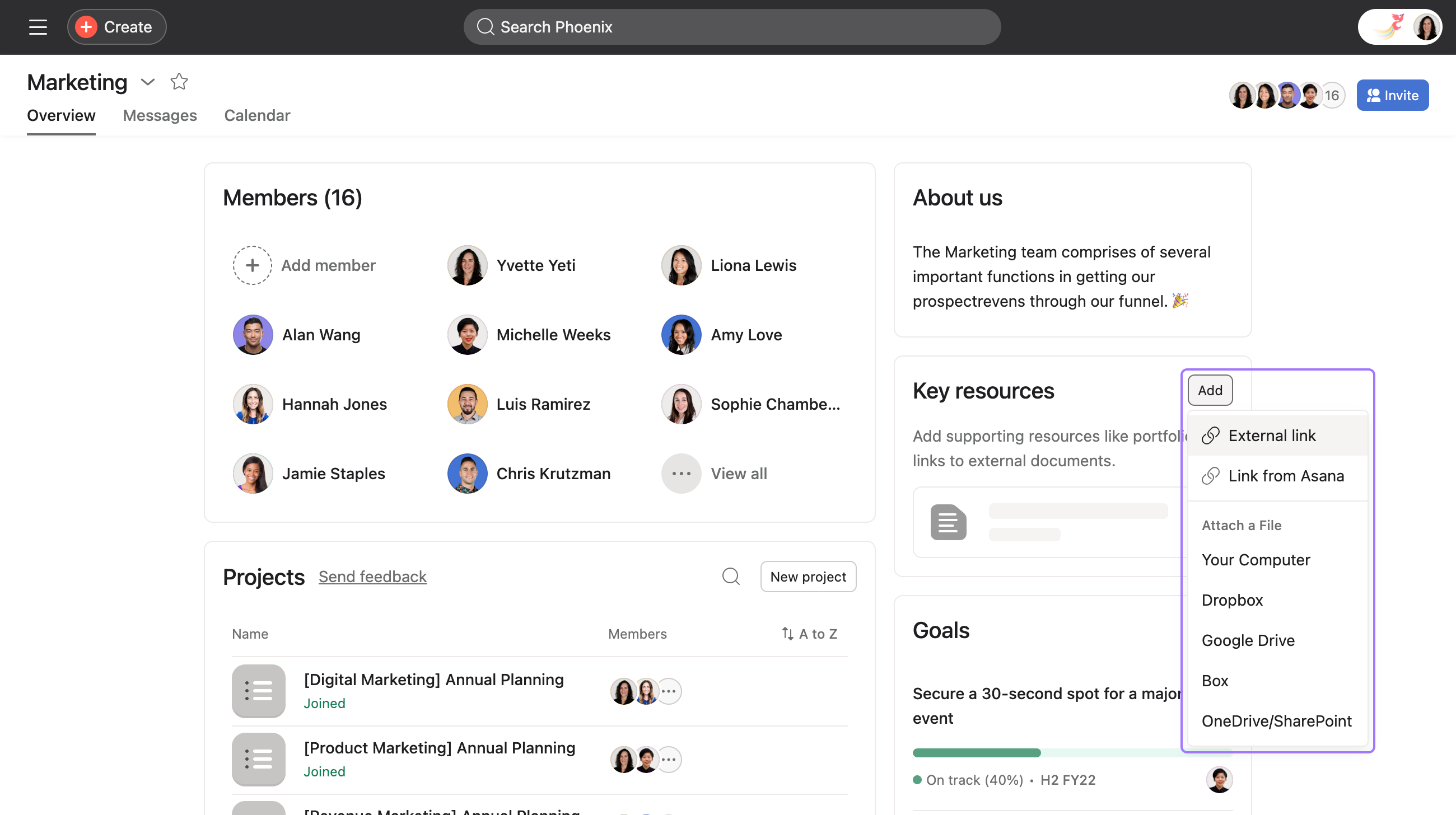
Team pages allow teams to organize work and tie together different types of work into one place by adding links to work such as portfolios, projects, templates, forms, and external links, or by attaching files. Additionally, team identity customization and a the tab permit a smooth navigation experience.
The team page is a central location where you can access your team's work. There are four tabs on the team page: Overview, All work, Messages, and Calendar. You can also add new Notes tabs to the team page.
You can set which tab is the default landing tab for your team.
Previously added data, such as projects or templates can be found under All work.
From the Overview tab, you can:
Private work that is added to the team page will not automatically be shared with team members. Only people with existing access to that work will be able to see it.
Customize how your team's name appears by choosing a color or a custom icon.
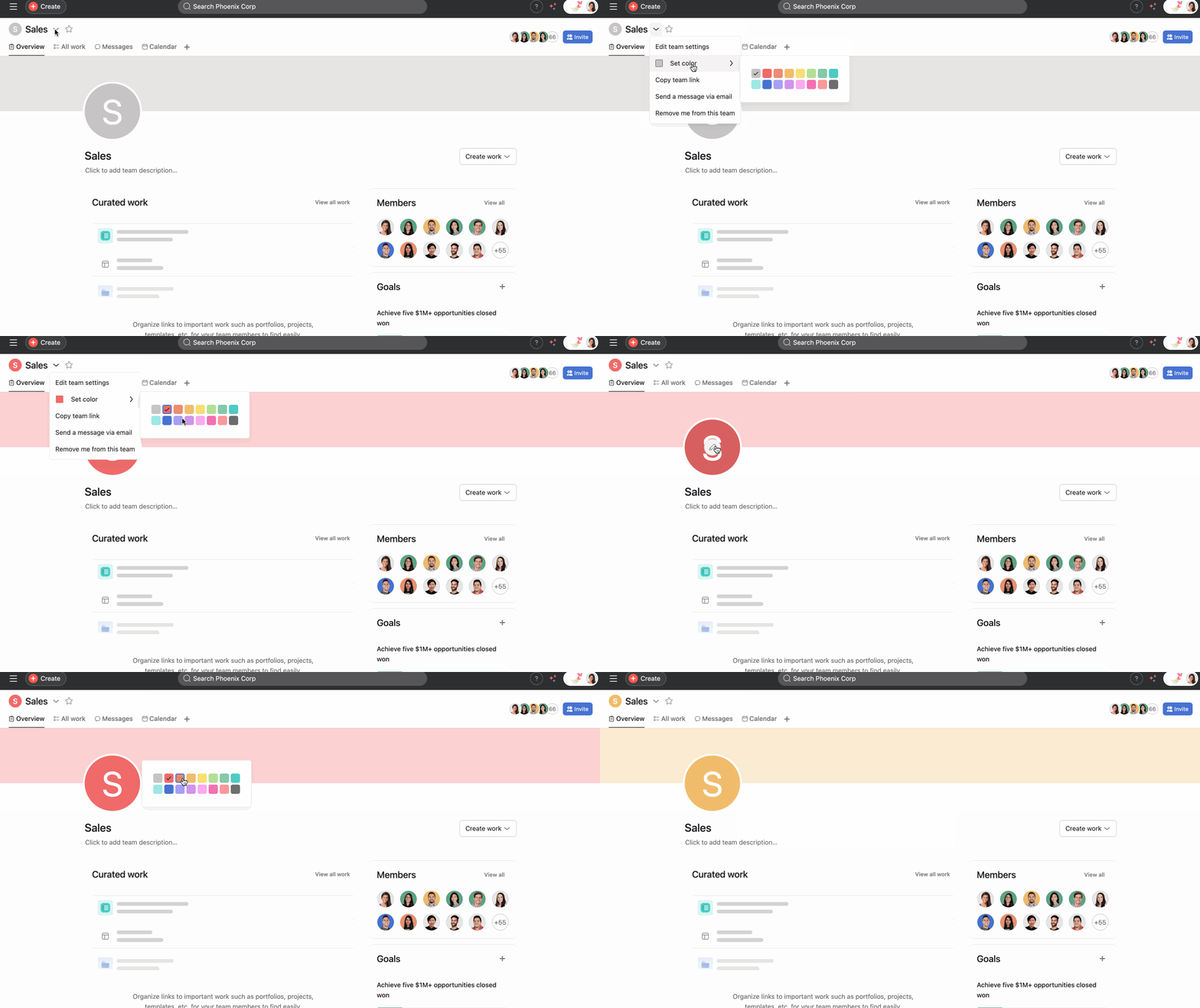
To add a custom icon, click the pencil icon on the team icon and click Upload image. The icon will be visible from the team page.
Projects that are shared with or owned by the team and project templates can be found under All work.
Team notes allows you to flexibly add and customize multiple notes tabs within your team page. Use this tab to document your team’s onboarding process or workflows, consolidate essential information, organize external links, jot down ideas, and more.
To add notes view to your team:
You can rename the notes tab itself if you wish by clicking on the Note tab or set it as the default landing tab.
We recently updated permissions on membership by request teams to restrict note/file attachment access to members only. We made this change in preparation for the release of new sharing options on notes.
No, the update to Team Pages is a permanent change aimed at improving team collaboration. However, we welcome your feedback to help us continually improve the feature.
By default, all team members can edit and contribute to the team page (which includes the team name, the content on the page, and the structure). Team admins can choose to adjust the permissions so that only team admins are able to edit, in which case other members can view and interact with but not edit the page.
Anyone with the permissions to edit the team page can add custom sections by clicking the Add Section button in the ‘Curated work’ section in the ‘Overview’ page of the team page.
The Projects section displays the projects associated with your team.
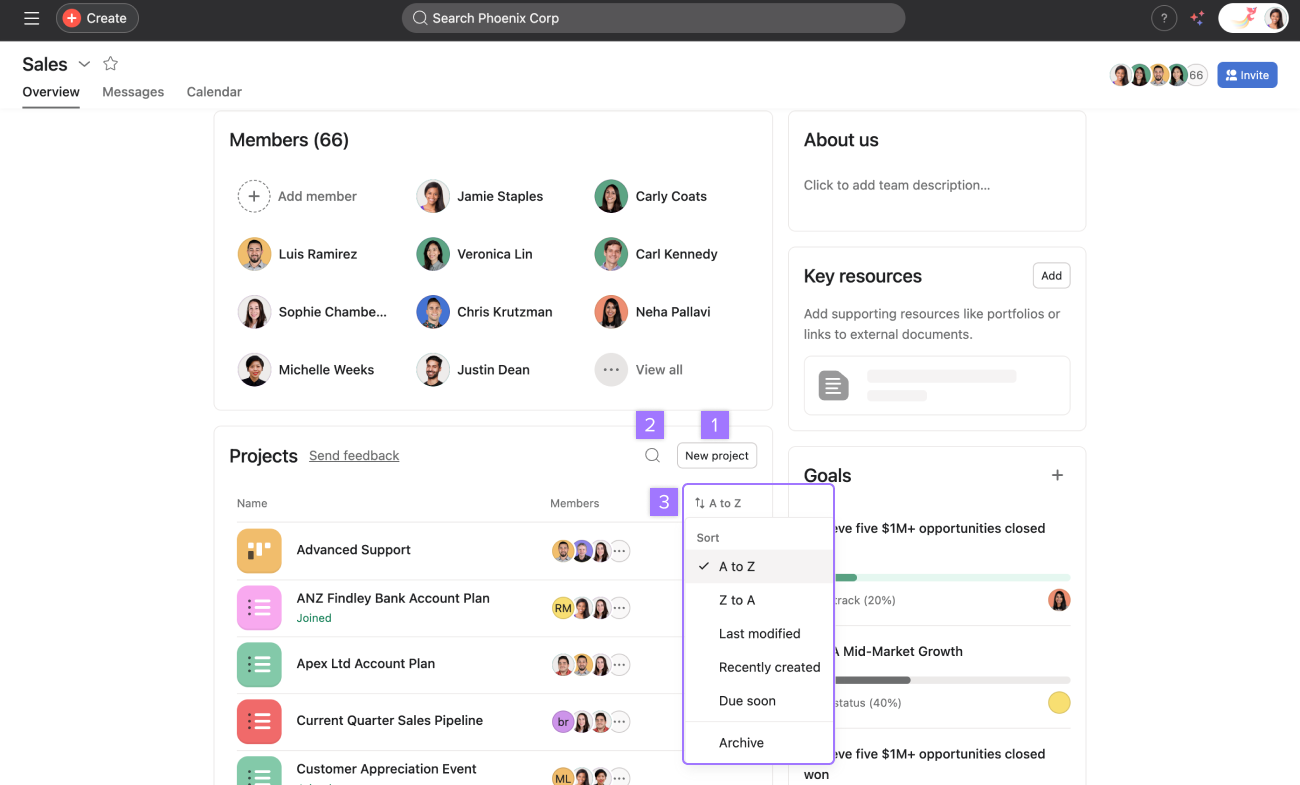
The ordering of this list dictates the projects that are displayed in the team flyout menu in the sidebar.
You can pin important projects to the top of your list for quicker access.
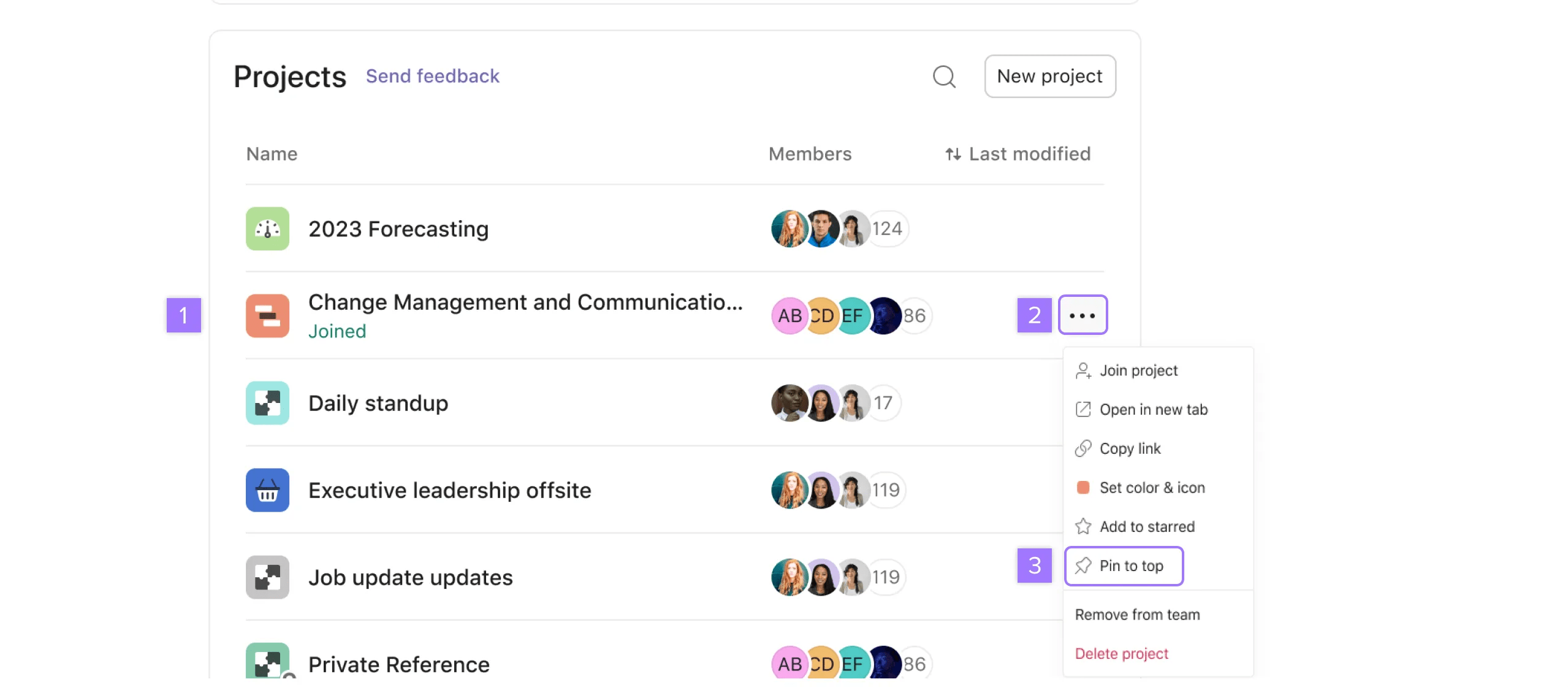
To remove a pin, click the three dot icon and select Remove pin.
Only "pinned" projects can be manually re-organized.
If you are managing a large number of team projects, use portfolios to organize and track them in one place.
The order of your pinned projects will show up on the team flyout in the sidebar.
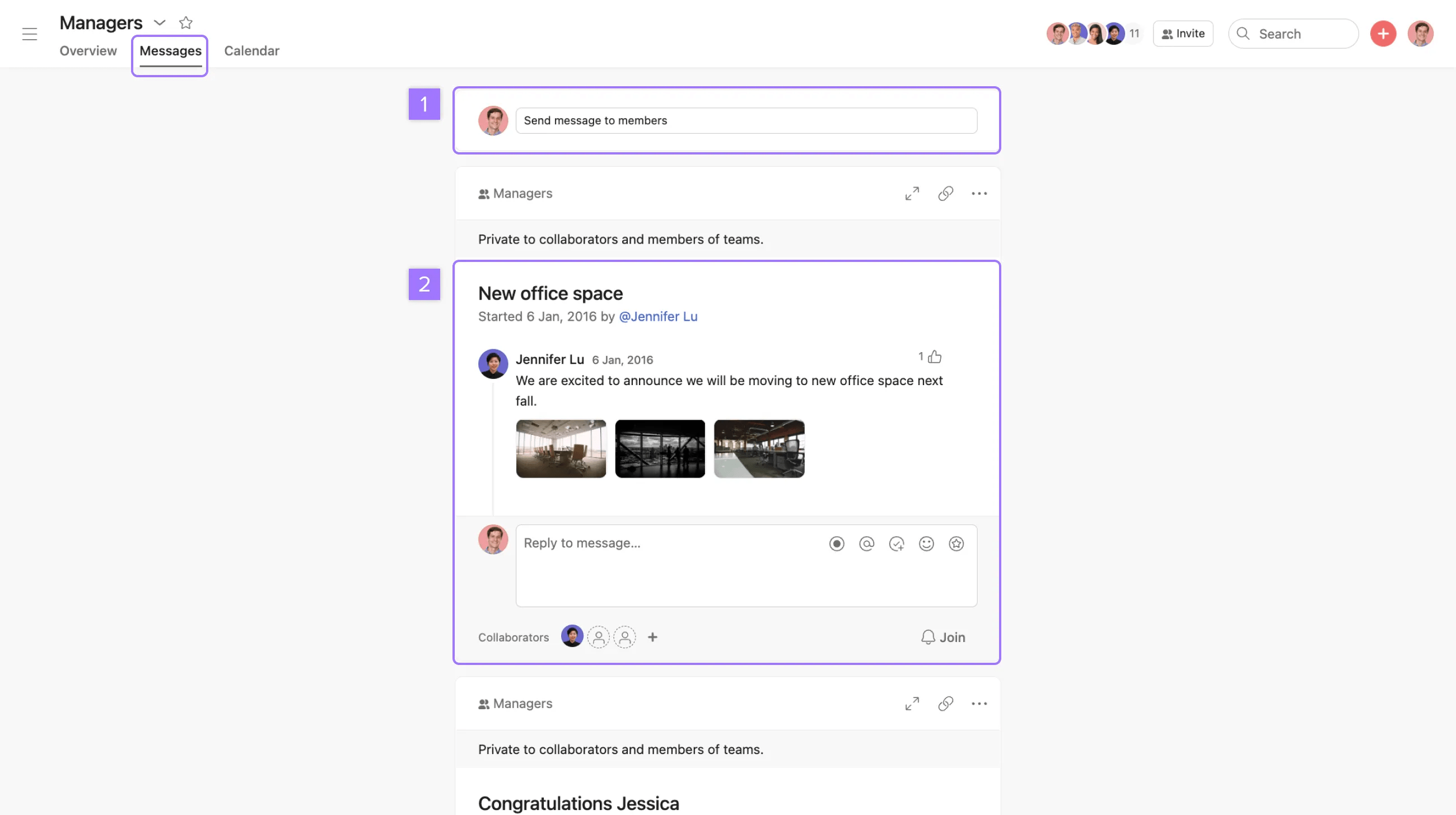
Use messages to share team-wide announcements, celebrate major accomplishments, or talk about multiple projects at a time.
Team calendars display tasks from all of your team's projects. They are a great way to stay informed on what your team is working on for the days and weeks ahead.
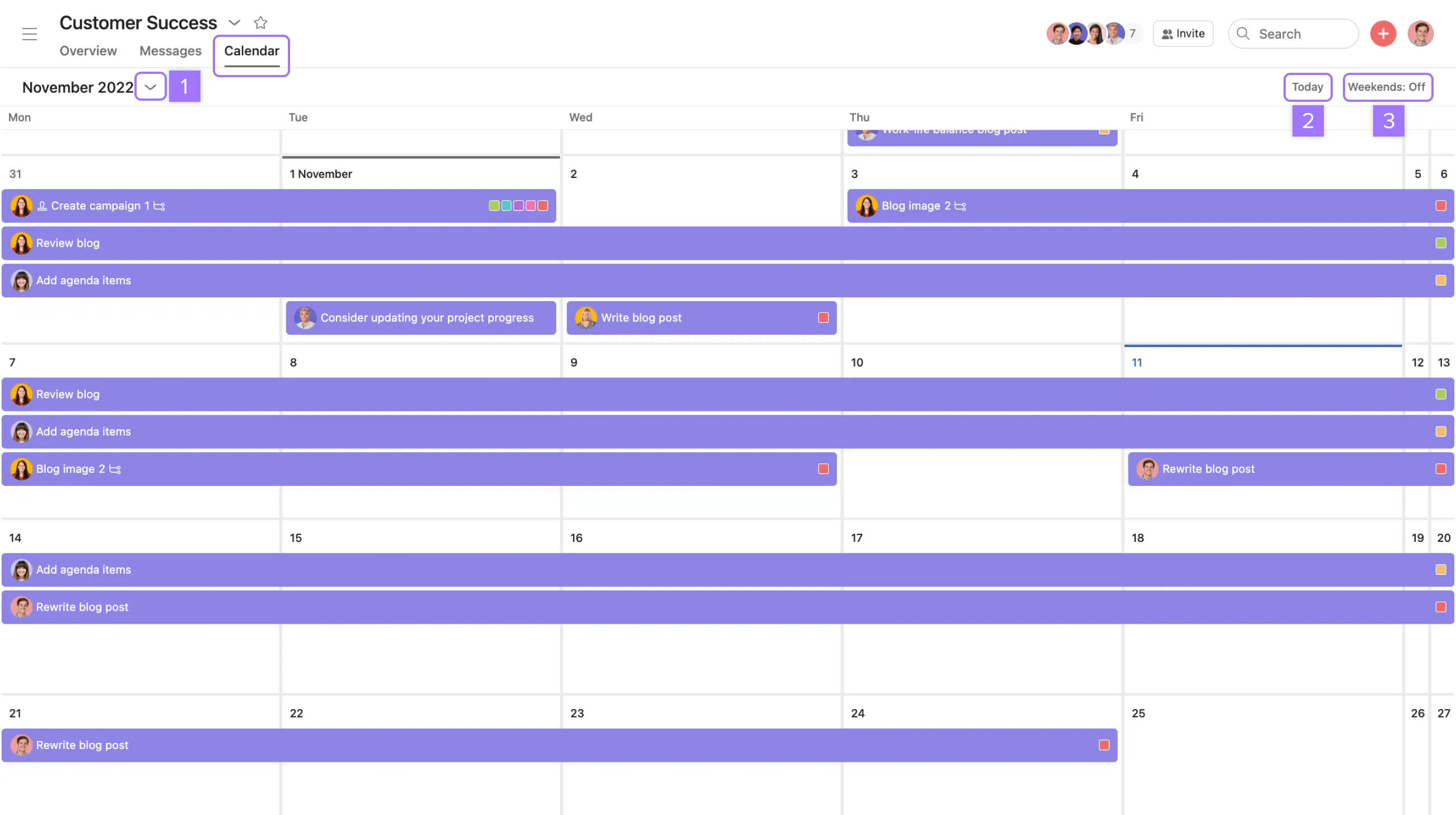
Team calendars are read-only, and tasks cannot be added to them. Add tasks to a project to make them appear in the team's calendar.
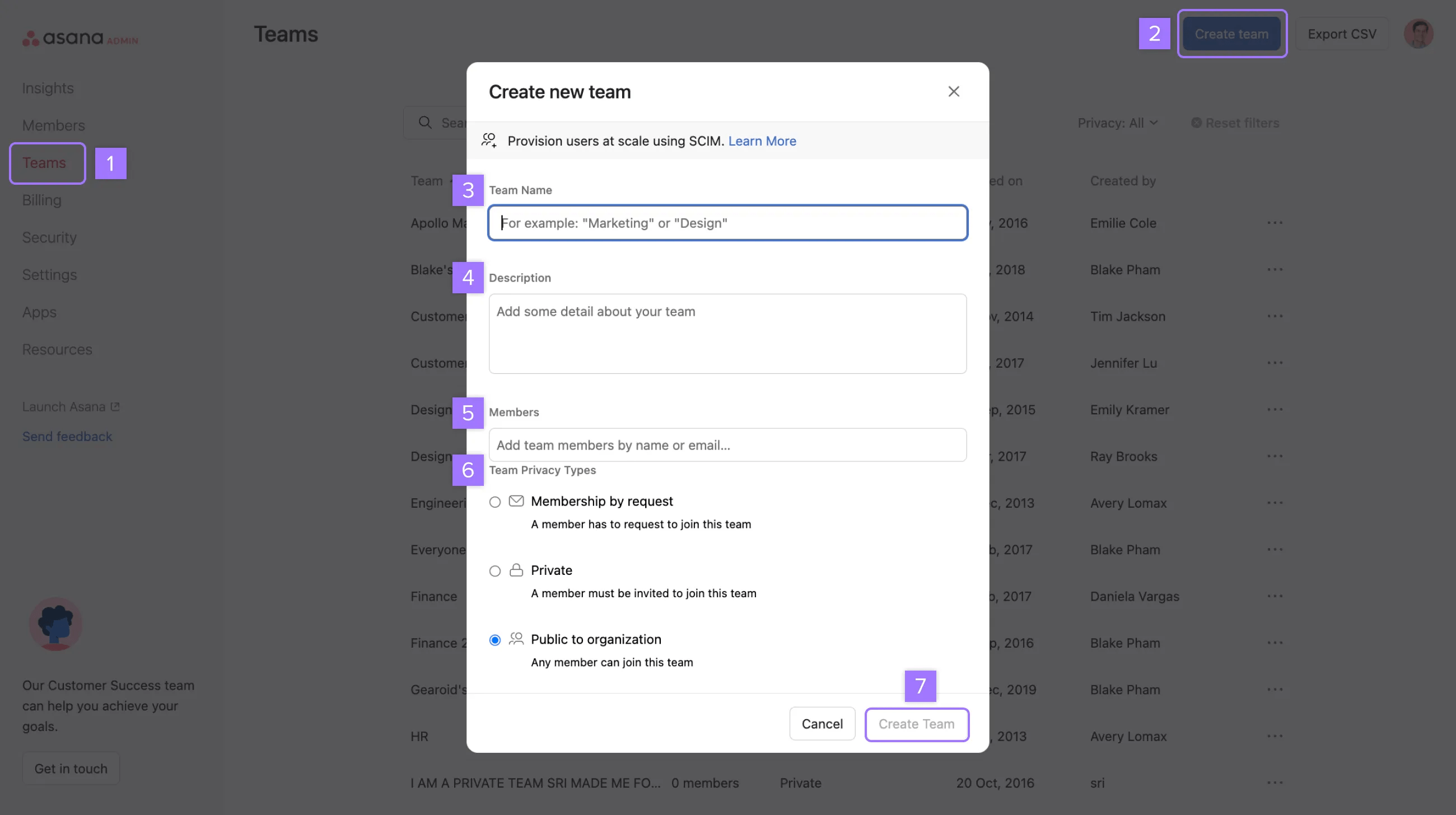
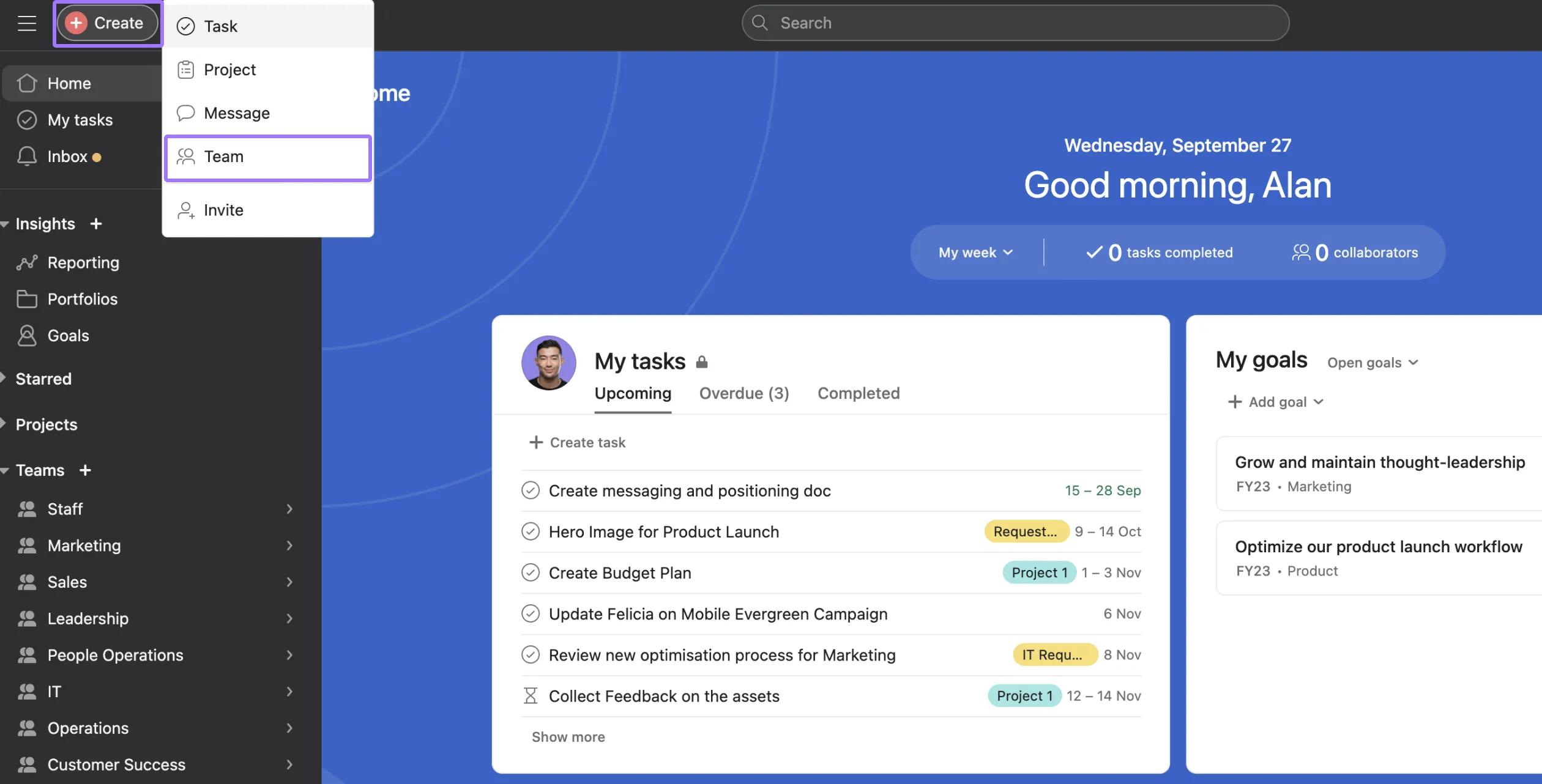
Create a new team to begin collaborating with your colleagues in an organization.
You can do this from your admin console, sidebar, or quick add button.
Invite multiple people to a team at once by copying email addresses from a CSV file and pasting into the invite window.
Fill out all the fields in the pop-up window and click Create Team
When you create a team, you will automatically be made into the team admin for that team. After creating the team, you can always adjust the team's permission settings.
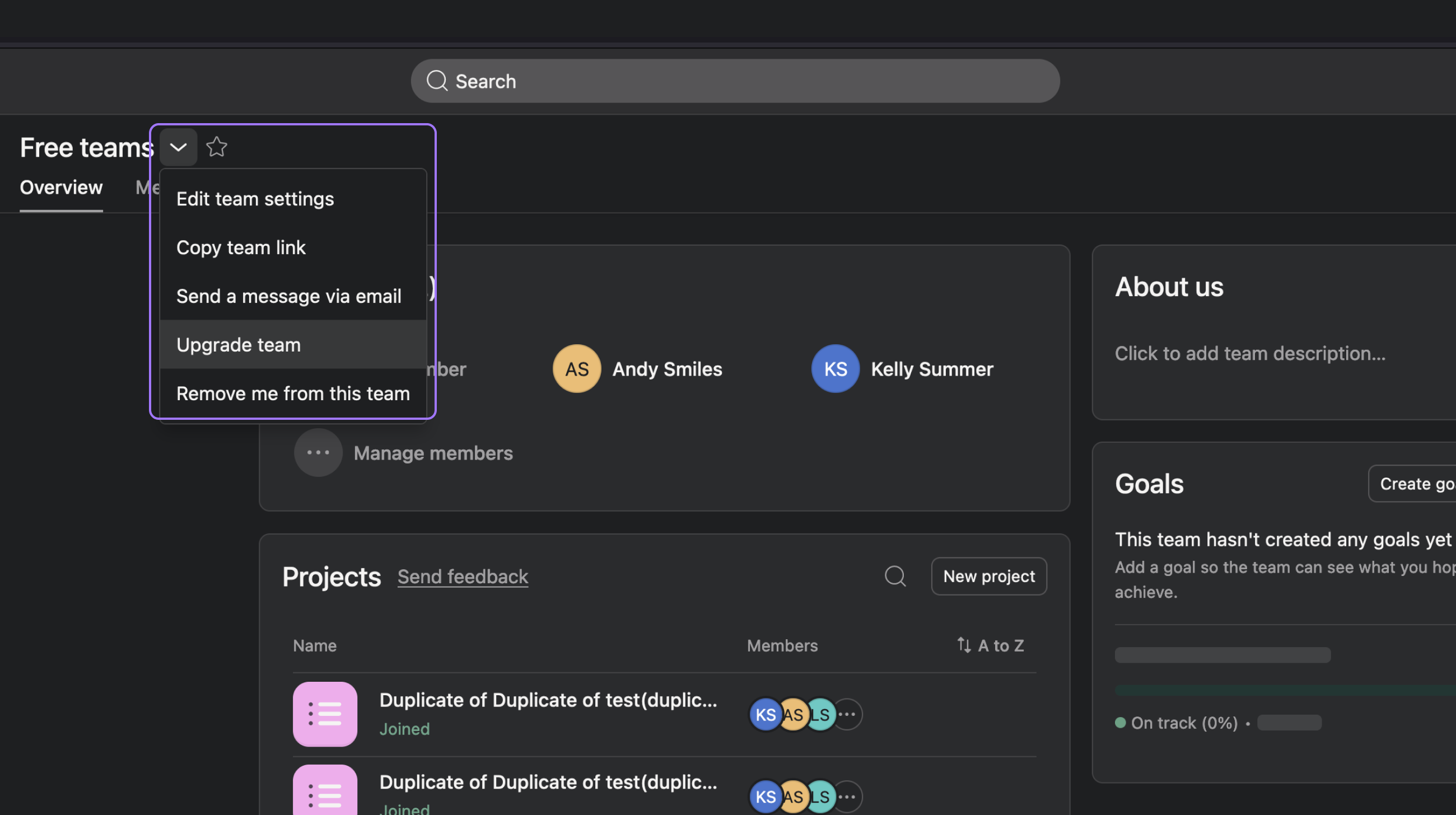
You can upgrade a team by accessing the team's page.
If the team you select is already part of your current paid division, you should remove this via the Admin Console before upgrading.
You can search for other teams in your organization using the search bar and request to join if you want to access the team's projects and collaborate with other team members.
You can also get an invite to a team via an email or a shareable link.
After requesting to join a team, an existing team member will need to approve your request. For public teams, you will be automatically added without approval.
By default, all current team members will receive an email notification for requests to join the team, and any member can click through to approve. However, a team admin can limit these email notifications to only go to team admins.
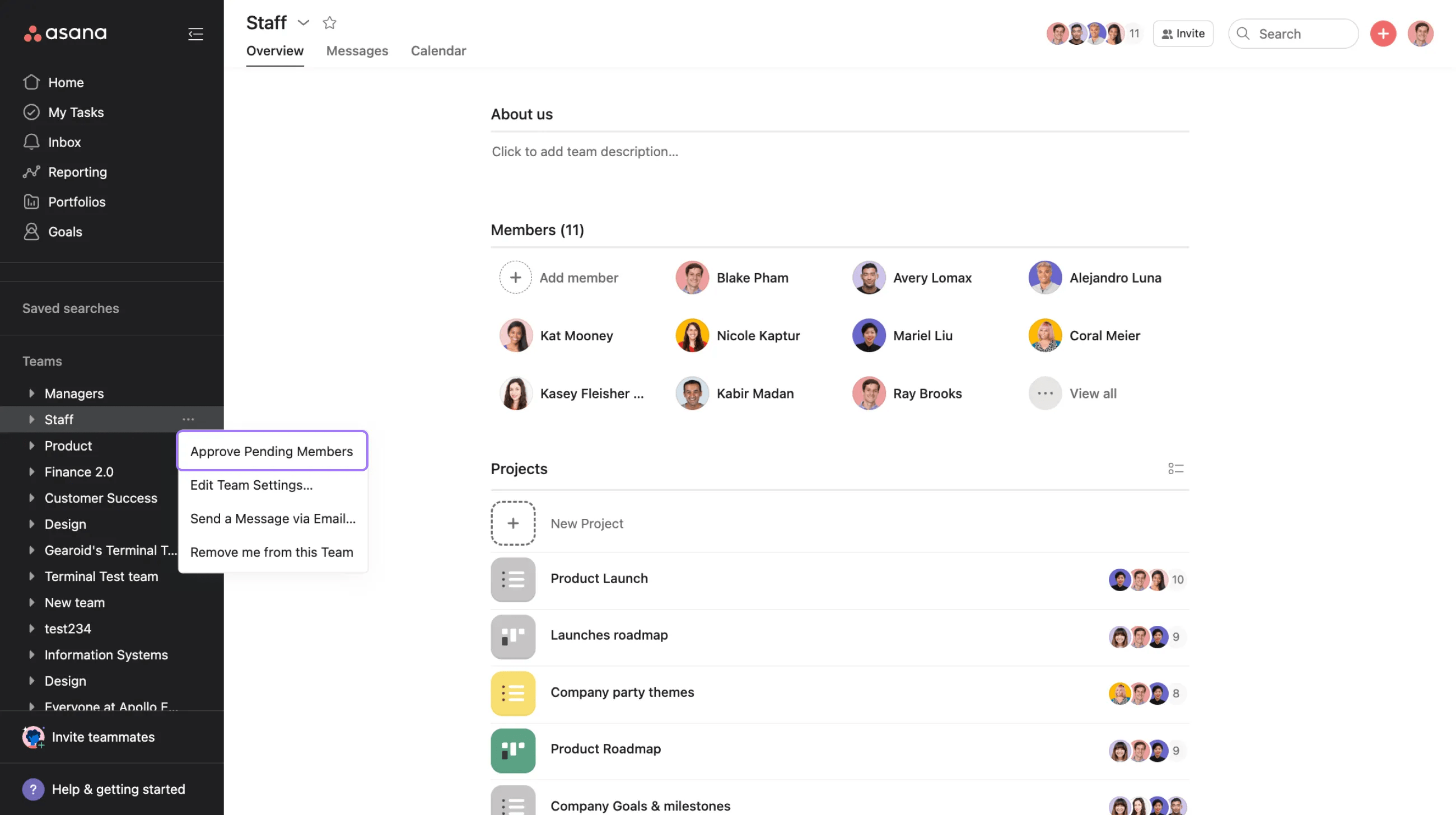
Click on the three dot icon next to the team's name and select Approve Pending Members.

From the Member Requests window, you can select Approve or Deny next to any person's name.
Organization guests cannot search for other teams they're not a member of.
Access your team's settings to change your team’s name, adjust permissions, manage team members, change approval notifications, or delete the team.
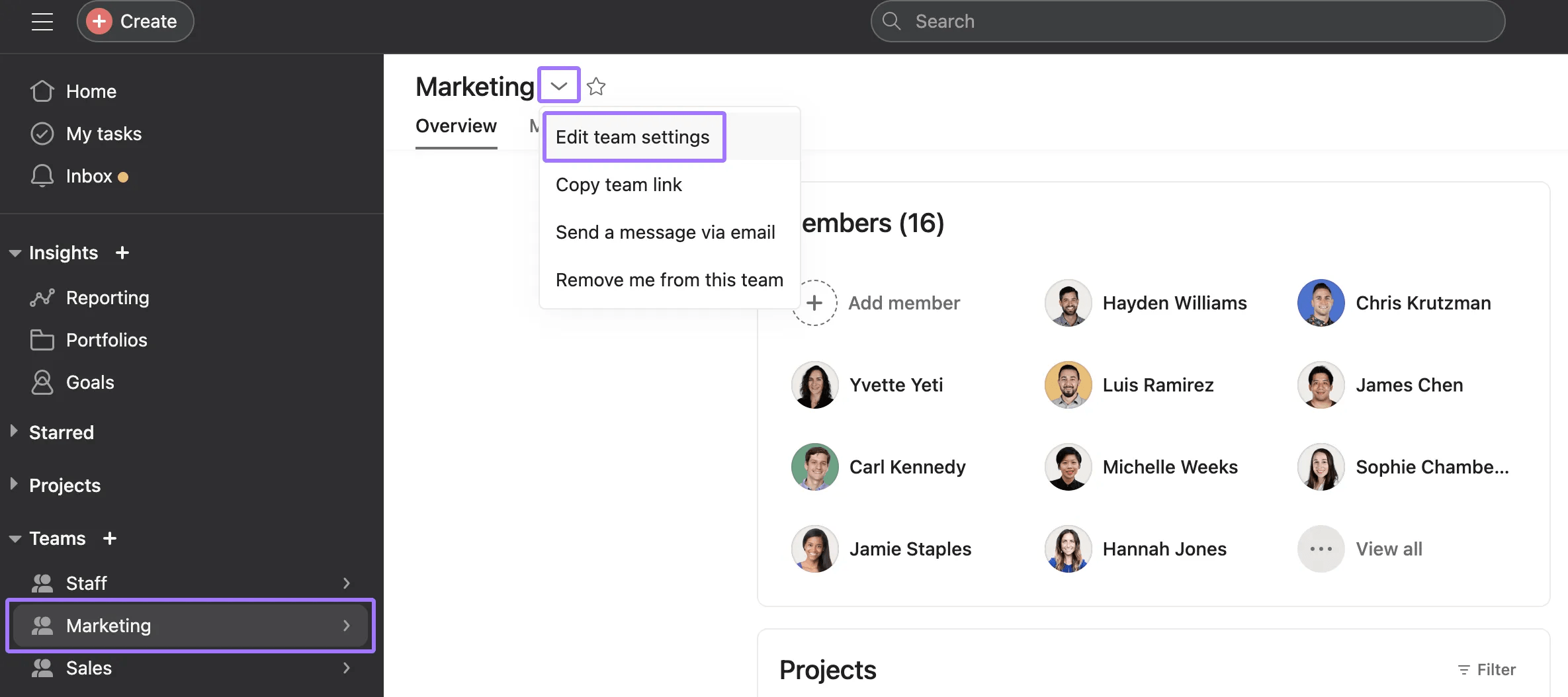
Only team members can access the team settings.
The team settings window has 3 tabs:
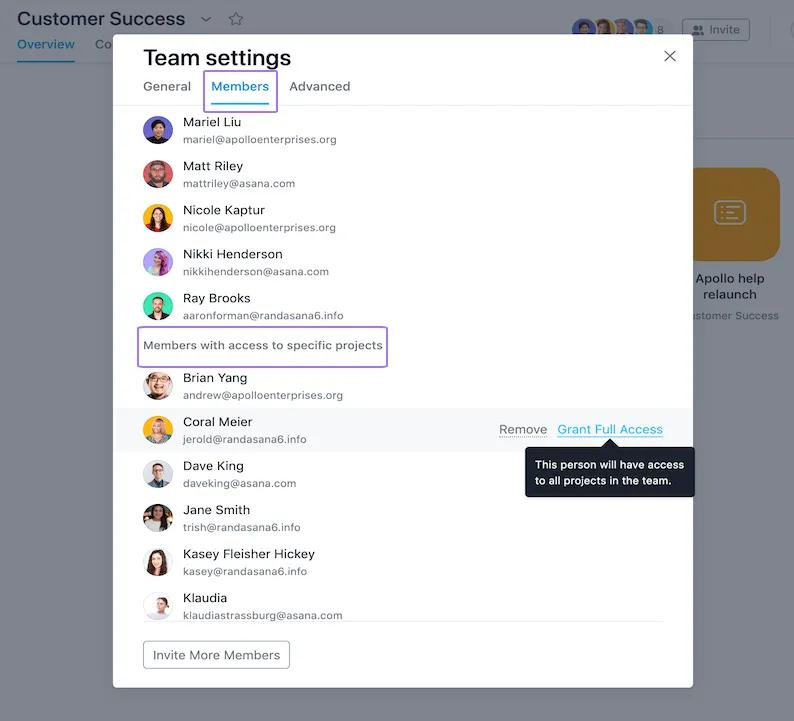
As a team member, you can:
A team admin can restrict some of these team member abilities. Learn more about team admin controls here.
When members are removed from a team in an organization they will still have access to their assigned tasks. Only when they are removed from the organization are their tasks put into a project for the admin.
Note that the setting Who can create and share work with the team? is only available on Enterprise and Enterprise+ plans.
If the team you want to delete is part of a division, it must be removed from the division before it can be deleted.
If a team is deleted, every team member will receive an email notification of the deletion. The person who deleted the team will receive a recovery link.
If you're using Asana Goals, please ensure that any goals assigned to the team are reassigned to another appropriate team before deleting the team. This will allow you to filter the goals using the newly assigned team for easier navigation.
Deleting a team will remove all of its projects, including those with varying privacy settings, such as private to members, which might not be visible to you.
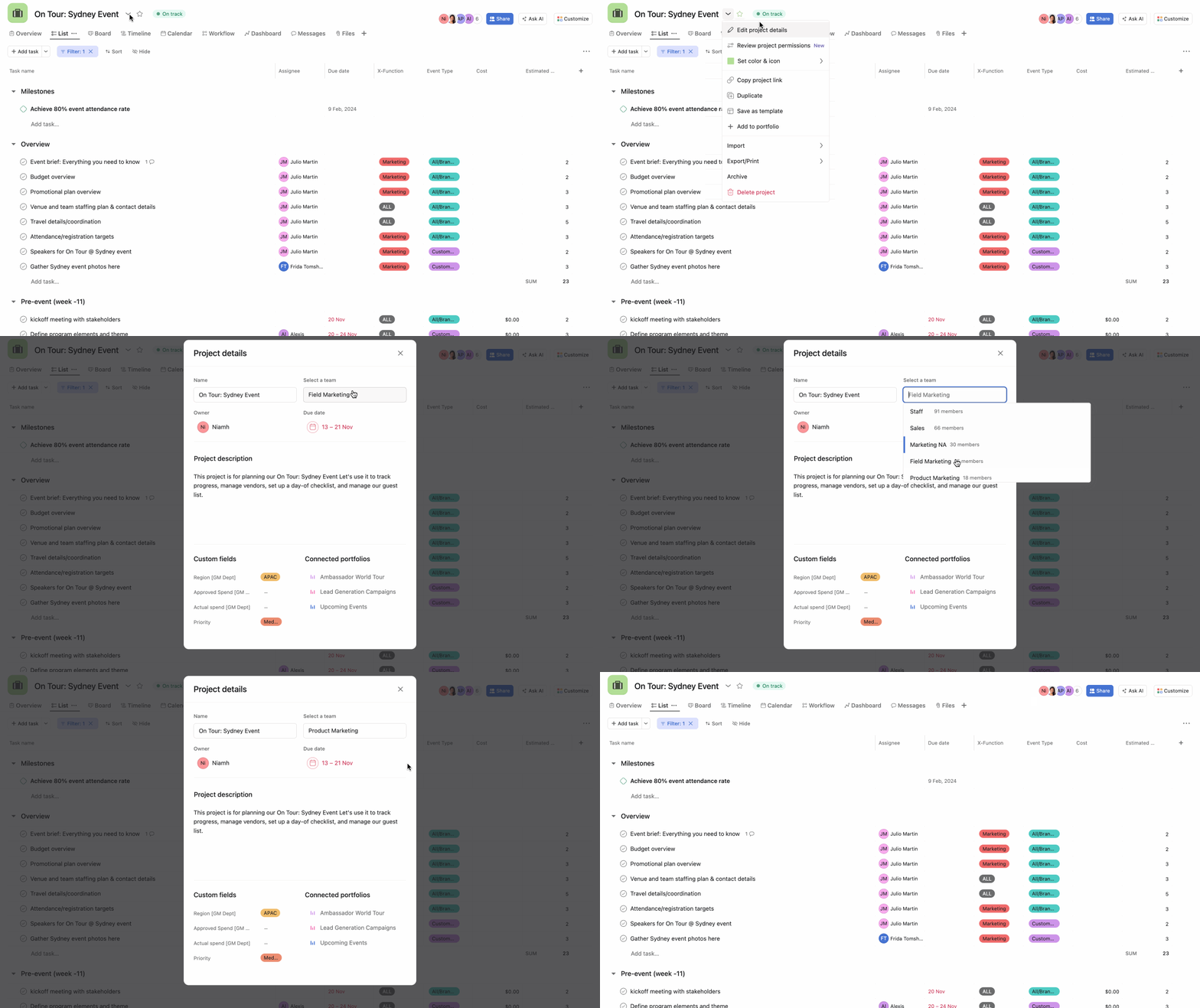
You can only move a project to teams you're a member of.
Like what you see? Get started with a free Asana trial today. Try for free.