Products


AI Platform


Asana Foundations
Company Type
No articles found for this topic.
No articles found for this topic.

Visit our pricing page for more information.
Available on Asana Advanced, Enterprise, and Enterprise+ tiers, as well as legacy tiers Business and Legacy Enterprise.
Visit our pricing page for more information.
Portfolios help you organize and view related projects in one place. In this article, we'll focus on how you can customize your portfolio view to track project progress efficiently. You'll learn to apply filters, sort and manage custom fields, view milestones, and use portfolio timeline.
The portfolio list view shows a list of the projects and portfolios within the main portfolio. From the list view you can see each object's owner, priority, rollups, status, due date, and either task or milestone progress.
Adding custom fields to your portfolio will allow you to report on project-level data and help you track the progress of your work. You can add, hide, or remove custom fields from your portfolio.
Click the Customize menu to add and manage your custom fields, or click the + button next to the last custom field to add a new one. You can hide custom fields by clicking the drop-down arrow next to the custom field title and select Hide column or remove them by clicking Remove field from portfolio.

Milestones show key events and map forward movement in the project plan. They act as signposts throughout your project, helping ensure you stay on track.
To view milestones, click Options, select Show/hide columns, and toggle on Milestone progress.
A maximum of 12 milestones can be displayed in your portfolio view before the list becomes truncated.
Filtering and sorting are effective ways to quickly find the information you need by organizing it in a meaningful way.
If there is a specific way you and your team prefer to sort portfolios, you can save it as the default view for everyone.
From the Sort button in the project view, you can sort by a range of custom field options. You can categorize, prioritize, and sort based on your particular needs.
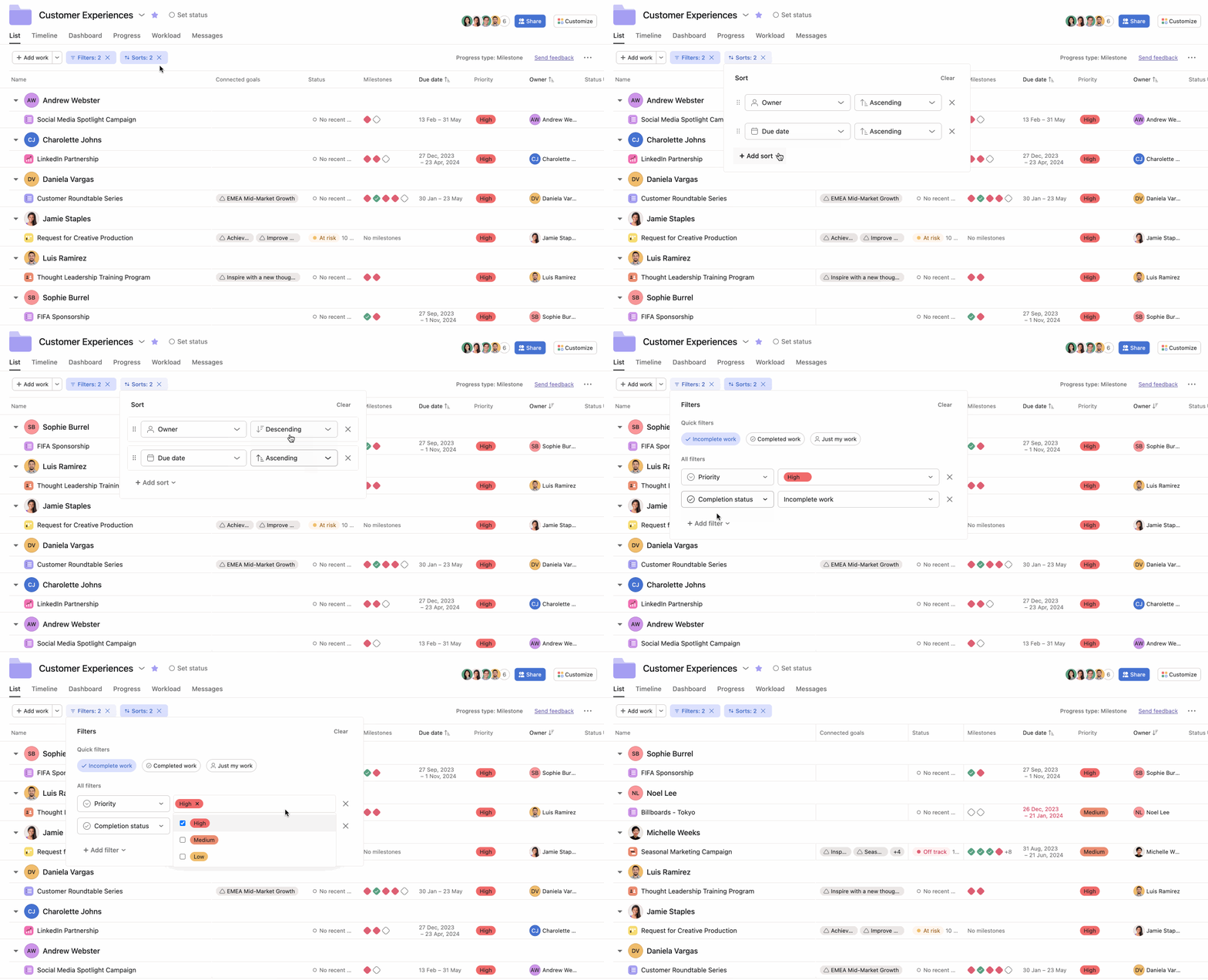
You can apply up to 10 filters at a time on your portfolio list view and can use the following filters:
You can apply up to 10 sorts at a time on your portfolio list view and can use the following sorts:
Group by allows you to group portfolios by specific fields such as owner, status, and due date.
Portfolio timeline allows you to visualize, share, manage and adjust how initiatives are sequenced so you can best utilize your resources and hit your deadlines. With a grid-backed timeline view, increased item capacity, and filtering and sorting options, you can better track and adjust project schedules while maintaining clear visibility of your portfolio's progress. Note that a project's tasks are not visible in portfolio timeline view, but project milestones do appear. See the screenshot in the below section for a visual example.
You can access the portfolio timeline by clicking the Timeline tab within the portfolio.
The new grid-backed timeline provides a more structured view of your portfolio items. This enhancement makes it easier to:
Portfolio timeline supports up to 1,500 items, allowing you to:
Apply multiple filters and sorts simultaneously to customize your timeline view:
The improved toolbar provides quick access to:
Use the portfolio toolbar to:
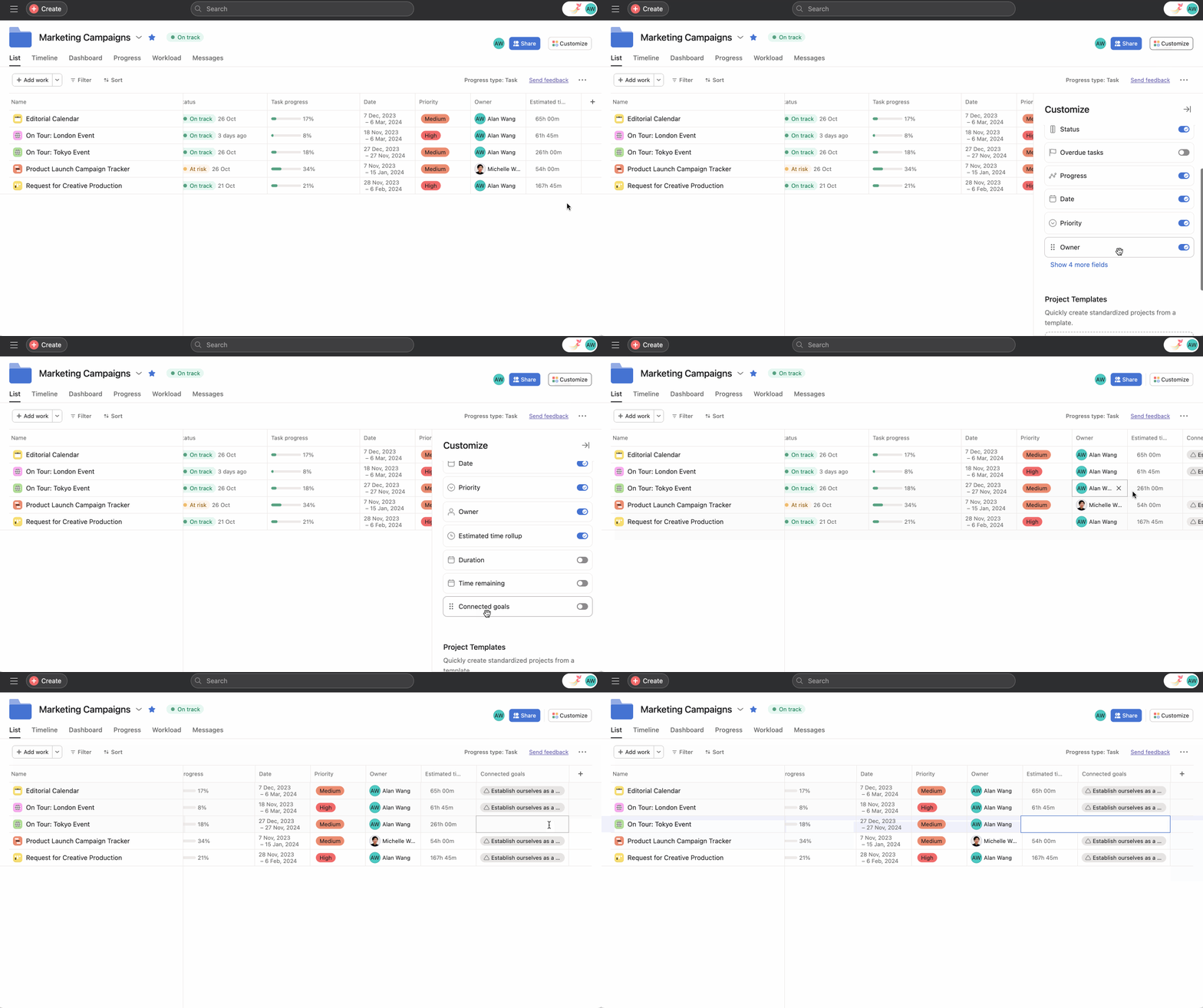
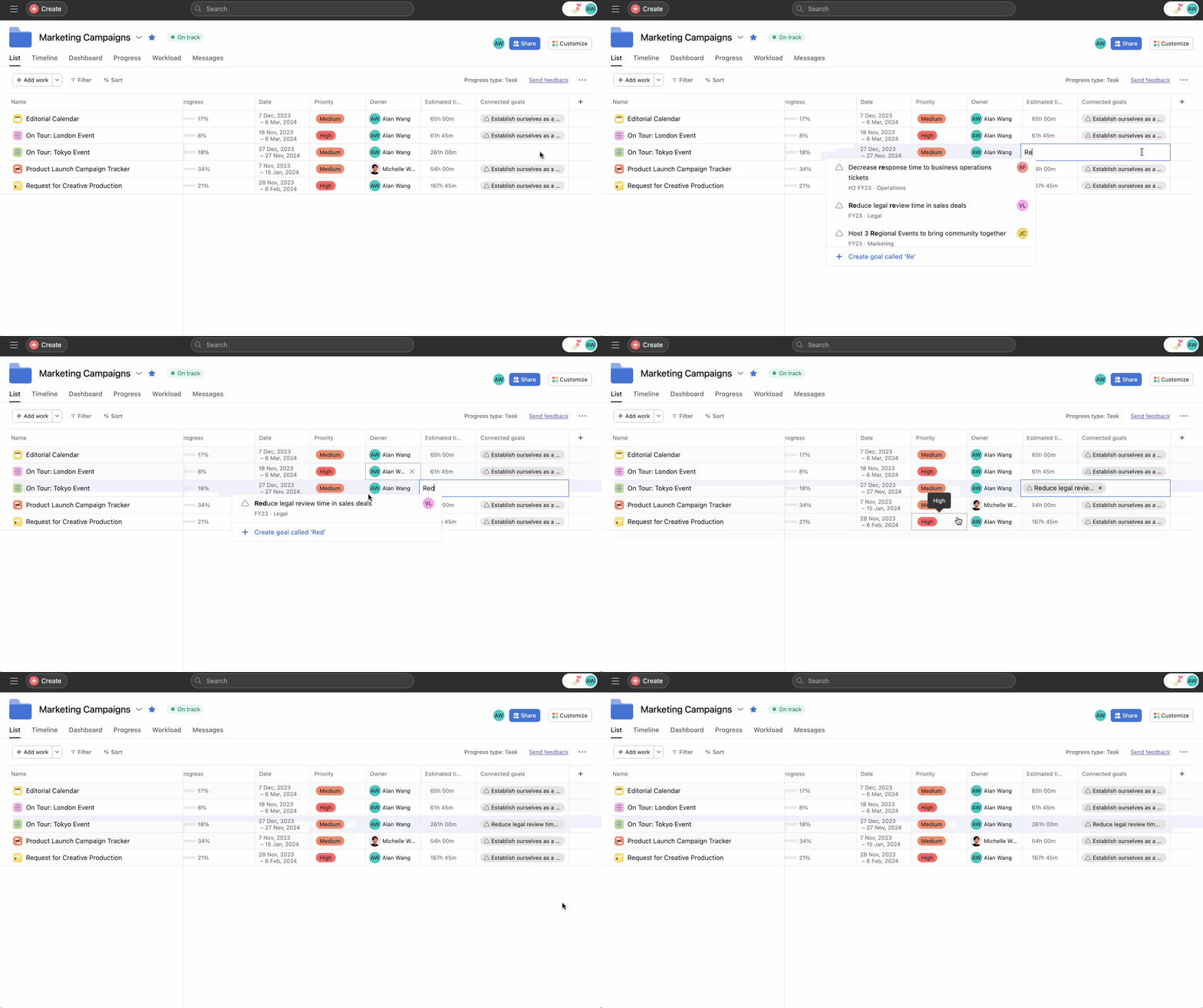
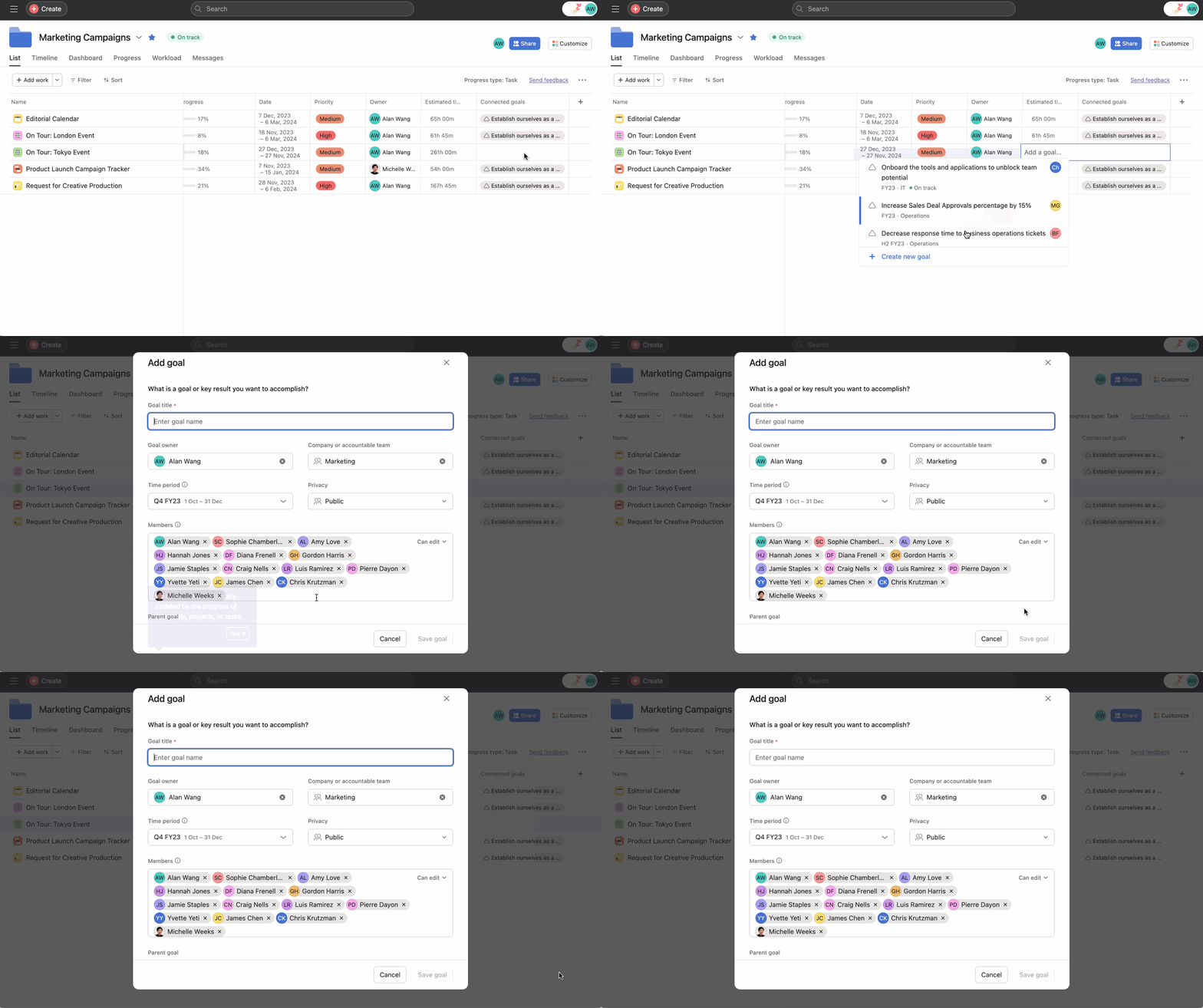
You can view connected goals within a portfolio's list view. The Connected goals column shows goals connected to the work in the portfolio, increasing the visibility of the relationships between work and goals.
From the portfolio list view, you can: