Products


AI Platform


Asana Foundations
Company Type
No articles found for this topic.
No articles found for this topic.

Visit our pricing page for more information.
This article details the essentials of project customization and the various project views available to you. Use these to enhance your workflow and tailor your team’s projects for optimal efficiency and clarity.
Project overview is the team's persistent hub to showcase a birds-eye view of the what, why and how of a project and drives easy understanding of its ongoing context. The overview sets the tone for how you and your team will work together on the project, and also is where the name, description as well as roles of project members are accessible.
Everyone organizes their work differently; some like lists, others sticky notes that can be moved through different sections. Because everyone works differently, Asana has different project views available. Choose from List, Board, Gantt, Timeline, Dashboard, Messages, Files and Calendar. This means you can choose the view that suits your work style and helps you visualize tasks more effectively. Tasks can be grouped differently across List and Board views. Check out this article for more.
See what's most relevant for you and your team with saved tabs for projects. Saved tabs allows project admins and editors to create up to 50 tabs per project with multiple list, board, calendar, gantt view or timeline tabs.
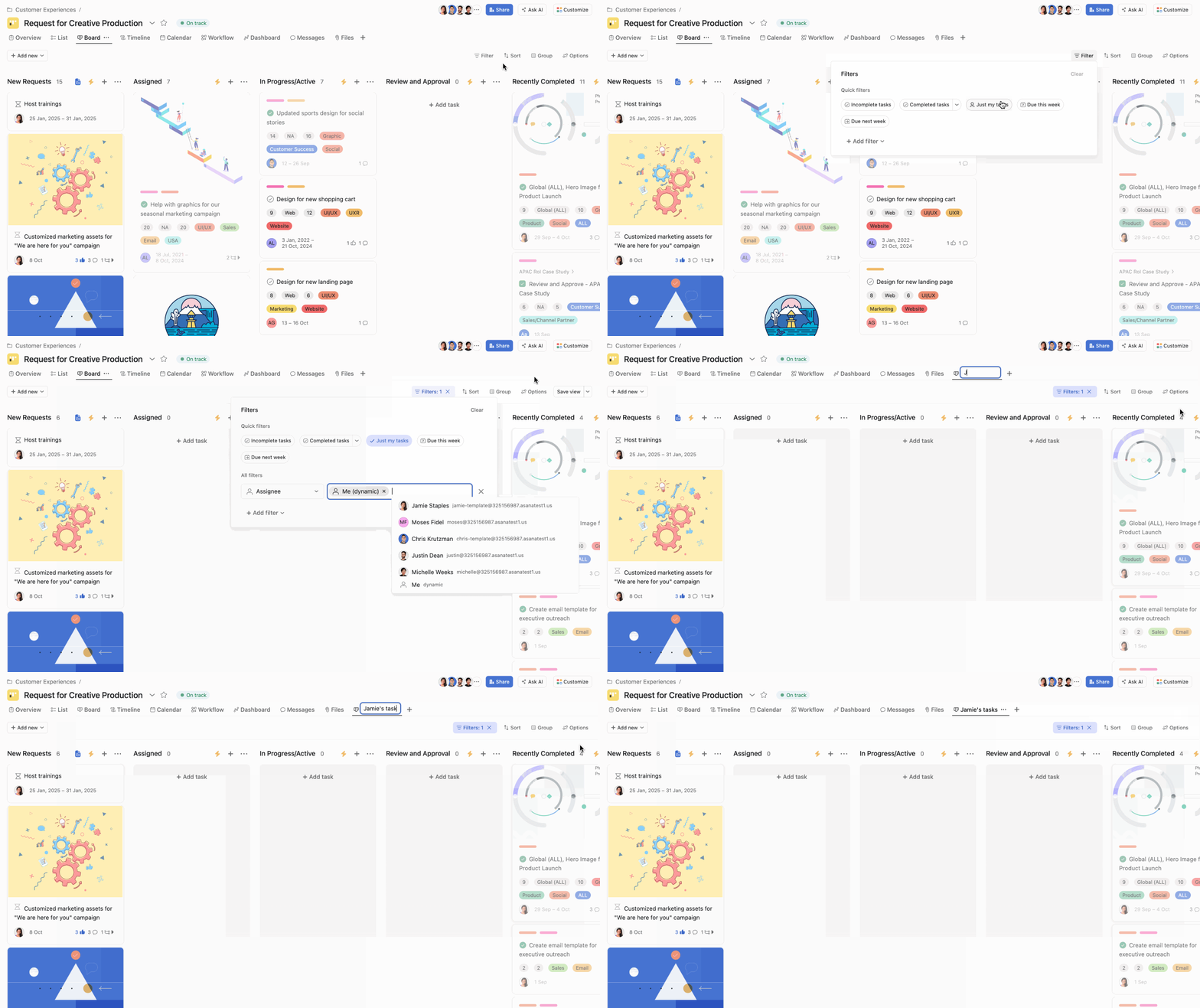
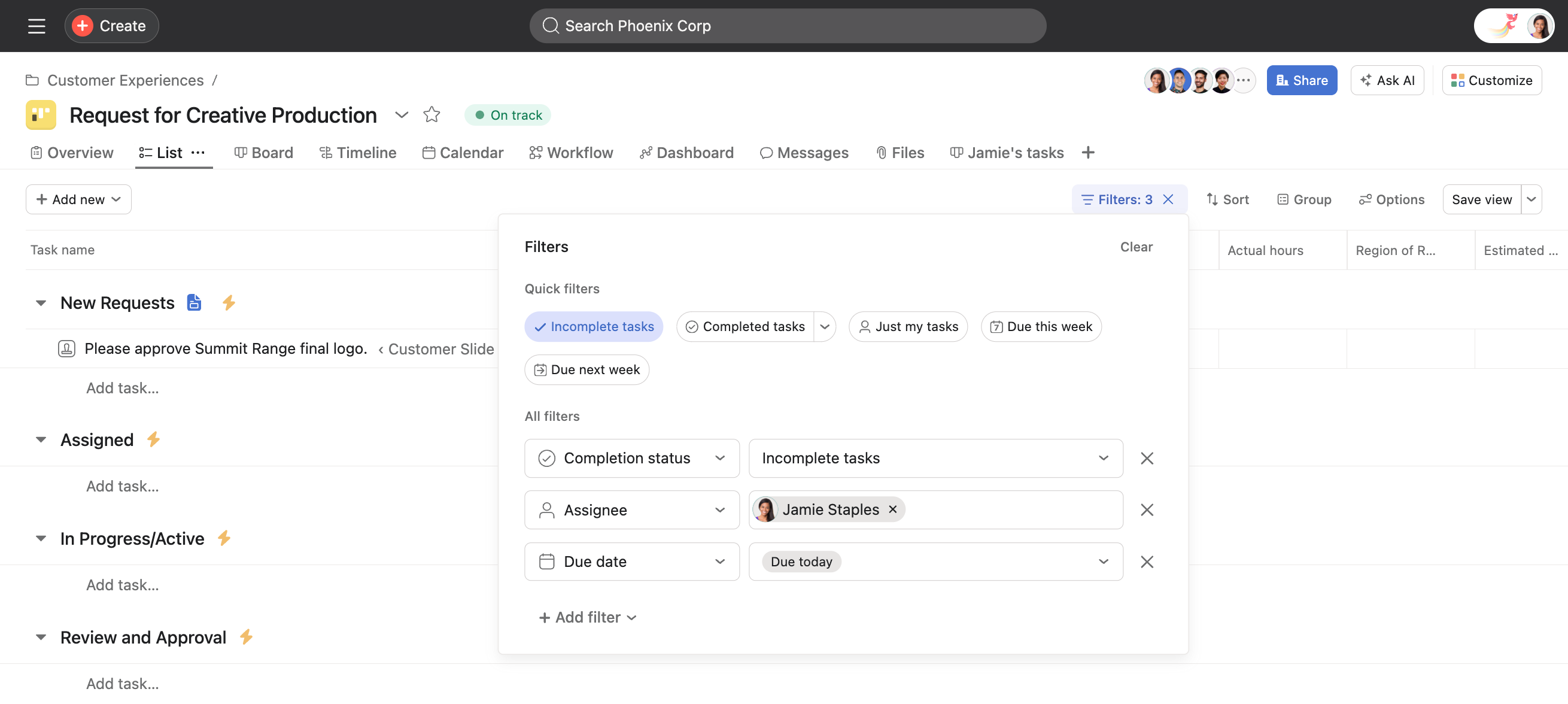
As a project admin or editor you can apply filters and sorts to projects, as well as save the view as a new tab in your project.
You can use emojis as your tab icon, by starting the tab name with the emoji.
Note
Non-task views (Overview, Workflow, Dashboard, Messages, Files) cannot be duplicated or renamed.
If your organization is currently on an Enterprise, Enterprise+ or Legacy Enterprise plan, it’s possible that the project admin updated the project permissions to Project Admins only. This means the project editor can’t modify tabs in the project.
You can access saved tabs from your mobile on iOS.
If you have a lot of projects, but only a few are relevant or urgent to you, use the color feature to make those projects more visually distinct.
Sections allow you to divide and organize the tasks in your project. Sections can be used to create categories, workflow stages, priorities, and more. You can also use sections to trigger rules when tasks are moved into them.
For more detailed information, visit our article on sections.
Available on Asana Starter, Advanced, Enterprise, and Enterprise+ tiers.
Project schedules allow you to set a working schedule for your project, helping you manage Service Level Agreements (SLA) for requests. For example, you can define working hours so tickets are paused during non-working hours.
Project schedules will affect tasks with dependencies and timer custom fields.

