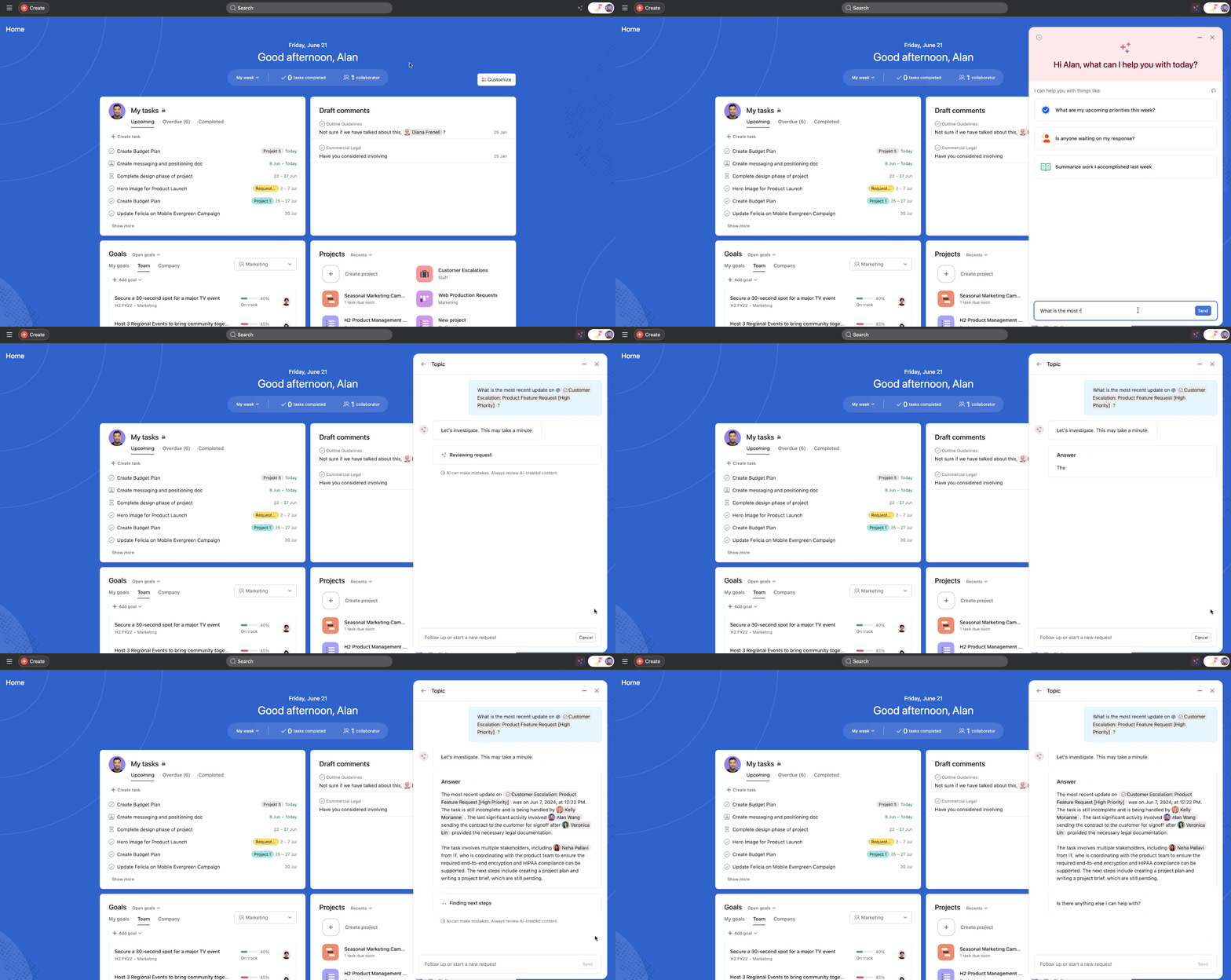
Asana AI helps you do more of the work that matters by handling routine steps and surfacing answers fast. Use AI Studio to build no-code smart workflows—plain-language instructions that classify, route, and draft so processes run themselves.
Use smart chat to ask questions in everyday language (“What slipped this week?”) and turn insights into actions without leaving Asana. Together, they reduce busywork, improve reporting, and speed decisions—inside the tools your team already uses.
AI Studio: Build smart workflows
AI Studio is Asana’s no-code way to add AI to your processes and build smart workflows. With AI Studio, you can provide instructions to Asana AI using natural language.
What it’s best for
- Intake triage: When requests arrive, AI can read the details, set custom fields like priority, and send the task to the right section or assignee.
- Stage-based handoffs: As tasks hit a key stage (like “Ready for review”), AI can add the right subtasks or comments and notify the approver.
How to set up a smart workflow
- Pick a trigger. Your trigger will be the event that allows the rule to run.
- Add a Use AI step. You can use AI in conditions or actions.
- Choose an action
Don’t want to start from a blank page? Use pre-built AI rules for common needs—like summarizing completed work, checking for duplicates, or improving task titles.
Guidance for AI
In AI Studio, guidance is the plain-language instruction you give the Use AI step so it knows what to do and how to format the result. Clear guidance makes outputs consistent and predictable.
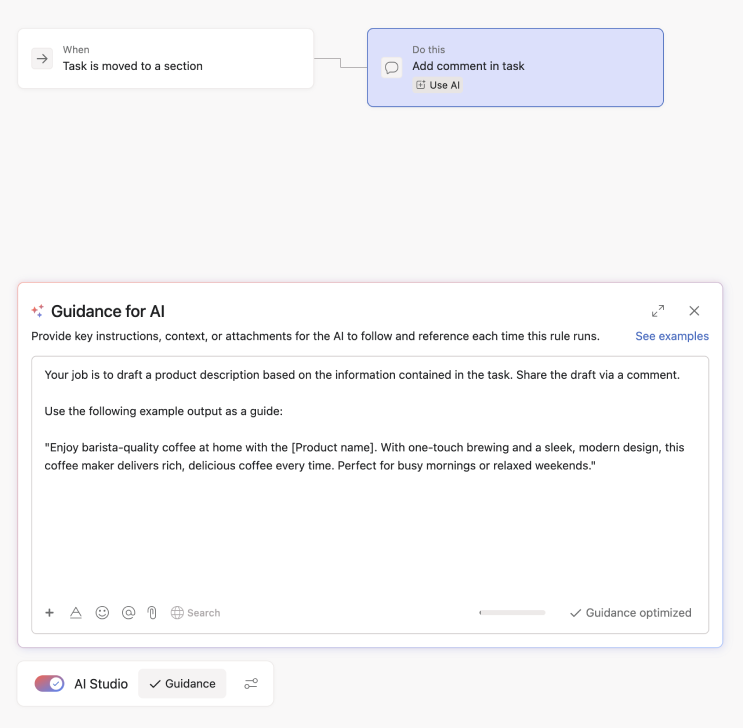
How to write effective guidance:
- State one goal and audience. Lead with a single, concrete objective and who it’s for. Avoid combining multiple asks in one instruction.
- Specify inputs and scope. Tell AI what it may use (task description, recent comments, specific fields) and exclude what it shouldn’t rely on.
- Define the output. Be explicit about format (bullets vs. paragraph), length limits, fields to set, labels to choose, and any tone/style requirements.
- Include an example of a good output. Even one example can improve consistency.
Use smart chat for fast answers and quick actions
Smart chat gives you the quickest way to get oriented and move work forward—without hunting through projects. Ask a question like “What slipped in the Launch project this week?” or “Draft a status for Design,” and it pulls the answer from live Asana context. You can also take next steps (like creating or updating tasks) directly from the chat, so insights turn into action immediately.
When it’s most useful
- Catching up before a meeting: Summarize a project or task to see what changed and what’s next.
- Daily triage: Ask for your priorities or blockers (“What’s due for me this week that’s waiting on others?”).
- Status time: Generate a first-draft update based on recent activity, then edit and post.
- Quick edits without clicking around: Use natural language to create tasks or adjust fields.
Good prompts to try
- “Summarize the last 2 weeks of updates for the Web Revamp project and list remaining risks.”
- “Show me my tasks due this week that are blocked.”
- “Draft a stakeholder update for the Mobile launch based on recent activity; keep it under 100 words.”
Tips for better results
- Be specific: Include the exact project/goal name and a time window (“this week,” “last 14 days”).
- Review before posting: Treat AI drafts as a head start—scan and tweak, then publish
- Know the guardrails: Answers and actions respect your existing Asana permissions and your organization’s AI settings.
To use smart chat, click the stardust icon at the top-right corner of your Asana.