Products


AI Platform


Asana Foundations
Company Type

Visit our pricing page for more information.
Available on Asana Starter, Advanced, Enterprise, and Enterprise+ tiers, as well as legacy tiers Premium, Business, and Legacy Enterprise.
Visit our pricing page for more information.
In Asana there are two organization-wide admin roles - admin and super admin. Admins have access to user and team management features as well as security settings for individual users. Super admins have access to the full set of admin features as well as security settings for the entire organization.
As super admins can oversee organization-wide security features, the super admin role should be given to an IT administrator. The first super admin for an organization must go through a verification process. Once verified, super admins can then also give others super admin status without verification. This process restricts access to critical security settings to a limited number of users.
Only organization members can hold admin or super admin roles; guests cannot.
Note
Asana also supports team admins, though they do not have organization wide control, so are not discussed in this article. Learn more about team admins here.
If you need to access additional controls, proceed with the super admin verification process.
Super admins are usually IT administrators of an organization. They oversee capabilities such as SCIM and organization-wide password reset.
Admins tend to be IT helpdesk or business leaders. They can access individual password reset and custom branding, as well as user- and team-management features.
Like what you see? Get started with a free Asana trial today. Try for free
Here is the transcribed table from the image in Markdown format, ready to copy and paste:
| Category | Capability | Organization: Super Admin | Organization: Admin | Division: Super Admin | Division: Admin |
| User Management | Manage teams list | Yes | Limited | Limited | Limited |
| View and edit profile settings | Yes | Yes | Yes | Yes | |
| Edit a user's teams | Yes | Limited | Yes | Limited | |
| Remove individual users | Yes | Yes | Yes | Yes | |
| View private tasks after deprovisioning a user | Yes | No | Yes | No | |
| Data | Export CSV for teams and members | Yes | Limited | Yes | Limited |
| Export domain data | Yes | No | No | No | |
| Security | Set Universal Reporting permissions | Yes | No | Limited | No |
| Set default for team privacy settings | Yes | No | No | No | |
| Block integrations | Yes | No | Limited | No | |
| Restrict Guest invites | Yes | No | Limited | No | |
| Manage SAML authentication | Yes | No | Limited | No | |
| Require Google Sign-in | Yes | No | No | No | |
| Set org-wide password strength | Yes | No | Limited | No | |
| Reset passwords org-wide | Yes | No | Limited | No | |
| Reset individual passwords | Yes | Yes | Limited | Limited | |
| Log out individual users | Yes | Yes | Limited | Limited | |
| Reset 2FA for individual users | Yes | Yes | Limited | Limited | |
| Manage file attachment options | Yes | No | Limited | No | |
| Manage SCIM | Yes | No | No | No | |
| RBAC | Yes | Yes | Limited | Limited | |
| Consistency and Standardization | Set org-wide time periods for Goals | Yes | Yes | Yes | No |
| Customize organization name | Yes | Yes | Yes | No | |
| Customize organization branding | Yes | Yes | Yes | No | |
| Share org-wide announcements | Yes | Yes | No | No | |
| General Settings | Manage associated email domains | Yes | Yes | Yes | No |
| Integrations | Manage service accounts | Yes | No | No | No |
Super admins of organizations can enable on or disable Asana AI features as outlined here. Admins of organizations that do not have any super admins can disable these features, but cannot enable them again. To enable them, you will need to complete the super admin verification process or contact the Support team. A warning banner will be displayed in-product before an admin makes this change. This also applies to divisions in Asana as divisions do not have super admins. In order to enable Asana AI features for a division, a division admin would need to complete the super admin verification process and become a super admin of the organization.
You can view and manage admins and super admins directly from the Admin console.
This list shows the people in your organization who currently hold admin or super admin roles.
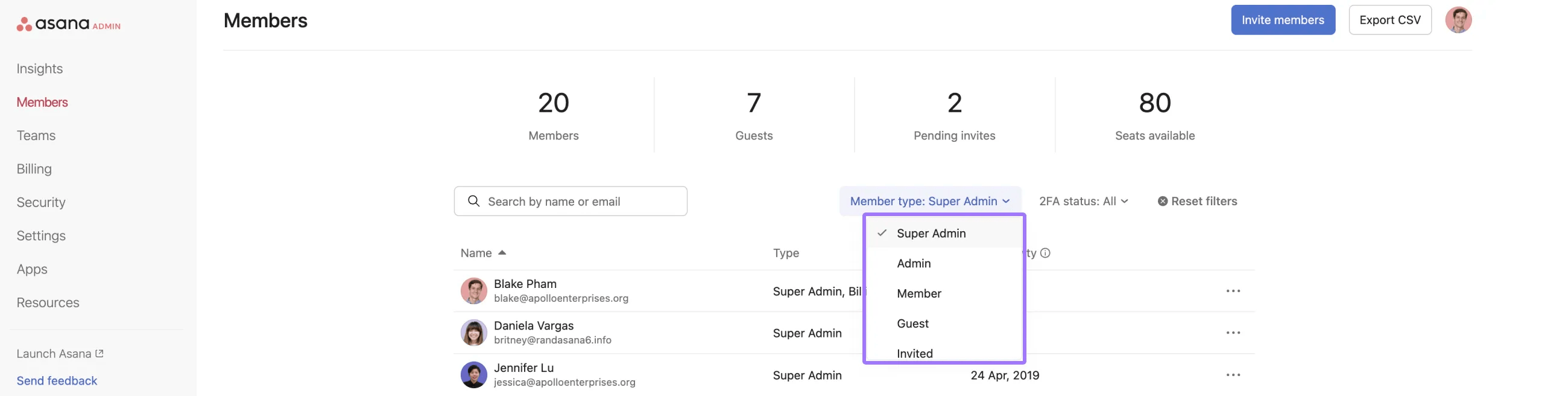
From the same Members page, you can change roles, downgrade admins or super admins, or remove them from your organization.
Your options depend on whether the person is currently a member, admin, or super admin, and whether they meet the requirements to hold an admin or super admin role.
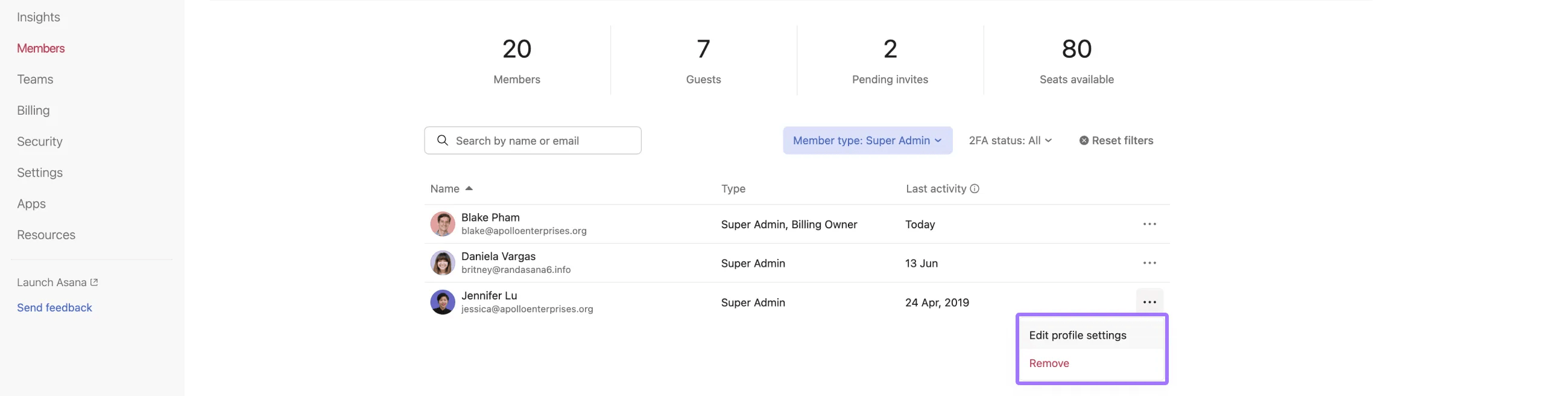
Use this section when you want to change who is an admin in your organization or adjust an existing admin’s role.
To change an admin:
If you change someone from admin or super admin to member, they will lose access to the admin console and any admin-only settings.
You can make someone an admin when you invite them or by updating the role for an existing member.
To add an admin from the Members page:
Only organization members are eligible to become admins. Guests cannot be admins.
The first super admin in your organization must complete a verification process that proves control of your organization’s domain. After at least one person is verified as a super admin, they can add additional super admins without repeating the verification.

In most cases, you will not need a super admin in your domain; if you do, you’ll see a message in the admin console that will guide you through verification. If you would like to pre-verify, you can do so by navigating to the admin console and clicking the Security tab, then click Admin Access and select to add a new super admin.
To protect the security and privacy of your company’s data within Asana, we require the first super admin in an organization to complete a verification process. This involves demonstrating the ability to modify the DNS records associated with the domains associated with your company’s Asana. Specifically, we will ask you to add a TXT record in a way that does not impact the operation of your website but does prove your ownership.
In organizations, only the first user wishing to become super admin must undergo this verification process. That super admin can then add additional super admins once verified. DNS records can be deleted after verification.

To add your organization’s first super admin, click the Add a super admin button in the Admin Access section of your Security page in the admin console.
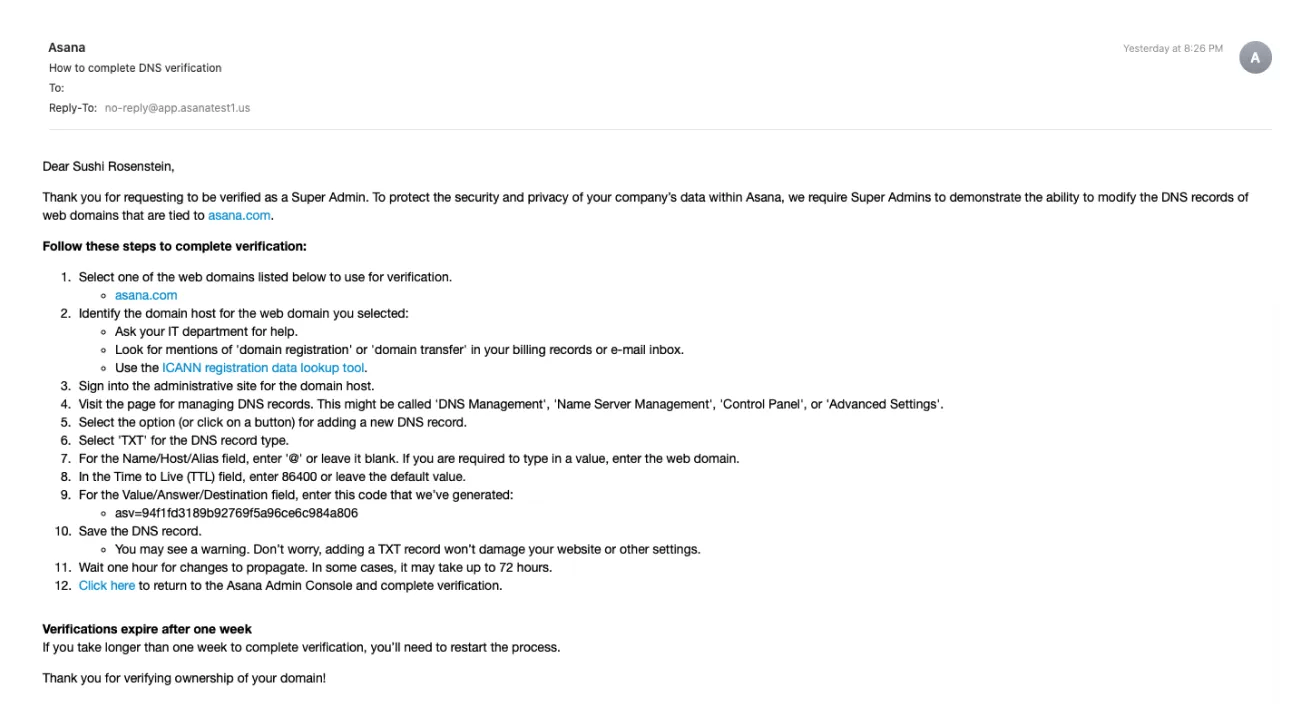
If unsuccessful, you will be shown an error message and a link to contact our support page. Verification attempts expire after one week.
In organizations, super admins can add other super admins
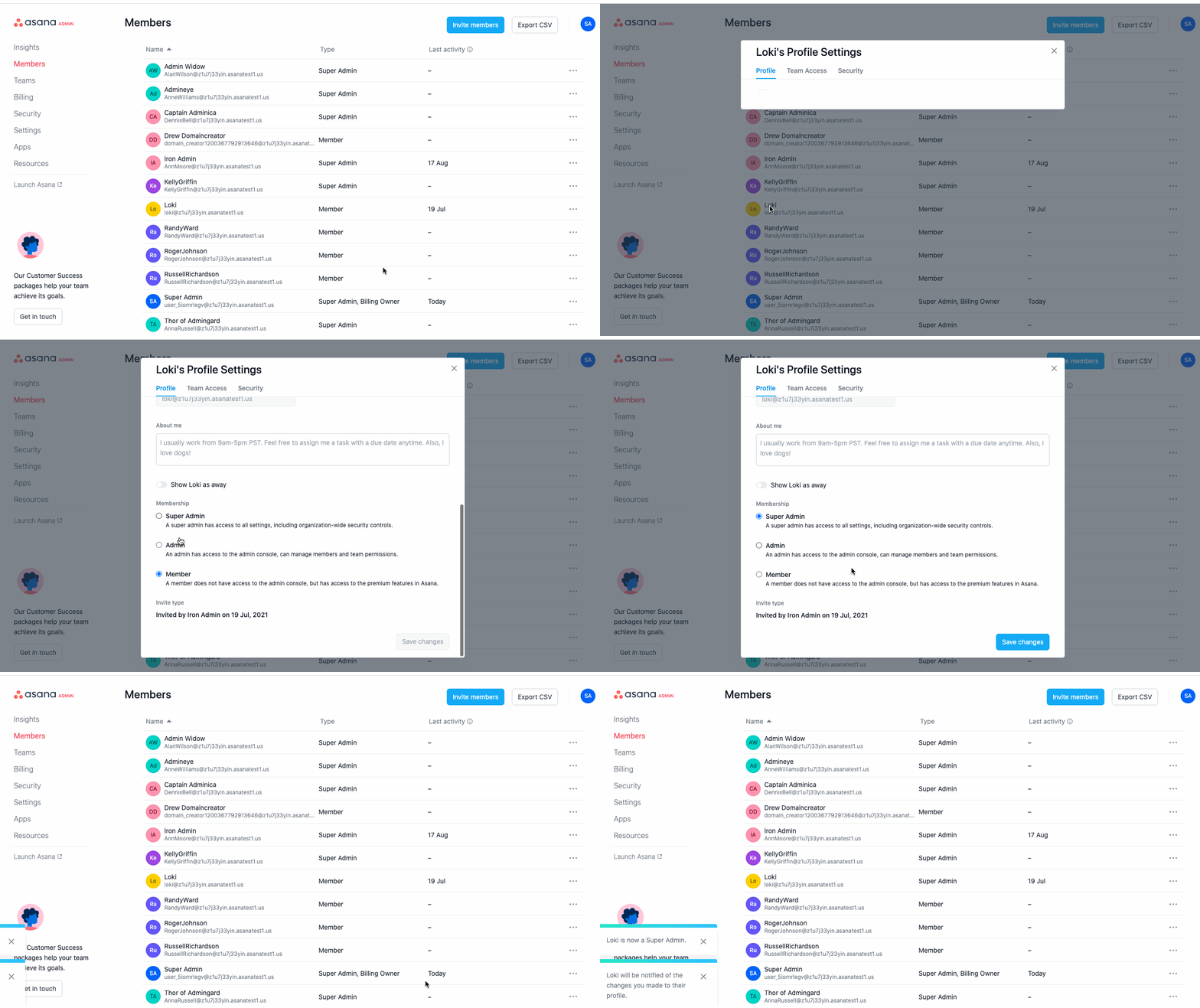
To add additional super admins, click the Add a super admin button in the Admin Access section of your Security page in the admin console
You can remove someone’s admin or super admin access by changing their role. You can also remove them from your organization entirely.
To downgrade an admin or super admin:
To remove someone from your organization:
Removing or downgrading someone changes what they can access. After this change, they lose any admin-only permissions and their access is updated based on their new role.
Only organization members can be admins or super admins. Guests cannot hold either role.
The first super admin in an organization must complete domain verification before they can enable certain security controls or add more super admins. Once verification is complete, that super admin can add additional super admins without repeating the verification process.
If your company uses identity providers or SCIM, make sure your internal process for assigning admin and super admin roles matches how you want those roles to appear in Asana.
If your organization uses division plans, there are important considerations when managing super admin access.
With division plans, you pay for a subset of your organization rather than the full organization. Division admins can only see and manage members within their paid division, even after completing the super admin verification process.
Division admin console access: Super admins on division plans access the division admin console, not the organization admin console
Limited member visibility: You can only view and manage users who are part of your paid division
Expected behavior: Users outside your division (including those on free plans or other paid divisions) will not be visible in your admin console
The most straightforward approach is adding someone who is already a member of your paid division.
If the person you want to designate as super admin is currently in a different division:
To view the admins for your organization:
Admins can manage individual users and teams, reset individual passwords, and configure custom branding, while super admins can additionally manage organization-wide security features like SCIM and organization-wide password resets.
No, only organization members can hold admin or super admin roles—guests cannot be assigned either role.
Yes, the first super admin must complete a DNS verification process by adding a TXT record to prove control of the organization's domain, though additional super admins can be added afterward without repeating verification.
No, division admins can only view and manage members within their paid division, even after completing super admin verification—users outside their division remain invisible in the admin console.
Find best practices for admins shared in the forum.

