Products


AI Platform


Asana Foundations
Company Type

Visit our pricing page for more information.
Using Asana to streamline sprint planning enables teams to have clarity on the entire sprint process all in one place. Follow along with the article for more on building your own sprint process. Let’s look at the example of James, a technical product manager.
James is in charge of his team's sprint cycle, which typically lasts two weeks. To set up his first sprint cycle in Asana, James creates a portfolio called Sprints. James then creates four projects which he adds to this portfolio: Current sprints, Retros, Backlog and Intake. Since James has added work to his portfolio, he can now use Workload to visualize his team’s capacity based on the tasks they’re assigned in Asana.
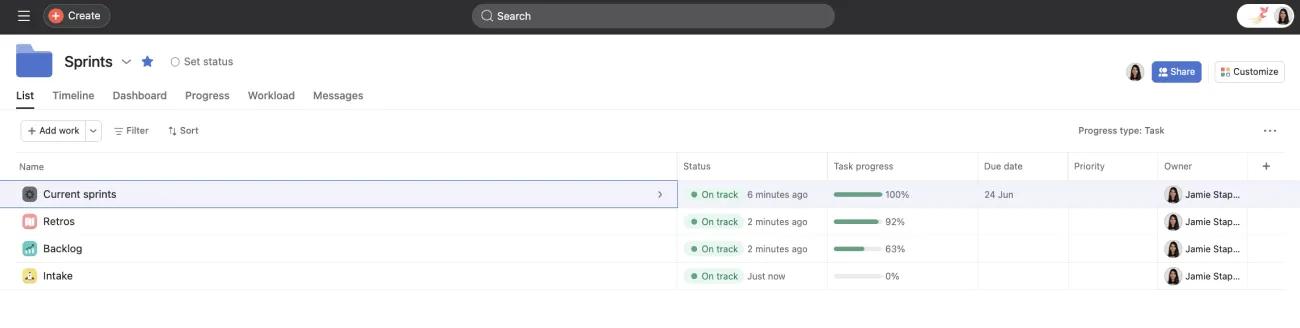
James has the option to create a project from an existing Asana template or to create one himself. He decides to make his from scratch and adds in all essential and recurring tasks. To make each sprint more seamless he leverages Asana features like rules, milestones, and custom fields, which he saves as a bundle to easily apply to future projects.
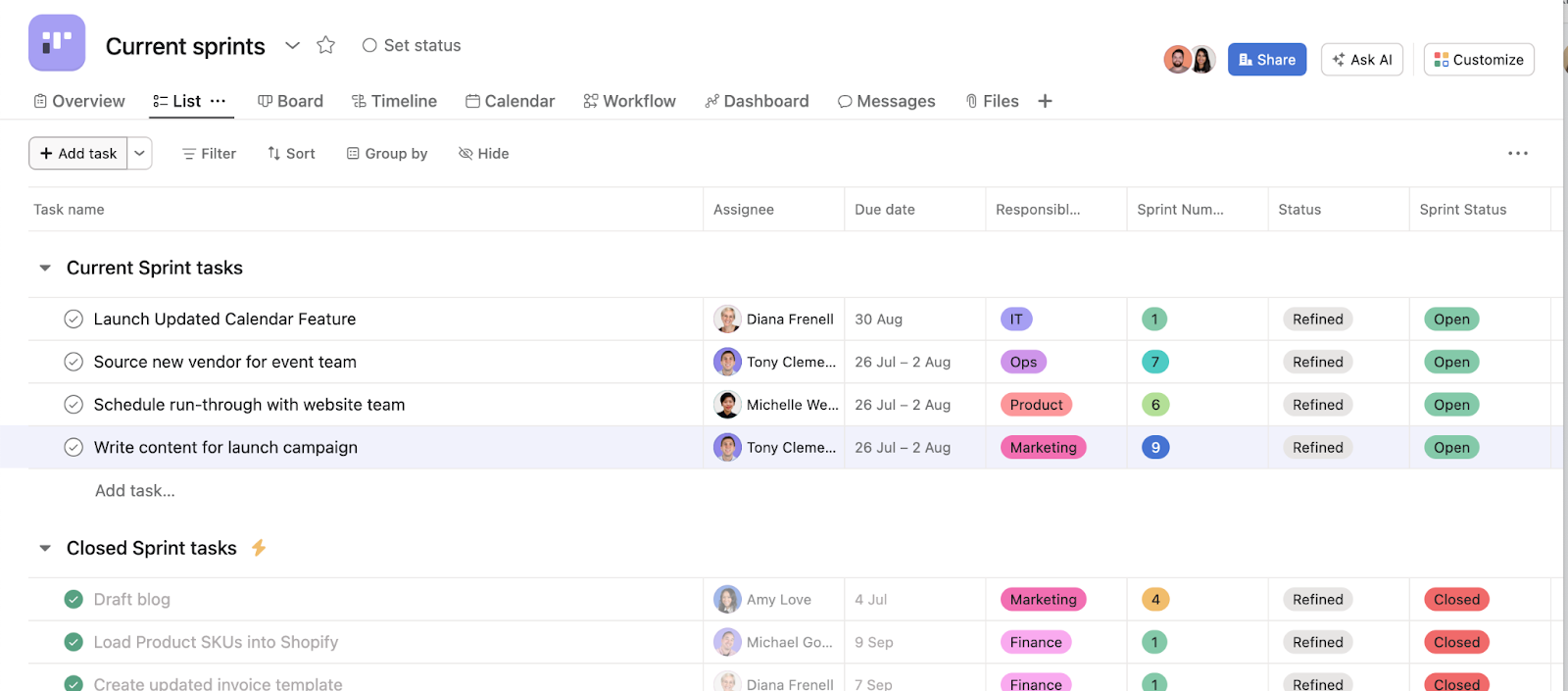
In the Current sprints project he creates two sections: Current tasks and Closed sprint tasks. He also uses custom fields to highlight the task type, story points, priority type, bug severity, and story status. As tasks are added to the Current tasks section he ensures that every task has a due date and assignee. In the Current tasks section, he adds all the tasks his team is currently working on. He moves any items that were closed during this sprint to Closed sprint tasks so he can review these before finally adding them to the Retro project.
James uses board view, which makes it easy to drag and drop tasks through different phases of completion e.g Active. He implements a rule that when a task is dragged to a new section, the custom field is updated to match it, he also adds a rule so the lead engineer is assigned an approval task when a task is added to the review stage.
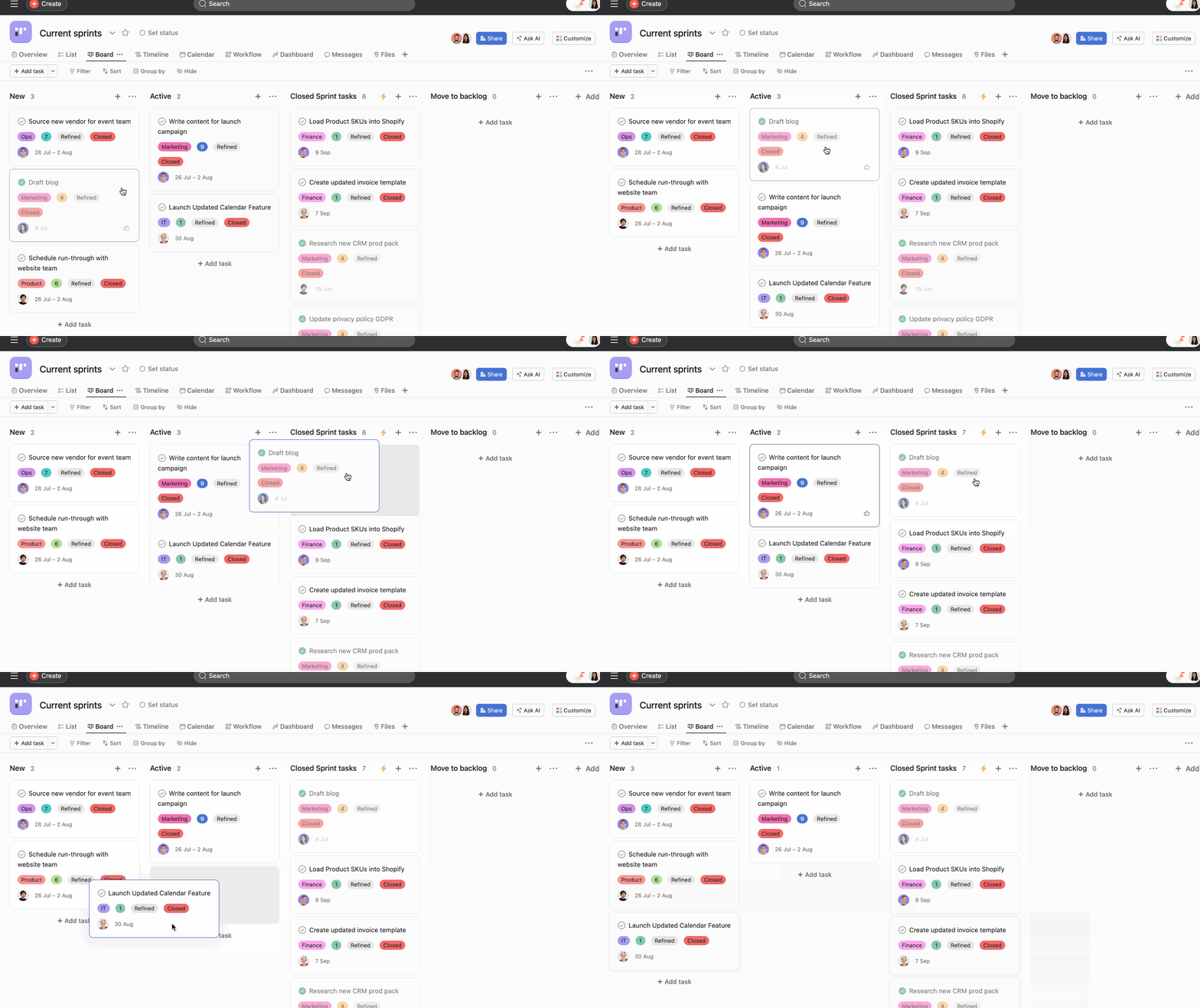
Now that he has created a project with all the elements used for each sprint phase, he turns this project into a template so that he can quickly duplicate this each time there is a new sprint cycle. This template ensures consistency across sprints and initiatives, streamlining the setup process for new sprints.
It's been 10 working days since James’ team started the sprint, so it is time to close it. Using list view he highlights all the tasks and changes the sprint status to closed. James has already set up rules to move each task to a different section based on their story status custom field, he has created a rule to move tasks marked as Released to the Closed sprint tasks section, he also has a rule to move any task with a status other than Released to the Backlog project. Now the team can decide if they want to adjust story points, move these tasks to the next sprint, or keep them in the Backlog project.
James uses the project dashboard tab regularly to get an overview of project information at a glance and share this with stakeholders easily. Within his project dashboard, he also sets up a chart to view current sprint tasks filtered by their story status custom field value.
After each sprint, James uses Smart status to draft status updates and identify blind spots, open questions, visualize roadblocks and map an efficient path towards his teams’ goals.
Within the Sprints portfolio James has also created a retrospective project, where completed tasks from the Current sprint project automatically move thanks to a rule he built. After each sprint is over, James’ team meets to reflect on what went well, what could be improved and how they can adapt their processes for the next sprint. The project has a section for admin tasks, appreciations, obstacles and risks, general thoughts as well as commitments, gusts of winds etc. Once the project is fully set up fully, James saves this as a template so it can be used each time he wants to create a new retro project.
James has asked all his team members to like and comment on the tasks within the retro project before their meeting, the tasks with the most likes drive the retro discussion and any new action items are turned into tasks for future sprints.
Within the Sprints portfolio, James creates a Backlog project for everything his team wants to action in the future. This includes tasks that have been processed through Intake, those which weren’t completed in the last sprint, and urgent tasks that need to be completed. He creates a section in his Backlog project called Next sprint. Each time there is a new sprint, James will look through the Backlog for priorities and story points and decide which items should be worked on next. He uses Smart summaries to pull out action items, ensuring that he understands each task without having to read through lengthy decisions. When James wants to start a new sprint, he selects all the tasks in the Next sprint section and regardless of their sprint status he adjusts the custom field to Current sprint. This way all the tasks move to the Current Sprint project and are automatically given a due date for 14 days time because of a rule James has created James also uses Smart chat to get insights about his previous sprints helping him to identify potential blockers and how he should move forward in the future. Now that all the tasks for the current sprint have been added, James and his team get an overview of the amount of story points they are committing to, as well as the task types and severity of any bugs.
James also created an Intake project in the portfolio for all incoming requests and bugs. The team uses the Intake project to first read, triage, and assess each request which has come in through an intake form that he has created. James and his team communicate on these tasks, adding comments, and attaching files before adding tasks to the Backlog project. Once these tasks have been fleshed out he can then move these tasks into the sprint Backlog project to be triaged and assigned to the next sprint.
To learn more about sprint planning in Asana, check out these resources:

