Products


AI Platform


Asana Foundations
Company Type

Visit our pricing page for more information.
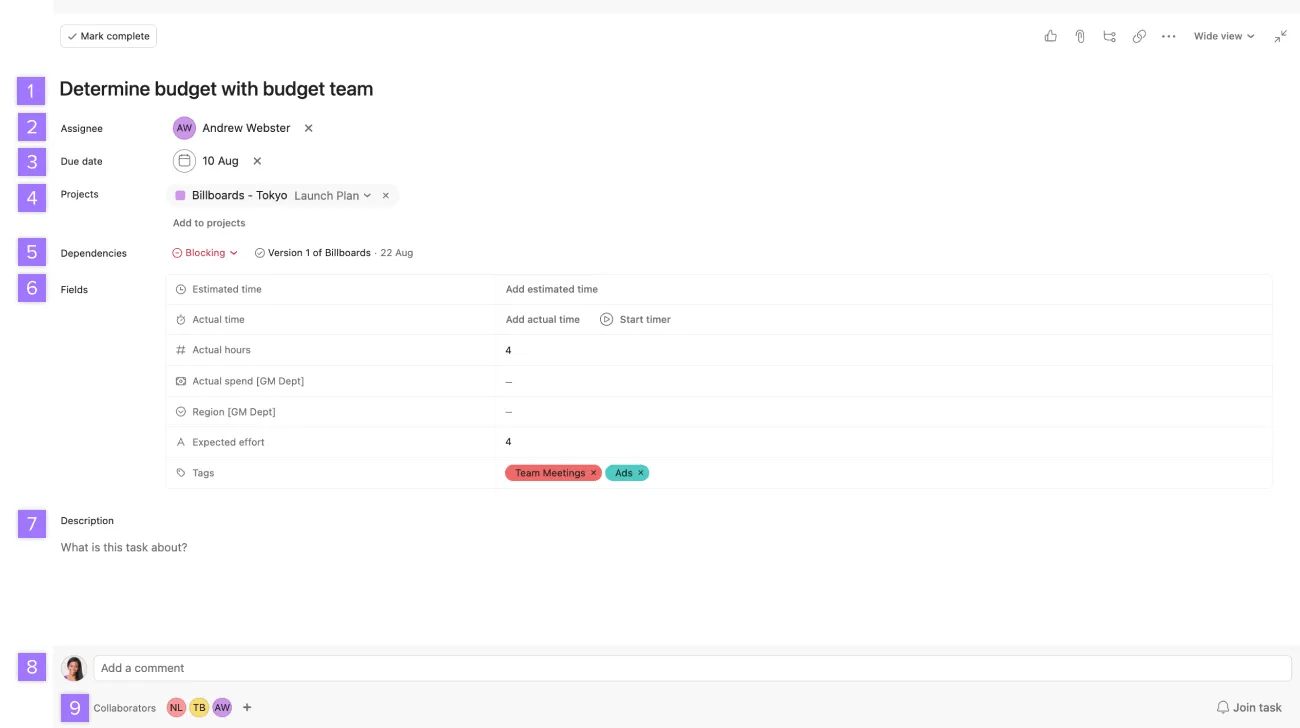
This article will cover the different fields you’ll find within a task details pane. From marking tasks complete, adding assignees, setting due dates, to multi-homing tasks into projects.
All task fields can be found and modified from the task details pane. Click on any task to reveal its details in the task details pane.
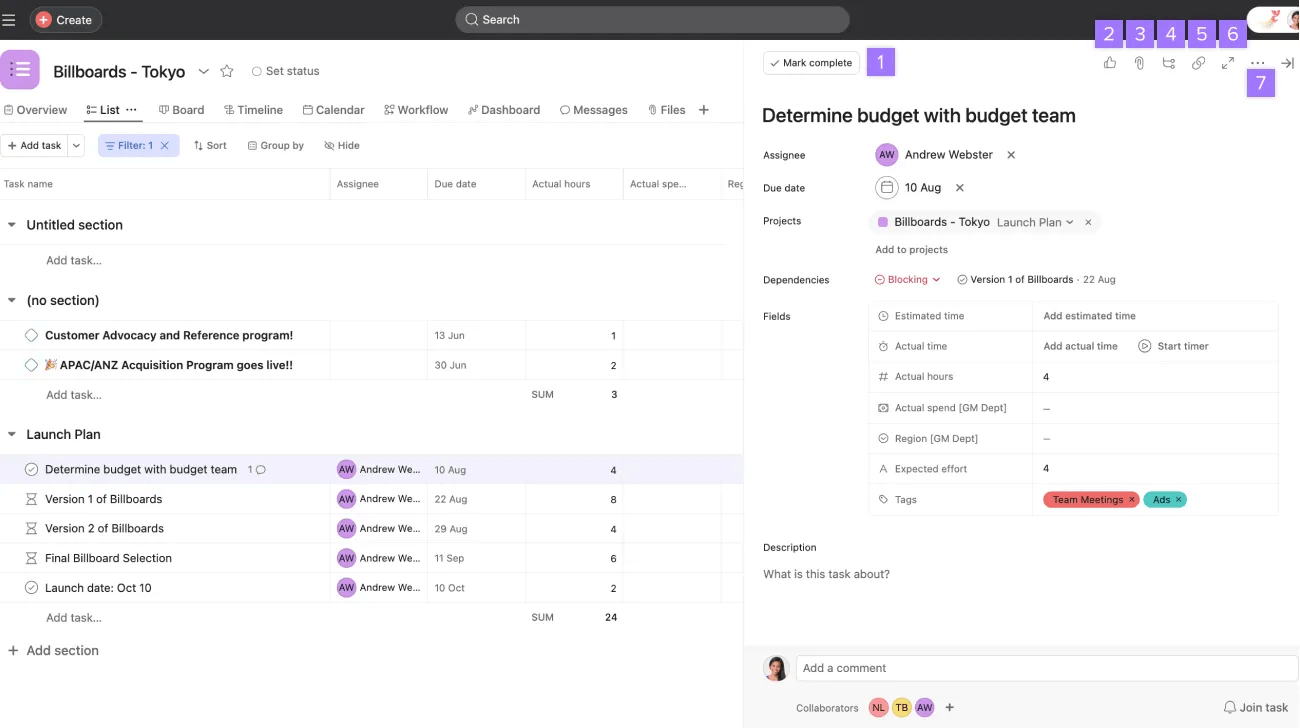
Mark a task complete to indicate that it's done.
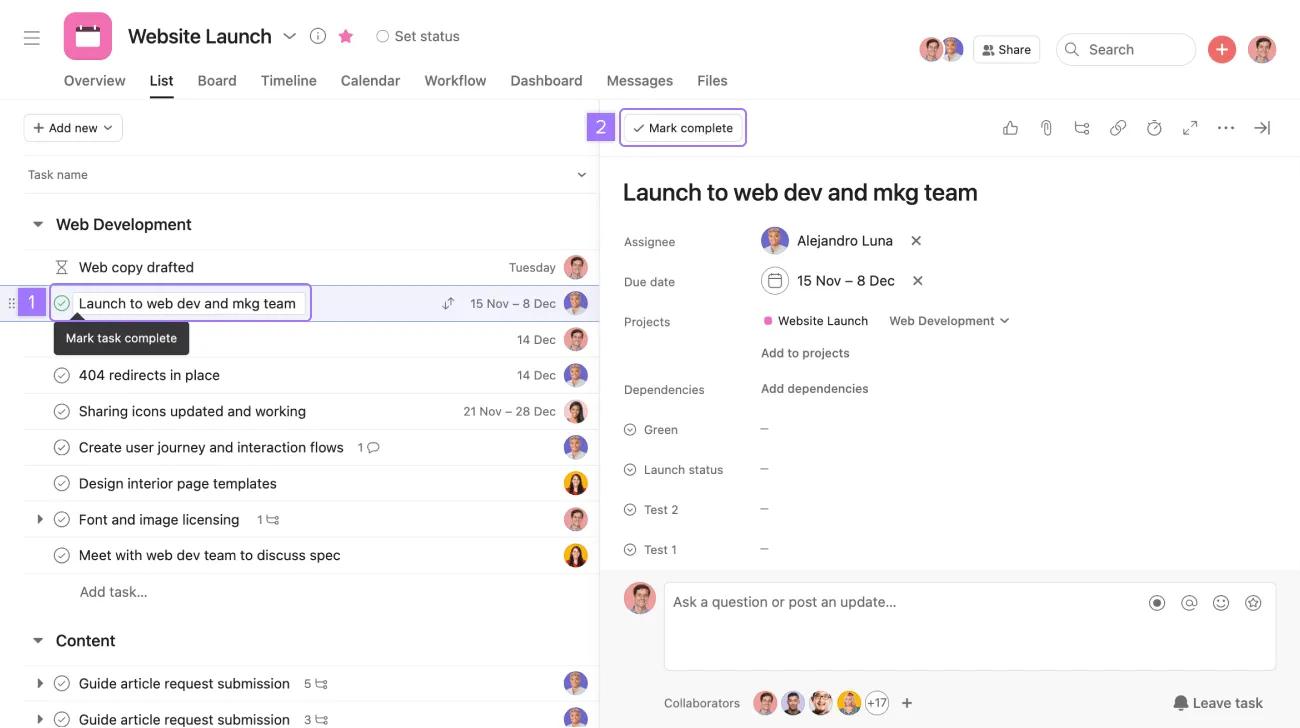
You can mark a task incomplete if there is still work to be done by clicking the check mark or the Completed button.
Note
By default, only incomplete tasks will appear in your My tasks and projects. You can filter to show completed tasks.
A task can belong to up to 20 different projects at any given time. You can see all projects a task belongs to in the projects field in the task details pane and the section it belongs to.
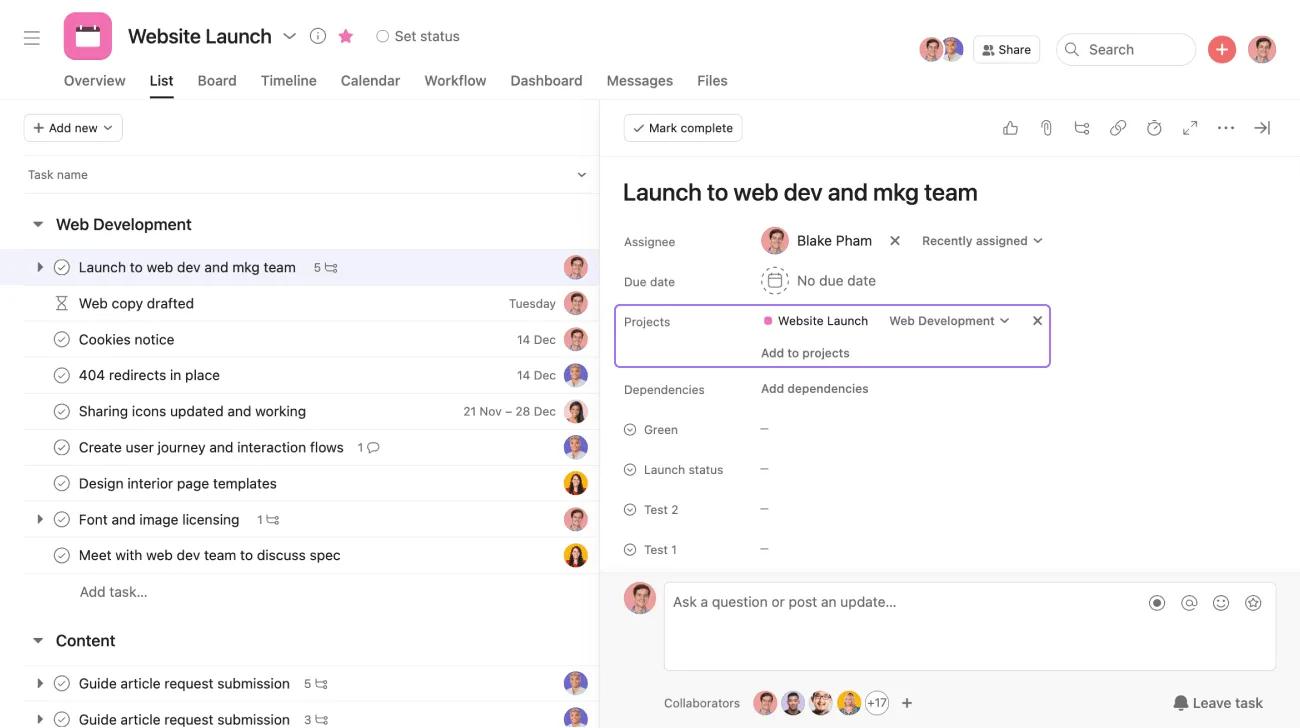
To add the task to another project, click Add to projects. To remove the task from a project, click the x icon next to the project's name.
You will see the task in every project it's multi-homed to. This is useful when a task is relevant to multiple projects.
Please note, you will only see a task's associated projects if you have access to those projects. Learn more about project permissions.
The task will exist simultaneously in all of those projects. This will not duplicate the task - if you complete the task in one project, it will be completed in all projects it is associated with.
Press
Tab+Pon your keyboard to quickly add the task to a project.
Task descriptions allow you to describe, give directions, or add context to a task. The description field is in the task details pane.

To format the task description click the + icon to open the multi-select toolbar.
Task descriptions support rich text and emojis.
Use a like to quickly acknowledge, approve, or praise your teammate’s work.
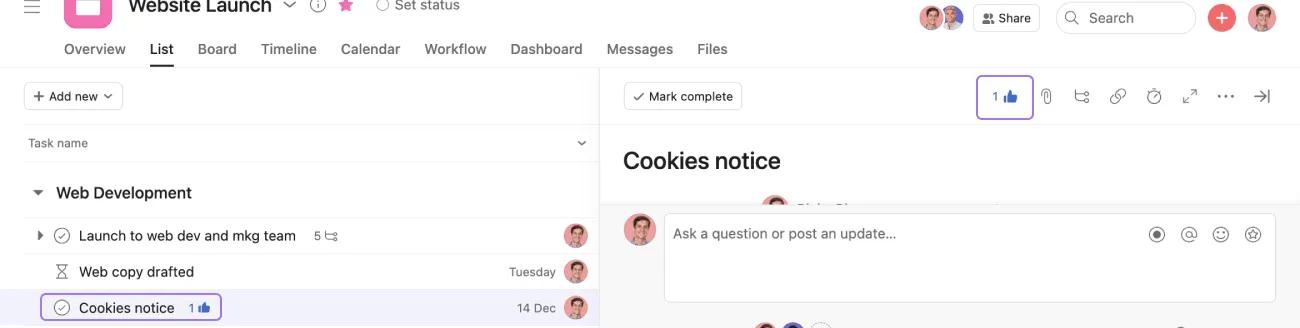
Click the thumbs up icon to like a task.
You can also like tasks via inbox notifications.
Once the task is liked, it will appear:
To un-like the task, simply click the thumbs up icon again.
You will see a like option for:
Learn the basics of task management in our Getting started with Asana webinar. Register now
Want to learn more? Check out all the features of Asana Projects.

