Asana's interface is designed to help you organize work, collaborate with your team, and track progress efficiently. This article will walk you through the main areas of Asana and show you how to navigate between different views and features.
Related articles
Interface
Asana's interface is divided into 5 areas:
- Sidebar - access homepage, My tasks, inbox, insights, starred items teams, projects
- Header - contains the actions and views for the project, My tasks, or view you're currently using
- Top bar - Search, create, My settings, settings, help resources, chat with Asana AI
- Main pane - displays a list of tasks, messages, calendar, progress or files
- Task details pane - contains the details of a task or messages
The sidebar is your navigation hub, located on the left side of your screen.
- Home: Use Home as your personal dashboard to check work that’s due, track tasks you’ve assigned, find message drafts, or monitor progress on goals. You can make this space your own by customizing colors and adding and moving widgets around to suit your needs.
- My tasks shows all of the tasks assigned to you. You can view them in a list, a board, or a calendar and organize them by due date and priority.
- Inbox is your notification center where you can follow and respond to all of the conversations and activity around tasks and projects you’re collaborating on. You’ll get notifications when a teammate adds you to a project or task, @mentions you, or likes when you create or complete a task. Checking your inbox often helps you move your team’s work forward.
- Insights: Here you'll find reporting, resourcing, portfolios, and goals
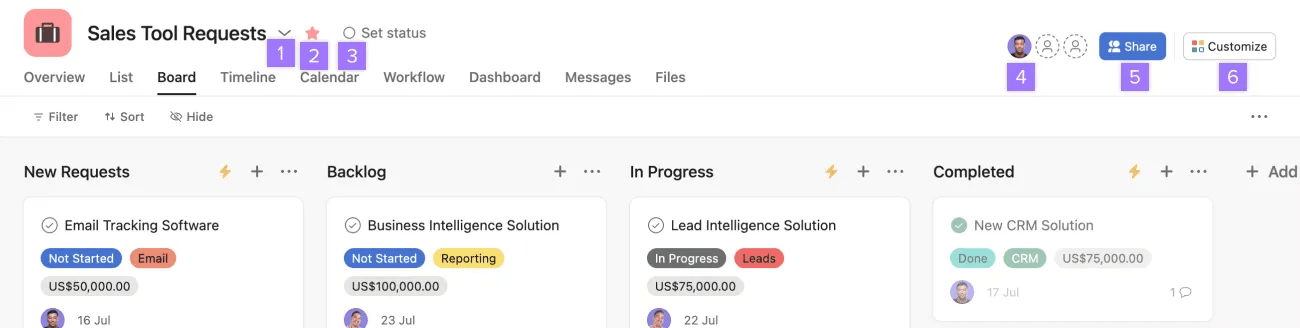
From the header, you can:
- Access drop-down menu with actions for the project
- Star the project
- Set a status for your project
- View a list of project members
- Share your project
- Access the customize menu
Views
The header allows you to switch between different views in projects check out this article to learn more about Project views. Click the + button to add more views to the header.
Top bar

Asana’s top bar gives you quick access to important actions that you can take from anywhere in Asana.
From the top global top bar, you can:
- Click the Create button to create a task, project, message, team, portfolio, goal, AI Teammate, or invite someone to Asana
- Search: Look up tasks, projects and more across your organization
- Access your settings, profile, switch between your workspaces and organizations, create a new workspace or team, or log out
 Note
Note
Read more on how to set up your profile.
Main pane
When you select a project, tag, or person from the sidebar, you'll see the relevant list of tasks in the main pane. This is also where you see search results, Inbox notifications and Messages.
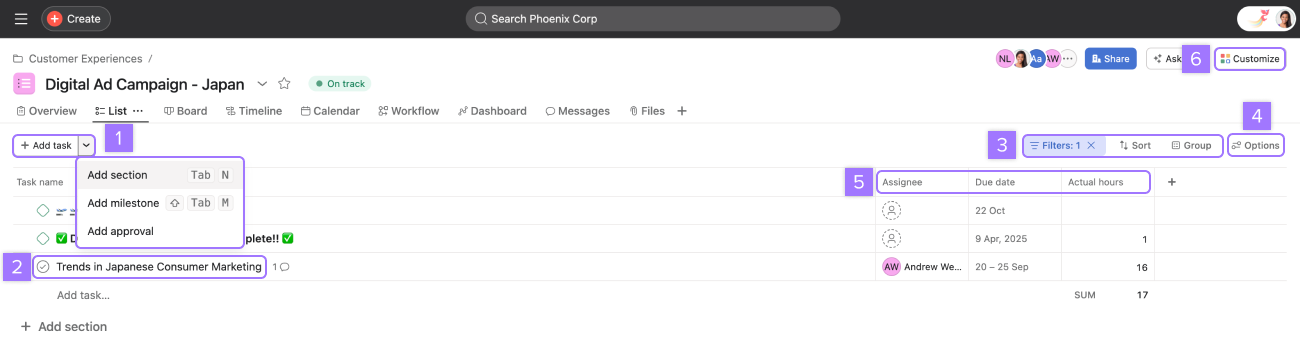
From the main pane, you can:
- Add a new task, section, milestone, or approval
- Mark a task as complete or incomplete and view/edit the task title
- Filter, sort, and group tasks
- Show, hide, and reorder columns
- Identify a task's assignee, due date, and other custom fields
- Customize the project
Task details pane
The task details pane, is where you see the details for a task you've selected in the main pane.
From the top of the task details pane, you can:
- Mark the task complete or incomplete
- Like the task, attach files, add subtasks, copy the task url, view the task in full screen, view more actions, and close the task details pane
- Edit the task's name
- Assign the task
- Set a due date and time
- Identify what project the task is in, or add it to a project
- Set dependencies
- Set custom fields
- Add a description to give the task more context
- Post a comment, ask a question
- Add or remove task collaborators
Learn more about the functionality available in the task details pane in the tasks article.
Projects and teams
Projects
Projects are used to capture your team’s workflows, from product roadmaps to event planning to weekly team meeting agendas. They allow you to organize tasks related to specific initiatives, goals, or large-scale projects in various views, such as list, board, timeline, and Gantt chart.
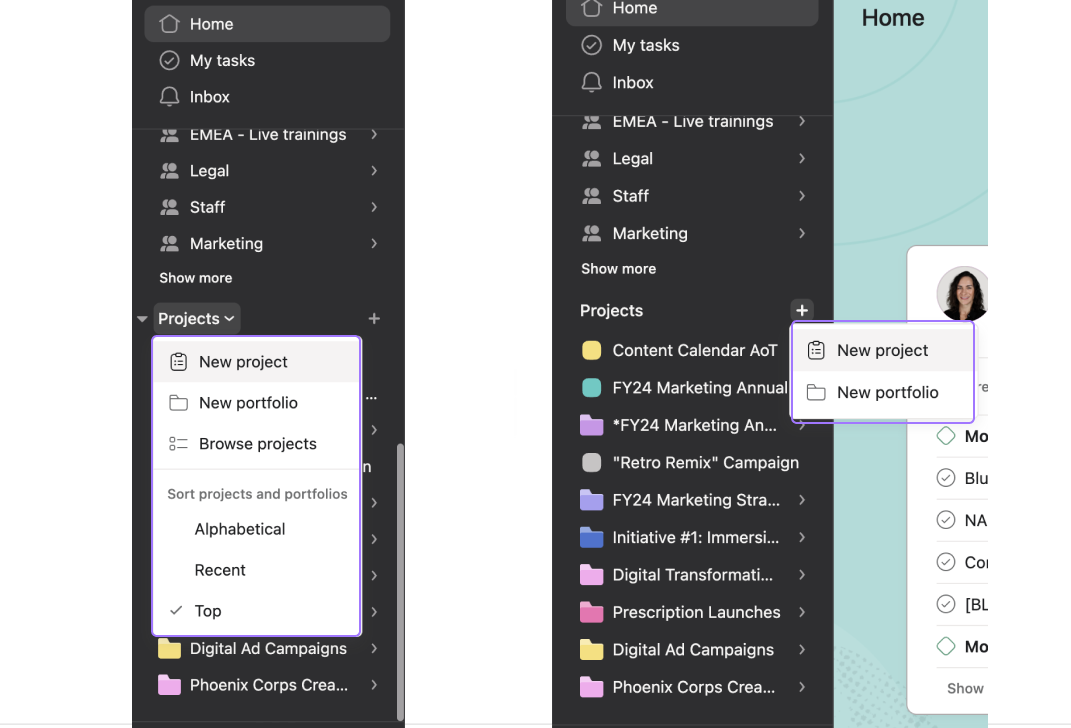
From the Projects section in the sidebar, you can access existing projects, star those you use frequently for quick access, browse projects and create new projects and portfolios. You can sort portfolios and projects by alphabetical order, recent, and top. The Top sort shows projects and portfolios relevant to you based on your interactions with them.
Teams
Teams are groups of people within your organization who collaborate on projects. Each team has its own set of members, team admins, projects, messages, and calendars. Teams provide a convenient way to grant bulk access to projects, reporting, and goals.
To access Teams, click Teams from the sidebar.
Insights
Within the Insights tab, you can analyze and organize work taking place amongst teams, projects, and tasks. From here, you can access goals, reporting, resourcing, and portfolios.
New navigation experiment in Asana
Asana is testing a new navigation. For more details, see this article on the new navigation in Asana.