Products


AI Platform


Asana Foundations
Company Type

Visit our pricing page for more information.
Efficient task management and prioritization are essential for achieving productivity and meeting deadlines in any project. In Asana, you can streamline these processes to stay organized and focused on key priorities. In this article, we'll explore effective methods for prioritizing tasks.
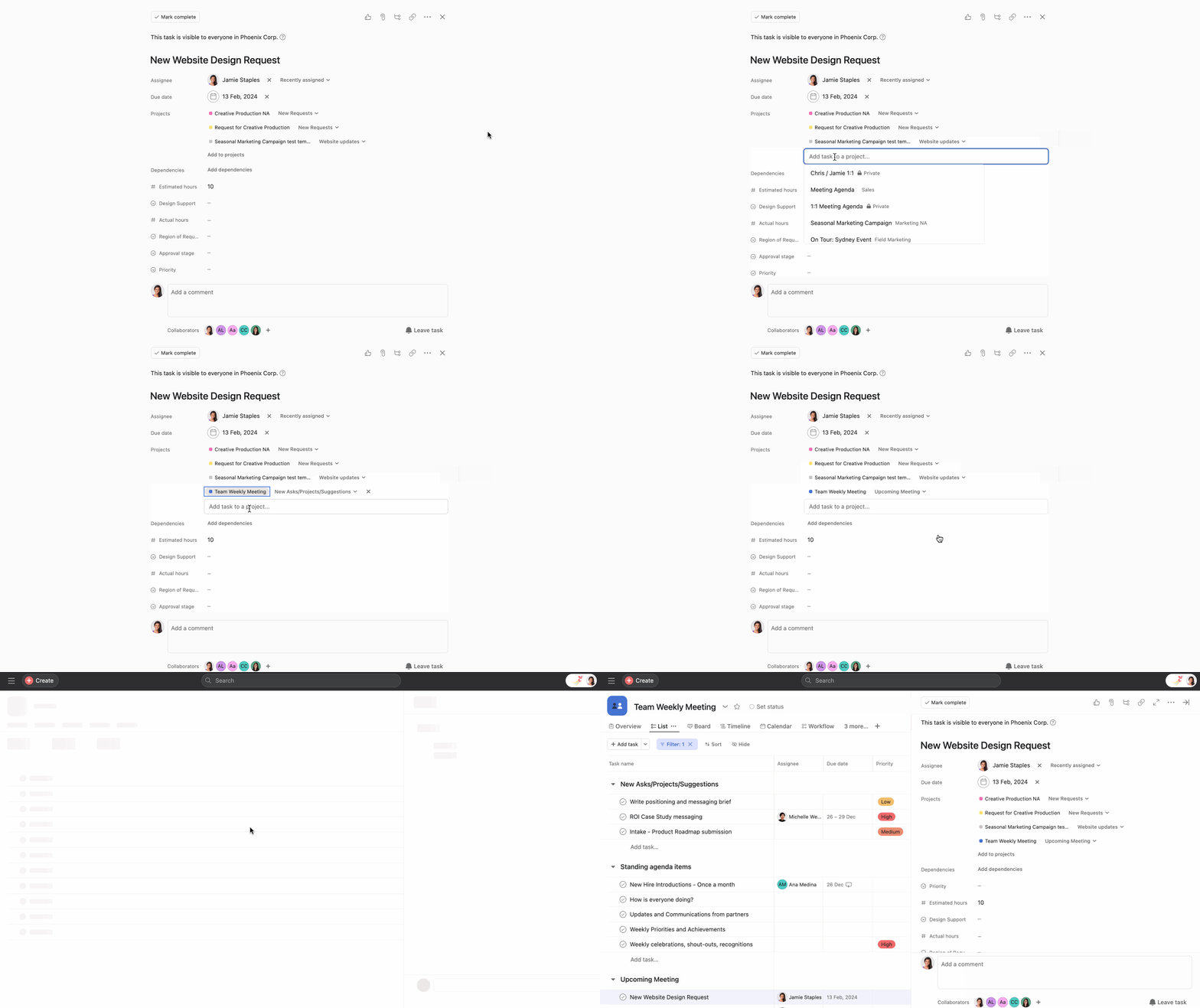
Tasks can be added to multiple projects in Asana, allowing for cross-functional collaboration and visibility; this is called multi-homing. Multi-homing ensures a single task's progress and updates are reflected across all associated projects.
For example, you may want to discuss a task in your upcoming team meeting. Add it to the team meeting project while keeping it in its original project. To multi-home a task, navigate to the Projects tab in your task and type the projects you want to associate it with.
You may have several tasks assigned to you across My tasks and projects. But how do you prioritize them?
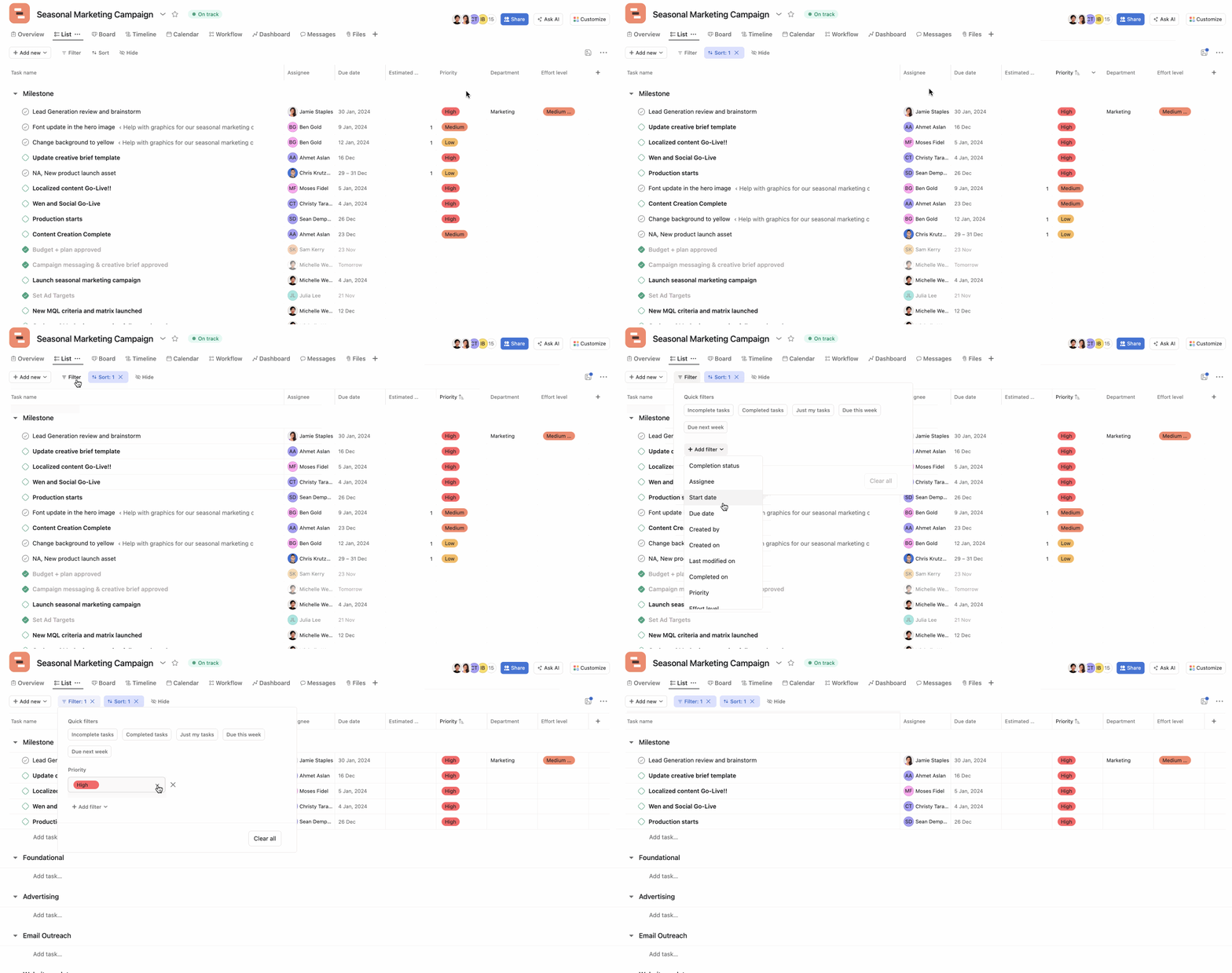
One way to quickly prioritize tasks is by sorting them by due date. This can be done in My tasks or any project. Sorting by the due date will arrange tasks in ascending order, placing those with the nearest due dates at the top. There are many other options you can also choose from when sorting tasks using the Sort button.
Custom fields add an extra layer of organization to help you prioritize more effectively. They work like columns in a spreadsheet, letting you track additional information about your tasks. By using custom fields, you can tailor your project view to align with specific criteria—for example, order tasks in your project by a “priority” custom field. Similar to sorting by due date, you can click on the custom field header or use the Sort button.
You can also filter your tasks to view tasks with specific custom fields. For example, view tasks with only “High” priority.
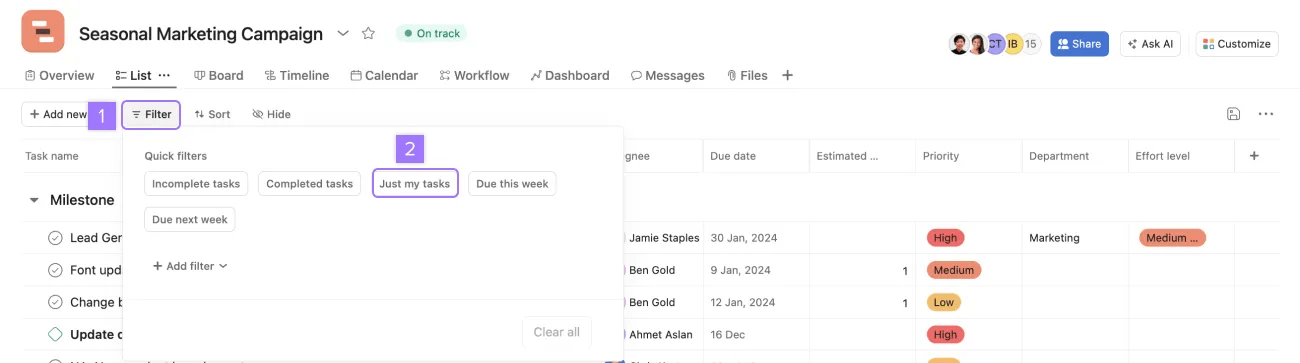
Projects can contain a lot of tasks, not all of them relevant to you. Use the Just my tasks filter to quickly isolate tasks you are responsible for in the project.
The sorting and filters you apply to projects won't be seen by other team members unless you click the Save for everyone option at the top right corner. You can create a new tab with your filters. Learn more about how to do this here.
As priorities evolve, it's essential to adjust task details accordingly. Task assignees can easily update due dates by clicking the due date field and selecting a new date. If a due date needs to be changed, it's best practice to comment on the task and @mention the person who assigned the task to let them know the due date has been pushed back and why.
Tasks often go through multiple steps and may need to be reassigned to different team members. For example, tasks may need to be re-assigned if there are changes in team members' roles, responsibilities, or availability. If this happens, it’s best practice to rename the task to align with the new assignee's action item and communicate changes in task comments to ensure a smooth transition in responsibilities.

