Sections allow you to divide and organize the tasks in your project. Sections can be used to create categories, workflow stages, priorities, and more. You can use also use sections to trigger rules when tasks are moved into them.
Related articles
You can create a section using the keyboard shortcut Tab + N.
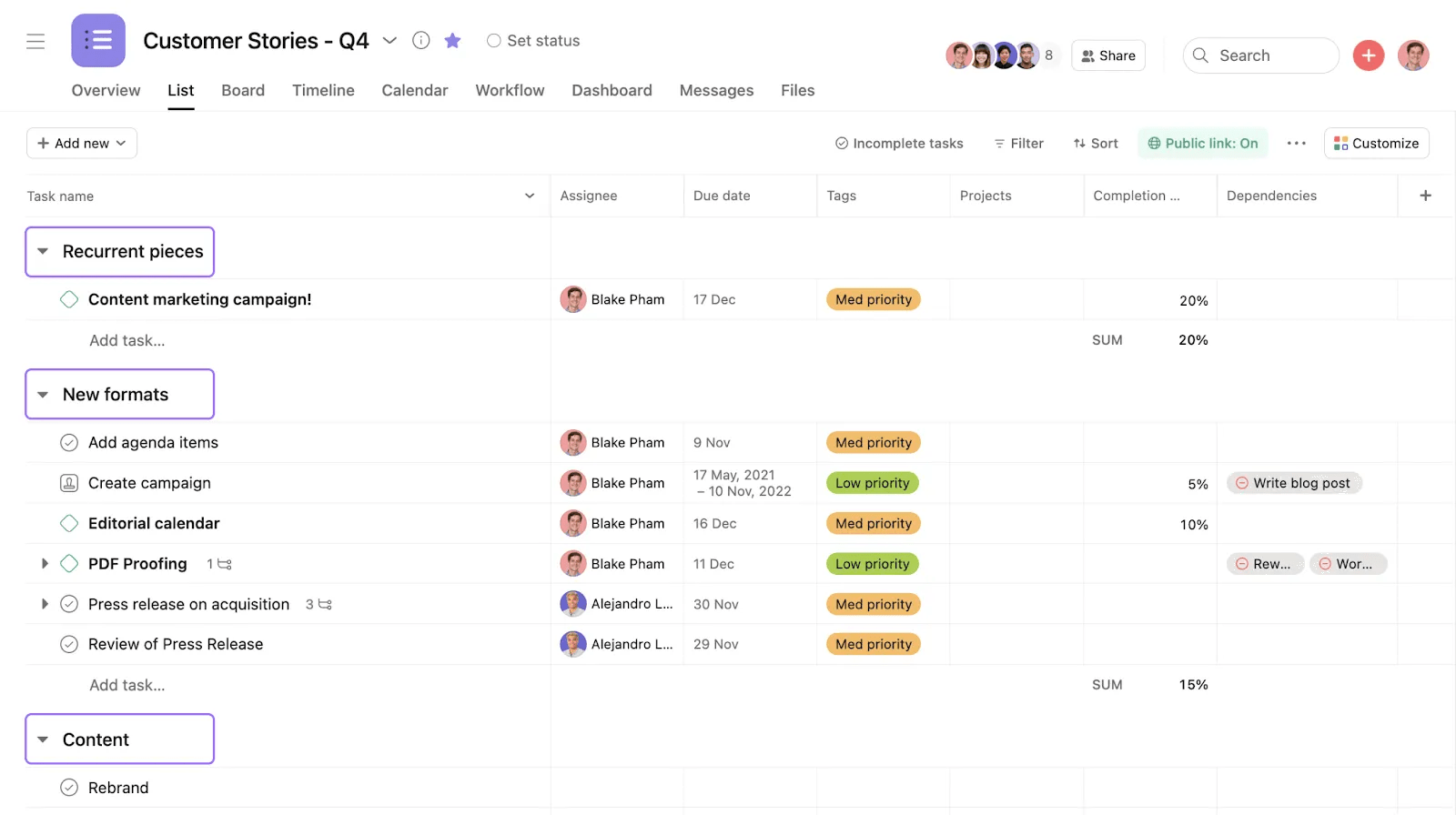
Create sections
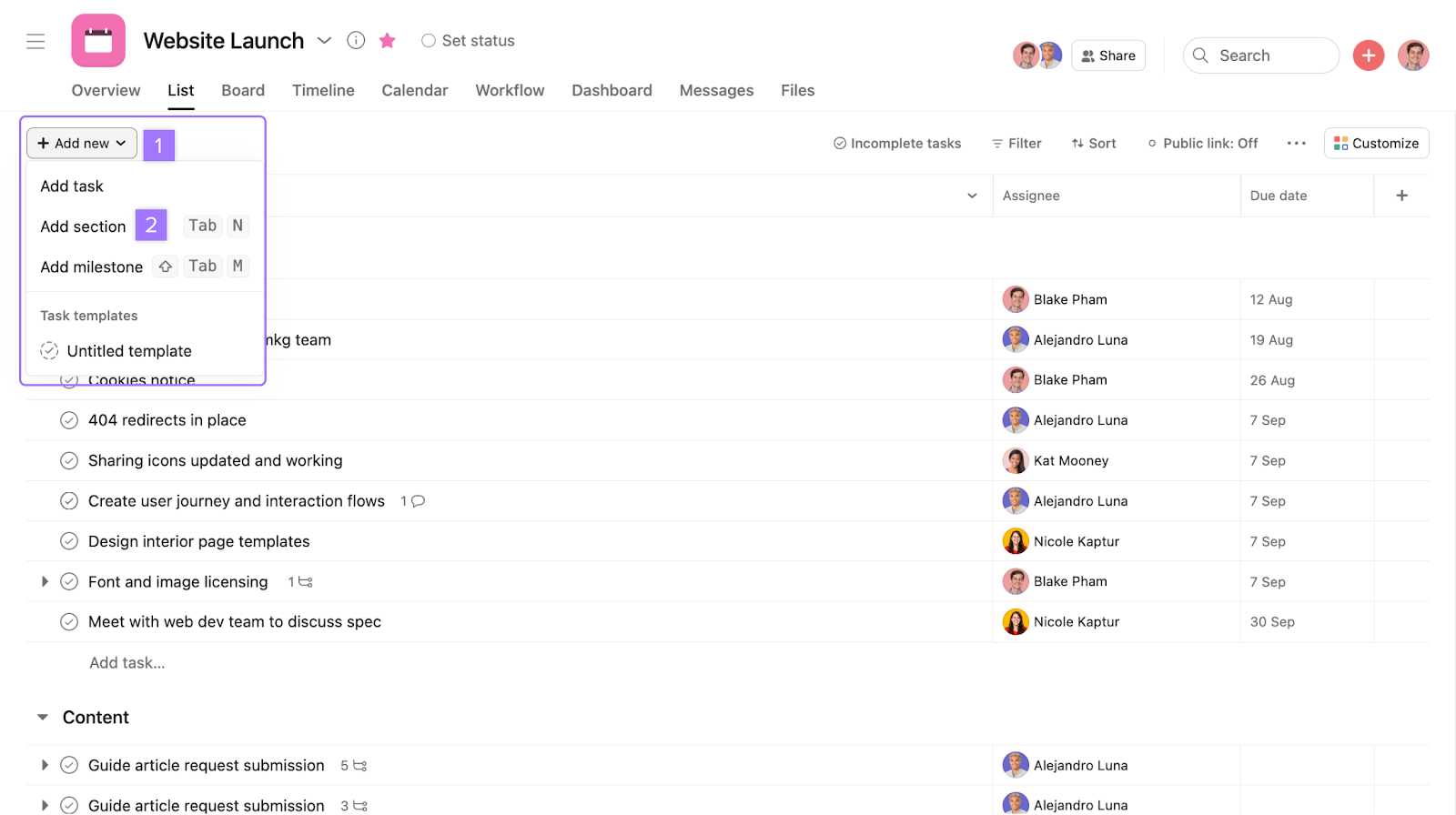
To create a section in your project:
- Click the drop-down menu next to the Add new button
- Click Add section
Move tasks between sections
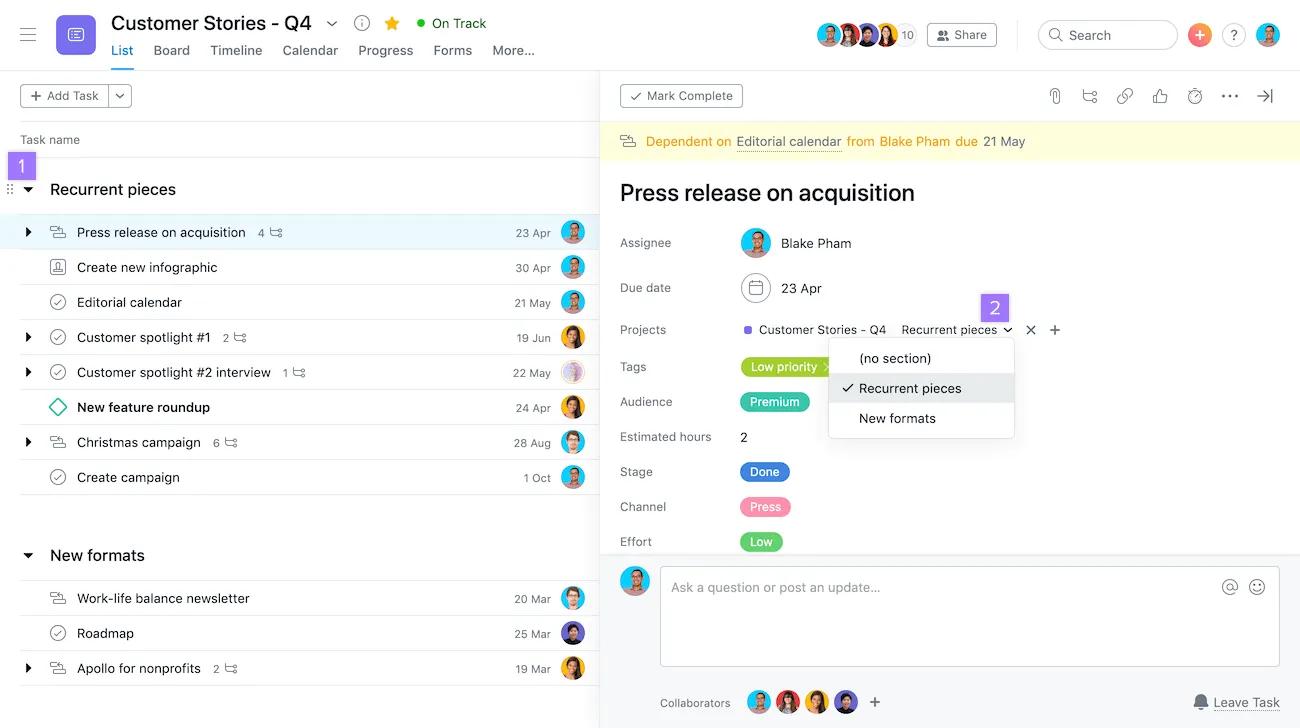
There are two ways to move a task to a different section:
- Drag and drop the task between sections in the main pane
- Click the section name in the task details pane and select a different section from the drop-down list
View sections
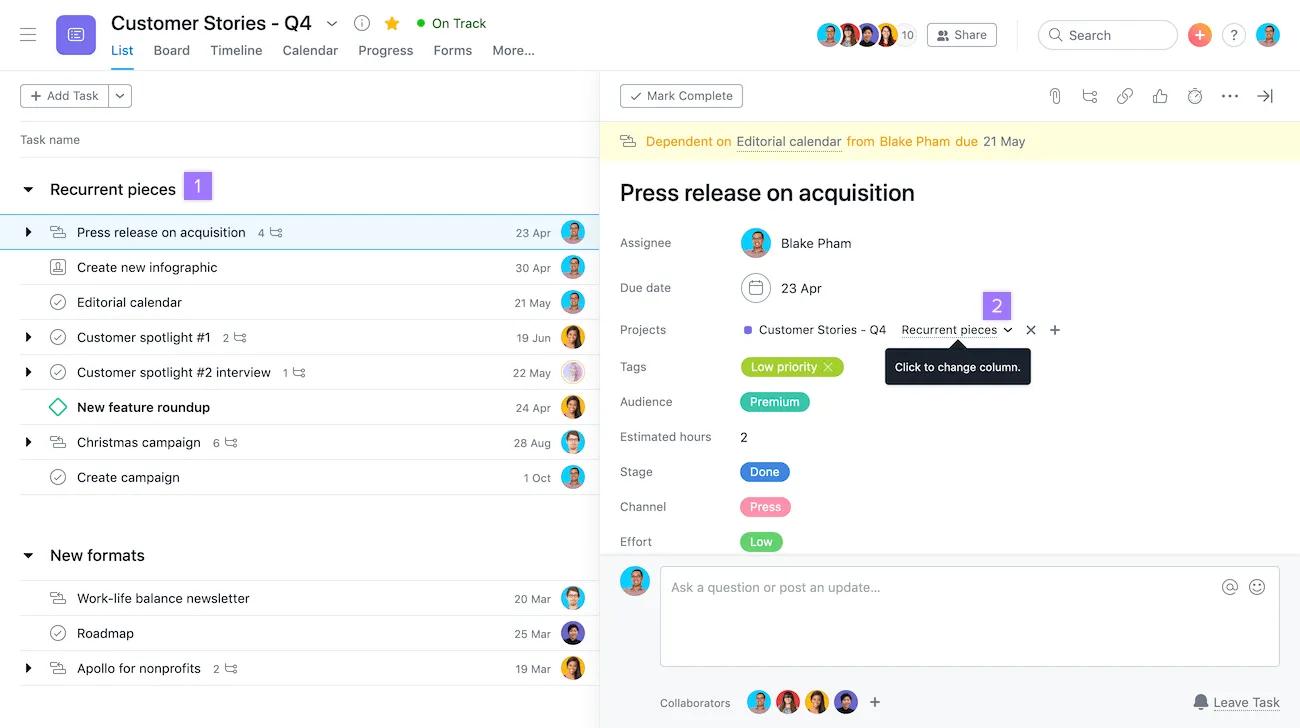
There are two ways to identify what section a task is in:
- From the main pane
- From the task details pane
In order to add a section under a list of subtasks, you must use the keyboard shortcut Tab + N.
Collapse and expand sections
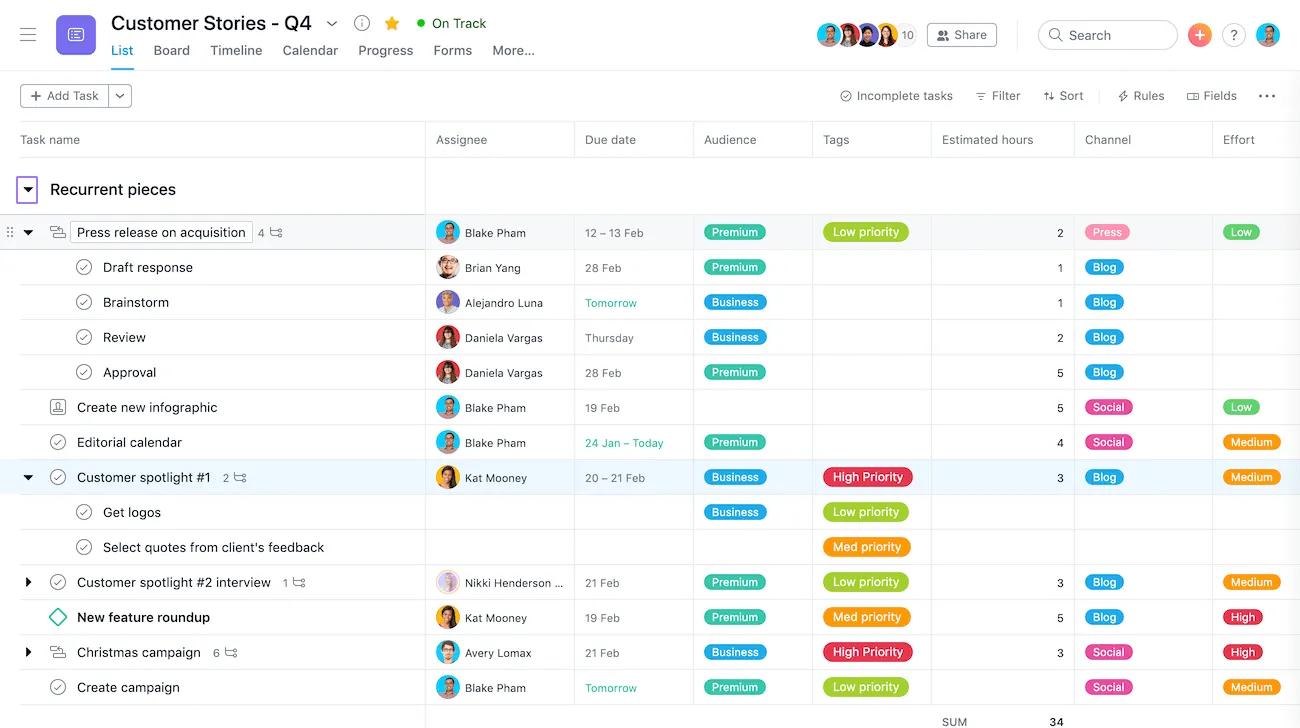
Sections can be expanded and collapsed as required.
Click on the arrow next to a section and you can expand and collapse the tasks under the section.
Delete a section
You can delete a section at any time.
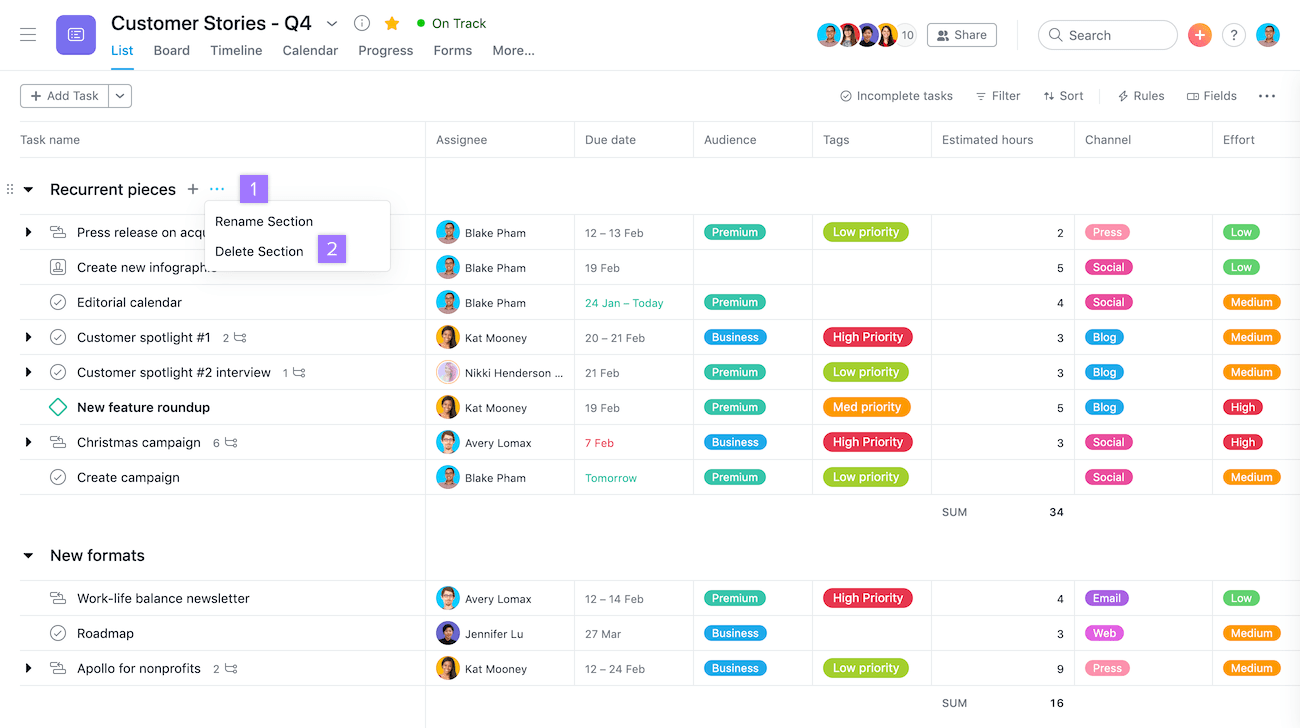
To delete a section:
- Click on the three dot icon next to the section header
- Select Delete section
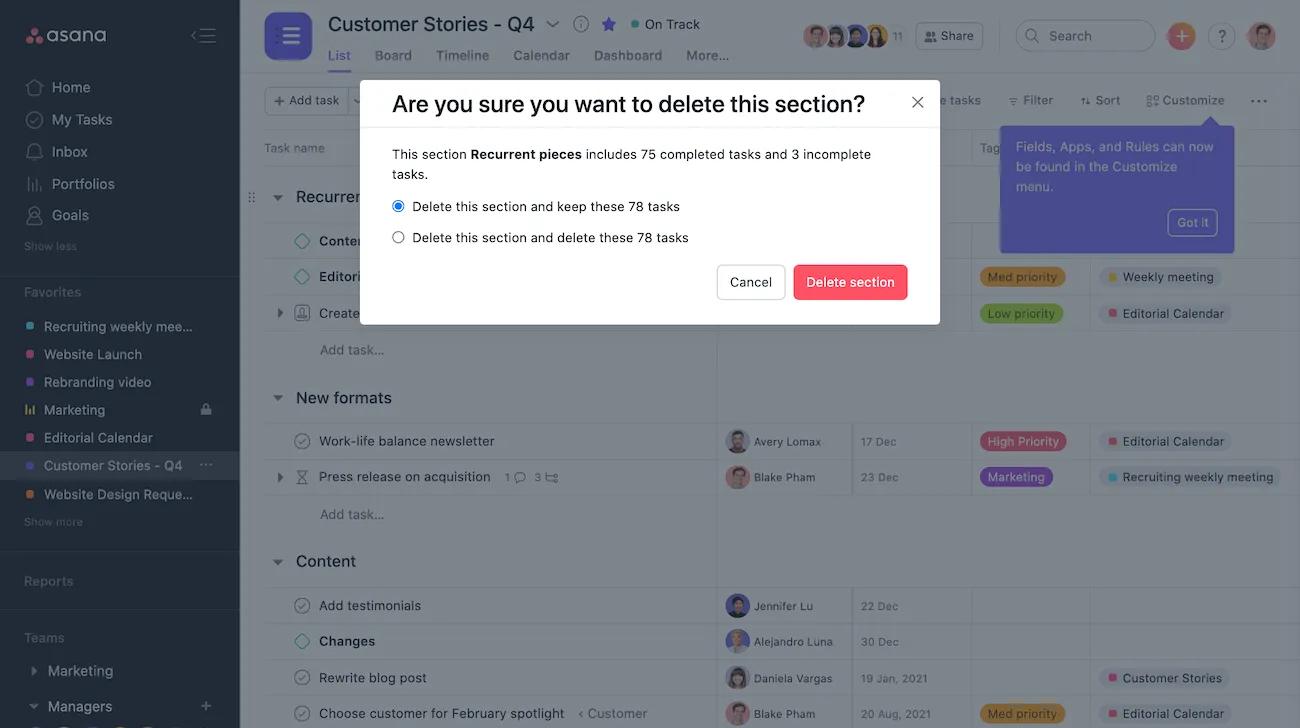
From here, you will be prompted to confirm the deletion.
Duplicate a section
To duplicate a section within a project, follow these steps:
- Navigate to the section you wish to duplicate
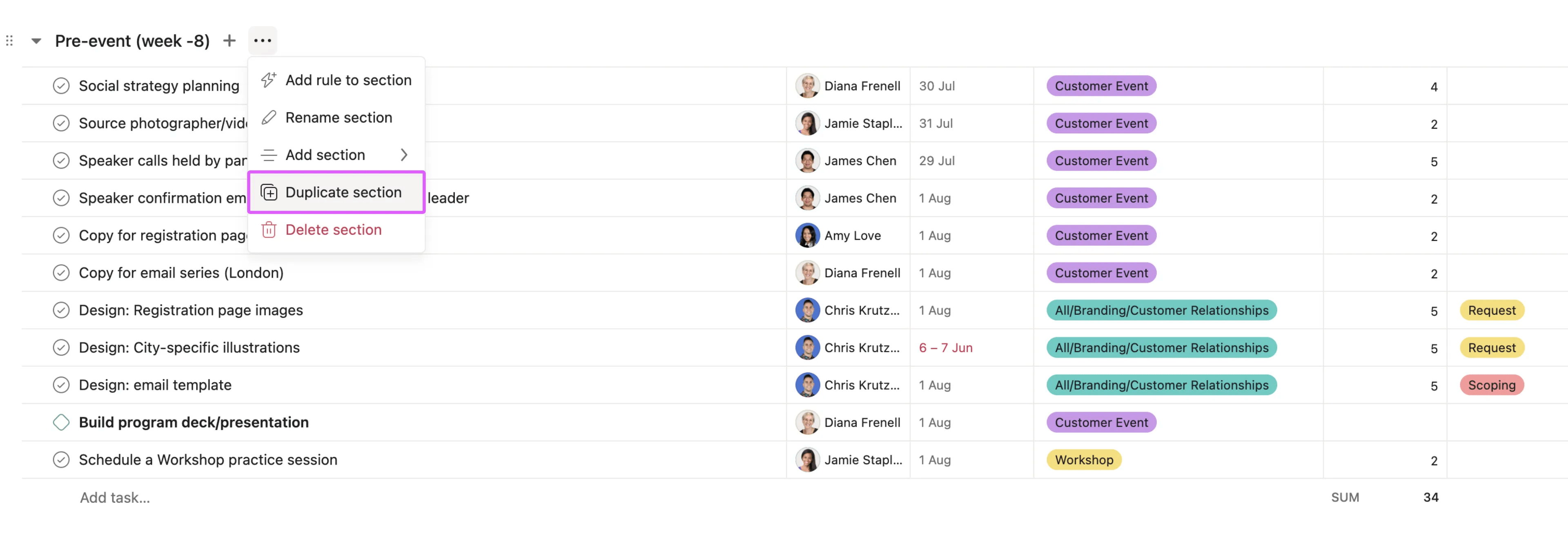
- Hover over the section name and click the three-dot icon to open the section options
- Select Duplicate section from the dropdown menu
- Choose the task details you wish to preserve, such as assignee or subtasks
- Click Create new section to perform the duplication
Duplicate a section into another project
You can duplicate an existing section and its tasks into another project.
To duplicate a section and its tasks into another project, follow these steps:
- Navigate to the section you wish to duplicate
- Hover over the section name and click the three-dot icon to open the section options
- Select Duplicate section from the dropdown menu
- From the Duplicate to field, choose a project to duplicate the section into
- Choose the task details you wish to preserve, such as assignee or subtasks
- Click Create new section to duplicate the section into your chosen project
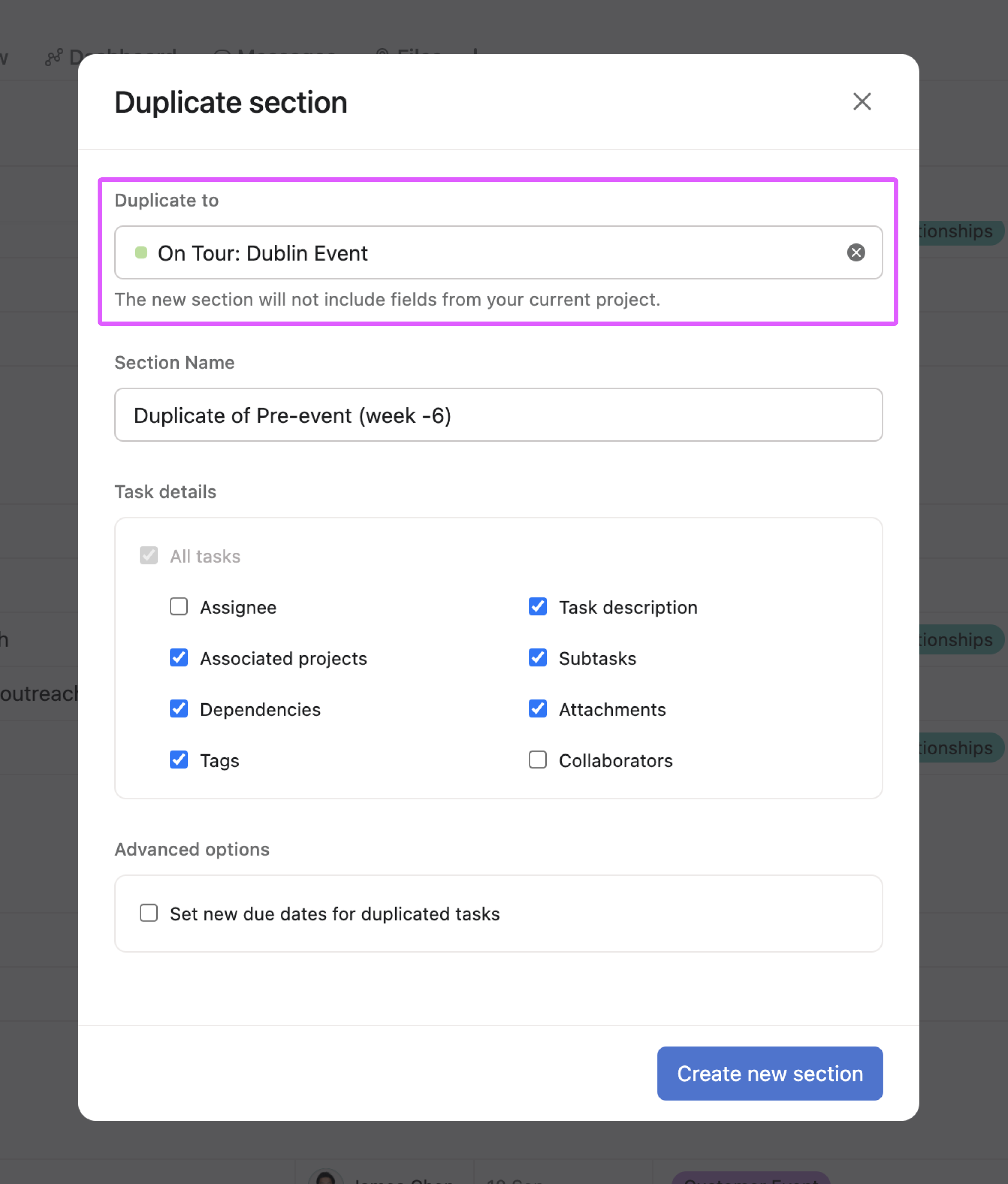
In this example, the section and its tasks will be duplicated into the On Tour: Dublin Event project. Task assignees and collaborators have been deselected, so these task details will not be carried over.



