Products


AI Platform


Asana Foundations
Company Type
No articles found for this topic.
No articles found for this topic.

Visit our pricing page for more information.
Rules and integrations work together to automate routine tasks and establish workflows across your team's favorite tools. This article details the best rules and integrations for productivity in your organization.
See How to create a rule for tips on getting started with rules.
Leverage rules to send an email from your Gmail account to your chosen recipient when certain parameters are met—all decided by you in advance. Choose from many triggers such as when a task is no longer blocked or a due date is approaching, and let rules automatically send an email with a custom message.
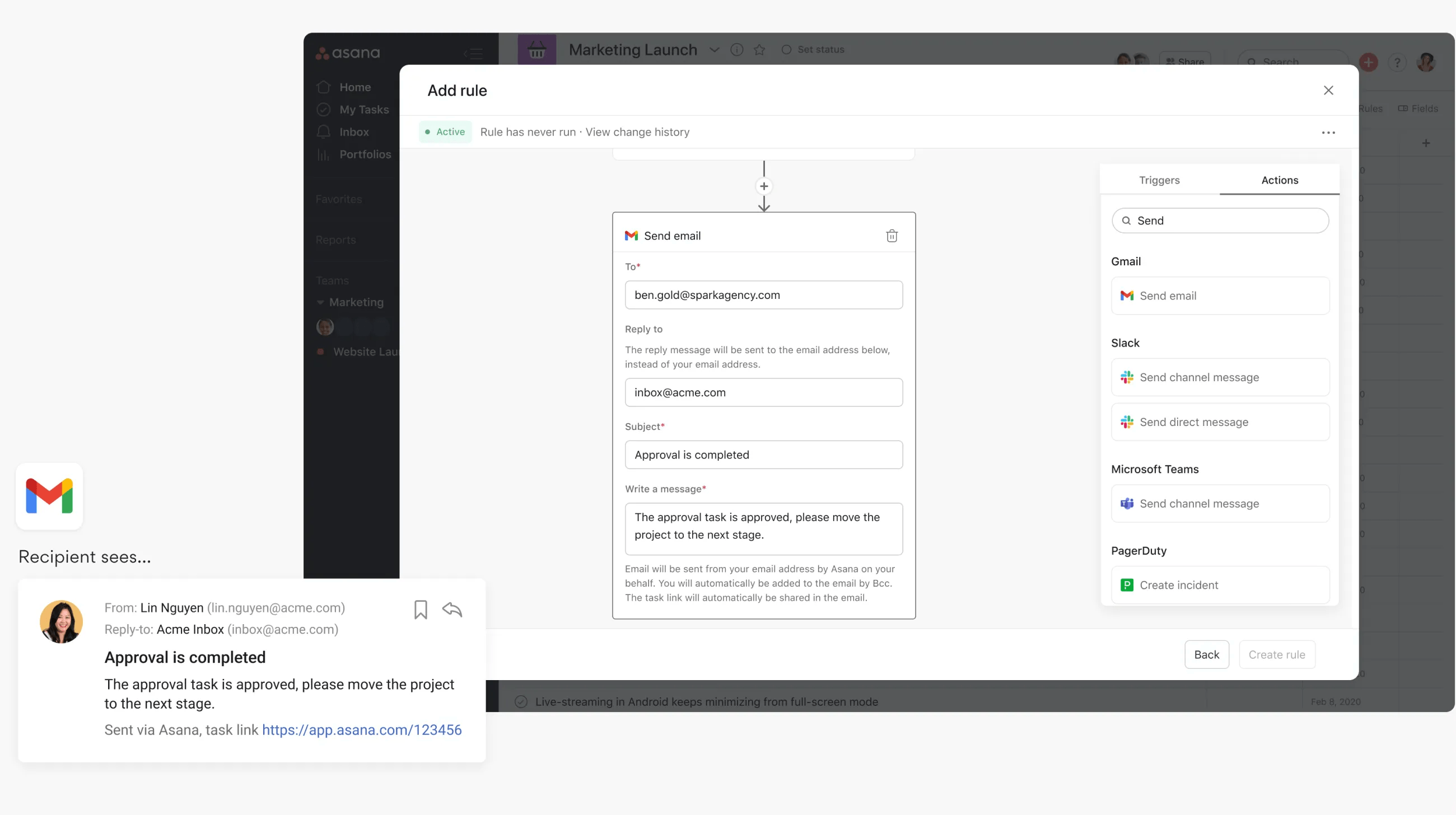
In this example, when the task is approved the rule is triggered and the action is taken; an email will be sent from your email address and will automatically Bcc you on the email. The task link will also be included in the email.
This Send email action also supports the use of variables. Visit this article for more on how to use variables with Asana's Gmail rule integration.
With Asana Rules, teams can go from manually scheduling meetings to automatically creating a meeting with project collaborators when a task reaches a certain stage. For example, teams can use this rule to trigger creating an event in a team calendar when a task is moved to a "Scheduled" section. Teams can also use this for recurring task scenarios: you can have a recurring "Send agenda for meeting" task which sends out an event invite when the task is completed.
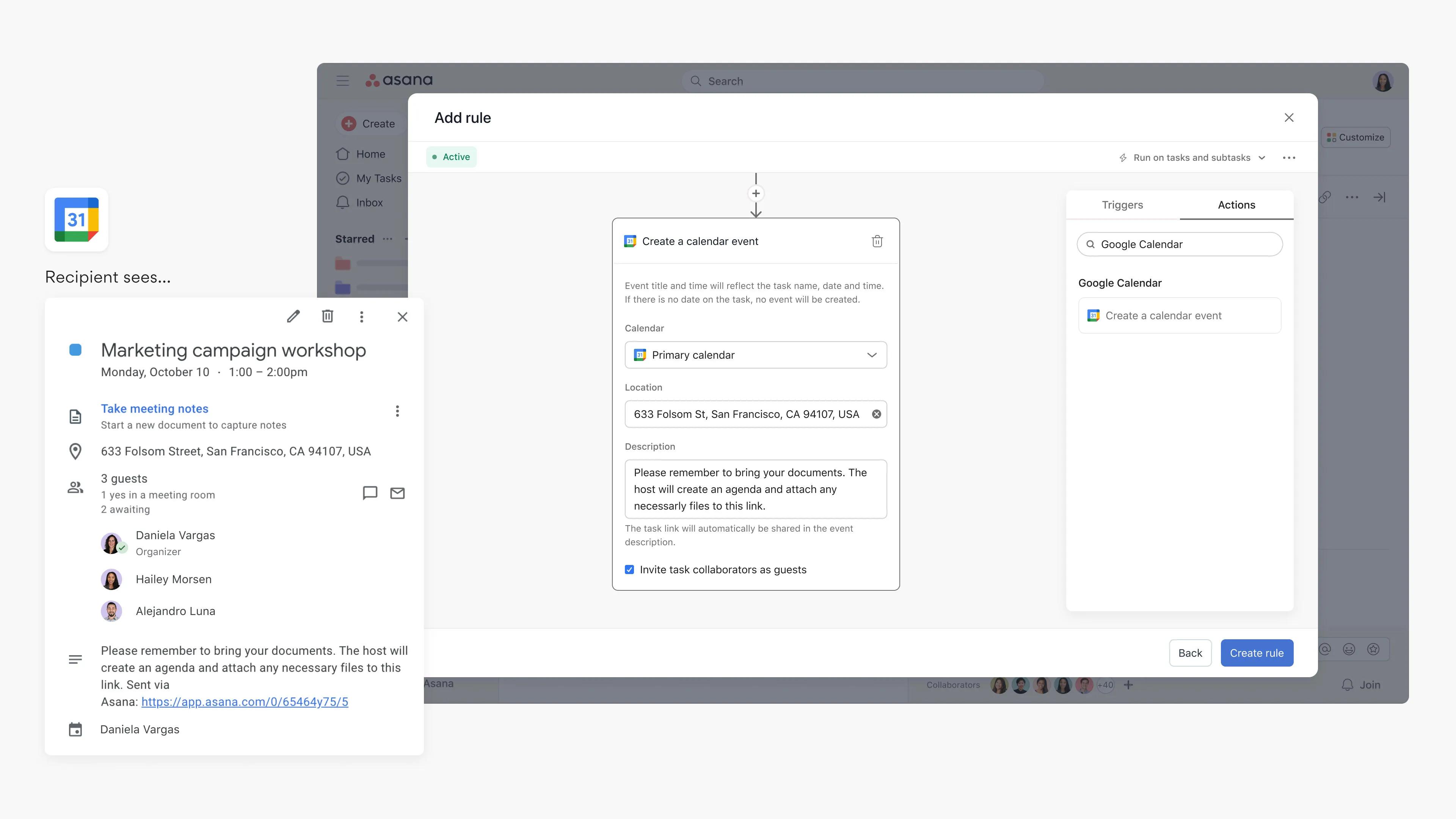
With Asana Rules, teams can go from manually scheduling meetings to automatically creating a meeting with project collaborators when a task reaches a certain stage. For example, teams can use this rule to trigger creating an event in a team calendar when a task is moved to a "Scheduled" section. Teams can also use this for recurring task scenarios: you can have a recurring "Send agenda for meeting" task which sends out an event invite when the task is completed.
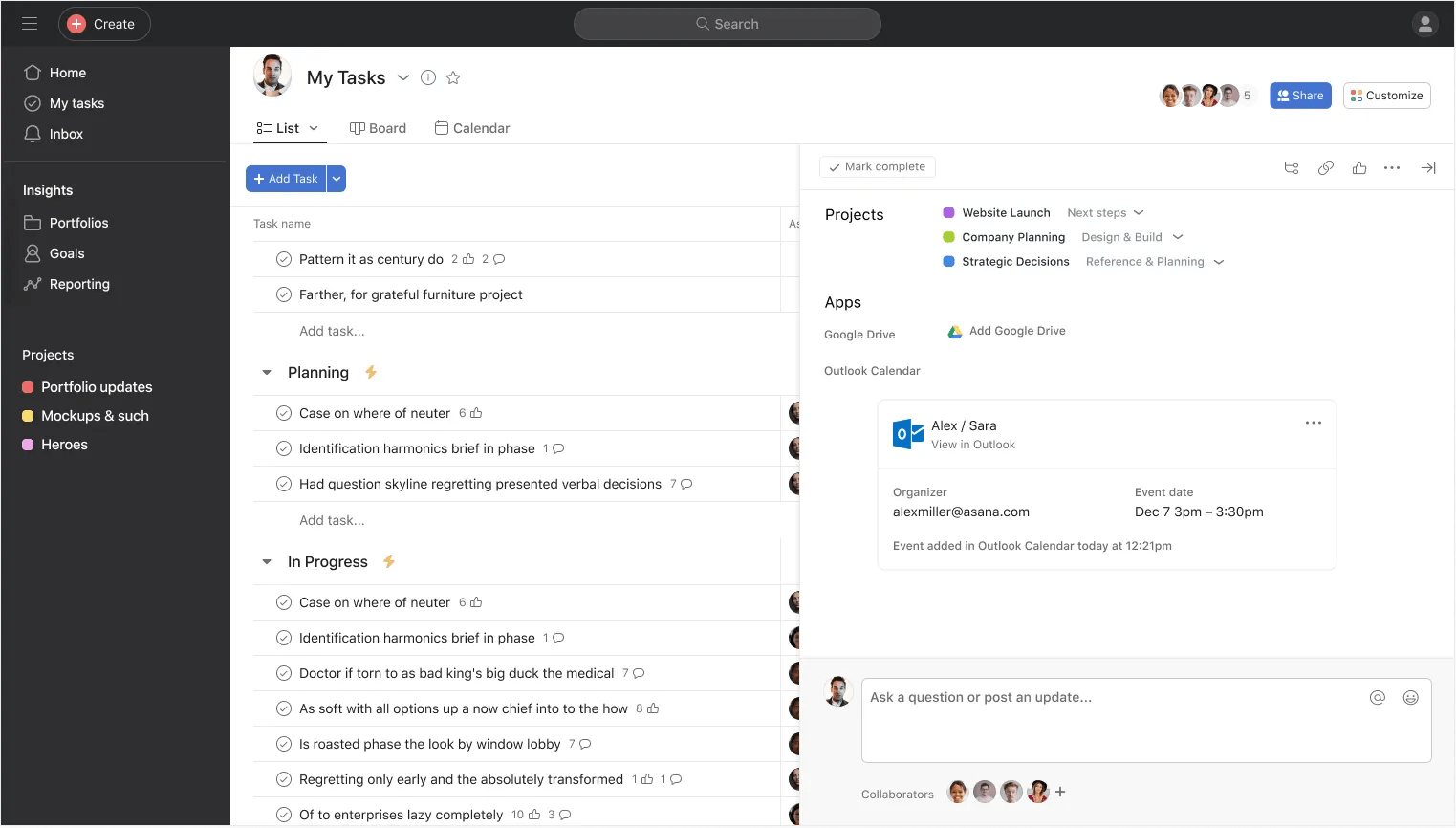
* When signing in with your Microsoft account, we ask you to grant consent to relevant Outlook Calendar permission. If you are disallowed from granting this consent yourself, please reach out to your Microsoft Admin and ask them to consent to Calendars.ReadWrite in Microsoft Entra (fka Microsoft Azure).
Leverage rules to send an email from your Outlook account to your chosen recipient when specific parameters are met—all decided by you in advance. Choose from many triggers, such as when a task is no longer blocked, or a due date is approaching, and let rules automatically send an email with a custom message.
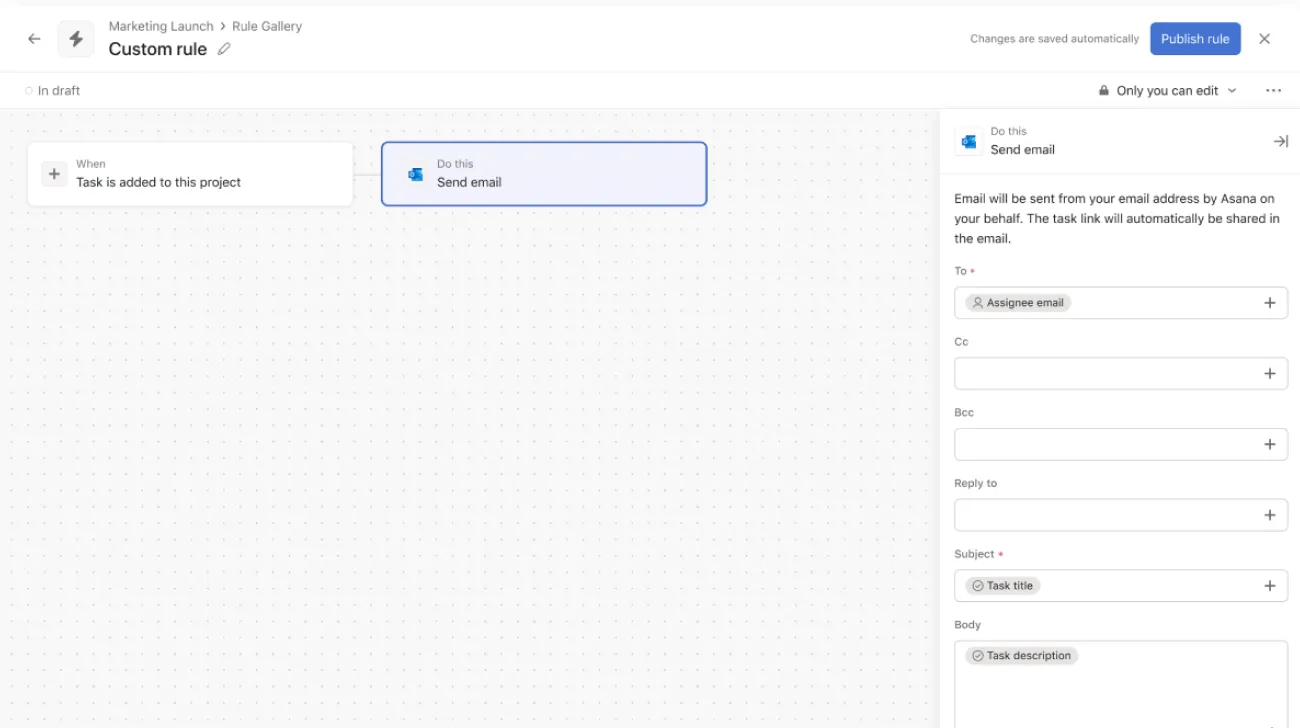
In this example, when the task is approved, the rule is triggered, and the action is taken, an email will be sent from your email address and will automatically Bcc you on the email. The task link will also be included in the email.
This Send email action also supports the use of variables. Visit this article for more on using variables with Asana's Gmail rule integration.
Note
If you are looking to automate sending an email to users without an Asana license, you can create a text custom field in which you can enter the recipient email addresses. When setting up the rule action, you can select this text custom field as the email recipient.
You can use the Microsoft Teams + Asana integration to create custom notifications using the Asana rules feature, such as sending a custom message to a channel or a chat whenever a task is created, updated, or commented on.
Learn how to build these rule types and see example workflows here.
The Notion + Asana integration allows teams to streamline work by automatically creating Notion pages from Asana and adding Notion pages to Asana tasks. Rather than manually creating Notion pages and linking those to relevant Asana tasks, you can use automation to create a Notion page when certain actions take place in Asana, such as when a task is moved to a section.
For example, teams that are conducting research interviews in Asana tasks can automatically create a Notion page to take notes when the task moves to the "Interview scheduled" section. You can also link existing Notion pages to an Asana task so that collaborators can see relevant context from the page, streamlining collaboration across multiple apps. Notion’s integration with Asana also allows you to view the status of Asana projects and tasks as link previews in Notion.
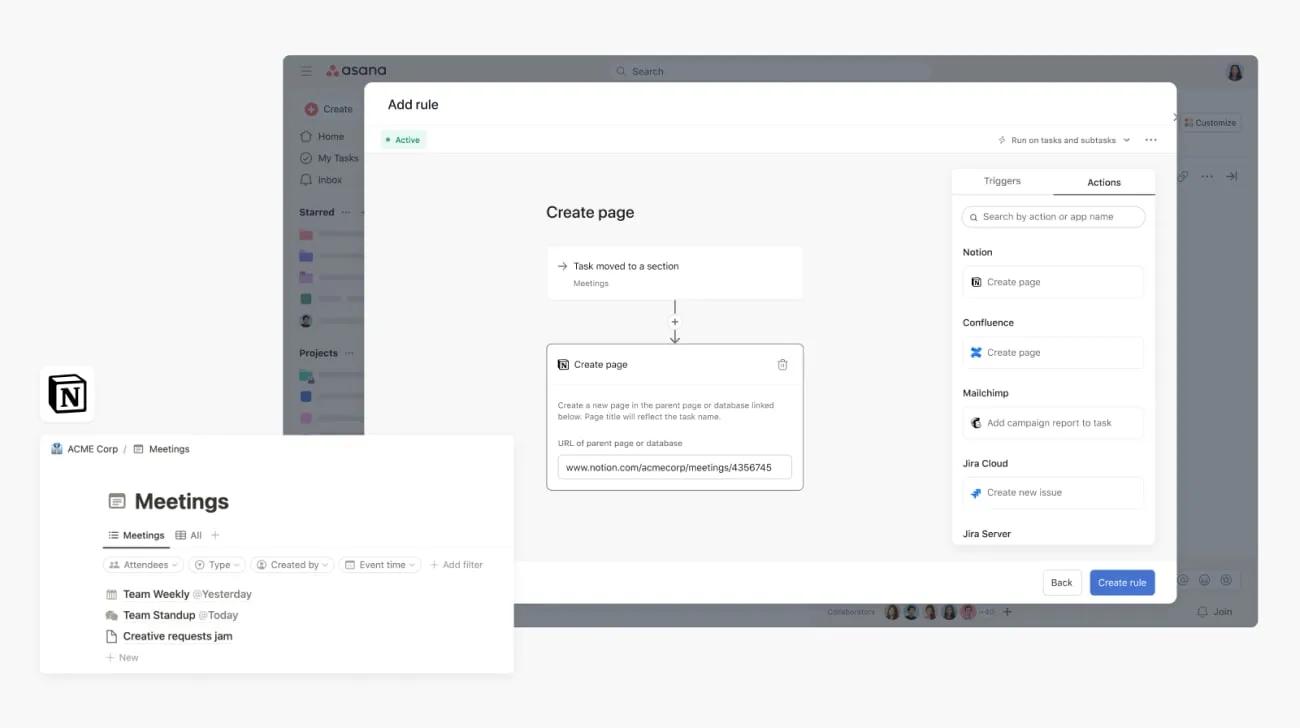
To add the URL of the page, ensure the page is connected to Asana. To connect it, click the three dot icon at the top right hand of the page, select Connections, and check the Notion for Asana connection is active.
Here’s how to attach an existing Notion page as a widget to an Asana task:
Note: This integration is already built into Asana, but you need to sign up for a Notion account to get started.
The Notion widget is available without a paid Asana subscription.
When a rule creates a Notion page from an Asana task, only the task title will sync. The task description will not sync.
Rules that involve external actions such as sending emails or direct messages (e.g., via Outlook, Salesforce, or Slack) can only be edited by the rule's creator. This restriction applies even if the "Only you can edit this rule" setting is turned off, because the external actions are authenticated using the rule creator's account credentials.

