Products


AI Platform


Asana Foundations
Company Type
No articles found for this topic.
No articles found for this topic.

Visit our pricing page for more information.
Asana Goals is available on Asana Advanced, Enterprise, and Enterprise+ tiers, as well as legacy tiers Business and Legacy Enterprise. Visit our pricing page for more information.
Track the progress of your goals and communicate important information about their progress to stakeholders through status updates.
Progress and status are the key indicators of how your organization is tracking against their goals. Connecting goals to work provides clarity about the why of its progress and status.
Learn about the different progress measurements you can use for your goals and how you can give context to your stakeholders about the status and progress of your goals.
New to Asana Goals? Check out Get started with Asana Goals.
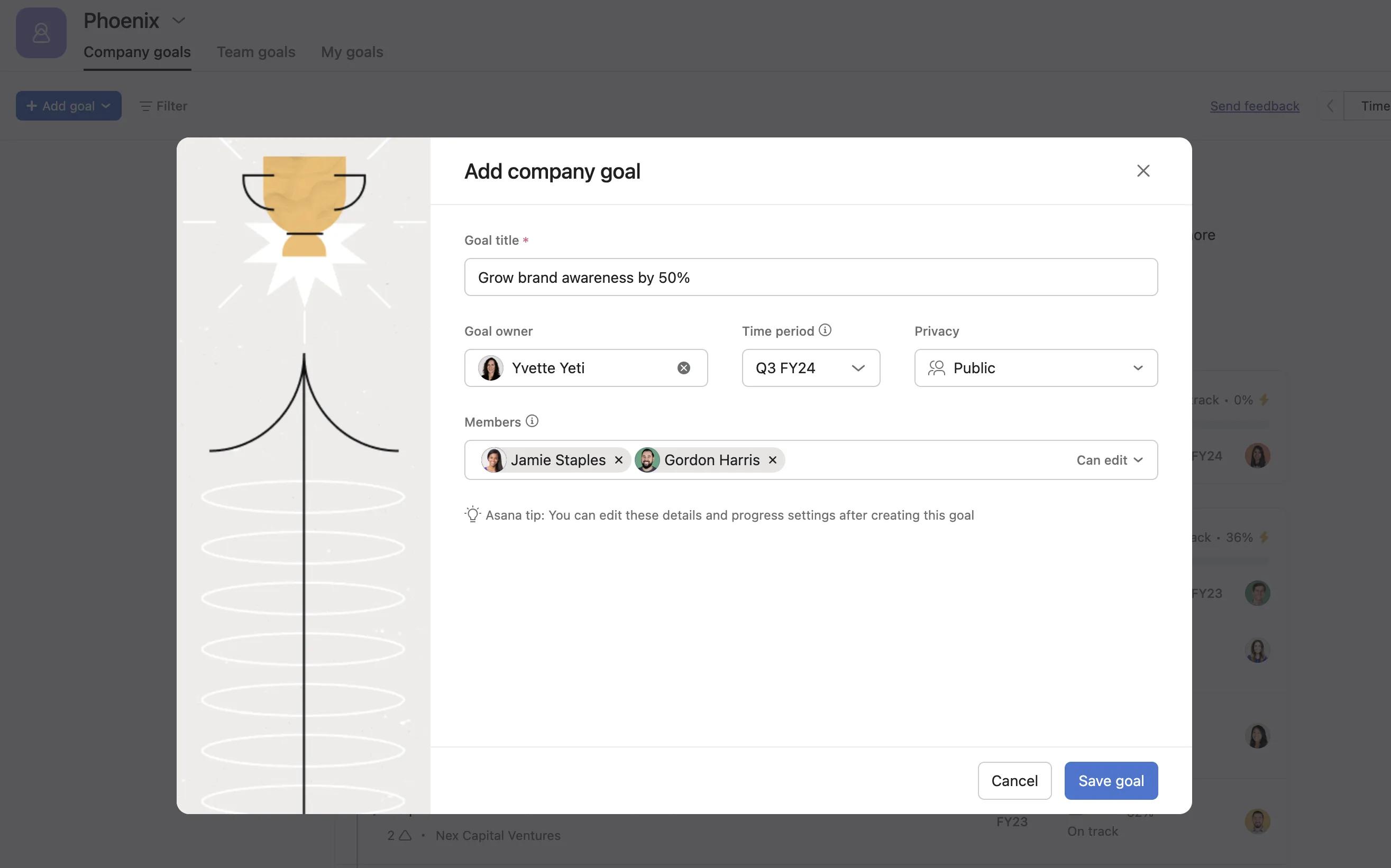
When you have created a goal, you can choose how you want to measure progress toward its completion. The update method of goals can be Automatic or Manual.

With the Automatic option, you can automatically calculate progress from three sources; sub-goals, projects, or tasks. When the progress of the source changes, so does the parent’s progress–automatically.
If you choose Sub-goals as your progress source, you can choose from three measurements: percentage, numeric total, or currency total. The percentage measurement will be an average of the sub-goals, while the numeric and currency measurements will be a sum of the sub-goals.
If you choose Tasks as your progress source, your progress will be calculated based on the completion of the connected tasks.
If you choose Projects as your progress source, you can measure success using Milestones complete or Tasks complete. The goal’s progress will be determined using the average of the percentage of milestones or tasks completed for each project. See examples of how this works in this video:
Note
Tasks complete will take into account all tasks, milestones, and approvals.
Up to 100 items (tasks, projects, or goals) can be connected to automatic progress.
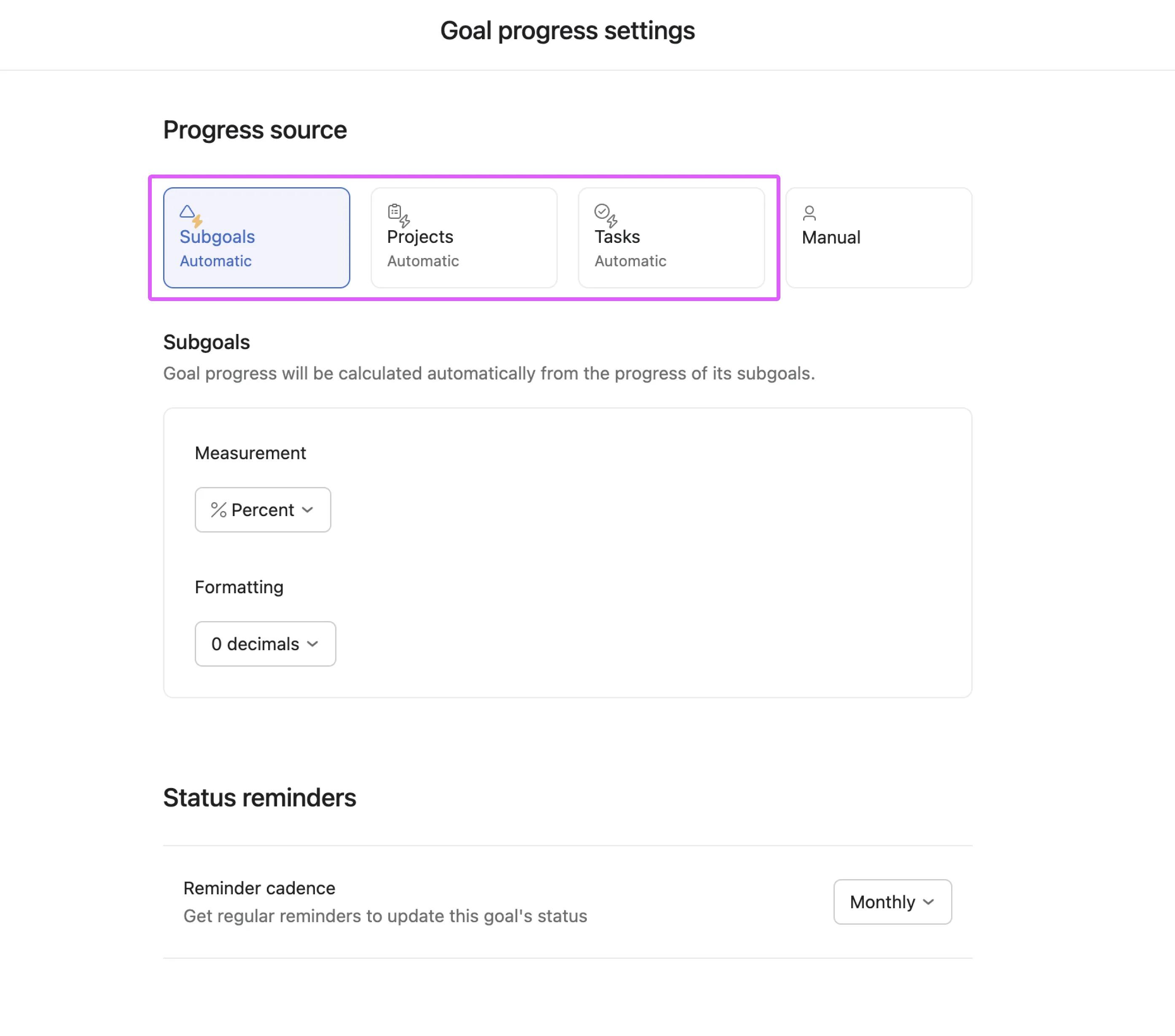
This option is best for goals where success will be graded solely on the progress of projects, tasks, or other goals and subgoals.
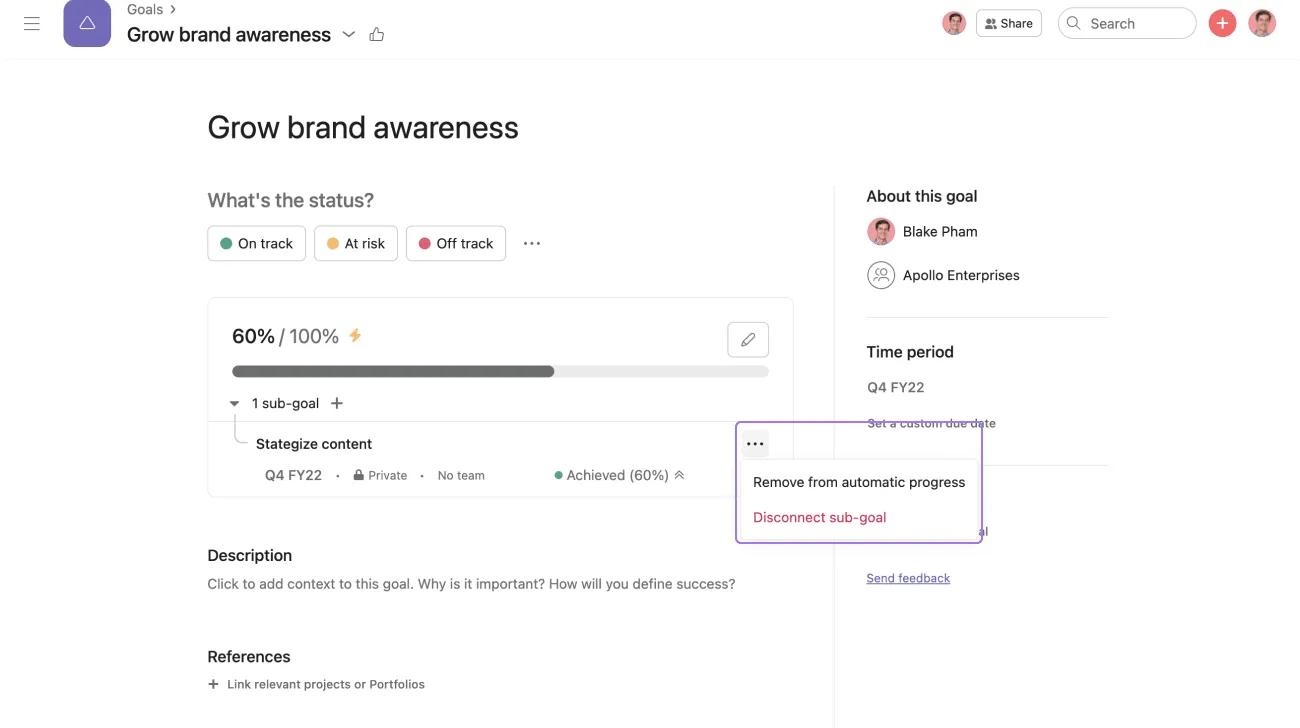
To remove sub-goals, projects, or tasks from the parent goal, navigate to the parent goal’s detail page and click on the three dot icon next to the sub-goal or project name. You can remove them from the automatic progress or disconnect them entirely from the parent goal.
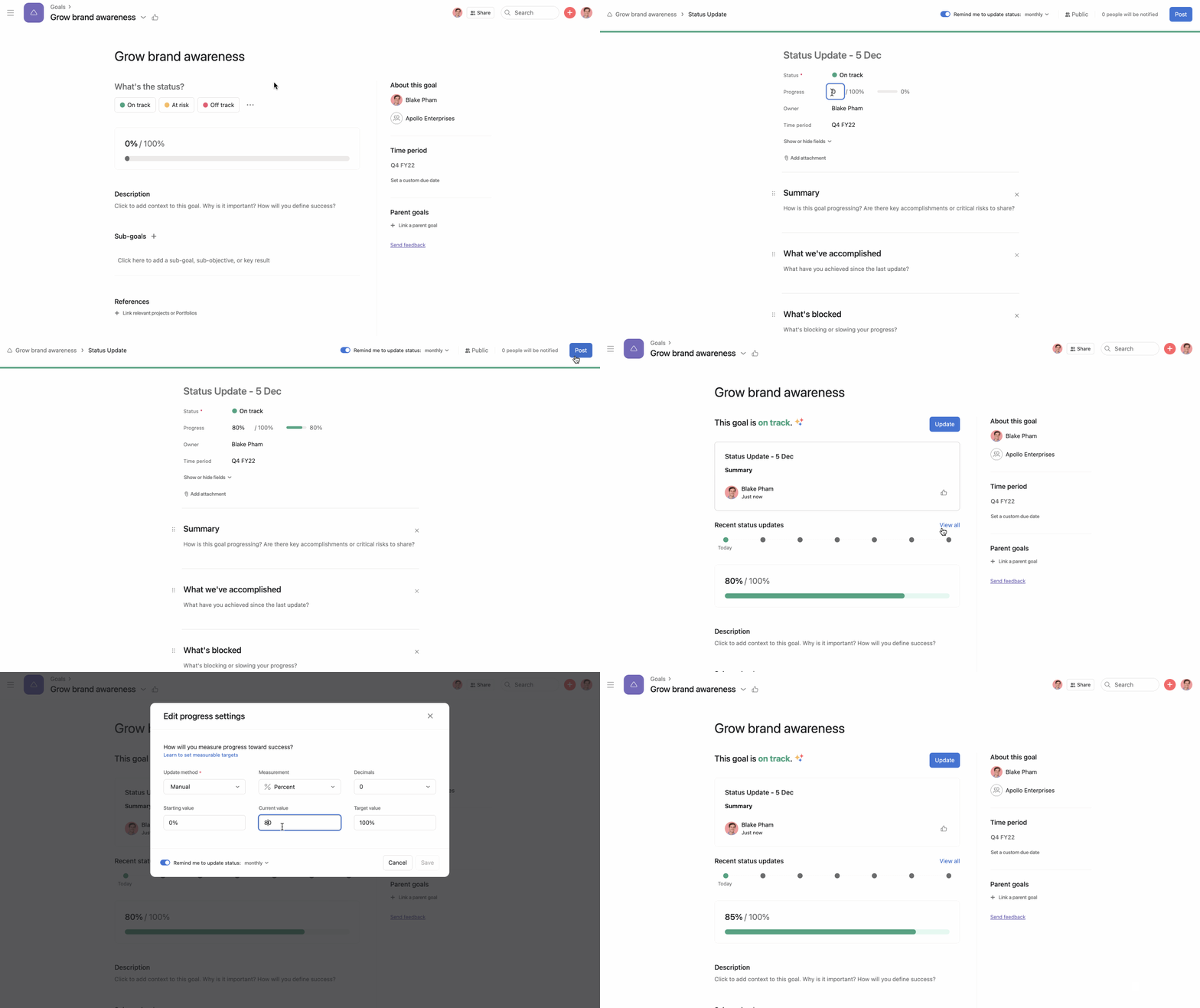
With the Manual update method option, the goal’s progress metric must be updated manually. When creating a manual goal, you’ll need to add a current value and a target value. You can choose from three measurements: percentage, number, and currency.
This option is best for goals with specific grading criteria or goals whose achievement is based on external data, qualitative (a judgment of progress), or binary (achieved or not achieved).

Available on Asana Advanced, Enterprise, and Enterprise+ tiers.
A goal's progress over time can be visualized using a chart on the goal’s detail page. This chart is available for goals that have a target to either increase or decrease a value.
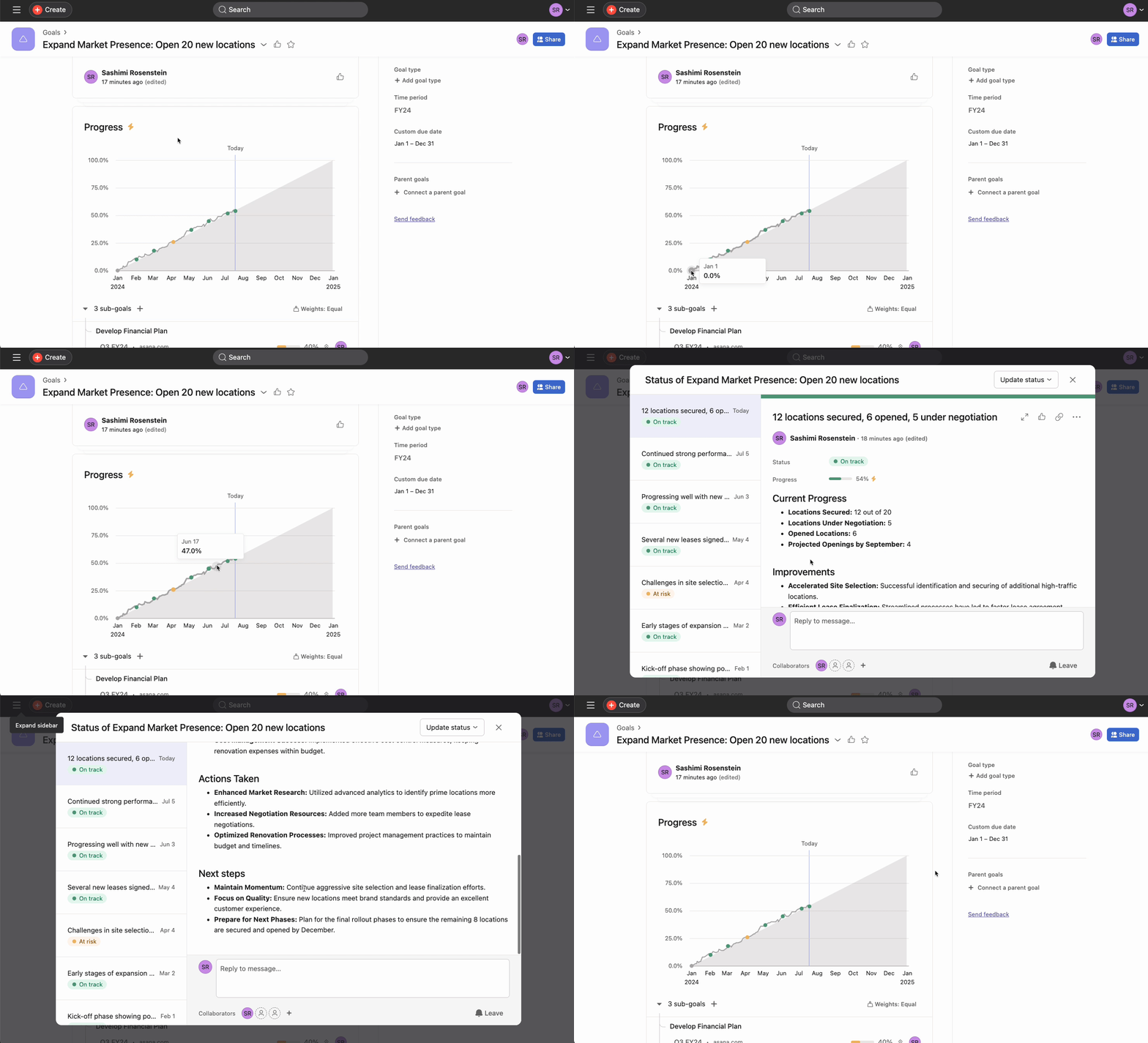
The dots in the graph indicate changes to the progress values of the goal over time. Dots with colors indicate a status update was made at that point. These colored dots are clickable and will take you directly to the corresponding status update, allowing you to easily view the context and details of the progress change.
Using this progress over time visualization, you can get a clear picture of how a goal has evolved and track important milestones via the linked status updates. This provides valuable insight into the trajectory and history of the goal.
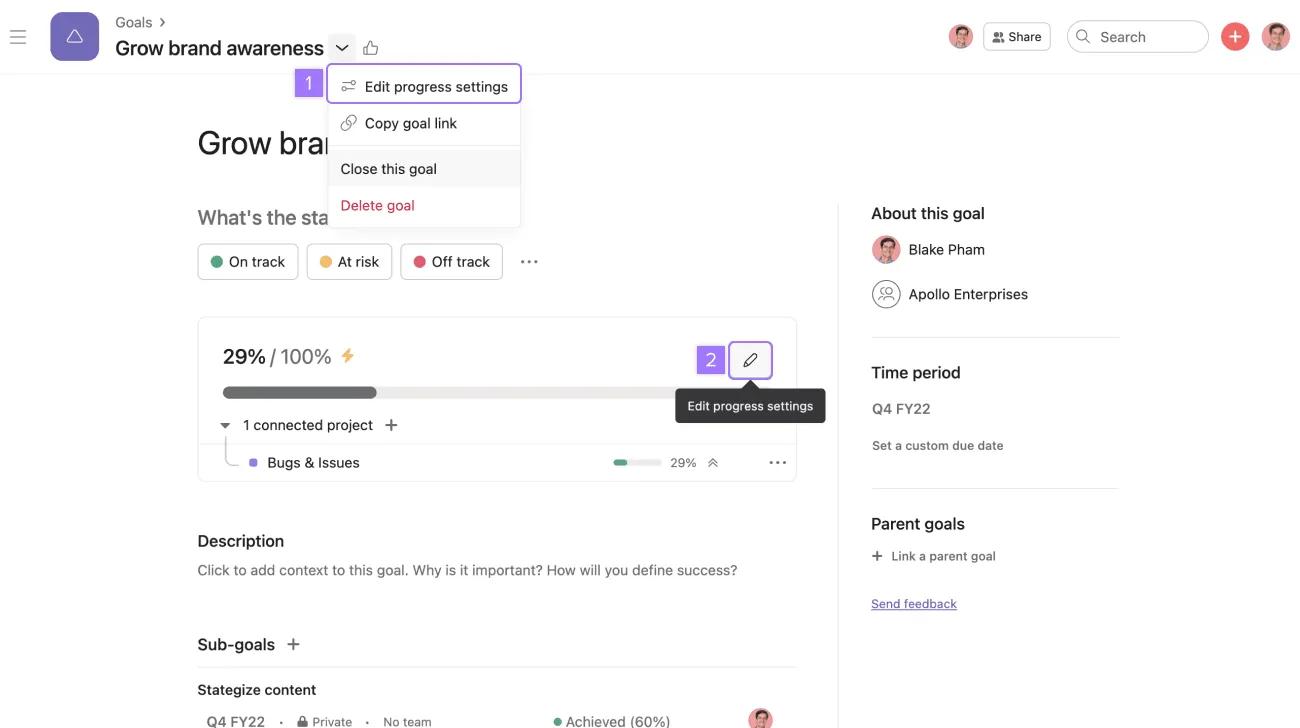
You can change your update method, progress source, and measurement by editing your goal progress settings.
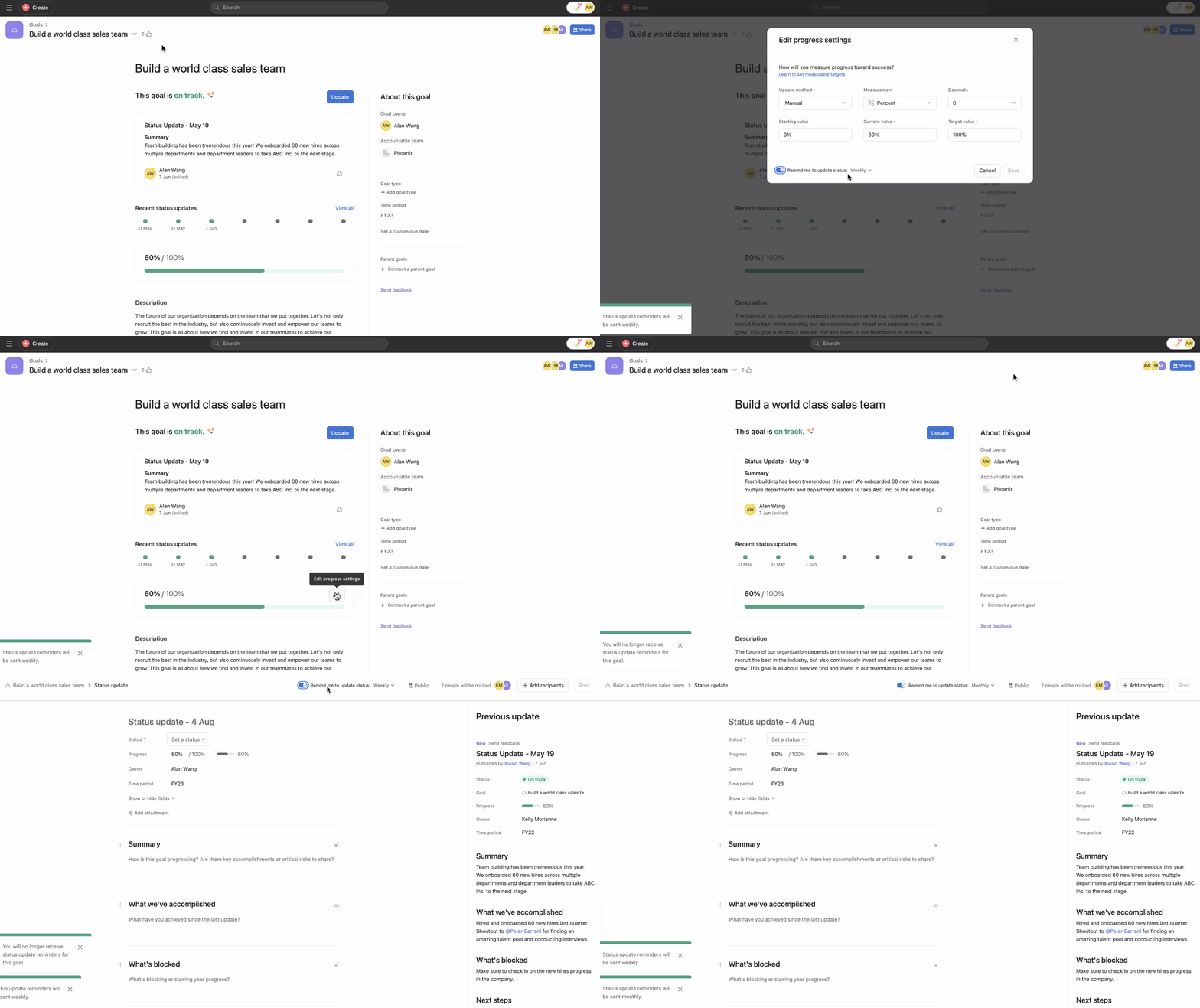
If you're the goal owner, you can set reminders to update the goal's status Weekly, Biweekly, Monthly, or Quarterly.
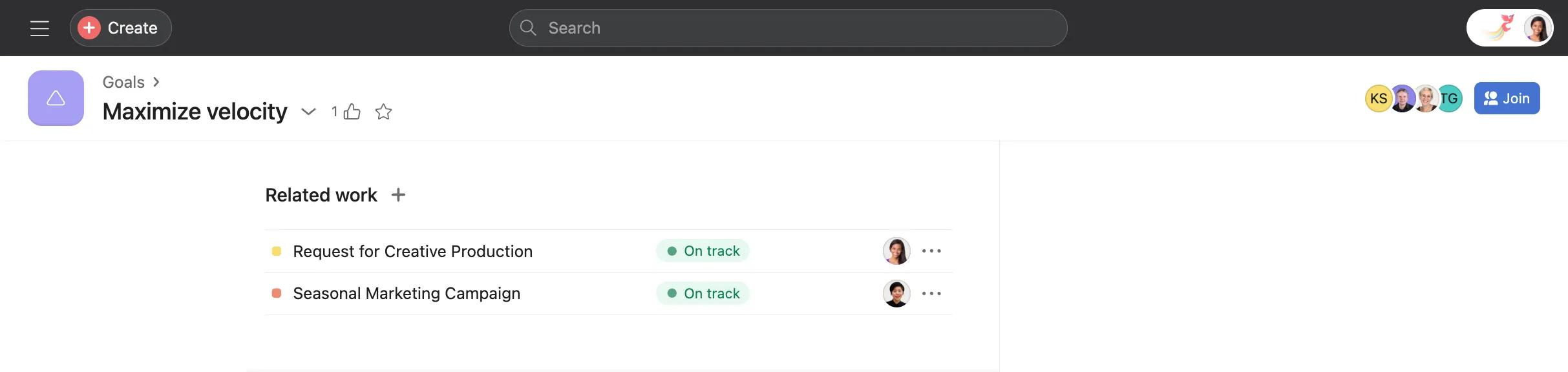
The “Related work” section allows you to reference tasks, projects, and portfolios that are relevant to a goal but do not automatically determine its progress. You can add a maximum of 120 items, including those associated with automatic progress.
Goal status updates provide goal members with context about the status and progress of a goal. Using the goal’s status history, they can also track the historical progress of a goal and understand the goal’s evolution in time.
Learn more about the goals management process and the role status updates have in it.
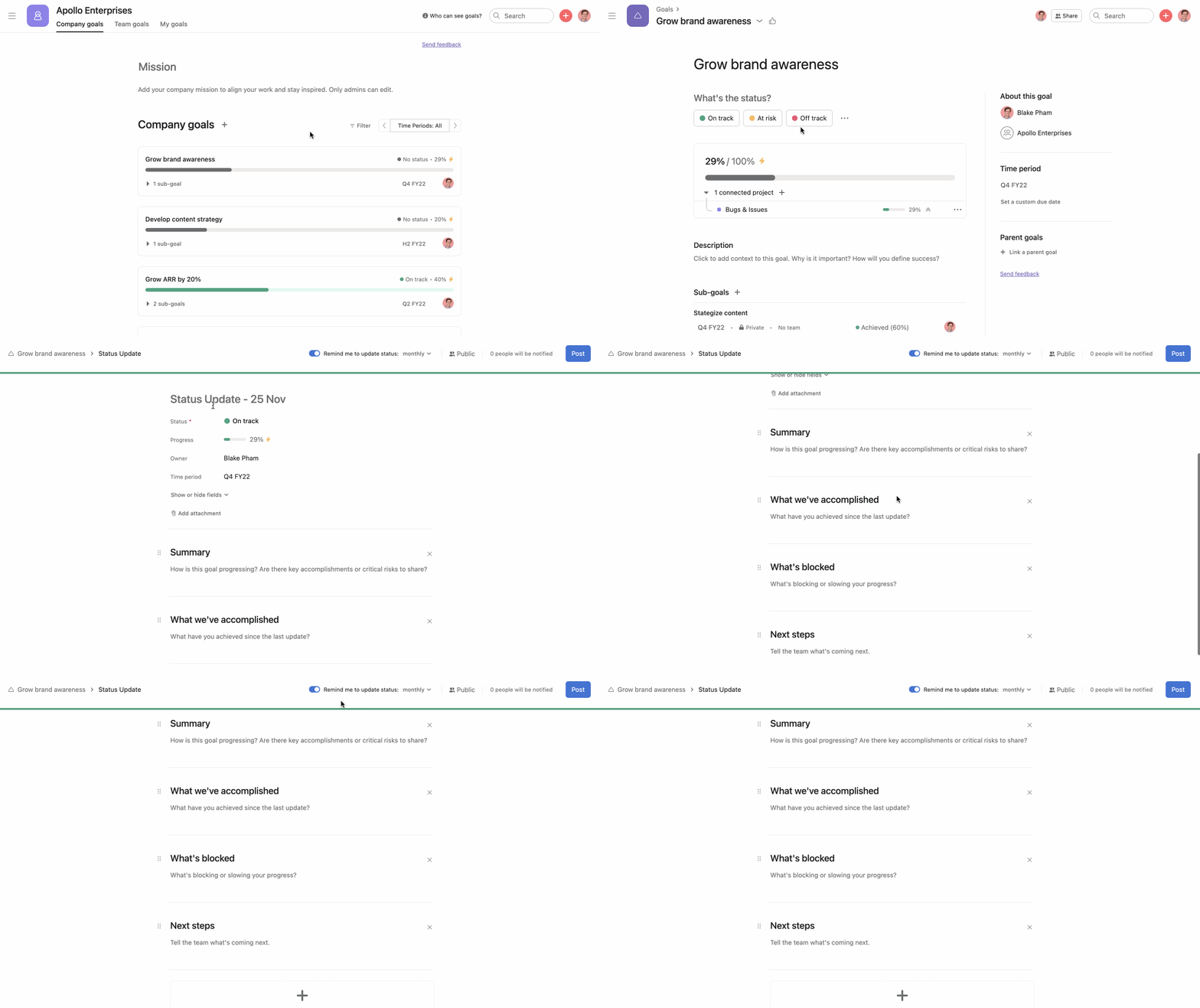
If you are new to goal tracking, you can learn Asana’s guidelines on defining goal grading criteria.
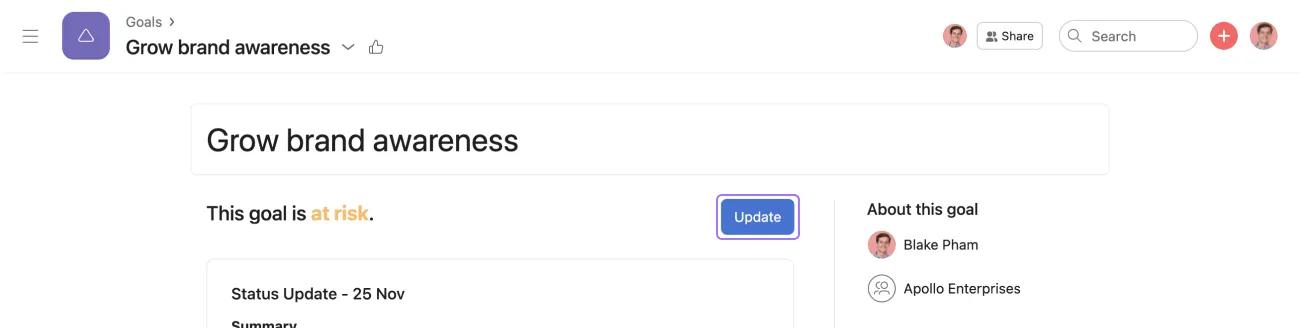
For future status updates, you can update the progress of your goal by clicking on the Update button on your goal’s detail page.
Goal reminders allow goal owners to remember to keep their goals up-to-date, ensuring that their stakeholders know how goals are progressing and what the outcomes were in a timely manner.
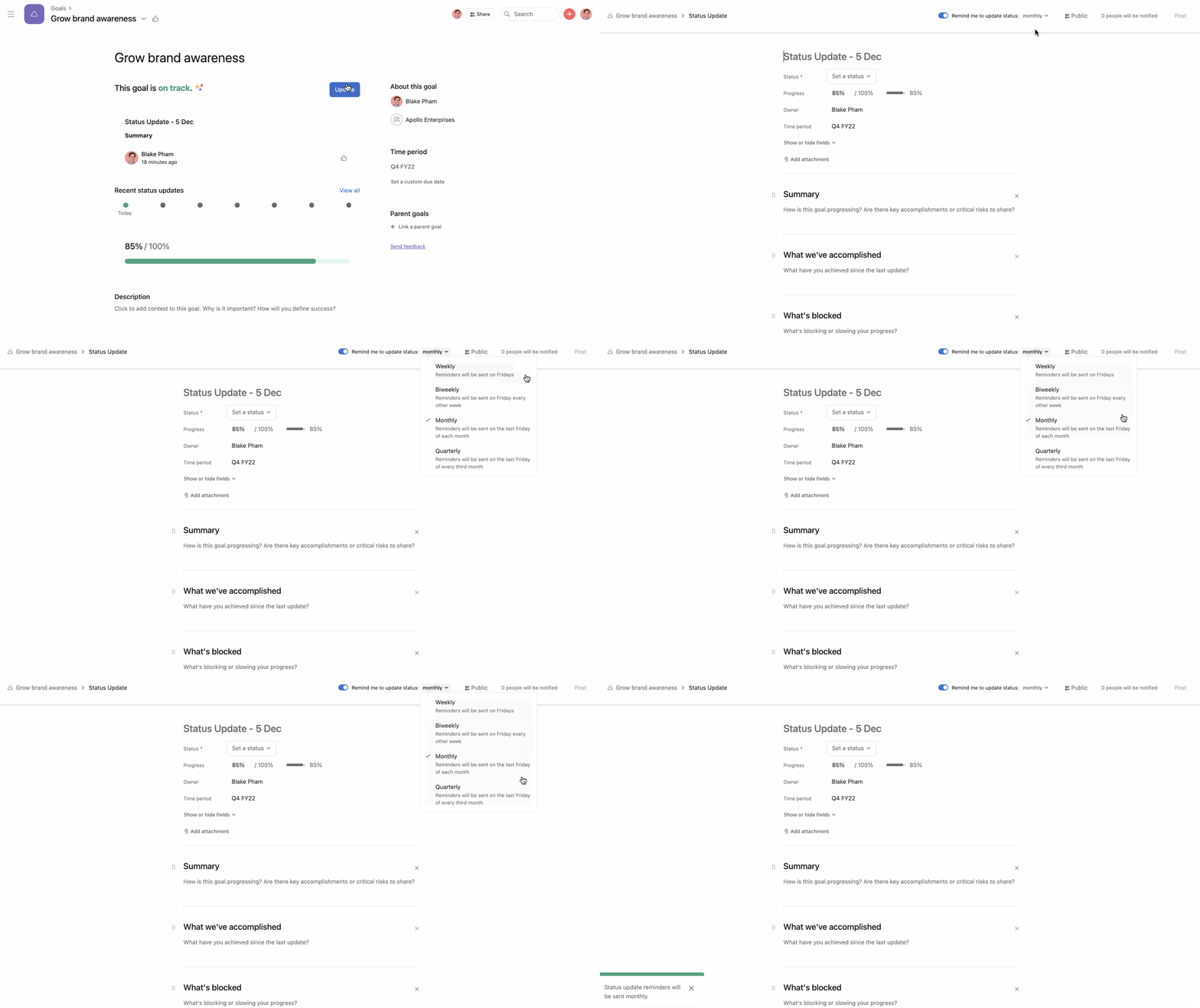
Only goal owners can set goal reminders.
When a goal is ready to be graded, you can create a status update to let goal members know about whether the goal was met. Include information about the impact of the goal and any deviations from the plan or reasons why it wasn’t met.
You can choose between: Achieved, Partial, Missed and Dropped.
If you are new to goal tracking, you can learn Asana’s guidelines on defining a goal grading criteria.
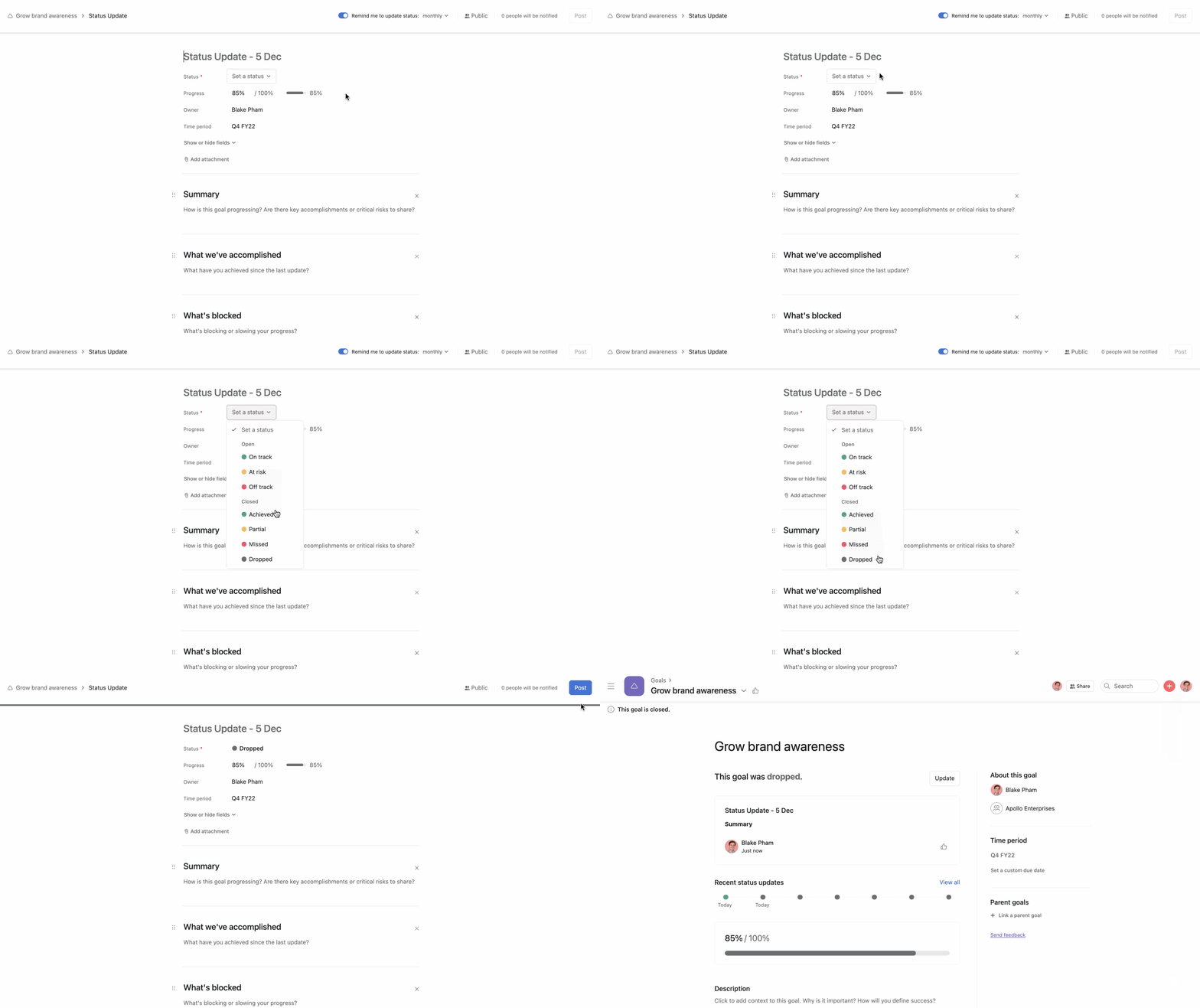
From the Update progress page, you can close your goal anytime.
To select the status of a closed goal, go to Set a status. Select one of the options below the Closed section, and click Post.
Goal owners will receive a reminder near the end of the goal's time period or custom due date to grade it and close it.
You can view connected goals in portfolio view. The Connected goals field shows goals that are connected to work in the portfolio, increasing the visibility of the relationships between work and goals.
From the portfolio list view, you can:

