Products


AI Platform


Asana Foundations
Company Type
In This Article

Visit our pricing page for more information.
Build a connected, repeatable system to manage requests, standardize processes, forecast capacity, and report outcomes in Asana. This article will guide you through leveraging Asana's features to centralize your operations for improved visibility, coordination, and efficiency.
Start by creating a portfolio to serve as a high-level dashboard for all your ongoing projects. To create a portfolio, click the + Create button in the top bar, select Portfolio, and name it appropriately (e.g., "Operations Projects" or "PMO Initiatives").
Within your portfolio, add existing projects or create new ones. If you’re new to Asana, start with an operations project template to get you on the right track, or import a spreadsheet where you’re already planning operations work to quickly map the project into Asana.
Add custom fields to your project that are relevant to operations, such as budget, priority, risk level, and department. You can add new fields by clicking the Customize button in your project, and selecting Fields under the Add section.
Project templates give every operations workflow a consistent starting point—same sections, fields, rules, forms, and task templates—so new projects launch fast and data stays comparable across teams.
If a process repeats, capture the proven steps once and save them as a template. As processes evolve, you can update the template to keep new work aligned.
To create a project template:
Learn more about project templates.
Set up rules to handle repetitive tasks and increase productivity. In your project, click the Customize button, select Rules, and create rules with specific triggers and corresponding actions. Common rules for operations teams include automatically assigning tasks based on custom fields, and moving tasks to different sections upon completion.
Many operations teams also connect Asana to business intelligence tools to automate reporting at scale:
Leverage Asana AI features, such as smart status and smart summaries, to quickly find information, generate status updates, and get concise overviews of your projects and tasks. These features help eliminate time-consuming manual processes and allow your team to focus on high-value activities.
Create custom dashboards in your portfolio to monitor key metrics and report on progress. Click the Dashboard tab and add charts to visualize data such as task completion rates, project status, or resource allocation.
Use smart status to quickly generate status updates on your projects. Share these reports with stakeholders on a regular basis to keep them in the loop on project progress. Regular monitoring and reporting will help you identify areas for improvement and keep all stakeholders informed about project progress.
In Asana, you build a capacity plan to allocate people to projects (by hours or %) across a time horizon, then spot over/under-allocation and make tradeoffs early. It’s different from workload, which tracks capacity from actual task assignments; capacity plans model project-level commitments ahead of execution.
When to use it: Quarterly/annual planning, program roadmapping (e.g., audits, policy rollouts, vendor transitions), and cross-functional work.
How to create a capacity plan:
Integrate Asana with communication tools like Slack or Microsoft Teams to centralize discussions. Navigate to your Asana settings, click on the Apps tab, find the desired integration, and follow the prompts to connect your accounts. These integrations help improve communication across teams and departments, addressing one of the key pain points for operations teams.
Use comments to keep conversations tied to specific tasks, and attach relevant documents directly to tasks for easy access. Set up approval workflows for important documents or decisions to streamline validation processes.
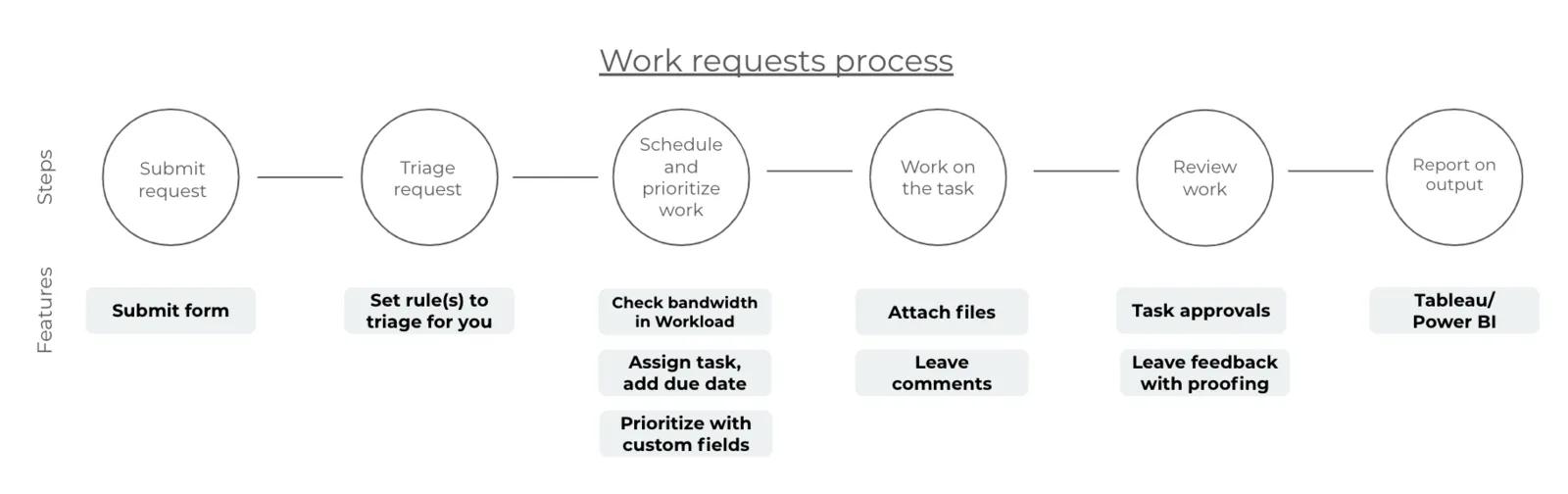
Does your operations team receive lots of requests, questions, and proposals for work from other teams? These tips help you move requests along faster by starting with all the details up front and streamlining final approvals.
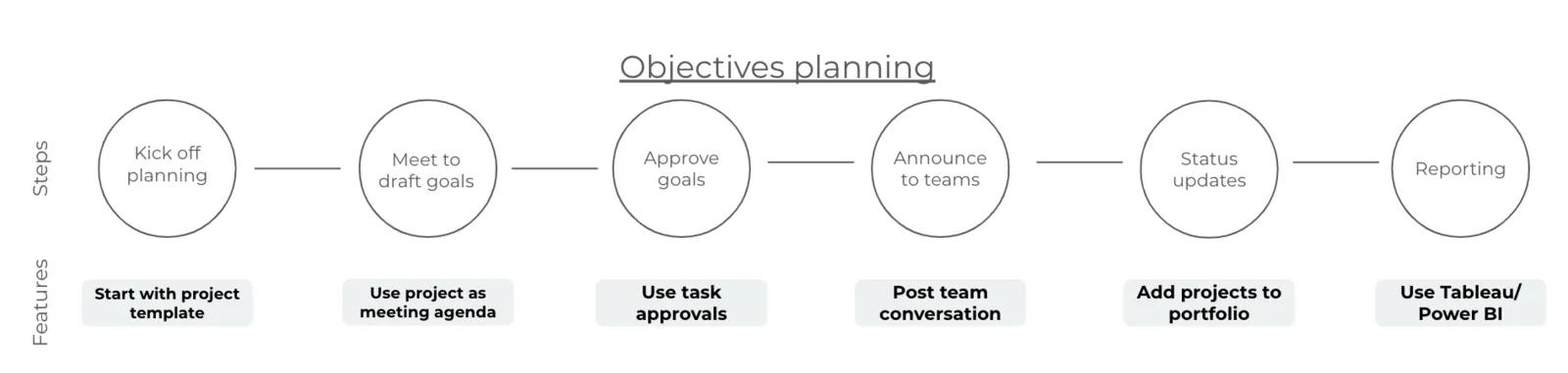
Operations teams are often responsible for planning team or company objectives and goals. Make cross-functional planning easier with this objectives planning flow, whether quarterly or annually.
By implementing these strategies and leveraging Asana's features, operations teams and PMOs can significantly improve their efficiency, visibility, and alignment with organizational goals. Remember to regularly review and refine your processes to ensure you're making the most of Asana's capabilities.

