Products


AI Platform


Asana Foundations
Company Type

Visit our pricing page for more information.
Resource planning is essential for any organization's success, helping teams achieve their goals by efficiently managing key resources. This article shows how Asana can simplify the planning of crucial resources like time and people. Asana workflows make it easier for a project manager to plan these resources effectively.
Start by grouping related projects in a Portfolio. The portfolio homepage gives you a high-level list of projects with owners, progress, and dates. You can navigate to any project by clicking on them.
You can quickly switch to portfolio workload view that shows the team’s bandwidth. Portfolio workload also surfaces tasks that are unassigned, so that you and your team don’t have to sort through project after project to find them. This means a PMO lead can assign tasks amongst their team with confidence that they will not be overburdened.
Capacity planning displays the PMO team’s bandwidth at the project level, and conflicts are surfaced immediately so staffing decisions can be made with confidence. A project-level view of the team’s capacity provides you with a clear foundation for allocating people to projects, both immediately and in the future.
Visit this section of the capacity planning article for a detailed overview of how to create and edit project allocations.
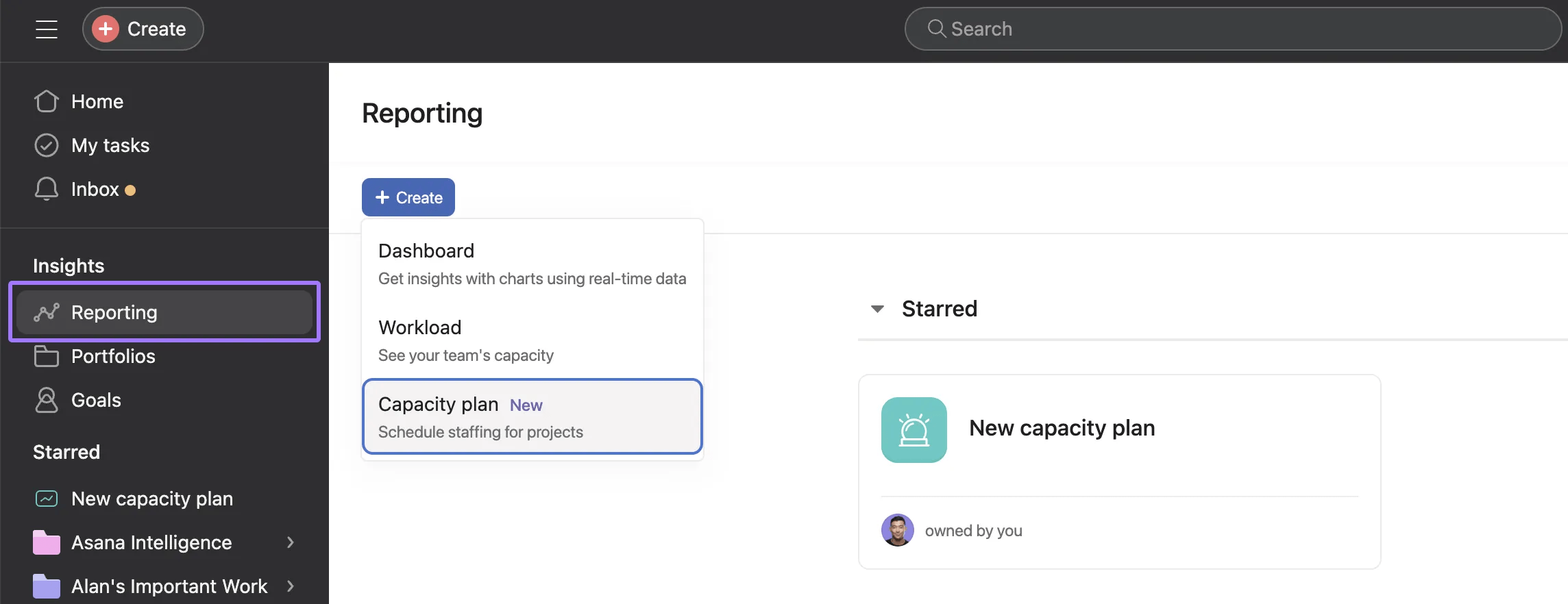
To set up a capacity plan, navigate to Reporting, under the Insights section of the left bar. Click the + Create button and select Capacity plan.
Using a combination of formula custom fields and portfolio dashboard, it’s possible to create a chart which tracks the disparity between estimated time and actual time spent on tasks across the projects in the portfolio; all done without any manual calculation.
Your team can use Asana’s native time tracking feature in projects within the portfolio. This means that time entries are constantly providing an accurate picture of time spent on tasks, which allows for more accurate time planning going forward. Where tasks don’t match their allotted time, whether tracking over or under their estimates, the information is collated and displayed in the portfolio dashboard. Then, the PMO team can make data-based time planning decisions with confidence.
As a next step, you can use Asana's Smart chat feature to ask Asana AI about blockers in his team’s project. Asana’s AI swiftly identifies the root causes of delays in projects that are at risk, and you can note these points to discuss them at your next meeting.
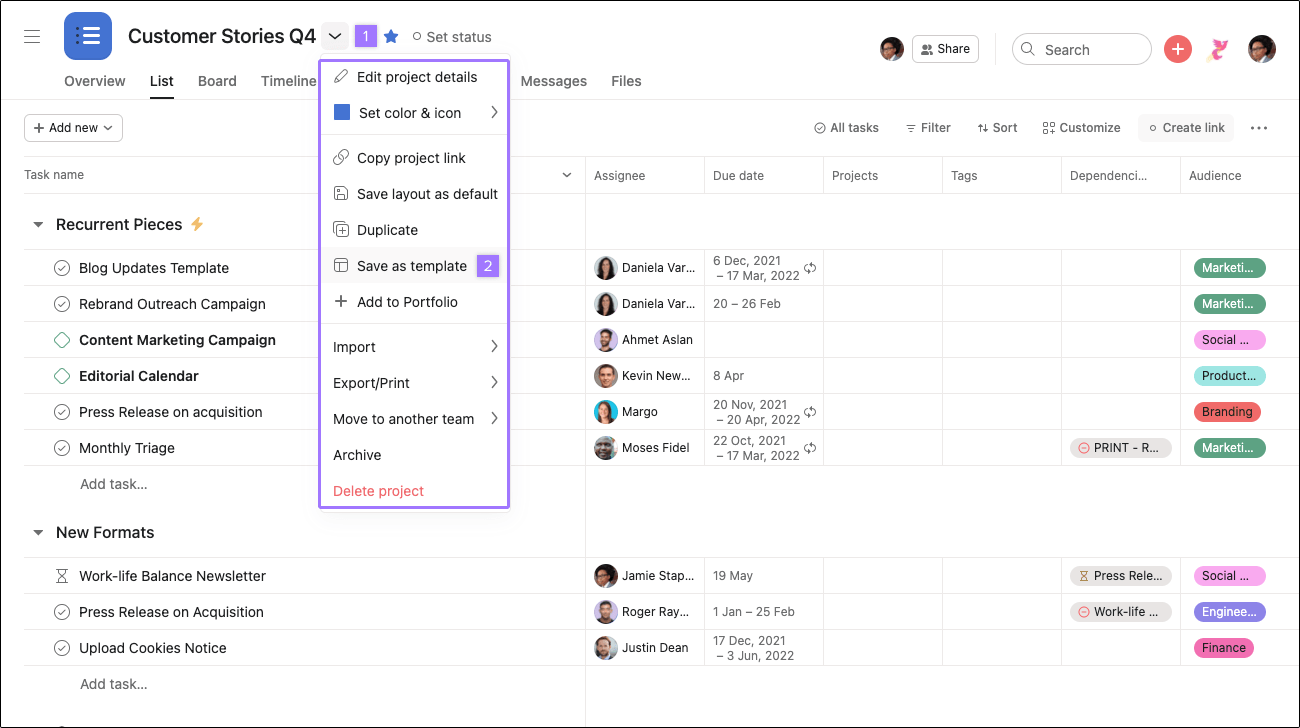
Use a project template to ensure every new project is ready from day one.
What to include: