Products


AI Platform


Asana Foundations
Company Type
No articles found for this topic.
No articles found for this topic.
The Asana desktop app brings all the functionality of the web version to your computer. Available for both Mac and Windows (not supported on Linux), the desktop app offers a distraction-free environment with tools like focus timers and smart notification management.
Download the desktop app here. All actions and features available in the browser version of Asana are also available on desktop. Asana for desktop is compatible with macOS 13.7.8 and Windows 10 or later.
Explore Asana's paid features for free. Get started with a free Asana trial today.
Note
Browse community tips for using the Asana desktop app.
Once you have downloaded the Asana Desktop App, you can log in using your Asana login credentials.
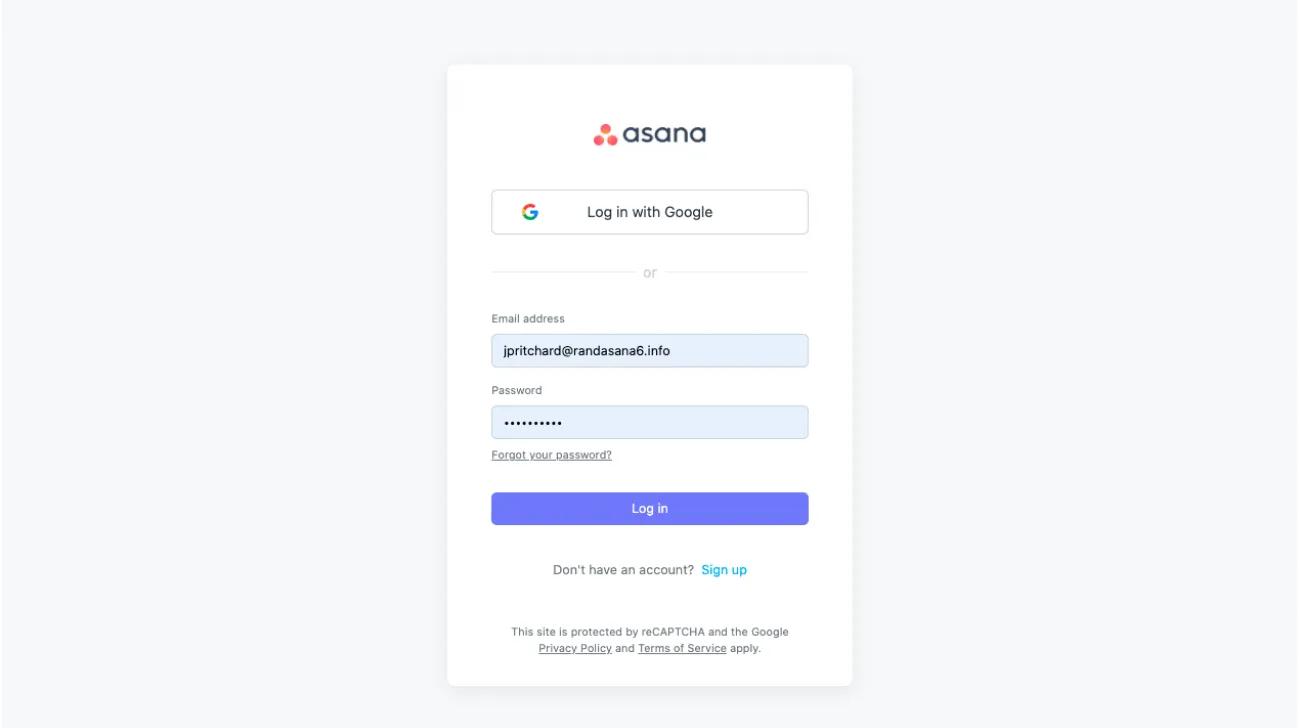
First, open Asana for Desktop, enter your email address and sign in to Asana.
Next, you’ll be brought to your browser to verify your credentials.
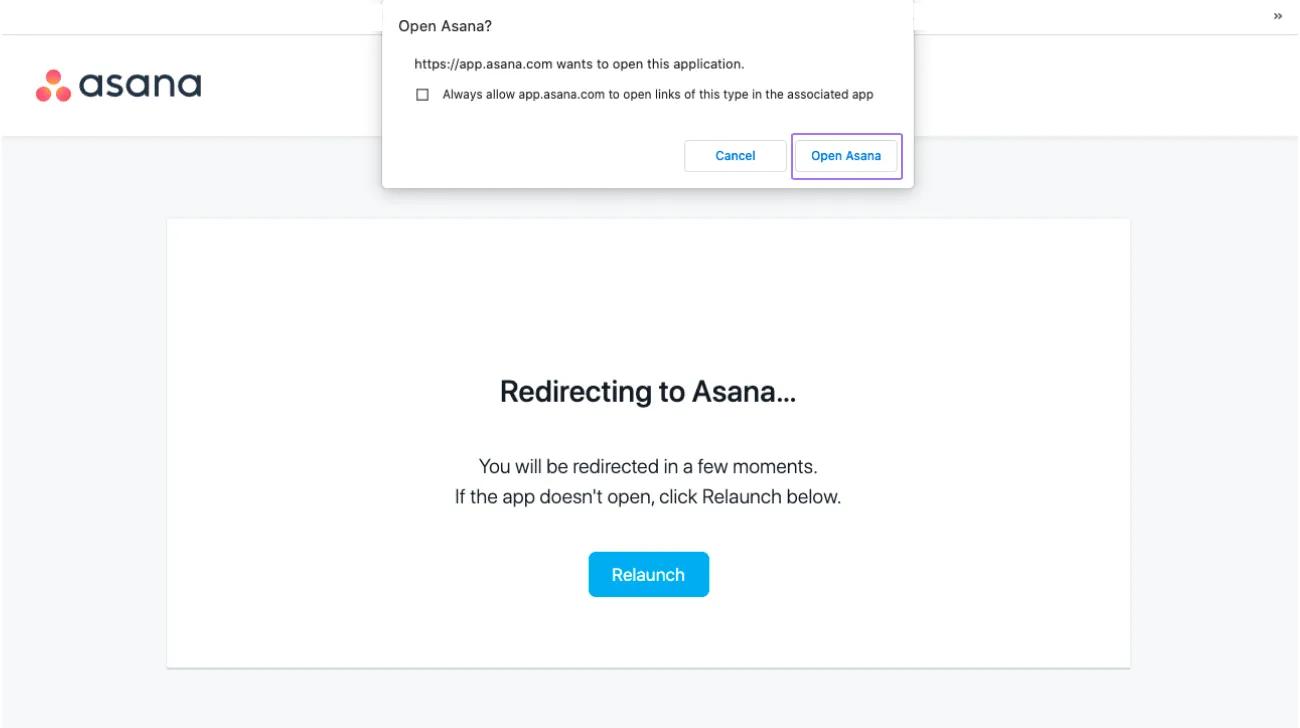
Finally, click Open Asana to open Asana on your desktop app. Once you’ve installed Asana for Desktop, you will be prompted to open accessed links in the desktop application. You can open in Asana once or always, or cancel and open the link in your browser.
Desktop leverages native OS notifications, which mirror Browser Notifications in functionality.
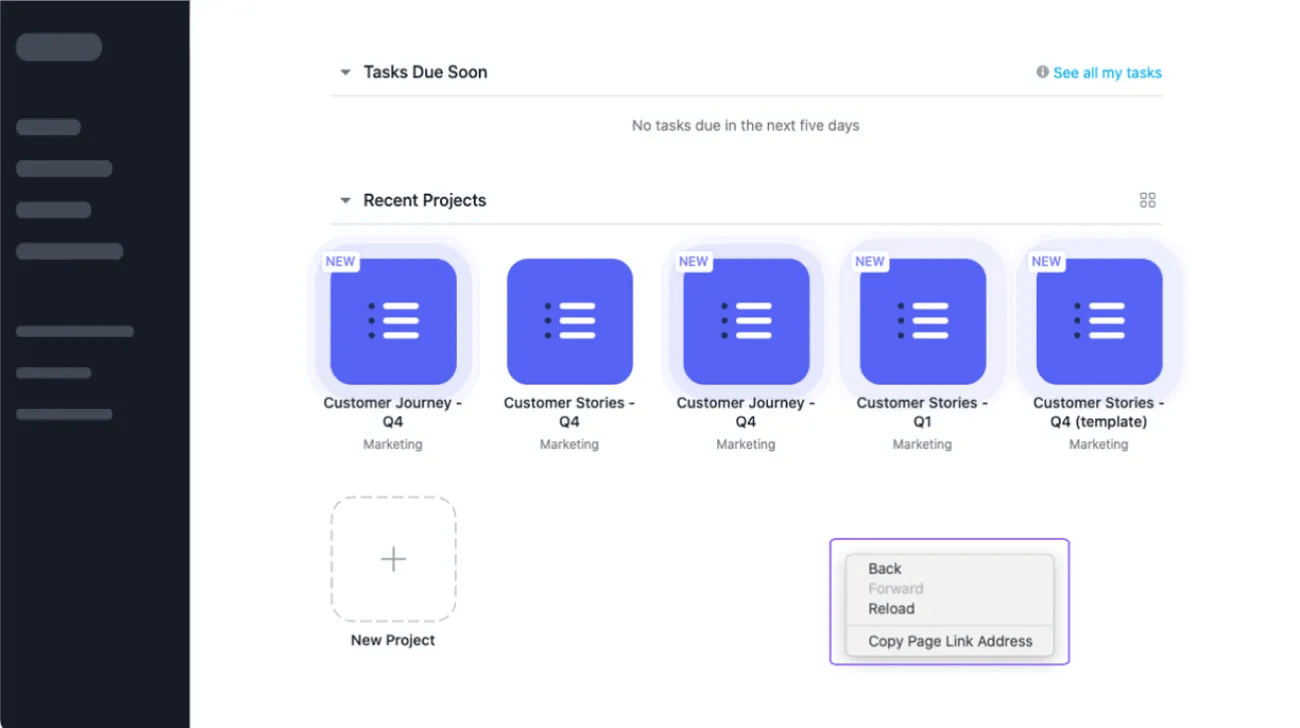
Right click is streamlined to only include Asana uses.
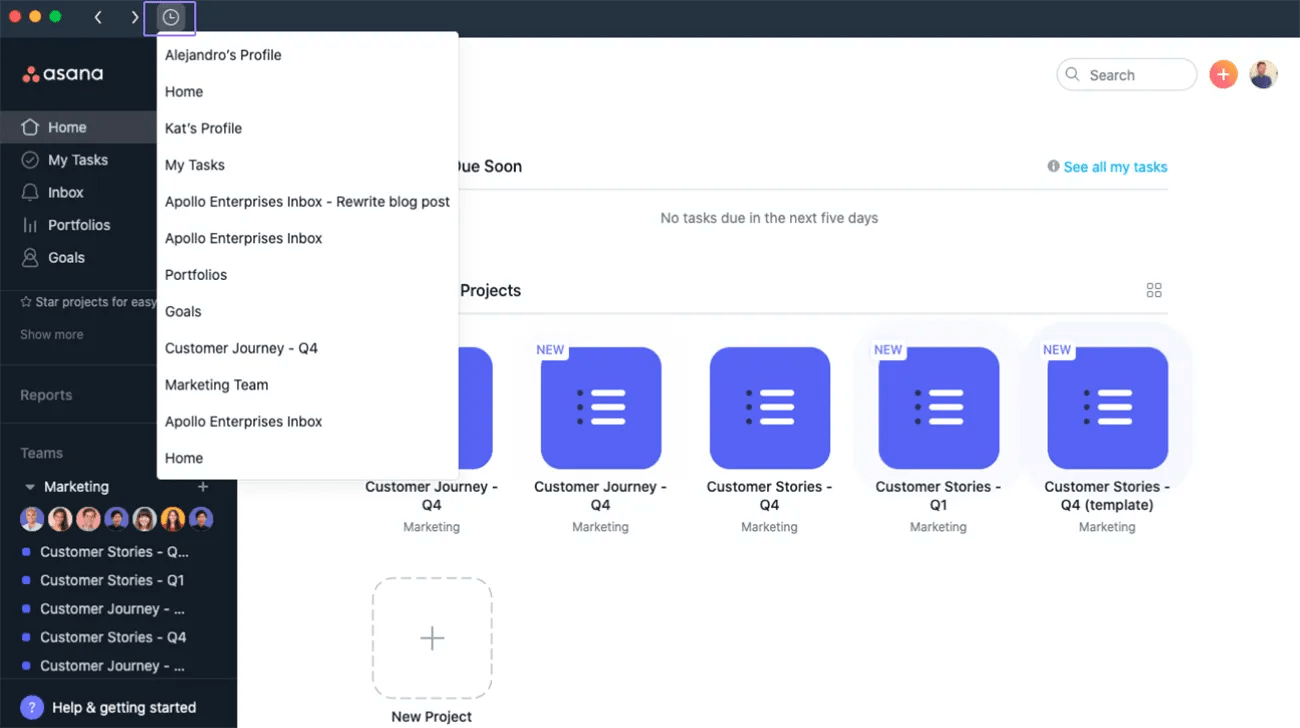
The top bar of your Asana for Desktop App is more focused on a few core navigation actions. The History feature also allows you to access your 15 most recent pages.
We've launched a Desktop App icon to help you protect time for heads down work and more easily identify your next task.
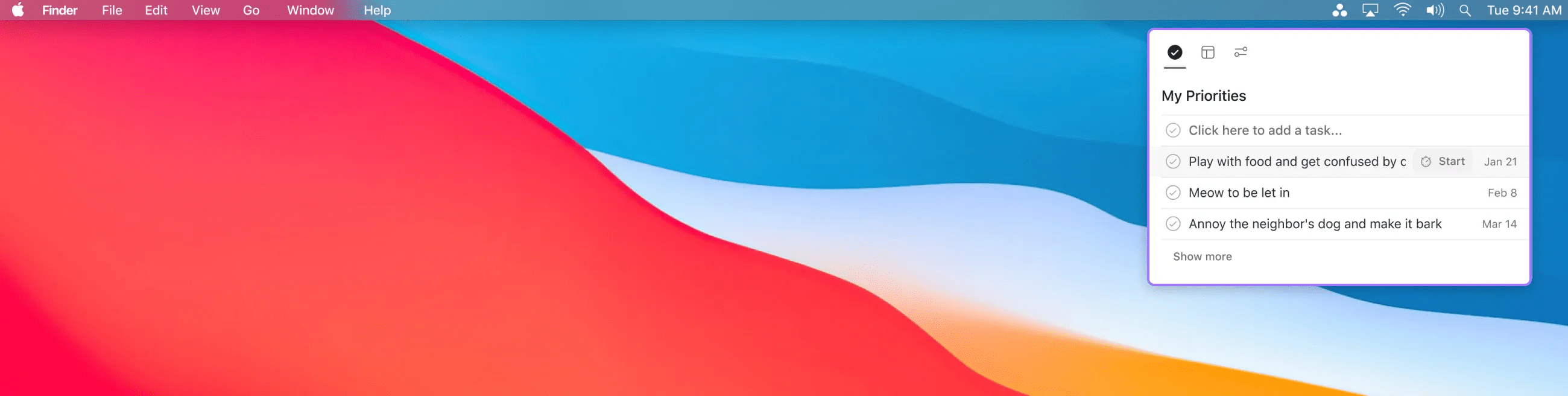
Mac users will see the Desktop App icon appear in the menu bar.
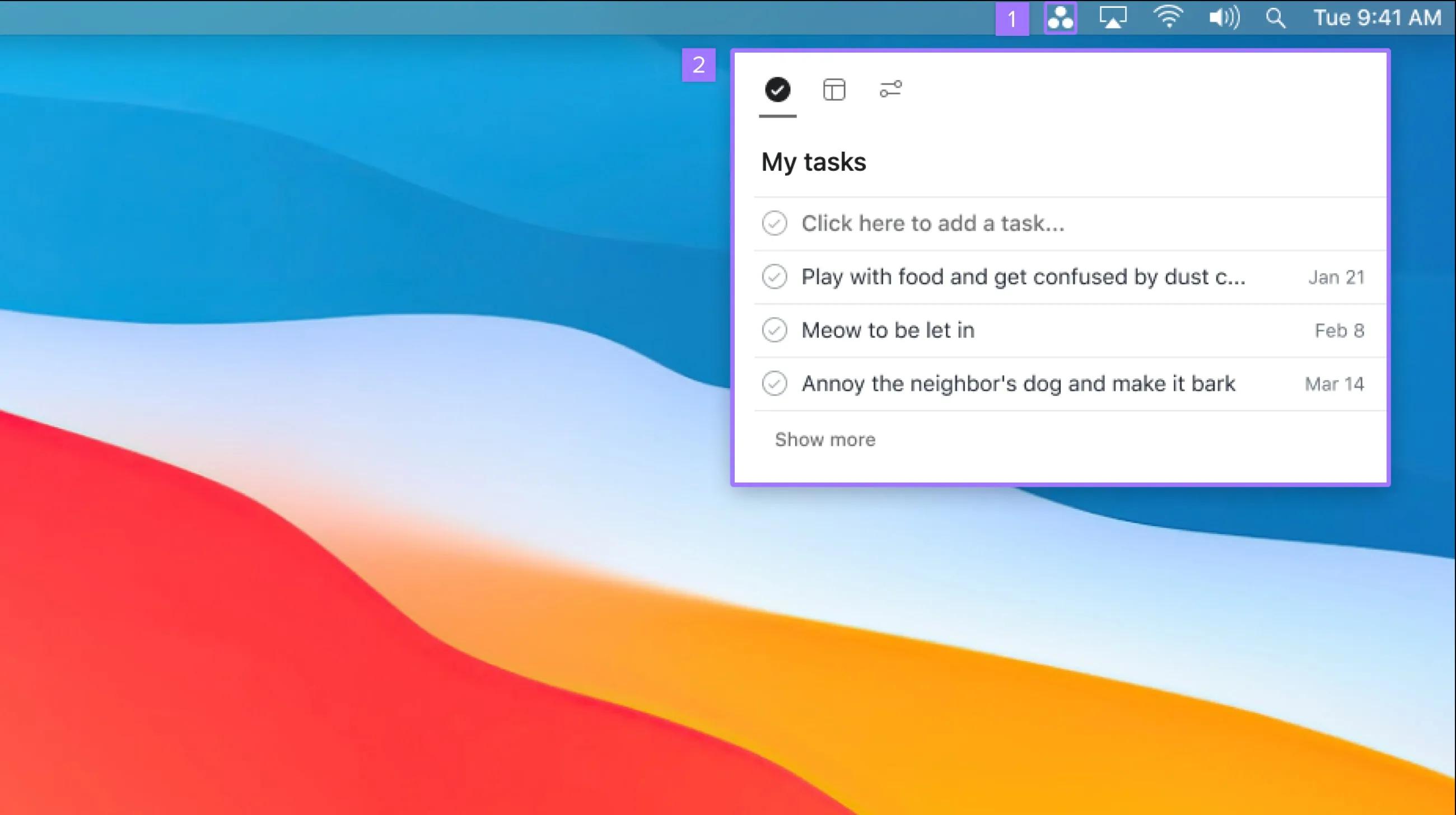
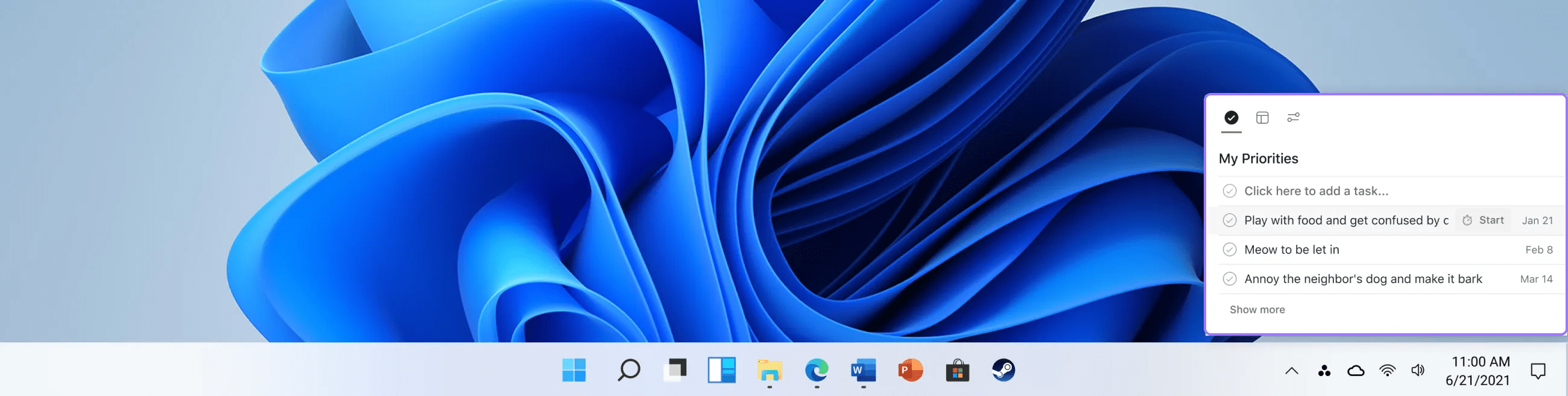
The Desktop App icon will appear in the system tray for Windows users.
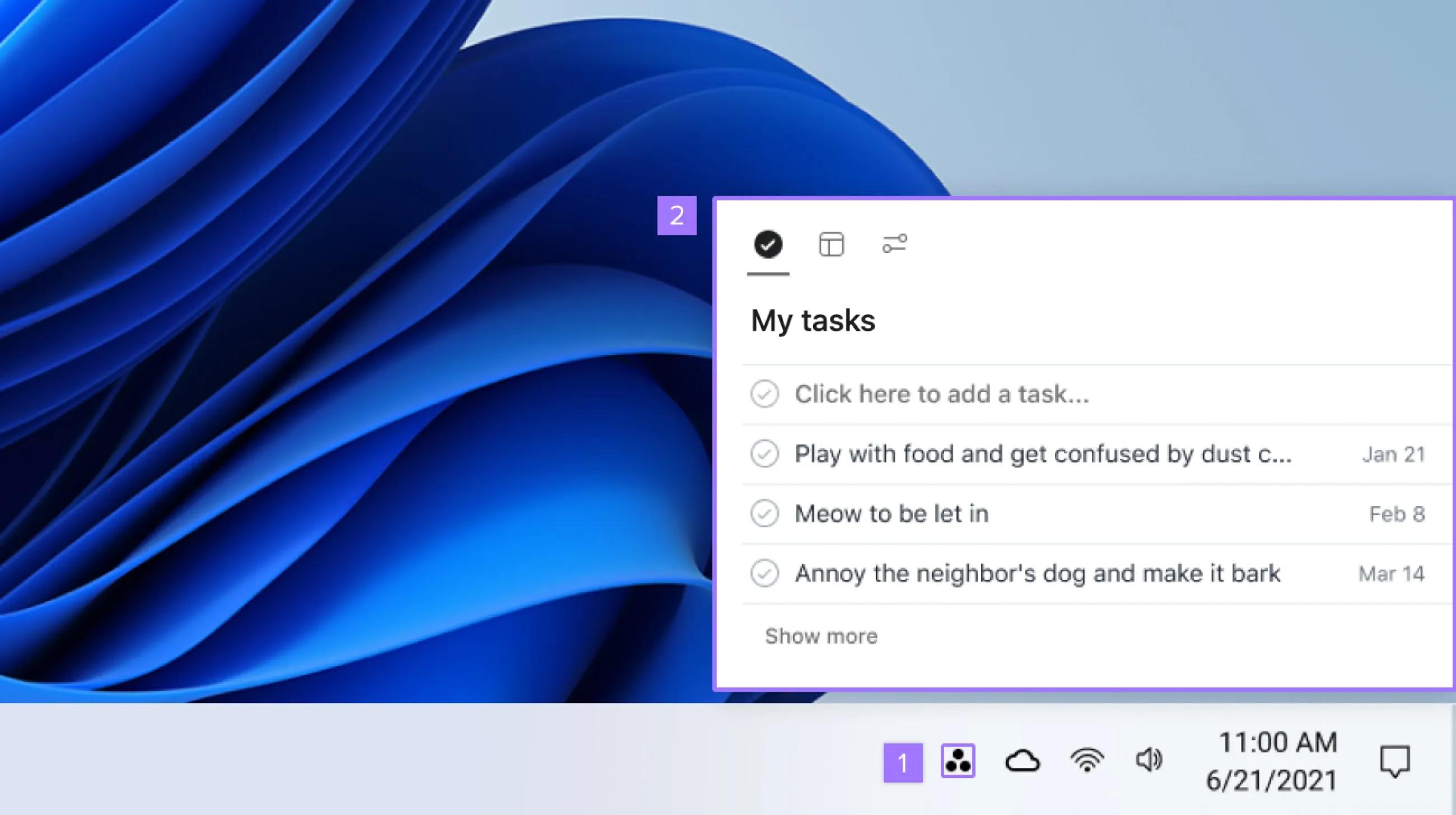
Clicking the icon will open up My tasks which shows your most important tasks based on their due dates.
You can mark tasks complete without leaving the My tasks window. You can also create new tasks directly inside My tasks, or by using the following shortcuts: [Shift] + [CMD] + [+] on Mac, or [Shift] + [Ctrl] + [+] on Windows. Please note that some shortcuts may not work if you’re using a keyboard with a non-English input.
To help you stay up to date, you can check the current version of the Asana for Desktop app that you have installed.
You can do this on both Mac and Windows as follows:
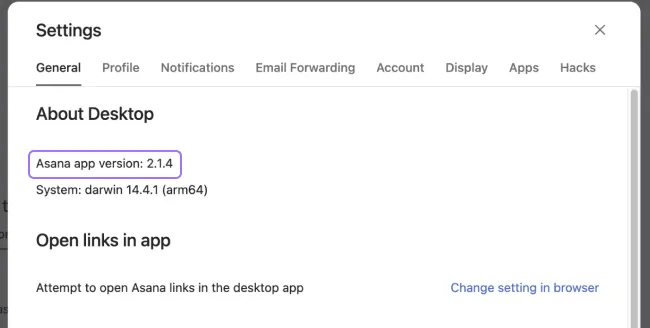
Alternatively, you can check the desktop app version in the following ways:

You will then be able to view the version of the desktop app you have installed.
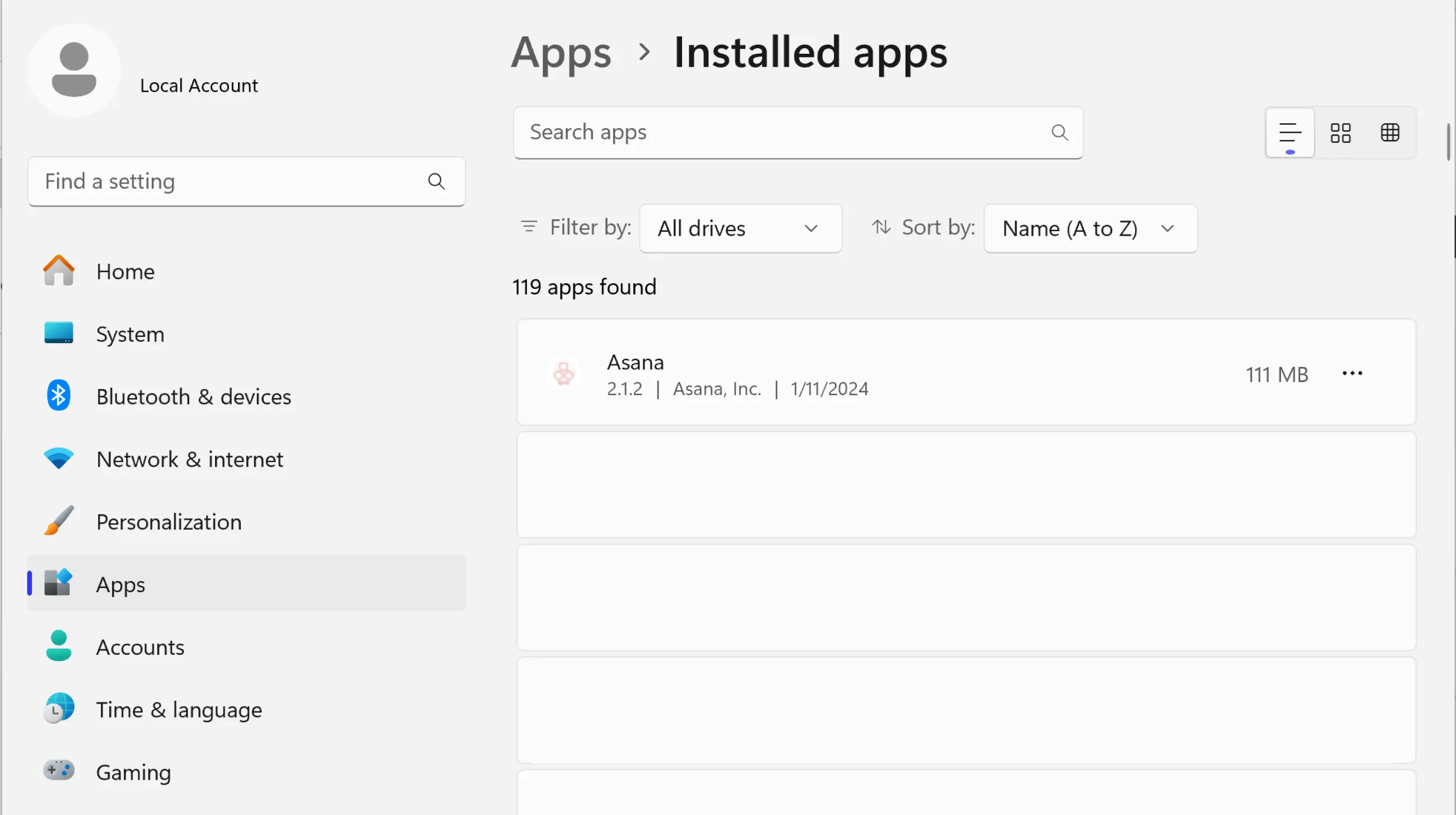
You can see the version of the Asana desktop app you have installed and also see the date that it was installed.
Make progress on the work that matters most - without interruptions. When you’re ready to dive into an important task, select it from the My tasks list and set a timer. We recommend the Pomodoro technique: 25 minutes of concentration, followed by a 5-minute break. To make sure you can see the pomodoro timer:
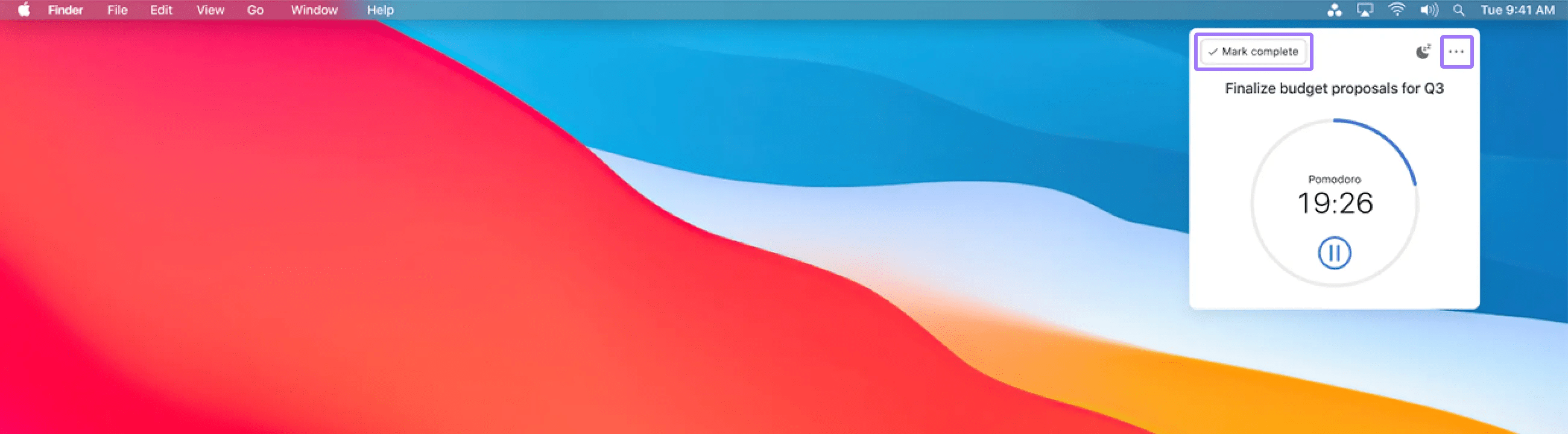
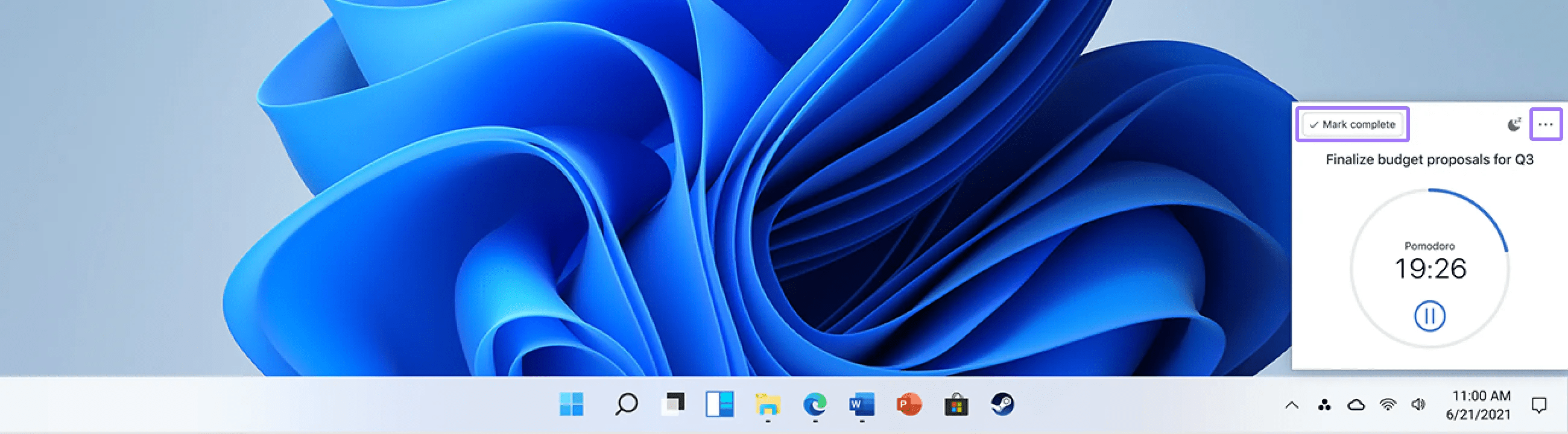
While the timer runs, your Asana notifications will be paused. When you’re finished, either complete the task, or exit by clicking the dots in the upper-right corner.
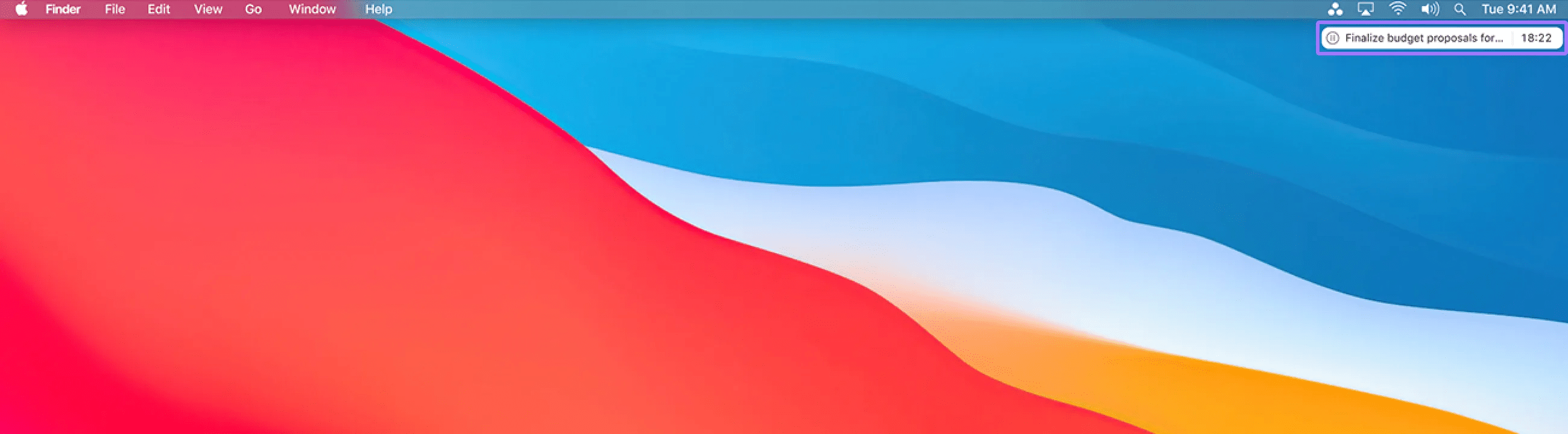
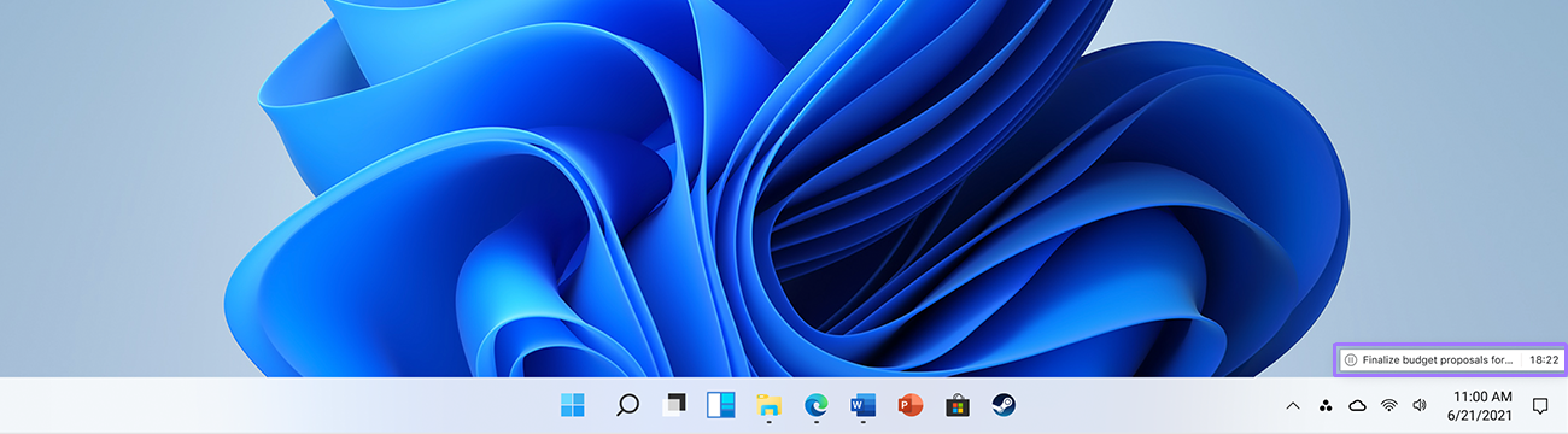
Minimize the timer by clicking any other window on your desktop.
If you notice that the option to open links in the Asana desktop app is no longer appearing, this may be due to browser cookie settings.
When you clear cookies in your browser, the app link functionality will be turned off. The option to open links in the desktop app will not appear in your settings menu until you log in to Asana Desktop again.
To restore app link functionality:
This behavior occurs because the desktop app relies on browser cookies to maintain the connection between your browser and the desktop application. When these cookies are cleared, the connection is reset and must be re-established through a fresh login.
This is expected behavior and not a bug. If you regularly clear your browser cookies, you may need to log in to the desktop app again to restore app link functionality.
Yes, Asana offers a desktop app for both Mac and Windows that brings all the functionality of the web version plus additional productivity features like focus timers and smart notification management.
Click the Desktop App icon in the menu bar (Mac) or system tray (Windows) to open the My Tasks window, which displays your most important tasks based on their due dates.
Yes, you can select a task from My Tasks and set a 25-minute Pomodoro timer for focused work, during which Asana notifications will be paused automatically.
Clearing browser cookies disables the app link functionality because the desktop app relies on browser cookies to maintain the connection, requiring you to log in again to restore it.
Looking for a better way to manage your work? Get started with a free Asana trial. Try for free


