Products


AI Platform


Asana Foundations
Company Type

Visit our pricing page for more information.
If you’ve been trying out Asana’s paid features with a trial and wish to cancel it, you can do so at any time. Trials without payment information will simply expire. This article guides you through the steps for canceling trials, whether payment information has been added or not.
Asana trials are designed to end automatically, so you won’t have to manually cancel. Unless you’ve manually added payment details, you can simply let the trial run its course and you won’t be billed.
If you have manually added payment details to your trial, your chosen subscription is set to begin once the trial period has ended. In such cases, you would need to manually cancel your trial.
To cancel a trial after you’ve added payment details, follow these steps:
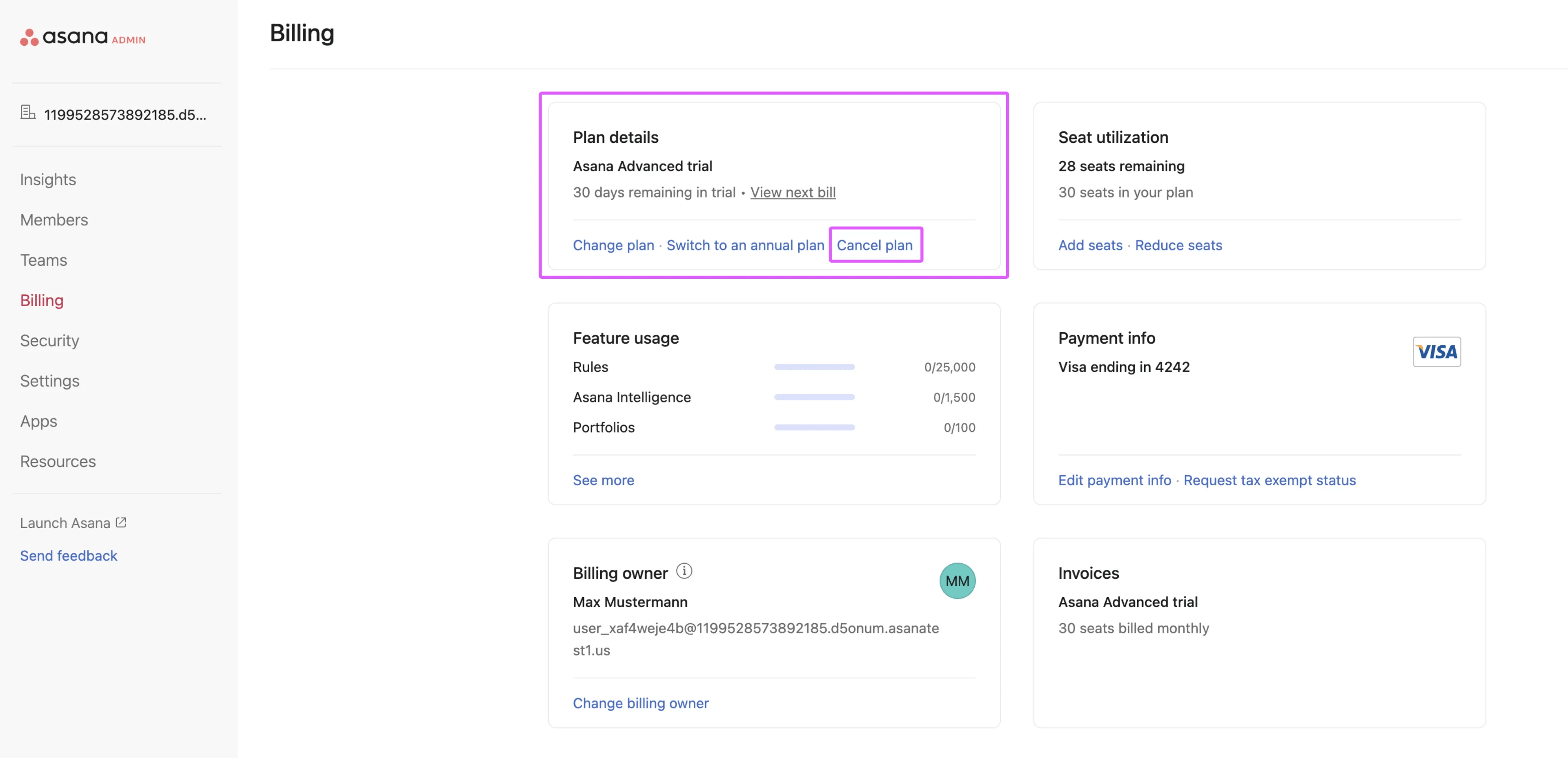
You can cancel at any time during the trial period. If you cancel on or before your trial expiration date, your account will not be charged.
After canceling, when you reach your plan renewal or trial expiration date, you will revert to the Asana tier you were using before starting the trial. You will still have access to paid features until the trial end date.
There may be cases where you require a trial to be removed immediately, even if you haven't added payment information. If necessary, please contact our Support team.
Be aware that trials without payment information will simply expire without any cost to you.

