Products


AI Platform


Asana Foundations
Company Type

Visit our pricing page for more information.
Collaboration moves work forward in Asana. Asana provides three main ways to communicate with your team: comments, messages, and status updates. Each serves a specific purpose and helps keep your work organized and your team aligned. This article will describe how you can communicate in Asana to enhance collaboration and accomplish things.
Comments are at the bottom of tasks and can help you start a conversation about that particular task. You can leave a comment to provide feedback, ask questions, offer further insights, or share anything that you think is important for collaborators in the task to know.
To add a comment, scroll down to the bottom of the task, write your comment, and click Comment. You can use emojis, @mention collaborators to loop them in, add attachments and links, and format your comment with rich text.
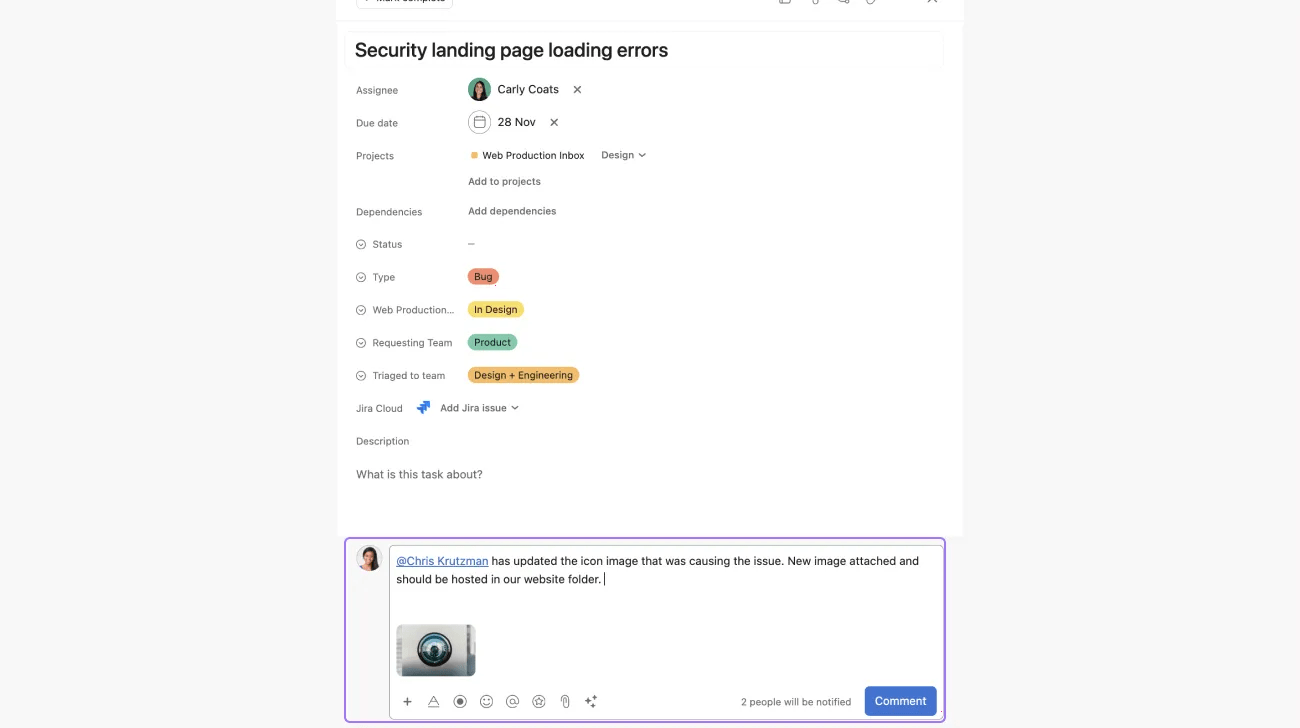
If there’s a critical comment everyone who reads the task should see first, you can pin the comment to the top by clicking the drop-down arrow in the comment and selecting Pin to top.
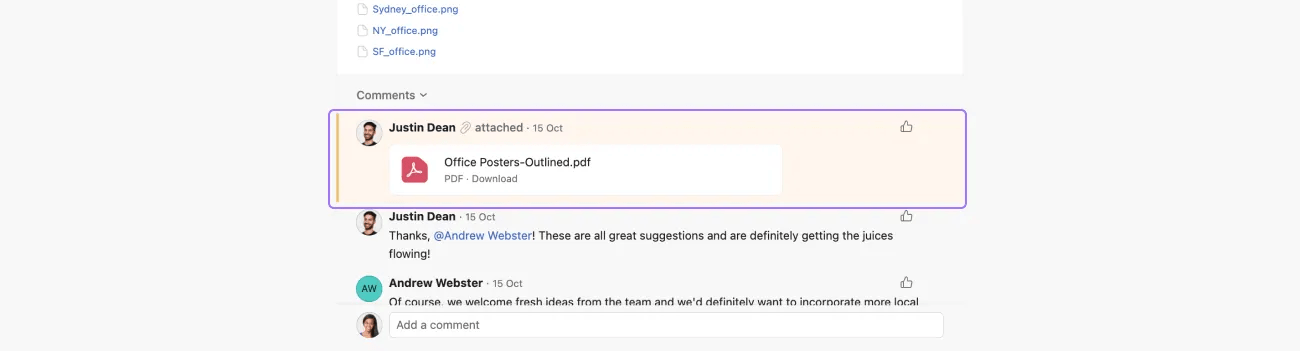
Use @mention to add collaborators to the task or mention other tasks, projects, or messages in the comment.
Another way of communicating in tasks is by liking a comment. You can like comments to acknowledge them or to express agreement with them.
Use appreciations to celebrate something big happening or to just show your appreciation for a teammate’s work.
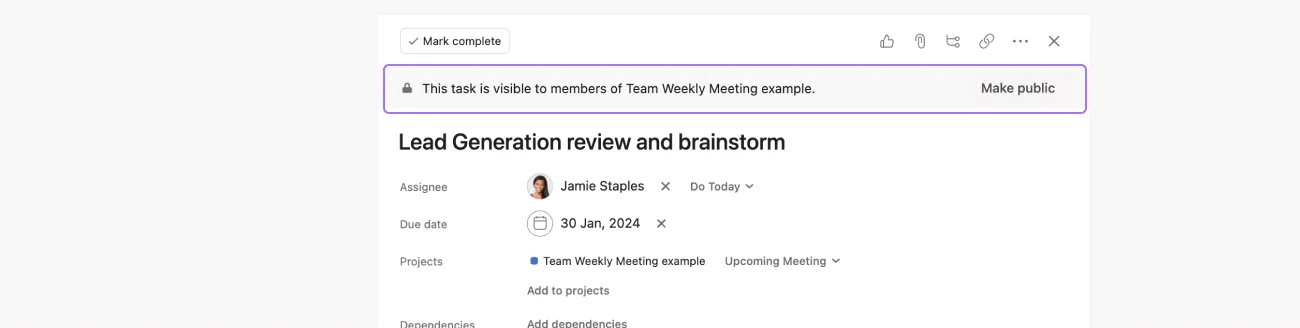
Task comments will be visible to everyone who has access to the task. You can learn more about task permissions here.
Comments are best for:
Messages are a way of communicating with individuals, teams, or members of a particular project in Asana.
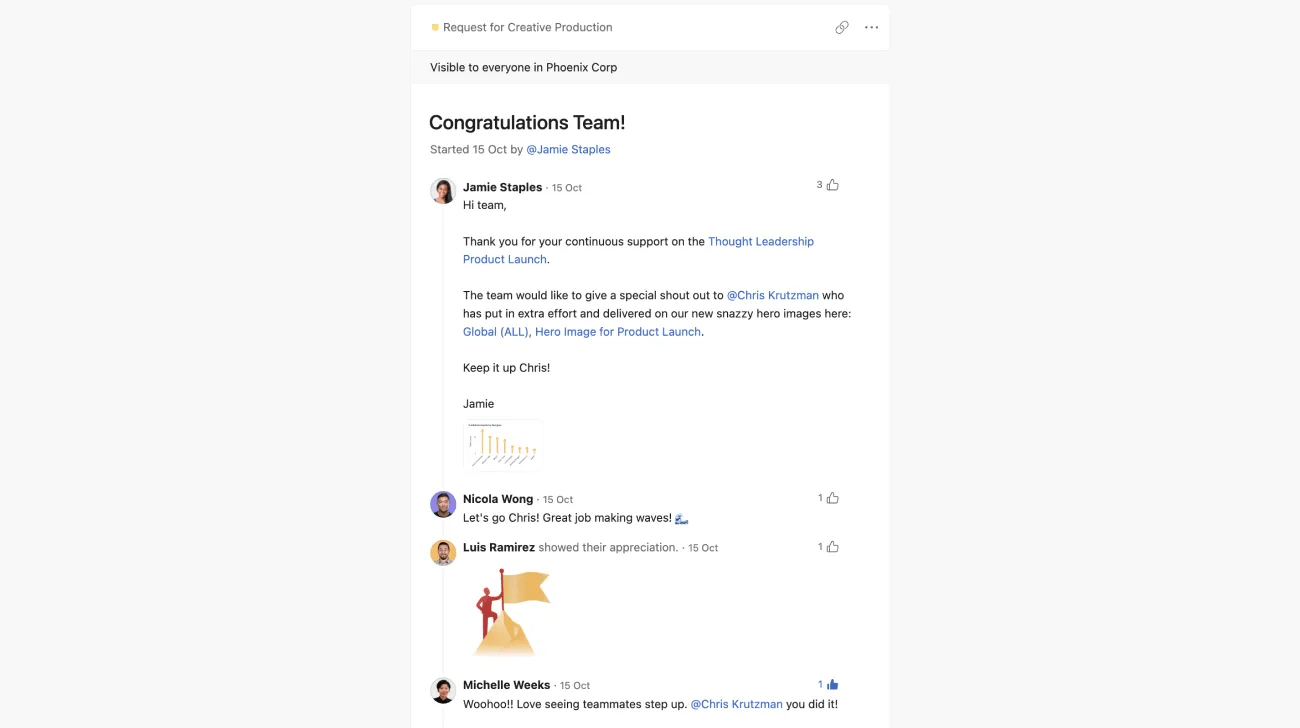
There are four ways to send a message:
Team messages can be viewed by anyone who belongs to the team.
If a project is public, its messages can be viewed by anyone. If it is private, however, messages are only visible to project members. Learn more about project permissions.
Messages sent to individuals can be viewed by anyone who’s a collaborator in the message.
Messages are best for:
Status updates provide a quick overview of a project, portfolio, or goal status and are visible to all the project members, portfolio members, and people following the goal.
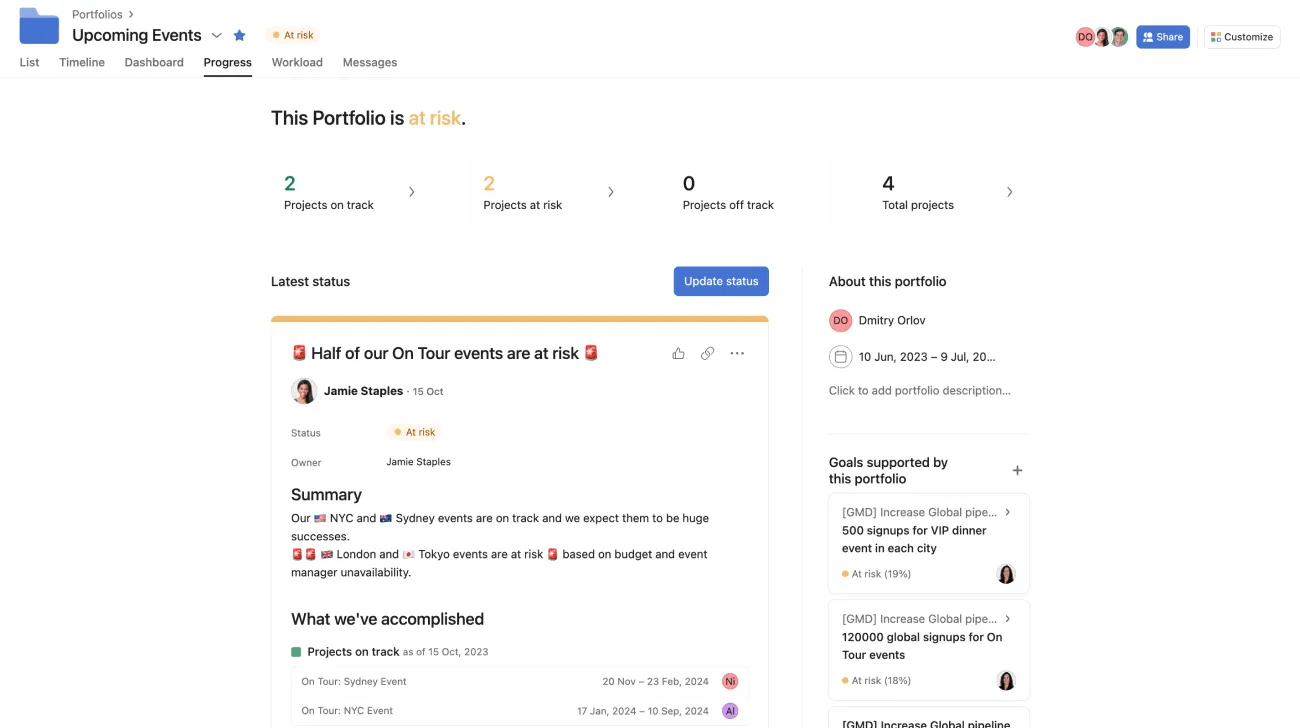
To create a status update, navigate to the Set status drop-down next to your project or portfolio name. From here, you can choose if the work is On track, At risk, Off track, On hold, or Complete. You can also create a status update from the Overview tab for projects, or the Progress tab for portfolios.
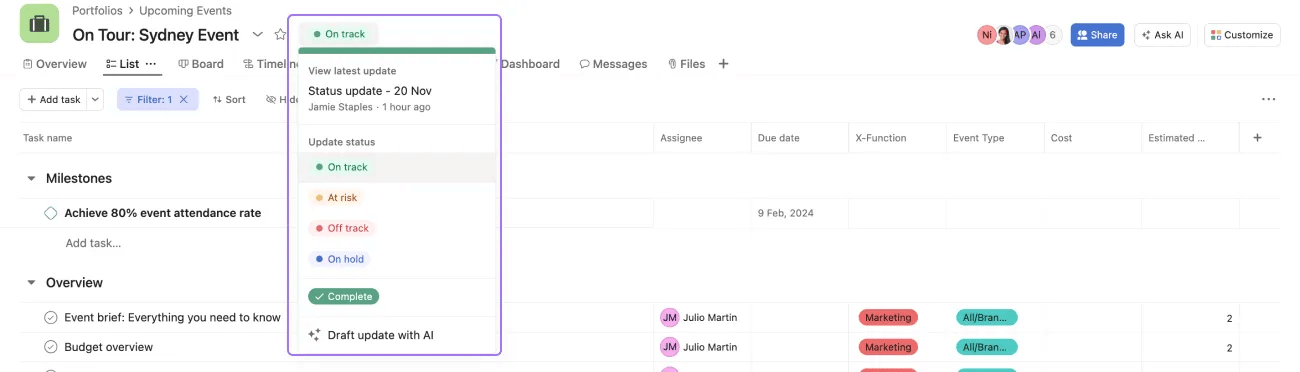
Once you select the status, a new window will open, allowing you to add context on how work is progressing. You can structure your update using different sections and add highlights such as milestones achieved, tasks that need to be called out for next steps, and charts to provide visual insights.
You can create a status update for goals from the goal’s detail page. Learn how to do so here.
Set reminders to send updates every Friday to inform your stakeholders of portfolio and project progress. For goals, you can set reminders to weekly, biweekly, monthly, or quarterly.
Anyone added as a collaborator on a status update can see the update, even if they don't have access to the underlying project. This means they can see whatever task details or text is included in the report. However, if they click on a task, milestone, etc., that is part of a project they don't have access to, they will see a request access page but cannot access the underlying data unless granted access.
Status updates are best for:

