Products


AI Platform


Asana Foundations
Company Type
No articles found for this topic.
No articles found for this topic.

Visit our pricing page for more information.
This article details how to use @mentions and text formatting in Asana, and the basics of linking to tasks, projects, and other items. It includes steps for applying rich text formatting to improve clarity and organization in your communications.
@mentioning allows you to link people, projects, tasks, and messages from any description or comment field in Asana.
Use @mention to link to other tasks, projects, teams, or messages in the description, or to draw a teammate's attention to a comment by linking to their name.
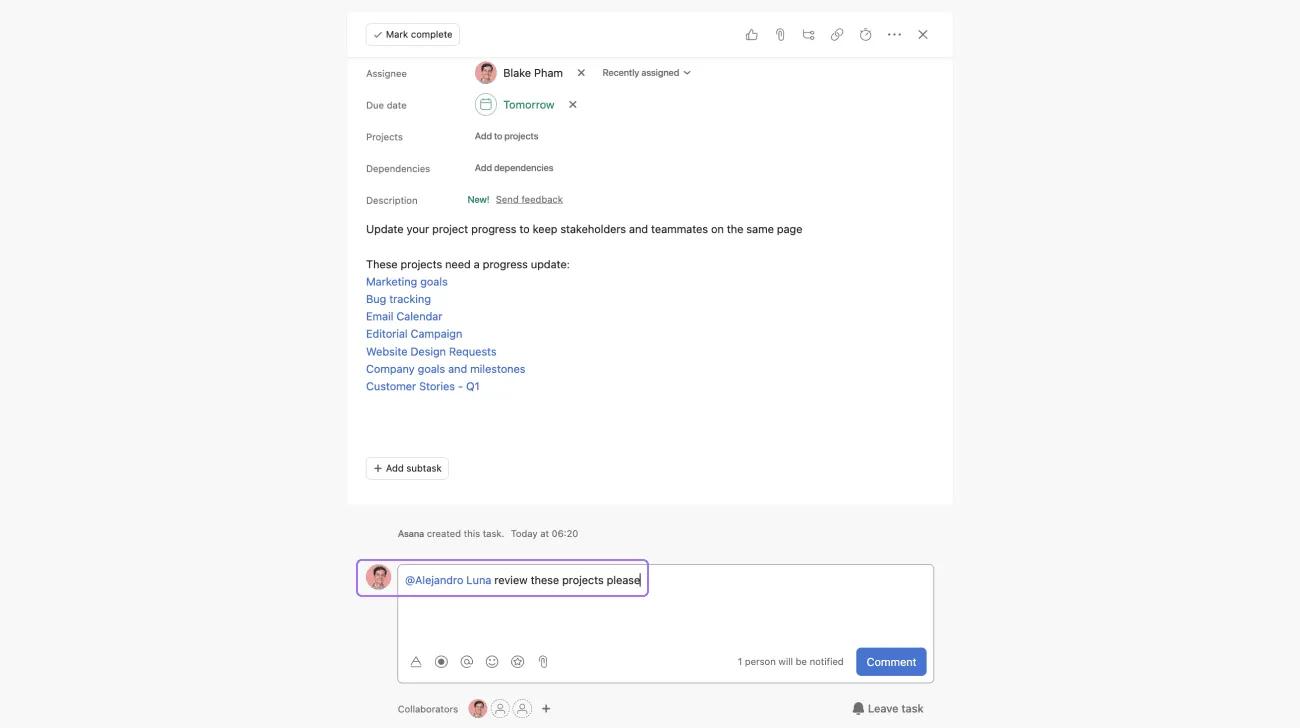
Type @, then start typing the name of a task, project, message, or person.
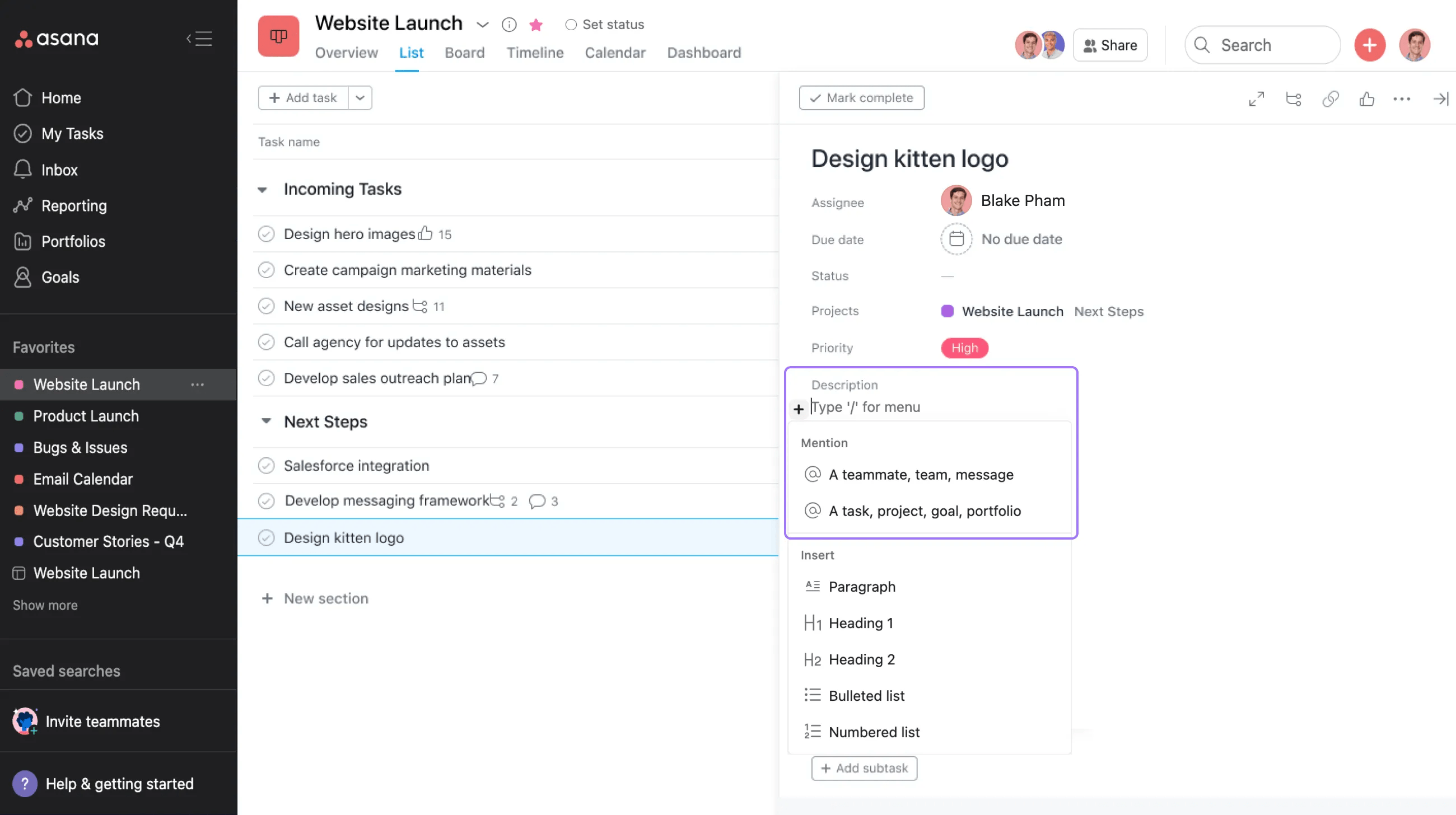
You can also click on the + button and select one of the options under Mention.
When you @mention someone in a task or conversation, they are automatically added as a collaborator;and receive an inbox notification
Use the following keyboard shortcuts to format your text:
| Action | Mac | Windows | Markdown |
|---|---|---|---|
| Bold | ⌘B | Ctrl-B | *text* |
| Underline | ⌘U | Ctrl-U | __text__ |
⌘⇧X | Ctrl⇧X | ~text~ | |
| Italics | ⌘I | Ctrl-I | |
Monospace | ⌘⇧M | Ctrl-Shift-M | `text` |
| • Bulleted Lists | ⌘⇧8 | Ctrl-Shift-8 | * text |
| 1. Numbered Lists | ⌘⇧7 | Ctrl-Shift-7 | 1. text |
| Indent your list | ⌘] | Ctrl-] | |
| Outdent your list | ⌘[ | Ctrl-[ | |
| Hyperlinks | ⌘K | Ctrl-K | [title](link) |
⌘ is the Command/Apple key on macOS, Ctrl is the Control key on Windows.
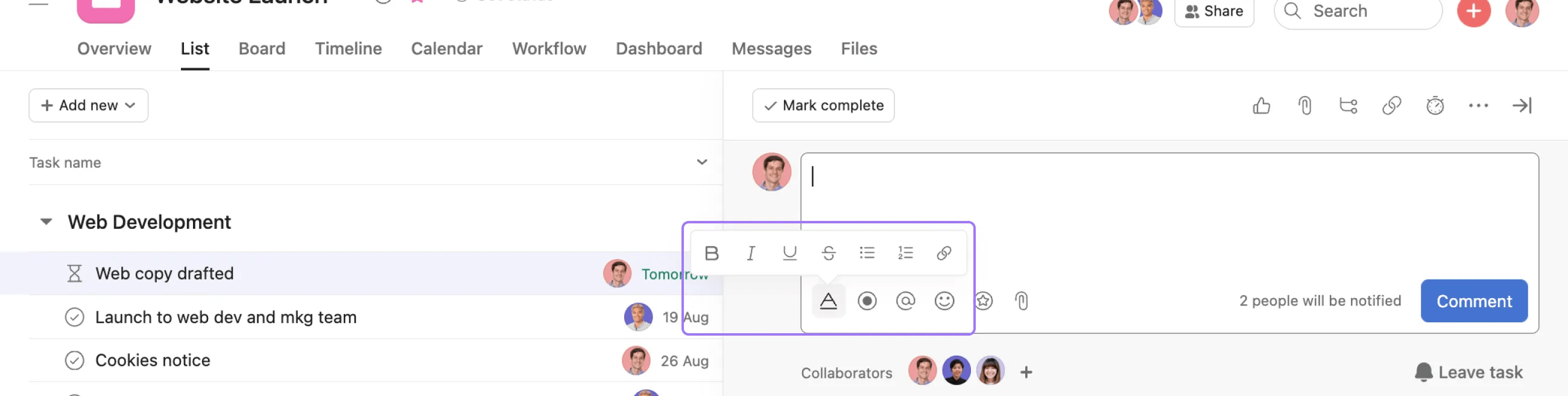
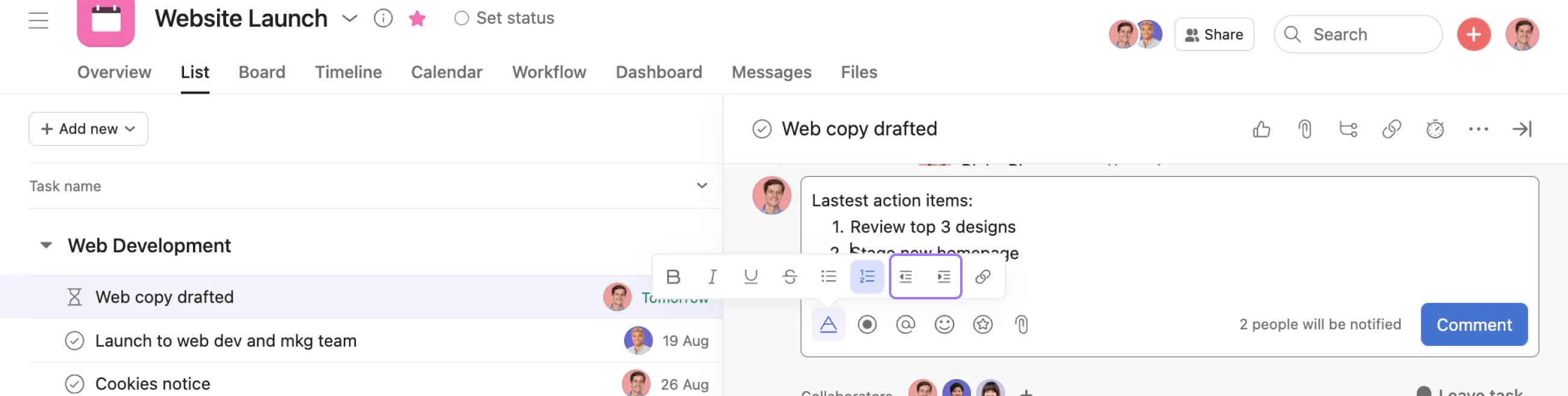
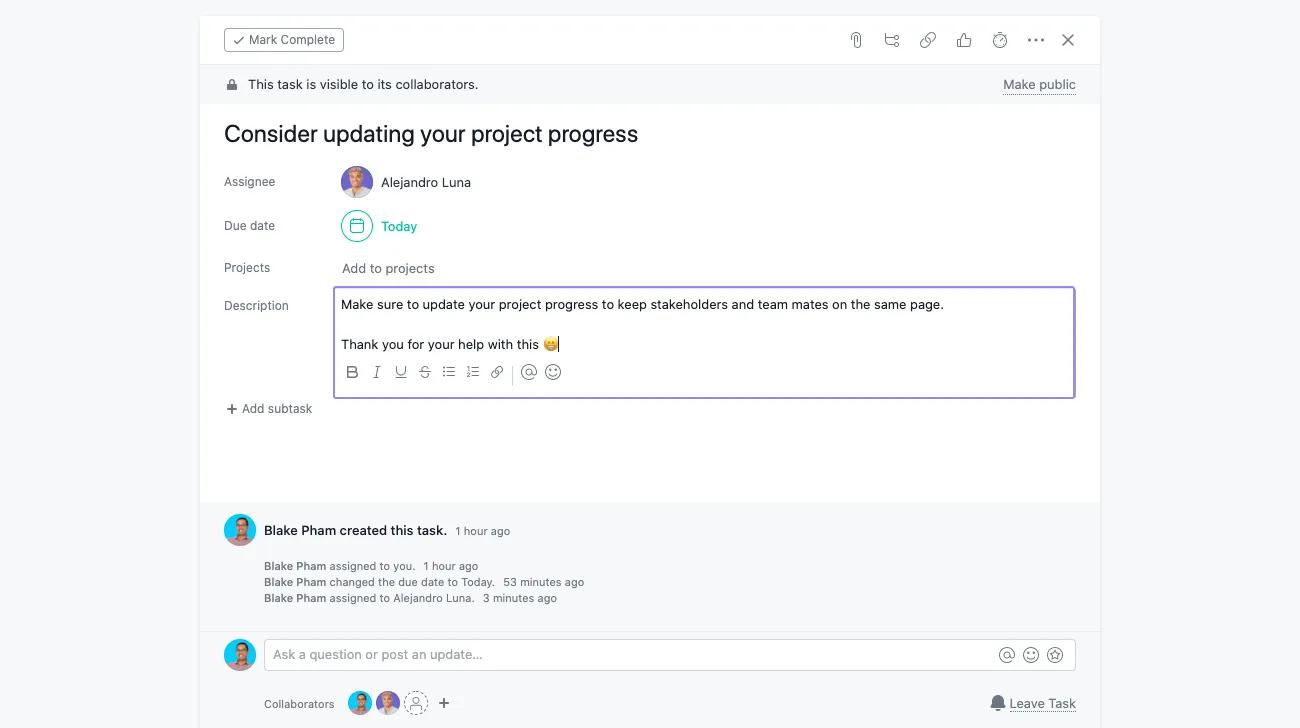
You can format your text by clicking on the rich text toolbar when entering a task description or commenting on a task.
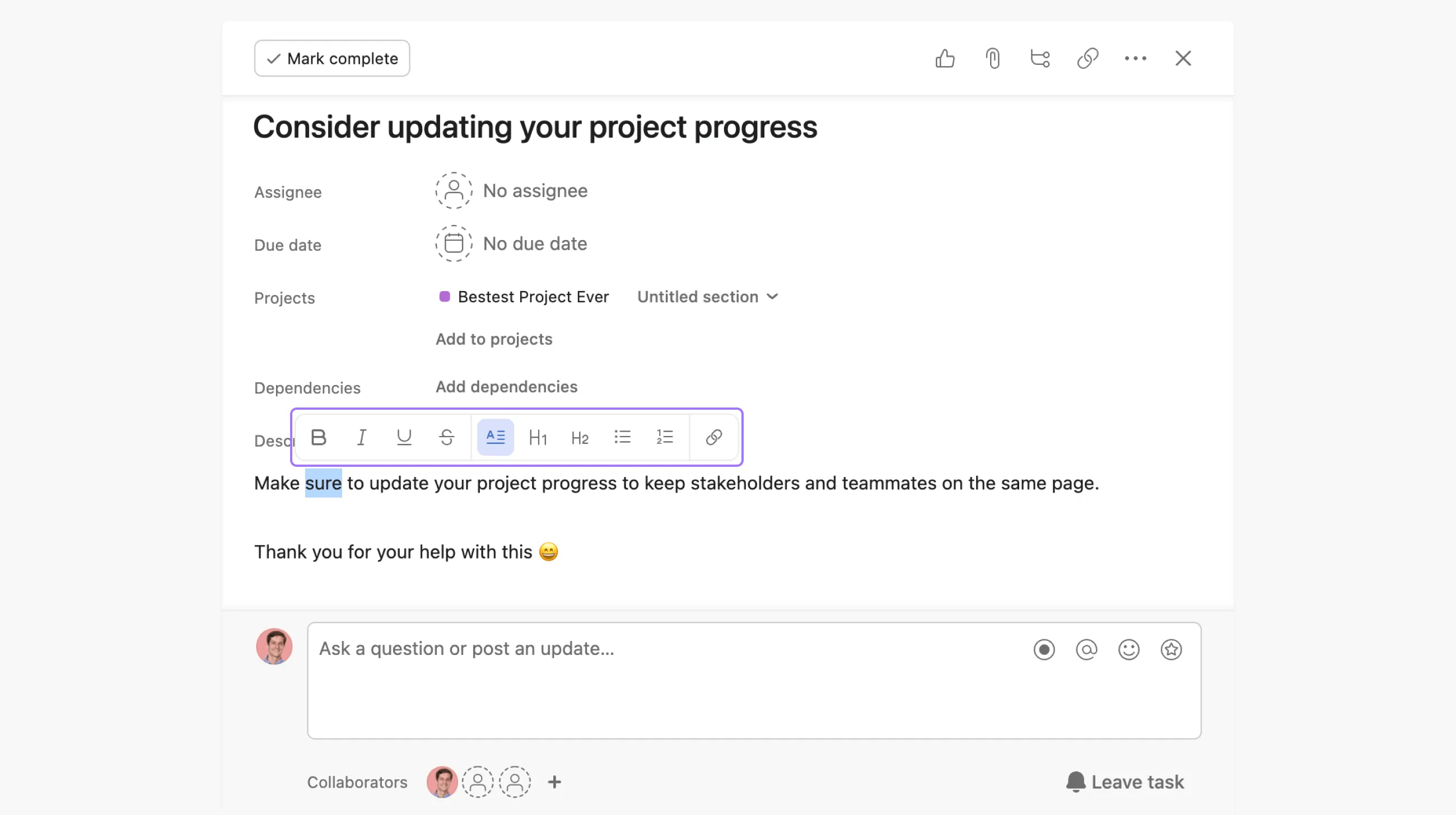
You can format your task description by highlighting the text you would like to format.
Click the dots next to the text in the description and then drag and drop the text to the desired position. You can do this with in-line images and media too.

Add in-line images and embed media from places like YouTube and Figma to your task descriptions.
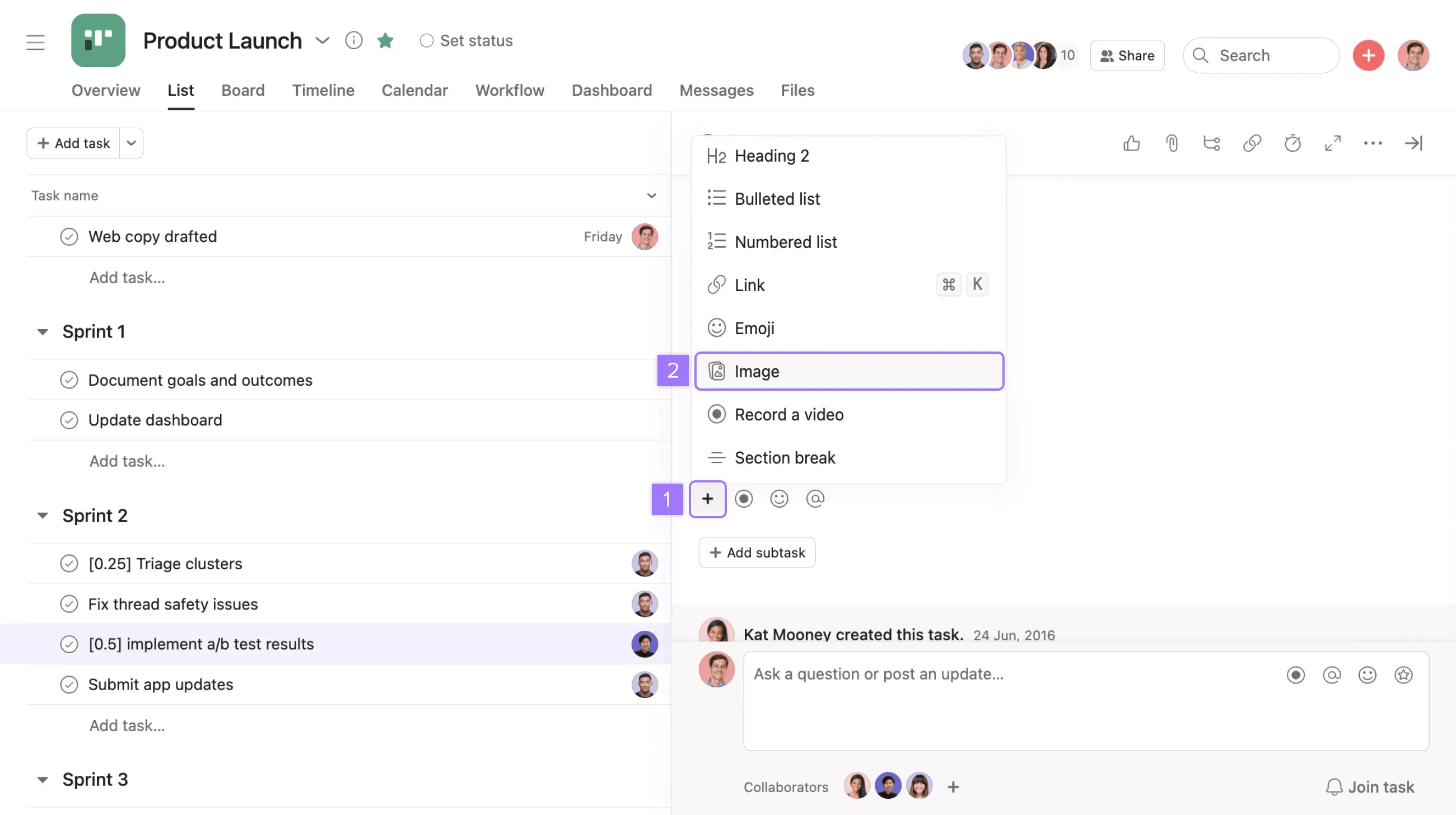
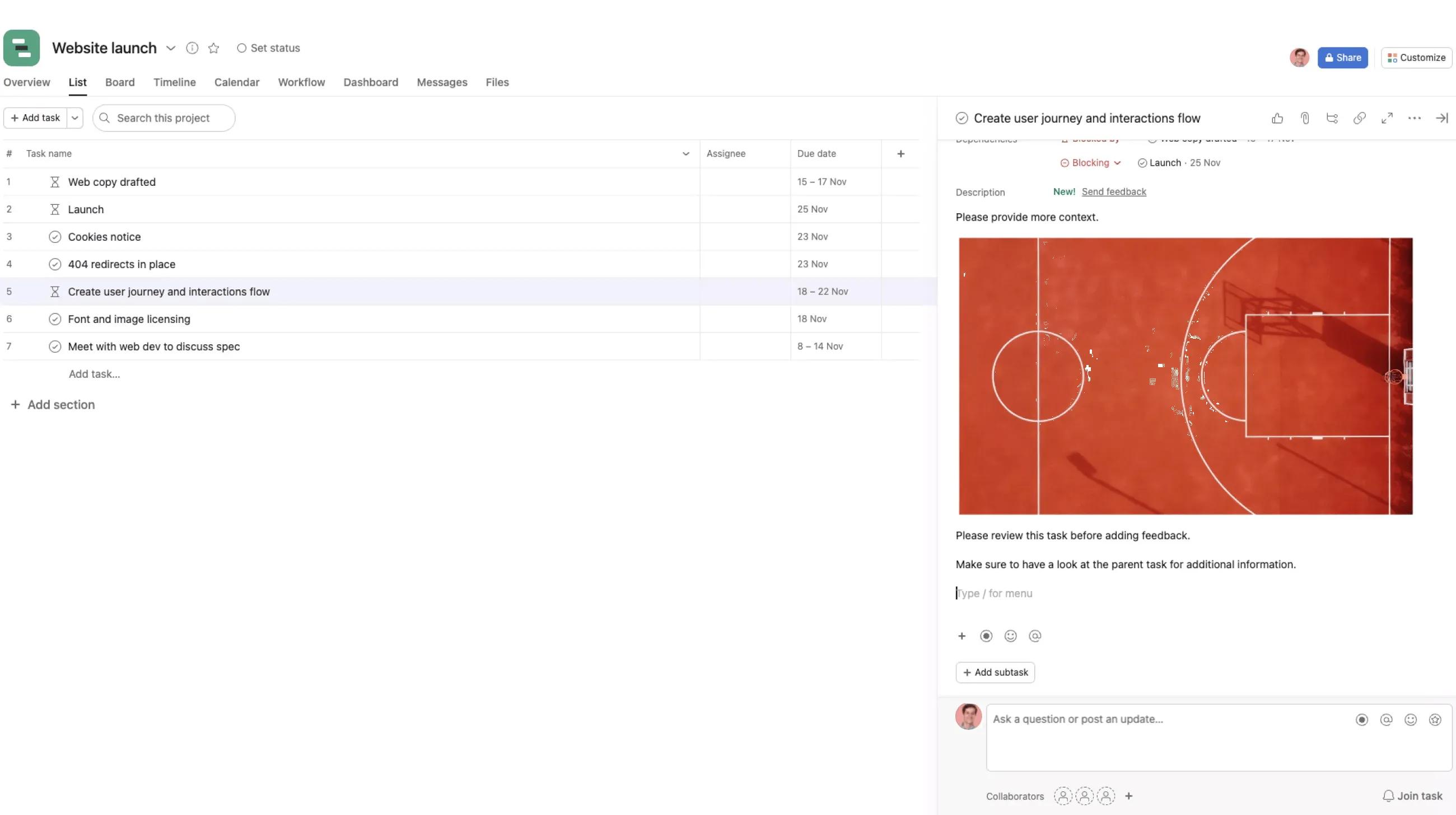
You can add text or other elements before and after your image.
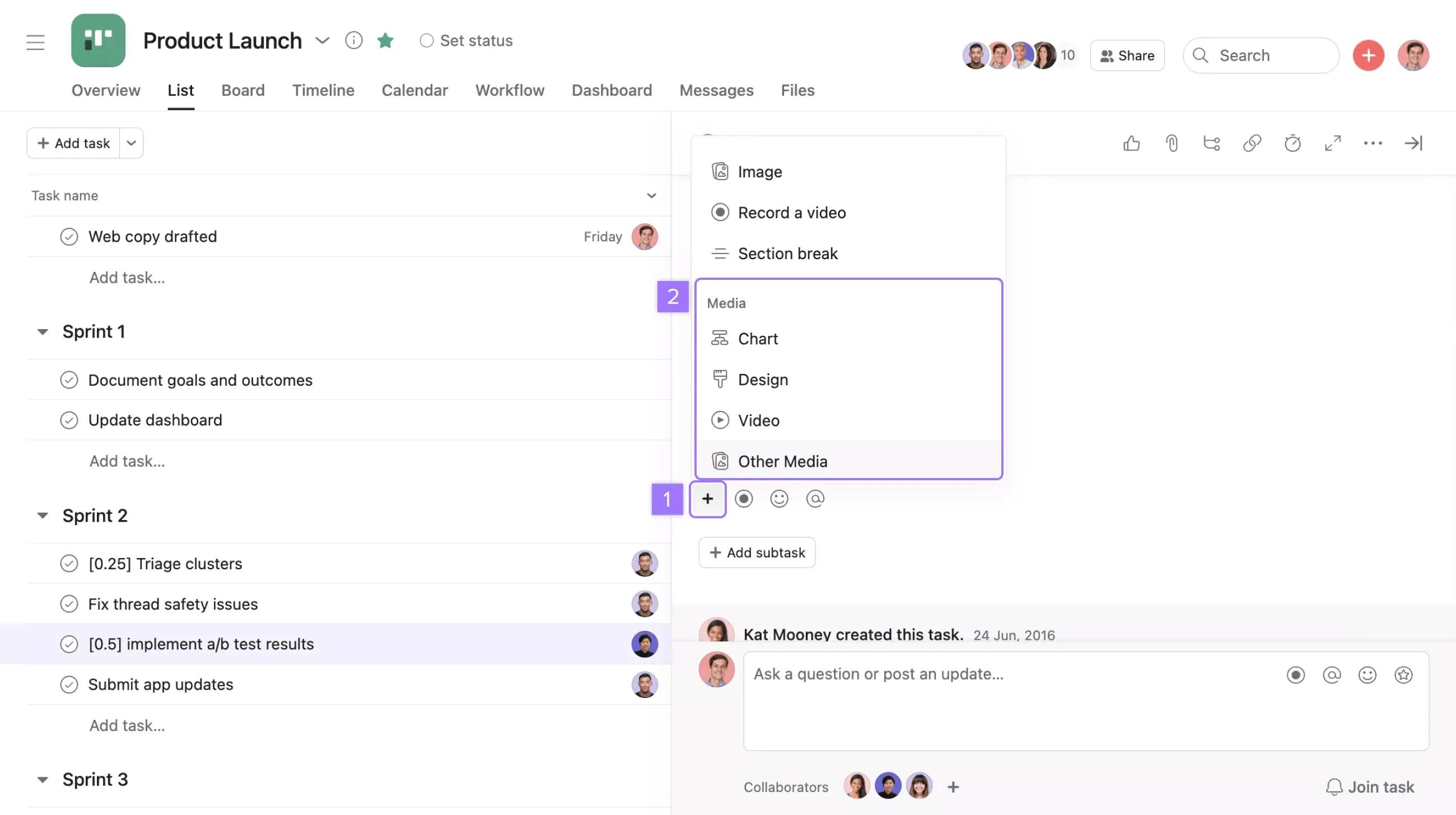
Then, you'll be prompted to paste the URL of the media you want to embed.
Emojis are supported everywhere in Asana. They can be added to project and task titles, descriptions, comments and messages. You can either copy and paste an emoji into the appropriate field, or type the emoji command into the field and the text will automatically convert into its corresponding emoji.
For example, type :smile: into the task description field and it will convert the text into  .
.
Click here to view some great emojis
ASCII emoticons are supported and will automatically convert into emojis.
Appreciation stickers are a way to empower users to collaborate on tasks. They're animated and illustrated characterizations that users can add via the emoji-picker. These stickers are a great way to give recognition and kudos to teammates and collaborators.
You can access appreciation stickers through task comment by clicking on the Appreciations icon picker.
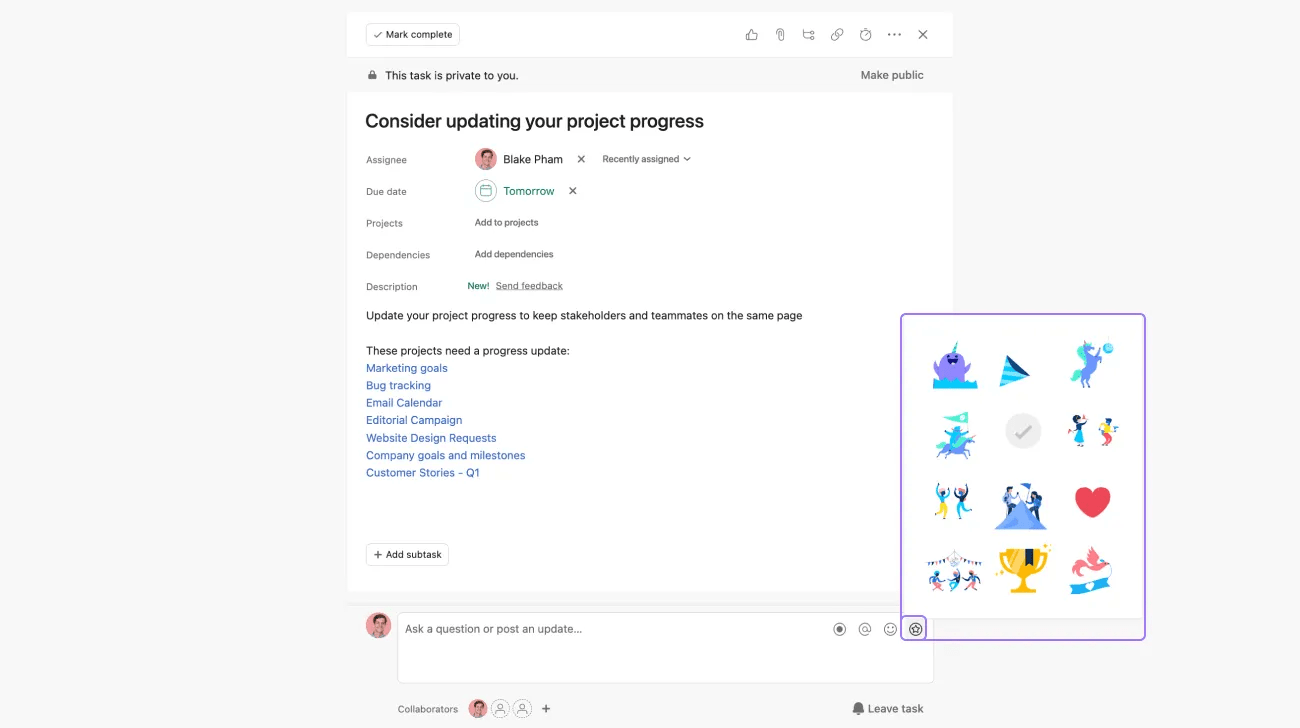
Show your appreciation and recognition of a task action with a range of animated stickers.
How to hyperlink
Users can communicate with hyperlinks in Asana. You can add a link to a task description through the Insert link button and in task comment through the rich text toolbar. Asana users can link to relevant projects, tasks and documents.

Head to the task description and click on the Insert link icon.
After you click on Insert link, a two-line pop up frame will enable you to describe your link in line 1 by adding text and adding your URL in line 2.
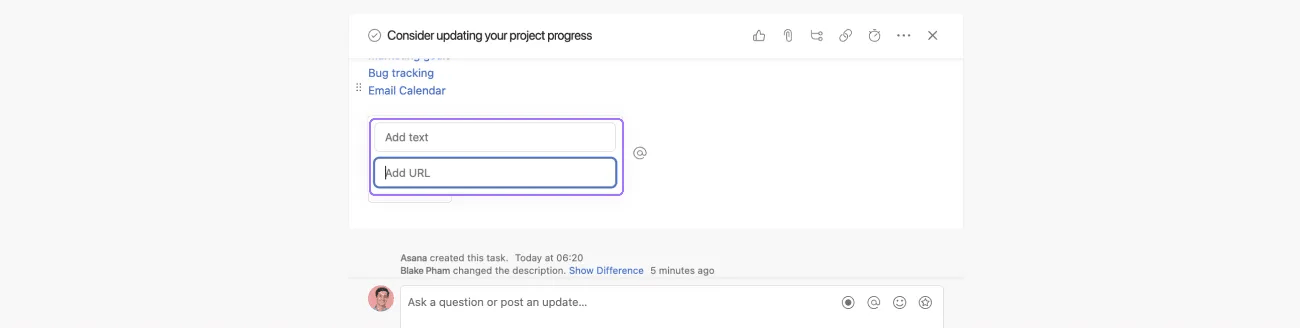
Give your link text and add your URL.
Link when you comment
You can add a link via a task comment through the rich text toolbar.
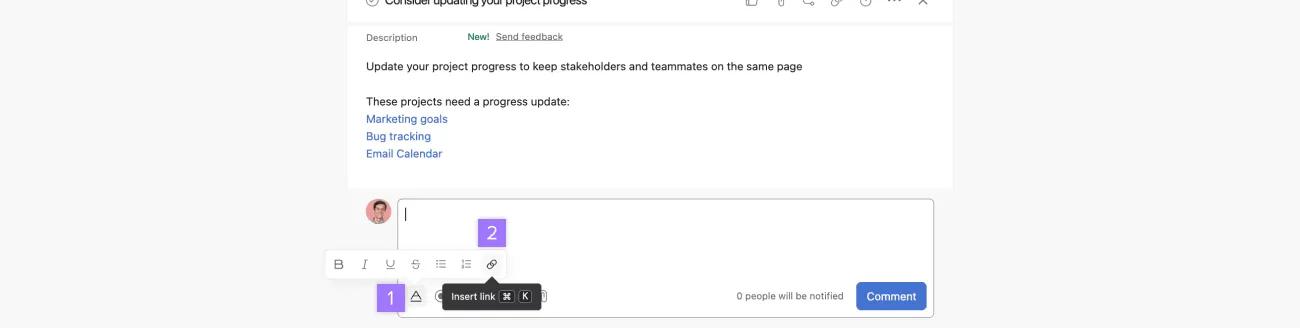
You can then add text and your URL.
You can use the keyboard shortcut: ⌘-K (Mac) and Ctrl-K (Windows) to link important content to text.
The following fields support @mention, rich text, and emojis:
If a URL is already on your clipboard, and you select a text and type Cmd+V, the selected text will turn into a link.
You can embed links in your task description by typing / and the clicking Embed link. Then paste the link and click Insert.
If you select a text and type backtick (`), the text will be formatted as monospace.
Like what you see? Get started with a free Asana trial today. Try for free.

