Products


AI Platform


Asana Foundations
Company Type
No articles found for this topic.
No articles found for this topic.

Visit our pricing page for more information.
❗️This feature is currently in limited release and is not yet available for all users.
Available on Asana Advanced, Enterprise, and Enterprise+ tiers, as well as legacy tiers Business, and Legacy Enterprise.
Access levels on portfolios provide more granular control over access and permissions, giving teams the flexibility to share portfolio information with the right people while maintaining control over sensitive data.
Individual portfolio permissions dictate the kind of actions that members can take within a portfolio, including what content resides within it. This may also extend to other members of the organization depending on the portfolio's privacy setting.
Enhanced governance: Confidently delegate flexible access levels on who can manage the structure, content, and makeup of the portfolio - allowing you to feel comfortable when sharing content with stakeholders.
Improved quality in reporting: Ensure that all your portfolios adhere to the same standards and procedures - improving quality in downstream reporting.
Flexibility: Increased flexibility and choice for cross-functional collaboration.
Viewer: Can view the portfolio and its contents (provided they have access to the portfolio), but cannot add or remove additional projects, or make changes to the portfolio's structure.
Editor: Can add or remove work, and make edits to the structure and workflow of the portfolio.
Admin: Full access to change settings, modify, or delete the portfolio. Only admins can assign other admins. Editors cannot assign Admins.
No Access: Cannot view or access the portfolio at all
For a more detailed breakdown of individual portfolio permissions, see the chart below:
|
Interaction category |
Portfolio admins |
Editors |
Viewers* |
|
Portfolio details |
Portfolio name, Owner, Due date, Privacy, Delete Portfolio, Portfolio description, Archive Portfolio |
No access to portfolio details |
No access to portfolio details |
|
Access |
Everything from editor level, plus… Upgrade/downgrade adminship for themselves and other members, set default SAL |
Share, modify member access levels (up to editor), remove editors and viewers |
Remove oneself as a direct member of a Portfolio |
|
Personal preferences |
Everything from editor level, plus… Edit notifications for all portfolio members |
Same as viewer level |
Edit notifications (for self) Filter and sort portfolio |
|
Appearance |
Everything from editor level, plus… |
Set color (for everyone), Set default view Create/move/rename/update/delete saved views on portfolios |
No access to portfolio appearance |
|
Process |
Everything from editor level, plus… |
Add/remove CFs, reorder content, add project templates, create/edit/delete portfolio dashboards, add effort on portfolio workload create/edit/delete portfolio rules |
Link portfolio to parent portfolios or goals (assuming editor+ access to the parent portfolio) |
|
Content |
Everything from editor level, plus… Ability to view and take action on individual projects are dependent on project permissions |
Everything from viewer level, plus… Add/Remove Portfolios or Projects from the Parent Portfolio Create new Project (scratch or via template) or Portfolio (scratch) within Parent Portfolio Set status (including complete), Send new messages on Parent Portfolio, Comment on Parent Portfolio Messages Ability to view and take action on individual projects are dependent on project permissions |
View project and portfolio content (assuming appropriate permissions) Add portfolio to another parent portfolio (assuming editor+ access to the parent portfolio) Export portfolio content and metadata Comment on portfolio status or messages (when added as collaborator) Ability to view and take action on individual projects are dependent on project permissions |
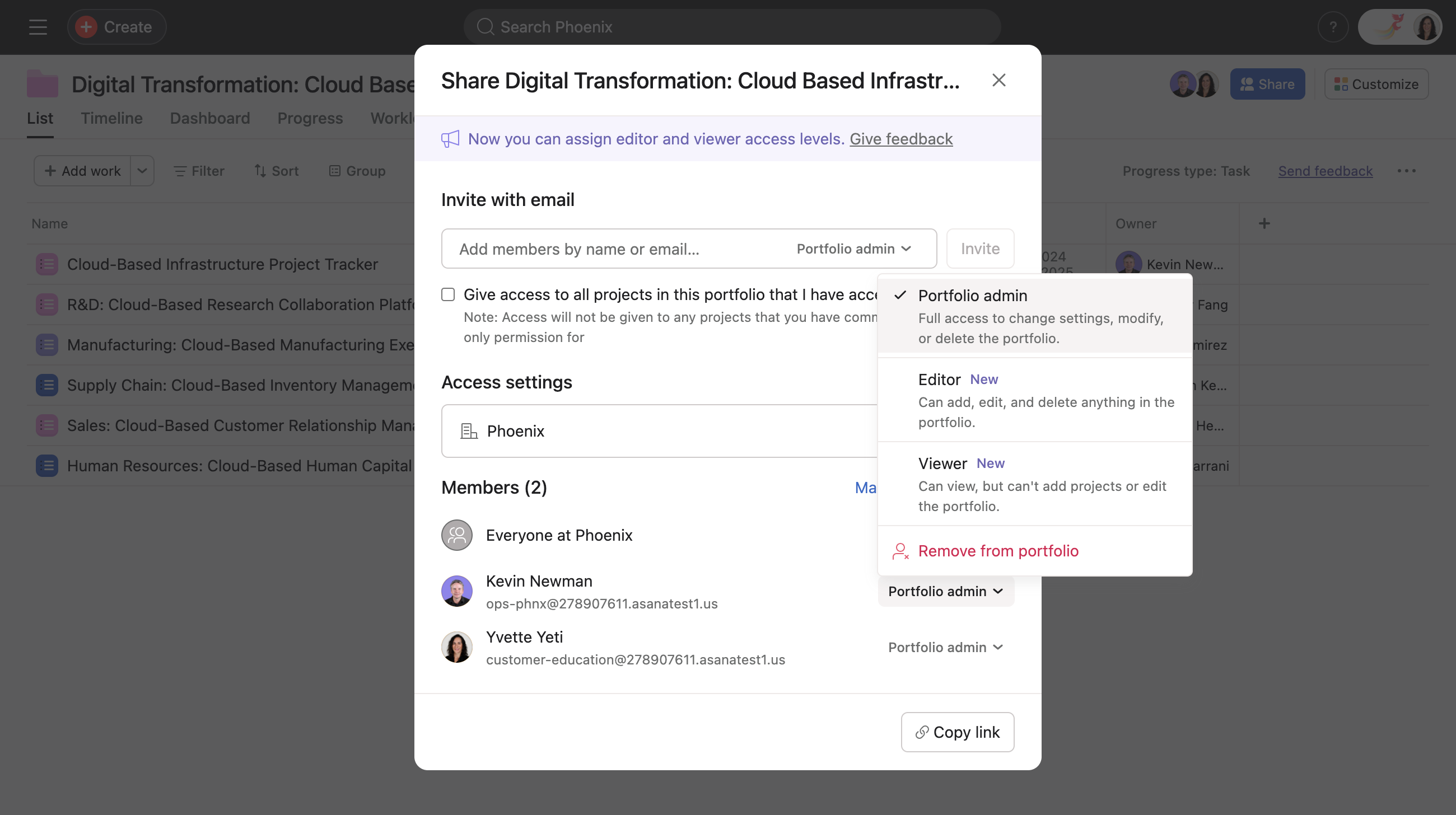
Note: admins and editors can invite new users and change their individual permission. Only admins can give admin permissions to others.
Note
Access levels on portfolios work in conjunction with existing portfolio privacy settings. If a portfolio is set to private, only users with explicit access will be able to view or interact with the portfolio. Public portfolios have default access level of Editor when created, and portfolio admins can adjust this further to restrict what non-members of a portfolio can do.
If a user has been assigned two different access levels in a portfolio through different roles, Asana will automatically assign the highest level of access they are entitled to across these roles.
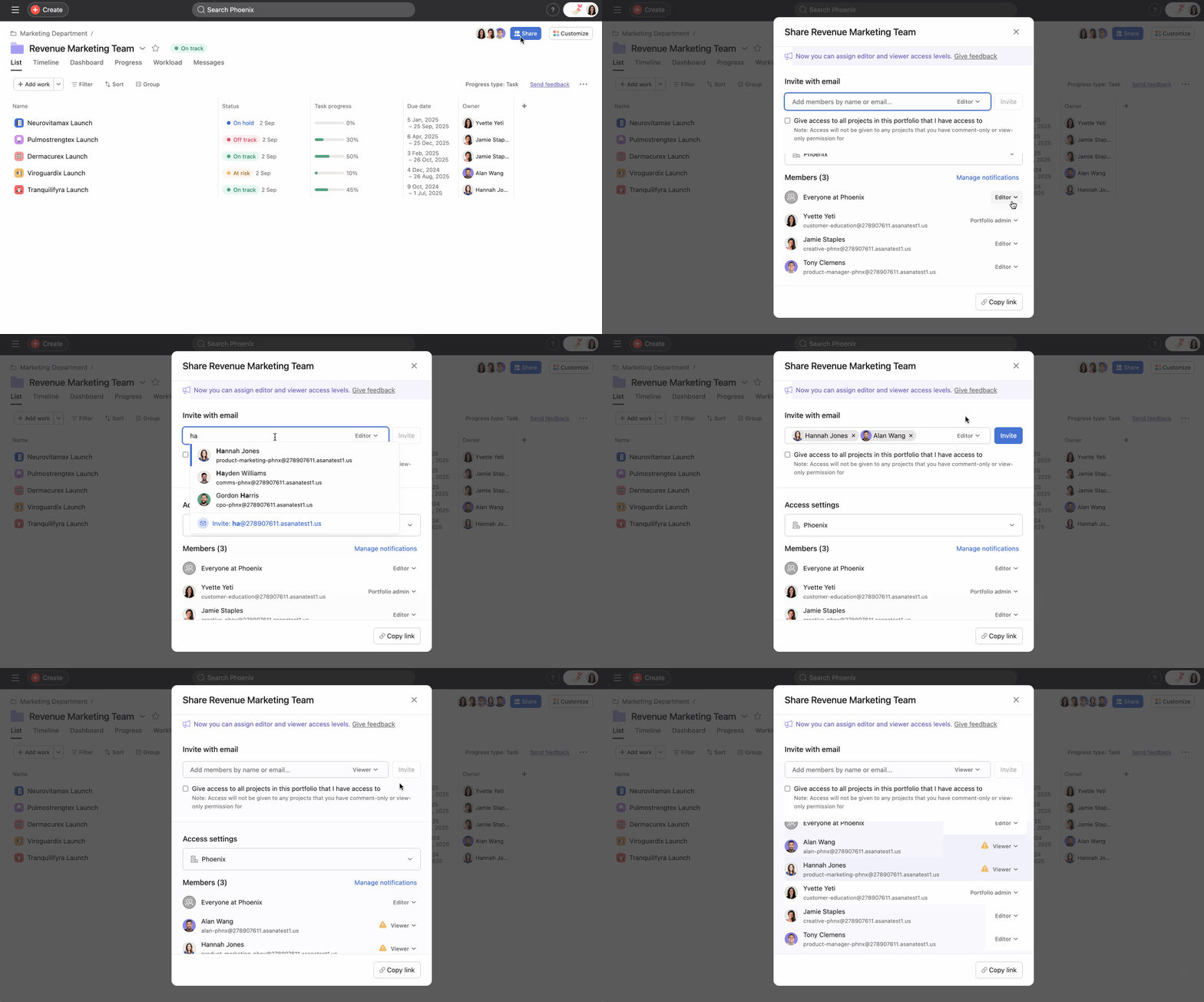
If a portfolio contains private projects or private nested portfolios, users who don’t have access to those items will be informed via a banner stating “This portfolio contains projects or portfolios you don't have access to”.
View a list of these projects and portfolios by clicking the View all button within the banner. Alongside the private work you can find high level information to help you decide how to act on this work - including who the admins are, when the work was added, and which user added the work to the portfolio.
This allows for better visibility and management of private work within portfolios and provides a streamlined process for requesting access to private work. It also allows users with view-only access to see how much private content is within the portfolio, and to request access to them.
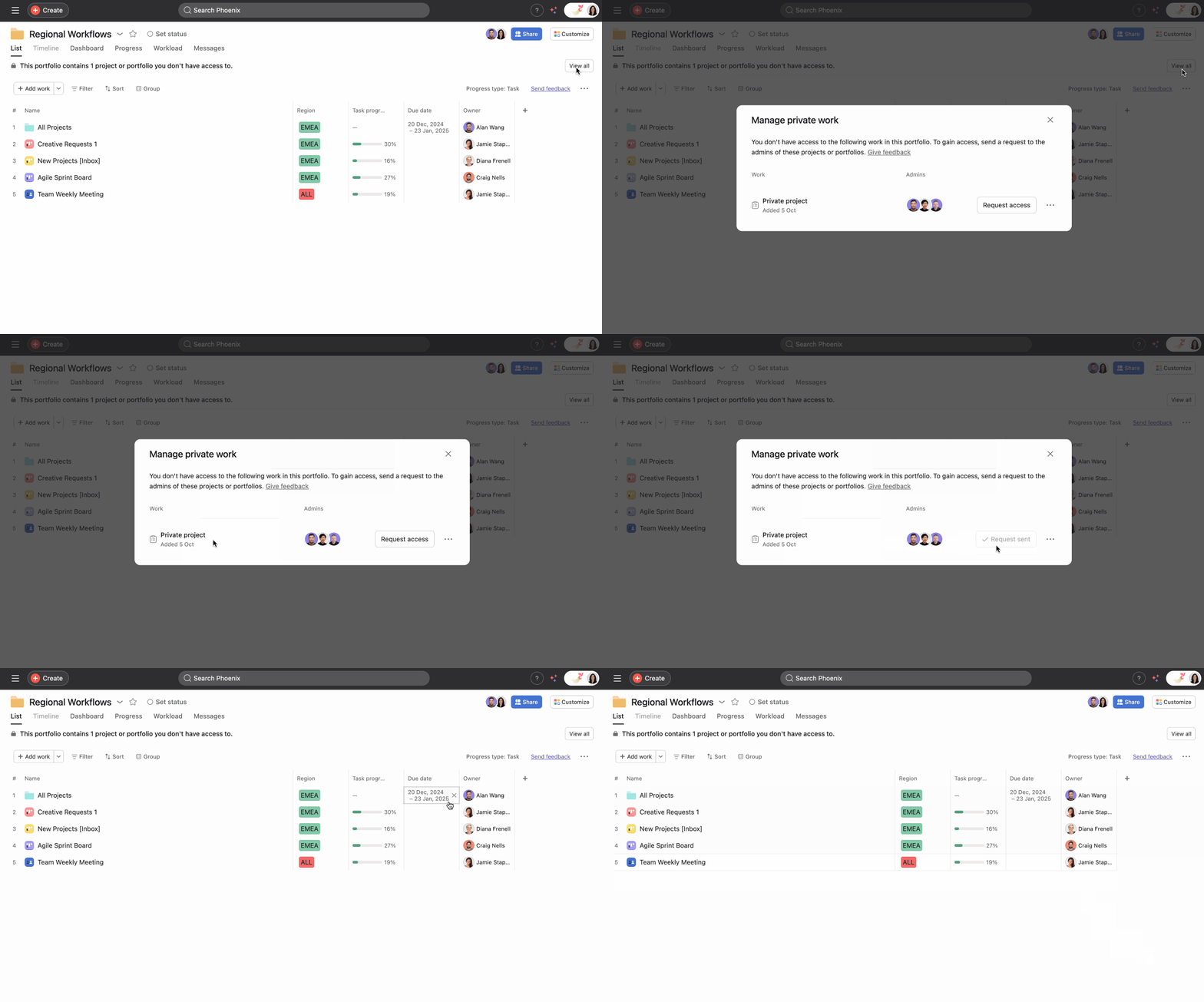
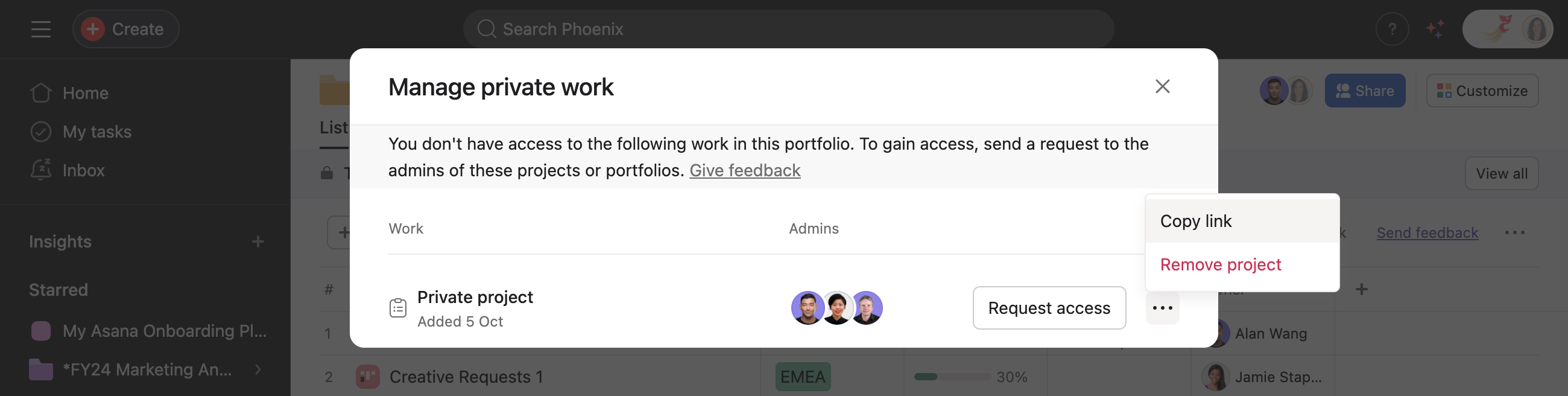
Note: Only portfolio admins and portfolio editors can remove work from a portfolio, including private work.
How do individual portfolio permissions differ from existing portfolio privacy settings?
Portfolio privacy settings determine whether a portfolio is public or private within the organization. Individual portfolio permissions provide an additional layer of access control, allowing admins and editors to set specific permissions (Viewer, Commenter, Editor, No Access) for individual users within a private portfolio. Only admins can assign admin permissions to others.
I cannot update the custom field value of a project in my portfolio, why is that?
If you cannot update a custom field value for a specific project or portfolio, it may be because you do not have the right permission for that piece of work. To update custom field values of a project or portfolio - you must have Editor access to that object. To update work metadata like owner, due date, or name - you must have Admin access to that object. This gives you more flexibility and control within your portfolios if you have differing stakeholders.
We have a portfolio with lots of members, can I update these member’s permissions in bulk?
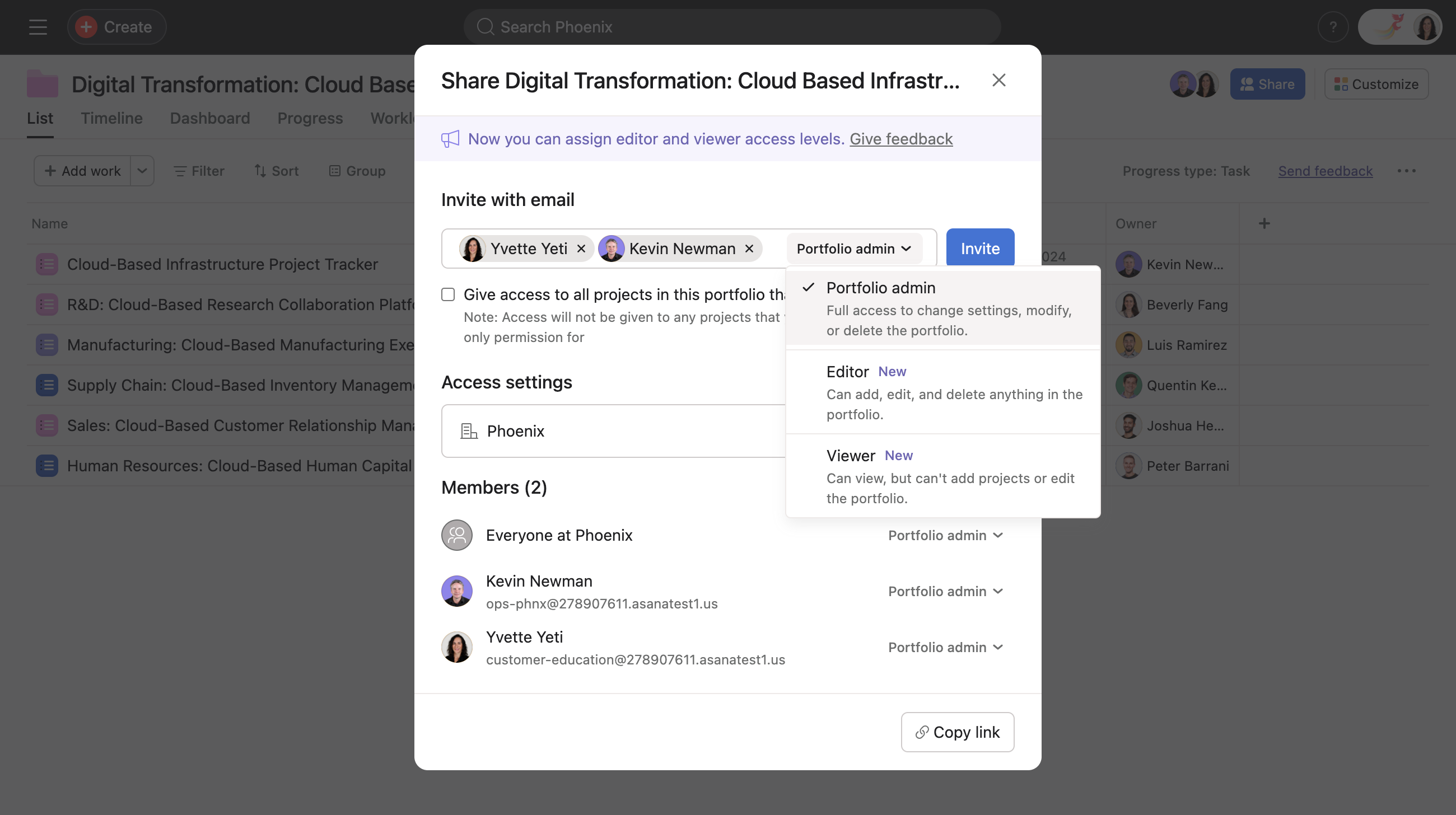
Yes, you can edit member permissions in bulk. To do so, paste the email address or type the names in the invite modal shown in the image below, and edit the access level in bulk. This allows you to quickly downgrade permissions in portfolios with many users.
How can I find out who the portfolio owner is?
This information can be found in three places:
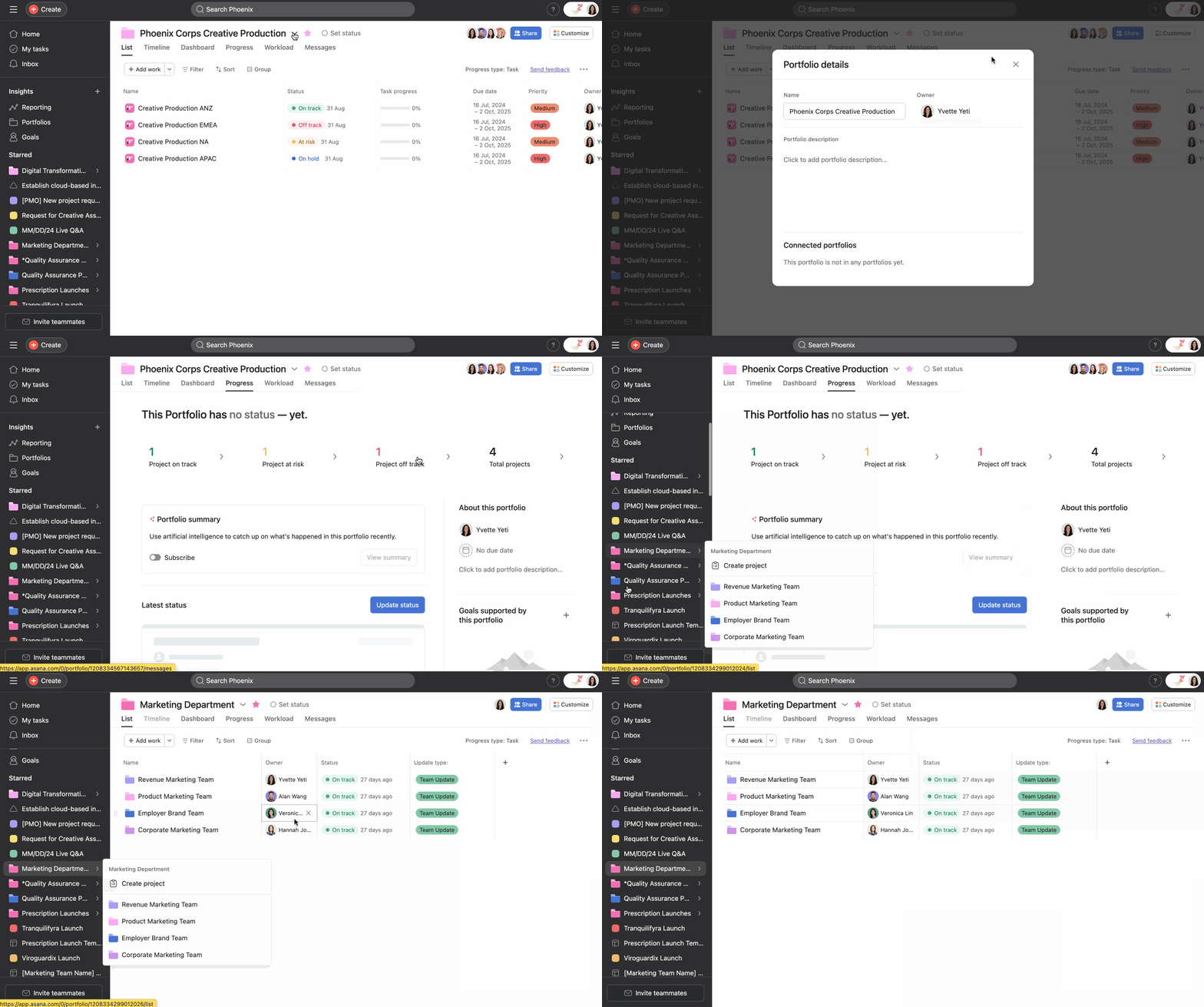
In the portfolio details window
Via the portfolio Progress tab
If your portfolio is a part of a parent portfolio, you can see the owner in list and timeline view
Can I hide private projects or nested portfolios from the portfolio view?
No, all items added to a portfolio will be visible to portfolio viewers when they click View all. However, the details of private items remain hidden until access is granted.
Who can approve access requests for private items?
The admins of the private work can approve access requests.
Who can remove private work from a portfolio?
Only portfolio admins and portfolio editors can remove private work from a portfolio.
Will requesting access automatically grant me access to the private item?
No, access requests must be approved by the admin of the project or nested portfolio.
Can I see the details of private items in the portfolio before I'm granted access?
No, information is only visible once access has been granted. The only information shared is which user added the work, when it was added, if it is a project or portfolio, and who the admins are.
I still haven’t been granted access following my request, what do you recommend?
Admins of projects or nested portfolios receive a task in Asana when you request access. If you haven’t received a reply from the admin, we recommend copying the link to the relevant work and reaching out in another task, or via another method of communication.