Products


AI Platform


Asana Foundations
Company Type
No articles found for this topic.
No articles found for this topic.

Visit our pricing page for more information.
The Microsoft Teams + Asana integration is available on all paid Asana tiers. The integration is available to all Microsoft Teams paid plans. The free version of Microsoft Teams does not support app integration.
Use Asana's integration with Microsoft Teams to add Asana projects to team chats and turn conversations into actionable work, all in one place. An Asana bot has been added to Microsoft Teams which facilitates the unfurling of Asana features, so teams can chat about projects with the details and context in front of them, without switching tools.
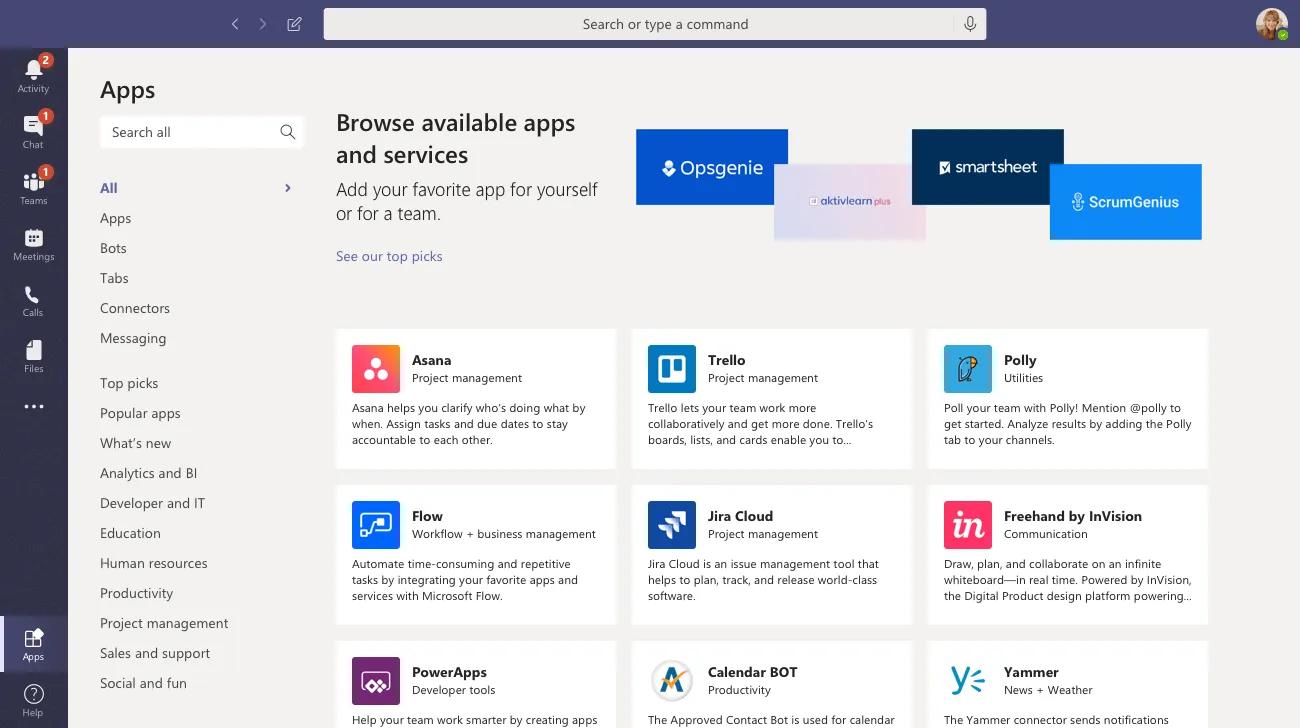
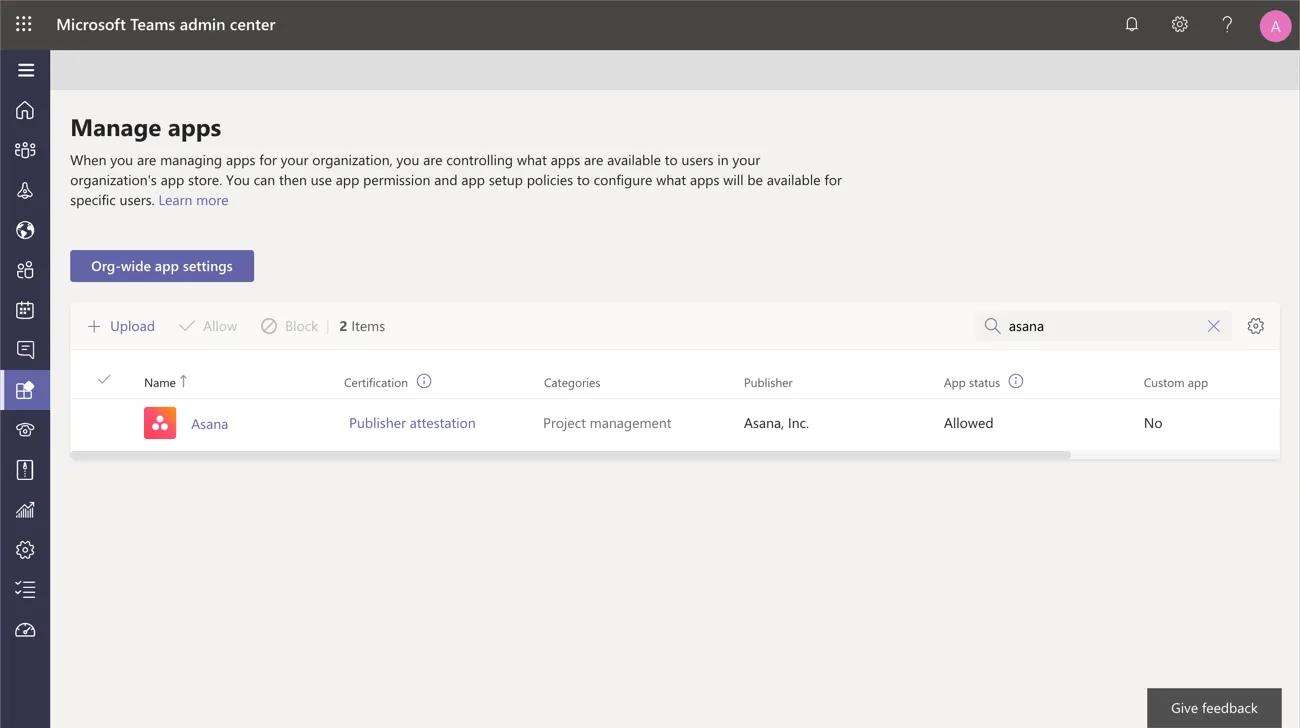
To manage the app, search Asana in the Teams admin center, and ensure Allow is checked. Add Asana to Pinned apps in Teams admin center to find it more easily in future.
Once installed, you have access to the integration bot in your 1:1 chat. Add the bot to specific team channels, and ask it questions for updates on Asana project activity.
 When initially interacting with the integration, you will engage with a chatbot which introduces the integration, shows examples of use cases, and provides links to Help Center articles you might need.
Users can unfurl tasks, projects, portfolios, status updates, and teams to show more information in Teams.

To share links, simply paste an Asana URL and hit send.
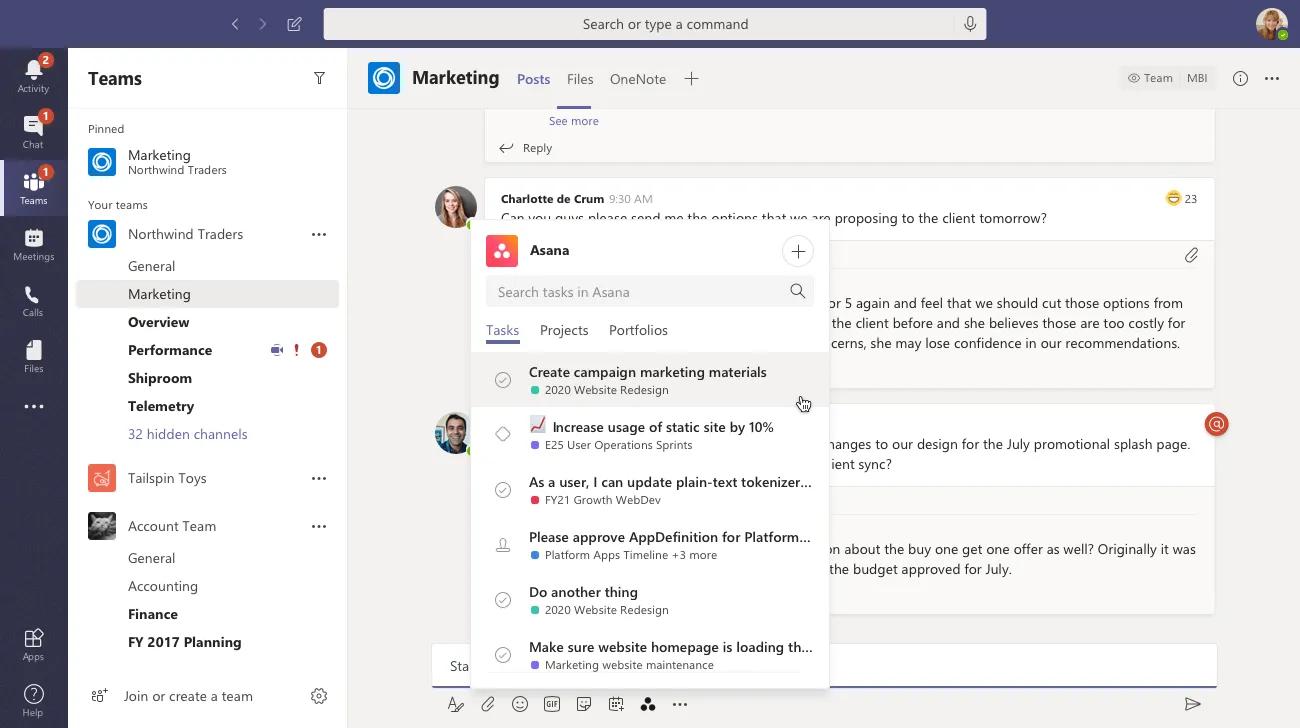
Find tasks, projects, and portfolios by clicking the Asana logo in the message composer.
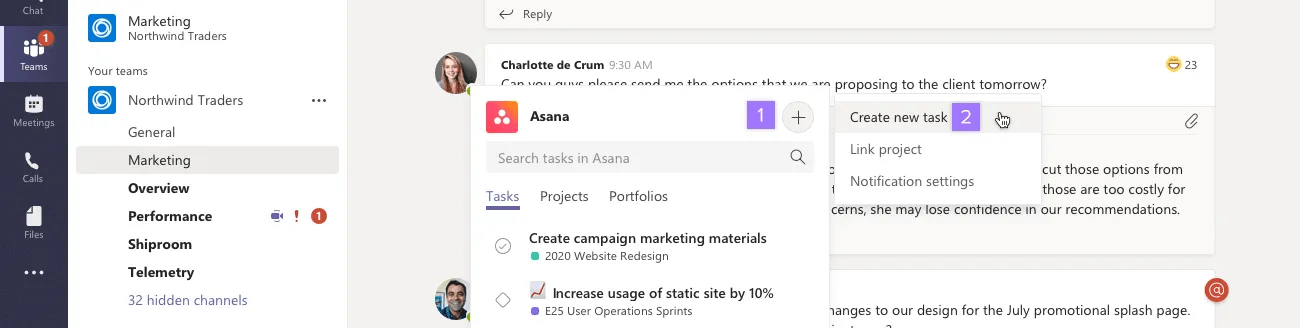
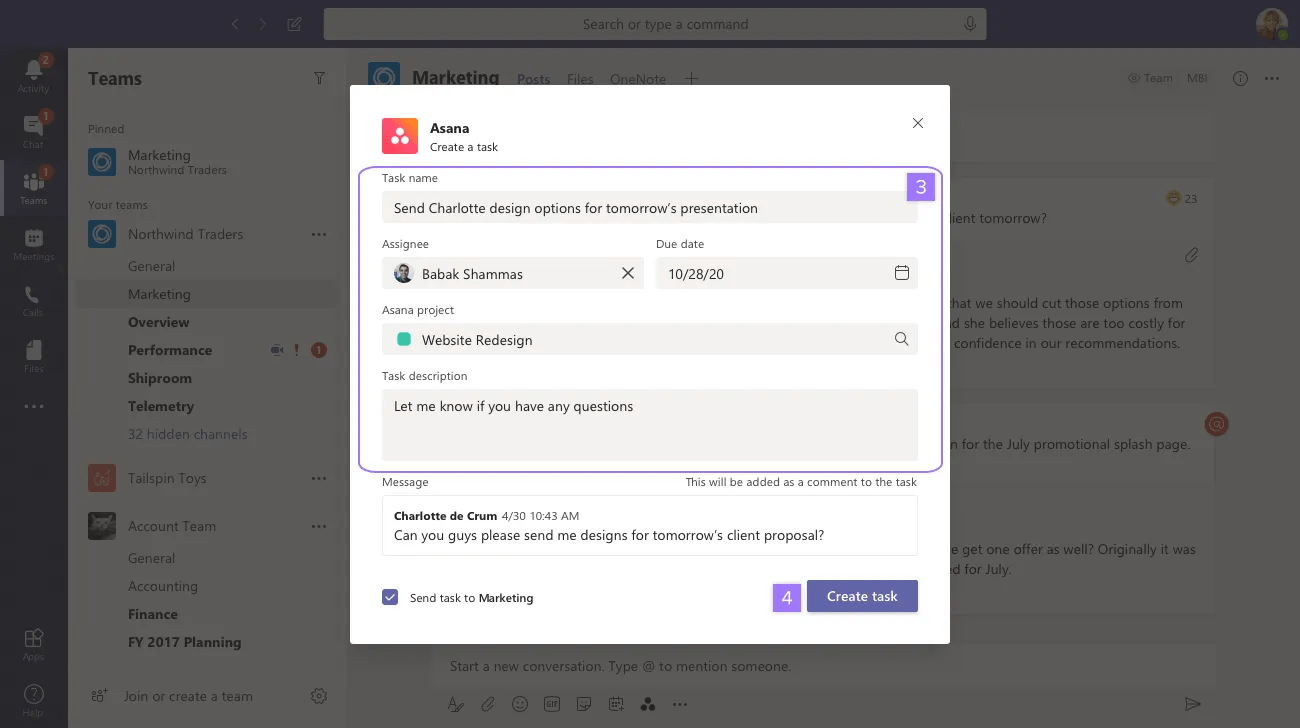 Create new Asana tasks anywhere in Teams. Use the create task command with the Asana bot, the option from the composer, or within any message in a conversation. You can also assign it to a teammate, set a due date, and add it to an Asana project.

Under the three dot icon options, click More actions and choose Add message to task. Via a pop-up window, search and select an Asana task for the message to be added to as a task comment.

To embed an Asana project in Microsoft Teams, click the + button to add a new tab.
Search "Asana" and install the Asana app tab for the channel.
Select the project you wish to embed. You have the option to send project notifications from Asana to this channel.
Once you confirm the configuration, the selected Asana project will be embedded in the channel. You have the same access control for this project as you do in the Asana web and desktop apps. Other members of your organization can log into the embedded project using their Asana credentials.
Embedded project views are only available in the Microsoft Teams desktop application, and not the mobile or web app versions.
There are two ways to configure personal notifications:
You can run the Help command in a Teams conversation to see all the Asana commands available to you.
You can run the Notifications command in a Teams conversation to be redirected to Asana settings > Notifications.
In Asana, you can configure your personal notifications.
Project notifications let a Teams conversation receive updates from a specific Asana project.
Open the Asana project you want to follow and navigate to the Asana project’s settings.
Go to Notifications > Microsoft Teams.
From there, you can add project notifications for Microsoft Teams channels and chats and configure the notification types.
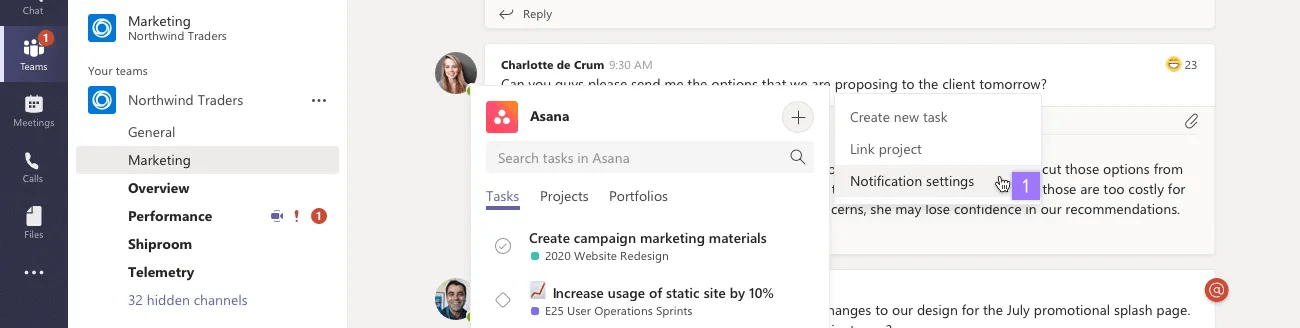
Within Microsoft Teams, there is also the compose extension three dot menu commands Link project and Notification settings which redirect to Asana.
You can return later to Asana to change which updates are posted or stop posting project updates in that conversation.
Navigate to any team channel or 1:1 chat.
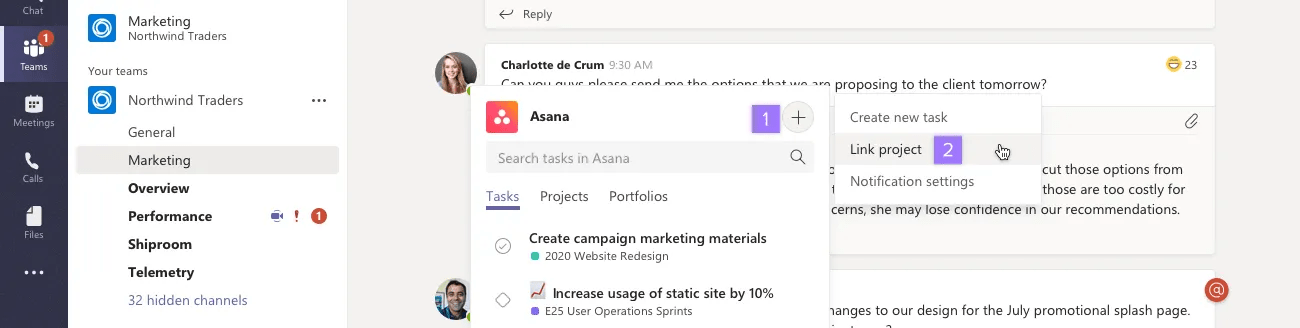
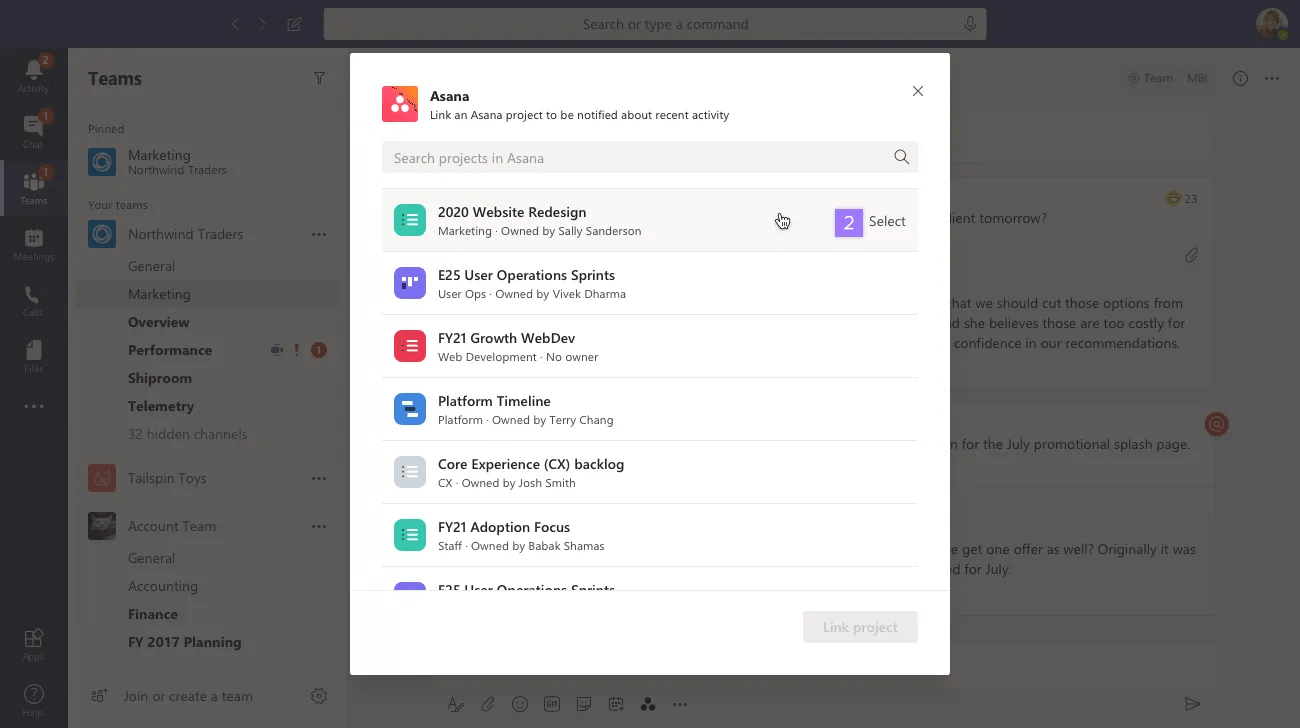
In the + menu, select Link Project. Select a project that you want to receive notifications for.
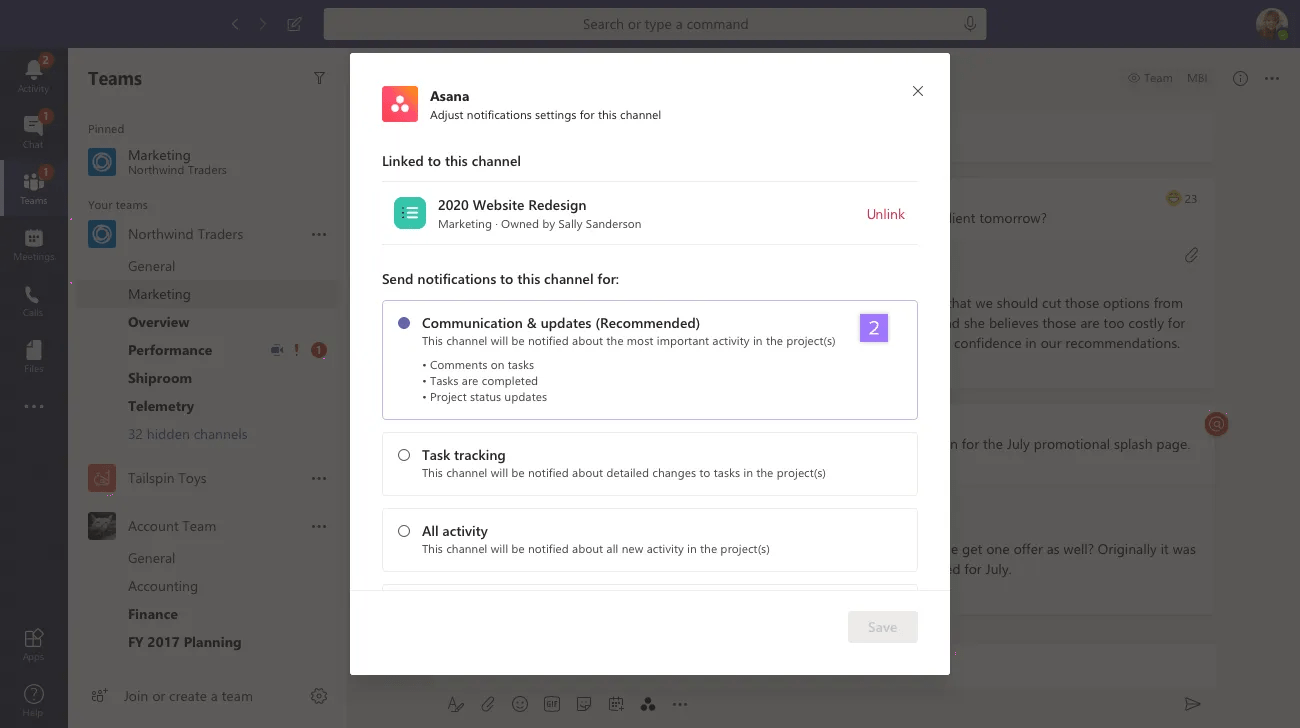
You can create custom notifications using the Asana rules feature, such as sending a custom message to a channel or a chat whenever a task is created, updated, or commented on.
Note
Before you set up a Microsoft Teams rule, check with your Microsoft admins that the required permissions for the Microsoft Teams rule action has been authorized in Microsoft Entra. Visit this article for more details.
The Send channel message rule action allows you to automate sending custom notifications to designated Microsoft Teams channels based on specific triggers in Asana. This feature creates shared visibility of team statuses and updates without the manual workarounds.
The Send direct message rule action allows you to automatically send customized messages to individuals or groups in Microsoft Teams based on specific triggers in Asana. This feature bridges the communication gap between Asana and Microsoft Teams, helping teams stay informed about important updates without leaving their primary communication platform.
The Asana bot for Microsoft Teams will chat with the app to ask questions and find things, seamlessly returning a response based on input from the user. There are a number of commands you can use with this app to save time.
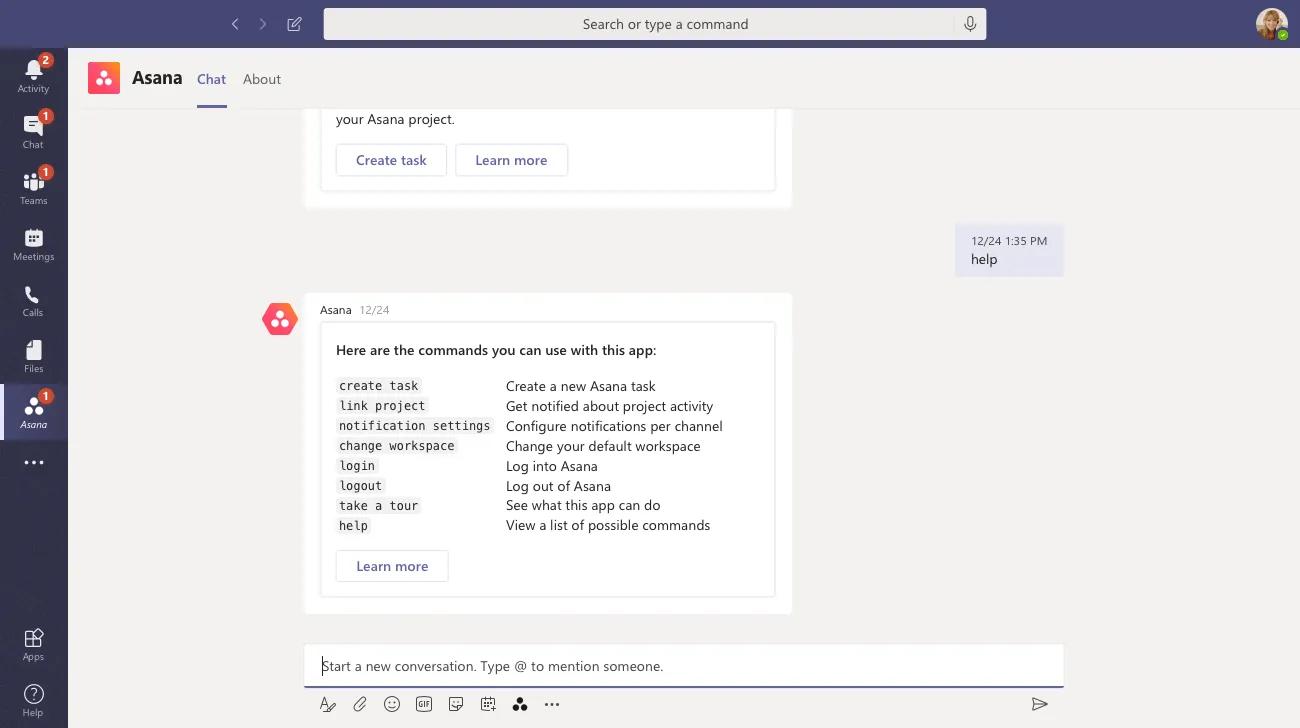 From the Asana chatbot, you can select your workspace or switch to another one to suit your project needs with the command change workspace.
Asana’s Microsoft Teams integration also works with Teams Meetings, allowing tasks to be created without leaving the meeting window. You can also see a summary of tasks created in a meeting. This is supported in the Teams desktop app, but not the browser version.
The meeting organizer must add the team or event to the integration before the meeting starts. Navigate to the team event you want to add the integration to and click the + button at the top of the screen.
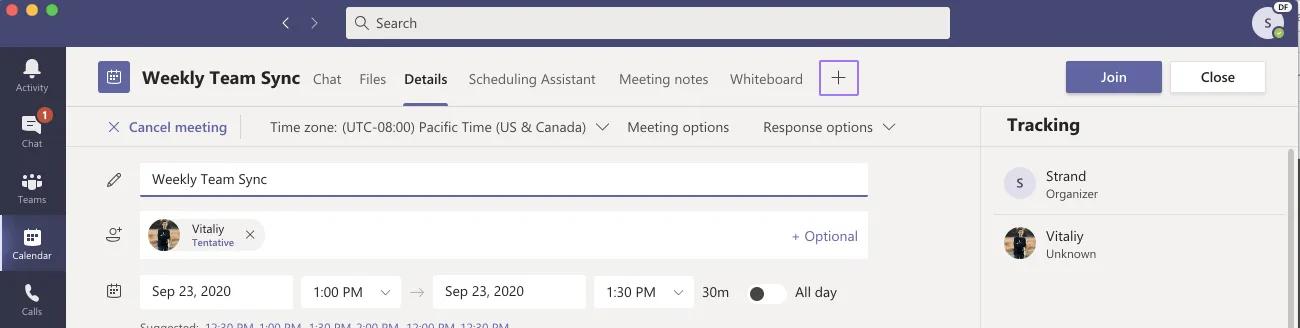

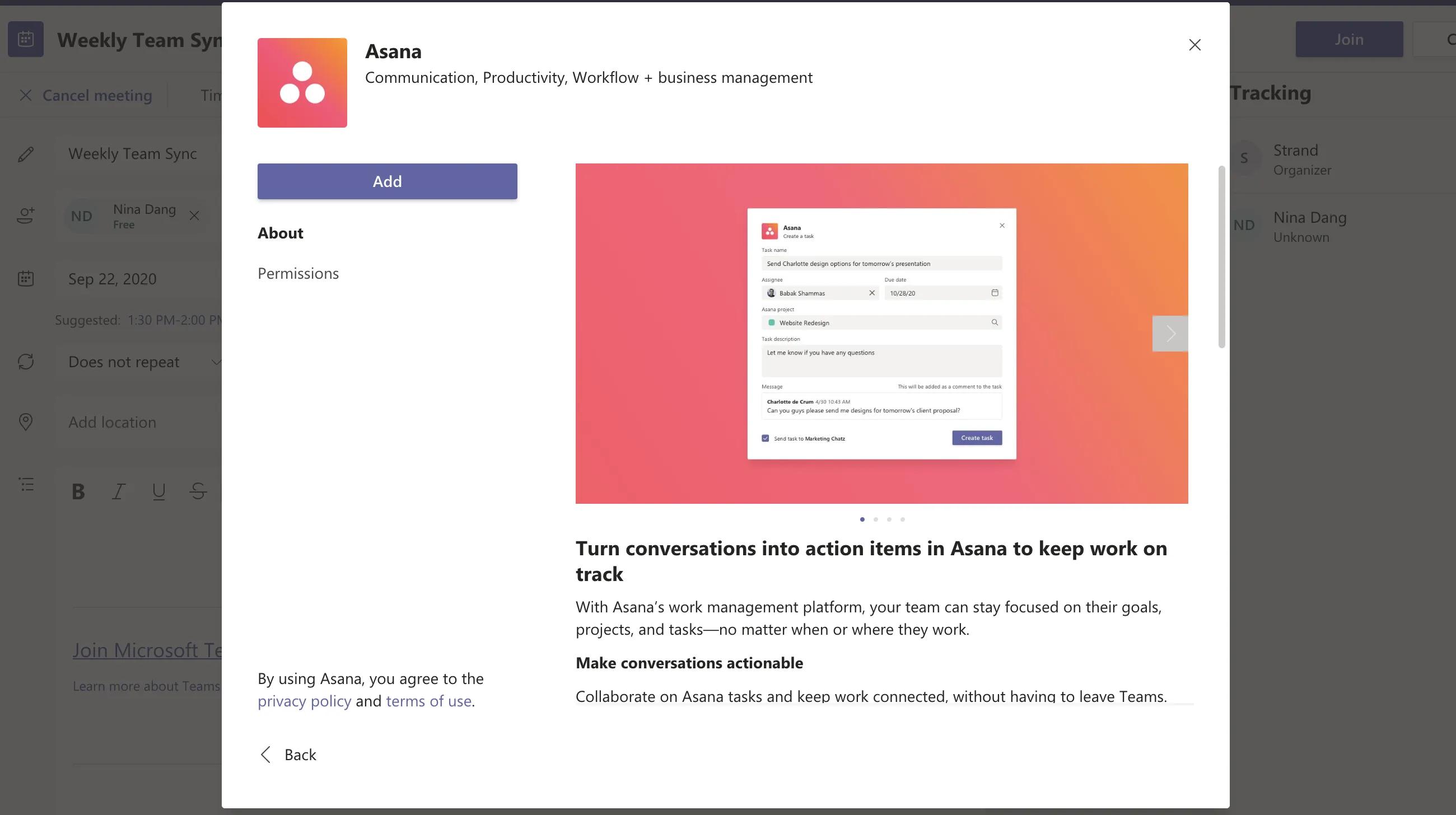
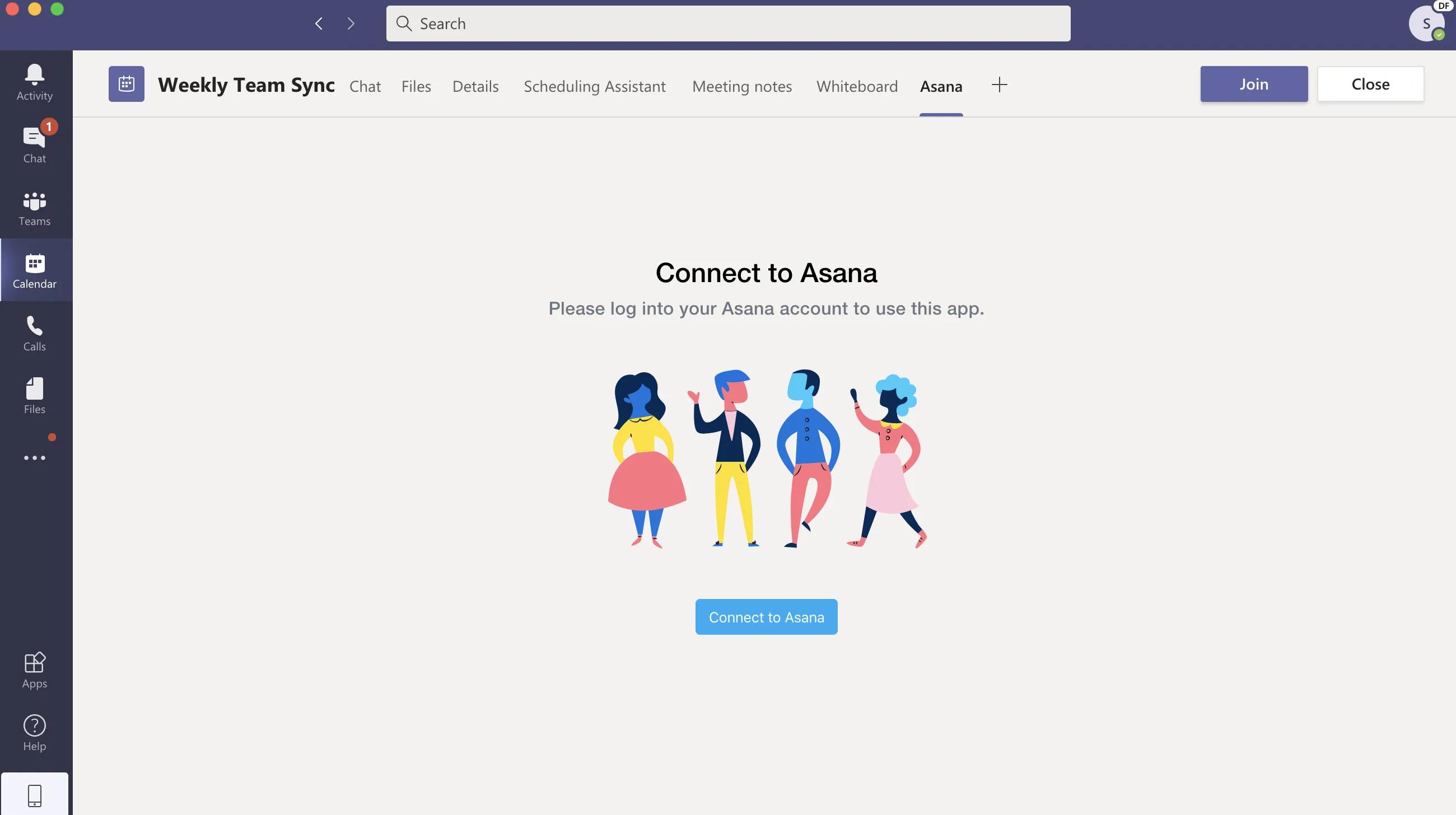
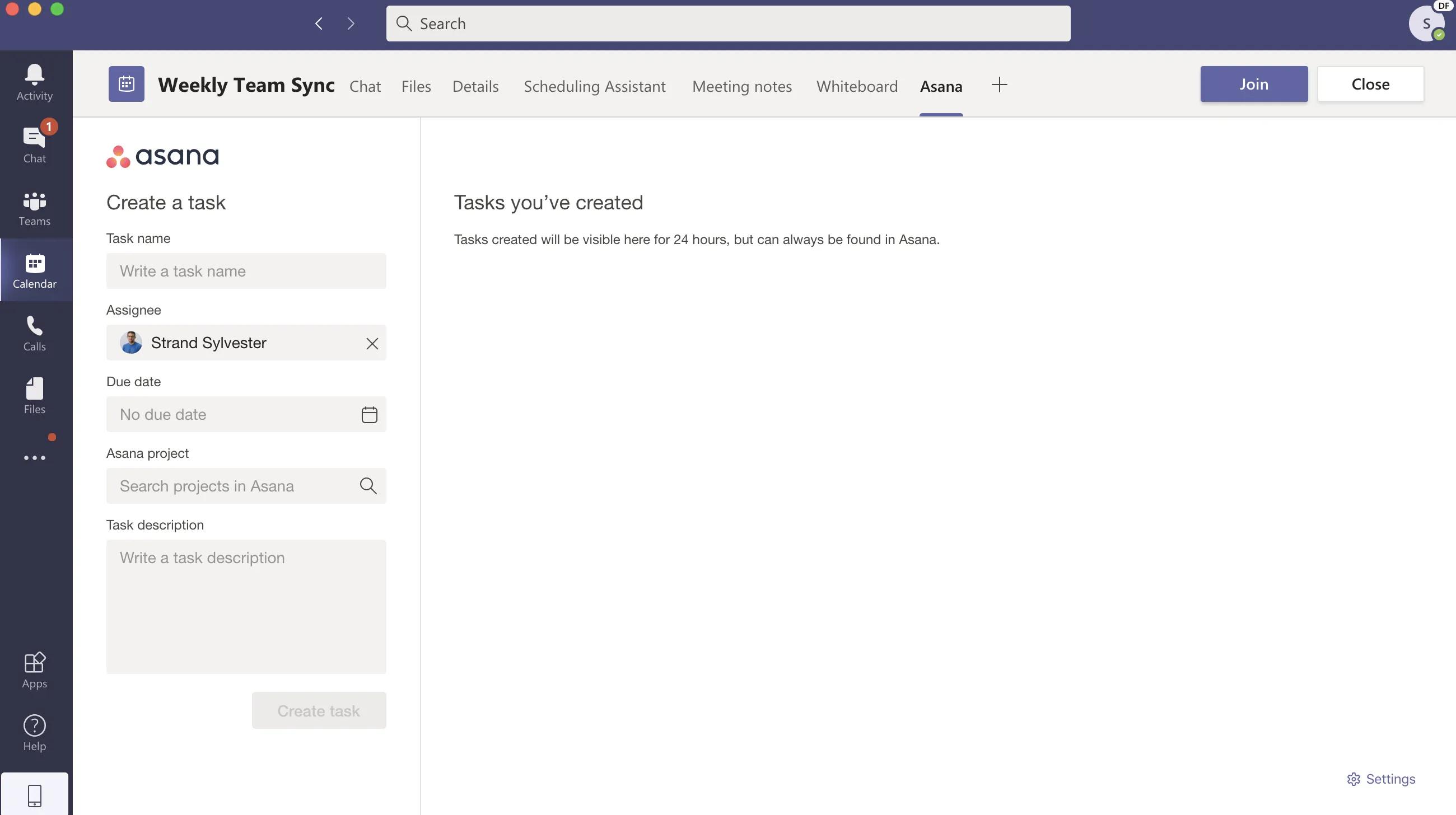
Create tasks, and review any tasks you’ve created within the Event or Team. Tasks created in Teams are by default only visible within Teams to the user who created them. Tasks will always be found in Asana.
When you join the event, you’ll also see the Asana logo in your meeting menu. Clicking it will open a side panel where you can create tasks mid-meeting and review tasks you’ve created in the meeting.
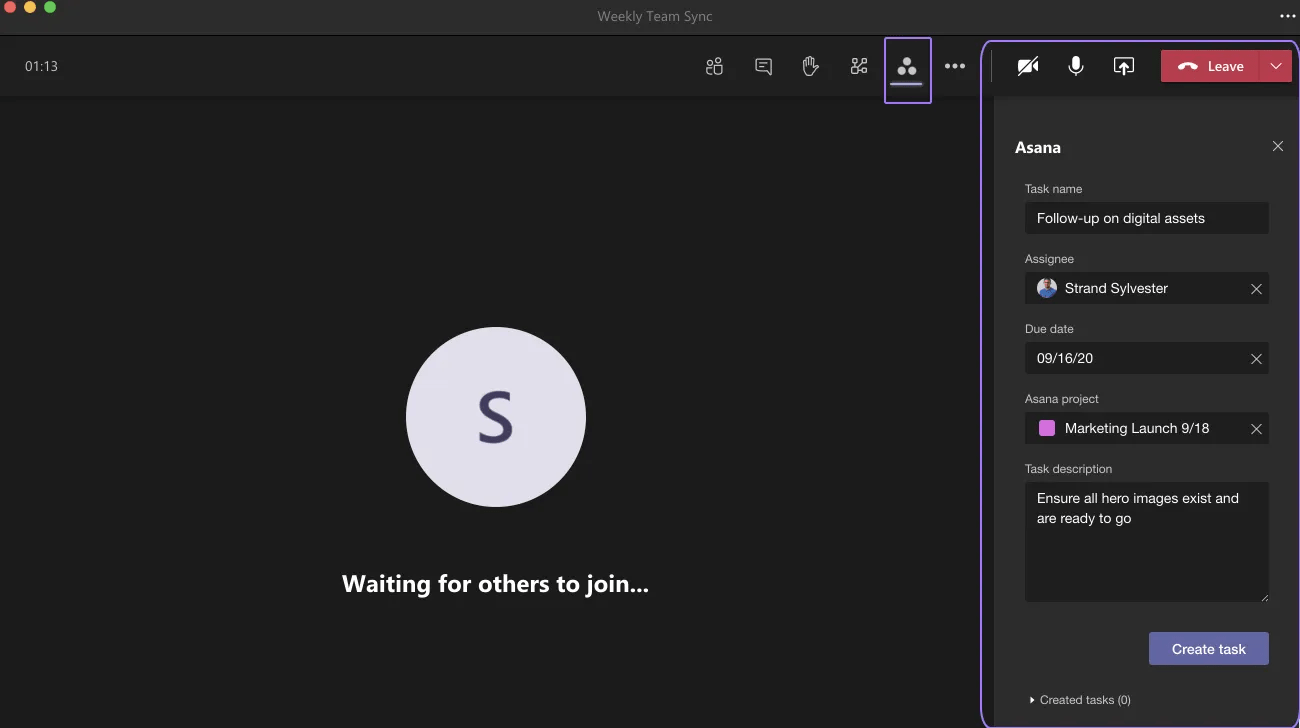
Other attendees will also see this in their menu and will be able to authenticate and create tasks as well. Any tasks created here will also be visible in the Asana Tab for reviewing tasks post-meeting.
Smart chat in Asana allows you to manage your work in Asana without having to leave teams. Ask questions related to work status, project risks, or create tasks to mention a few and the Asana bot will reply in natural language and link relevant content in the response.
Explore integration tips and insights in the forum.
Need help? Check out Microsoft's Support page here.

