Products


AI Platform


Asana Foundations
Company Type

Visit our pricing page for more information.
Access to a project in Asana is contextual and there are a variety of situations which determine access. If someone has access to a project, they have access to all tasks and messages within it.
See the table below for a quick overview
|
Project privacy setting |
Project accessible to |
| Private to members | Members of the project |
| Team only | Members of the project and members of the team |
| Shared with organization |
Members of the project, members of the team, and members of the organization |
Note that project privacy settings are separate from read-only links.
Private to members is a project privacy setting which restricts access to those who are already project members, or who are deliberately invited to the project. Non-members must request access. Non-members cannot see private to members project names in their search results.
Identify a project which is private to members by hovering over the member profile pictures in the project header, or by the lock icon next to the Share button.
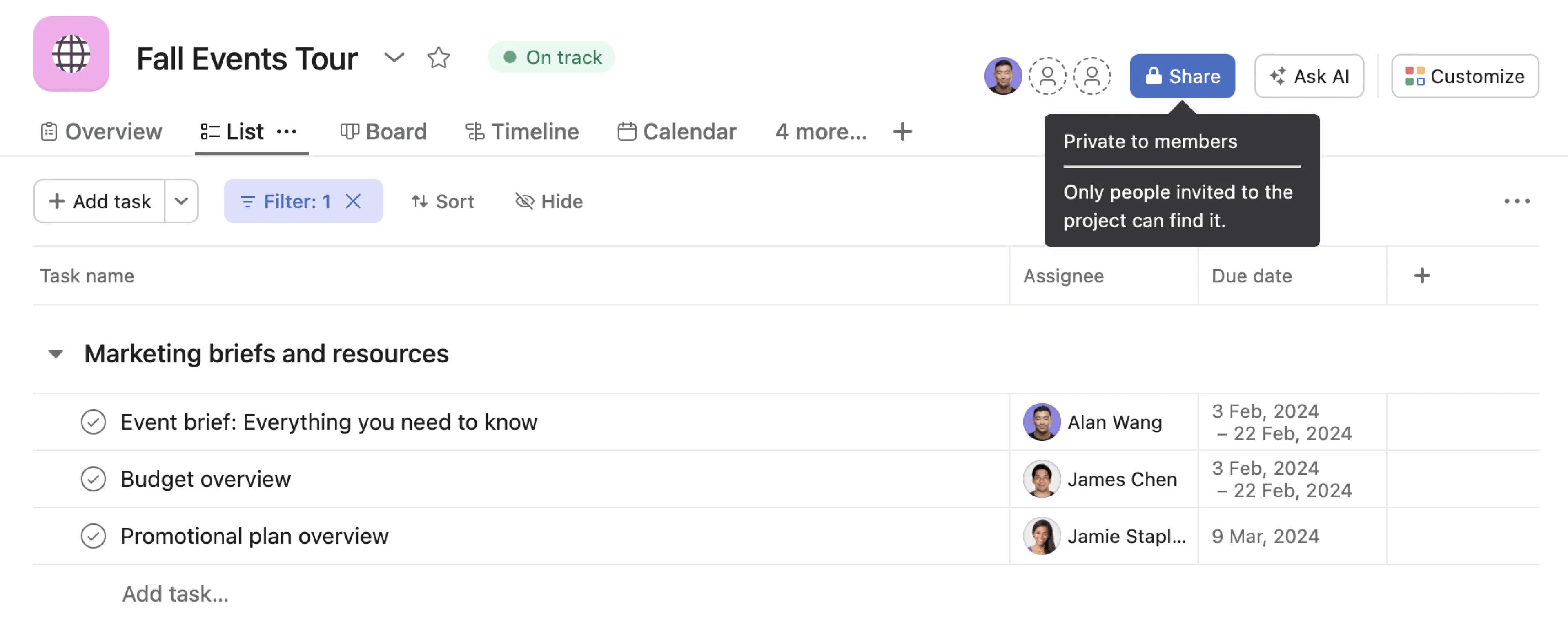
Share a private to members project more widely by clicking the Share button in the project header. Sharing a private project with a team or the organization means the project is no longer private to members.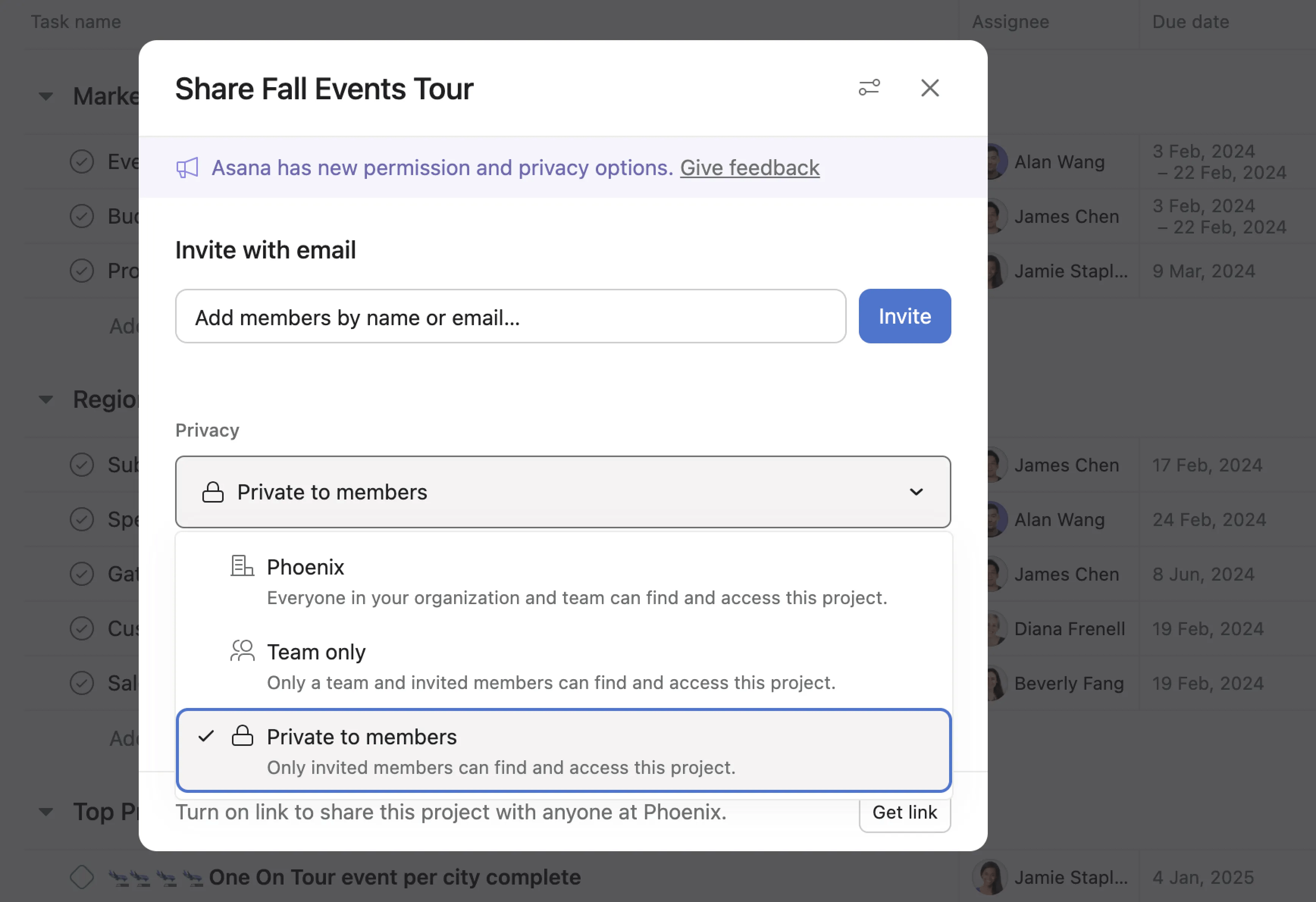
Request access to a project which is private to members
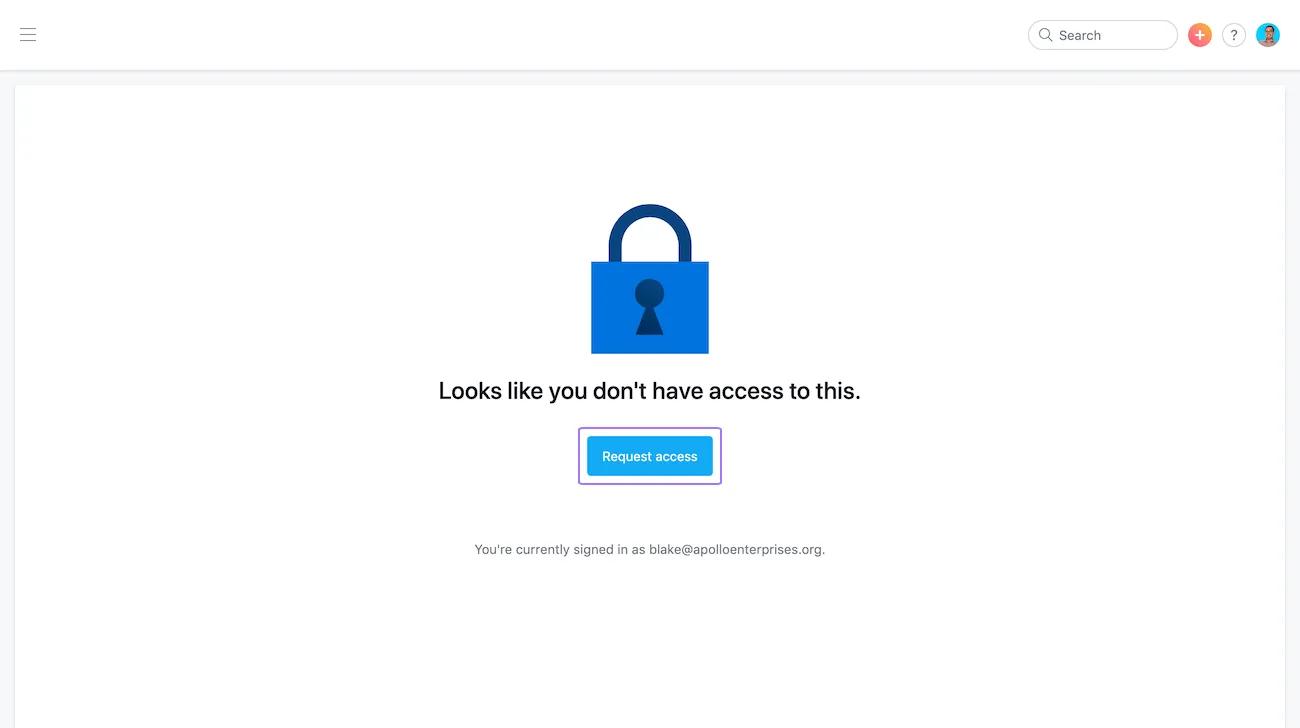
If presented with a page stating that you do not have access, reach out to the owner of a private to members project as follows:
People who don’t have access to a private project can request access, but to access that project the request must first be accepted.
When someone requests access, the project owner is assigned a task notifying them that of the request. The project owner can then add them to the project or deny the request.
Team only is a project privacy setting which grants access to the project to members of the team in which the project resides. With this setting, all members and invited members of the project's team can access the project.
For private teams, this setting effectively restricts access to the project to members of the private team.
For public teams, while this setting also restricts access to the project to members of the public team, any member or guest in the organization can choose to join the public team and thereby access the project. Check the permissions of the team the project lives in to verify whether other users might access a project by joining a public team.
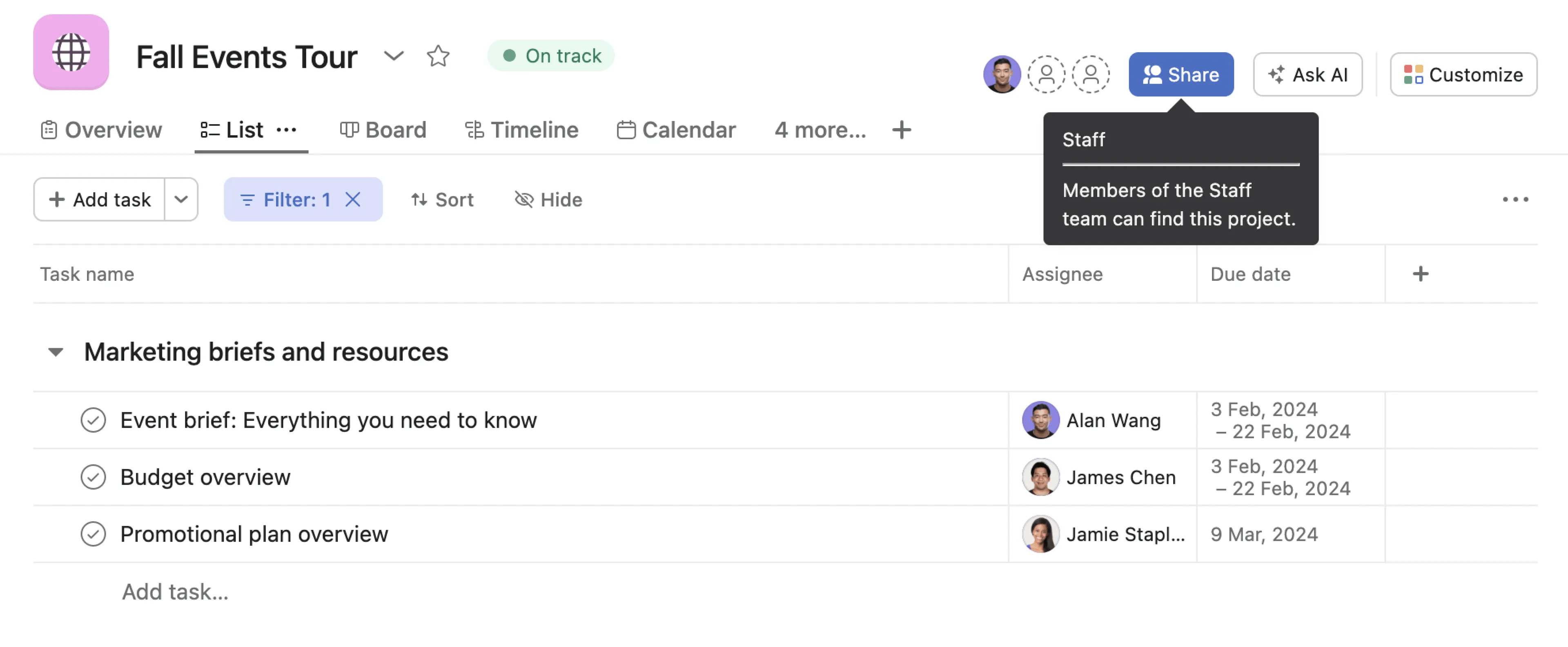
Identify a project which is team only by hovering over the Share button in the project header, where the team name will display.
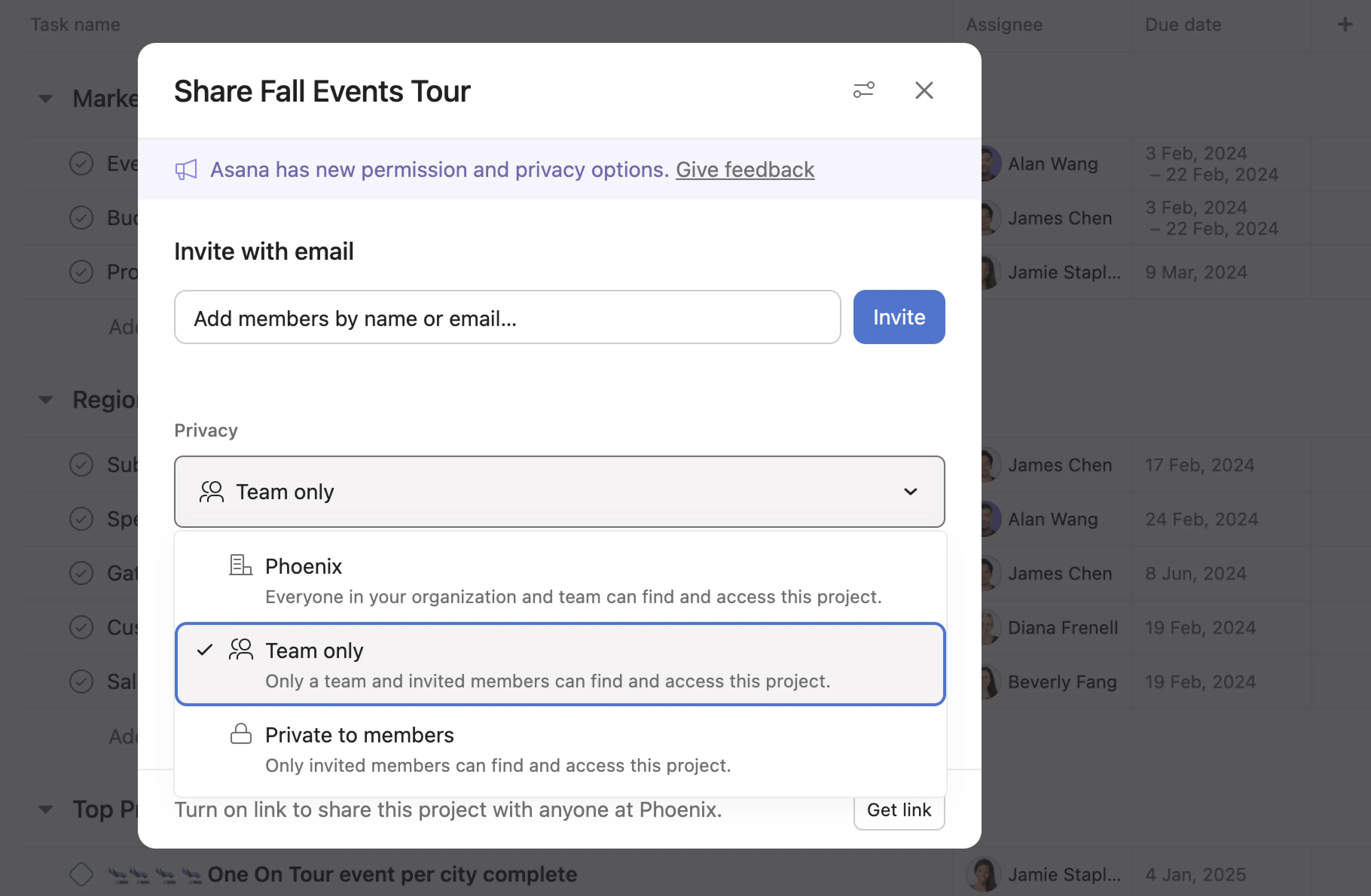
To limit access to a team only project, you have two options:
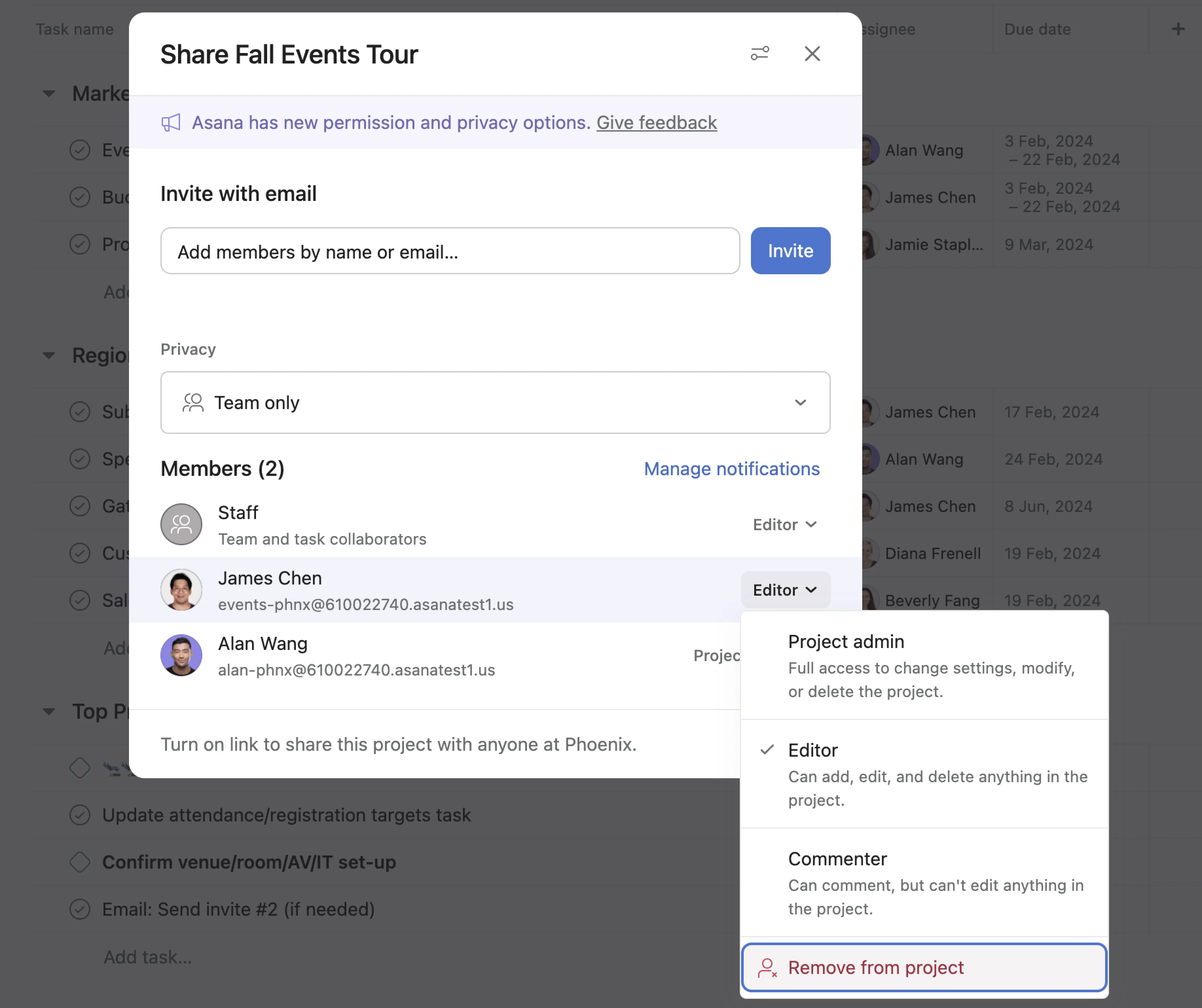
To remove a project member from a project:
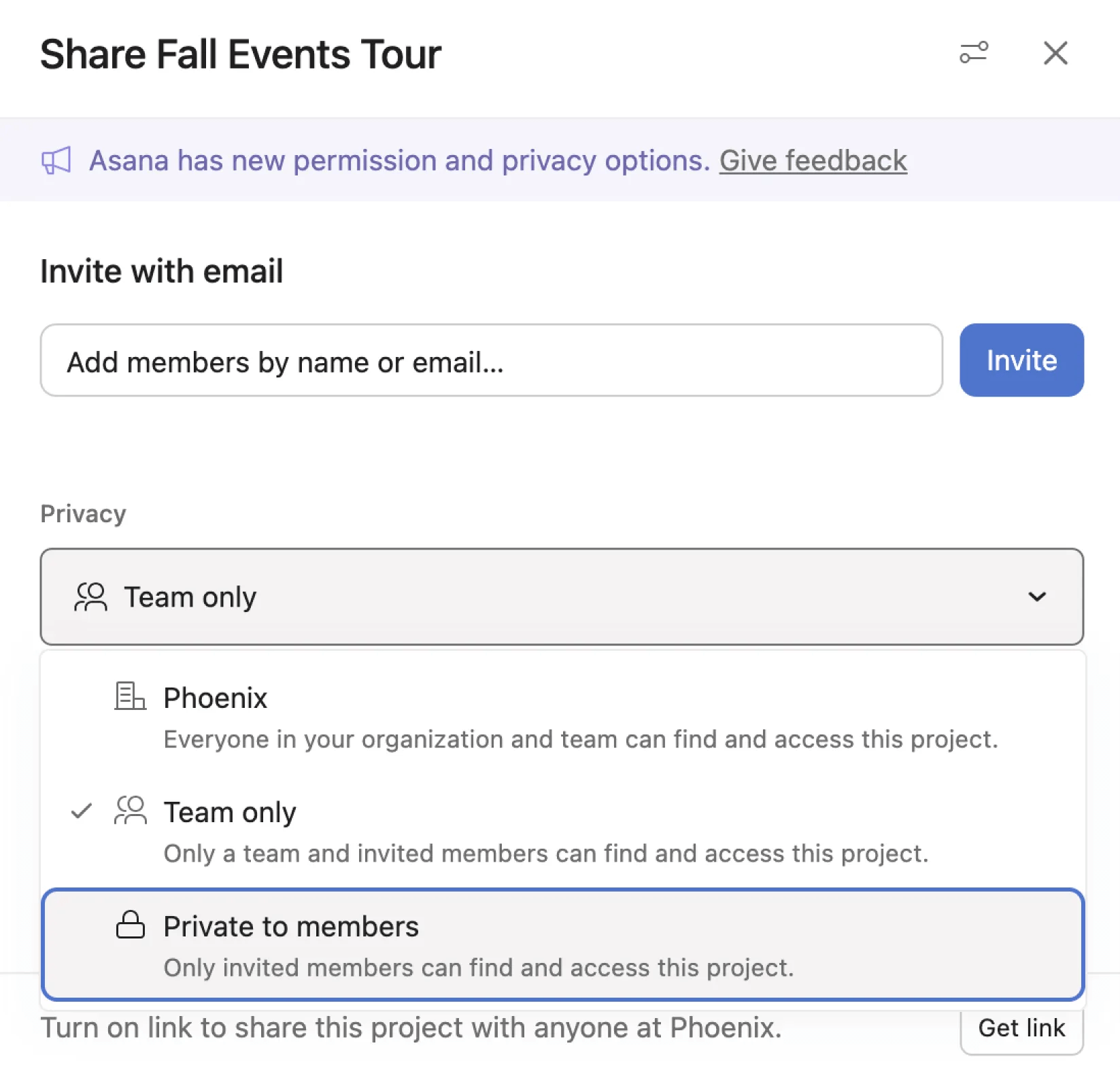
Change the privacy setting by clicking the privacy drop-down and selecting Private to members.
Asana has introduced an explicit Shared with organization project privacy setting. This setting allows a project to be shared with those in the Asana organization, regardless of project or team membership.
Those who have access to a Shared with organization project include:
The shared with organization privacy setting is available in paid organizations. It is not available with a team or division subscription.
Identify a project which is shared with organization by hovering over the Share button in the project header, the organization's name will be displayed.
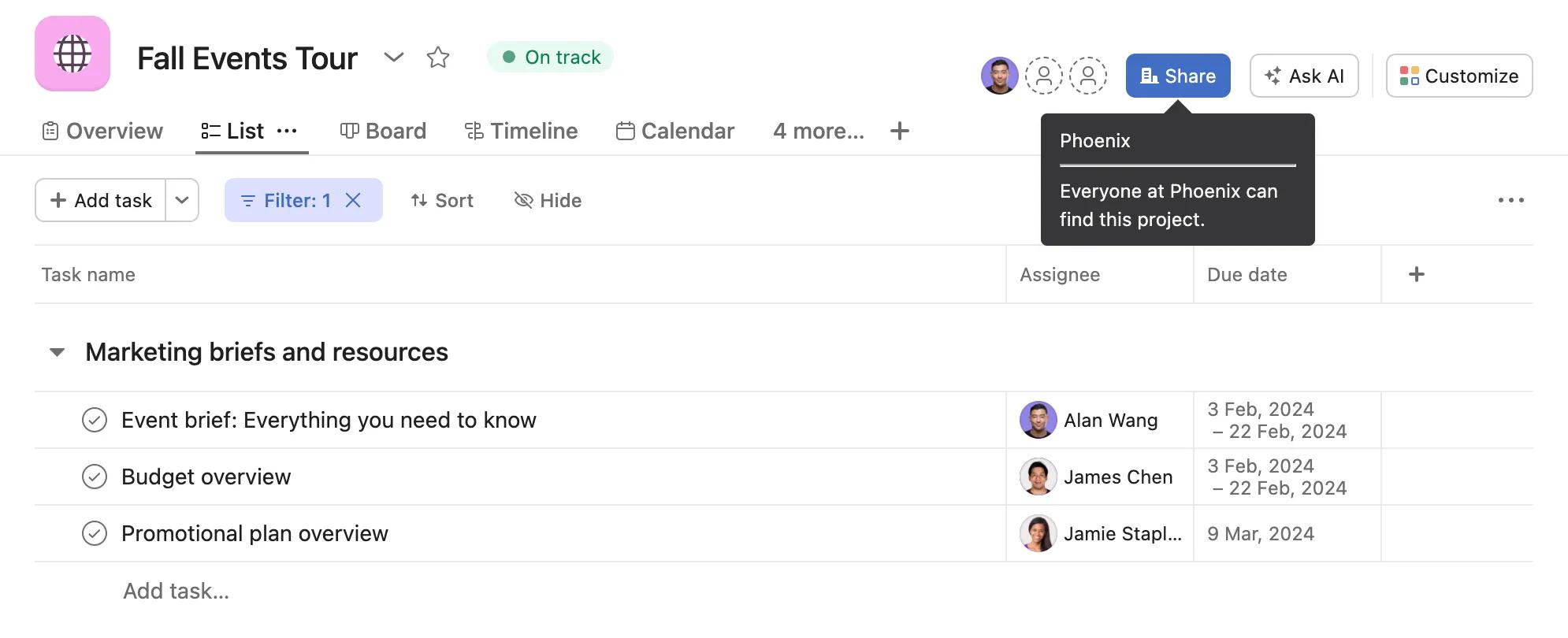
To limit access to a shared with organization project, you must change the project privacy setting to either team only, or private to members.
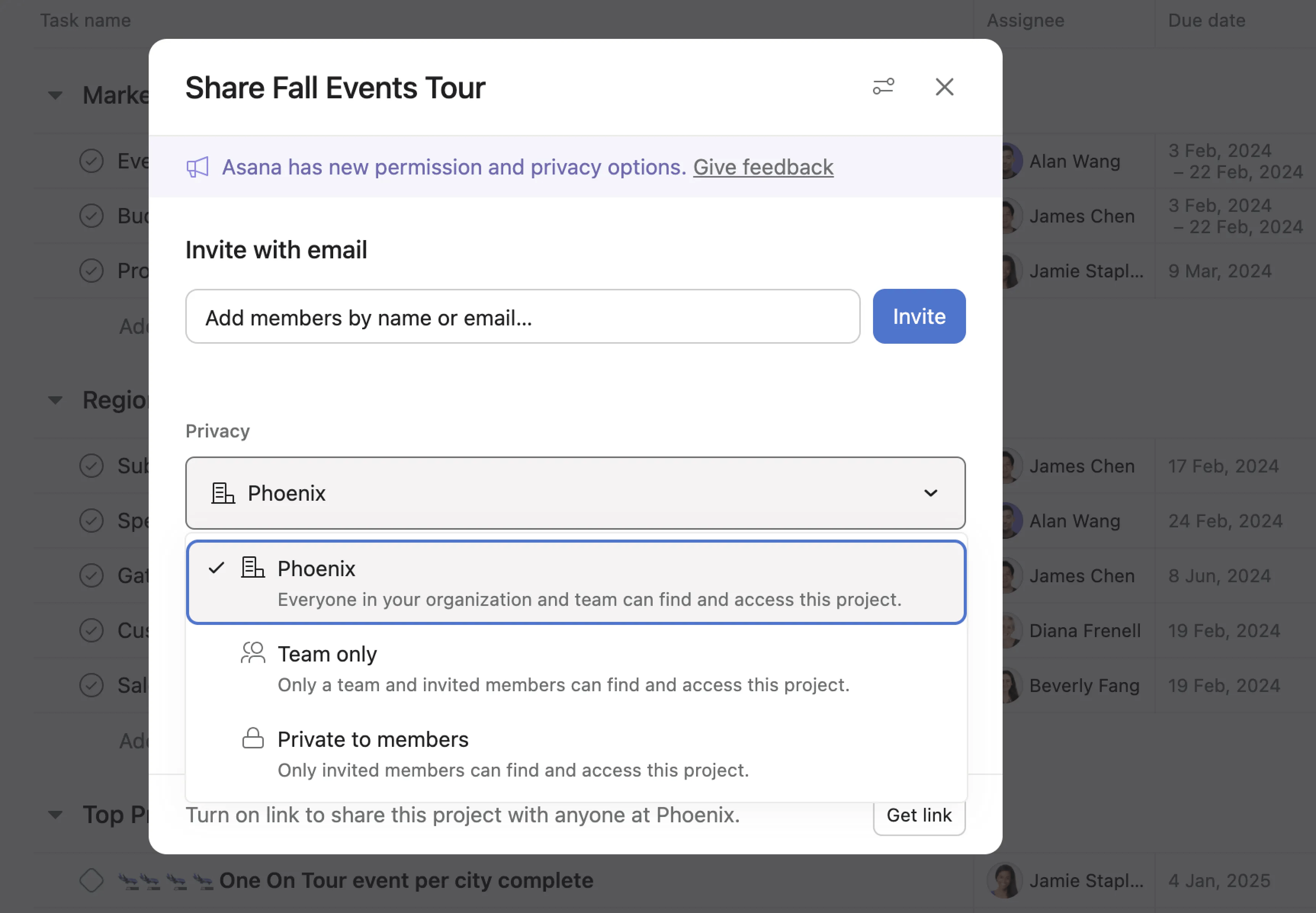
Super admins may disable the shared with organization project privacy setting for their organization.
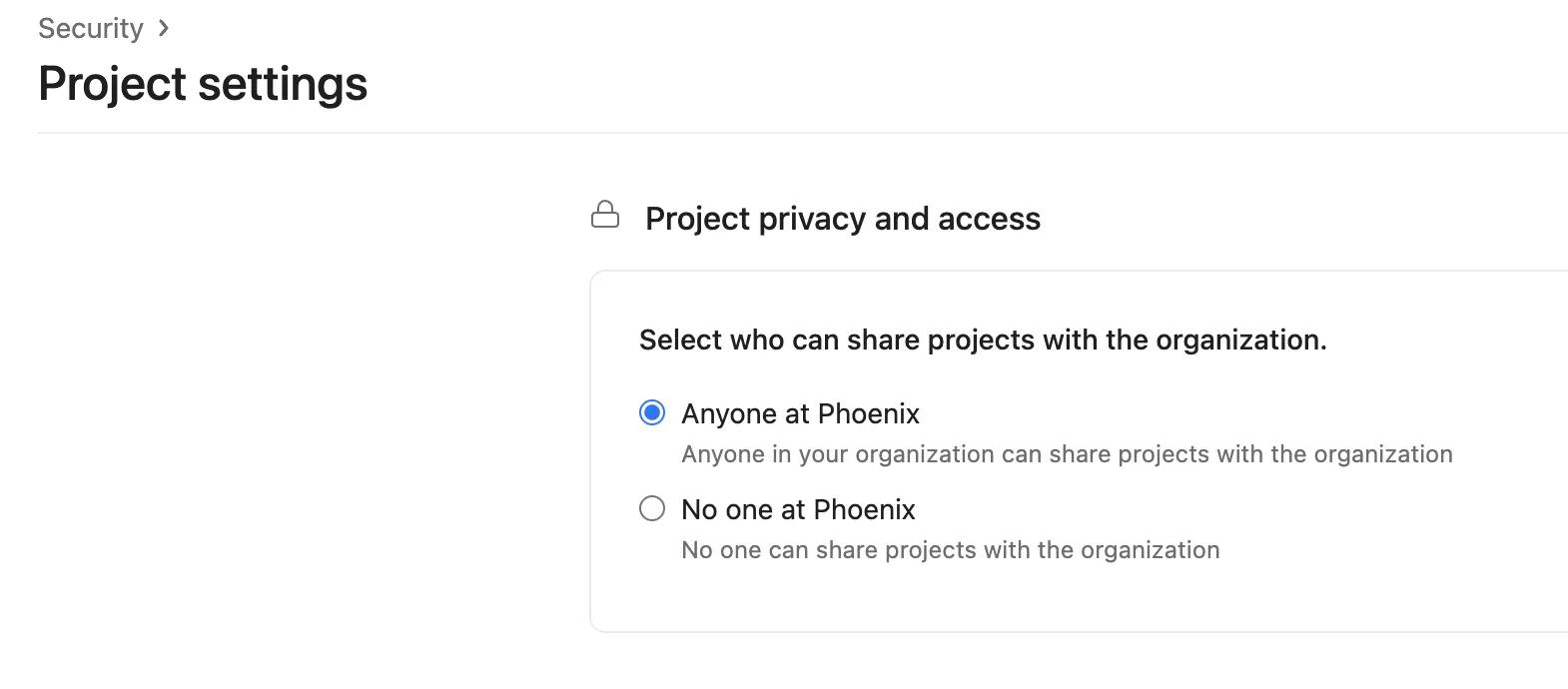
Super admins may choose between the two options shown above:
1. Anyone in the organization can share projects with the entire organization, assuming they are a project admin.
2. Nobody can share projects with the entire organization. Project admins can still make use of the private to members and team only privacy settings.
Note that this functionality is available for paid organizations, and is not available with a team or division subscription. The feature can only be enabled or disabled by a super admin.
With the release of more explicit project sharing options on projects, team privacy changes will no longer directly affect project privacy. For example, a project with the setting Public to team would have previously been automatically shared with the organization if the team type was changed from Membership by request to Public to members.
With the updated project privacy settings, a Team only project continues to be restricted to the team even if that team's privacy is made more public.
How will existing integrations, API scripts, and old mobile clients read and write project privacy until they are updated?
When writing a privacy setting, projects will map to the closest new privacy setting:
The same mapping is maintained on older versions of our mobile applications.
When reading a privacy setting, projects will indicate the closest mapping between our old and new privacy settings. Updating the privacy setting on a team will no longer update the privacy setting on any of the containing projects.

