Products


AI Platform


Asana Foundations
Company Type
No articles found for this topic.
No articles found for this topic.

Visit our pricing page for more information.
Stay informed on activity in Asana by receiving notifications across email, browser, project, and Slack.
From the Notifications tab, you can access:
Email notifications to input your preferred email address for notifications on activity updates and summaries (with an option to turn on/off/pause notifications).
You will receive an email if you have opted for email notifications.
Asana notifications are a superset of email notifications, and for many stories, we send to both your Asana inbox and your email inbox.
Collaborate on tasks and messages to start receiving inbox notifications. Inbox notifications generate automatically as you complete and take action on your tasks.
Your Asana inbox displays updates on all projects you’re a member of and tasks that you collaborate on or are assigned within a given workspace or organization.
To stay informed on activity in Asana, you can receive email notifications or use Asana inbox.
There are four types of email notifications: Daily summaries, Activity updates, Mentions only, and Weekly reports.
Note
It's no secret—Asana offers free trials. Start yours today. Try for free
If you'd like to learn more about how Asana email notifications work, please refer to the guide article here.
To change your email address, first add a new one, then remove your old one.
Get project updates and direct mentions notifications from Asana in your browser, even if you don’t have an Asana tab open.
Browser notifications are supported on Google Chrome, Mozilla Firefox and Microsoft Edge.
To enable browser notifications for Asana, click Settings from your profile photo and head to the Notifications tab, then click the Browser notifications drop-down. From here, you can choose from five options:
Once you have selected the type of notifications you prefer to get, you will have to allow them on the pop up notice that will be displayed on your browser.
You can disable notifications from Asana by selecting the Nothing option from your browser settings.
Set default notifications for projects, portfolios and goals.
You can activate portfolio notifications for:
You can activate goal notifications for:
Tip
You can also manage notifications for projects, portfolios, and goals individually by clicking on Manage individual projects.
Stories are generated when users take actions in Asana.
Currently, we show browser notifications for the following types of notification stories:
A story is a sequence of events—e.g., Tom commented at 1:10 p.m., Tom assigned to Mary at 1:15 p.m., and Mary added a due date at 1:20 p.m. Stories are a history of the actions taken.
The option to allow notifications for Asana might be different depending on the browser you are using, but there will be a notice asking something similar to "Do you want to allow app.asana.com to display notifications?" and a button to allow and another one to deny.
The Do Not Disturb feature enables you to pause push and browser notifications to allow you to focus on the work that matters most.
Click the Do not disturb drop-down and click Pause notifications. You can also choose to pause notifications for specific times and days.
When enabled, Do not disturb will suppress the orange dot notification for inbox on web and mobile, and will temporarily disable browser notifications if you have them enabled. The black dot notification on your web browser will also be suppressed.
Do Not Disturb is available through your Account settings on IOS and Android.
From your Account Settings, tap on Do not disturb. Here, you can pause notifications, set a do-not-disturb schedule, and enter your days off.
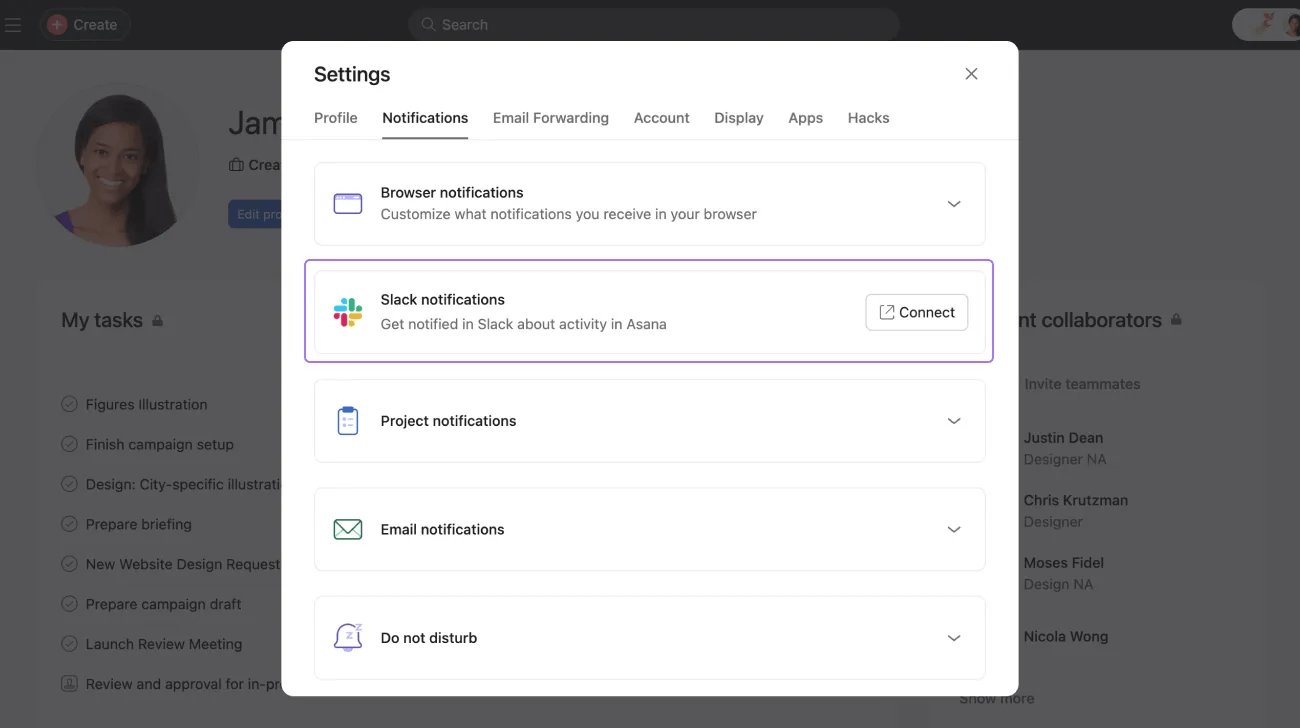
To connect Asana and Slack:

