Products


AI Platform


Asana Foundations
Company Type
No articles found for this topic.
No articles found for this topic.

Visit our pricing page for more information.
Please note that the Asana for Adobe Creative Cloud integration will be retired on April 15, 2026. Please review our FAQ article for further guidance.
Available on Asana Advanced, Enterprise, and Enterprise+ tiers, as well as legacy tiers Business and Legacy Enterprise.
Visit our pricing page for more information.
Asana for Adobe Creative Cloud is an integration between Asana and key Adobe Creative Cloud software - Photoshop, Illustrator and InDesign.
The integration is an extension or ‘panel’ inside each of the 3 Adobe applications.
Note
Asana for Adobe Creative Cloud is built on the now deprecated CEP framework and is not actively being maintained. There are reported compatibility issues with Apple silicon chips and we don't support newer versions of Mac computers out of the box.
The extension can be installed via the Adobe Exchange site, which is Adobe's extension directory.

You need to have supported versions of the 3 apps in order to use the extension. Currently we support the 2021 version of Photoshop CC, Illustrator CC and InDesign CC.
Once installed via the Exchange website, the Creative Cloud desktop app will sync the extension to your computer. Please ensure you have installed all updates.
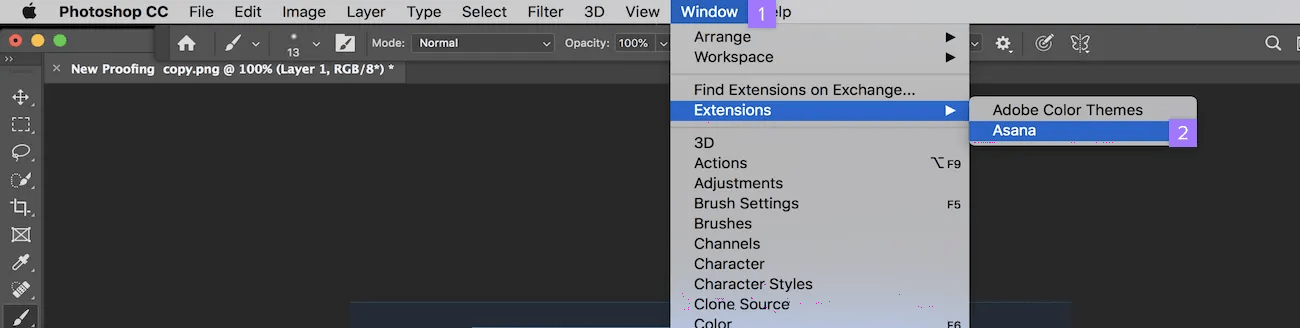
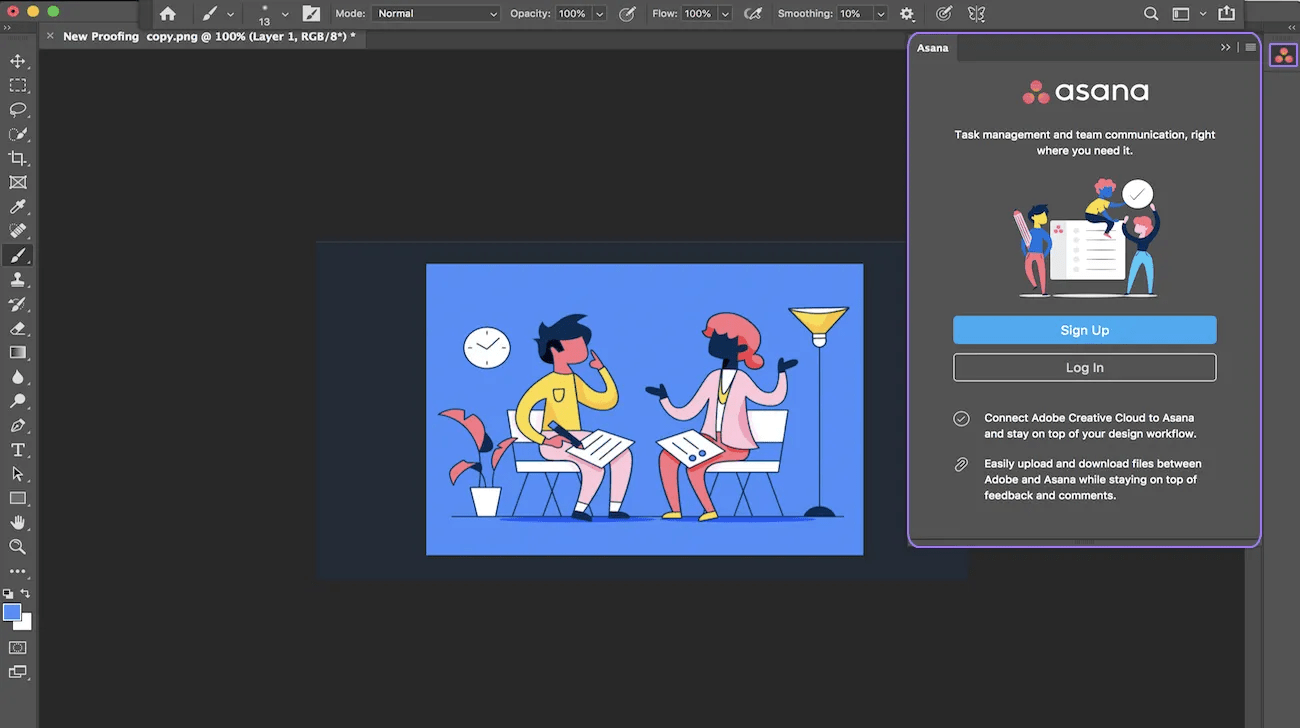
Opening the extension opens a panel in your Adobe software with the Asana extension. From here you can login (if you already have an Asana account) or sign up (if you don’t).
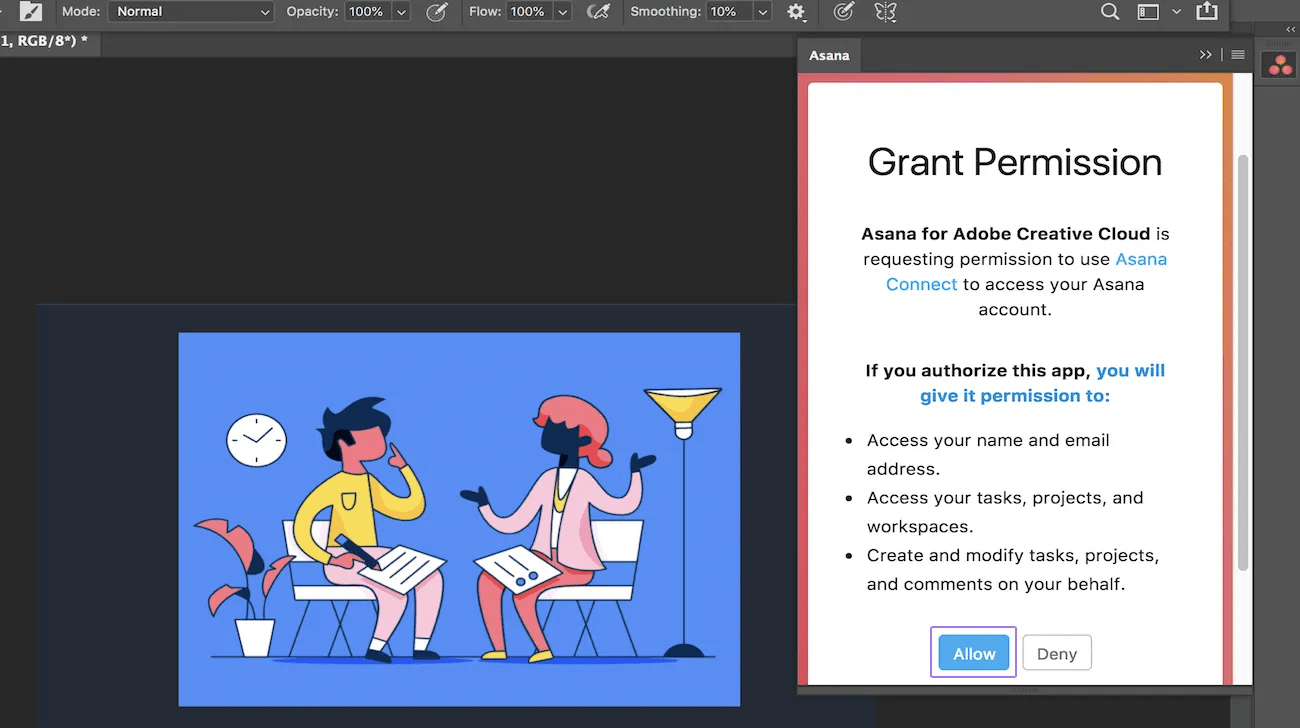
Once you log in, you will be required to authenticate the integration in Asana.
After logging in, you will be presented with a view of your My tasks.
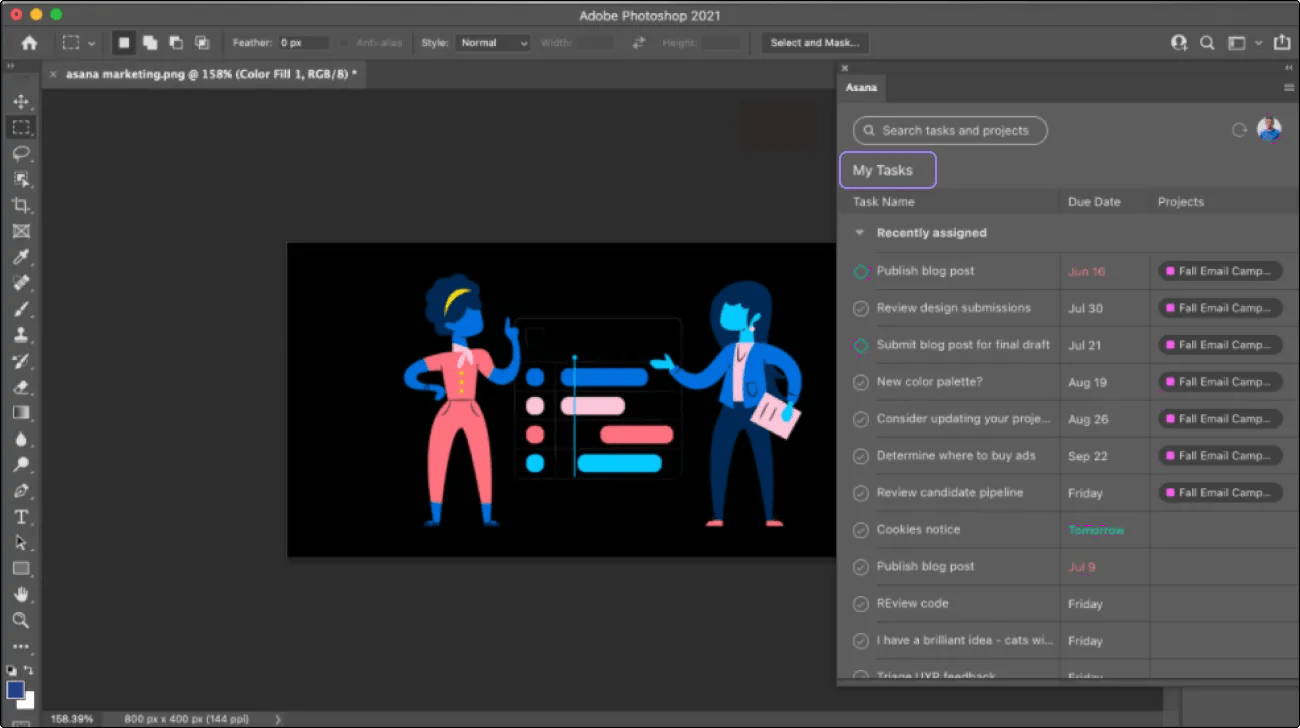
Clicking on a task takes you into the task details view.
You can create and view a task's subtasks and approvals once you are in the task details view
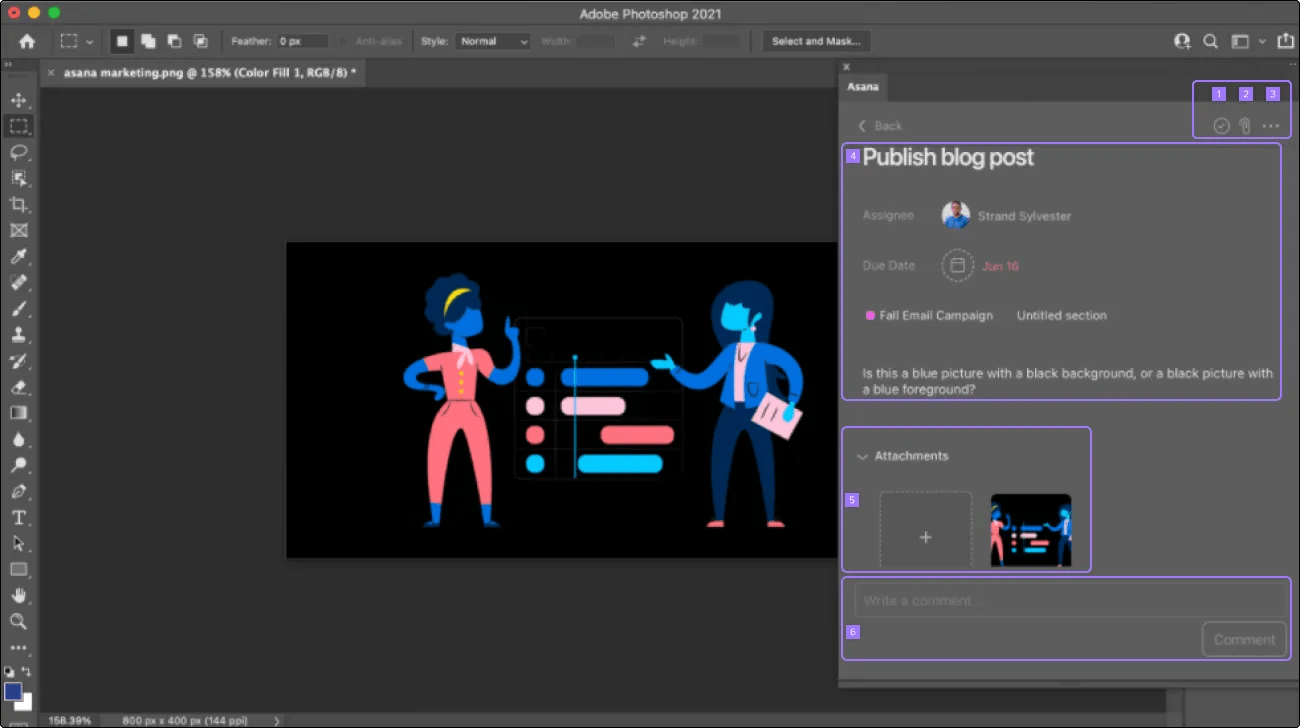
You can also open a new file to work on by clicking on any compatible attachment. Clicking an incompatible file will yield an error message.
Use the search field to find a task not assigned to you or to find a specific project.
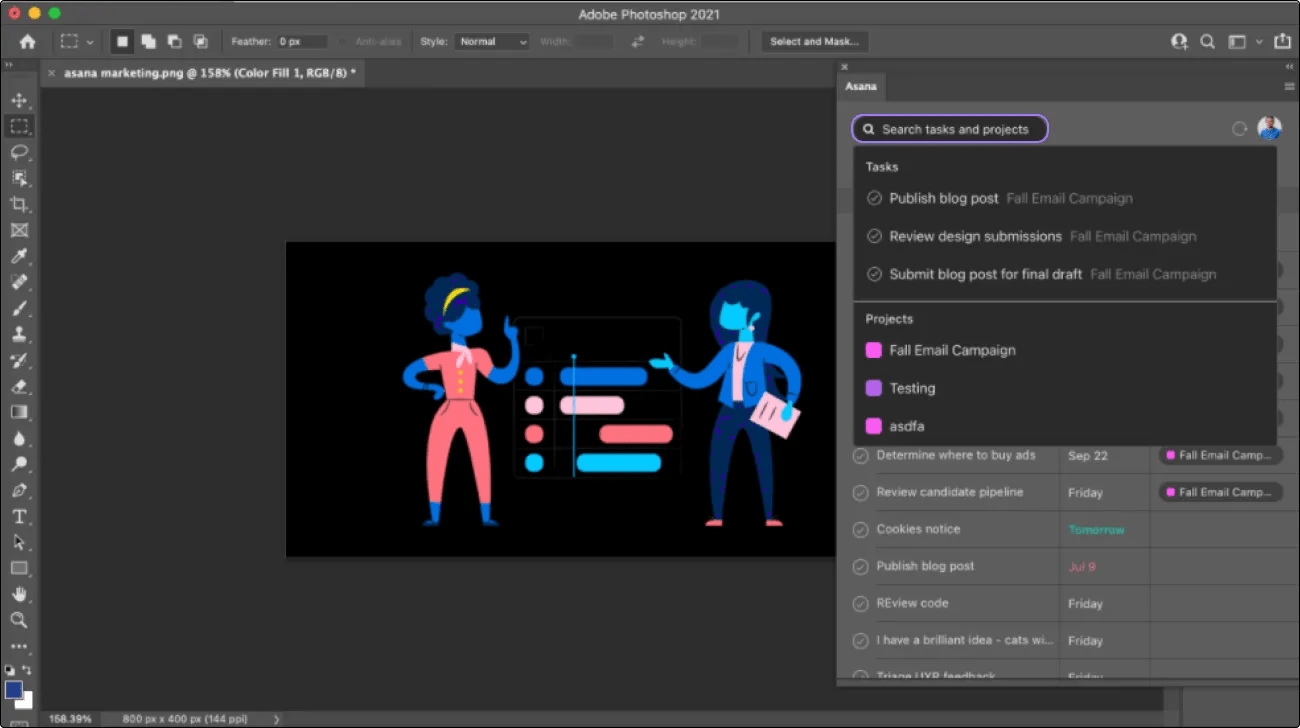
By selecting a project, you will then be brought to that project view.
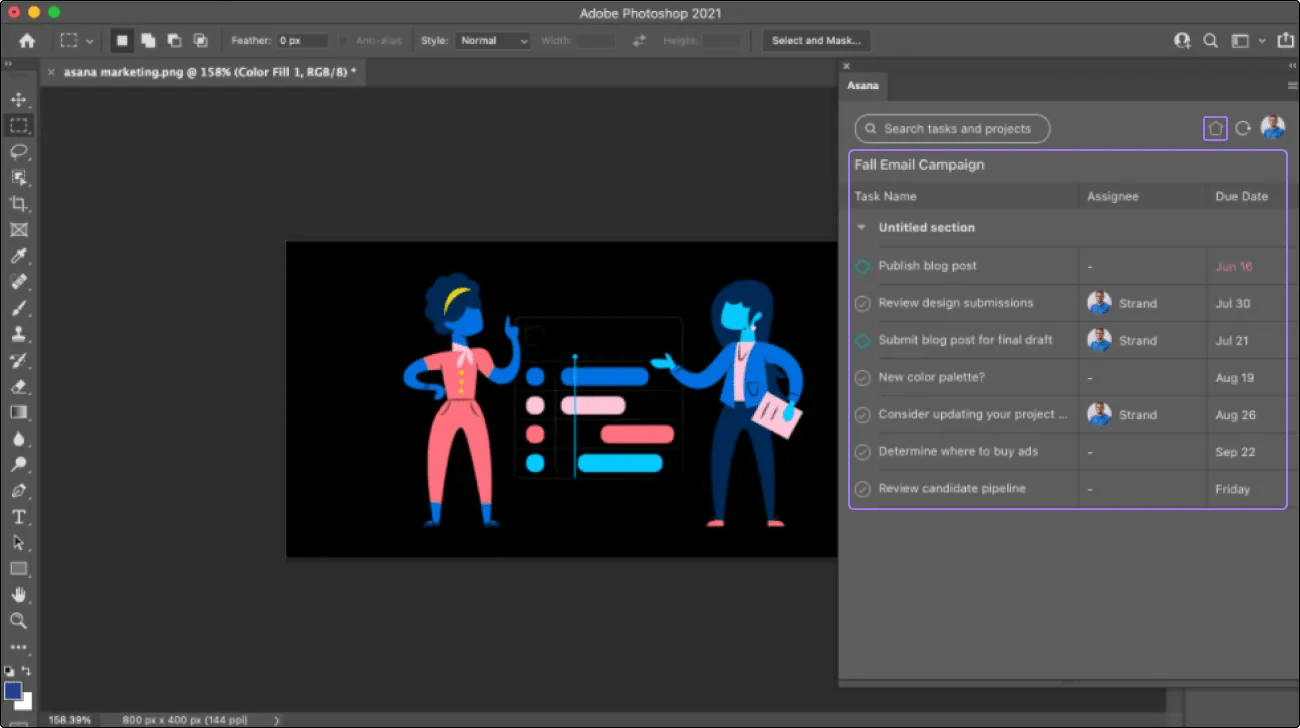
To return to My tasks, click on the home icon in the top right hand corner of the plug-in.
From the My tasks page, clicking the profile icon on the top left will allow you to toggle between your organizations and workspaces or log out.
Following a recent change to Adobe Creative Cloud, Adobe Photoshop users will run into difficulty using the integration if their Macbook device uses an Apple M1 or M2 chip. We recommend the following workaround which involves running Photoshop in a compatibility mode called Rosetta.
First, you will need to download Rosetta. To do this, open the application on your Macbook called Terminal. In Terminal, paste the following command and hit enter:
/usr/sbin/softwareupdate --install-rosetta
Once Rosetta is installed, you need to open Photoshop in Rosetta by following these steps:
There may be some performance degradation in Rosetta compatibility mode. Other Adobe Creative Cloud integrations are unaffected by using M1 and M2 chips.

