Products


AI Platform


Asana Foundations
Company Type
In This Article

Visit our pricing page for more information.
Available on Asana Advanced, Enterprise, and Enterprise+ tiers, as well as legacy tiers Business and Legacy Enterprise. Visit our pricing page for more information.
This article covers how to use Asana’s Goals feature. Learn how to successfully manage your organization’s goals with our Lead the goals management process in your organization article.
Goal tracking connects work with its purpose, keeping your company and teams aligned and agile. With Asana Goals, your company goals and work, like milestones, projects, and portfolios, are connected in the same place.
Goals are now displayed in a grid view, showing goals in a spreadsheet‑style layout with columns you control, similar to projects and portfolios.
Use filters and sorts to focus on specific goal details such as owners, teams, or statuses, then save that configuration as a saved view tab.
Grid view supports the following column options: Progress, Time period, Team, Owner, Status, Status preview, Goal type, and Due date.
Company goals, Team goals, and My goals are default tabs provided by Asana to help categorize goals by scope.
Saved‑view tabs are additional, personal tabs you create to focus on specific criteria (for example, a particular time period, team, owner, or status).
Use saved views to capture the way you like to look at goals. In goals, saved views are personal to the user who created them.
The example above shows a saved view that a colleague has created of only the goals that Joshua owns, using specific filters. No other colleague can see this particular saved view.
Saved views for goals can be created in a similar way to those for projects and portfolios, with the key distinction that goal saved views are personal to you.
Company goals are created by the leadership team based on the organization’s mission and priorities. Every year, they convey the strategy that teams will support with their own goals.
The Company goals screen gives you an overview of these goals.
Team goals are created by teams to support company goals and goals from other teams.
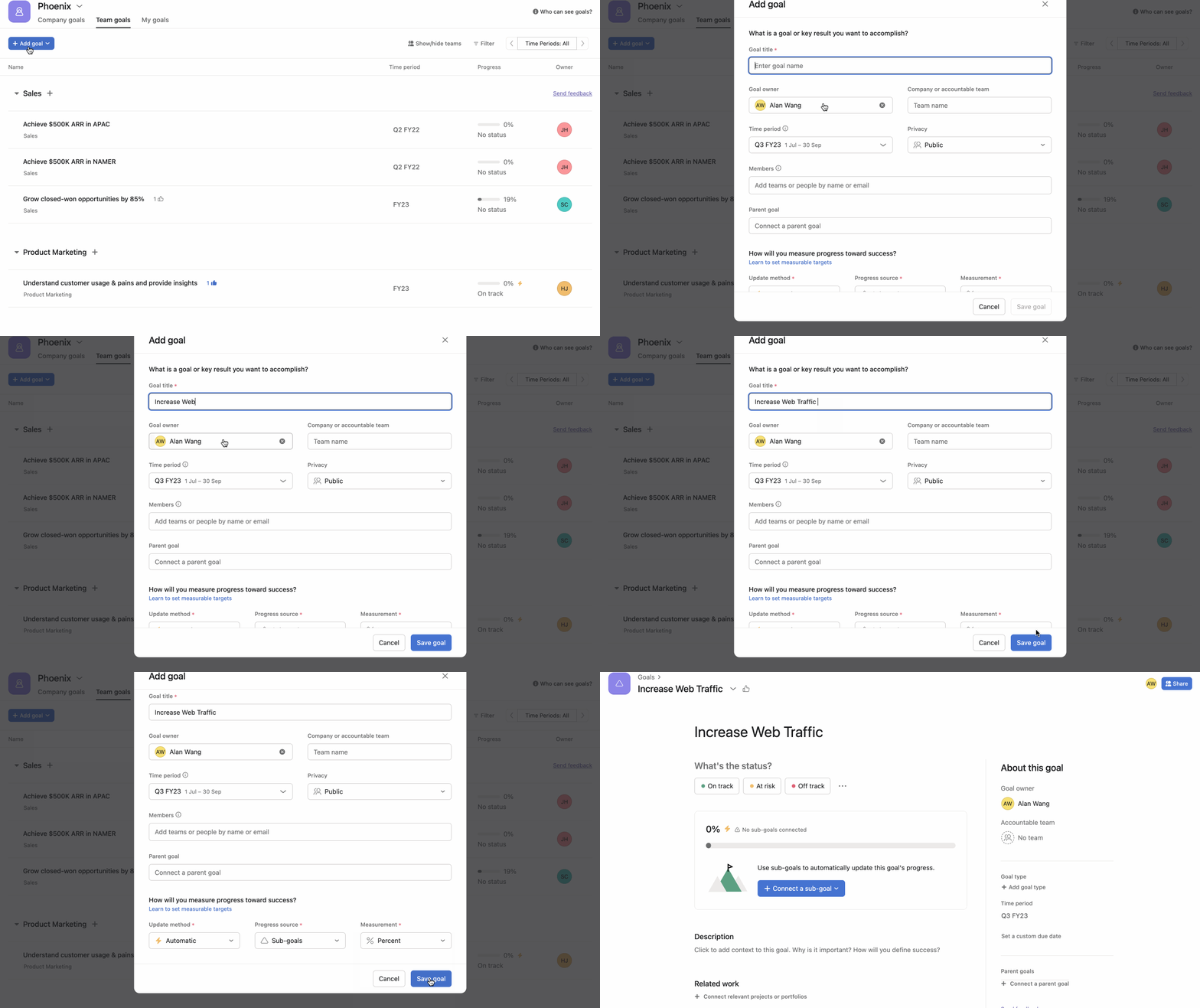
Use the My goals tab to quickly find and monitor the goals you own. Here you can filter by all, open, and closed goals.
You can add a new goal at a company or team level.

Note
Change a goal’s accountable team by clicking on the goal and then clicking Accountable team on the right hand side.
Delete or duplicate a goal by clicking the drop-down arrow next to the goal’s name and selecting Delete goal or Duplicate.
When viewing goals, you can customize your view with filters to focus on what matters. Learn more about viewing and filtering your goals.
Goals can be public to your entire company or private. Read more about goals privacy and sharing.
Progress and status are key indicators of how your organization is tracking against their goals. Connecting goals to work provides clarity about the why of its progress and status. Learn more about progress, status, and connecting work to goals.
Comment under goals to ask questions, enable discussions, provide additional information or offer insight to anyone with access to the goal in question. Goal comments enable contextual communication and collaboration for all those with access to goals. You can use goal comments to draft goals with collaborators and align on goals with stakeholders.
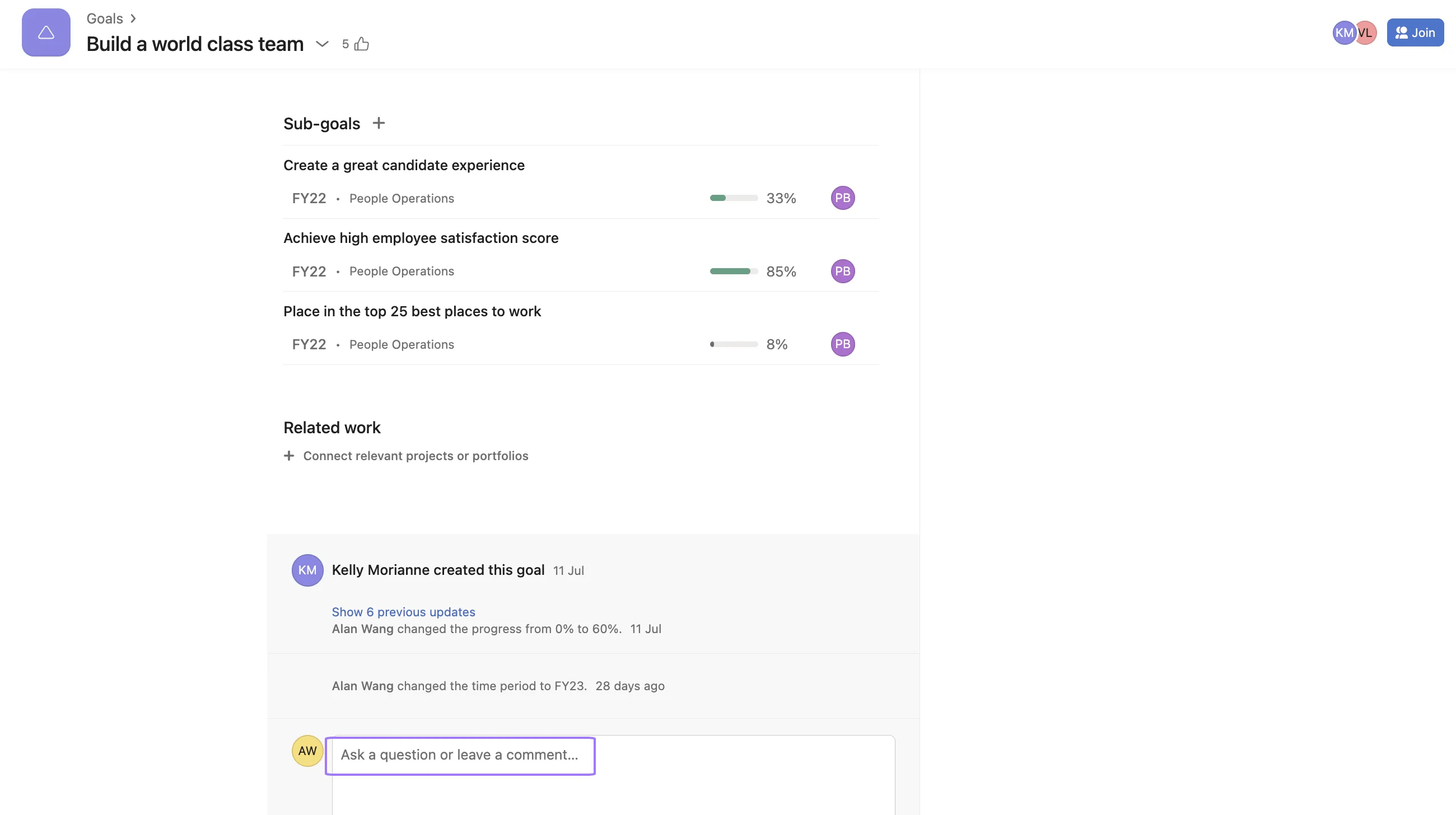
Goal comments and activities will appear at the bottom of your given goal. Since its origin, you can identify all of the goal’s interactions.
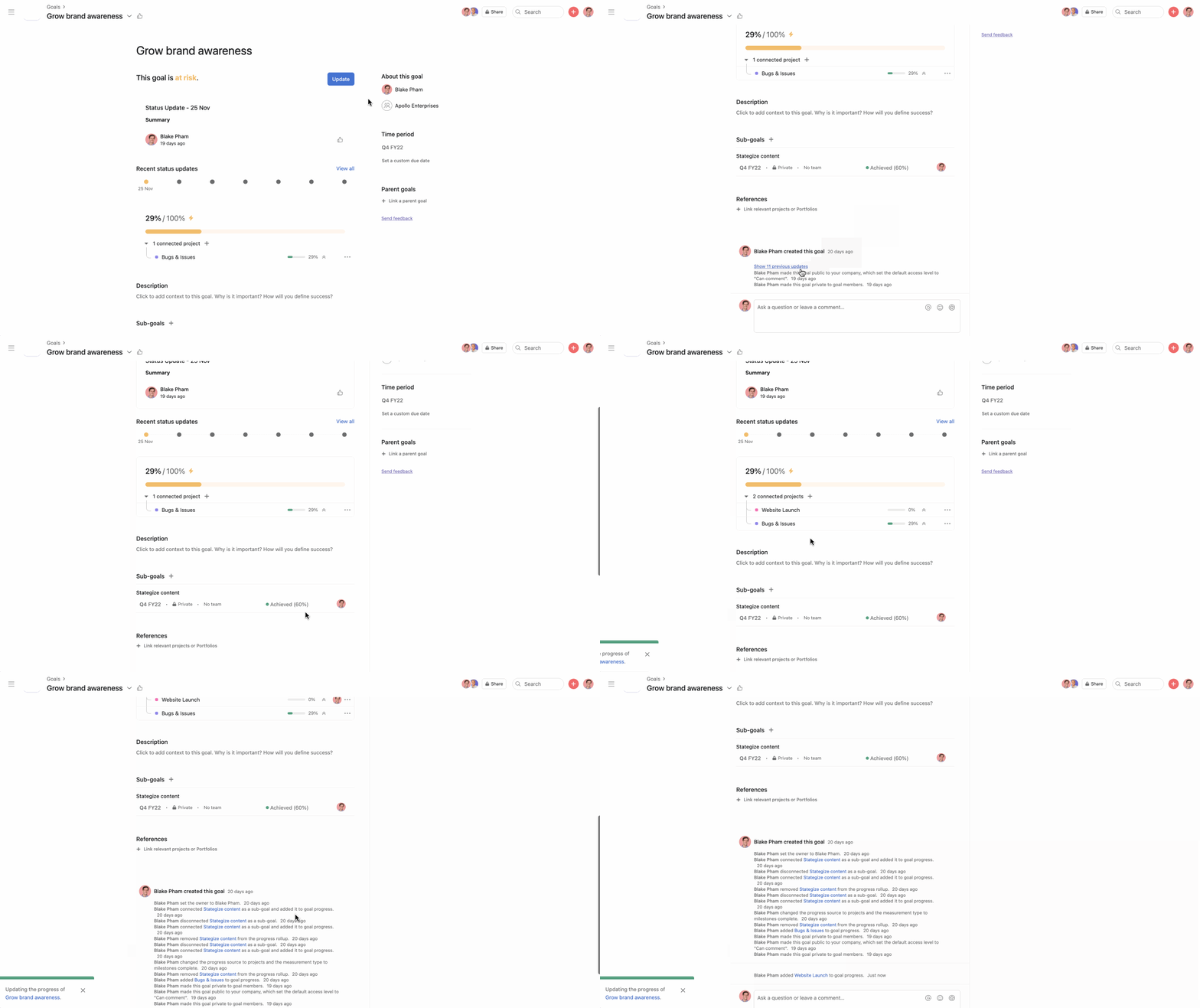
Notifications will be triggered in inbox, mobile, and email for the following:
Goal Owners will receive a notification when:
Team members don't receive notifications unless they're added as the owner or a collaborator. Anyone who wants to get updates on goals should be added as a collaborator.
Available on Asana Enterprise and Enterprise+ tiers, as well as legacy tier Legacy Enterprise.
Goal types and templates can help your teams write goals that adhere to the established best practices, increasing the efficacy of your organization's goals methodology.
With goal types, you can categorize goals as objectives, key results, or individual goals, giving you complete control over your OKRs and goals at the individual level.
Goal templates allow the owners of the goals process to standardize goal-setting practices across the organization by automating default attributes for specific goal types.
Learn more in our Goal types and templates article.
Adding or editing your company’s mission statement can only be done by organization admins.
The Goals widget allows you to easily track the goals you own, as well as team and company goals directly from your home, so you’re clear on what you need to do and why it’s important.
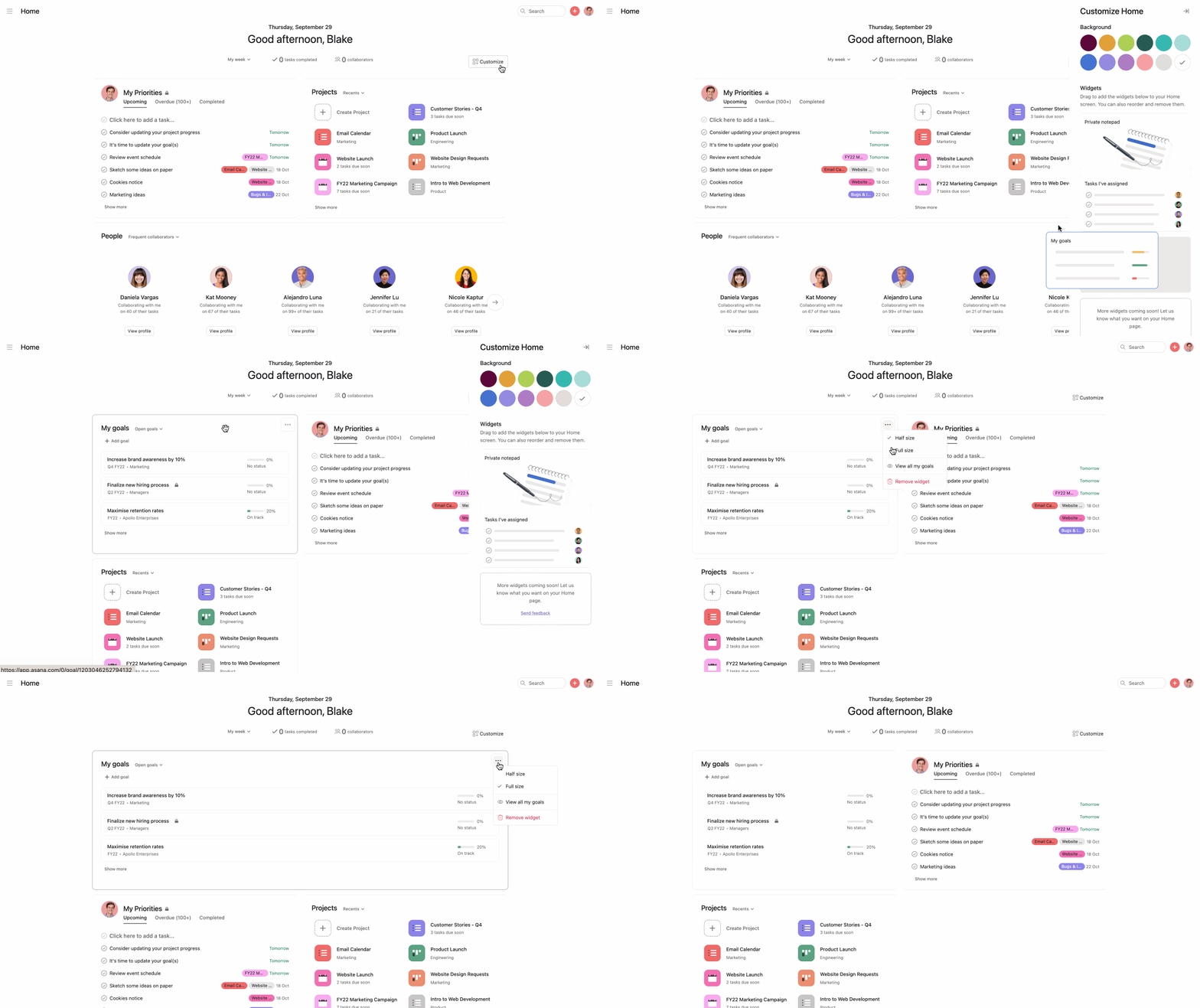
Add the Goals widget by selecting it from the Customize menu of your Home and dragging it from the sidebar onto your Home. Use the overflow menu to display the widget in full or half size, depending on your preferences. Use the filtering menu from the widget to display open goals, closed goals, or both.
Custom fields on goals allow you to track and organize goal-specific information in a standardized way across your organization. With custom fields, you can capture important details about your goals, making it easier to filter and report on goal progress.
Use custom fields to quickly filter goals by specific criteria, helping you find the information you need and generate meaningful reports on goal progress.
Custom fields on goals work similarly to custom fields on tasks and projects, allowing you to add structured information to your goals.
To add a custom field to a goal:
Custom fields in grid view make it easy to see patterns across your goals and quickly update metadata for multiple goals.
To add a custom field from the grid view, click Add column in the top-right corner and select a Custom field from the dropdown. The custom field will appear as a column in your grid view.
Custom fields unlock powerful reporting capabilities for goals. To report on goals, navigate to Reporting in your sidebar and click + Add dashboard. To add charts to your dashboard, click +Add widget.. Select Goals as your data source. Choose a chart type such as bar, pie, donut, or column. In the chart configuration, select a custom field to group or filter by. Apply additional filters as needed. Save the chart to your dashboard.
Want to try Goals? Sign up for a free trial.

