Whether you're simply trying to find a task you assigned to a colleague last week or preparing for reviews by gathering a record of your work, Asana keeps all of your work together and helps you make sense of it quickly with search.
Search allows you to find any task, project, portfolio, tag, person, goal or team in your workspace or organization.
 Note
Note
Press Tab+/ on your keyboard to focus on the search bar.
Basic search
To run a basic search, type in the search bar keywords of what you're searching for.
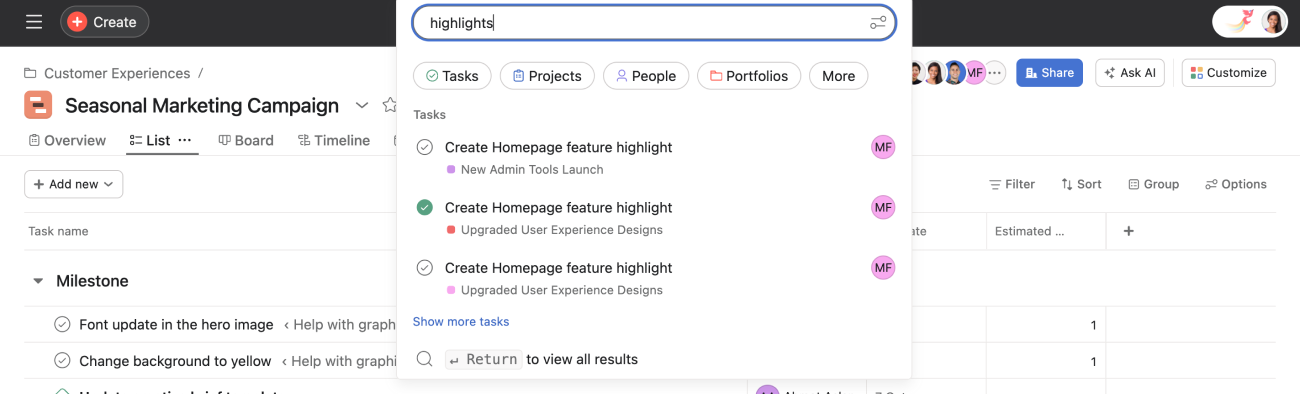
You can filter the results by:
- Tasks
- Projects
- People
- Portfolios
- Goals
- Messages
- Tags
- Teams
- Templates
Note
Enter a person's name in basic search to access their profile. You can also use the "@" key to search for individual users, tasks or projects.
Operators in search queries
Use operators in your search queries to add more specificity to your search.
| Operator | Use case | Example |
|
" "
| Wraps a number of terms to signify a phrase for searching.
- All wrapped terms must show up in the result, in the given order.
|
Search "pie apple"
✅ Returns: delicious pie apple recipe
❌ Does not return: apple pie
|
|
( and )
|
Wraps terms and operators to signify precedence.
|
Search: apple | (lemon pie)
✅ Returns: apple juice, apple pie, and lemon pie
❌ Does not return: lemon juice
|
|
|
|
"OR" the terms to the left and right.
- Results can contain either or both terms, but must contain at least one of them.
- By default, search results must include all terms that show up in the search text.
|
Search: apple | lemon pie
✅ Returns: apple pie , and lemon pie
❌ Does not return: apple juice or lemon juice
|
|
*
| Appends to a term to signify a prefix query.
- This returns longer terms that begin with the term.
|
Search: "apple p*"
✅ Returns: apple pastries and apple pie
❌ Does not return: apple juice
|
|
-
| Prepends to a term to negate it.
- Results cannot contain that term.
|
Search: pie -apple
✅ Returns: lemon pie
❌ Does not return: apple pie
|
View all results
Run a full search to search across every text field, including names, descriptions, and comments.
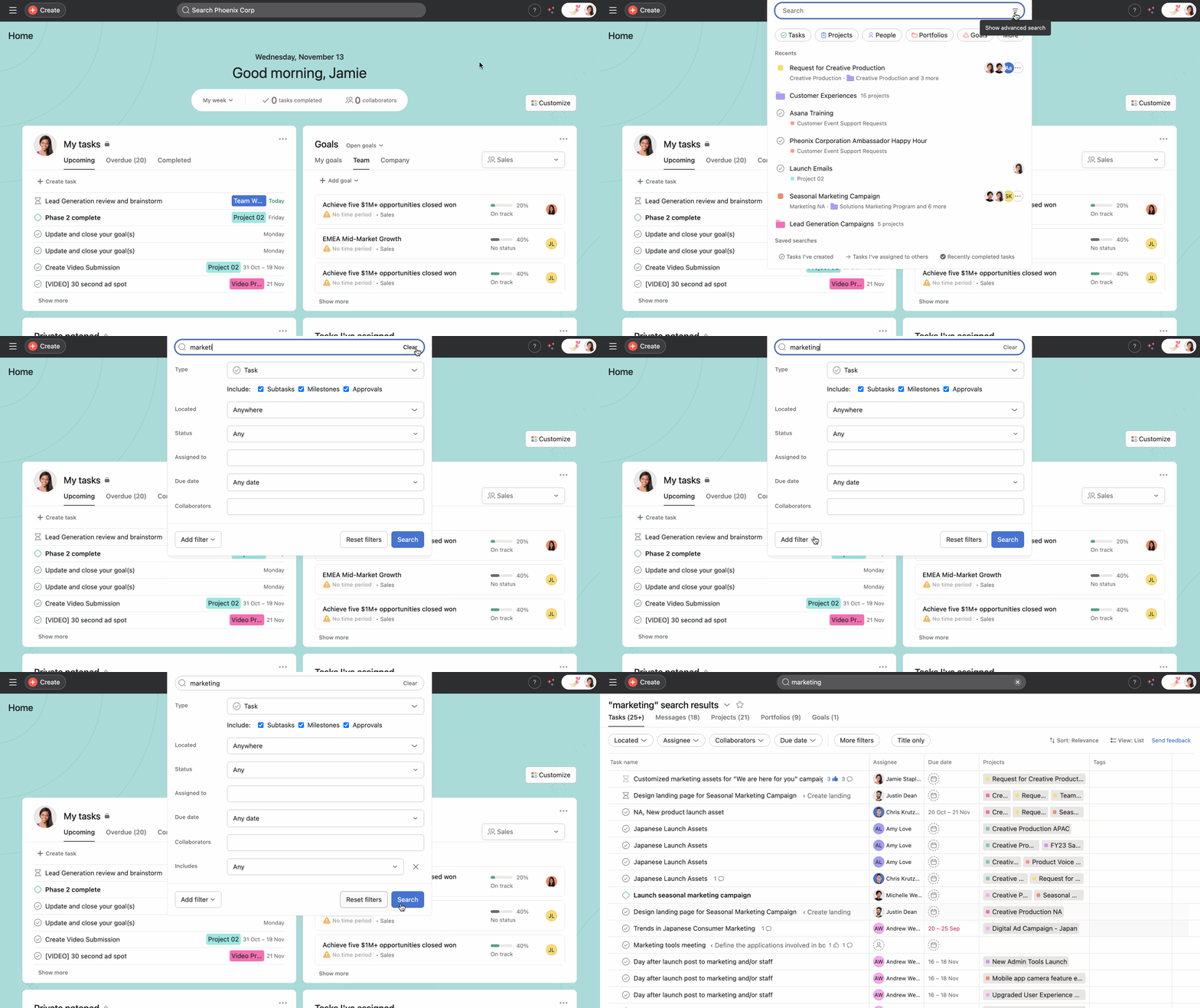
To run a full text search type a keyword in the search bar and click View all results or press Enter.
The results of your search will then appear in list view, and you will see the Tasks, Messages, Projects, Portfolios, Goals, and Task in templates search view tabs. Search views are lists of objects that meet the criteria you specify.
Advanced search
Available on Asana Starter, Advanced, Enterprise, and Enterprise+ tiers, as well as legacy tiers Premium, Business, and Legacy Enterprise.
Advanced search allows you to specify additional requirements for a search. It appears at the very end of the display list.
The results of your search will only show objects you have permission for. Therefore, your colleagues may see different results, even if you're both searching with the exact same parameters.
Create a search view
- Click into search
- Select Advanced Search
- In the Advanced search window, you will see a number of parameters that you can use to search.
- Click +Add Filter to use additional search parameters.
- Once you've finished adding filters, click Search.
Filters help you find exactly what you want, more quickly. You can either narrow or broaden your search.
Note
When you create a search view, every field is optional.
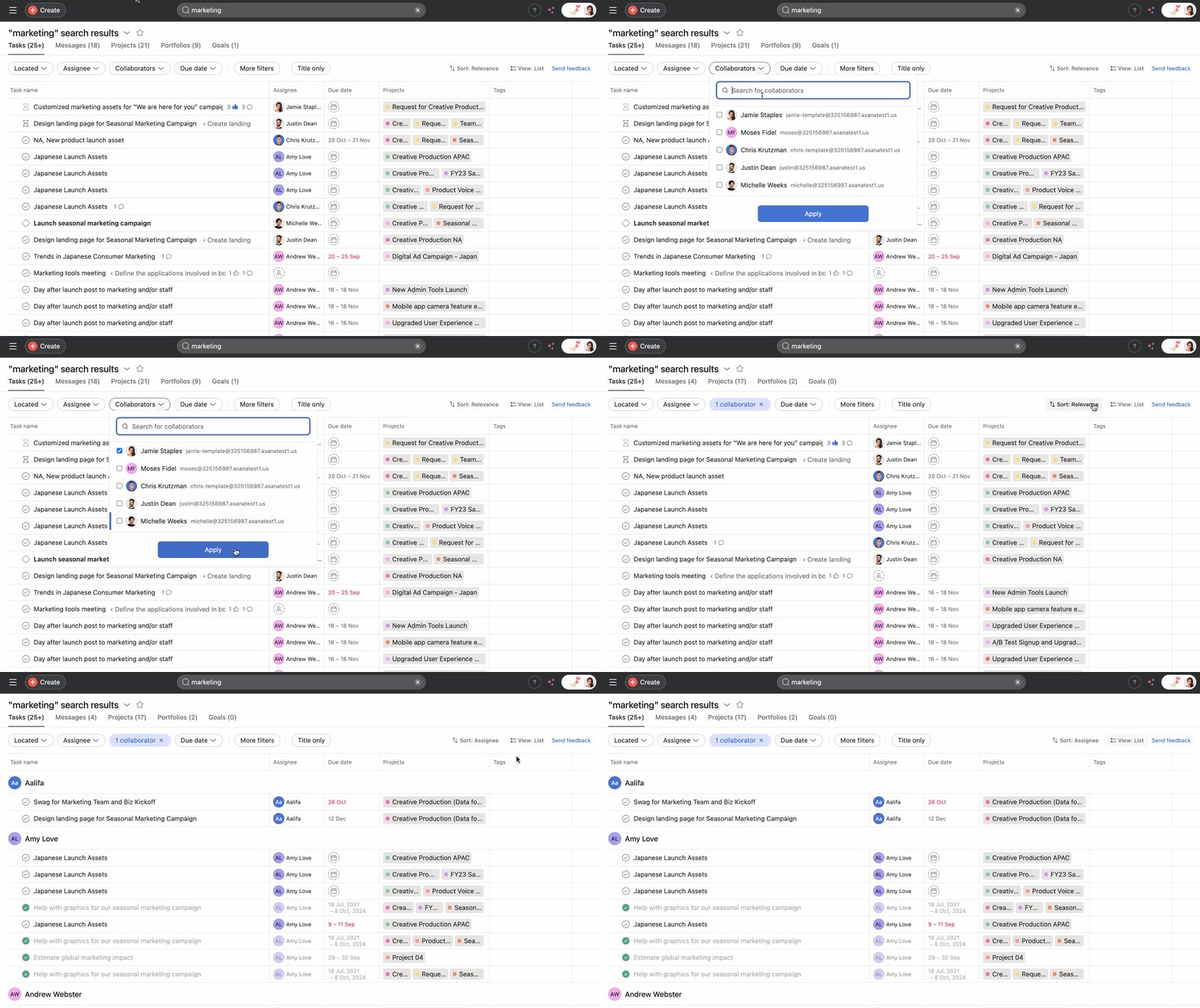
The results of your search will appear in the main pane and the name of the search will appear at the top of the header.
From the search results, you can:
- Add more filters to your search
- Select Sort for a variety of fields to sort your search results by
- Click View to view as list or calendar
Custom field filter
Use search views to search for tasks using the same custom field across multiple projects.
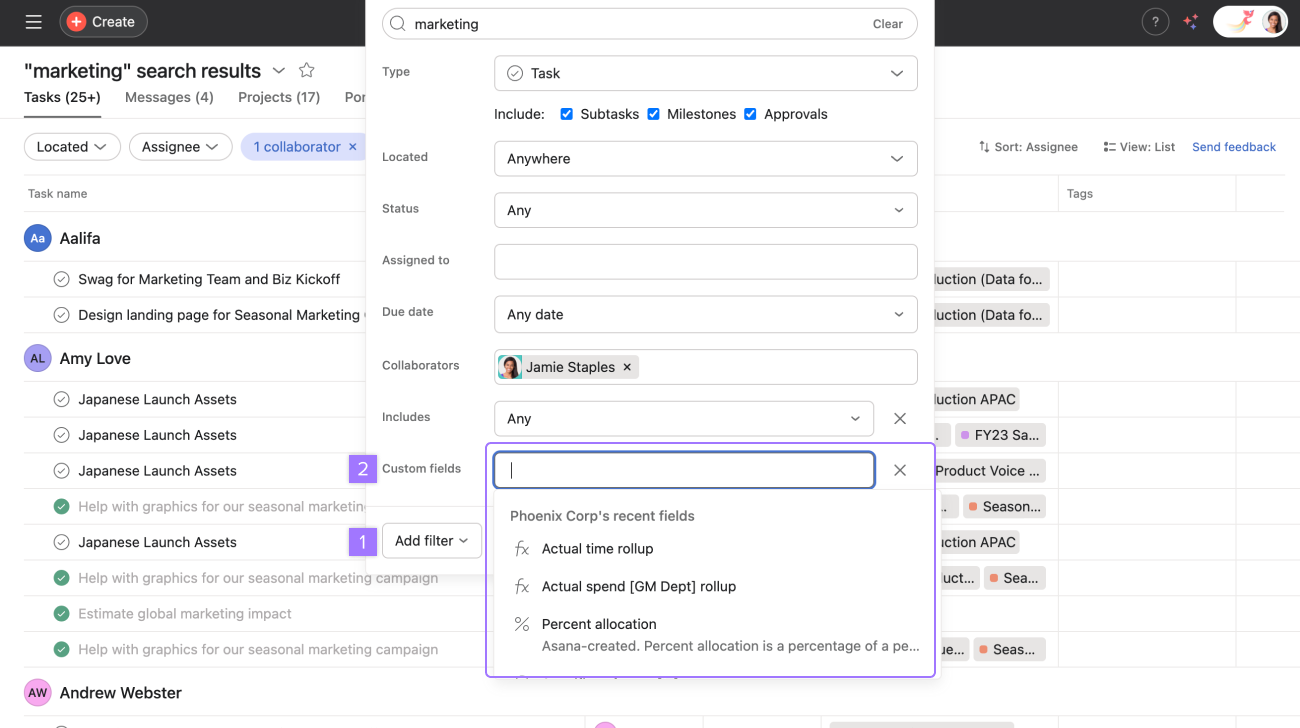
Start by clicking the search bar to access the advanced search options. From there, click Add filter, then select Custom fields. You can then specify the custom fields you're searching for.
Note
The custom field must be in your organization's field library to show up in the advanced search options.
Saving your search results
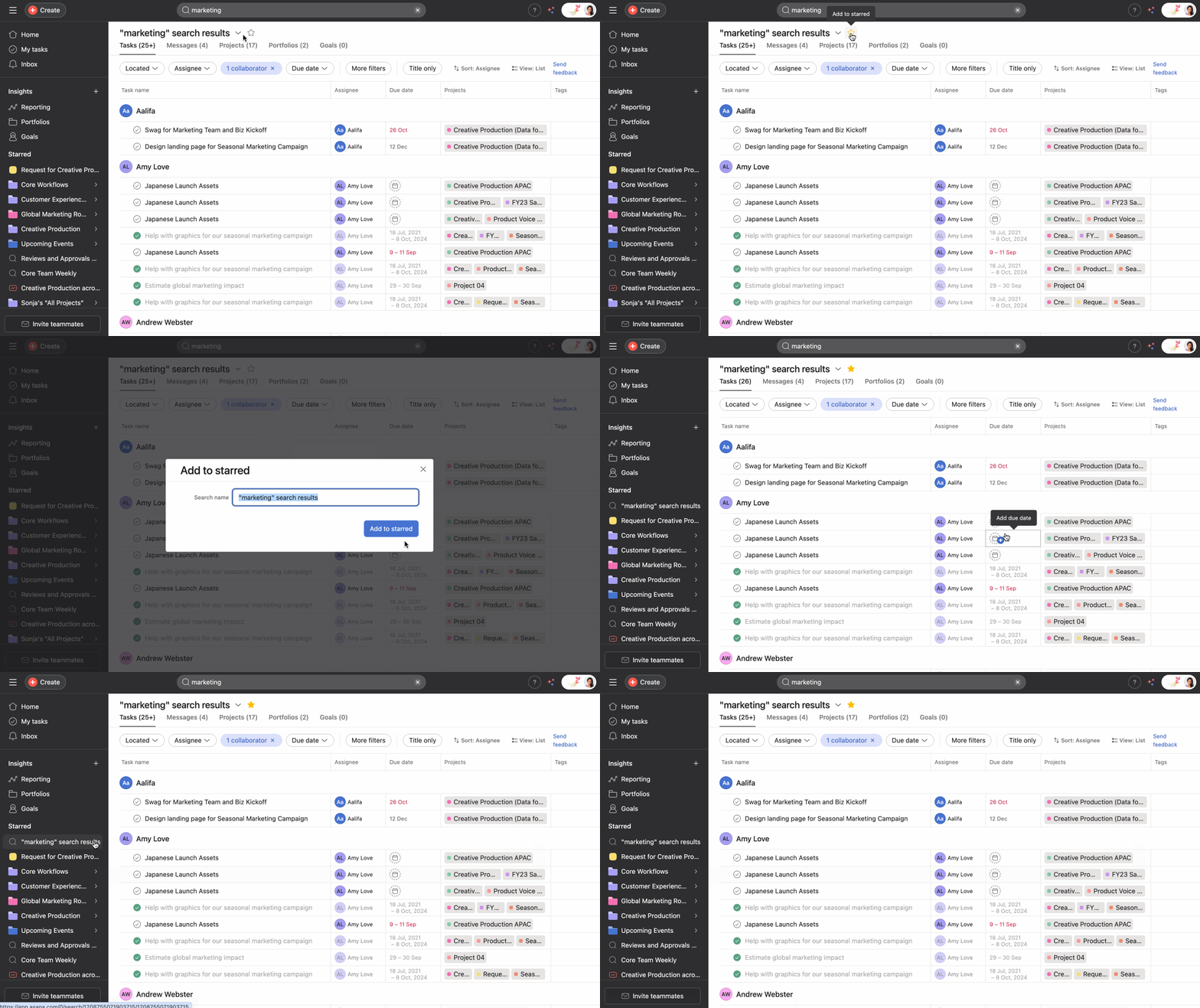
If there are search views you will use regularly, you can save them for easier access in the future.
- Click the star icon to save your search view.
- Once saved, your search view will appear under your Starred items in your sidebar.
Saving a search view saves the search parameters, so your saved search will update as you and your colleagues continue to work on tasks.
Click the drop-down arrow next to the search name to rename it. You first need to save a search by clicking the star icon for Rename search to appear.
How to search in a project
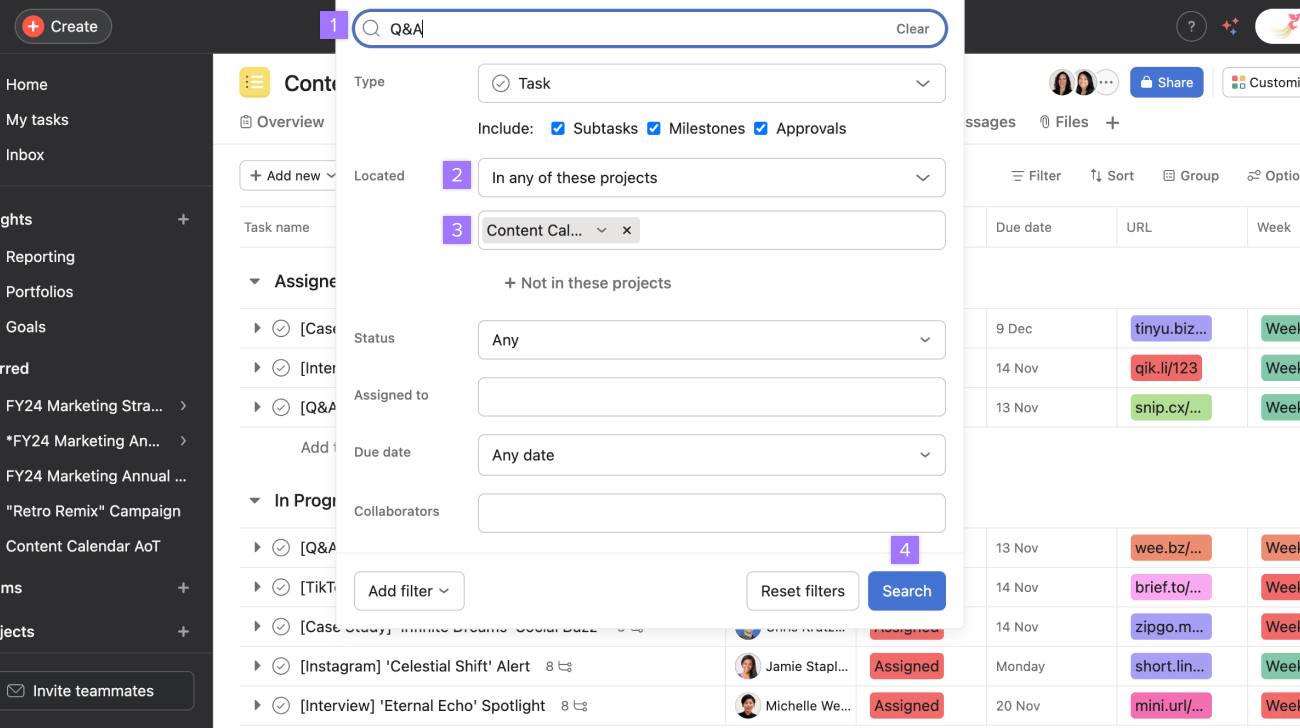
It is possible to search for tasks in a specific project. This is useful if you have projects with a large number of tasks.
To search within a project:
- Type a term on the search bar
- In Located select In any of these projects
- Type the name of the project below
- Click Search
Search views quick tips
There are many parameters you can use in search views. Most of them are pretty self-explanatory, but here are some of the lesser known.
- Unassigned tasks - enter "Nobody" in the Assignee field
- Tasks in no projects - enter "No Project" in the Projects field
- Tasks with specific tags - choose "Has tags" or "Has all of these tags" in the Tags filter
- Tasks in a section of a project - after entering a project in the Projects field, click the drop-down arrow to select a section in the project to search in
- No parameter - use the "No Tags" or the "No Project" fields to find all tasks that are not associated with a tag or a project
- Assigned by - use the Assigned by filter to find tasks assigned by a specific member or guest
- Completion date - use the Completion date filter to find all tasks completed in the last X days
- Tasks with specific due dates - use the Due, Start, Completion, Creation, or Modification date fields to select "Between" to find tasks within a certain timeframe, or "On" to show tasks from a specific date
- Custom fields—use the Custom fields filter to search for specific custom field status.
- Due dates and start dates
- Within the next: All tasks due from today onward
- Through the next: Includes all past due dates
Examples of searches to save
- Work you need to follow up on—Search for tasks you’ve created for others that are incomplete and due within 3 days.
- Tasks at risk—Search for tasks with a “high priority” custom field due today or tomorrow. Great for project managers to keep up momentum across projects.
- Blocked approvals—Search for tasks with a "ready for review" custom field and provide feedback for assignees to unblock work waiting on their approval.
- Work I’ve completed this quarter—Search for tasks assigned to you that were completed in a specific date range. Great for anyone to see their contributions for a review or to keep their resume updated.
How to make your work easily searchable
- Give all tasks clear, actionable names. Naming a task “draft customer spotlight blog” versus “blog” can help refine your search results—especially if the task is copied from a template.
- Give all tasks due dates, assignees, and put them in projects. This makes it much easier to narrow down your search with specific criteria.
- Use custom fields to categorize tasks within projects by certain criteria.
Like what you see? Get started with a free Asana trial today. Try for free