Products


AI Platform


Asana Foundations
Company Type

Visit our pricing page for more information.
Comment on a task to ask questions, provide extra information, or offer insight.
A task's comments will appear at the bottom of the task details pane.
Anyone with access to a task will see its comments.
Task comments support rich text, emojis, and attachments. You can also reply directly to a comment to keep a side conversation together, and react to a comment with an emoji.
Comments work the same way in a few other places in Asana, including goals, messages, status updates, and items in a table. The steps below use tasks as the example.
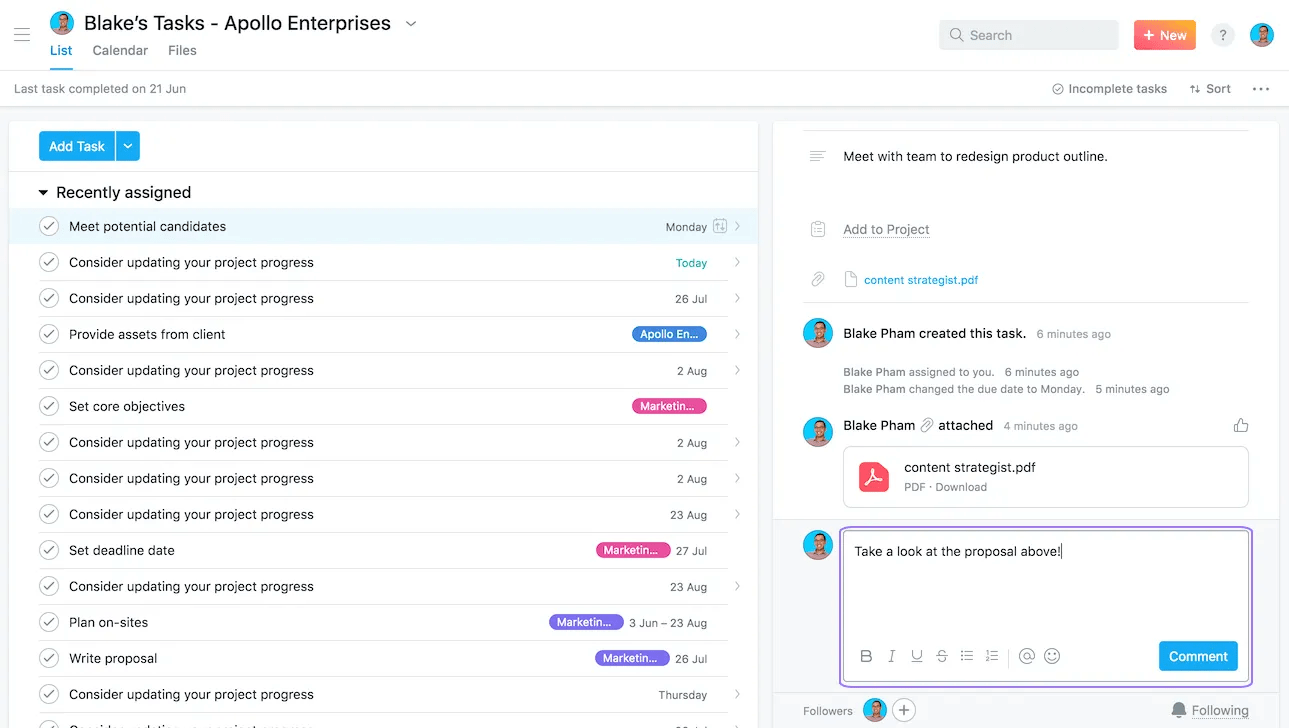
Tab+C on your keyboard to focus on the comment field.Task collaborators will receive a notification of your new comment in their Inbox. Replies work differently — see Reply to a comment below.
If you draft a comment and forget to submit it, the comment text will be saved as a draft for the next time you visit the task.
Replies let you answer a specific comment instead of adding a new comment to the bottom of the task. The reply is tucked under the comment it belongs to, so a back-and-forth about one topic stays in one place and doesn't push the rest of the task's activity out of view.
Once a comment has replies, you can also click Reply at the bottom of the thread to add another one.
A reply can include everything a comment can: rich text, @mentions, emojis, and attachments. If you start a reply and don't send it, it's saved as a draft and will be waiting for you the next time you open the task.
Replies to the same comment arrive in your Inbox grouped together as one comment thread, so an active conversation doesn't fill your Inbox with separate notifications. Open the notification to read the whole thread in order.
You can link to an individual reply the same way you link to a comment: hover over the reply, click the drop-down arrow, and select Copy comment link. Opening the link takes you to the task with the thread already open and scrolled to that reply.
You can reply to comments on tasks, goals, messages, status updates, and items in a table. Replies aren't available on a few kinds of tasks, including service requests and tasks created from an email or Slack message sent to a project — comments on those still work normally.
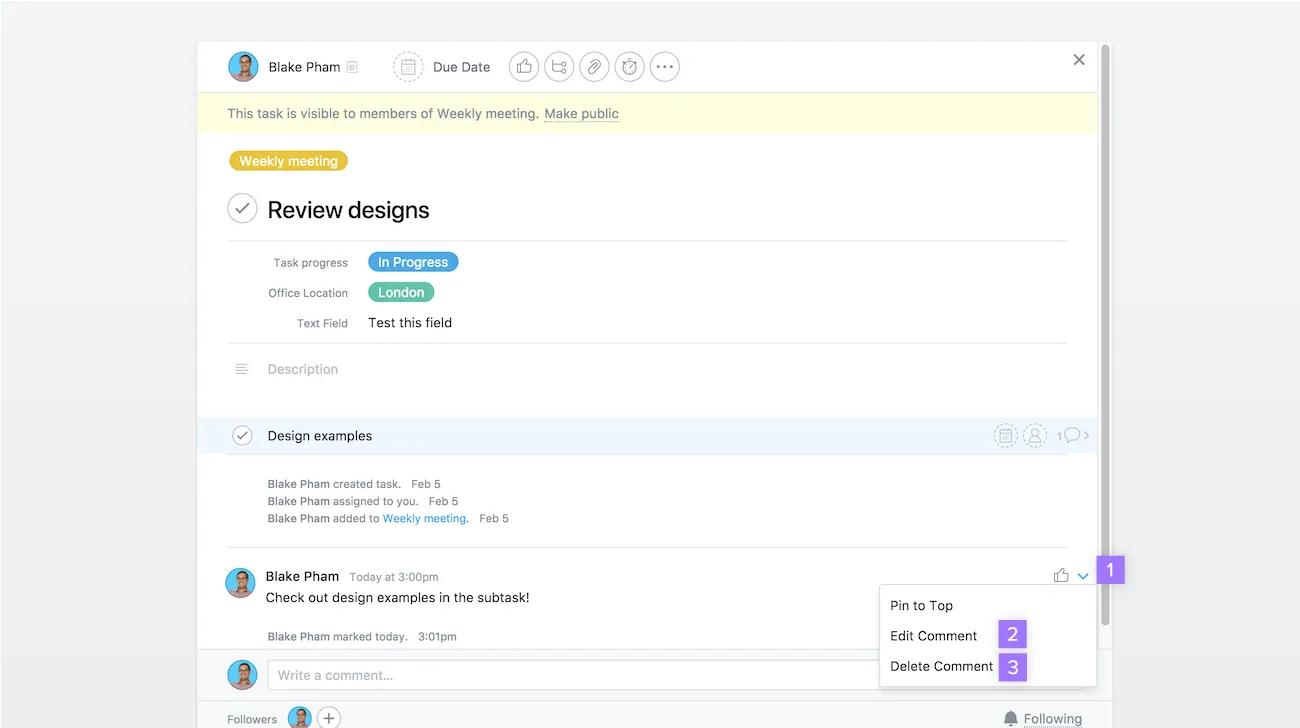
You can only delete or edit your own comments.
Editing and deleting work the same way for replies.
If you delete a comment that has replies, the replies stay where they are. In place of the deleted comment you'll see This comment was deleted, so the rest of the conversation still reads in order.
If a task has important comments or replies to comments you want everyone to see, you can pin these comments to the top of the task's Activity Feed in the task details pane.
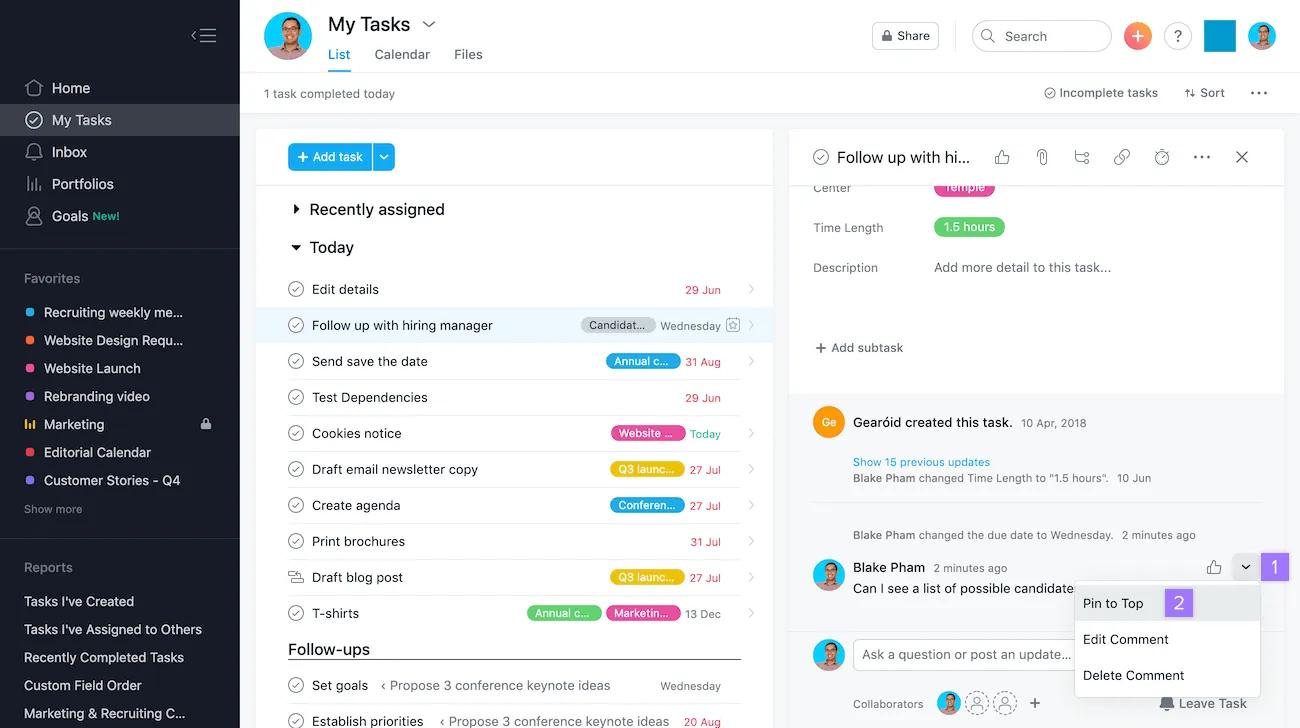
Hover over the comment and click the three dots menu
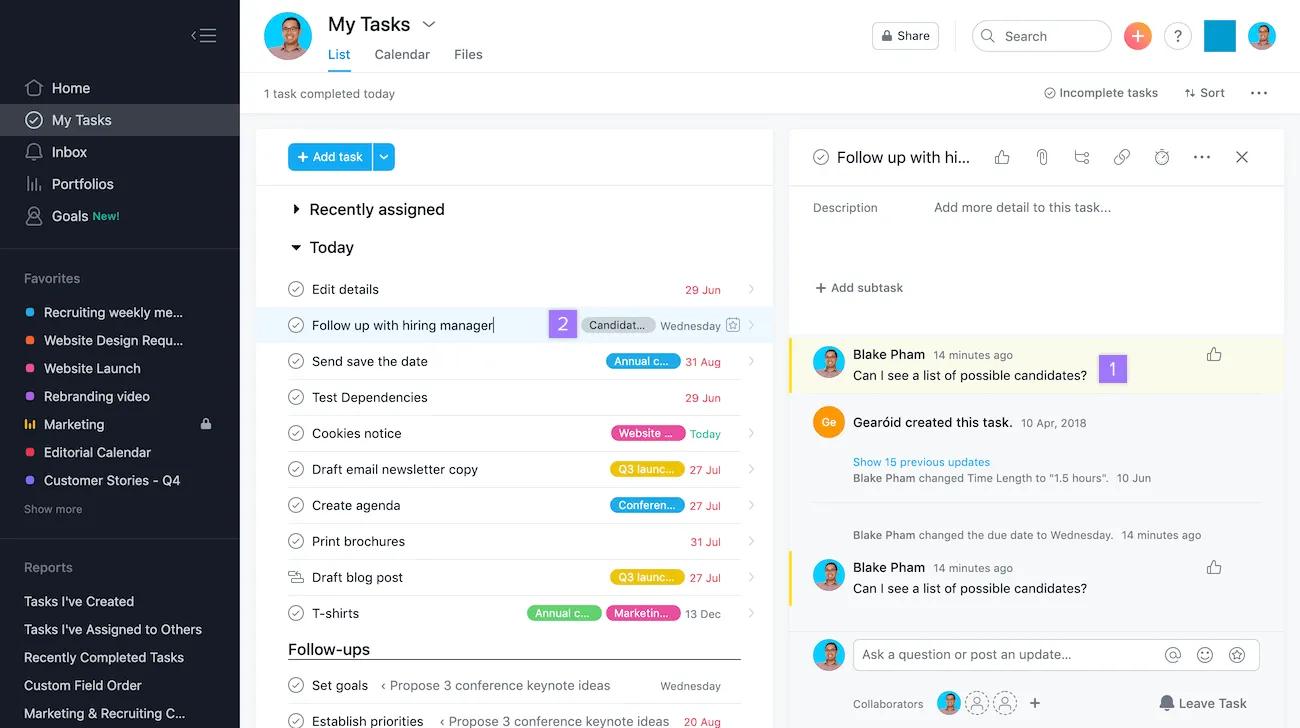
Pinned comments are also indicated by a yellow marker. If a pinned comment has replies, the copy at the top of the feed shows just the comment. Its replies stay with the original comment further down the feed.
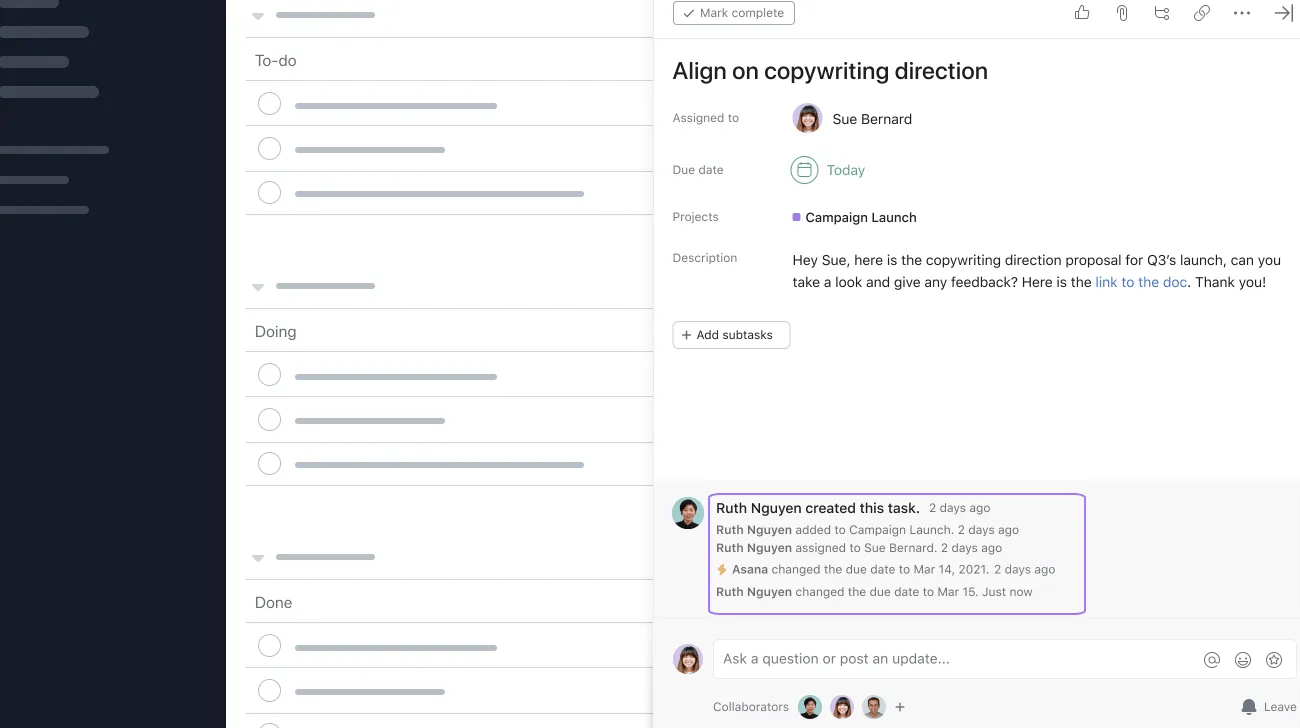
A variety of actions create task activity feed stories, including task creation, description changes, name changes, due date changes, assignee changes, section changes, and more.
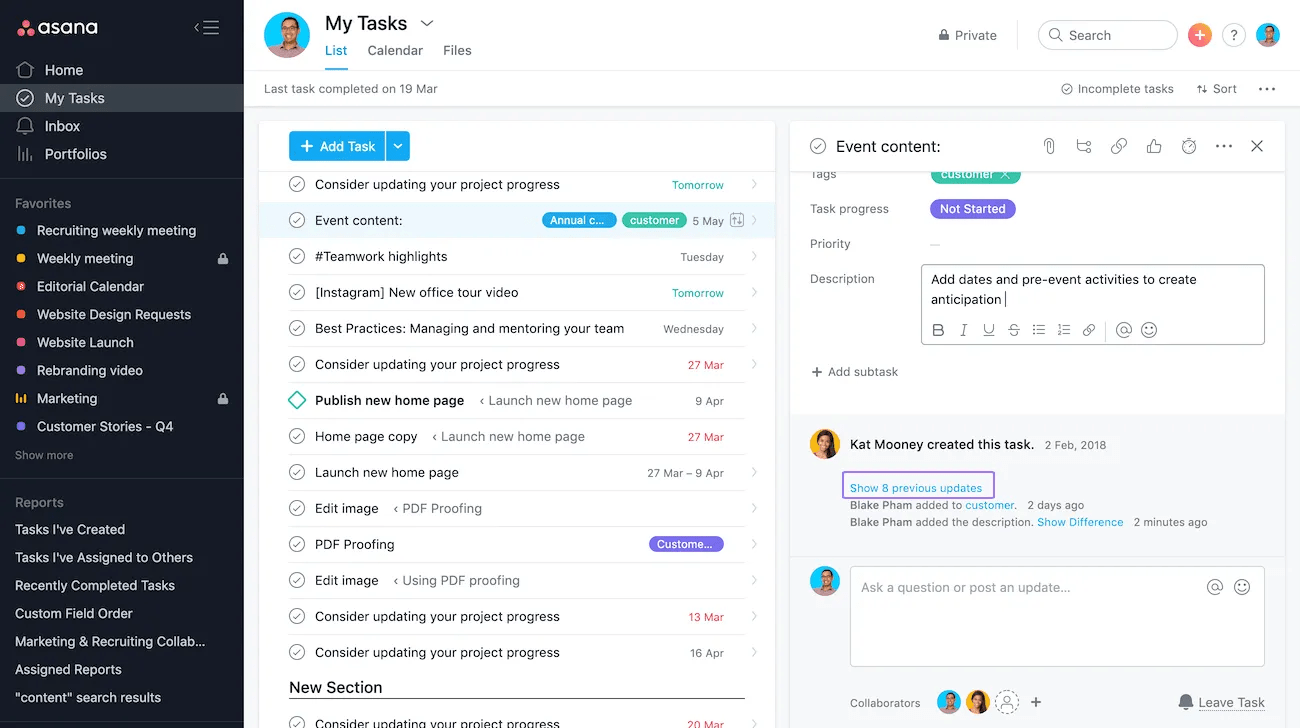
If you click on Show previous updates you will see a collapsible history of the actions taken on that task.
If a comment came from a synced Slack thread, replying to it sends your reply back to Slack. The button reads Reply to Slack, and the reply box shows which Slack thread and channel it's connected to. If the sync has been paused, you won't be able to reply to that comment in Asana.
You can upload a file to any Asana task from the task details pane.
To attach a file that you have saved on your computer, or via an attachment integration you have two options:
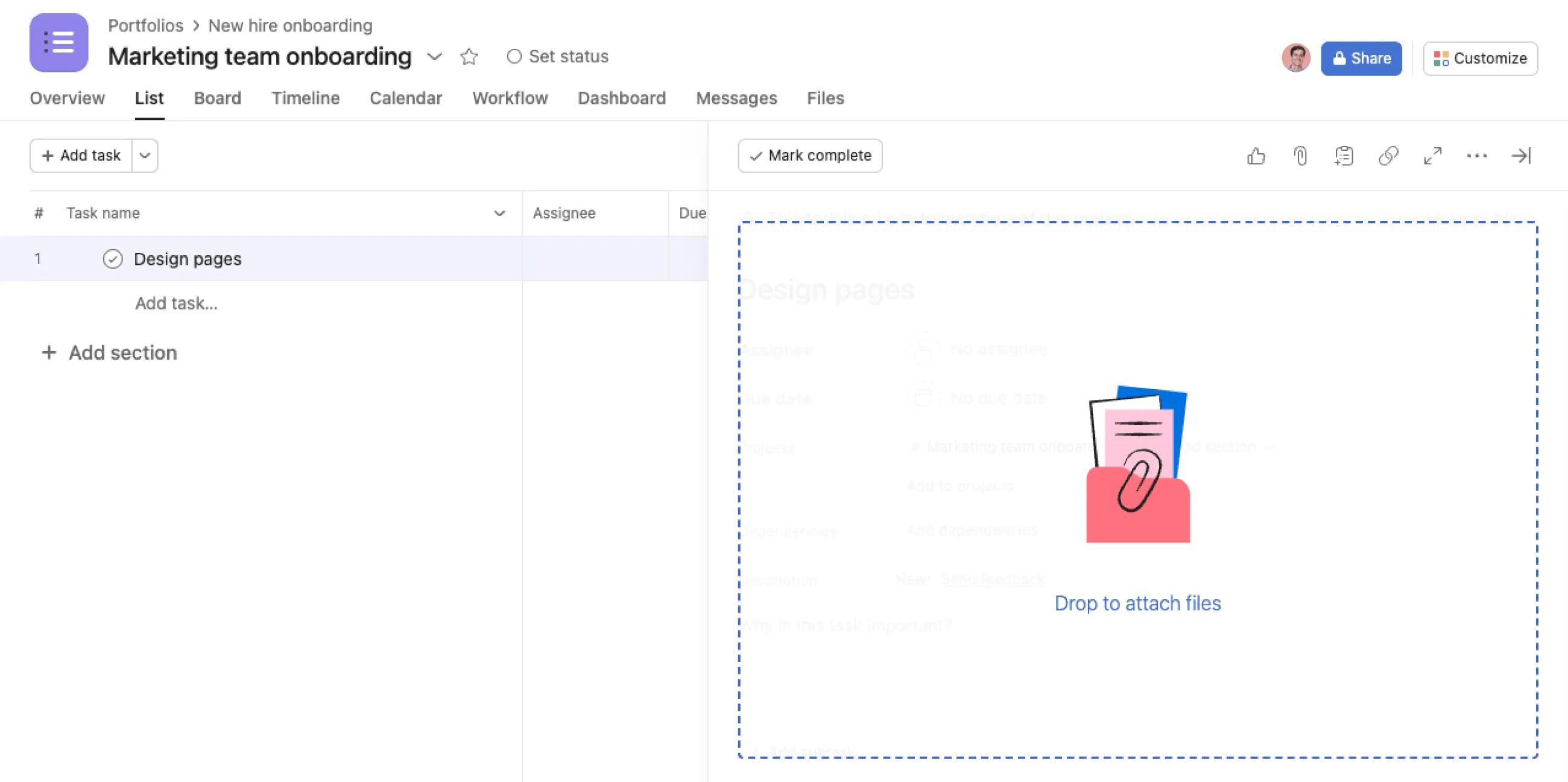
Drag the file anywhere from your desktop and drop it on the task details pane of the task.
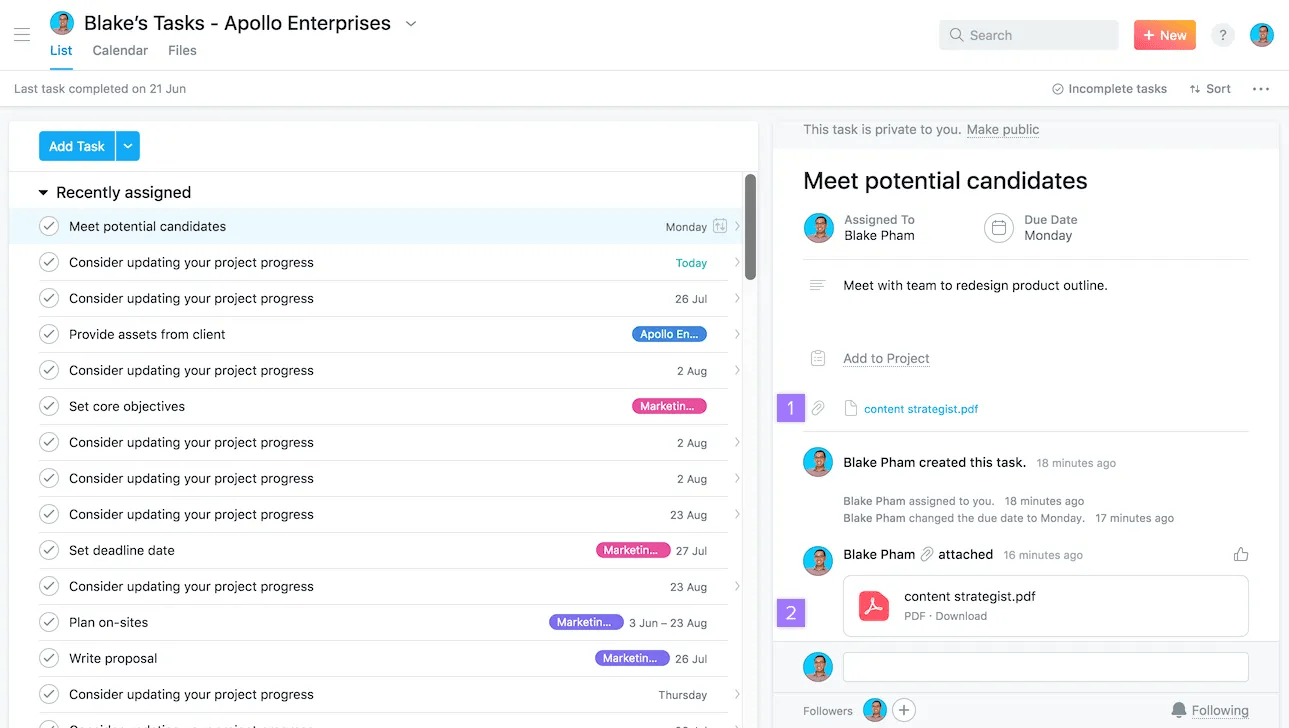
It is also possible to copy and paste images or files into Asana as attachments from your clipboard.
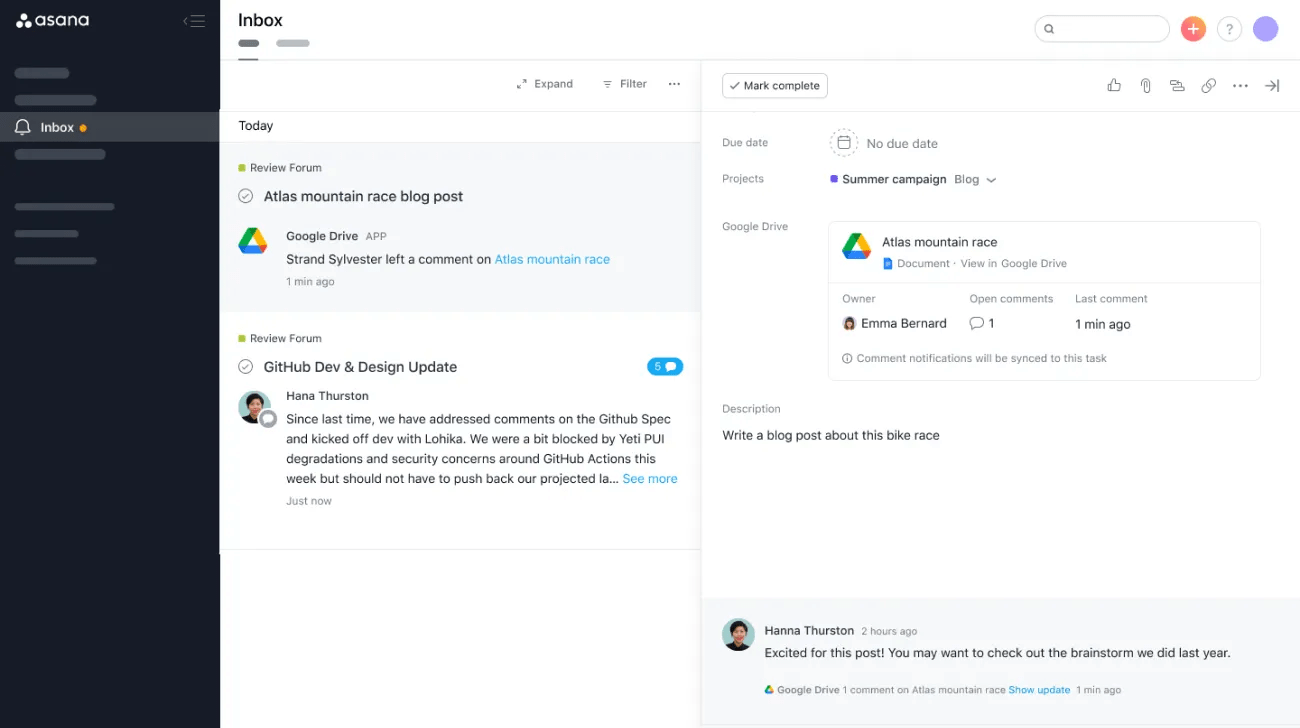
Google Drive users can also sync documents to Asana tasks to receive notifications in Asana when new comments are added to synced Docs, Sheets, or Slides.
Users can include a block of text and one or more attachments grouped together. Attach a file or attach an image and comment seamlessly.
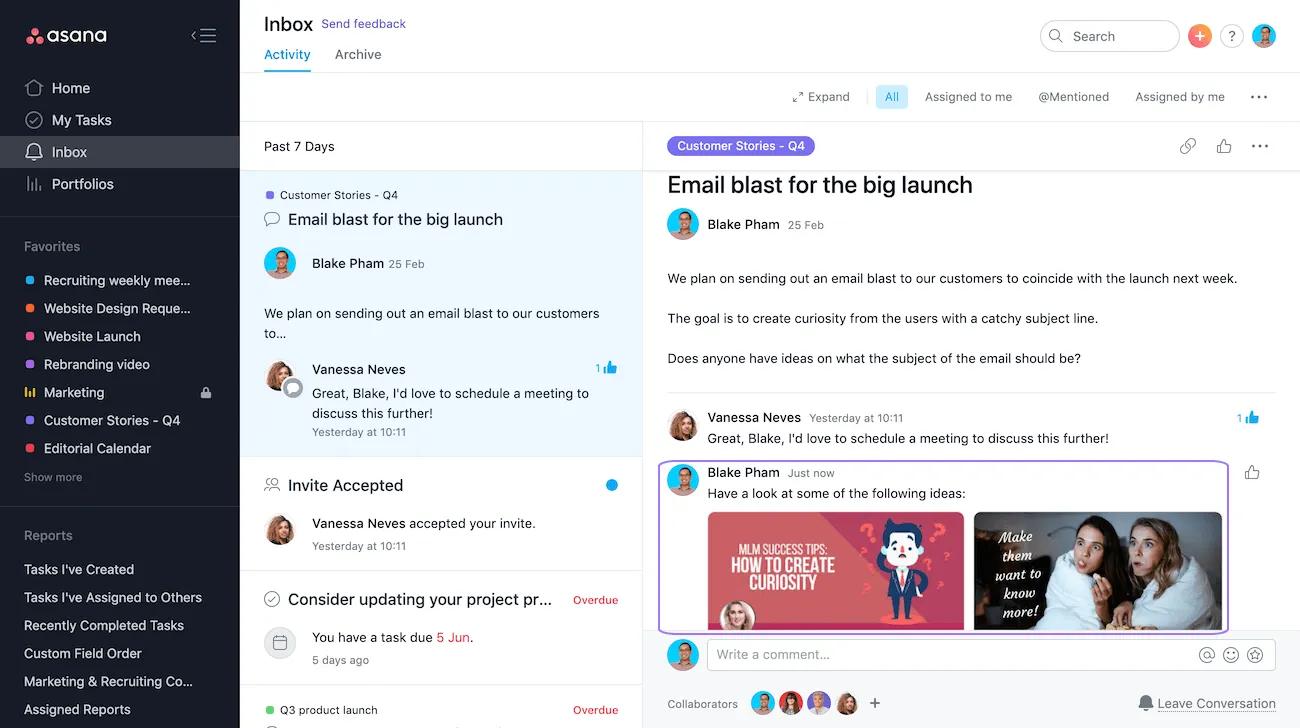
This streamlines comments that contain both text and attachments.
There is a 100MB per file limit for attachments from your computer. If you have a larger file, consider attaching it from Dropbox or Google Drive.
There is no storage limit for the number of files you can upload.
You can attach files from Box, Dropbox, Google Drive or Microsoft OneDrive/SharePoint directly into Asana tasks.
Each of these integrations have their own set of permissions associated to their files. Our integration does not change your files' permissions whatsoever, so you may also need to share the file with your colleagues after attaching it to a task.
If you are logged in to multiple Google accounts on your computer, you can select which Google Drive account to attach files from, regardless of which Google account is currently associated to your Asana account.
You can attach files when you create tasks by email. Please note that you can only forward emails to Asana with a max. total of 30 MB
Attach files via our Android app by taking a photo or using files from your phone or Google Drive.
For iOS devices, it is only possible to upload photos.
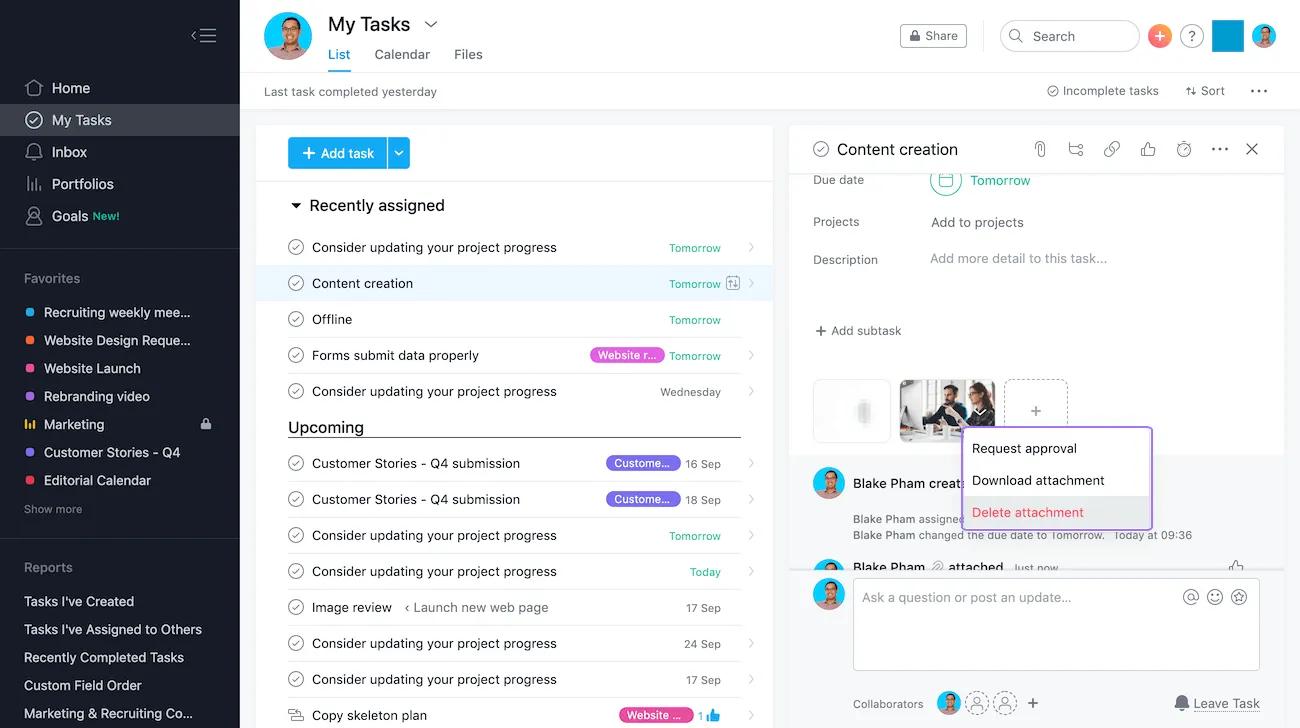
From the drop-down arrow in the attachment's name you have three options: Request approval, Download attachment and Delete attachment.
Choose Delete attachment if you wish to delete.
Removing the thumbnail for an image or the story for an attachment from the activity feed will not remove the file from the task. The activity feed is a list of timestamped actions above the comments field.
Connected work links provide context and access to related work enabling your team to move fast. Connected work links serve as a visual indicator that an object (tasks, status updates, messages etc.) have been referenced (@ mentioned) elsewhere in Asana. These links are automatically created whenever a user @ mentions a task, status update, message or goal in Asana and will appear in the activity feed of the object that has been mentioned. This helps your team to communicate more reliably and with less effort highlighting where important connections between work already exist, helping teams to see and open objects that they otherwise might have missed. Connected work links are tagged with a ↔ symbol and can only be seen by users who have access to the object that has been @ mentioned. Users who don’t have access will not see anything.
There is no limit to the number of connected work links that can appear in the activity feed. Clicking on a specific connected work link will bring you the task, status update, message, or goal in Asana that has been @ mentioned. Just like other items that appear in the activity feed, connected work links can be deleted manually.

In this example, Neel references a task in his comment
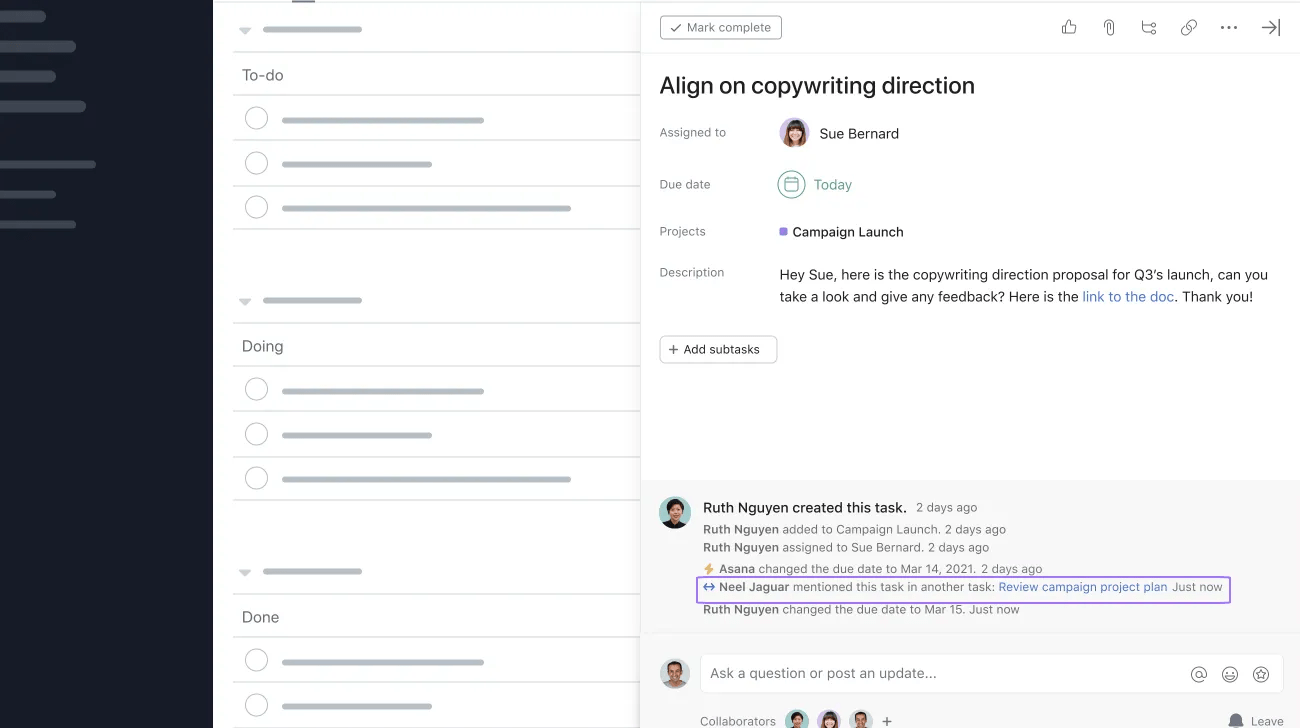
In this example, Neel’s reference appears in the activity feed of that task
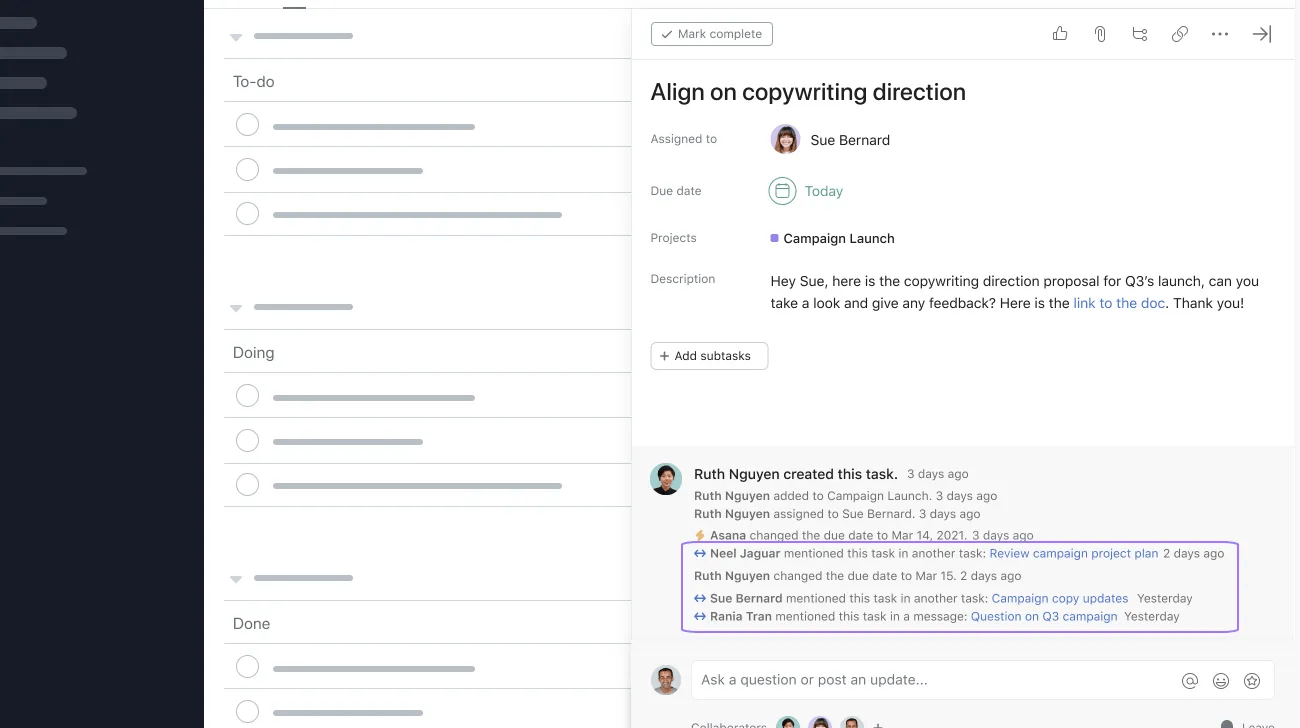
In this example, Neel has access to the Q3 staffing plan task, and thus is able to see the connected work link in the activity feed
In this example, Sue does not have access to the Q3 staffing plan task, and thus is not able to see the connected work link in the activity feed.

