Managing members and teams in Asana is crucial for maintaining an organized and efficient workspace. Here’s a breakdown of how you can manage both members and teams through Asana’s admin console.
Related articles
Understanding user roles in Asana
Asana offers different user roles to help you control access and maintain security across your organization:
Organization roles
- Super admin: Has full control over the organization, including billing, security settings, and member management. Can govern permissions and defaults organization-wide.
- Admin: Can manage members, teams, and organization settings through the Admin Console. Has access to insights, member management, and billing information.
- Member: Regular team members who can create projects, tasks, and collaborate within their assigned teams and projects.
- Guest: External collaborators with restricted access. Guests can only see tasks, projects, or teams they've been specifically invited to and don't count toward your membership limit.
Managing members in an organization
The Members tab in the admin console offers a comprehensive overview of your organization's membership. From here, you can:
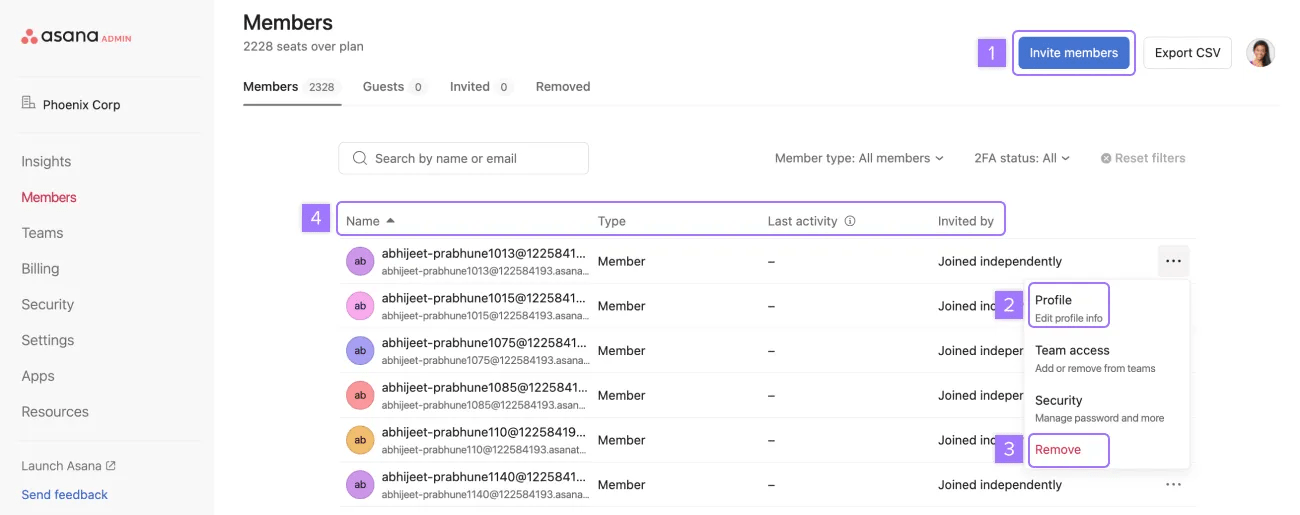
- Invite new members: Easily add new users to your organization.
- Assign admin privileges: Grant admin access to selected users.
- Deactivate or remove members: Manage inactive or departing members effectively.
- View member details: Check names, roles (admin, member, or guest), last activity, and inviter information.
To deactivate a member, click the three-dot icon next to their name and select Remove. This action generates a private project with their tasks, allowing you to reassign them to another member.
Bulk member import
For larger organizations, you can import multiple members at once:
- Navigate to the Members tab
- Click Import/Export CSV
- Upload a CSV file with member information
Restoring a deactivated member
Asana offers both automatic and manual reactivation options:
- Automatic reactivation: This feature is available on paid plans and restores access to deactivated users who return with the same email address.
- Manual reactivation: Find the deactivated user in the Paused tab, click the three-dot icon, and select Restore license.
Creating and managing teams
The Teams tab helps you organize and manage team-specific settings and memberships:
- Create and manage teams: Set up new teams and add or remove members.
- Edit teams: You can adjust team privacy, editing permissions, and membership permissions for existing teams and endorse teams in your organization.
From a member’s profile settings, navigate to the Team Access tab to view and edit the teams they belong to. This allows admins to ensure that each member is in the appropriate teams for their role.
Exporting membership data
Admins can export membership data to a CSV file, which includes details such as:
- Name
- Email address
- Department
- Date joined
- Invited by
- Last activity
- Member type
- Team and project counts
This functionality aids in maintaining accurate records and conducting audits.
By effectively managing members and teams, admins can ensure that their Asana organization remains organized, secure, and aligned with the company’s operational needs.




