Asana's Workload provides a centralized view of your team's capacity, helping you balance resources and ensure no one is overworked or underworked. Workload gives you real-time insights into task distribution and helps you make informed decisions about resource allocation.
Related articles
What is workload in Asana?
Workload in Asana is a bird's eye view of a team’s capacity. It goes beyond task lists and project timelines, offering a comprehensive understanding of the workload each team member is shouldering. It provides a visual representation of tasks, allowing team leads and members to make informed decisions about resource allocation.
Difference between portfolio workload and universal workload
- Capacity in a portfolio vs. All of Asana: Portfolio workload focuses on the work within a specific portfolio, giving managers insight into the workload distribution across various projects. On the other hand, universal workload encompasses the entire Asana workspace, providing a broader perspective on an individual's commitments across all projects.
- Work focused vs. User focused view: Portfolio workload operates on a "Work focused" view, highlighting the capacity for specific tasks within the portfolio. Universal workload, in contrast, adopts a "User focused" view, capturing a user's workload across all projects, including subtasks.
- Universal workload captures subtasks: One notable distinction is that universal workload captures not only tasks but also subtasks. This inclusivity ensures a more accurate representation of an individual's total workload, considering all project intricacies.
Creating a portfolio workload
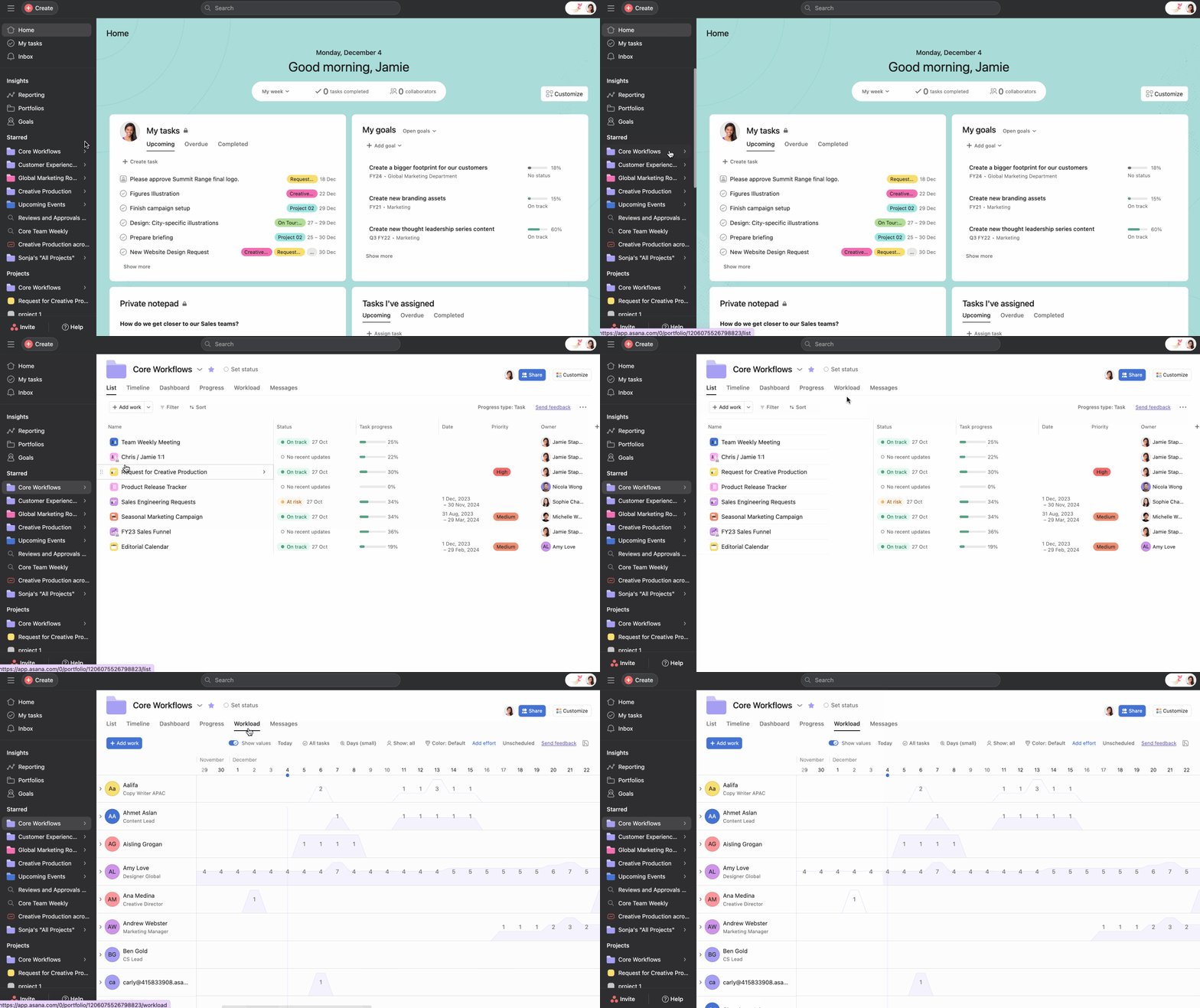
To view a portfolio’s workload:
- Navigate to the desired portfolio
- Click on the Workload tab
- Customize your view based on team members, dates, and workload settings
Team members who have tasks assigned to them in projects within the portfolio will show in the workload view.
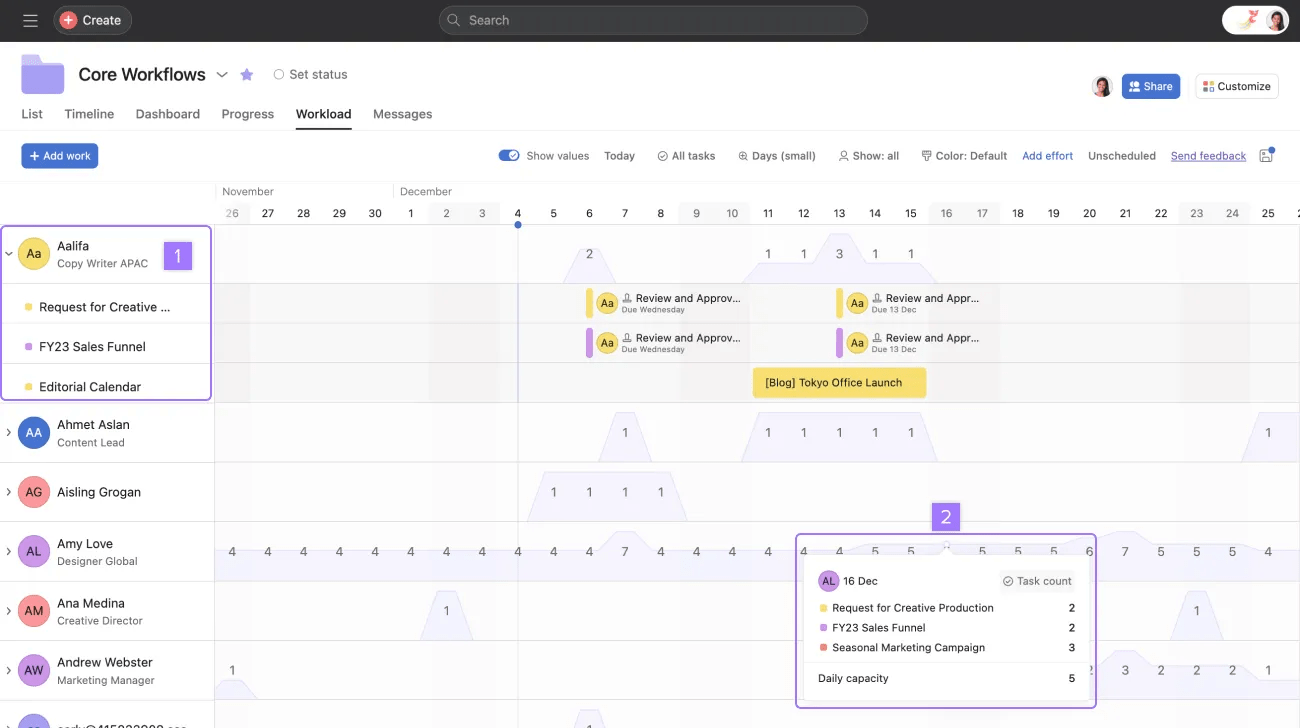
You can view the tasks assigned to each team member by clicking the drop-down arrow next to their name. You can also hover over the number to see the task count. This will allow you to reassign tasks if necessary and address bottlenecks.
You can create a team portfolio, to add all your team’s projects.
Creating a universal workload
Universal workload allows you to view the entire capacity of a team by pulling data from tasks and subtasks across all projects into a workload view.
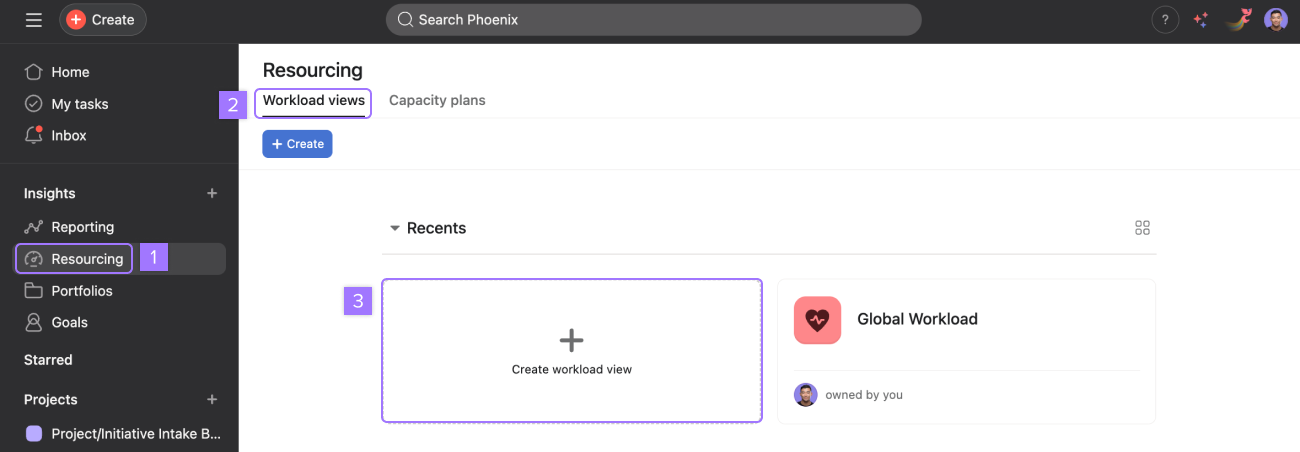
- Navigate to Resourcing
- Navigate to the Workload views tab
- Click Create workload view or the +Create button
Learn more about filters in universal workload here.
Managing workload best practices
- Alignment on effort field: Ensure consistent use of the Effort field across all tasks. This field quantifies the estimated amount of workload by using task count or hours required for each task, providing a crucial data point for workload calculations.
- Set max hours for portfolio or overall: Define maximum capacity for individuals within a portfolio or across the entire organization. This proactively prevents overloading team members and encourages realistic project planning.
- Use due date ranges: If the work will be spread out, leverage due date ranges to provide flexibility in workload management. If not, use a single due date.
By integrating these features into your workflow and adhering to best practices, you can optimize workload management, enhance team efficiency, and navigate project complexities with ease.
Additional resources




