Products


AI Platform


Asana Foundations
Company Type
No articles found for this topic.
No articles found for this topic.

Visit our pricing page for more information.
Please note that the Asana for Jira Data Center integration is scheduled to be deprecated on December 31, 2026
Available on Asana Starter, Advanced, Enterprise, and Enterprise+ tiers, as well as legacy tiers Premium, Business, and Legacy Enterprise.
Visit our pricing page for more information.
Asana for Jira Data Center is an integration that allows collaboration and visibility between teams working in Asana and Jira.
This integration brings the value of the Jira Cloud integration to users who use Jira Jira Data Center.
It allows business and product teams (that spend the majority of their time planning and actioning on work in Asana) to collaborate and track work seamlessly with engineering teams (who plan and execute work in Jira). Its purpose is to optimise scheduling by tracking sprints and ultimately providing Asana users visibility into the development stage in Jira.
Asana for Jira Data Center bridges the gap between the planning stages in Asana and the development phases in Jira, from execution to delivery.
It creates and monitors the status of Jira issues inside Asana tasks.
The Jira Admin must have the following available for the first steps of installation:
Note
Looking for a better way to manage your work? Get started with a free Asana trial. Try for free.
Jira Data Center instances are supported, and configured according to requirements linked below. For specific version support, please reference the Jira Marketplace listing.
If you use Jira Cloud, use the Asana for Jira Cloud integration
The Jira Admin needs to create the application link by installing the plug-in from the Jira Data Center Marketplace. The Jira Admin will need to complete the first steps, then the end users in Asana will be able to add the integration to any projects they have access to.
Next, the Jira Admin needs to authenticate the application by clicking Connect to Asana
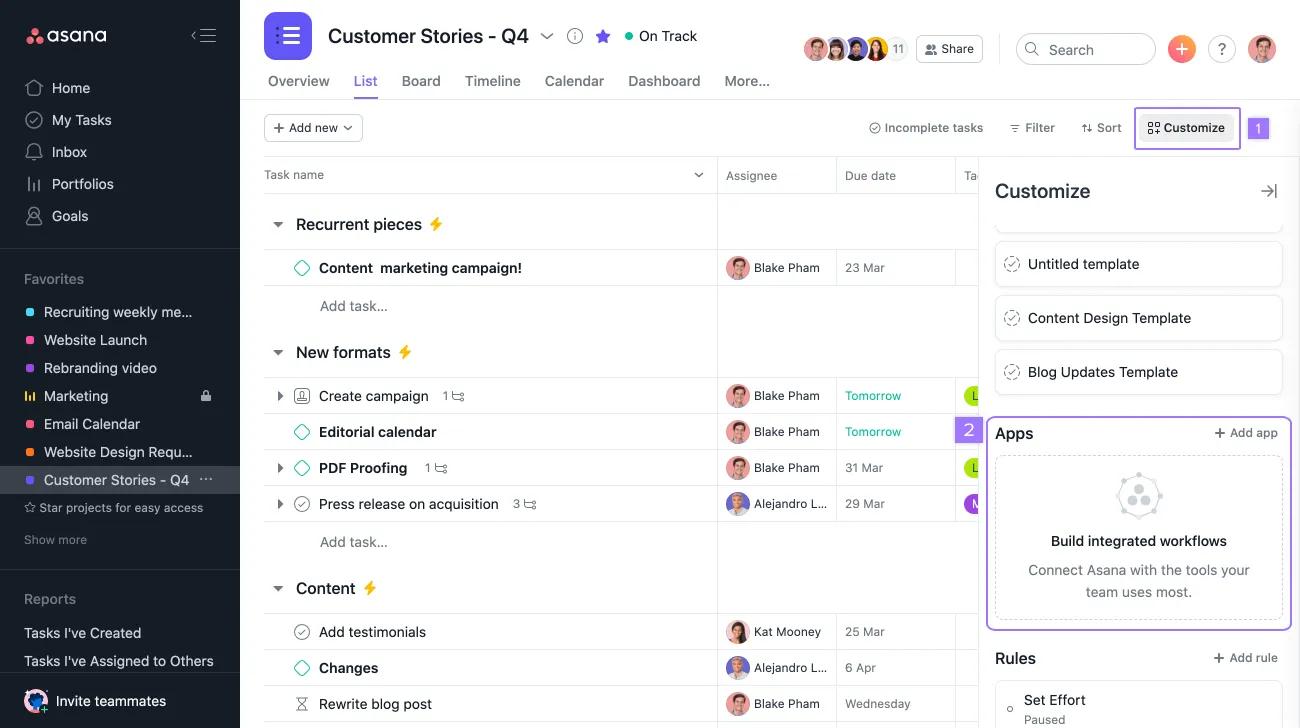
During authentication if you get the message "Your Asana has not been added to Jira Data Center" go back to "Jira Admin Install" step and make sure the Asana Org is authenticated, the relevant workspace has been selected and is showing up in the Jira Data Center Administration.
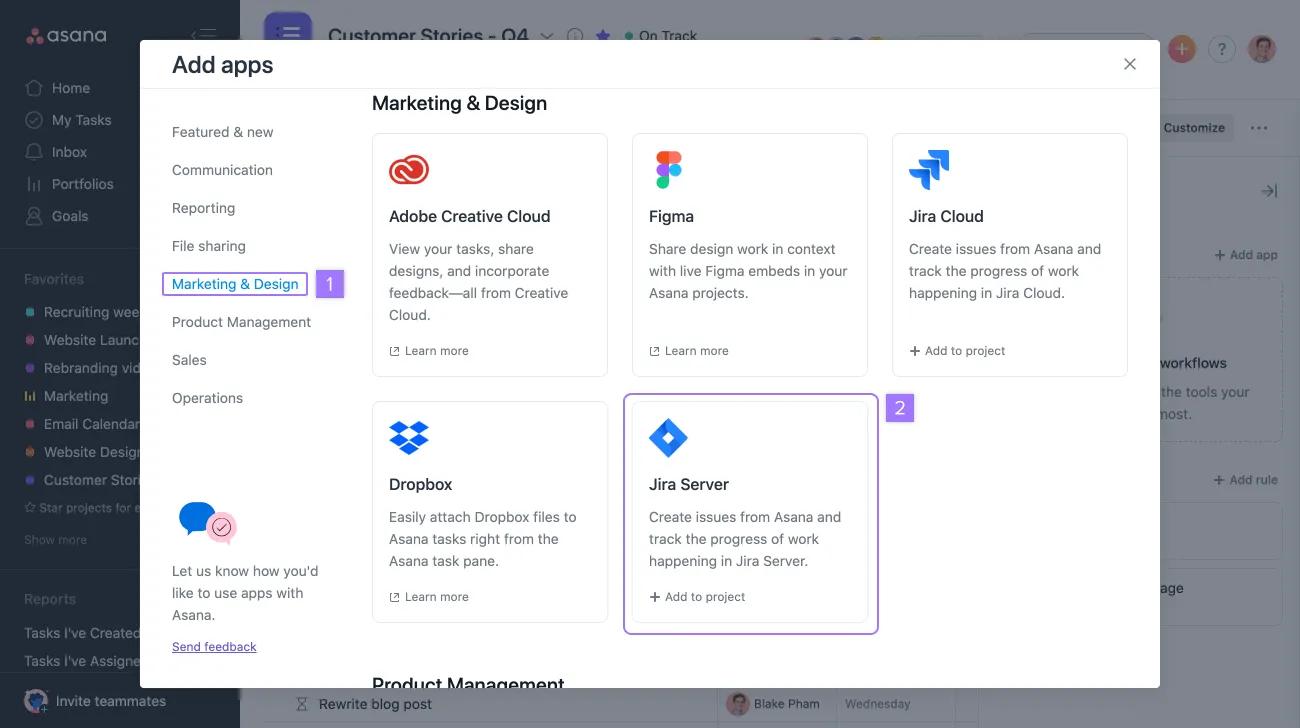
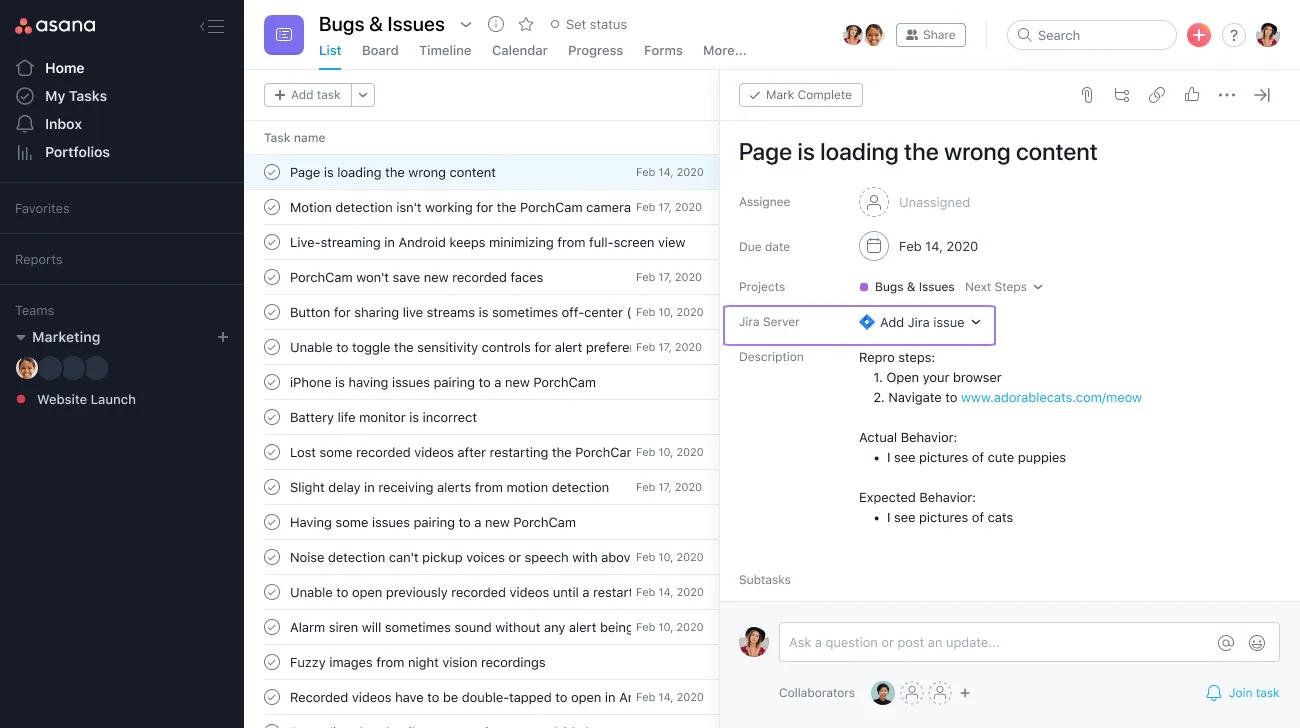
Once complete, the app will be added to the project, and users should see a Jira Data Center field on tasks where they can add existing or create new Jira issues from within Asana.
If this is the first time you have tried to add the App to a project, you will go through a series of Jira and Asana authentication flows. After completion you will be able to link issues to tasks in the relevant project.
OAuth 2.0 is supported for Jira Data Center from version 8.22 and above.
There are two ways to install an integration for Jira Data Center. With the OAuth 1.0 installation process, customers are required to install the Asana for Jira Data Center add-on from the Atlassian Marketplace.
Using OAuth 2.0 does not require this step to enable the installation process, meaning that a Jira Admin can complete the entire installation process directly from their Jira instance.
This process can only be carried out by Jira Administrators.
The integration can now be used to link an existing Asana task to an existing Jira issue or create a new issue.
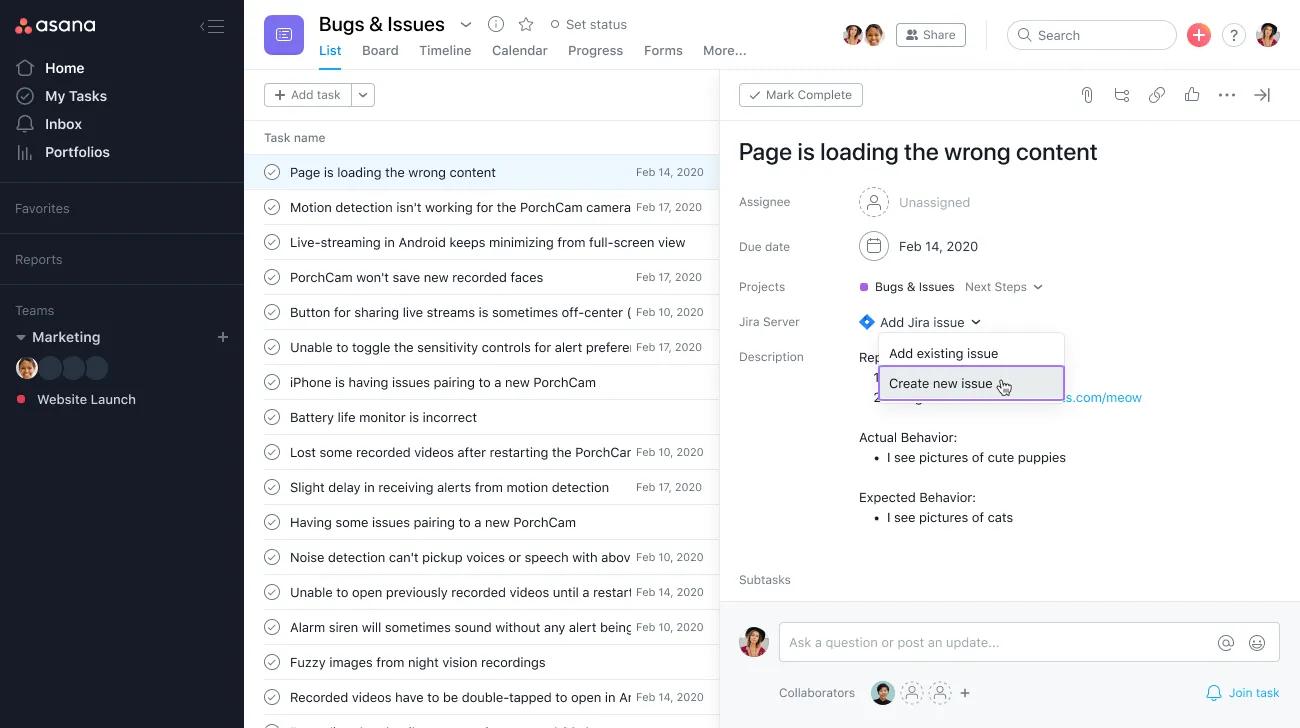
From the dropdown menu at the Jira Data Center field you can add an existing issue.
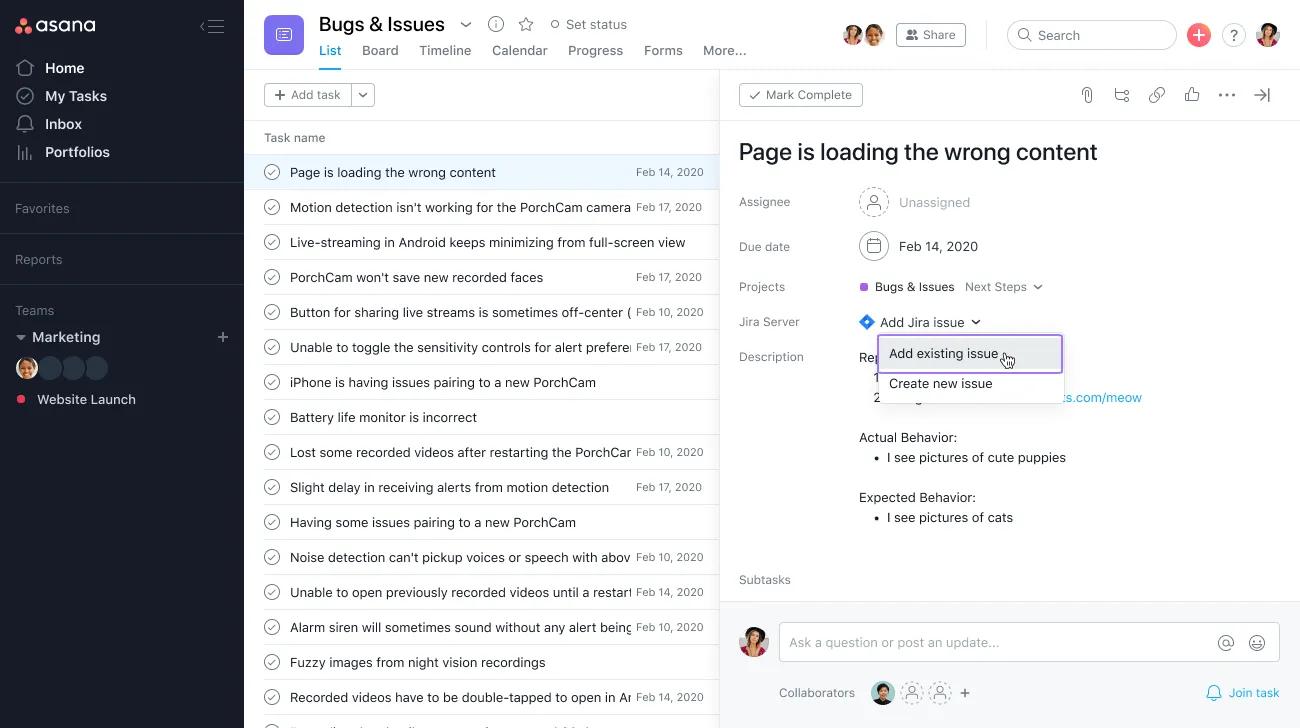
Then enter the URL of the Jira issue, or simply type in the name of the issue in the text field.
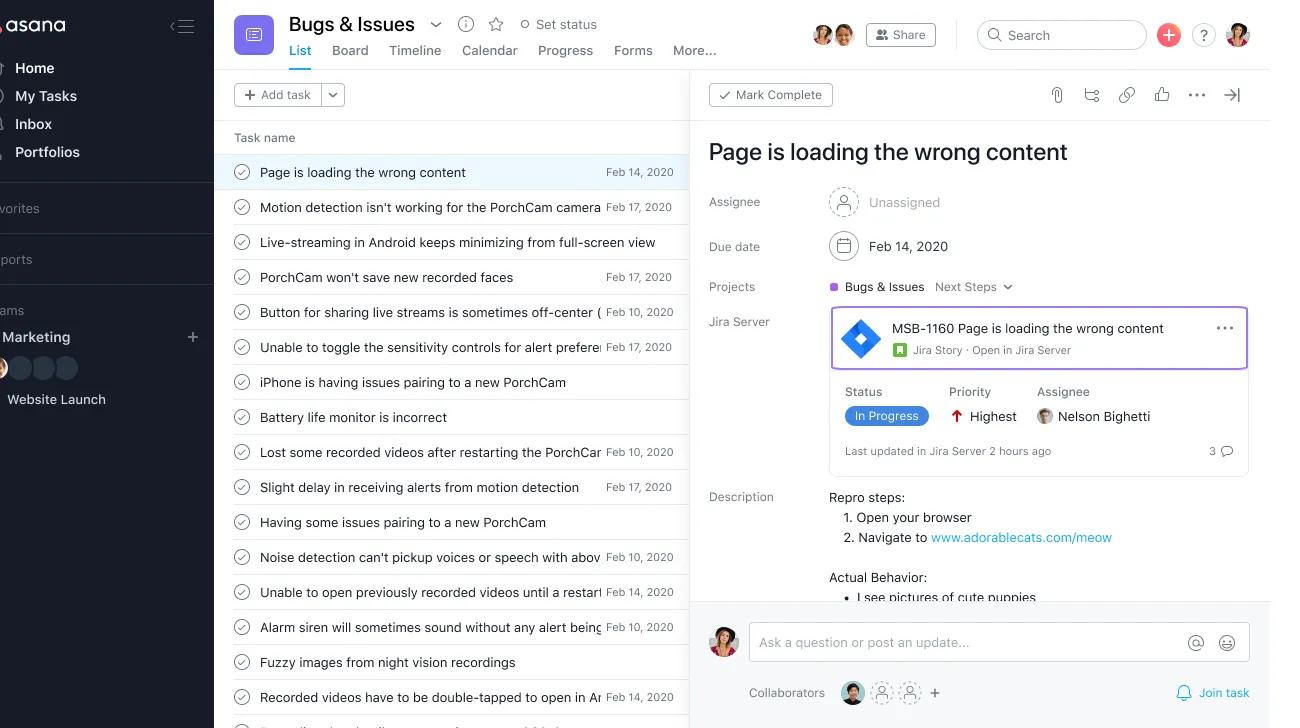
From here you can open a Jira issue, give feedback and remove an issue from a task.
Select Create new issue from the Jira Data Center field within the task in Asana.
A new dialog pop up will next appear for you to fill in. Please try and fill in all fields (specifically project and issue type). You can also attach files from the Asana task.
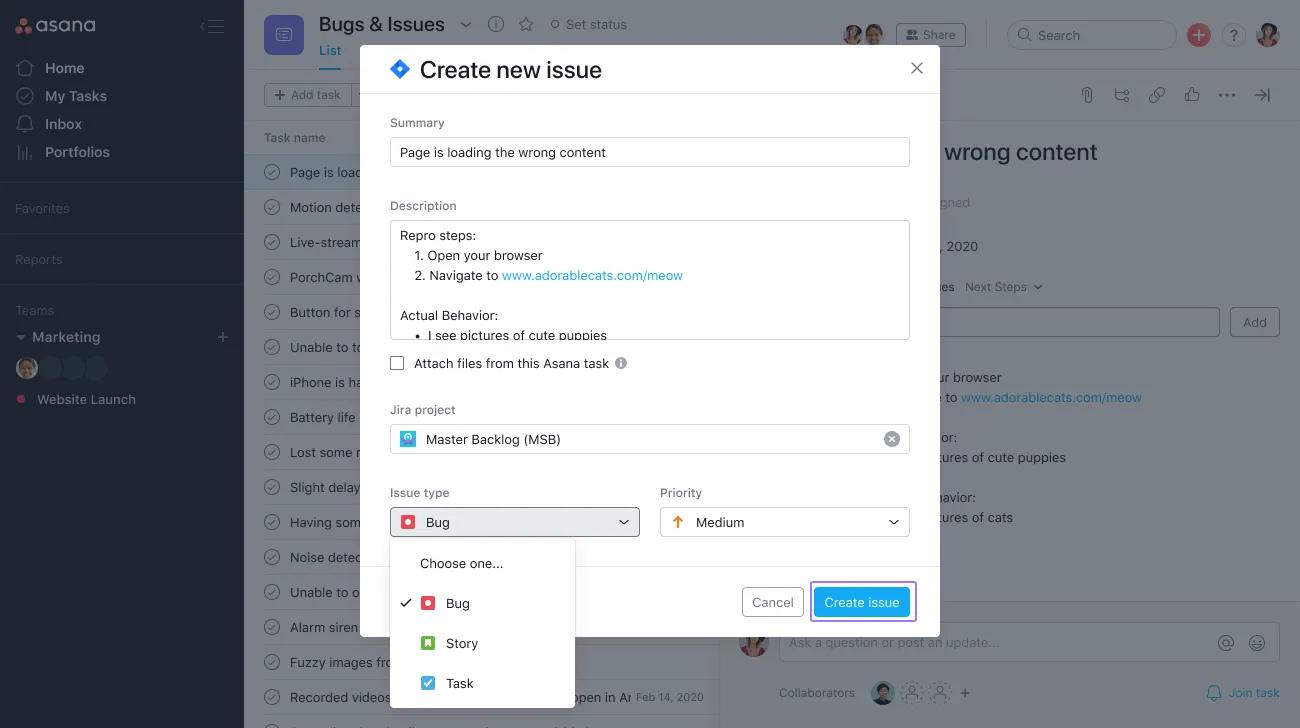
Click Create issue.
Asana will load the relevant details from the completed fields to create the issue.
After you’ve created or linked an issue, you’ll see the updated details about the issue within the task in Asana. You can only add one Jira issue per each Asana task.
Once the Jira Issue is created a real-time Jira widget is available providing you with the Status, Priority, and Assignee of the Jira Issue. Click into it to see more.
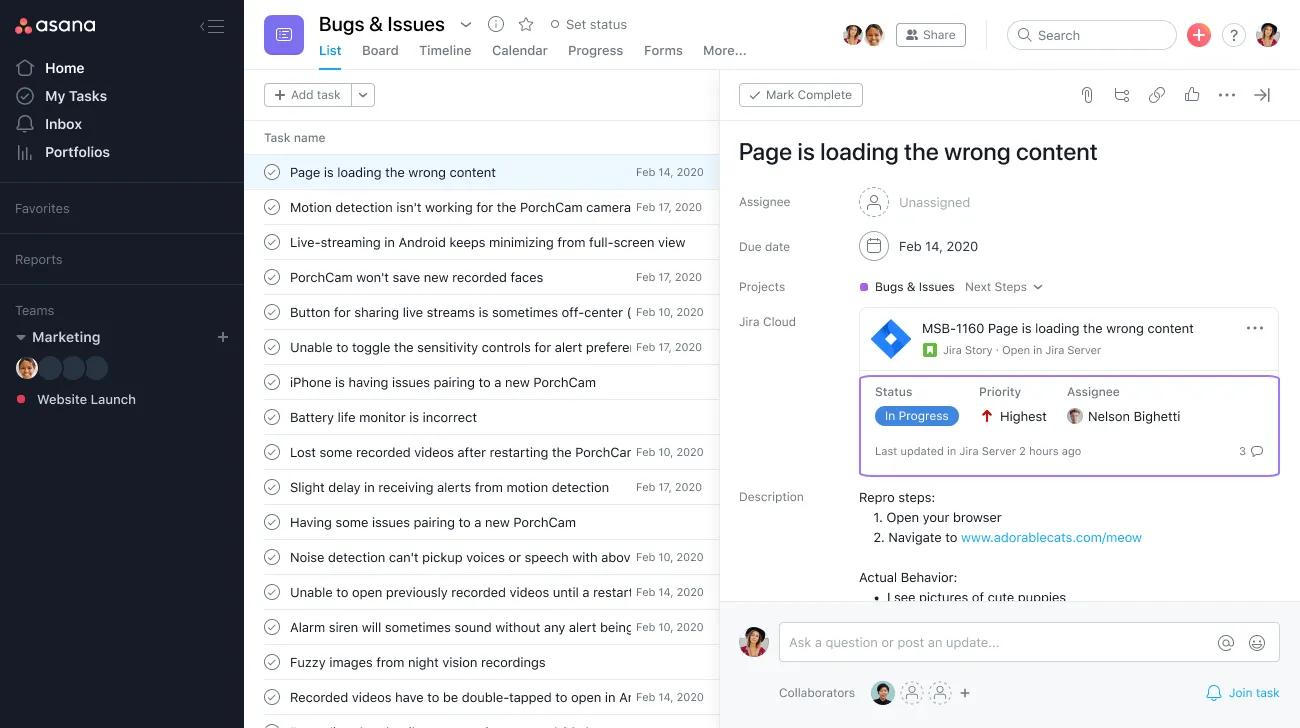
Any changes made to the issue in Jira will be reflected in Asana at the next page load.
Bridge the gap between the planning stage and the hand-off: Project Managers can seamlessly create a Jira issue from Asana when tasks are engineering ready. The planning has already happened in Asana and the product manager is ready to transfer over to the engineering department with ease to do their sprint planning in Jira. This integration saves time and avoids data inconsistencies.
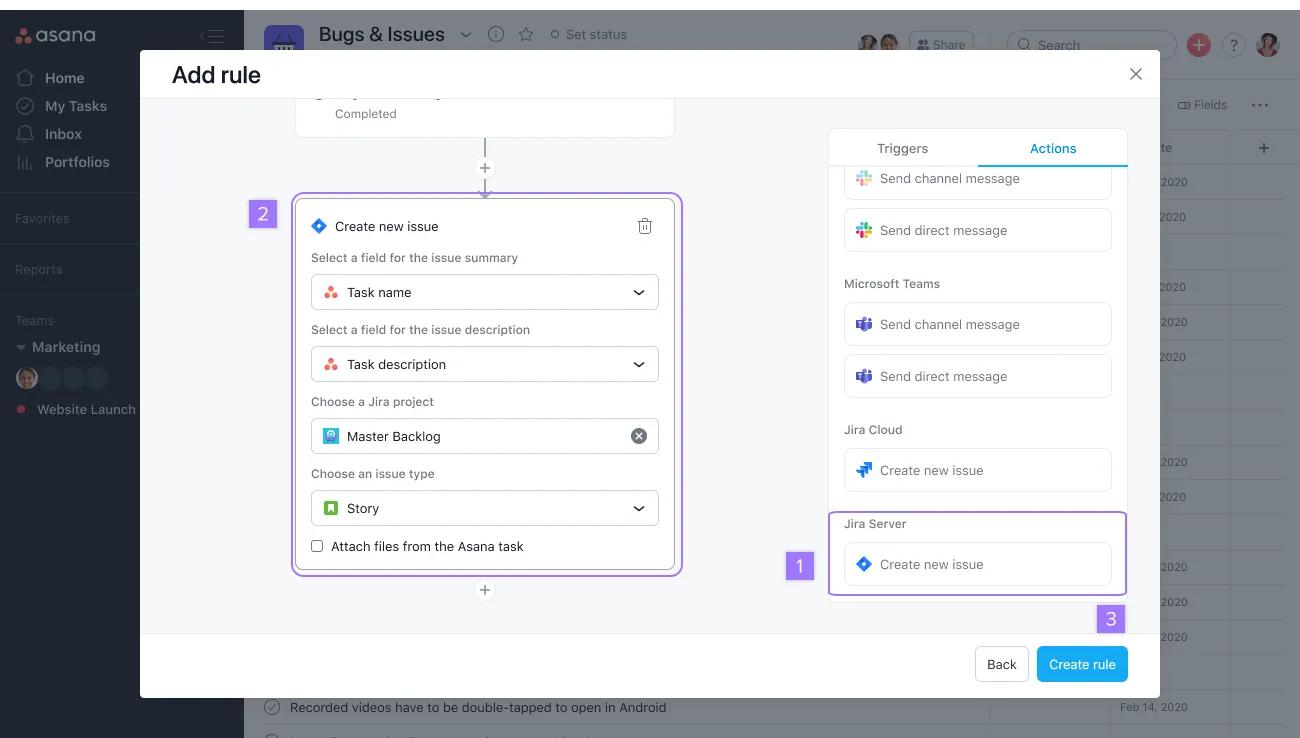
To save steps and optimize your workflow, you can automate the creation of Jira issues via our Rules feature. Learn how.
For a list of common questions on the Asana for Jira Data Center integration, see our FAQ article.

