Products


AI Platform


Asana Foundations
Company Type

Visit our pricing page for more information.
Organizations in Asana are based on having a dedicated company or business email domain. Anyone who signs up to Asana with your company's email domain will automatically join your company's organization as a member.
A workspace is used for personal goals and tasks, or for work if your company does not have a unique email domain. Workspaces act like singular teams.
Get started with a free Asana trial today.
You can create separate user accounts for work and personal use.
1. One account for work using a work email address
2. A second account for personal use with a personal email address
You cannot add both personal and work email addresses to the same account as outlined in our Asana account email policy article.
The table below outlines the differences between workspaces, teams, and organizations.
| Workspace | Team | Organization |
|---|---|---|
| Can be created with a personal email address | Must be created using a company/work email address | |
| Acts as one team for personal or smaller team use | Acts as one team within an organization | Houses multiple teams |
| Cannot create new teams | Can create multiple teams | |
| Anyone can be added as a member or a guest | Membership is defined by team permission settings | Organization membership is defined by the company email domain. All others will join your organization as guests |
Note
Visit our forum to learn practical tips for managing workspaces and organizations.
If you haven't already done so, add your company email address to your account.
With a company email address in your account, you can convert one of your workspaces into an organization.
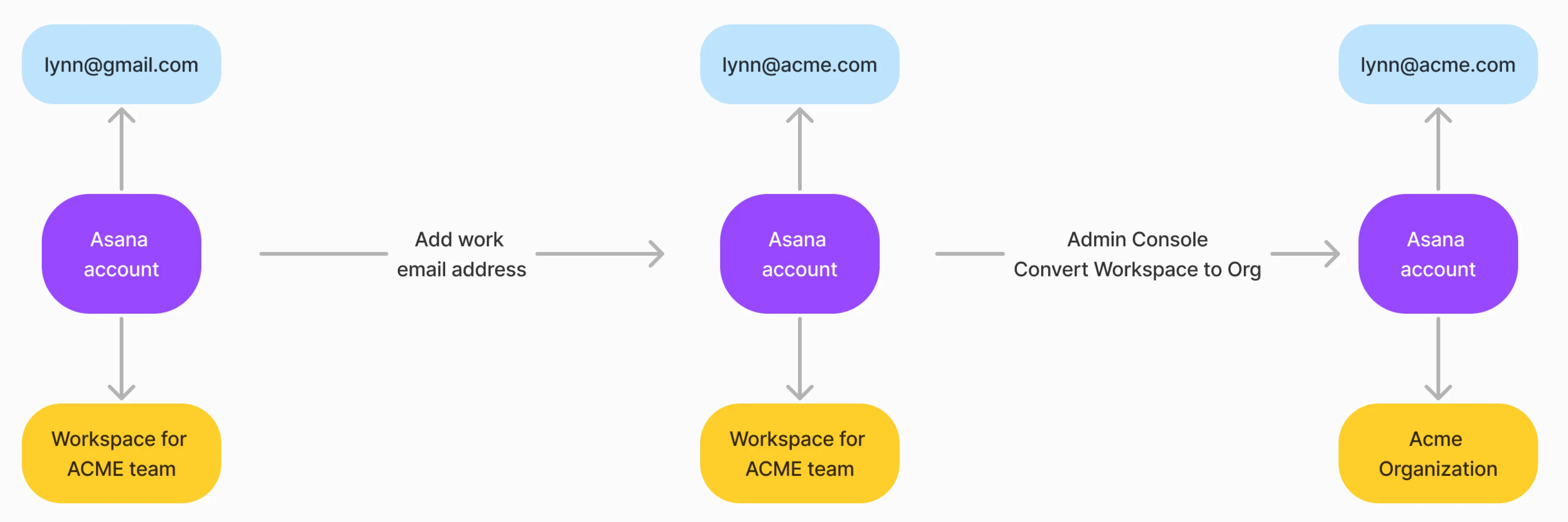
In the example below, Lynn wishes to convert her workspace into an organization. She's using her personal email address with her Asana account, which will prevent her from converting the workspace into an organization.
In order to convert, the admin must replace any personal email address with their work email address. This is in line with Asana's email policy which ensures the highest security and privacy of Asana accounts in the organization.
Lynn adds her work email address to her account which contains a personal email address, which has the effect of replacing the personal email address. Afterwards, she is able to convert the workspace to an organization.
If you do not see the option to convert to an organization, contact our Support team for help.
Your workspace will become the first team in your organization after the conversion. If your workspace has a paid plan, that paid plan will carry over to your team. You can move your subscription to the organization level from your Billing tab.
Workspaces and organizations are shared spaces that can be managed by all members. In the free version of Asana, ownership of a workspace or organization is collective and managed by all members with access.
In a paid workspace or organization, members still collectively manage all projects and tasks, but billing is managed by the billing owner, and organization membership is managed through the admin console.
Only the members of a given workspace or organization can see it in the sidebar.
If you are a member of a workspace called "Travel" that you made for yourself and also a member of your company's organization, acmeco.com, no one in acmeco.com will see that you are a member of Travel unless they are also a member of Travel.
Conversely, you cannot see the other workspaces and organizations other people are members of.
Only super admins and admins in paid organizations have the option to change the organization name.
If you are in a free organization, your organization name will be the same as the email domain for your work email. For example, if your company is called "Acme Co" and your work email address is "acme.co," then the Asana organization for your company will be named "acme.co."
To update the name, navigate to the Admin Console from your Asana account. From there, select the Settings tab to access your organization's general configuration options.
Once you are in Settings, locate the organization name field and enter your desired name. Select Save to apply the change. The updated name will be reflected across your organization immediately.
Organizations are shared. People can create private tasks and projects inside organizations that you may not know about. Therefore, there is no “delete all” button.
Instead, you can do the following:
Organizations are how companies exist in Asana. If you do all of the above and leave the organization empty, someone new signing up for Asana with their company email address will be auto-joined to the organization you left.
If you would instead like us to make a brand new organization for the company email domain when someone new joins, contact us and we'll remove the company email address from our system and free up the domain.
Based on your needs, you can choose which of these spaces you would like to upgrade. You can upgrade the entire organization so that every team benefits from paid features, or you can choose to upgrade a single team with a team plan. You can even upgrade a You can upgrade a specific group of teams with a division plan. Division plans are licensed per user; licenses are assigned to individuals and grant access to paid features when those users work in teams included in the division. Individual team upgrades or division plans are usually the best option for teams in large companies. Upgrade your entire organization if you want admins for your company and paid features for all teams.
You can choose to upgrade a team or the entire organization on the Change plan details pop-up window when upgrading your plan as shown in the screenshot below.
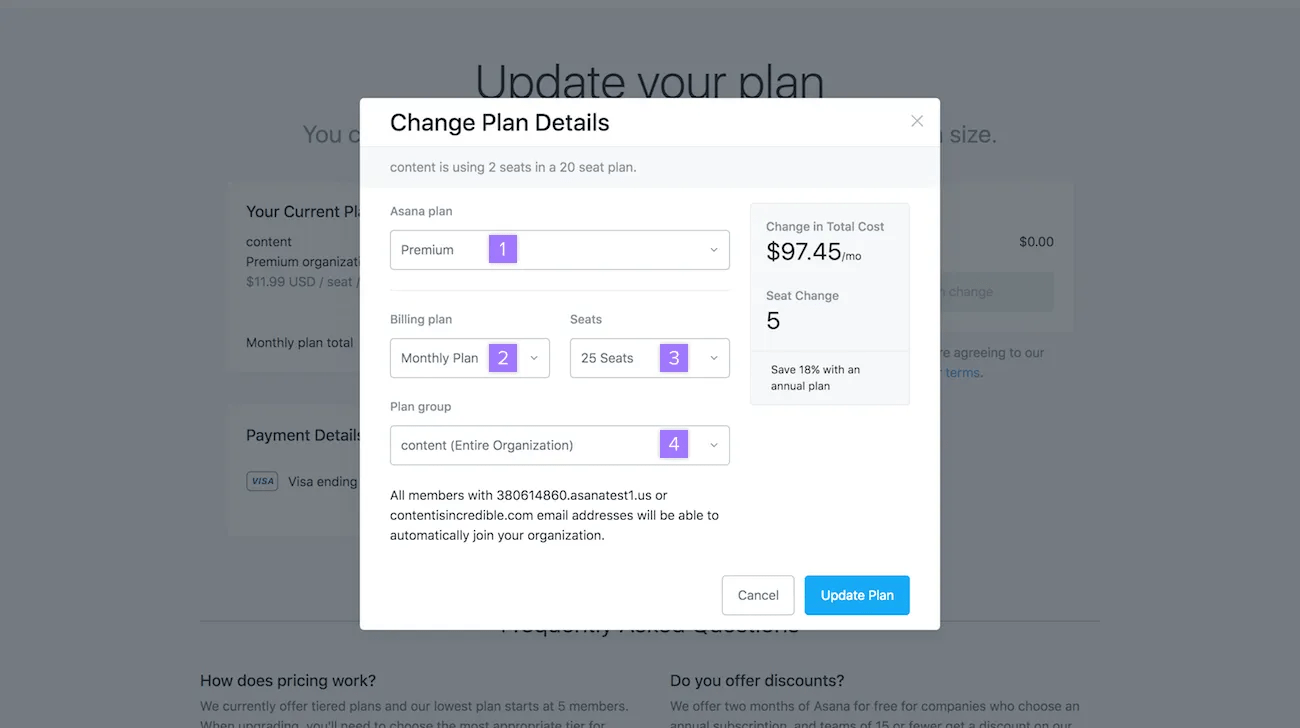
In the upgrade flow, choosing a team plan creates a division and includes that team; you can add more teams to the division later. While the UI may reference team, billing and licensing are managed at the division level.
Here’s a little more about the three types of spaces that you can choose to upgrade:
Anyone with a company email address who signs up for Asana will automatically be added to your organization. Each member will require a paid seat with an organization plan.
If you wish to create a division plan, please contact our Support team for assistance.

