Products


AI Platform


Asana Foundations
Company Type
No articles found for this topic.
No articles found for this topic.

Visit our pricing page for more information.
If you want to use Asana-built Microsoft 365 integrations, you may need to work with your Microsoft admins with access to Microsoft Entra (fka Azure Active Directory) to consent to the required permissions. Consenting to these permissions authorize Asana to read and/or write data in the corresponding Microsoft 365 applications so the Asana-built integrations can “talk to” these applications.
In this article, we summarize the required permissions for the Asana-built Microsoft 365 integrations and walk through several options for your Microsoft admins to turn on these permissions for you.
|
Integration |
Required permissions |
|---|---|
|
Calendars.ReadWrite | |
|
Permissions to use Asana Bot in MS Teams:
Permissions to use MS Teams app within Asana to create Asana App rules:
Permissions for Asana Tab in MS Teams:
| |
|
Outlook Email + Asana:
| |
|
Files.Read.All |
Depending on the organizational culture, there are several ways to enable these permissions. We summarize 3 ways below, and you can find one that works best for your organization.
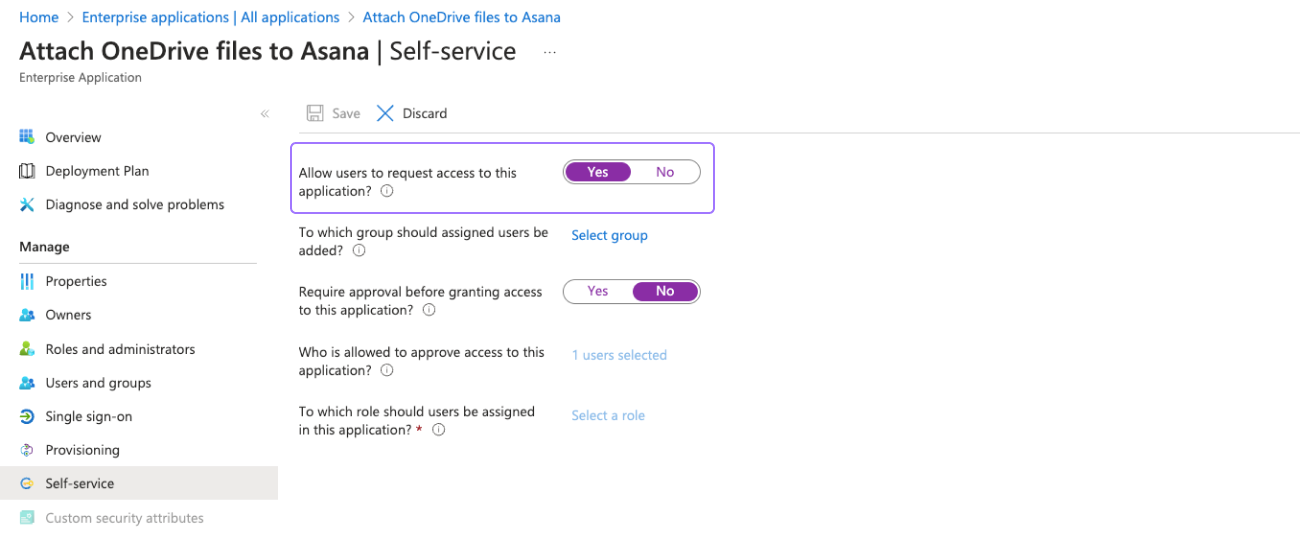
If your organization wants to have strict control over which users or groups have access to a particular Asana-built integration, your Microsoft admins can assign the integration to specific users or groups. Most organizations would prefer this approach.
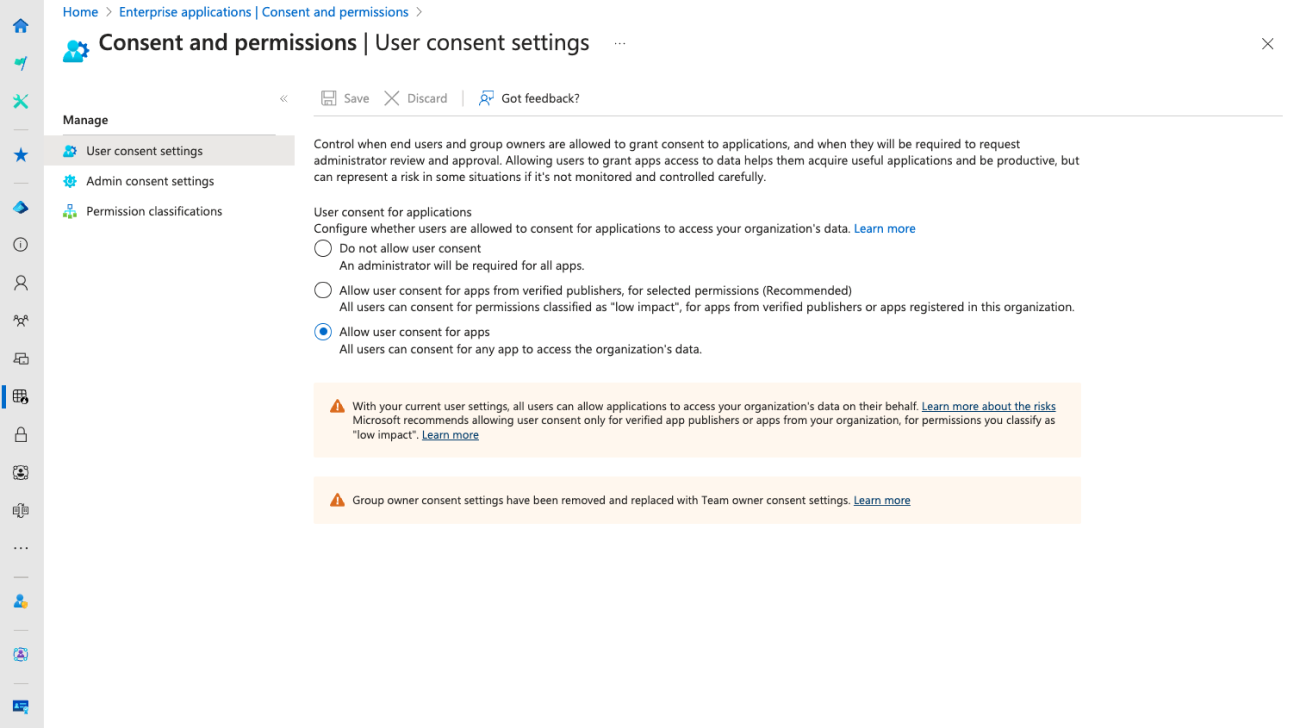
If your organization encourages employees to experiment and adopt integrations that work best for their workflows, Microsoft admins can allow “user consent for apps” to give employees’ autonomy to consent to relevant permissions.
In Microsoft Entra, navigate to Enterprise applications | Consent and permissions to enable user consent. This gives your employees the flexibility to accept or decline requested permissions when they attempt to use Asana-built Microsoft integrations.
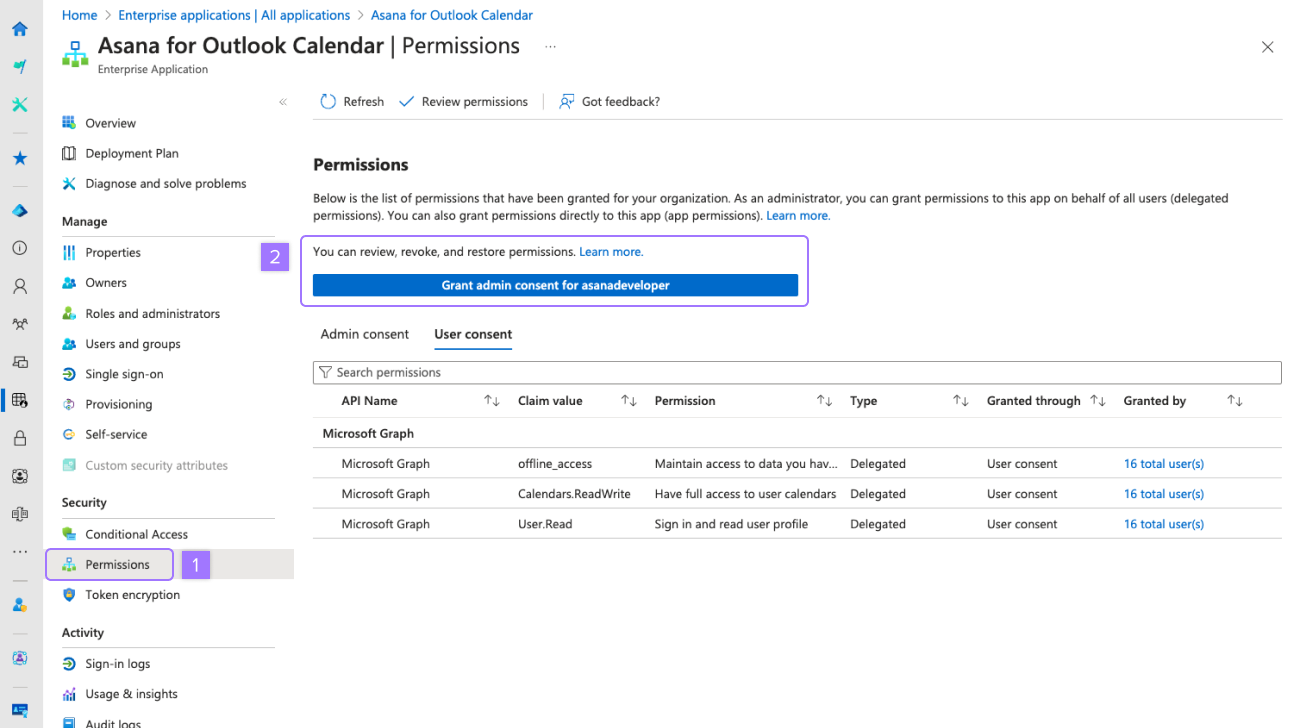
Your Microsoft admins can also choose to grant “admin” consent to the permissions required of an Asana-built integration (e.g., Asana for Outlook Email). This would grant consent to any Microsoft 365 integrations (not just the one built by Asana) that require authorization to these permissions.
If this is the preferred approach, you can: