Products


AI Platform


Asana Foundations
Company Type

Visit our pricing page for more information.
App management provides organization super admins the ability to monitor and control the apps, personal access tokens (PATs) and service accounts that are active in their domain.
App integrations enable data exchange between Asana and third-party services via API. By default, users may authenticate and connect Asana to both corporate and personal accounts on these external platforms. Please note that data shared with third-party apps is subject to the terms and privacy policies of those specific providers.
Customers retain full control over the availability of App Integrations. Authorized admins with access to App management may configure domain-wide preferences directly in the admin console. Organizations without these controls may restrict user access by contacting Asana Support.
Note
The Apps tab in the admin console is available only to organization-level super admins and not available to divisions.
Division admins and non-super admins won't have access to this feature.
If you have additional queries around feature blocking or controls, please reach out to your Customer Success team contact or Asana Support.
Learn more about service accounts.
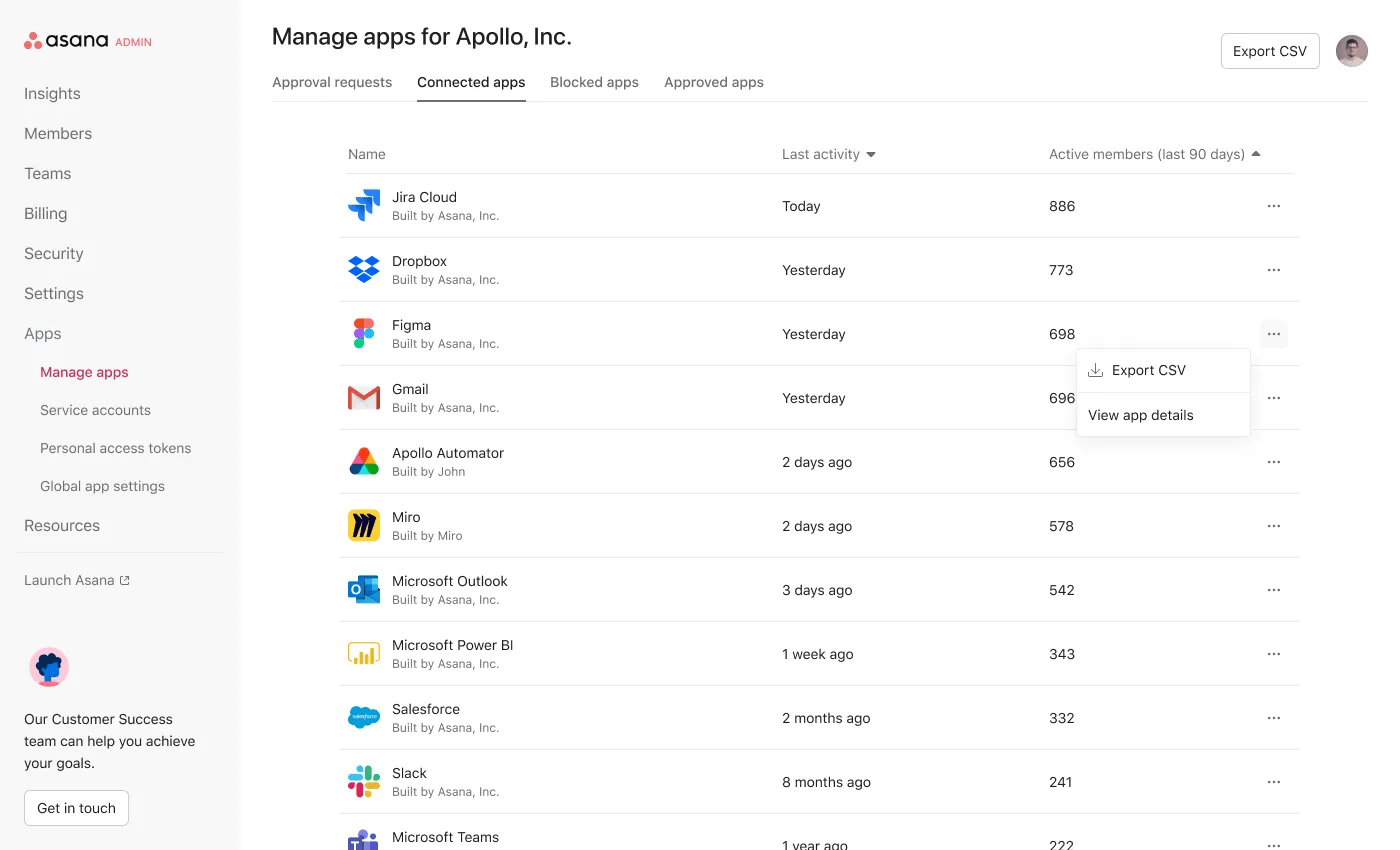
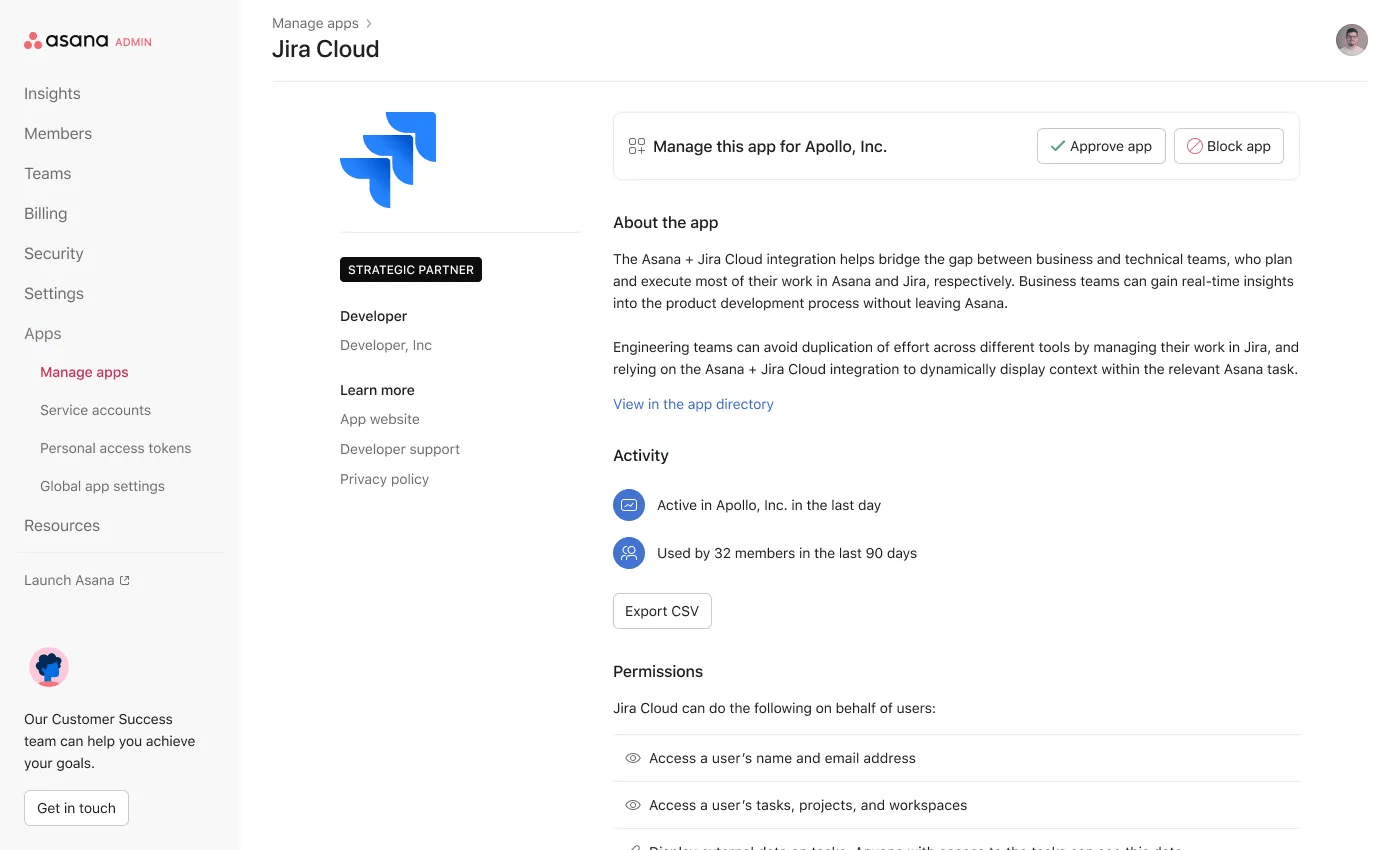
Clicking on the app will show you:
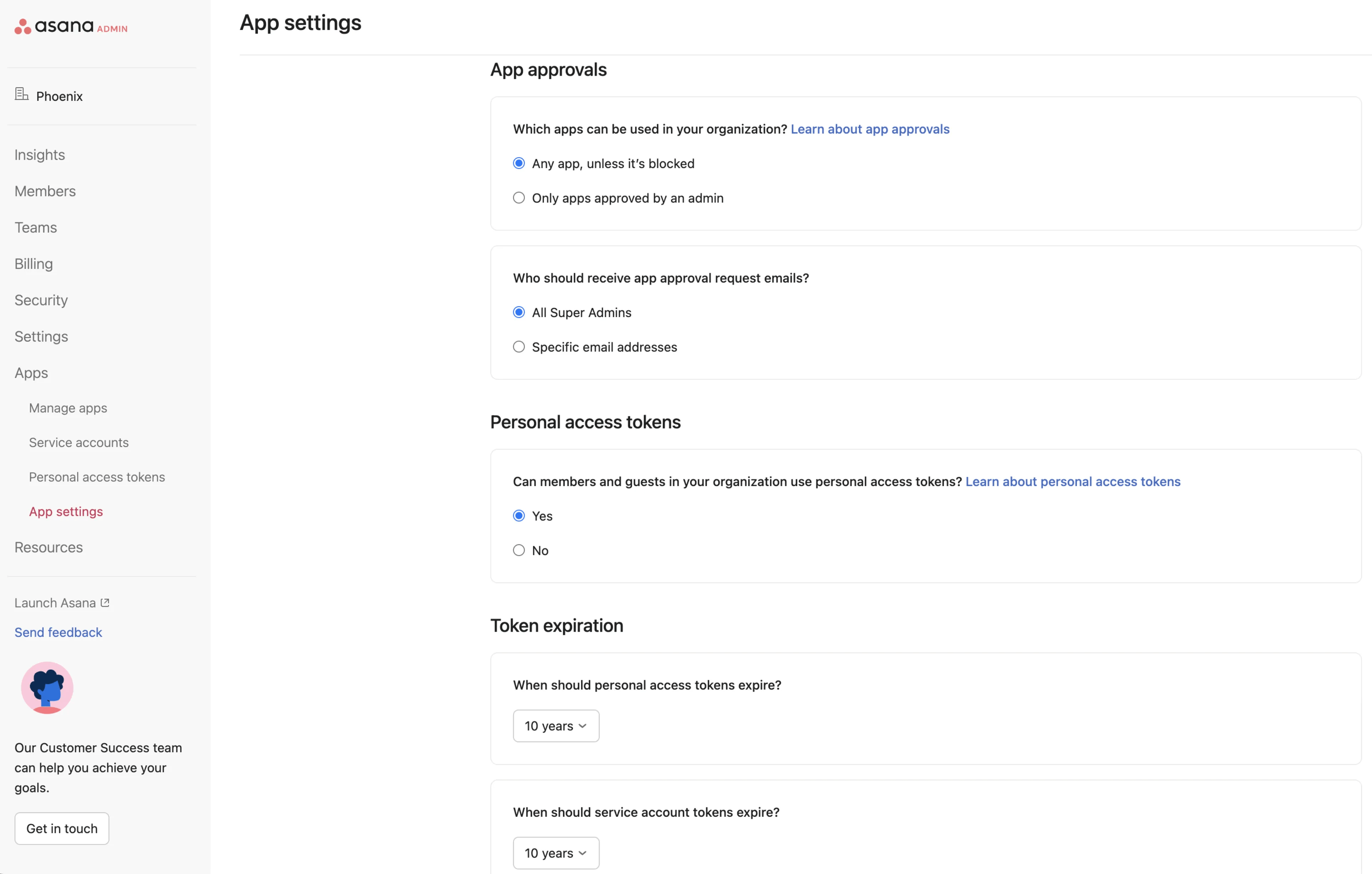
A super admin should decide how they want to manage apps. There are 3 main modes of control.
Allow all apps (default)
Admins can manage a list of blocked apps, otherwise all apps can be used by default
Require app approval
Admins manage a list of approved apps. Apps cannot be used unless it is on a list of approved apps.
External automation permissions
Admins can allow or disallow rules from being triggered by web requests from external services.
If an organization is in "require app approval" mode, and a guest using an app that is not approved joins the organization, the app will be blocked from working and the guest will be notified by email.
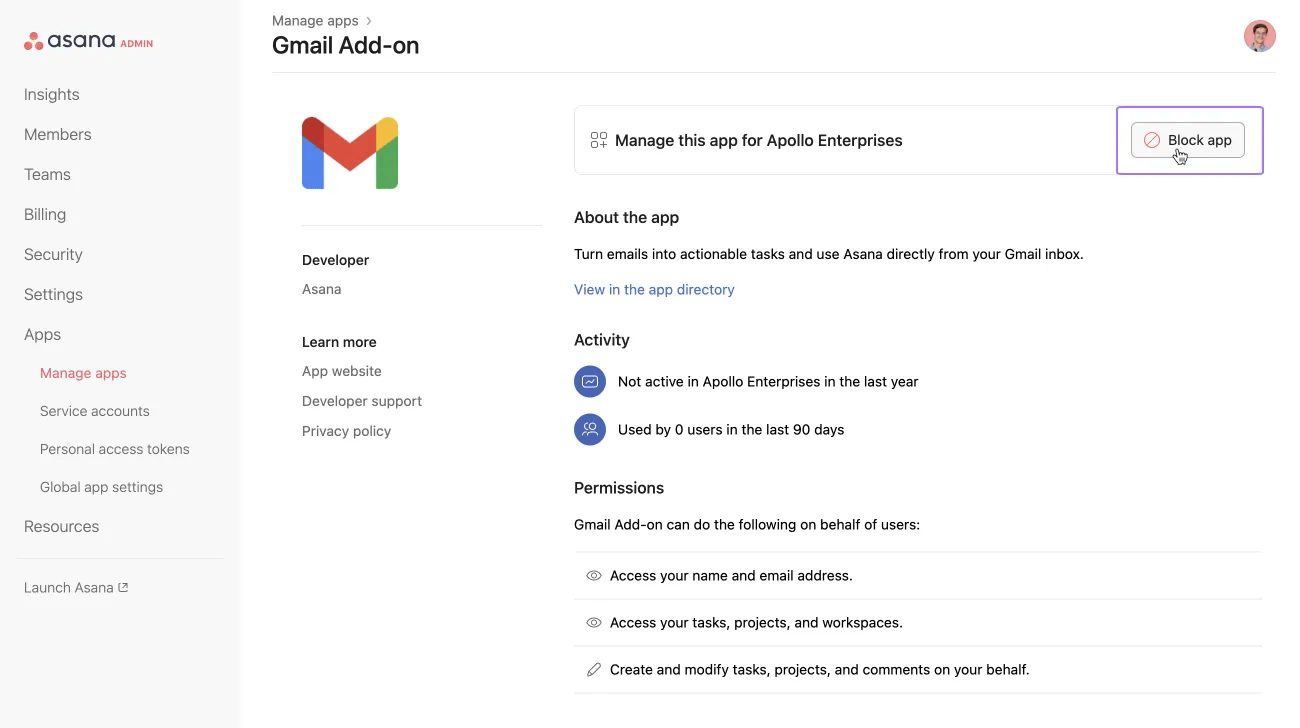
This will prevent all users in the domain (members + guests) from connecting and using these apps. Existing users may see errors and the app may cease to function.
Note that app blocks in one domain do not prevent a user from using the app in other domains where it's allowed.
Navigate to the apps page of a specific app from the connected apps page Click the Unblock button. If your organization is in “require app approval” mode (see below), you will unblock by approving the app instead.
Once blocked existing users may be required to re-setup/reauthenticate depending on how the app behaves.
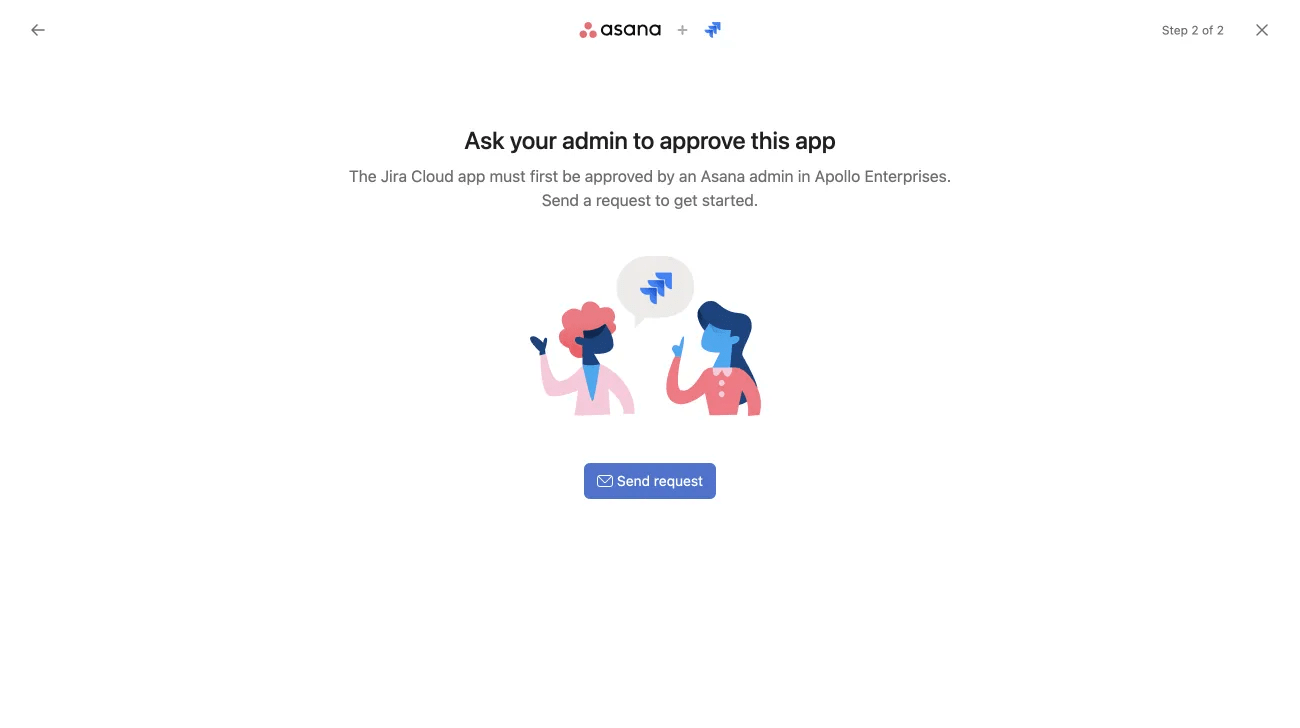
If the organization is in the “require app approval” mode, users will be prevented from connecting any apps that are not on the approved list which super admins can manage. Users will instead see a message with an option to request admin approval.
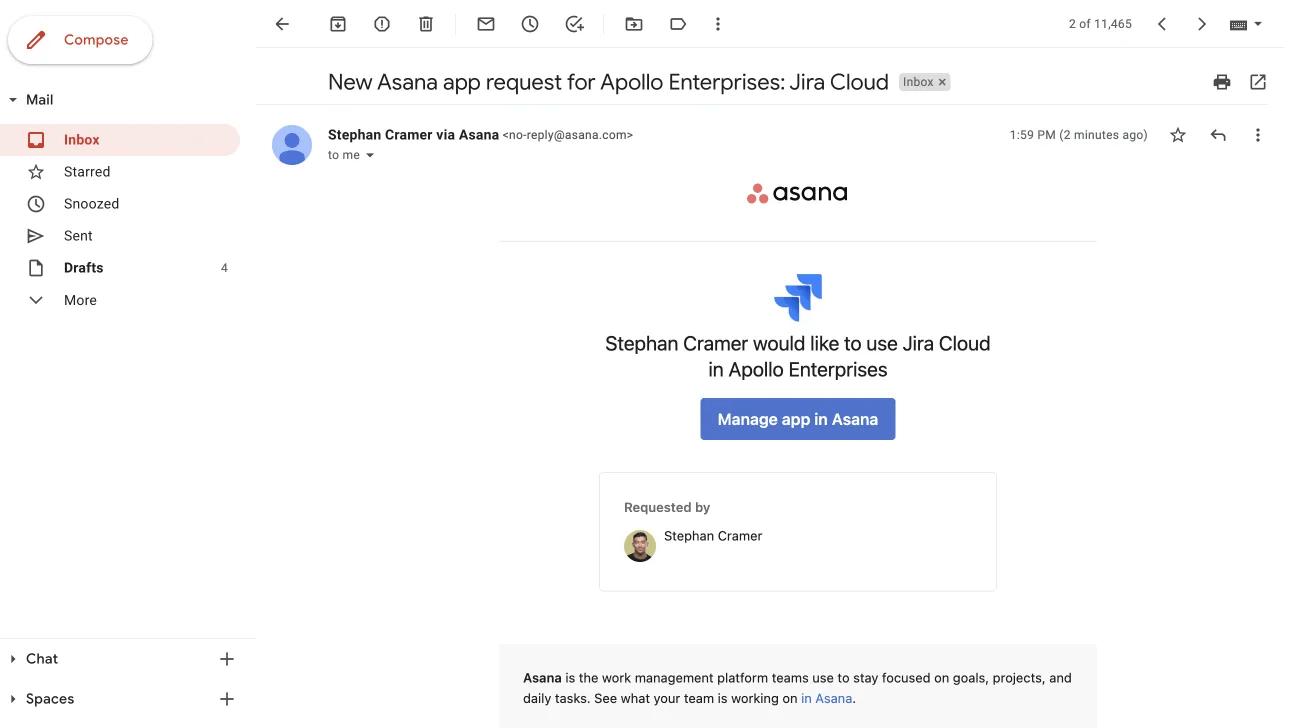
If the user clicks Send request, an email will be sent to the desired email addresses as configured on the global app settings page. By default this is all super admins but can be configured.
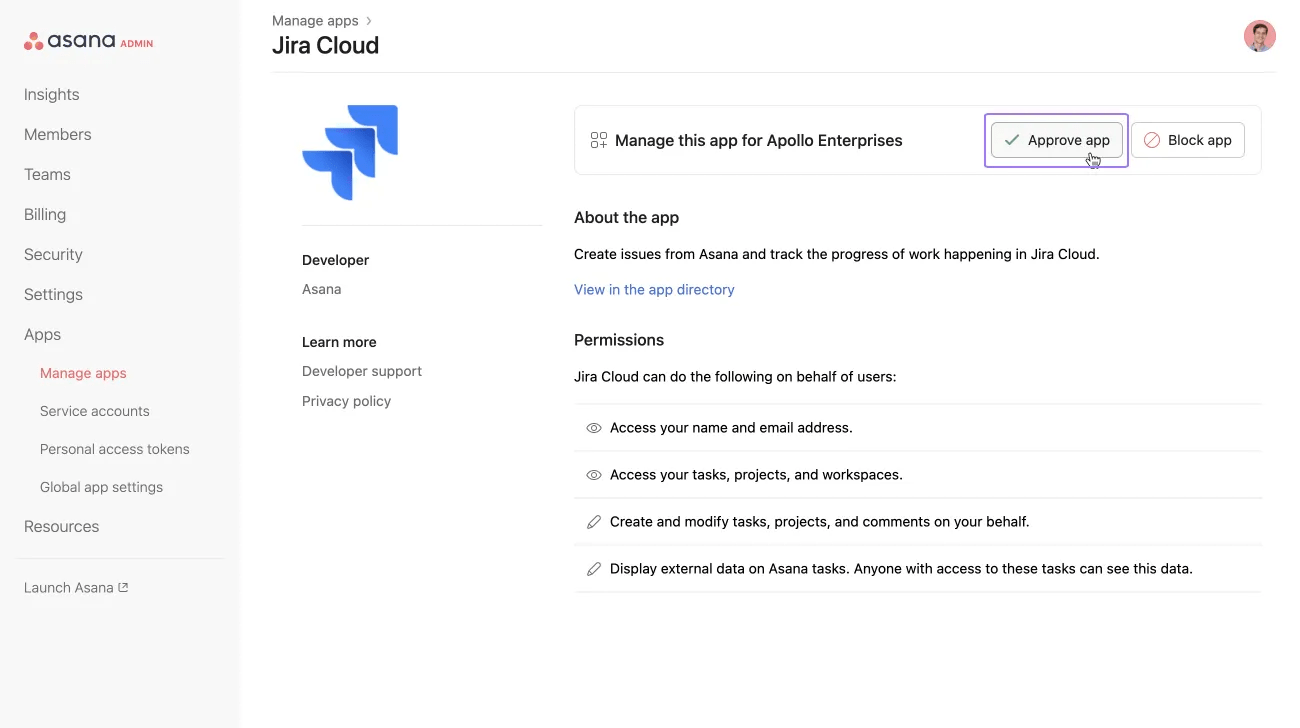
The admin will receive an email similar to the above example. Clicking Manage app in Asana will take the super admin to the app details page to approve the app.
The requesting user will also receive an email letting them know that their admin has been notified. The user’s email address is also included in the app request email. We recommend having a process in place to monitor requests that come in and/or notifying users on what the next steps may be depending on how your company handles this.
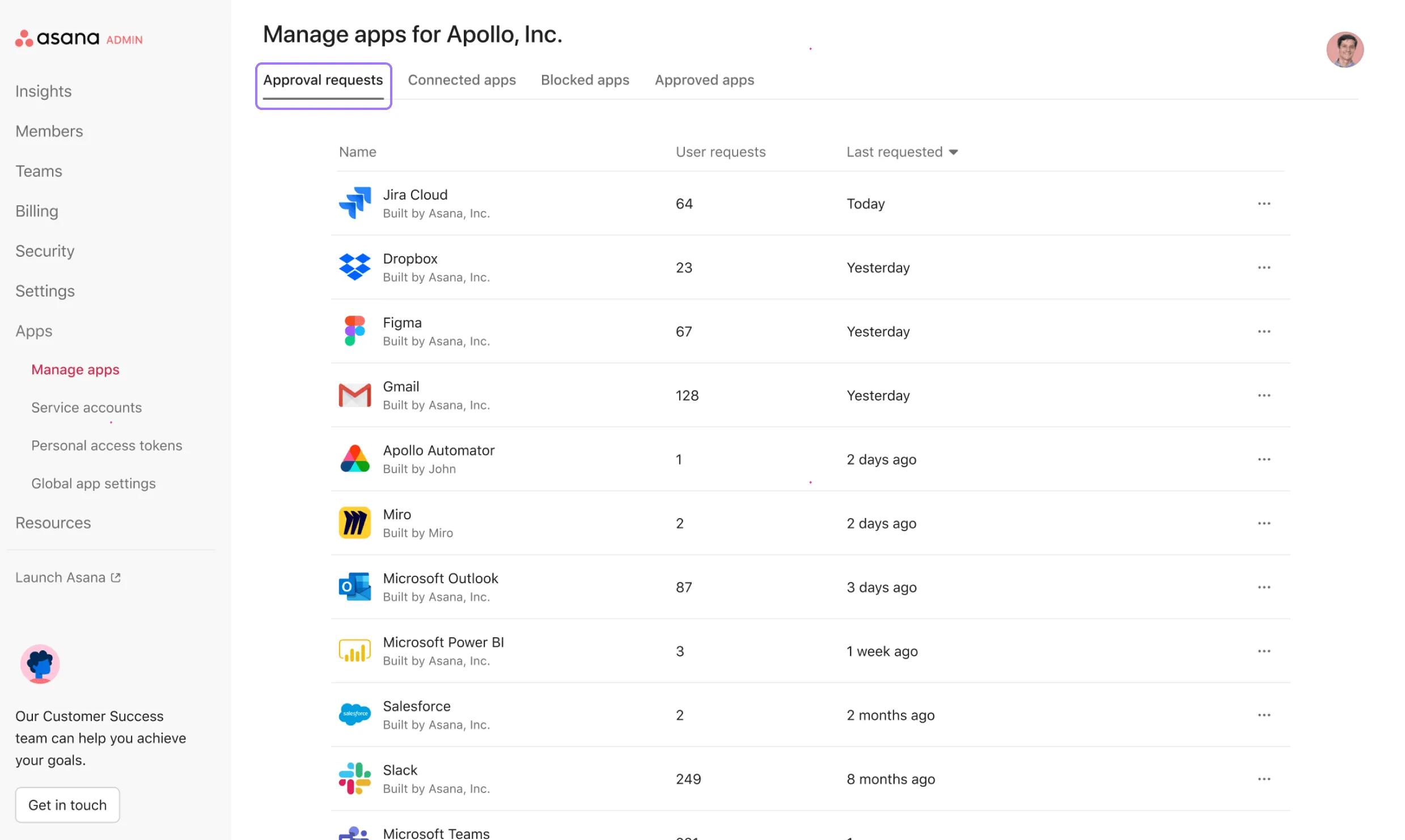
Organization admins can view a list of all apps that have been requested. To view all approval requests:
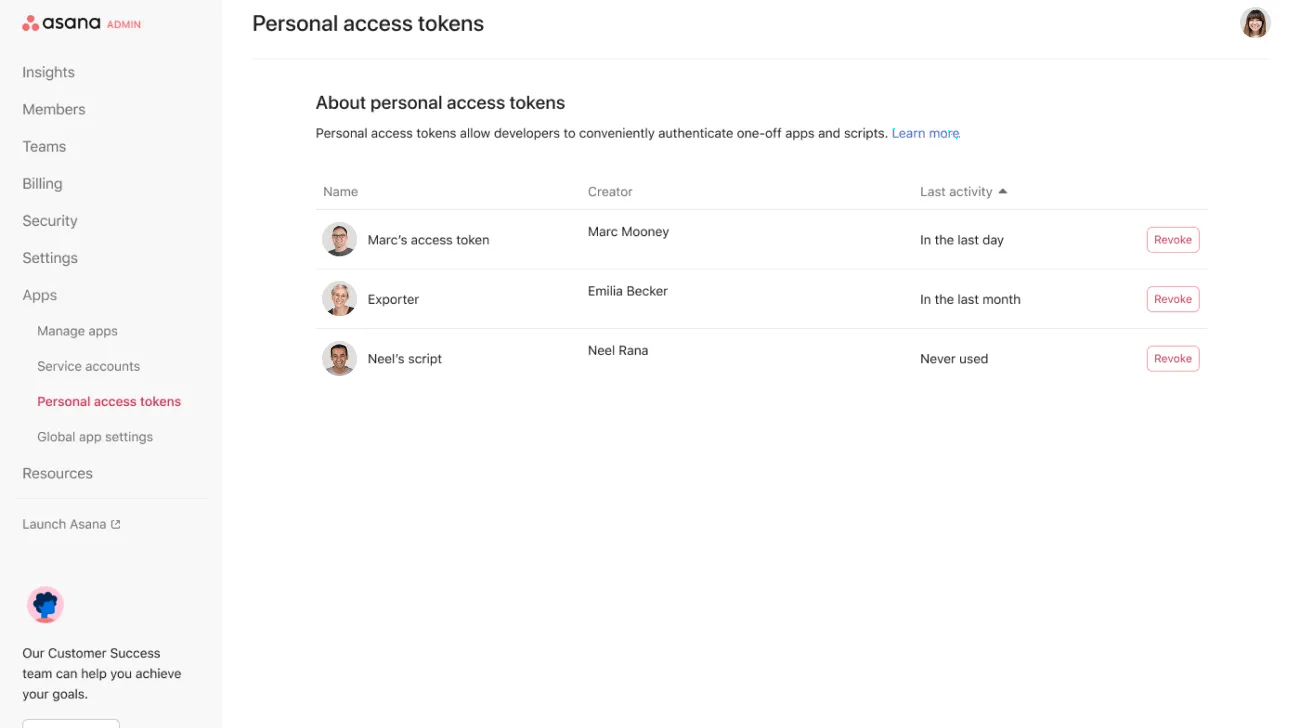
Personal access tokens (PAT) can be used by users in the organization to create their own scripts and automations. PATs have access to whatever the creator has access to. A list of active personal access tokens that have access to your organization, the user that created it, and the last time the token was used in your domain can be viewed on the Personal access token page.
Admins can revoke personal access tokens on demand by clicking the Revoke button. Once you revoke a PAT, the token will be deleted and can no longer be used. The developer who created the token will receive an email letting them know their PAT has been removed.
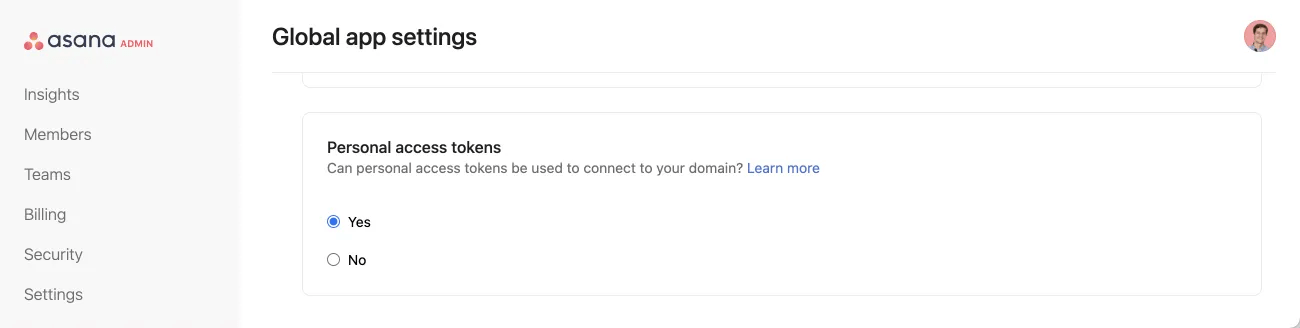
PATs can be turned off or on for the domain from the Global app settings page.
Turning off PATs will cause all existing personal access tokens belonging to users in their organization to be revoked and blocked. This may cause disruption to users so super admins should let users in their organization know before this is done.
Super admins of organizations can set a default expiration date for all personal access tokens or service account tokens that users create in their organization.
Tokens have a default expiration of 10 years. However, super admins of organizations can set tokens to expire within either 30, 60 or 90 days.
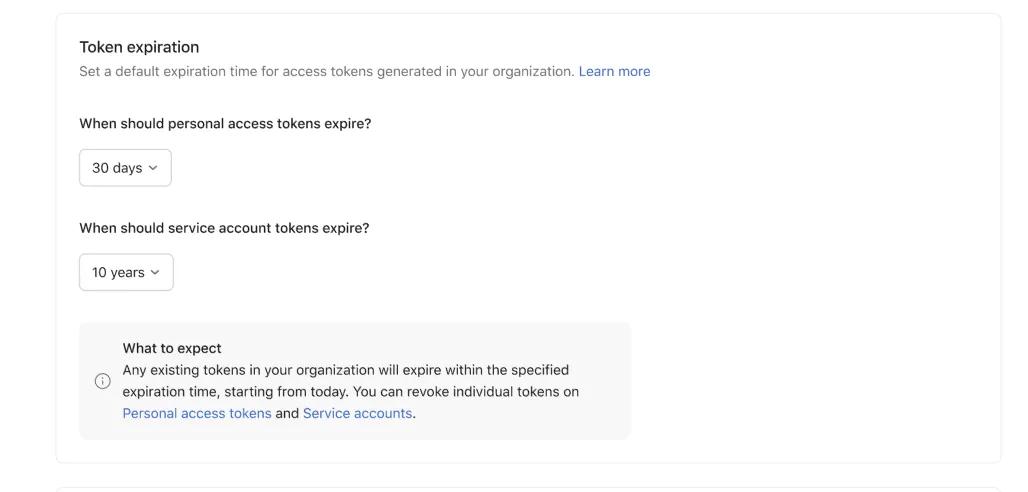
Additional notes:
Admins and super admins of Enterprise+ organizations can restrict guests from using the API for apps and personal access tokens.
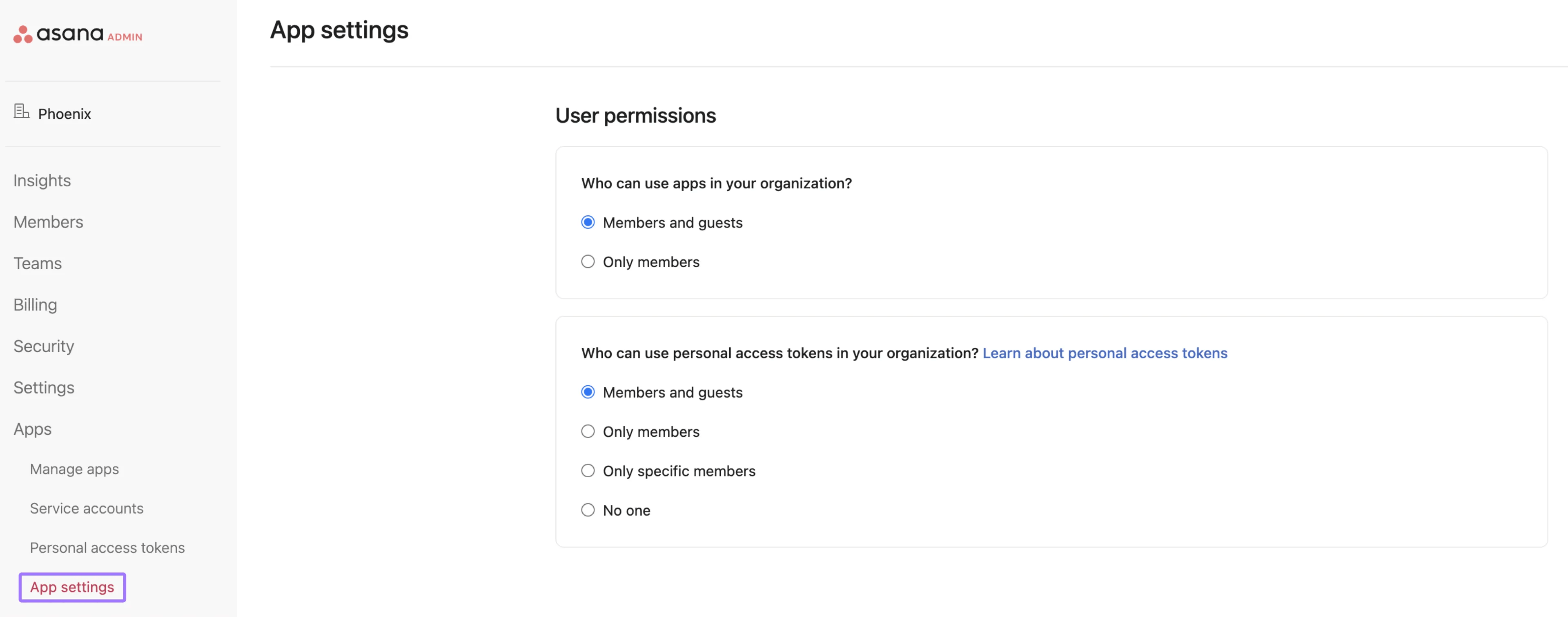
To turn this setting on or off for guests, admins and super admins should follow these steps:

