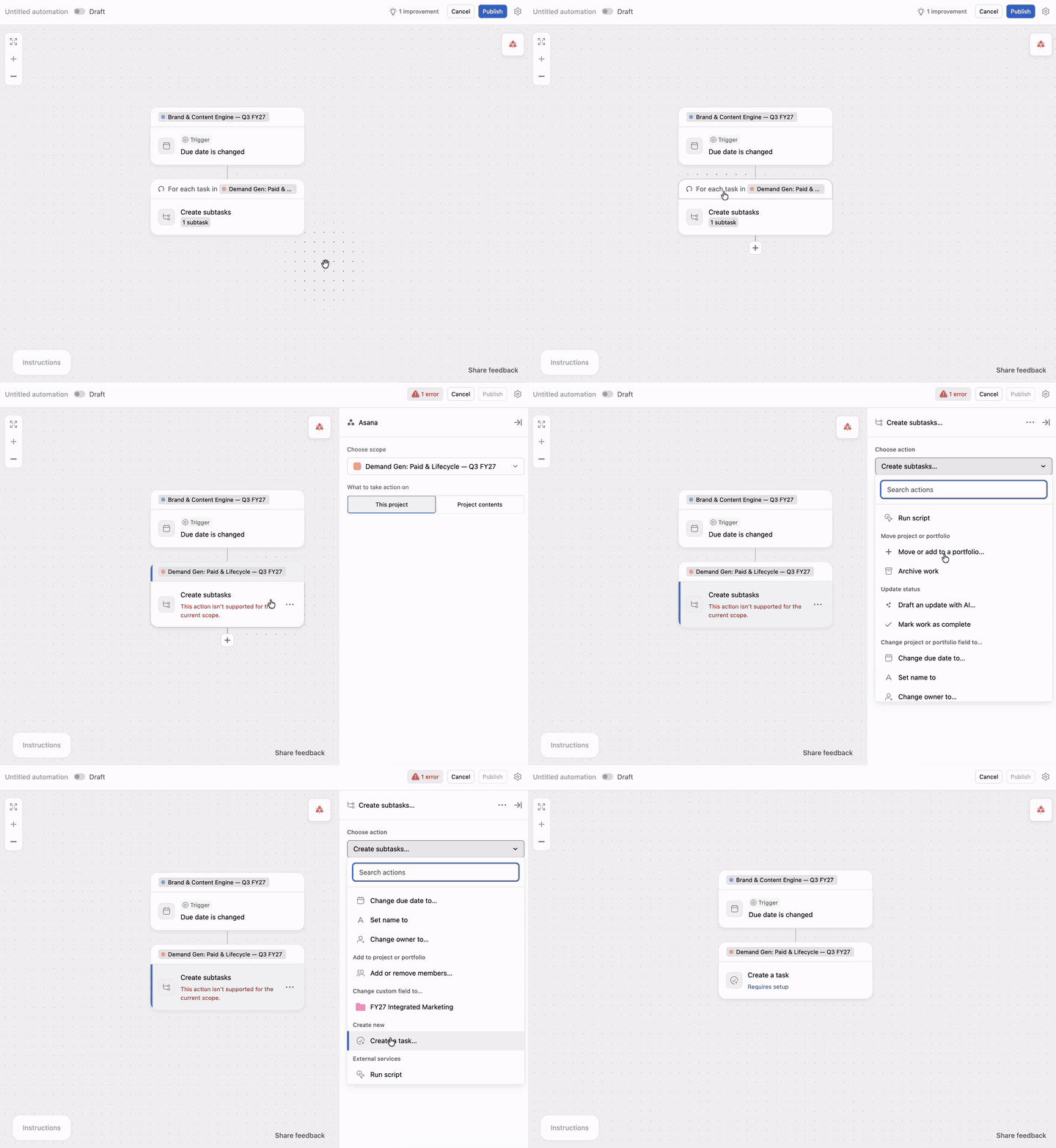
Every automation watches for an event, then makes a change. You can choose where it watches and where it acts separately, which helps you connect work across projects and portfolios.
For example, an automation can watch for a task to be completed in one project and update a project field somewhere else. Understanding these two settings helps you build automations that respond to the right changes and update the right work.
Where these settings live
Each trigger and action card in the automation builder shows the project or portfolio it uses. Click the label on a card to change it.
The two settings on every card
Click a card's label to open these settings:
- Choose scope selects the project or portfolio the card points to.
- What to watch for changes or What to take action on determines whether the card applies to the project or portfolio itself, or to the work inside it.
 Note
Note
The selection in Choose scope becomes the label shown on the card. Each card uses the same label, so check the card you selected before changing a setting.
This project vs. project contents
This distinction determines what an automation can watch or change.
This project refers to the project itself, including its status, owner, due date, or project fields. For example, a trigger can watch for a project's due date to change, or an action can update the project's status.
Project contents refers to the tasks inside the project. A trigger can watch for a task to change, or an action can assign, complete, move, or comment on tasks.
This project means the project selected under Choose scope, not necessarily the project you opened before launching the builder. Portfolios work similarly: This portfolio refers to the portfolio itself, while Portfolio contents refers to the projects inside it.
Common combinations
You can combine watching and acting scopes in several ways. For example, an automation can watch tasks in an intake project and update tasks in a delivery project. It can watch a task and update its project, watch a project and update its tasks, or watch one project and update another project.
The available triggers and actions depend on the scopes you select. Set the scope before choosing a trigger or action so the builder shows compatible options. The following cover all of the combinations:
- Tasks to tasks. When a task in Requests is marked complete, complete the matching task in Delivery. Watches the tasks in one project and changes tasks in another. This is the most common shape, usually with both settings on the same project.
- Tasks to project. When a task in Intake is marked complete, set the Intake project's status to In progress. A single task's change updates the project around it.
- Project to tasks. When the Launch project's status changes to At risk, add a comment to every incomplete task in it. A project-level change fans out to the work inside.
- Project to project. When the due date on Product Backlog changes, set the due date on Engineering Project. One project's change updates a different project.
Set where the automation watches
- Click the label at the top of the trigger card.
- Under Choose scope, select the project or portfolio to watch.
- Under What to watch for changes, select This project or Project contents.
- Choose the trigger.
For example, Due date is changed watches the project's due date when you select This project. It watches a task's due date when you select Project contents.
Set where the automation acts
- Click the label on the action card.
- Under Choose scope, select the project or portfolio to change.
- Under What to take action on, select This project or Project contents.
- Choose the action.
The project or portfolio you select for the action does not have to be the same one selected for the trigger.
Note
Taking action on portfolio contents is not supported. If you select this option, the builder displays a message and you cannot publish the automation.
Limit actions to matching tasks
When you select Project contents for an action, the automation can update every task in that project each time it runs. To narrow the set of tasks, select Only tasks that match filters under Choose tasks to run on.
Click Add filter to limit the action to tasks such as incomplete tasks, tasks in a specific section, or tasks with a particular field value. The builder shows how many tasks currently match the filters.
Note
An automation that matches more than 150 tasks does not run. Add filters to reduce the number of matching tasks before publishing.
Fields from the place an automation watches can be available as variables in actions. For example, an automation that watches a task can use the task's due date in an action that updates the related project.
The available variables depend on both scope settings. Set the trigger and action scopes before configuring dynamic values. Changing a scope later can make a variable unavailable and invalidate an action that uses it.
Permissions
An automation runs with the permissions of its owner. If the owner cannot access the project, portfolio, field, or filter used by the automation, the automation cannot make that change.
Inaccessible items appear as Private project, Private portfolio, or Private field. Remove filters you cannot access before saving.
If you cannot publish
If the builder shows a publishing error, review the scope selected for the trigger and action. A trigger or action may require This project instead of Project contents, or the selected combination may not be supported.
Connected-app triggers can take action only on a project. Webhook triggers have a fixed scope and require you to remove the webhook before changing that scope. If the automation matches more than 150 tasks, add filters to reduce the matching set.
|
Message
|
What it means
|
What to do
|
|---|
|
The trigger doesn't match what the automation watches for
|
The trigger needs a different scope than the one set, usually This project vs. Project contents.
|
Change the trigger, or change where it watches.
|
|
An action doesn't match what the automation takes action on
|
The action can't run against the scope where it acts.
|
Change the action, or change where it acts.
|
|
What the automation takes action on isn't supported for what it watches
|
Watching and acting are set to a combination that isn't supported.
|
Change one of them.
|
|
App triggers can only take action on a project
|
Triggers from connected apps can't act on tasks or portfolios.
|
Set the acting scope to This project.
|
|
Scope cannot be changed when using webhook triggers
|
Webhook triggers have a fixed scope.
|
Remove the webhook trigger first.
|
|
Automation matches over 150 tasks won't run due to processing limits
|
The filtered set is too large.
|
Add filters to narrow it.
|