Products


AI Platform


Asana Foundations
Company Type

Visit our pricing page for more information.
Please note that the Asana for Vimeo integration will be retired on April 15, 2026. Please review our FAQ article for further guidance.
Video messaging in Asana, powered by Vimeo, is a free feature available on all Asana plans. Any full organization or workspace member will be able to record within tasks. Guests with limited access can view recorded files but will not have the option to record their own.
Note
For video messaging, recording is supported by Google Chrome, Microsoft Edge, and Safari. Viewed recordings are supported by Safari, Firefox, iOS, Android, and desktop.
Written text and feedback between teams can at times be misinterpreted and miscommunicated due to nuanced or complex language. This can often result in inefficient workflows, leading to delayed timelines and work about work.
Asana's integration with Vimeo means that you can now record video messages, transcribe videos and embed Vimeo videos stored within Asana projects.
Video messaging in Asana, powered by Vimeo, can now turn images and text into impactful video messages that facilitate work tracking and team collaboration. In addition to the standard written text option, you can now effectively communicate with your team through a task, comment, and message-based video feature. Then, a transcript of the recording is automatically created by Asana, making it readable and searchable.
Whether to record presentations, tutorials, visual feedback or recorded demos, video messaging will help lend clarity and transparency to your tasks and workflow in being able to record yourself, your screen or both. Videos can be recorded within a task description, task comment and message thread to quickly and effectively provide helpful explanations for tasks and their collaborators.
The option to embed Vimeo videos into your Asana projects is an incredibly impactful way to bring both creative briefs and project kick-offs to life.
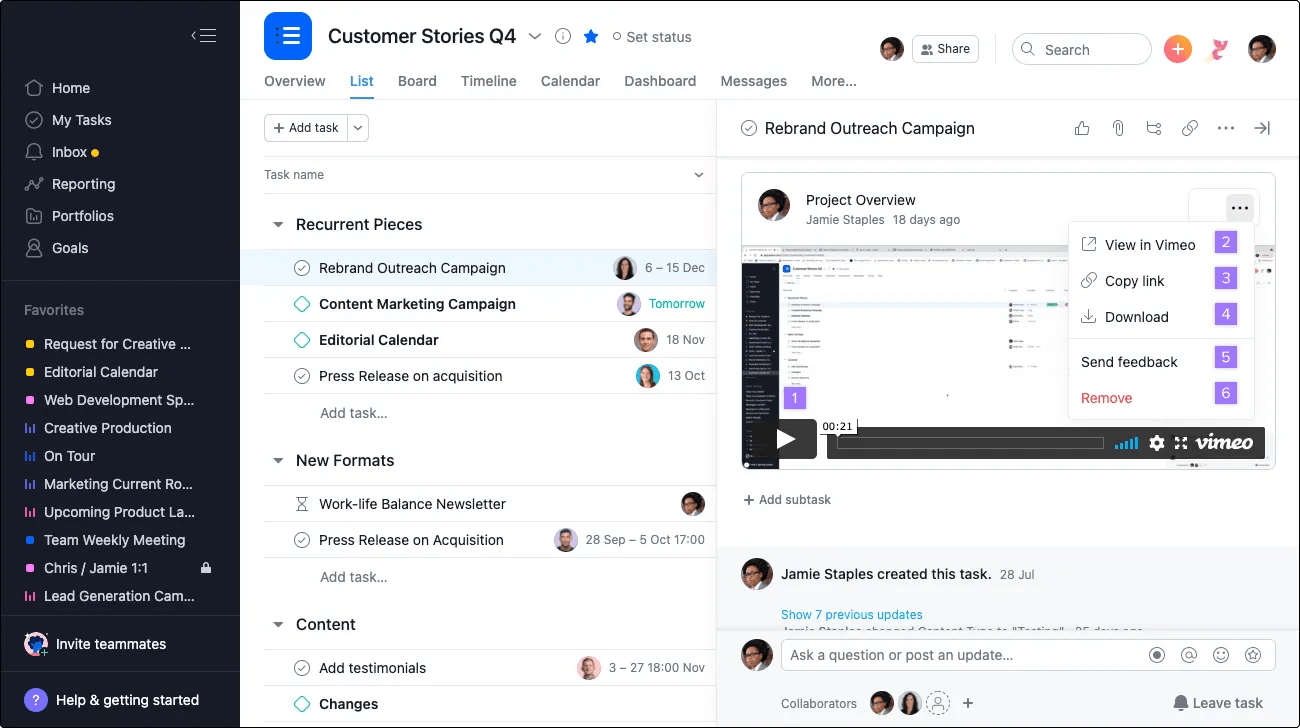
Recorded videos are stored by Vimeo and are viewable by anyone with the direct video URL. To delete a video or change a video's privacy settings, log into Vimeo and edit from the Vimeo video library.
Video messaging in Asana, powered by Vimeo, is available to all customers and will be automatically enabled by default. Only super admins of Enterprise+ domains will be able to enable or disable this feature for the entire organization, as will super admins of Legacy Enterprise domains. Admins of all domains on other tiers should contact Asana Support for assistance.
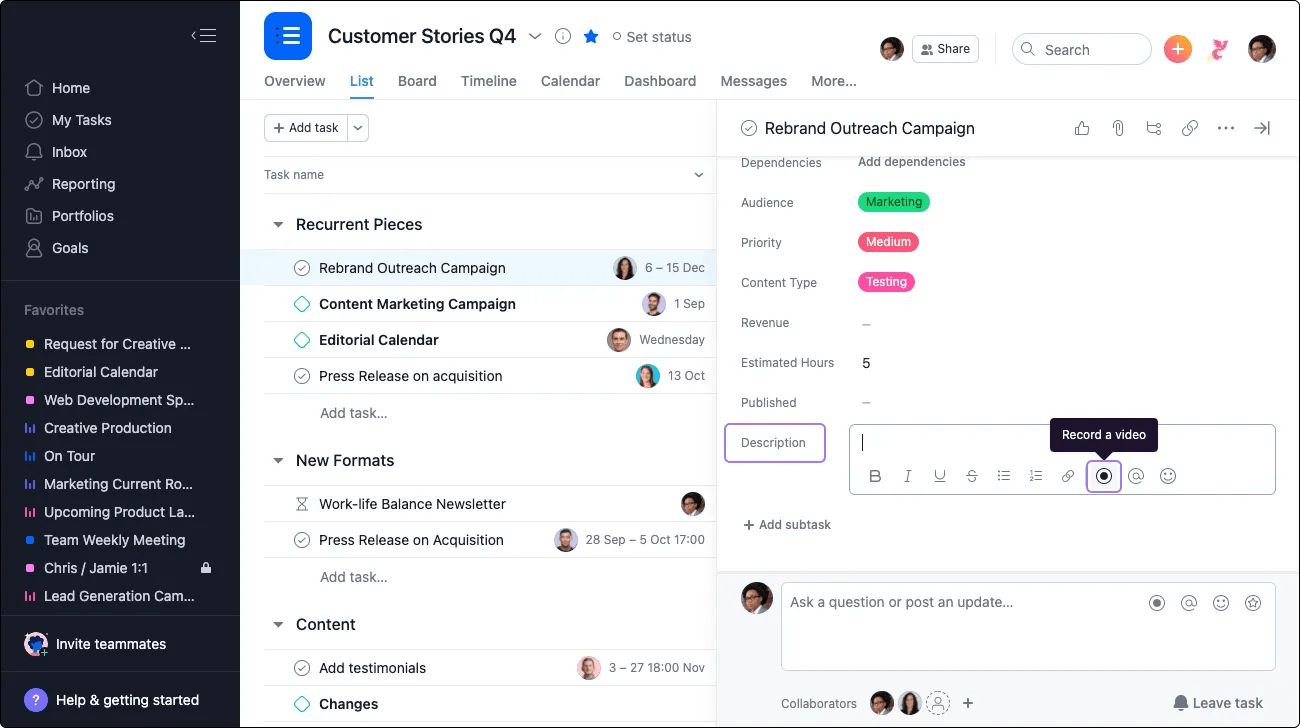
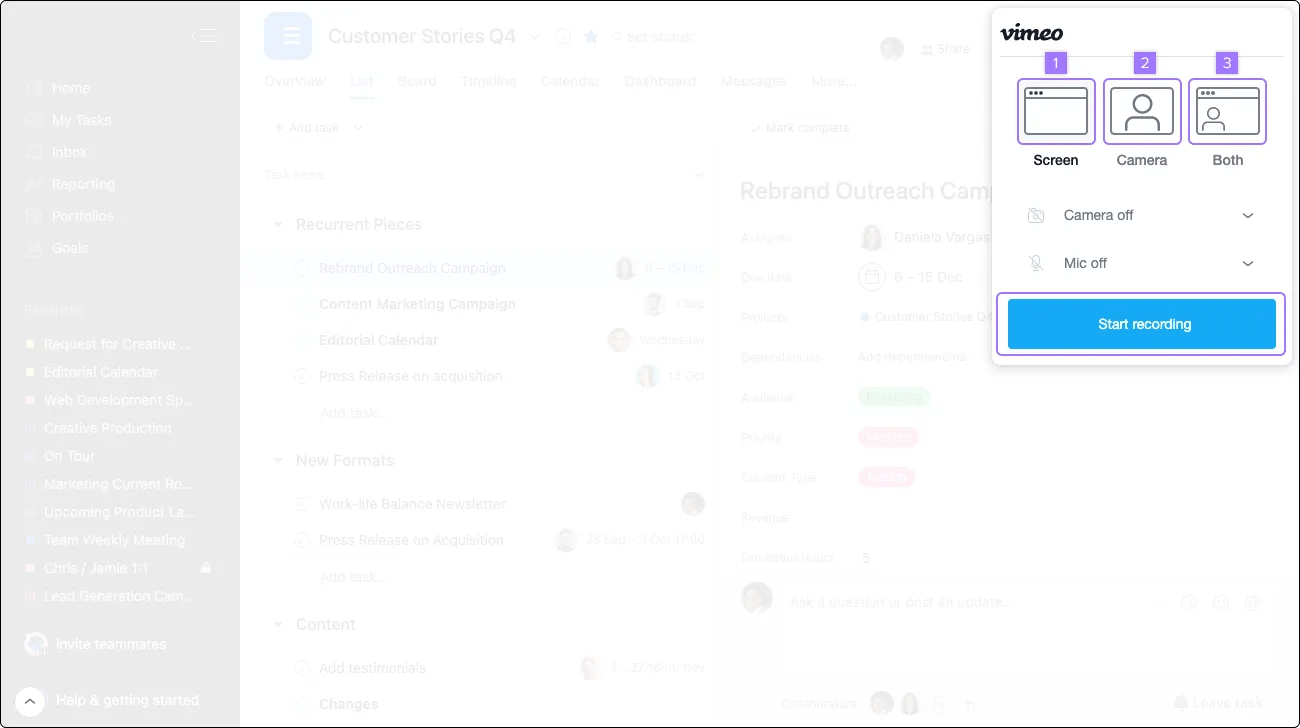
Once you have chosen your recording option, click on start recording.
By selecting both, you will have to record your entire desktop view in order for the camera view to appear in the corner of your screen.
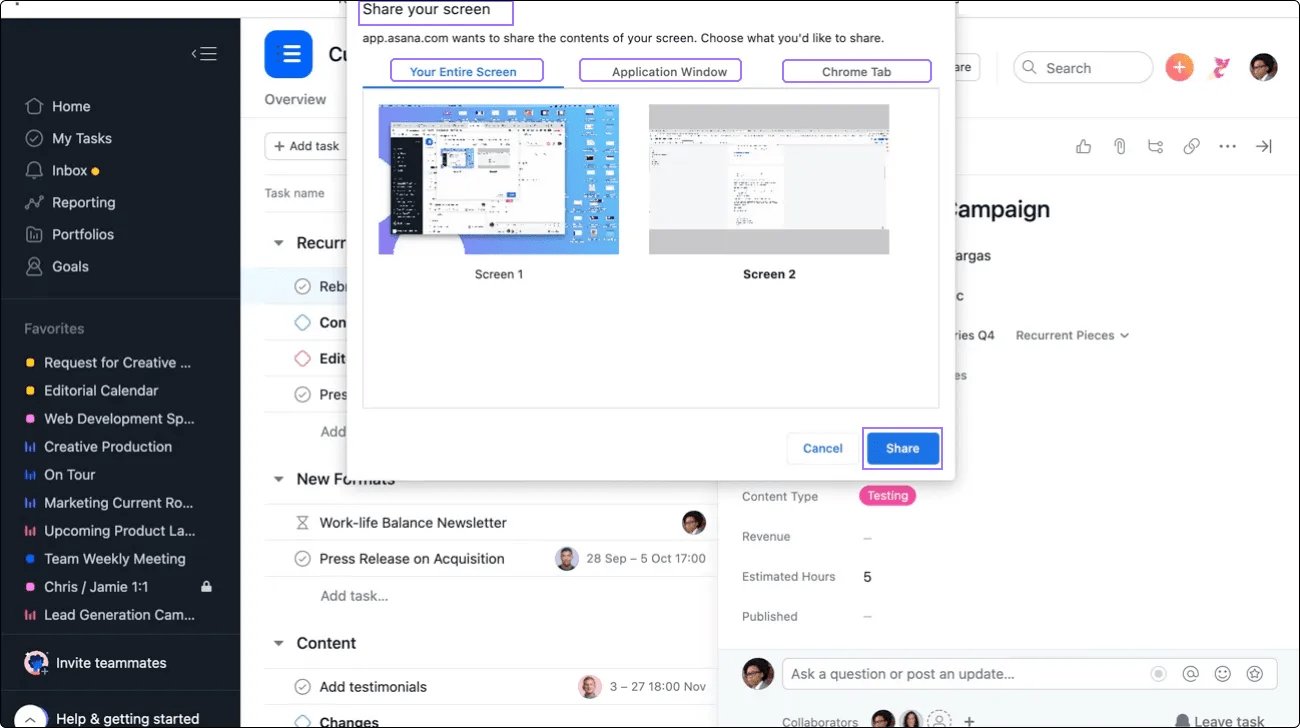
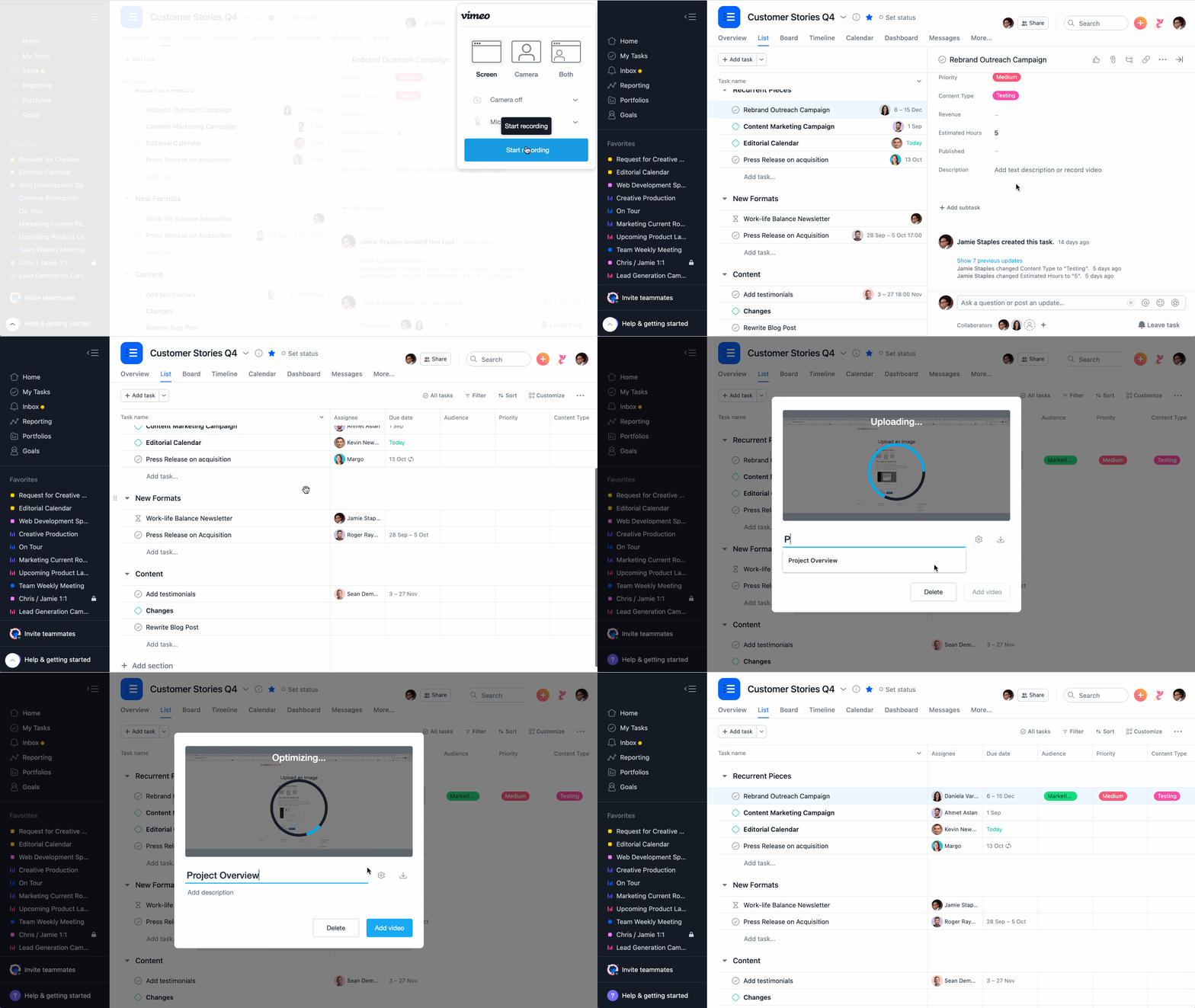
While the video is recording, the Option to Stop Sharing your Screen will appear at the bottom of the control. Once clicked, the recording will stop and the video will take a few seconds to optimize.
It is not currently possible to record on mobile devices
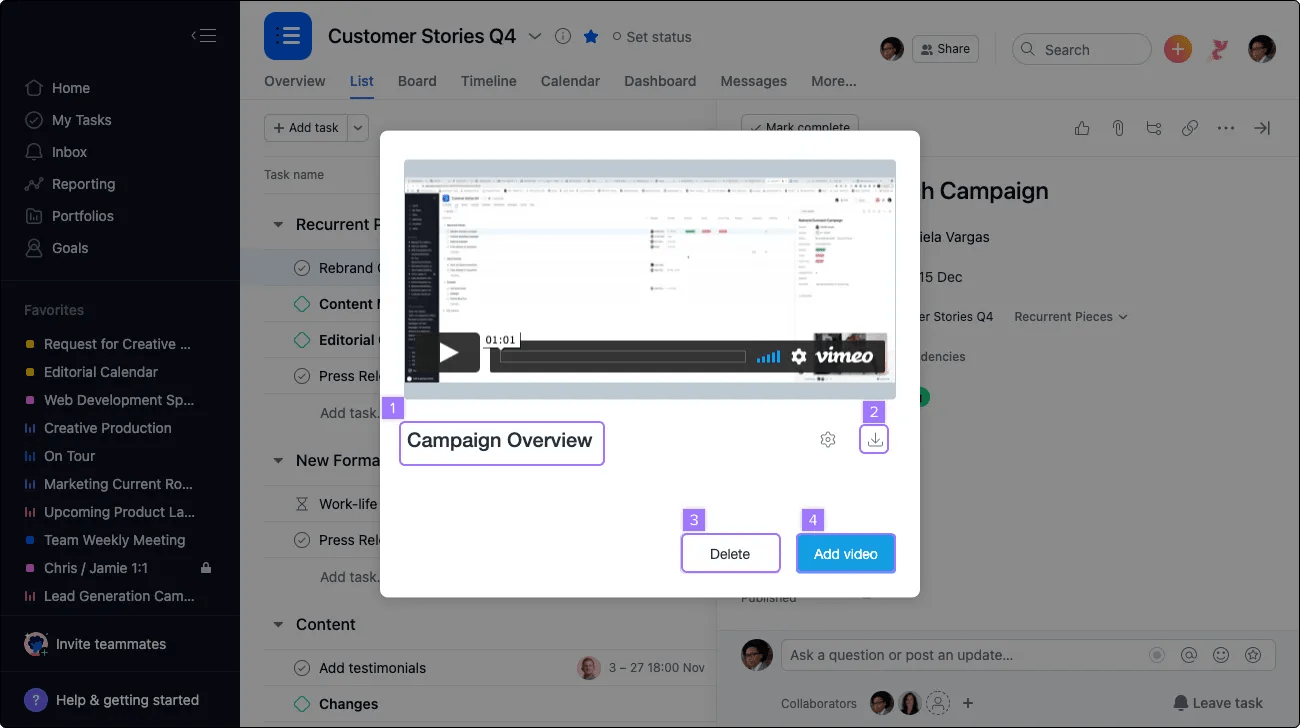
Adding the video will automatically save your video in the description or comment section of the task. Your video will also be viewable outside of Asana by anyone you share the link with.
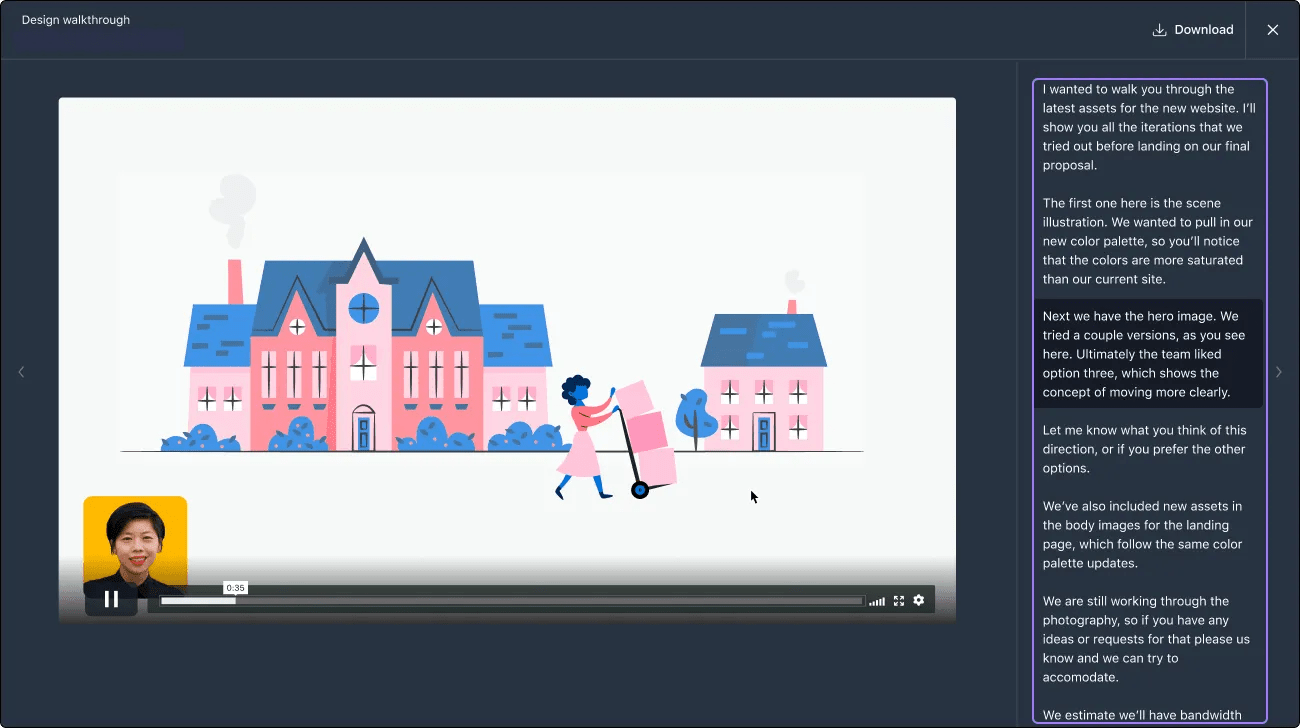
Once you have added your video, Asana will automatically create and upload a transcript of the recording. This might take a few minutes to appear while the video is being processed. Once it has, all transcriptions will be stored within Asana.
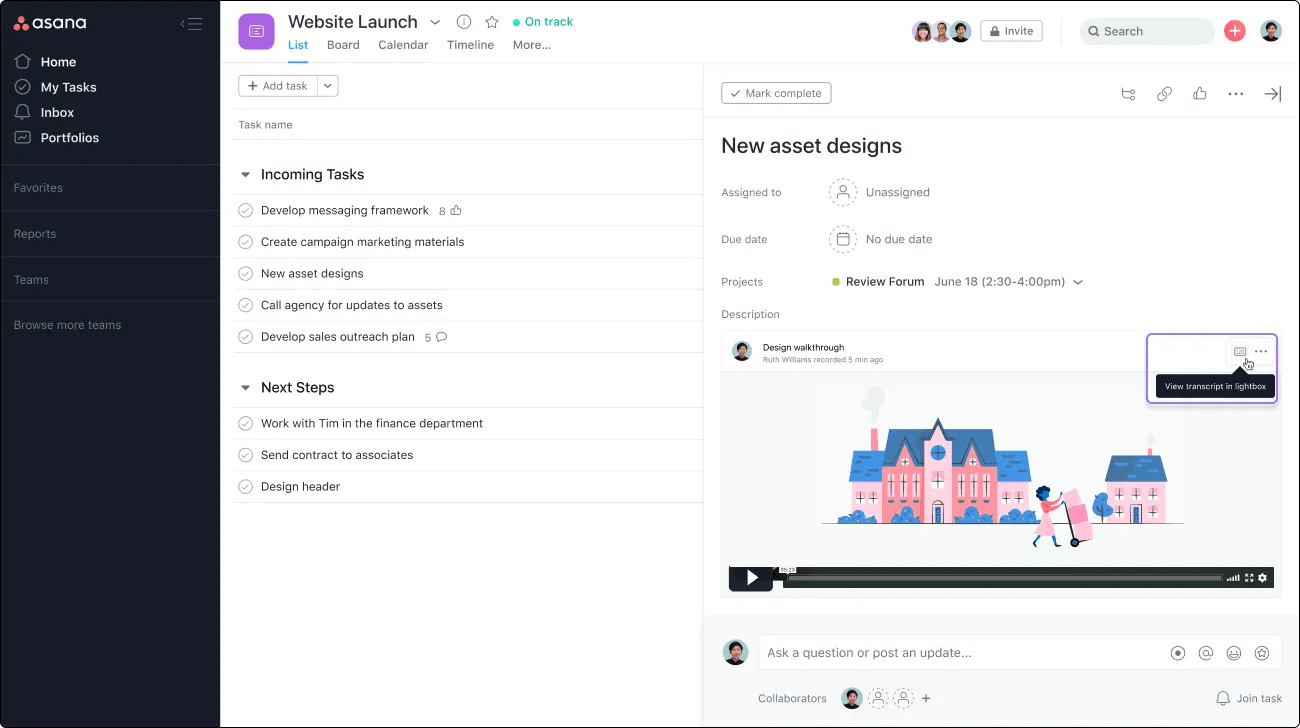
Once processed, click on the view transcription in lightbox option. The video will appear in full screen with the transcript scroll available on the right hand side.
Even key phrases recorded by transcript are retrievable by Asana Search.
You can record no more than 2 videos before having to create a Vimeo account. Once you try to record a third, you will prompted to create a free Vimeo account which can then be used to record unlimited videos up to two hours in length.
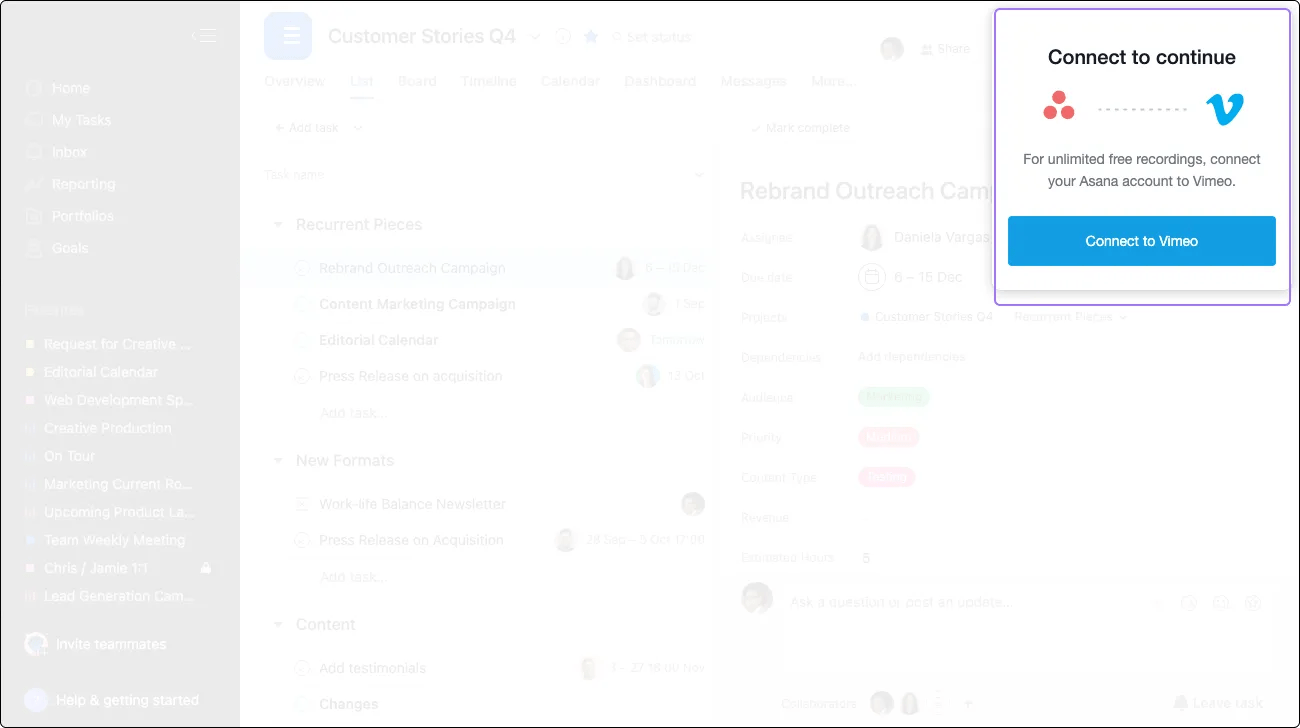
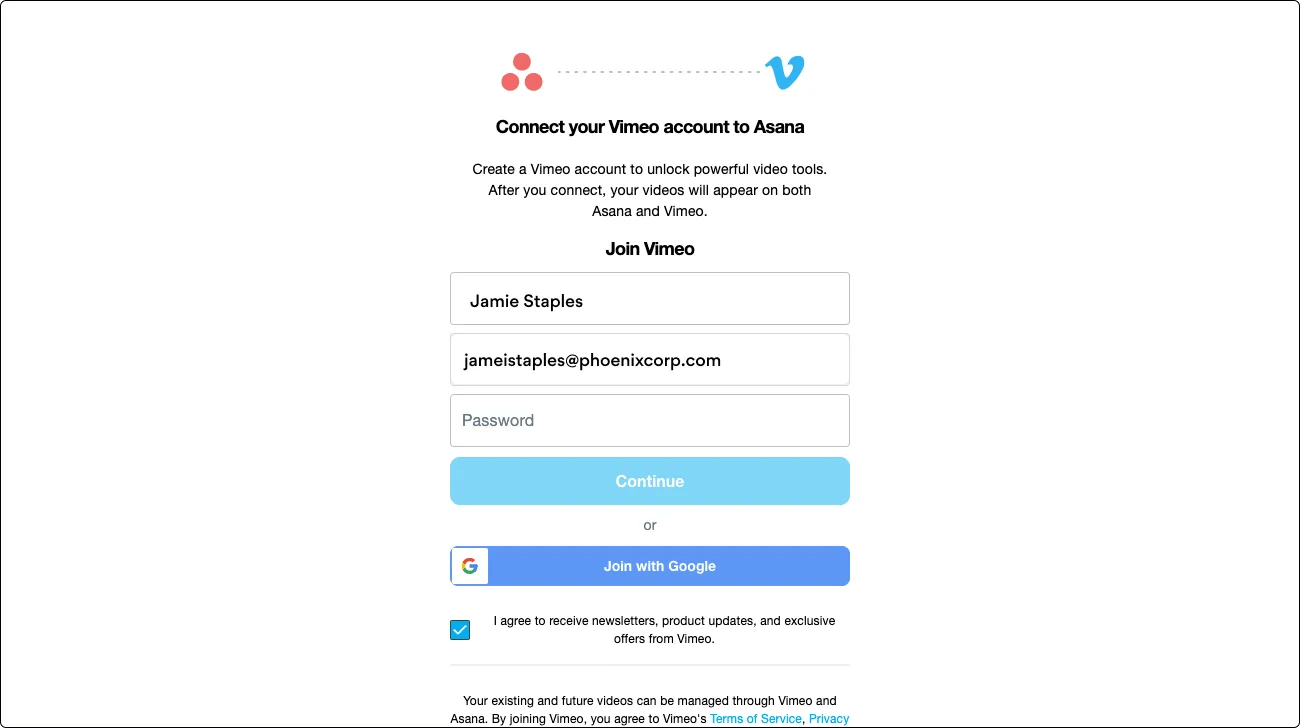
Once your account is set up, you can now record unlimited videos within Asana. Recordings can be accessed through your Asana tasks and also directly through your Vimeo Account.
All recorded videos from users within your domain will be stored in your organization's newly created Vimeo account. To manage your organization’s videos, see analytics, and access advanced security features, you can upgrade to a Vimeo Enterprise plan. Submit your details via this form and Vimeo will reach out to get you started.
Your videos will be visible to anyone you share the Vimeo video link with, unless you edit the video's privacy.
The ability to disable video messaging via the admin console is restricted to super admins of Enterprise+ domains, as well as those of Legacy Enterprise domains.
The Asana Vimeo video messaging feature will be automatically enabled by default.
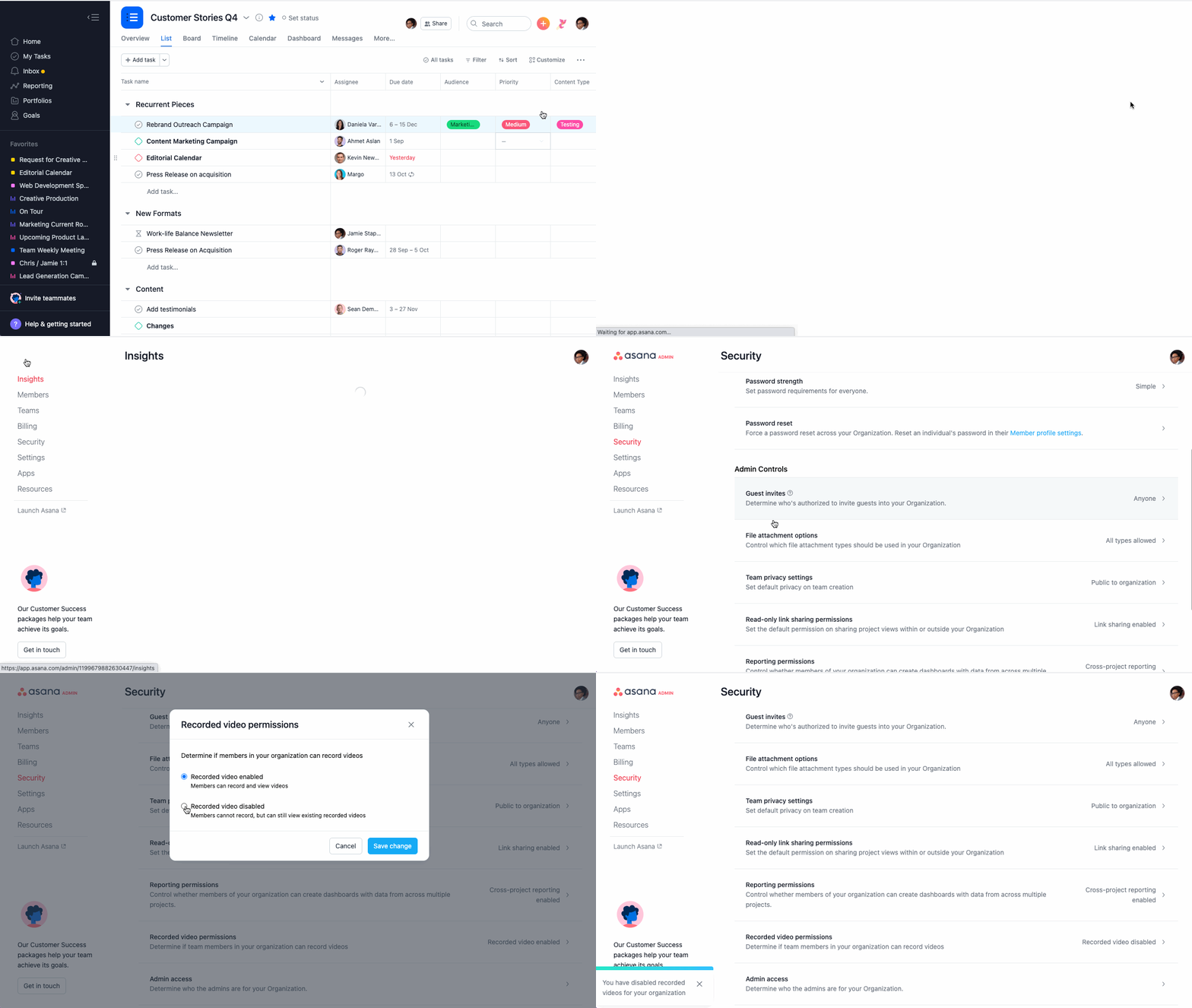
For admins of domains on other tiers, please contact Asana Support for assistance. This feature can be enabled again at any point by simply following the steps above.
Videos recorded prior to disabling will still be available for viewing by users who have access to them.
Embedding Vimeo videos into your Asana projects is an incredibly impactful way to bring both creative briefs and project kick-offs to life with a few simple clicks.
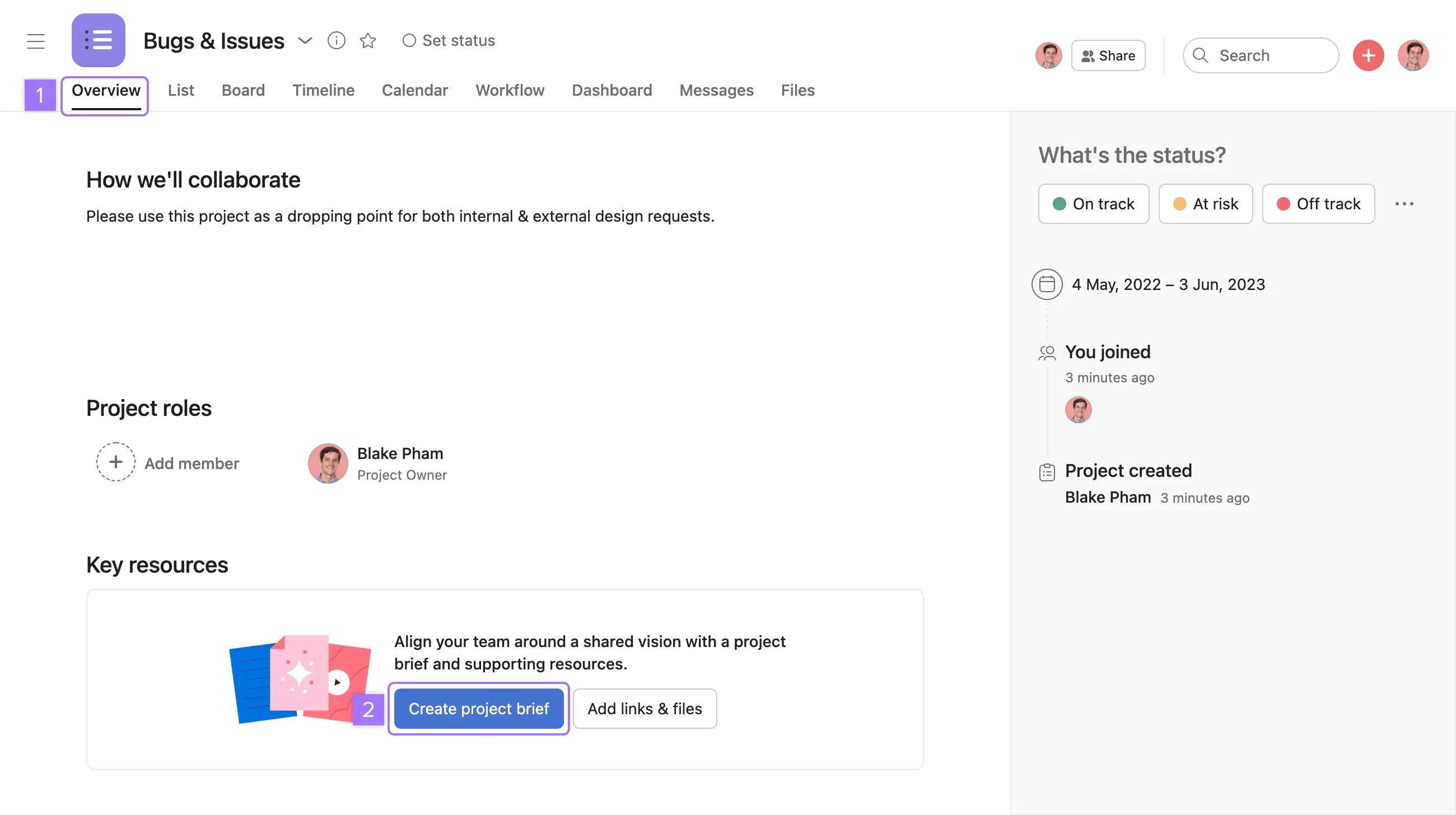
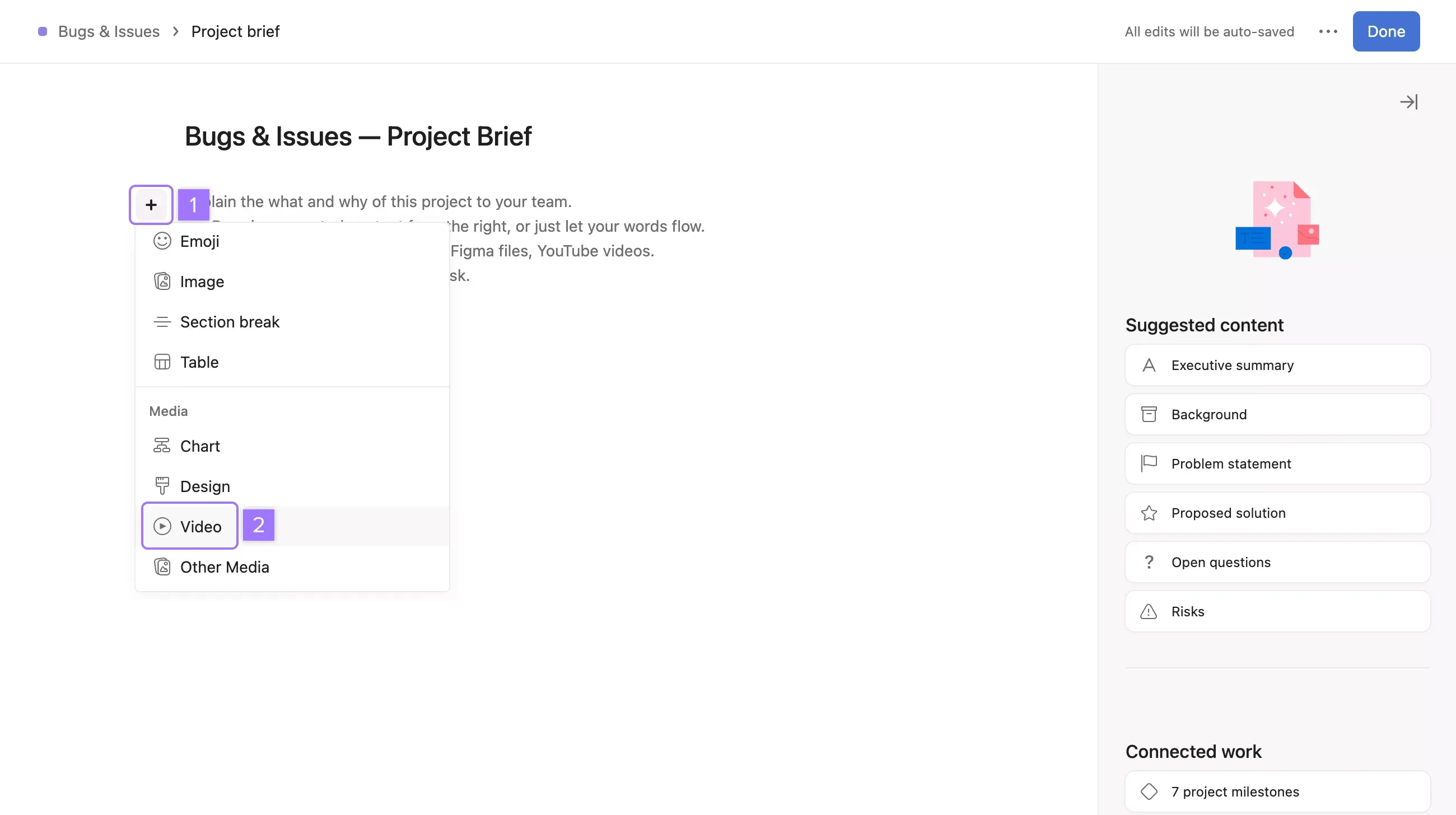
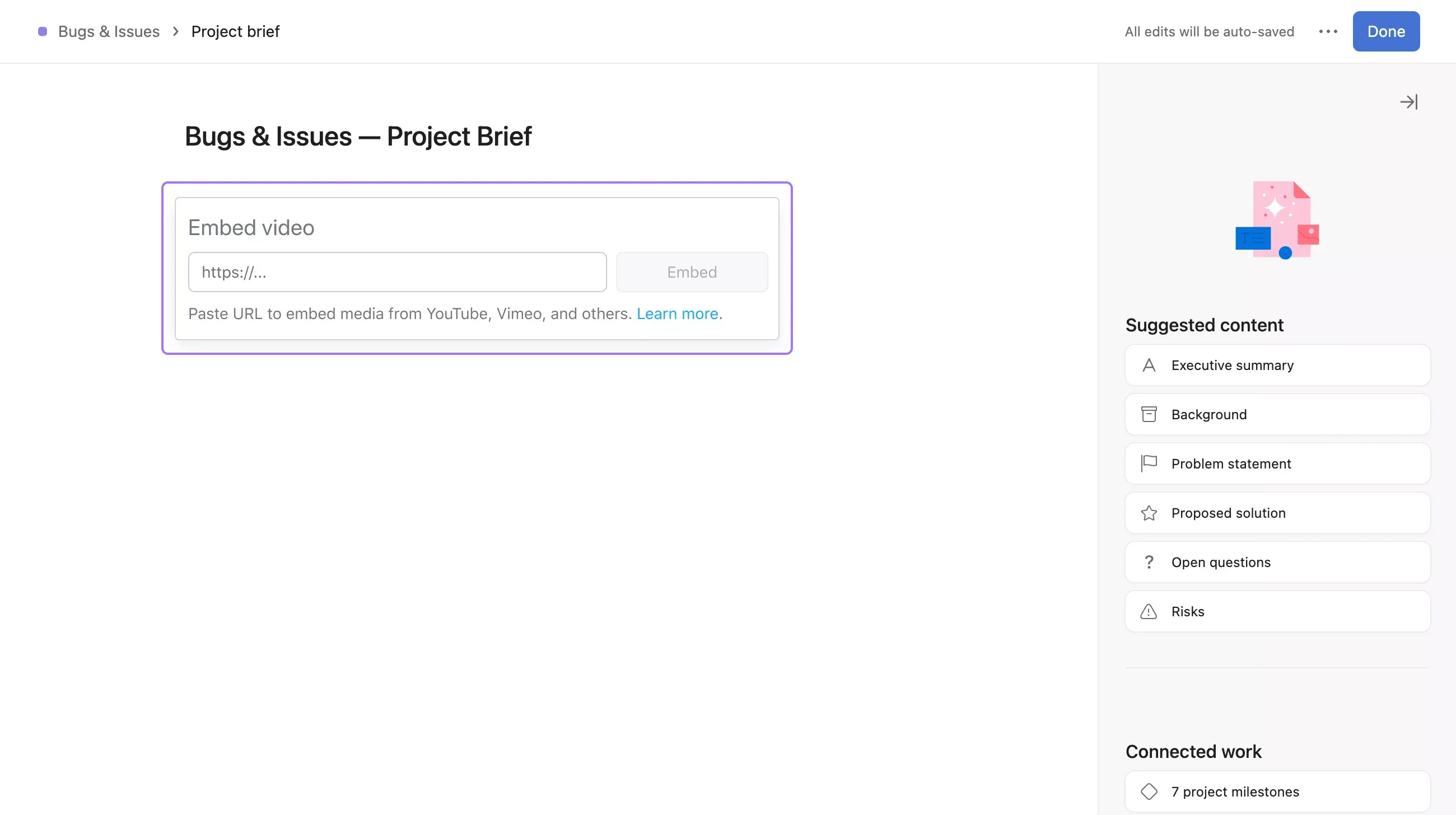
Paste the URL of the video you want to embed.
At Asana, protecting our customers’ data is our highest priority. Within Asana, videos will be visible to users who have access to those particular tasks and messages. Videos recorded into Asana will be stored in a private, user-specific library in Vimeo that cannot be accessed or managed by any other user besides an account administrator or the recording user. Videos are, by default, visible to anyone who the recording user shares the link with. Sensitive videos can be made private by adjusting the video's Privacy Settings in Vimeo.

