Products


AI Platform


Asana Foundations
Company Type

Visit our pricing page for more information.
Use Asana Goals to set clear company objectives that are directly connected to work, such as projects and tasks that will help you accomplish those objectives. With Asana Goals, you have a single source of truth that connects your company objectives with your work.
Within Asana Goals, there are tabs that provide a streamlined way to view and manage your different goal-types.
The Company goals tab surfaces the high-level objectives that have been set at the organisational or company-level. In Team goals tab you’ll find goals that are owned by or relevant to specific teams within the organization. The My goals tab is designed for you to quickly view and keep track of the goals you own.
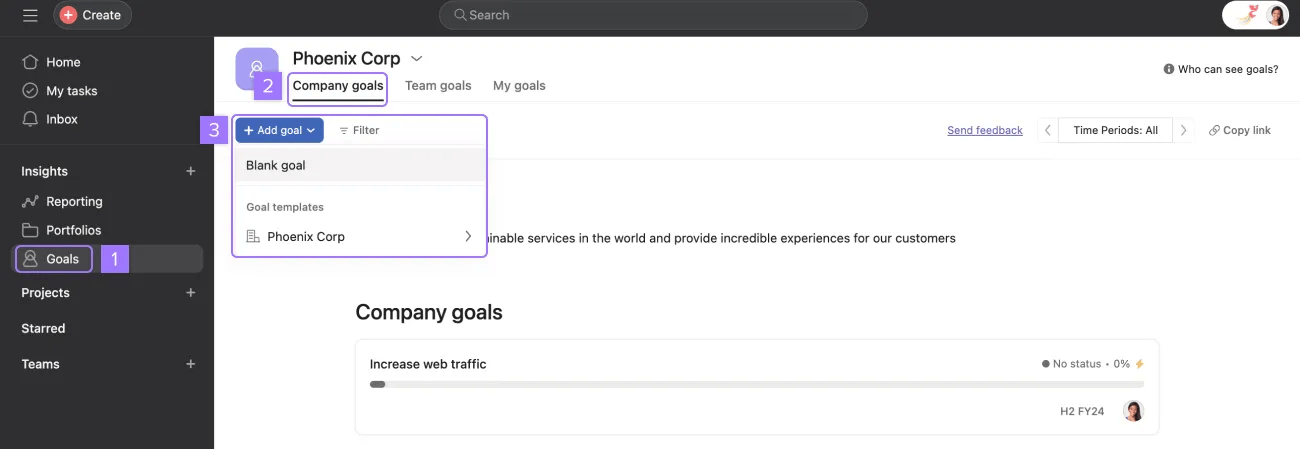
To create a company goal, navigate to Goals in the sidebar, head to the Company goals tab, click + Add goal, and choose Blank goal to create a goal from scratch or choose one of the existing goal templates for the company. Learn more about using goal templates.
When creating a new goal, you can choose an automatic or manual method to update the goal. With the automatic method, you can use sub-goals, projects, and tasks as progress sources.
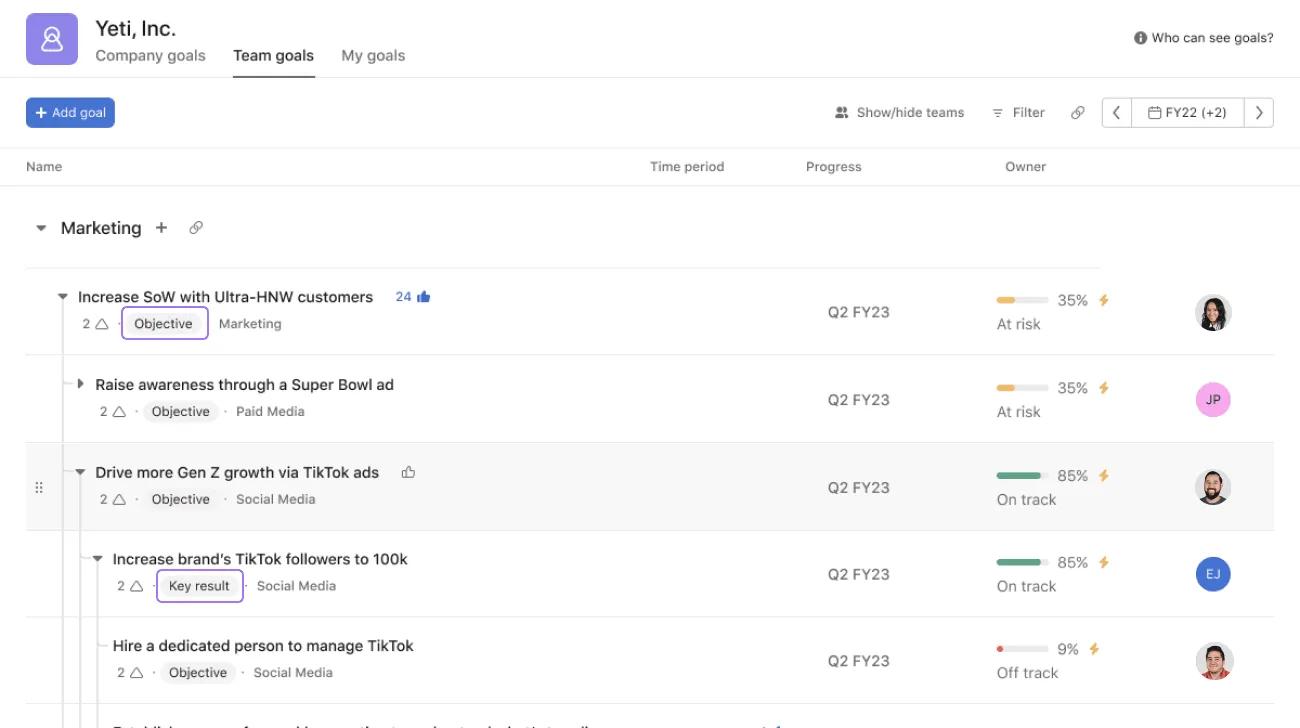
Goal Types provide a structured way to categorise goals by their purpose, scope, and how they align with your organization’s strategy.
Here are the typical types you’ll encounter in Asana:
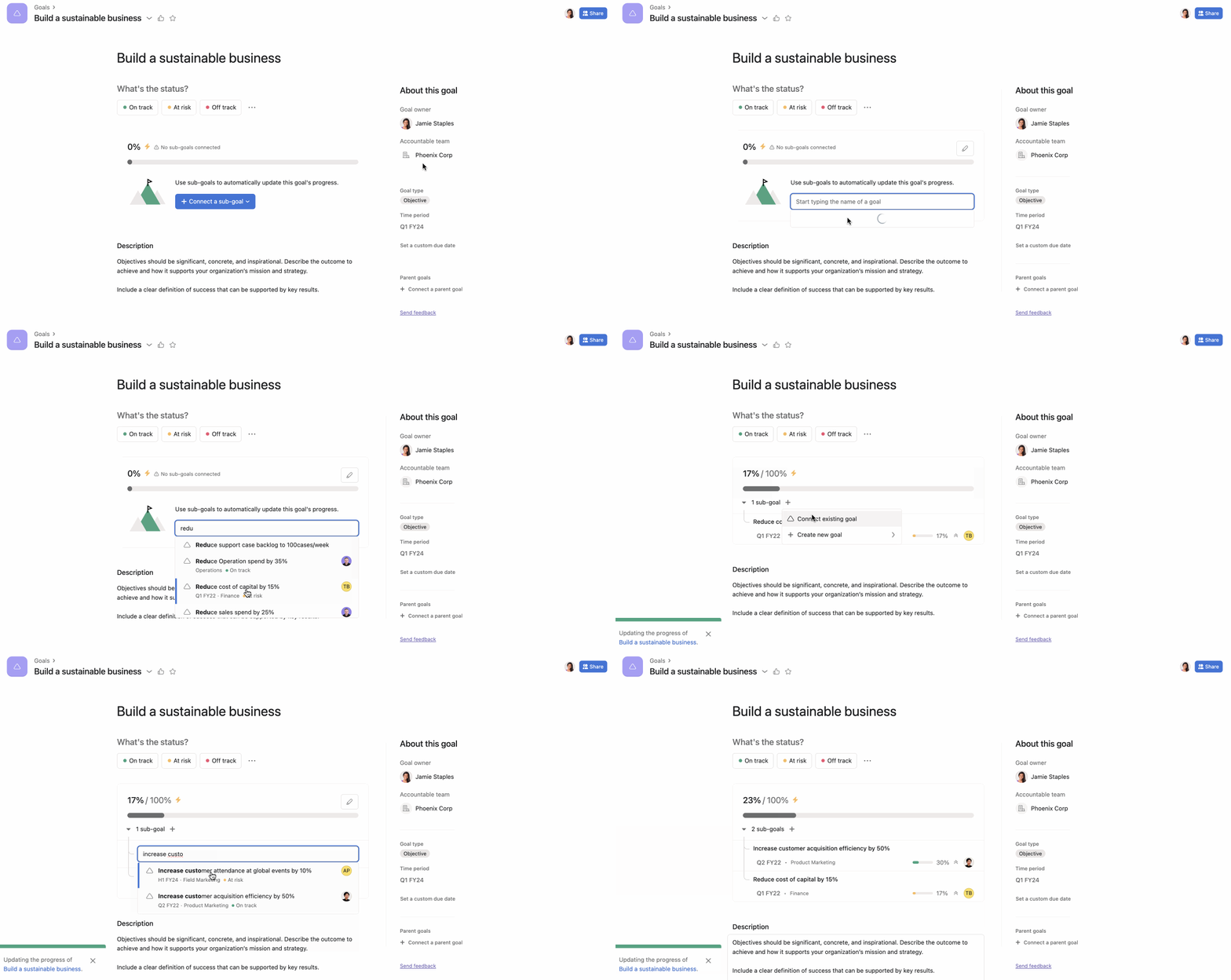
By using the automatic method, you can easily link your work to your goals. Simply select a progress source (sub-goals, projects, or tasks) and connect it through the goal's details page. As the progress of the source changes, the goal's progress will be updated automatically in real time, allowing you to keep track of your progress more efficiently.
For example, if you choose Sub-goals as your progress source, your progress will be calculated based on the progress of the connected sub-goals.
Note
If you choose sub-goals as your progress source, you can choose an existing goal or create a new one from the + Connect button.
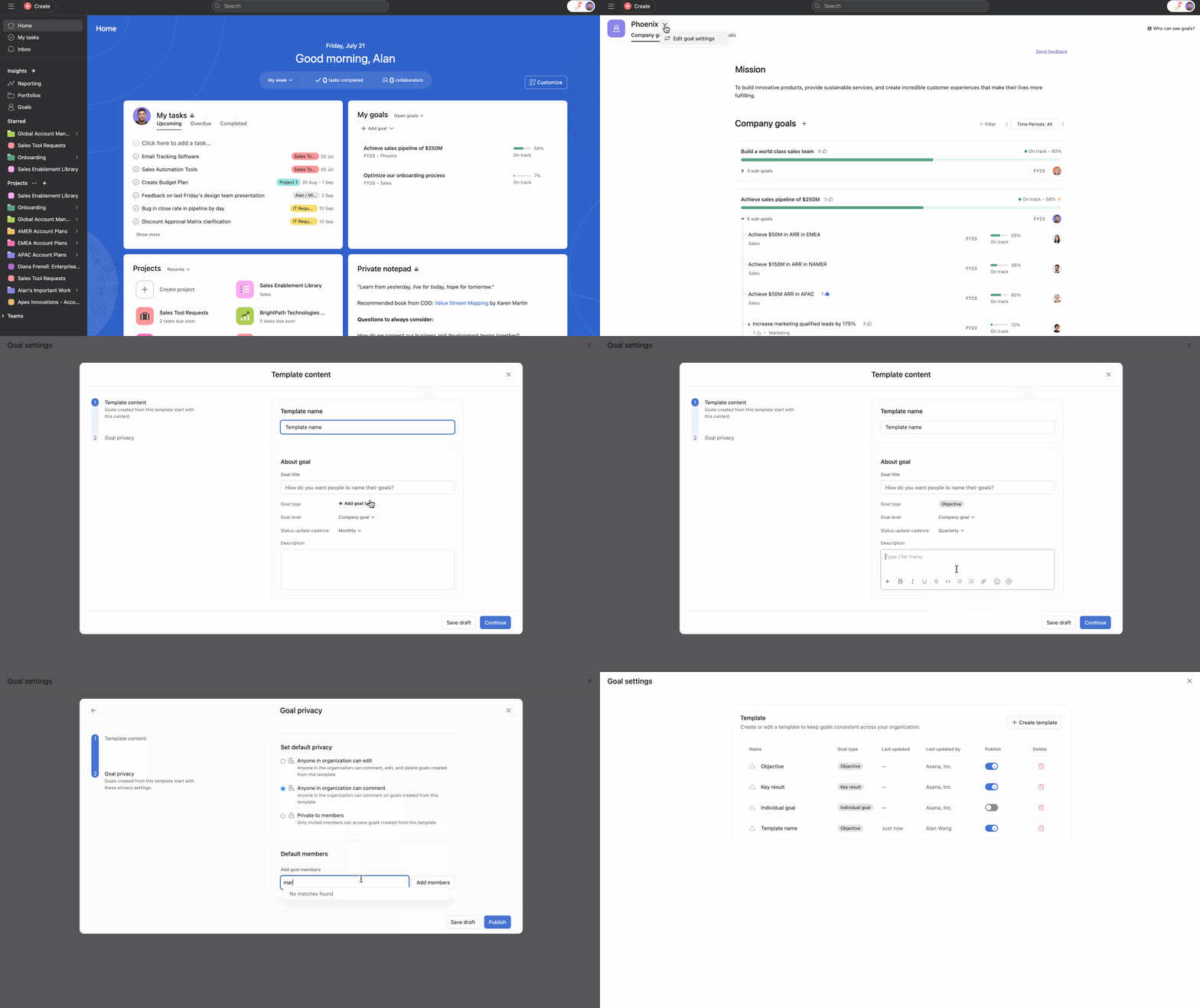
Goal templates let you define a reusable structure for goals so that when someone creates a new goal, many of the default values are pre-populated.
Organization admins can define goal templates that will be available for everyone to use. Team admins can define goal templates that will be available to their specific team.
Creating a dashboard will help you track the progress of your goals across your organization and provide you with insights to understand their health better.
To create a goals dashboard, navigate to the sidebar and click Reporting. From here, click + Create and select Dashboard. You can use pre-built charts like “Goals by team” and “Goals by status.” You can also create a custom chart and select Goals from the Report on drop-down.
Status updates provide stakeholders with context about the status of your goals and how they are progressing. You can customize the sections of your update and add attachments to enrich your status update.
You can use Asana AI to create smart status updates.

