Products


AI Platform


Asana Foundations
Company Type

Visit our pricing page for more information.
Available on Asana Starter, Advanced, Enterprise, and Enterprise+ tiers, as well as legacy tiers Premium, Business, and Legacy Enterprise. Visit our pricing page for more information.
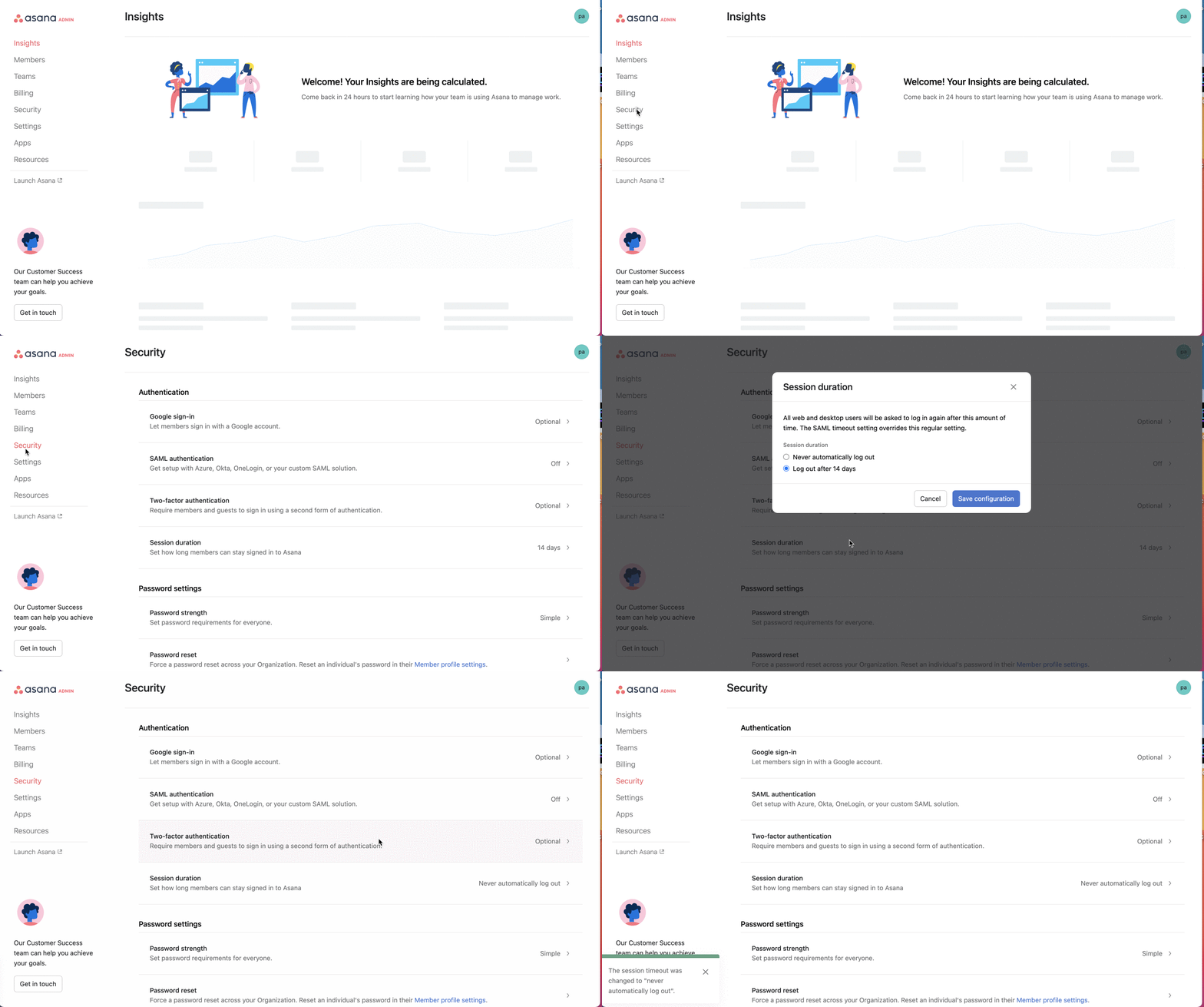
The ability to choose a session duration is available to super admins of organizations and divisions. A session’s duration is the amount of time a user can spend logged into Asana before they are logged out automatically by the system. To allow more control and flexibility super admins can control the session duration for Asana web and Desktop users. Setting Session Duration Controls allows the super admin to determine session durations with their companies’ standards in mind, and can select whether they would like the session duration for users to be 14 days or infinite (where the users are never automatically logged out).
Like what you see? Get started with a free Asana trial today. Try for free
Note
As a super admin of a division please reach out to Asana Support to set your divisions’ Session Duration
If the super admin modifies the session duration for their organization, then all existing user sessions will be terminated. When users login again they will get new session duration going forward. For instance, if a super admin chooses a 14-day auto-logout, then all existing user sessions will expire immediately and when users login again they will have 14 days session expiration.
A user who is in multiple domains will have their timeout set to the lowest session duration across all domains.
Users governed by an organization’s SAML login will not be subject to the domain's session duration setting. Instead, their session duration will continue to be defined by the SAML configuration.
Super admins of organizations can manage idle session duration.
They are logged out immediately. We can't enforce ABSE until a user logs in after it is enabled. As for guest users, we will apply the most strictest setting to the guests based on the home vs guest domain they are collaborating in.
Users in SAML domains WILL be subject to idle session timeout.
If an admin sets both a session duration and an idle timeout duration, both will be enforced. A user's session will remain valid as long as they are active up to a maximum session length defined by the session duration

