Products


AI Platform


Asana Foundations
Company Type
No articles found for this topic.
No articles found for this topic.

Visit our pricing page for more information.
Available on Asana Starter, Advanced, Enterprise, and Enterprise+ tiers, as well as legacy tiers Premium, Business, and Legacy Enterprise.
Visit our pricing page for more information.
The Outlook Calendar and Asana integration simplifies scheduling by automatically mapping tasks in your calendar, increasing visibility and accountability. Learn how to connect Outlook Calendar with Asana.
You can sync Asana tasks to a calendar group in Outlook Calendar to create continuous visibility for members subscribed to the calendar group. Updates to Asana tasks are synced to the associated calendar events but not the other way around.
Note
The Data sync setting is configured at the individual user level. Each person must set up the integration for their own account.
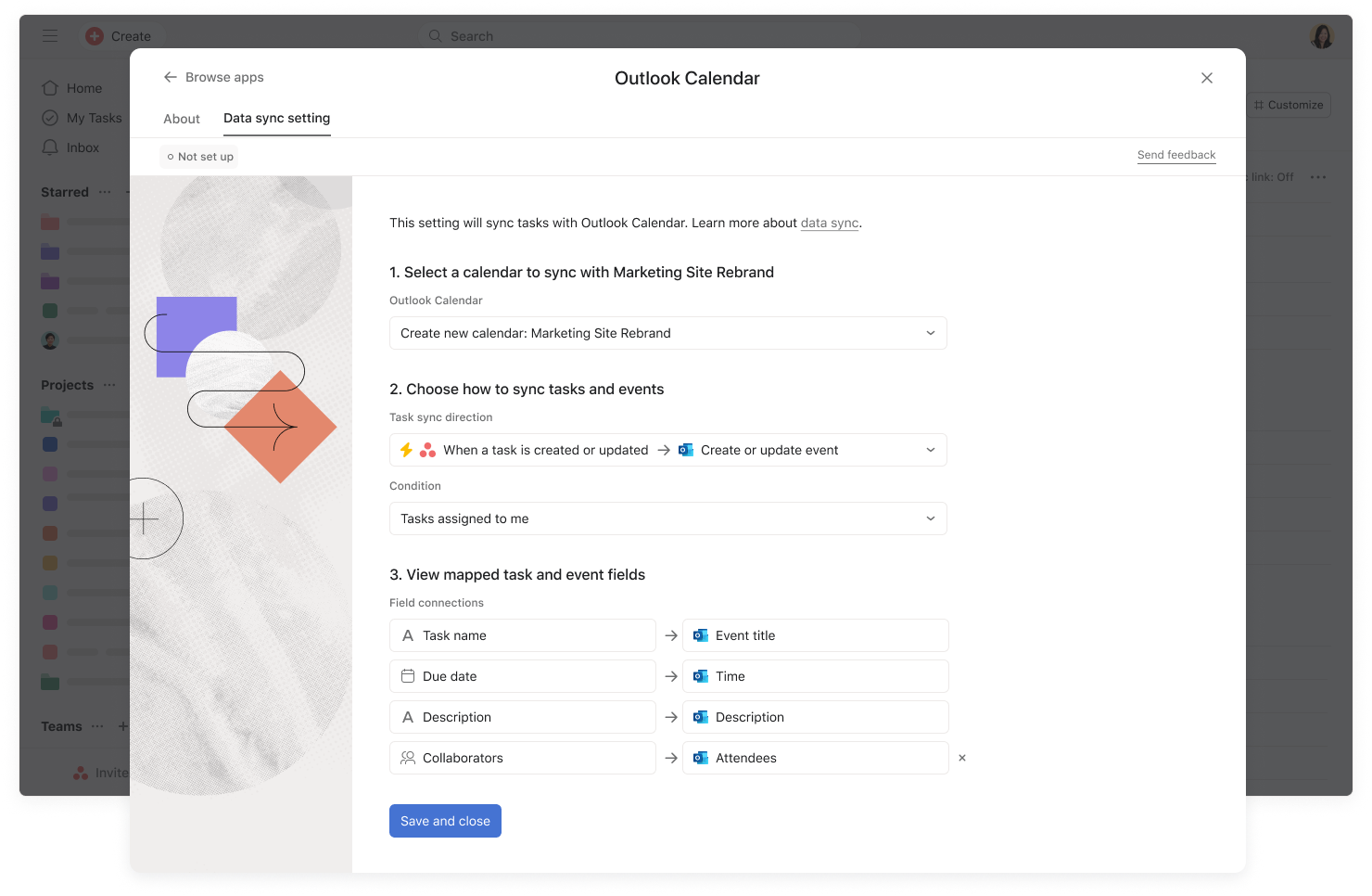
You can configure the calendar group you want to sync Asana tasks to, the conditions for triggering sync, and the standard task fields that are synced to calendar events.
The first step is to select a calendar group. By default, we select Create new calendar so the events created and updated from Asana do not interfere with the calendar group you regularly use for scheduling meetings. You also have the option to select any existing calendar groups as long as you have `write` access to them.
If you select When an Asana task is added → Create a new Outlook event, you can define a condition in which sync is triggered. In an Asana project, the available conditions are “Tasks assigned to me,” “Tasks in section,” and “All tasks in project.” In My tasks, they are “Tasks assigned to me” and “Tasks in the section.”
If you are looking for more customization on how sync is triggered, select Custom rule, and you can separately create custom rules that trigger calendar sync.
Task name, Start/Due dates, and Description are required field mappings. You can optionally include or exclude Collaborators. By including Collaborators, the task collaborators are synced to the event guests list.
Upon clicking Save and close after you have defined the Data sync setting, we perform an initial bulk export of all the tasks that meet the conditions for sync in My tasks or in projects.
In projects, bulk exports apply to all tasks that meet the sync conditions.
In My tasks, we only bulk export incomplete tasks with a due date of today and beyond, so your calendar only includes actions you need to complete.
During app installation, if your Microsoft admin has not enabled user consent, you may be prevented from authorizing the required permissions to enable Outlook Calendar integration.
If you run into this problem, please pass along this help article to your Microsoft admin to enable you to get the appropriate permissions.
Use rules to automatically create calendar events based on specific triggers. You can use one of the Outlook preset rules or create a custom one.
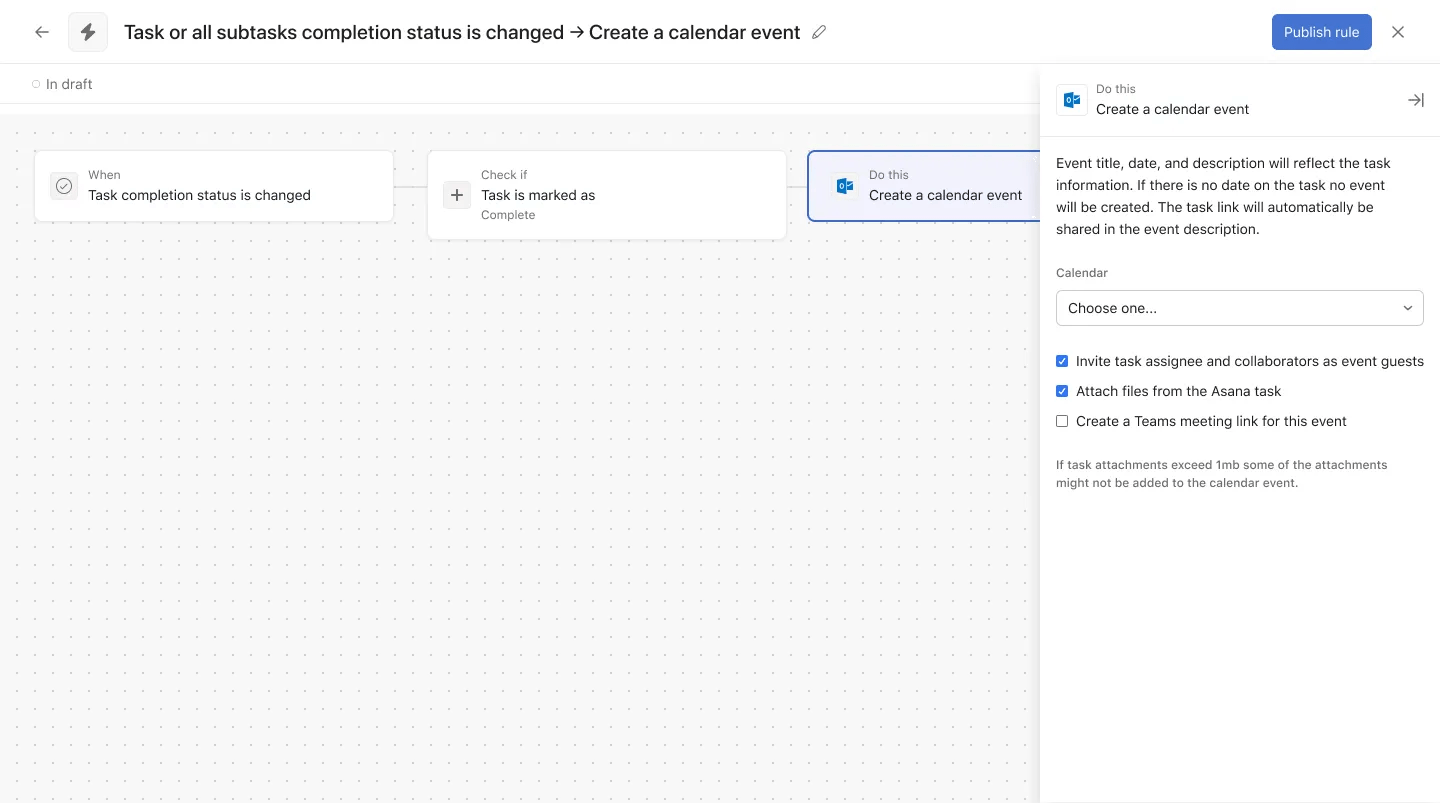
From here, you can invite task collaborators to the event, attach files from the task, and generate a Teams meeting link.
The event title, date, and description will be based on the task's information. The events are added with a link to the associated Asana task in the description.
You can create a calendar event directly from an Asana task to schedule a one-off event. The event's description and title will populate based on the task, and can also be edited.
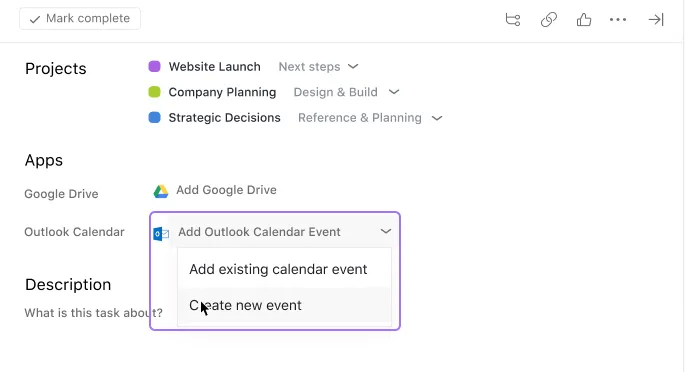
To create a one-off event, go to the task, click Add Outlook Calendar Event under Apps, and select Create new event.
From here, you can edit the event's details, such as title, description, date range, start time, duration, and guests. When specifying the time, you can choose First available time within date range for start time and duration, to automatically find the best exact start and end time without having to manually look at your calendar. 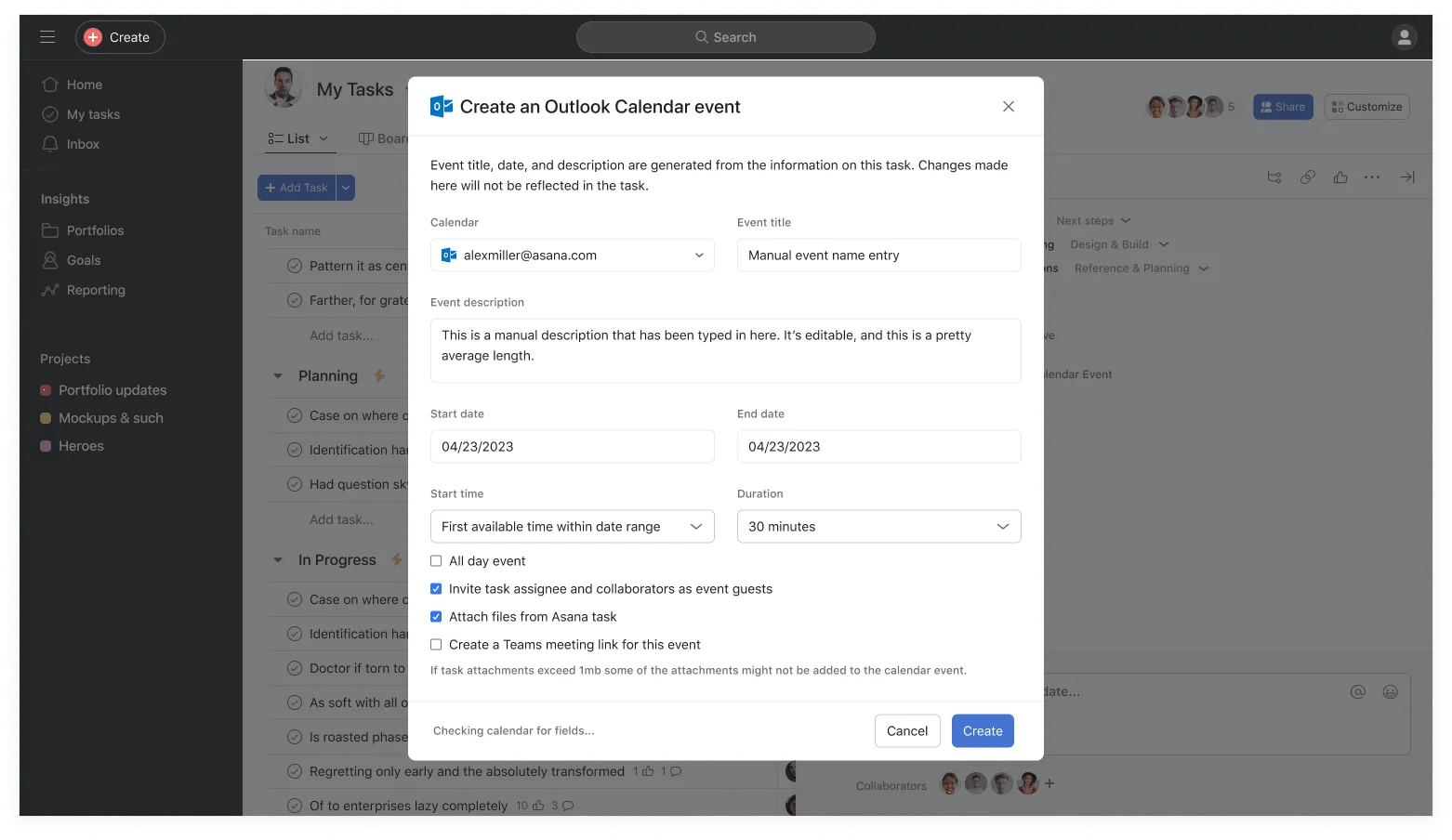
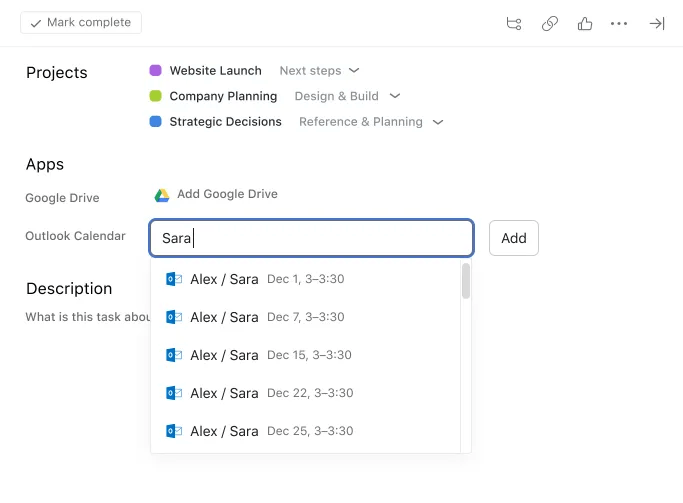
You can link an existing calendar event to an Asana task by typing the event name in the Outlook Calendar field of your task. As you search for the event, the search typeahead looks through events from all the calendars you have access to, in order to find the best match.
In this video, we will show you how to integrate Asana with Outlook Calendar to automatically schedule and manage tasks by connecting them to calendar events.

