Products


AI Platform


Asana Foundations
Company Type
Available on the Asana Enterprise+ tier.
Visit our pricing page for more information.
Sandboxes are a safe testing environment where super admins can set up new features and processes to try them out without putting your data at risk.
A sandbox provides a separate and empty space where you can experiment with different features and integrations before adopting them in your production environment at scale.
You can use sandboxes to trial new functionalities (such as testing AI), onboard and train new users, and evaluate new apps, all without affecting the production environment.
Note
The production environment and its sandbox exhibit identical performance, speed, and security levels.
Every Asana Enterprise+ organization can have one sandbox.
Clear guidelines for sandbox usage should be established to prevent users from unintentionally starting work in a test environment.
If your production environment is deleted, we will also delete your sandbox environment.
Super admins can create a sandbox for their domain via admin console. To create a sandbox, navigate to the admin console, click Sandboxes from the sidebar and click Create sandbox.
Once your domain's sandbox is enabled, super admins can navigate to their profile icon and click Sandbox. From there, they can invite other users.

We copy your administrative settings to your sandbox.
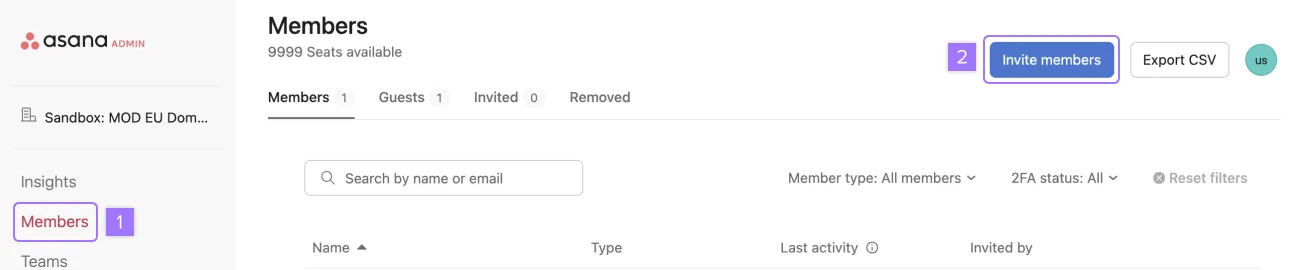
There are a couple of ways super admins can grant access to users their sandbox:
If you are looking to test with data, the self-serve method involves exporting a project from your production instance and importing it using the Asana CSV importer to the sandbox.
Super admins can delete the sandbox.
Once the sandbox is deleted all data, including configurations, applications, and users associated with the sandbox, will be erased. Please note this action is irreversible.
Deleting your sandbox does not affect your production instance.
The only way to clear all data from a sandbox is to delete it and create a new sandbox.
When you create a sandbox and your production domain is on Enterprise Key Management, the sandbox will not be managed by your existing AWS EKM keys. Your Sandbox's data will be encrypted using Asana's AWS KMS. What is EKM?
Ready to get started? Reach out to our Customer Support team today.


