Products


AI Platform


Asana Foundations
Company Type
No articles found for this topic.
No articles found for this topic.

Visit our pricing page for more information.
Refining your feedback and approvals process is a great way to help your team move faster and let them know if they’re on the right track or not. In this article, you'll learn how to make this process more effective and structured in Asana.
Approvals are a type of task that provide approvers with three clear options; "Approve," "Request changes," or "Reject." Approvers can easily see what is required, while the requester gets immediate feedback.
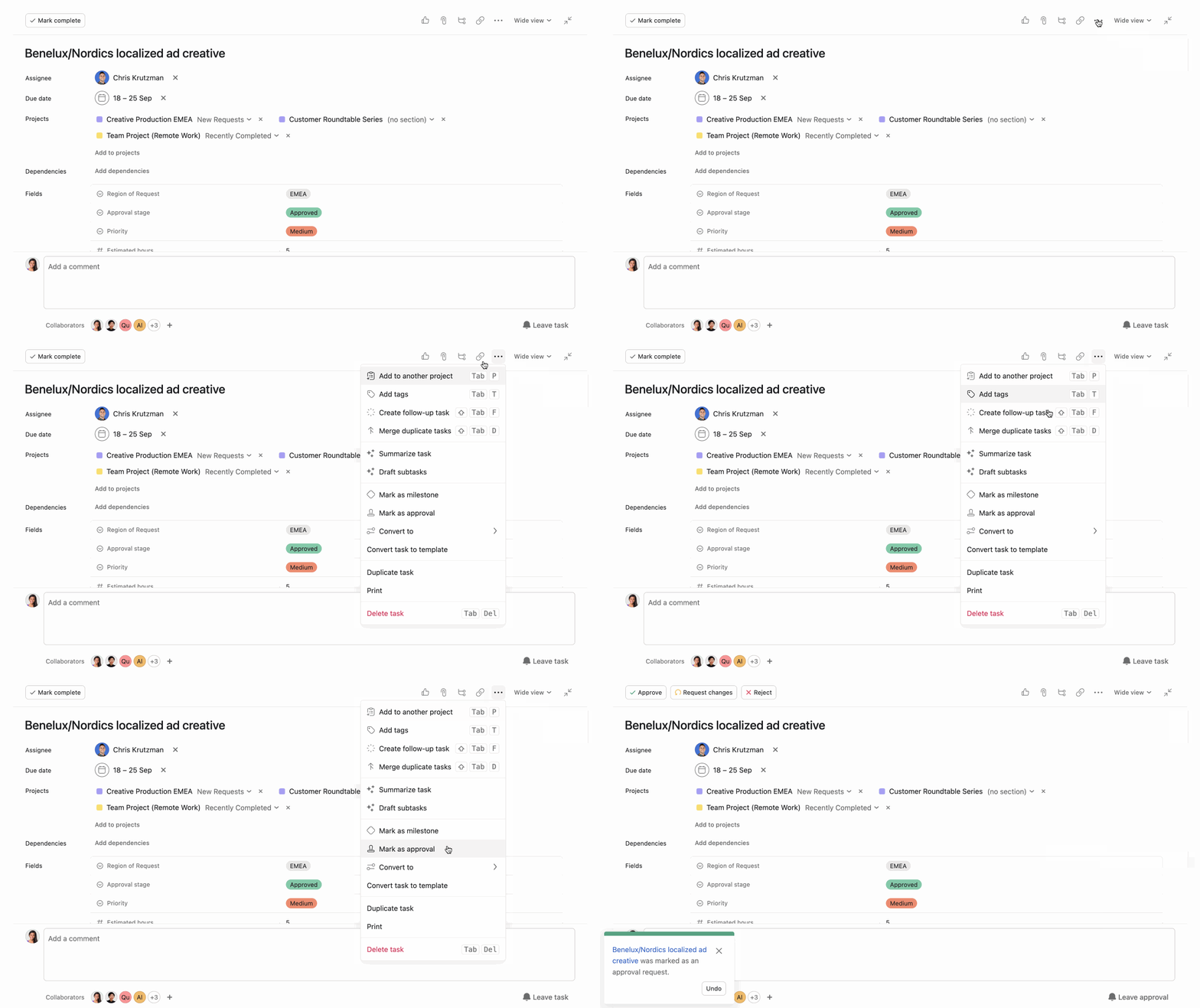
As an approver, there will be three options you can choose from: "Approve," "Request changes," or "Reject." Make sure to use comments to provide additional context and explain why you approved, rejected, or asked for changes.
If the approval task had an image or attached PDF, you can leave feedback on them with proofing comments. Your feedback stays in context and an actionable subtask is created to ensure it gets incorporated by the creator.
Approvals can unlock or block projects. Whether you’re a project manager, contributor, or approver, here are ways you can prevent bottlenecks:
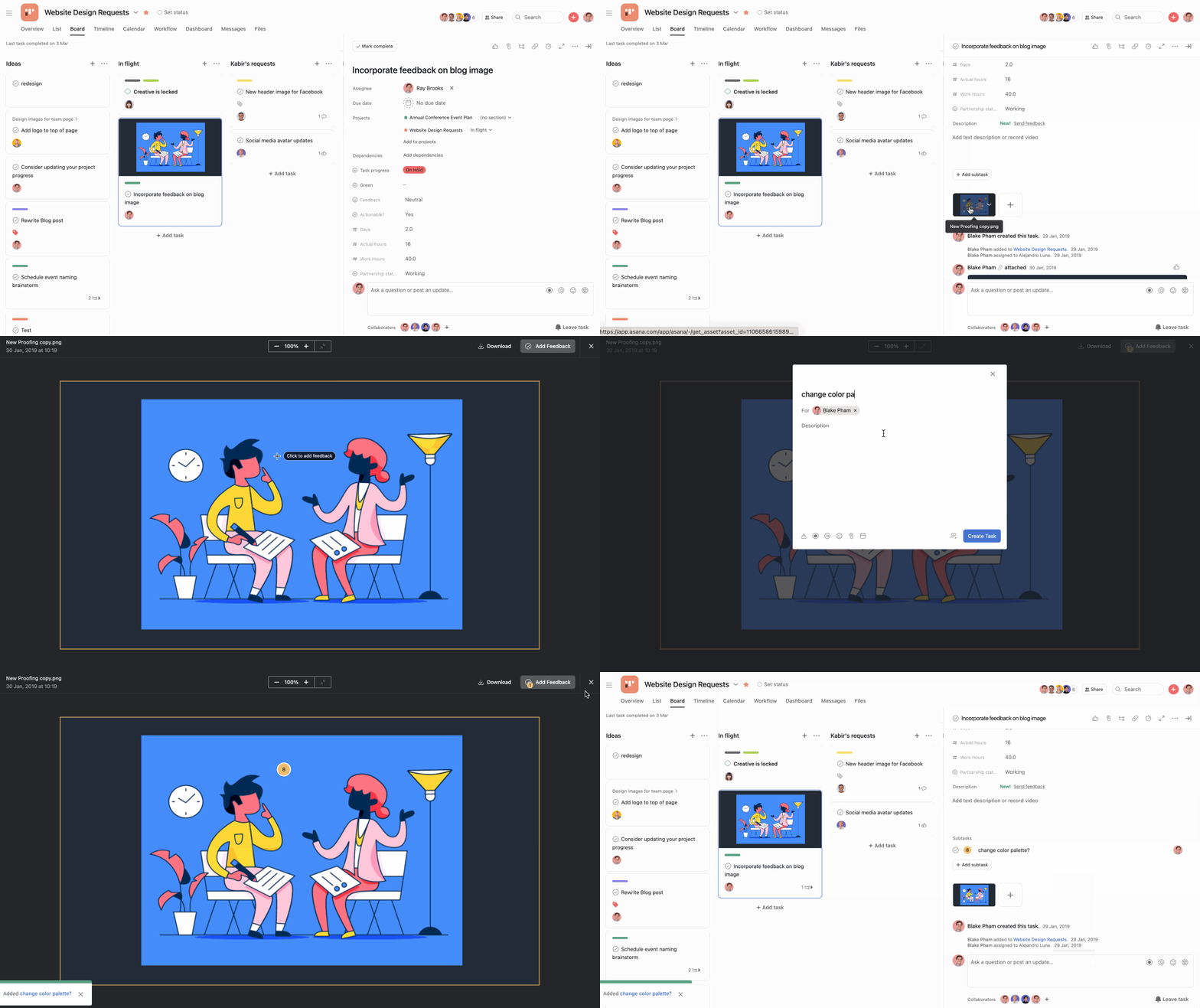
For projects involving design and visual assets, you can use proofing which allows you to leave specific comments directly on images and PDFs. With proofing, feedback is anchored to exact points in the image, ensuring that instructions are precise and easy to follow.
To add feedback to an image or PDF:
Note
You can use proofing for PDF, PNG, JPG, GIF, and BMP files.
Here are just some of the many ways your team can start giving feedback and approvals in Asana with our proofing, approval task and custom fields features:
| Team | Example |
|---|---|
| All | Use forms to submit requests or project proposals, and turn that task into an approval task before work gets started. |
| General | Add a task progress custom field to any project to see where each task stands and sort your project by that custom field |
| Design | Leave feedback on images with proofing comments. |
| Marketing | Assign approval tasks to the director of marketing to finalize campaigns and assets. |
| Operations | Approve vendor budgets or proposals with approval tasks. |

