Products


AI Platform


Asana Foundations
Company Type
No articles found for this topic.
No articles found for this topic.
View your project's calendar to keep track of important deadlines and milestones happening within that project. You can also use team calendars for a greater overview and you can adjust the start day of your calendar from your display settings.
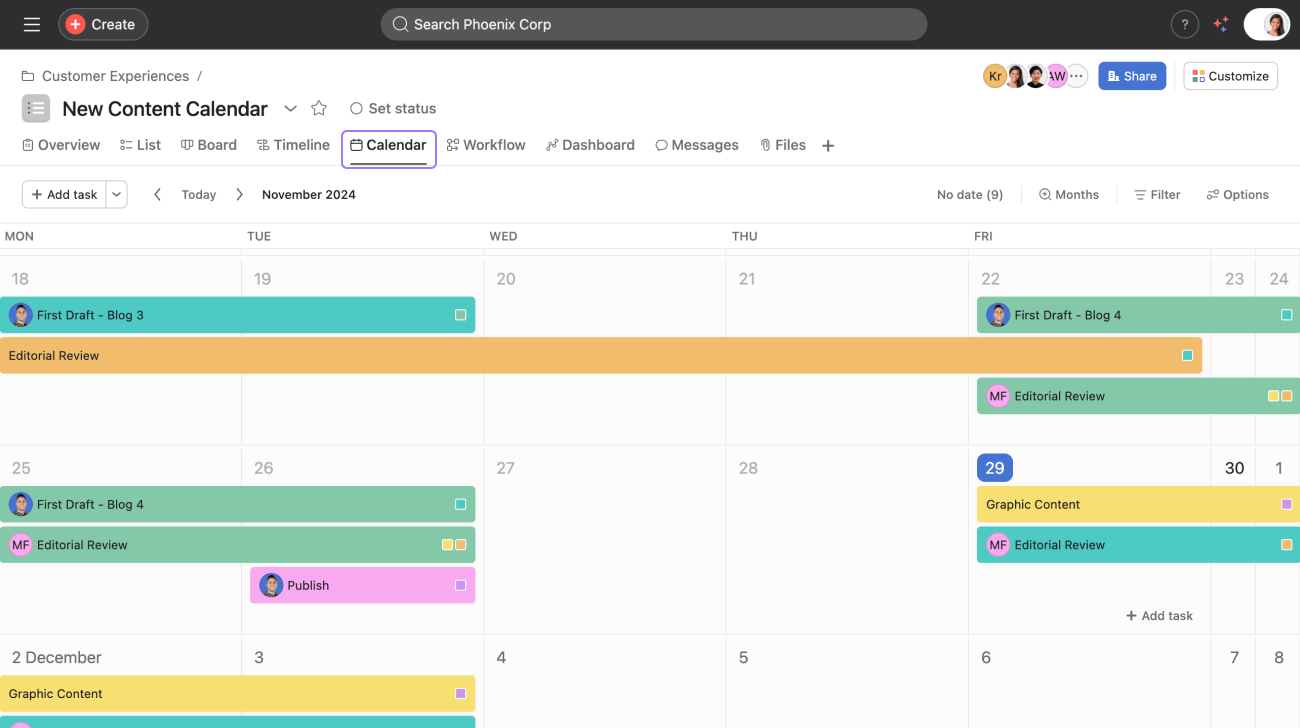
From the project, click the Calendar tab in the header.
Note
Only tasks and subtasks with due dates that are associated with the project will show on the project calendar view. Subtasks will need to be manually added to the project to appear on its calendar view.
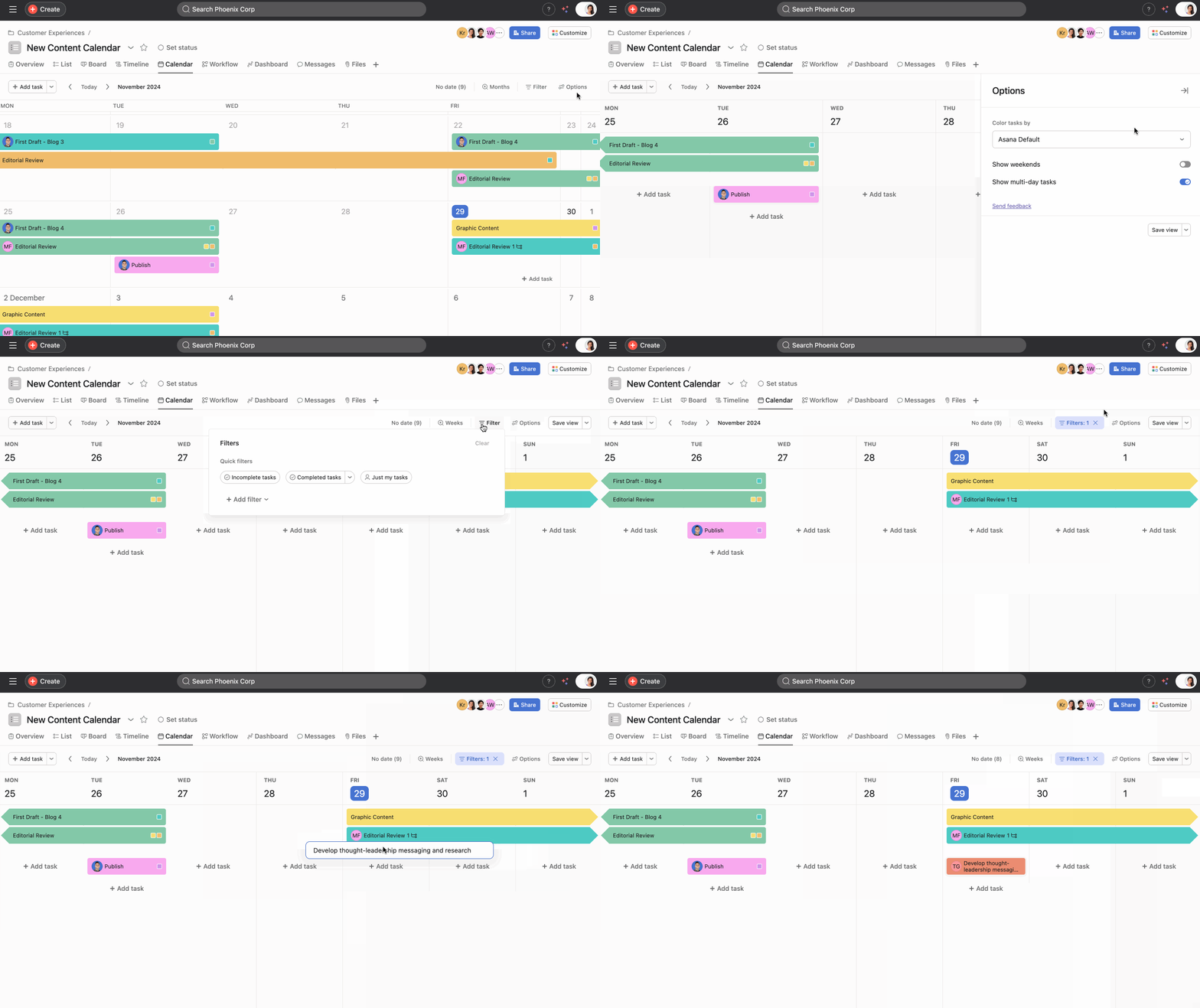
Project calendar week view makes it easier to create and set up work, allowing you to focus on 5-7 days at a time rather than the whole month with the option to show weekends.
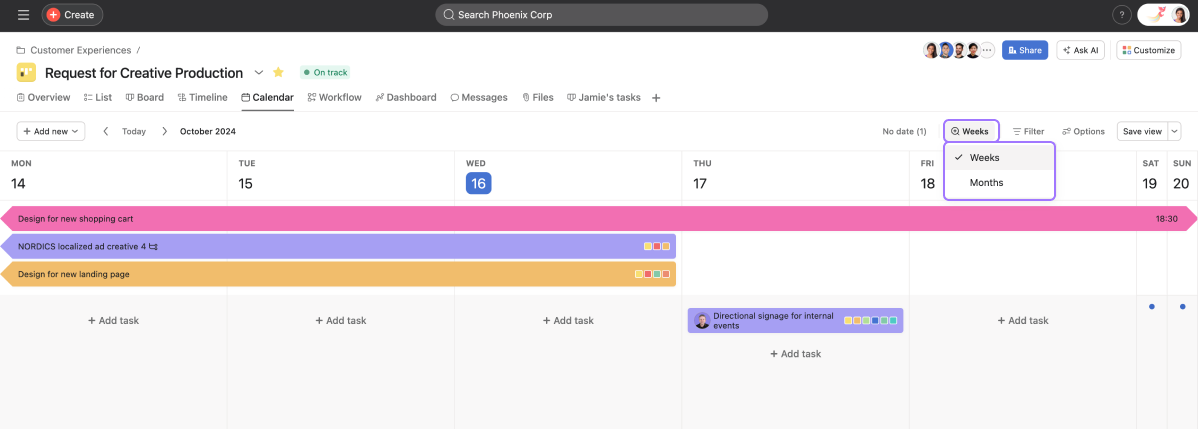
To view your calendar in week view:
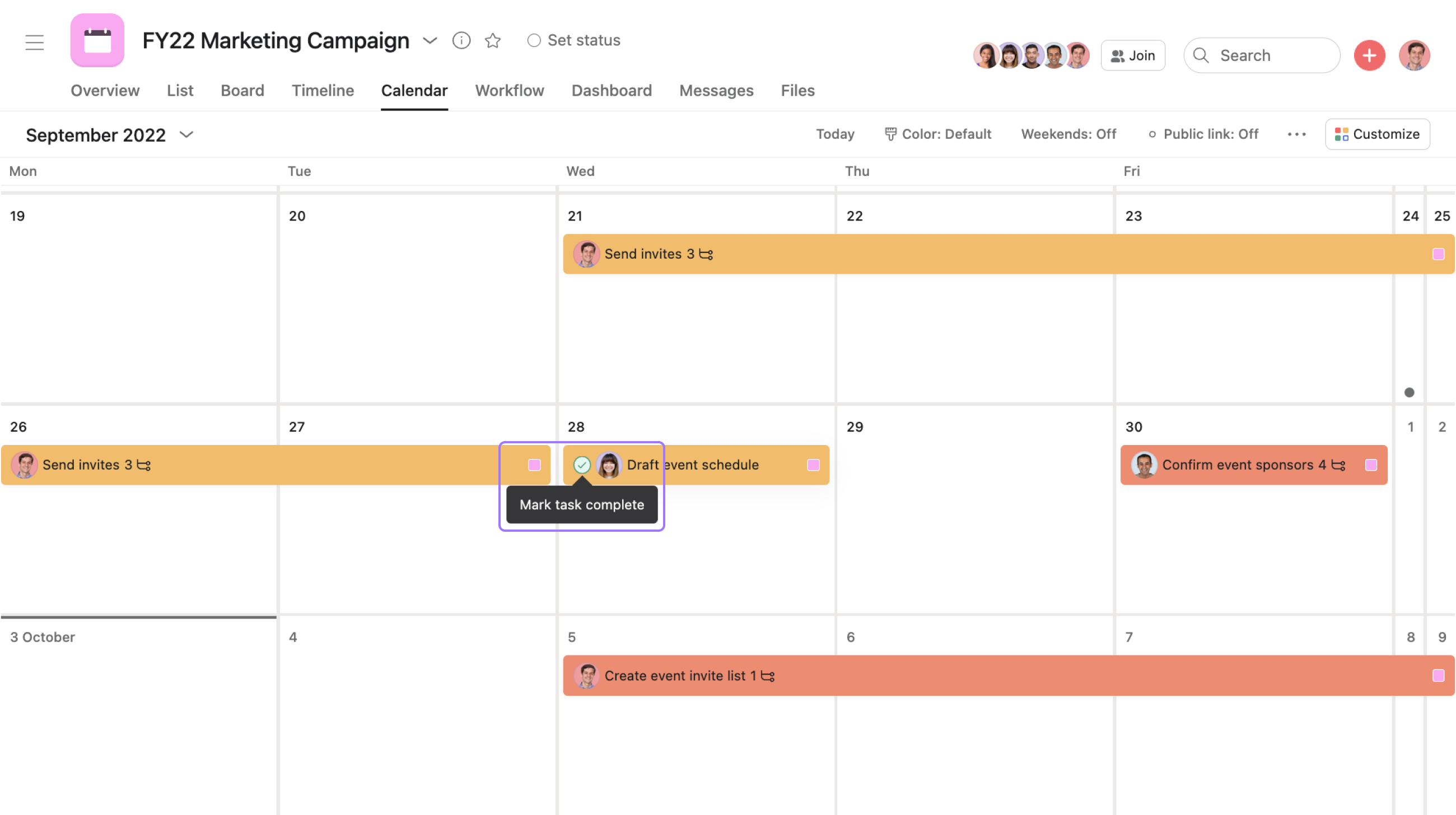
To complete a task hover over the task's name and click the checkmark icon.
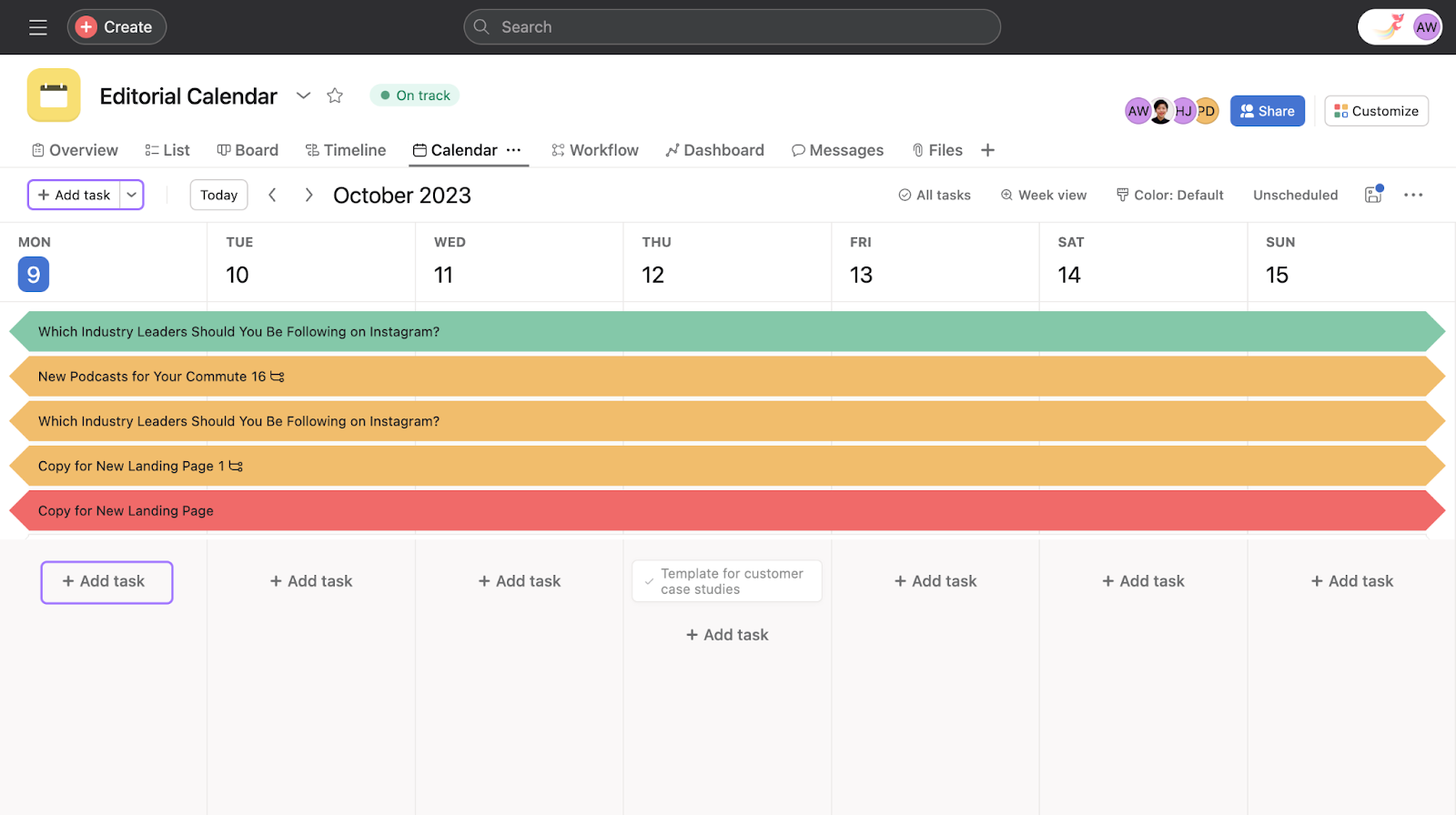
To create a task in a calendar, click the empty space on a given date, enter the task name and hit Enter. You can now also create tasks in the Calendar week view by clicking on the + Add task button.
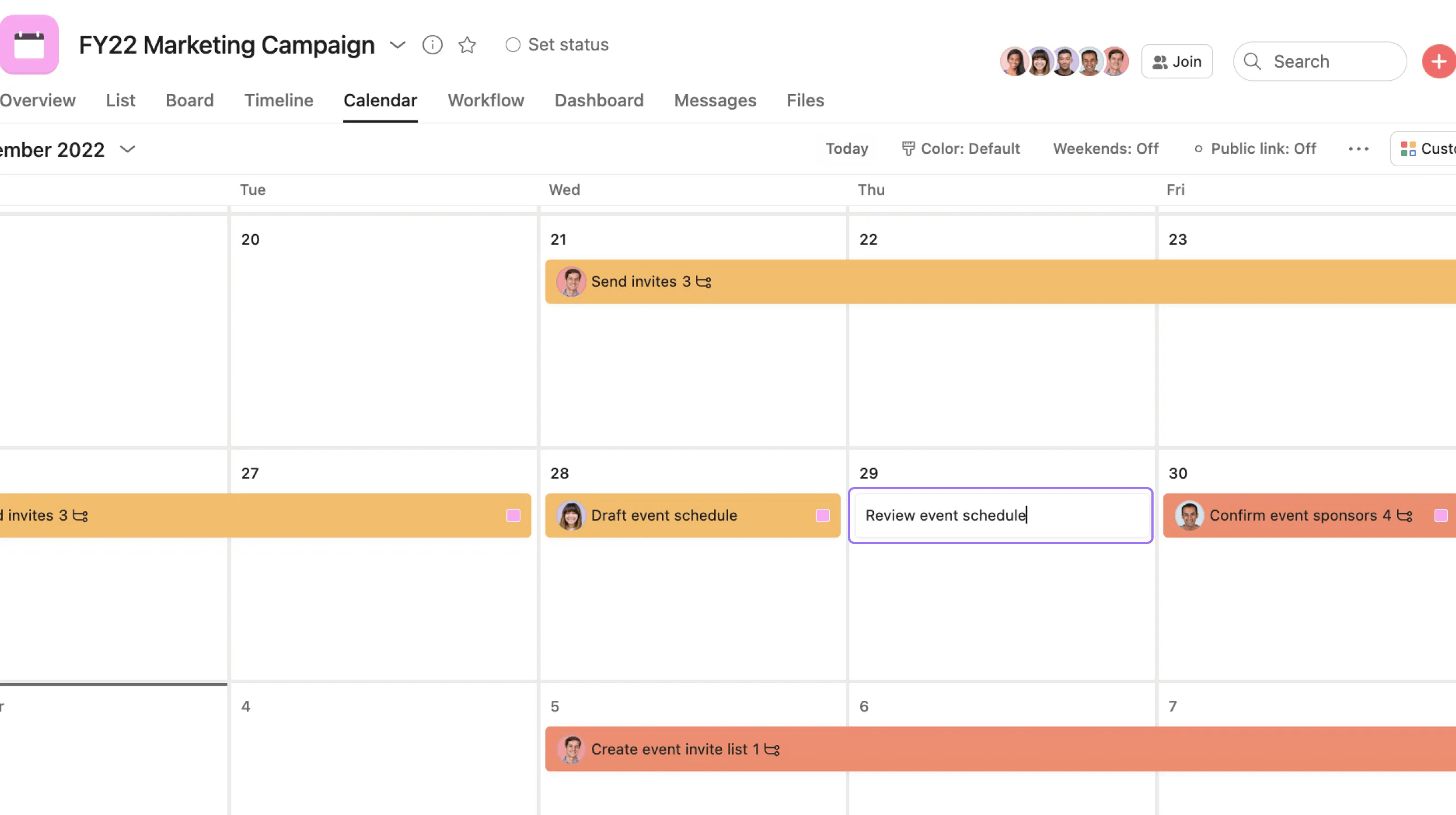
Once the task has been created, you can click on it directly to access the task's details.
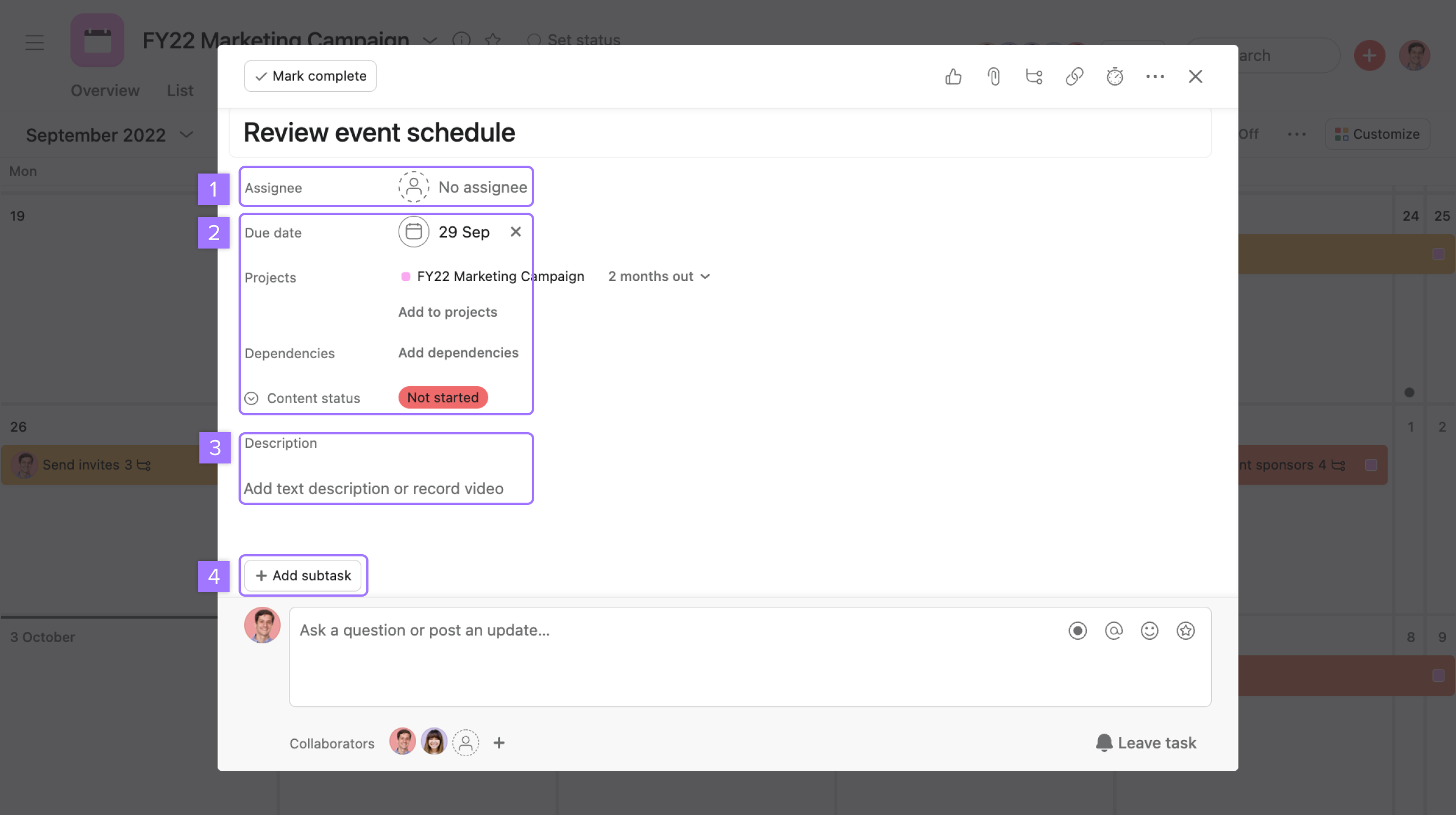
From here you can:
Then, click away from the pop up or click the X on the top right to finish.
To add a task using the + Add task button
The best way to set colors on project calendar is to create custom fields and set colors for each field. Then, when you set a custom field value on tasks, that color can be viewed on your calendar.
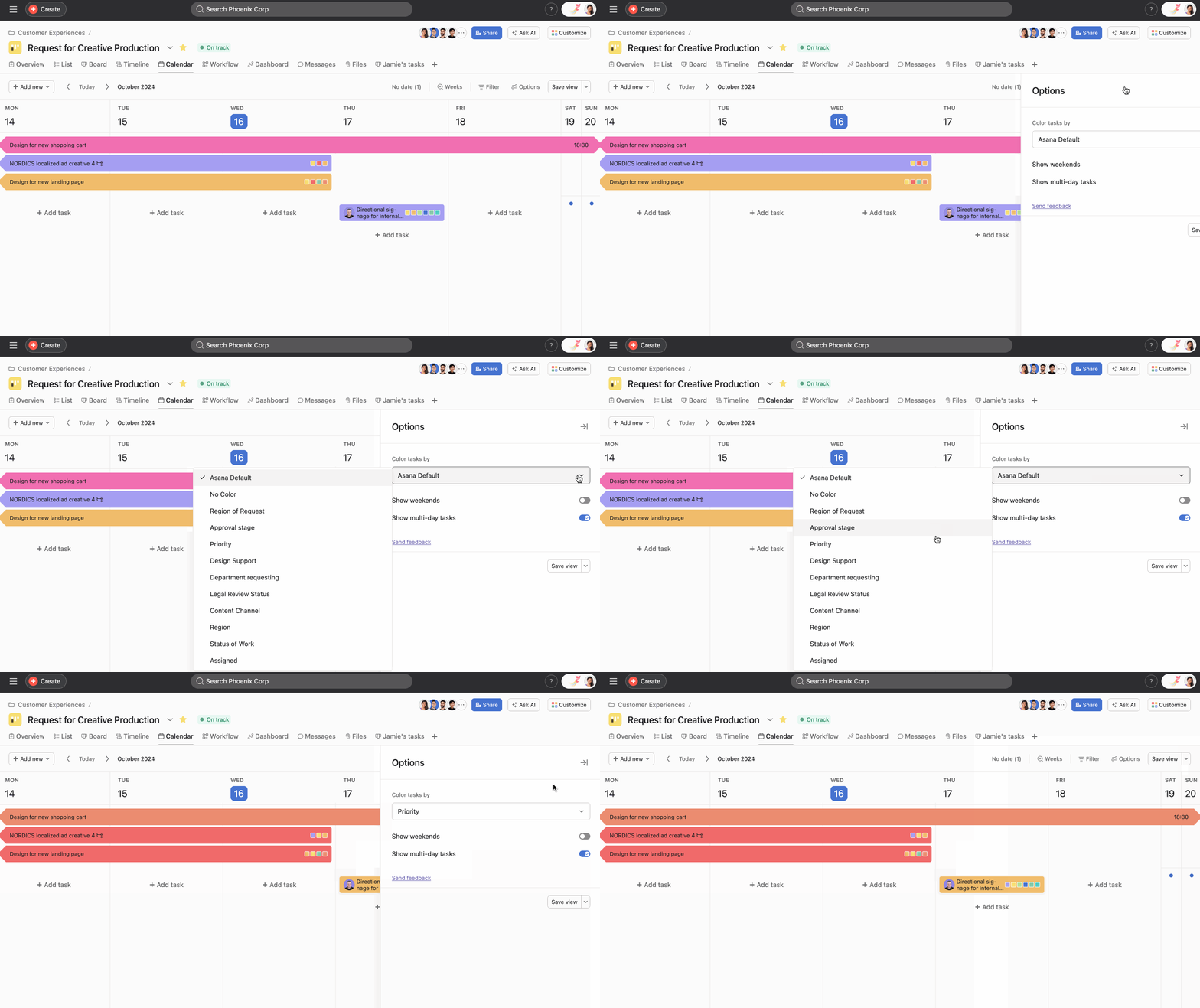
To set colors on your project's calendar, click Options, and select an option from the Color tasks by drop-down.
You can choose Asana Default, which pulls from other colors you have set in Asana, or you can set your color logic based on custom fields. Once you’ve chosen which custom field you’d like to use, you can save that view for everyone, so your entire team will see the same color logic when they view the project calendar.
You can apply filters to your calendar in both Month and Week view within projects and My tasks.
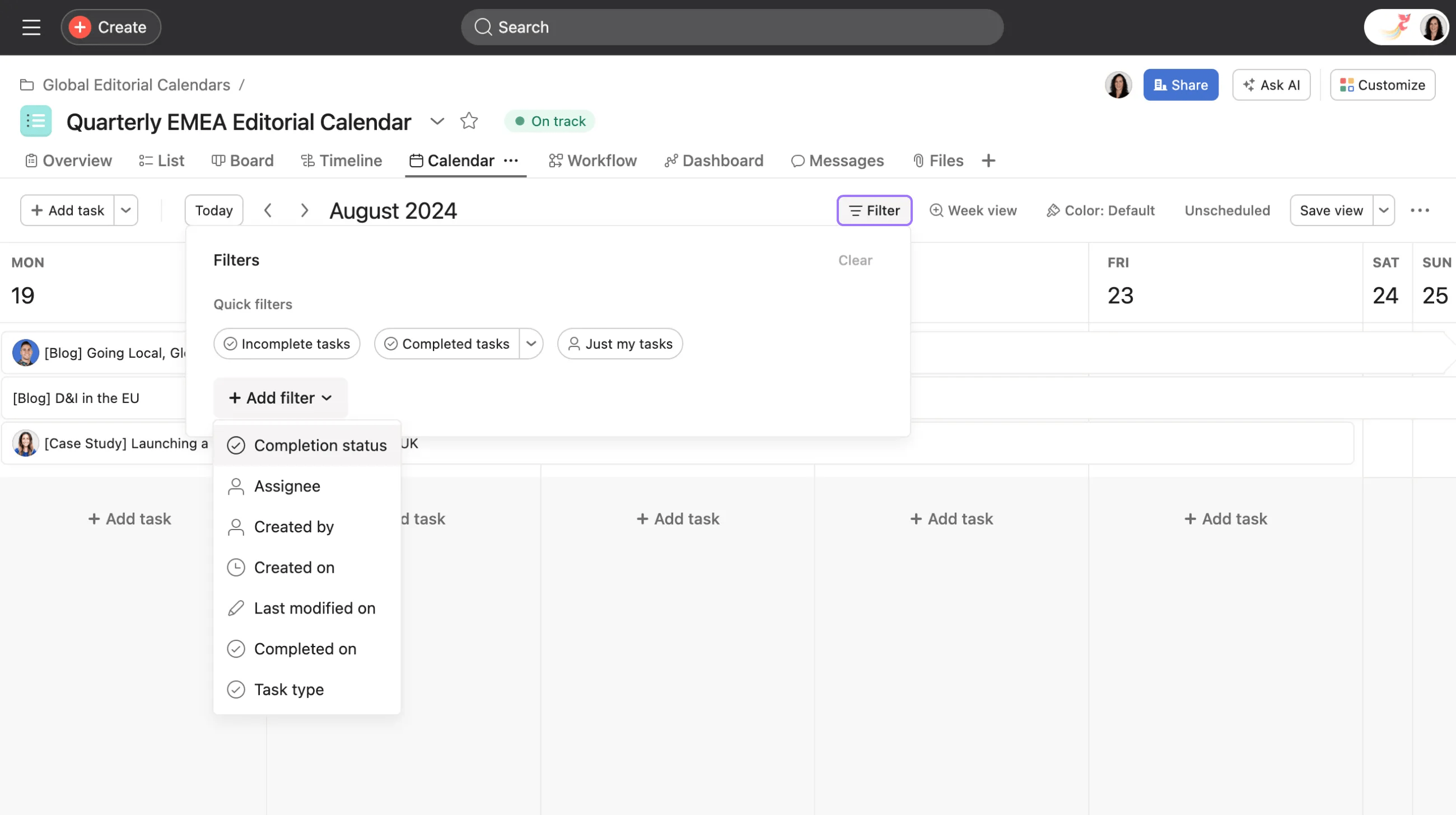
You have an array of different options directly within the project calendar view.
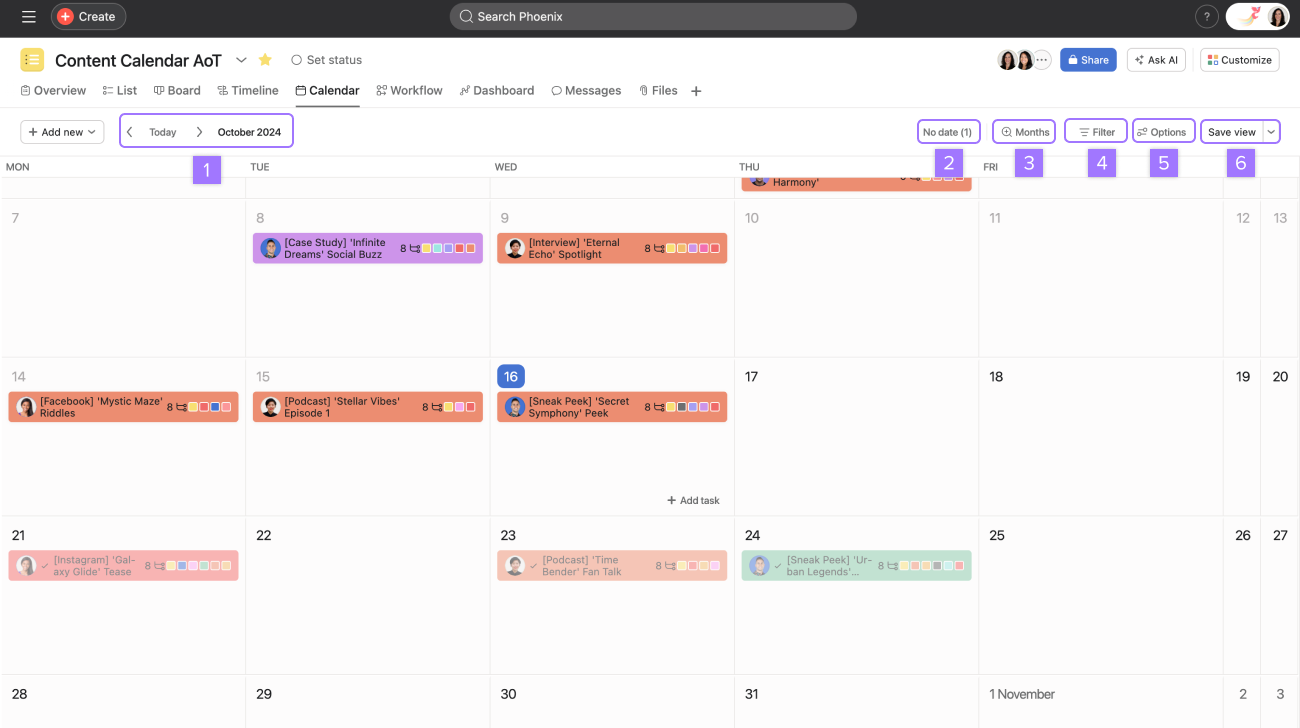
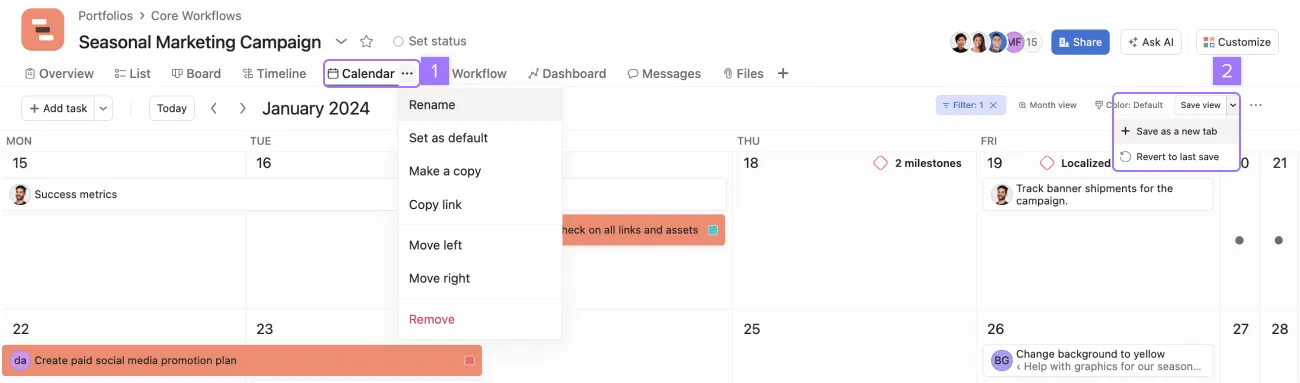
Clicking Save view will save this project view for everyone you're collaborating with.
Read more about saved views.
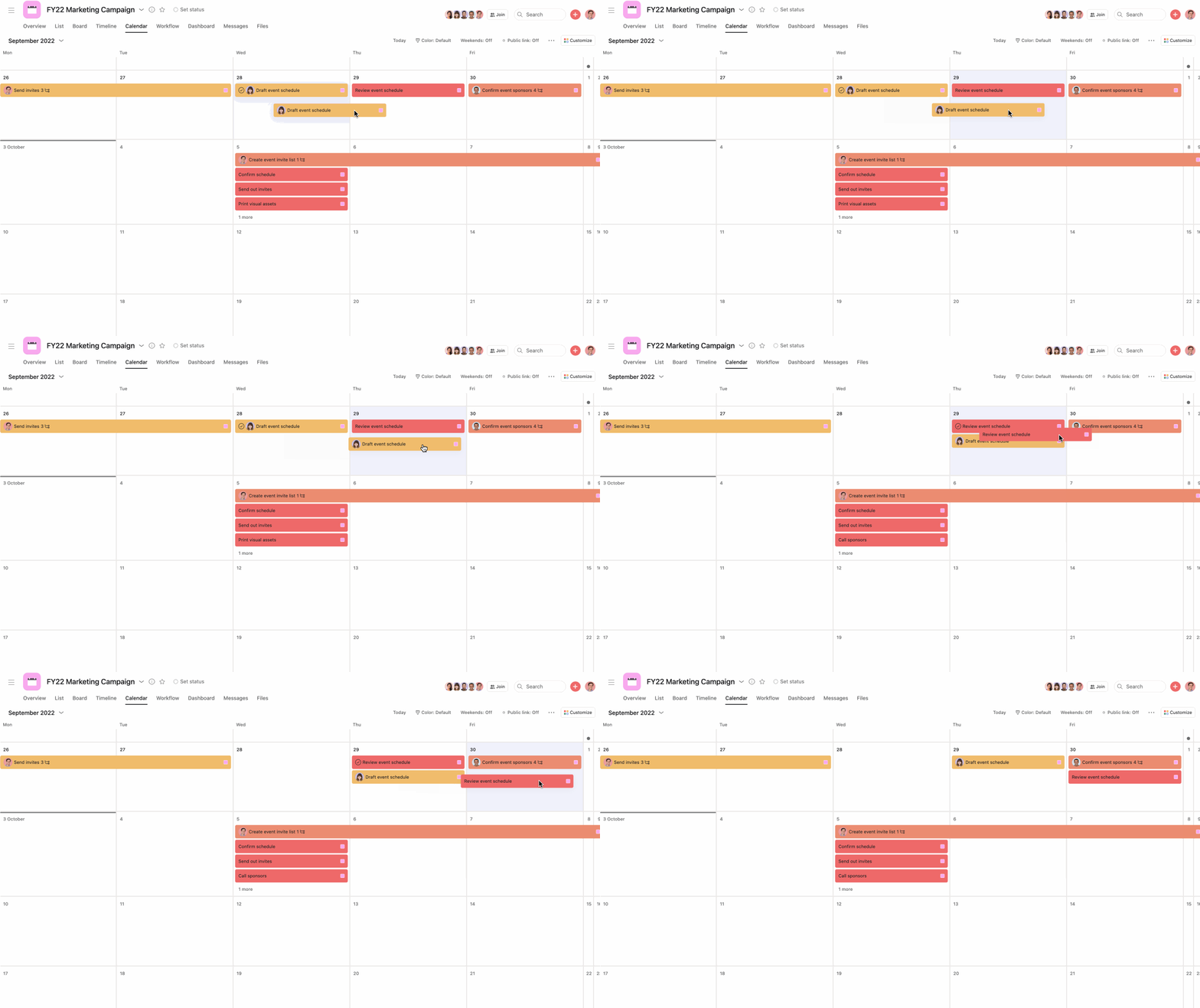
Click and hold the task on your calendar view and move it to the new due date.
You can also view the amount of subtasks on a particular task directly from your calendar view.
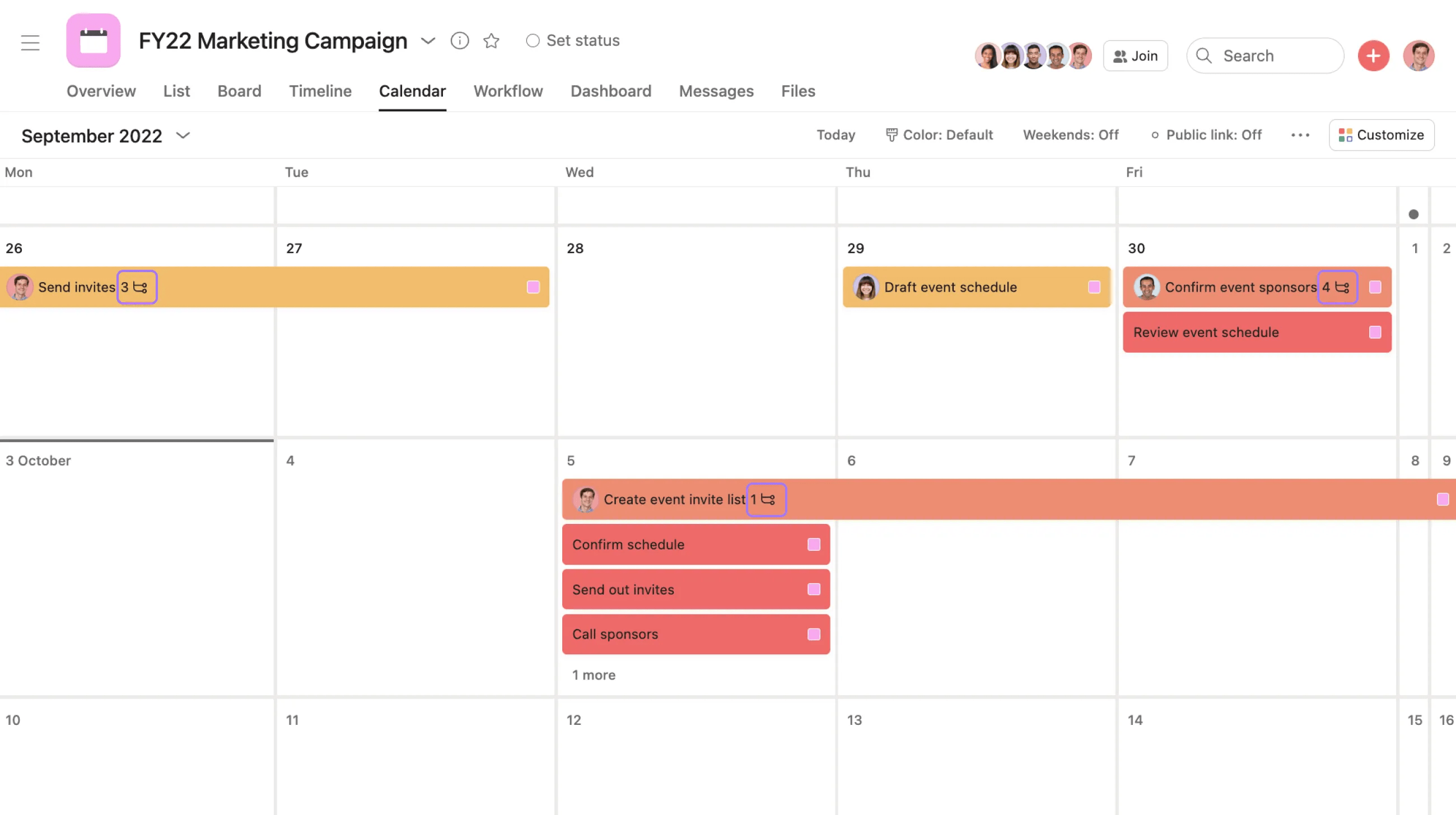
The subtask count will appear next to the task name on calendar view.
As well as projects your My tasks also has a calendar view. View your My tasks calendar to keep track of your own deadlines and upcoming tasks. Using the 7 day calendar view you can reorder tasks due each day, to keep your highest priority tasks at the top.
Looking for a better way to manage your work? Get started with a free Asana trial. Try for free


