Transform your meeting follow-ups by automatically generating summaries, extracting action items, and creating tasks directly from your Zoom recordings. This article walks you through setting up an automated workflow that eliminates manual note-taking and ensures decisions are properly tracked.
Related articles
What you'll accomplish
By the end of this guide, you'll have a fully automated system that:
- Automatically generates meeting summaries when transcripts become available for recorded Zoom calls
- Extracts and assigns action items to team members
- Creates organized tasks in your Asana projects
- Saves time on manual meeting documentation
Prerequisites
Before starting, ensure you have:
- Zoom account with recording and transcription enabled
- Asana account on a Starter, Advanced, Enterprise, or legacy Premium/Business tier with AI enabled.
- AI Studio Basic, which is provided free for all Asana plans, should allow you to set up and test this workflow. For regular use, we recommend the AI Studio Plus or Pro plans.
- Asana for Zoom integration installed (setup instructions)
How the workflow works
The automation follows this process:
- You hold a Zoom meeting with recording enabled
- Zoom generates an audio transcript after the meeting ends
- Asana detects the new transcript and triggers your rule
- AI Studio analyzes the transcript and generates summaries or action items
- Tasks are automatically created in your specified project
Setting up the workflow
There’s two approaches to setting up this workflow:
-
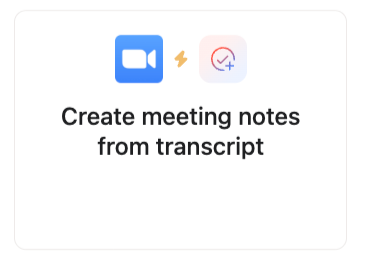
Start with a preset AI rule for creating meeting notes from Zoom transcript. This is the fastest way to start generating meeting notes automatically
-
Or, configure this from scratch in the rule builder by selecting the Zoom transcript trigger and task actions. This is for if you have deep familiarity with rules and want to customize this workflow further. This guide will go over this approach
Step 1: Set up the project structure
You can create a blank project to capture the meeting notes, or use an existing project.
- Create a Text custom field. This is where the recording link will be live.
- Create a Date field to indicate when the call took place. You can also use the task’s Due date.
 Note
Note
Feel free to add other fields you may want AI to fill in based on your use case, such as a Sales Call Type.
Step 2: Create meeting notes in task rule
- Navigate to your project in Asana
- Click Customize in the top-right corner
- Click Rules, then select + Add
- Click Create with AI Studio
- Name your rule (e.g., "Weekly team meeting notes")
Choose one of these trigger options:
Option A: All recorded meetings (broader automation)
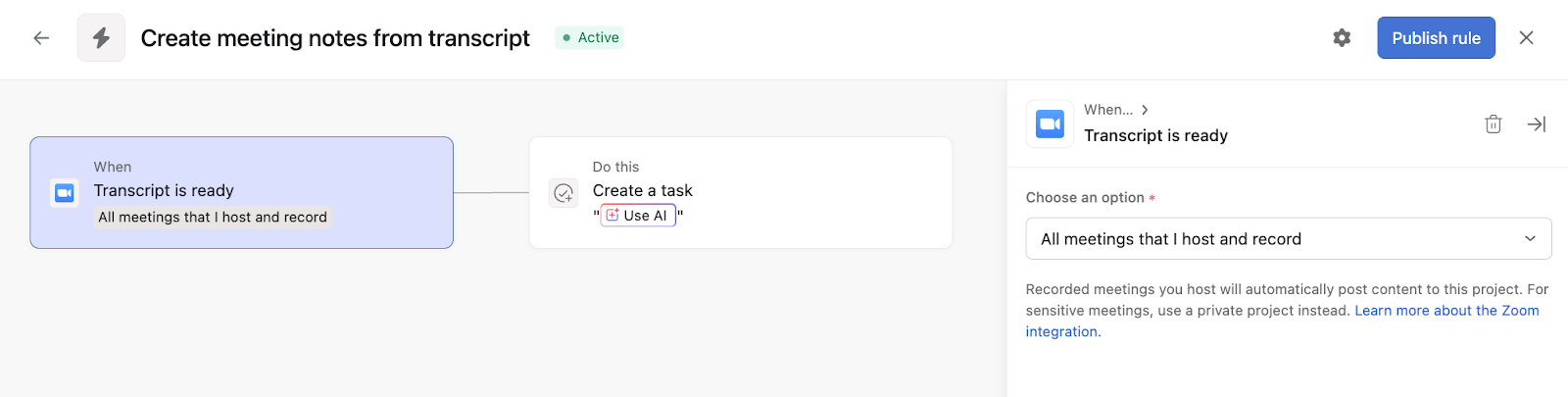
- Select the Zoom transcript is ready trigger and the option All meetings that I host and record.
- This will trigger for all Zoom meetings where you are the host and have recorded a meeting transcript. We recommend starting out with a private project for this rule as all recorded meetings you host will automatically post content to this project.
Option B: Specific meeting, including recurring meeting (targeted automation)
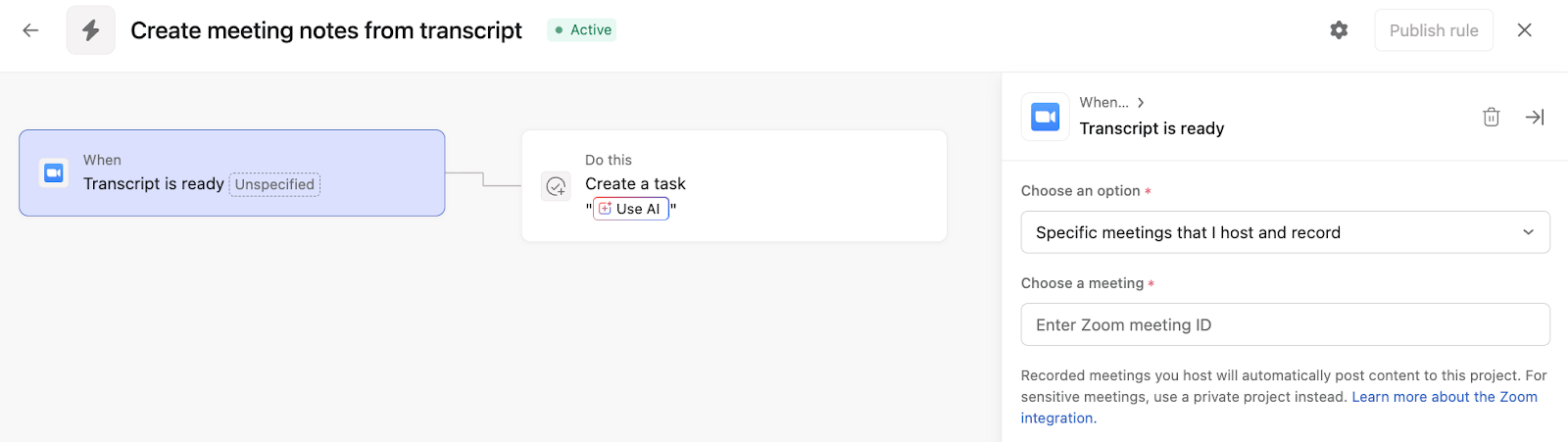
- Select the Zoom transcript is ready trigger and the option Specific meetings that I host and record.
- Enter the Zoom Meeting ID for the recurring meeting (find this in your Zoom account under Personal > Meetings)
Set up the action
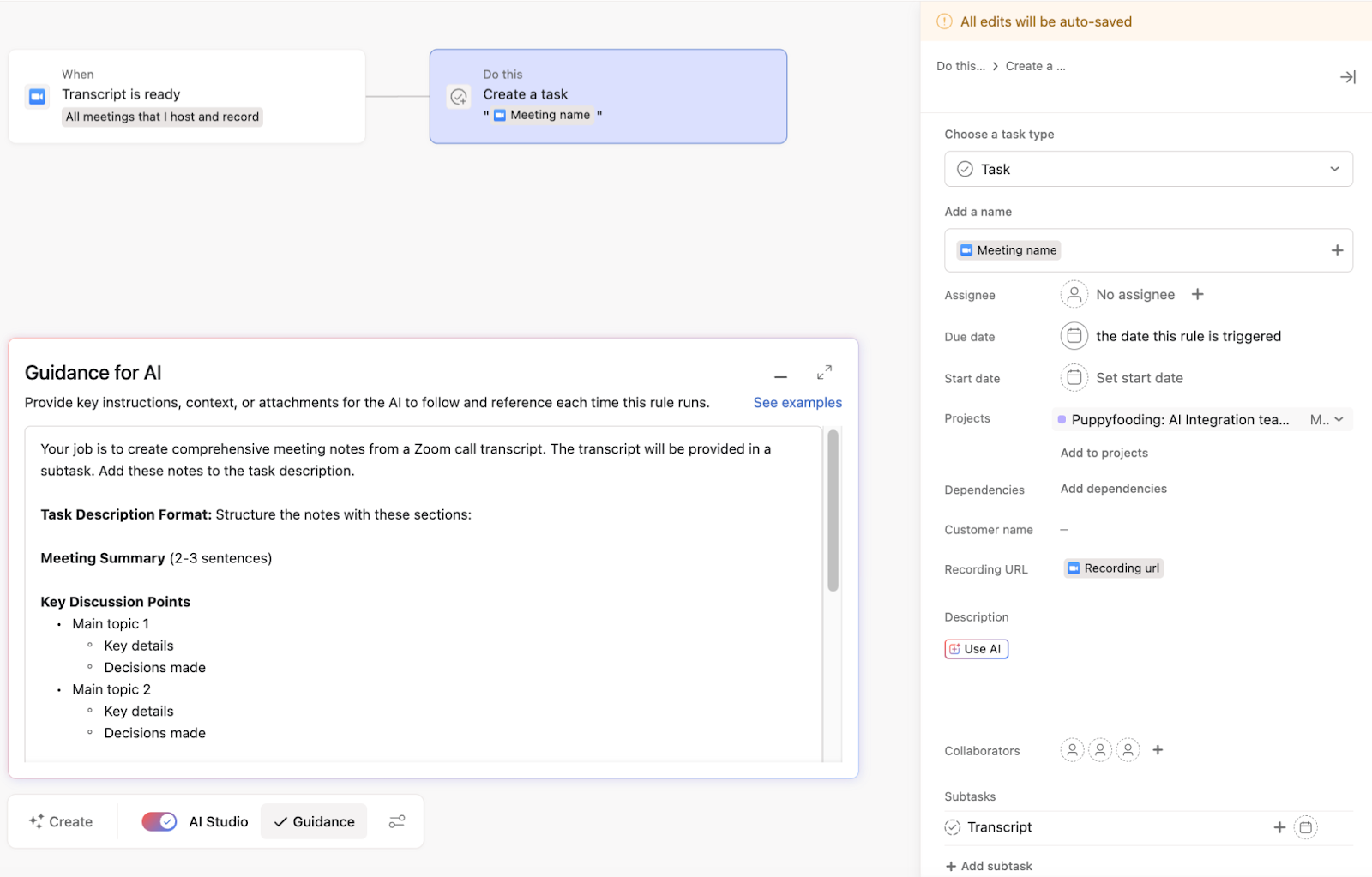
- Select Create a task
- In Add task name choose Meeting name
- For the Due date field, choose The date this rule is triggered
- For the custom fields: You can add Use AI, or for the Recording link custom field, you can use the variable Recording URL.
- In Description add the variable Use AI
- Create a subtask called Transcript
- Click into the Transcript subtask. In the Description field click the + button and use the Transcript variable from Zoom
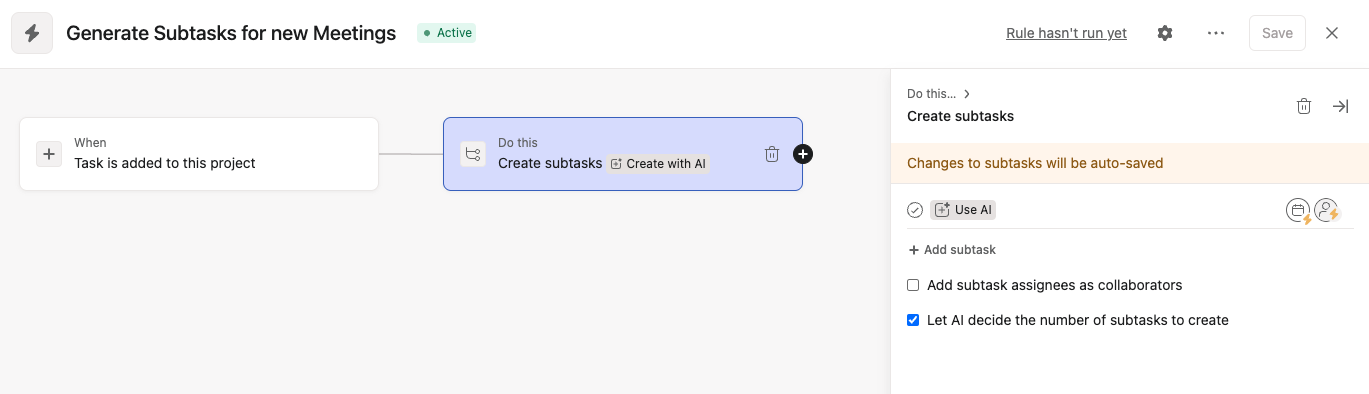
Step 3: Create action items in subtasks rule
Trigger: When a task is added to this project
Action: Create Subtasks
- Ensure Let AI Decide the number of subtasks to create is checked
- Set the Task name, Due date, and Assignee fields to Use AI
- Ensure you click in to the subtask itself and set the subtask description to Use AI
Step 4: Prompting AI Studio
In the Guidance for AI box you’ll need to provide key instructions. You'll need two separate prompts; one for each rule.
Note
For any AI Studio rule where you are looking to dynamically assign among a restricted set of individuals, like letting AI know who to go for for which kinds of action items or follow ups, you will likely want to ensure you @mention any teams or specific individuals which AI might need to select from. Read more on how to use @mentions in AI Studio prompts.
Prompting for Create meeting notes in task rule:
Your job is to create comprehensive meeting notes from a Zoom call transcript. The transcript will be provided in a subtask. Add these notes to the task description.
Task Description Format: Structure the notes with these sections:
Meeting Summary (2-3 sentences)
Key Discussion Points
- Main topic 1
- Key details
- Decisions made
- Main topic 2
- Key details
- Decisions made
Important Questions & Answers
Decisions Made
Risks & Concerns
Next Steps
Keep formatting clean and scannable. Focus on information that would be valuable to someone who wasn't on the call.
Prompting for Create action items in subtasks rule
Your job is to extract specific, actionable tasks from the meeting transcript found in the "Transcript" subtask of this task.
For each action item, create a subtask with:
Subtask Name Format: "[Action verb] [specific deliverable]" Examples:
- "Send pricing proposal to Sarah"
- "Schedule follow-up demo for engineering team"
- "Review security documentation"
Assignee Rules:
- If a specific person committed to the action, assign to them using @[name]
- If unclear but related to a department (e.g., "engineering will handle"), assign to @[department lead]
- If no owner specified, assign to the meeting organizer
- Use Asana @-mention format: @[firstname lastname] or @[team name]
Due Date Rules:
- If a specific date mentioned, use that date
- If "this week" → 3 business days from meeting
- If "next week" → 7 business days from meeting
- If no timeline → 5 business days from meeting
- Never set due dates on weekends
Subtask Description: Include:
- Context: Why this action is needed
- Specific requirements mentioned in the meeting
- Who requested it (if different from assignee)
- Any dependencies or prerequisites
Limits:
Create 3-7 action items maximumFocus on concrete deliverables, not vague follow-upsExclude items like "think about" or "consider"Combine related small tasks into one meaningful action
Step 6: Test your workflow
- Click Publish rule to activate it
- Hold a short test Zoom meeting with recording enabled
- Wait 5-10 minutes after the meeting ends for transcript processing
- Check your Asana project for the automatically created tasks
Frequently asked questions
Find the answers to all your questions here.



