The admin console is your central hub for managing your organization's Asana workspace. It gives you complete control over user management, security settings, billing, and organizational insights—all in one place.
Related articles
Key features
Using the admin console, organizations can ensure efficient management, robust security, and insightful analytics to optimize their use of Asana.
Asana AI
- Control AI feature availability, monitor usage, and manage access across your organization.
Access management
- Invite new users and manage permissions.
- Ensure people have access to the right teams.
Security controls
- Implement and manage security measures like SAML and two-factor authentication.
- Maintain high-security standards across the organization.
Billing controls
- View your plan details and seat utilization.
- View your invoices and edit your payment information.
Integrations
- Manage permissions to determine who can use apps and which apps are approved in your organization.
How to access the admin console
Only admins and super admins can access this feature. Team admins do not have access to the admin console.
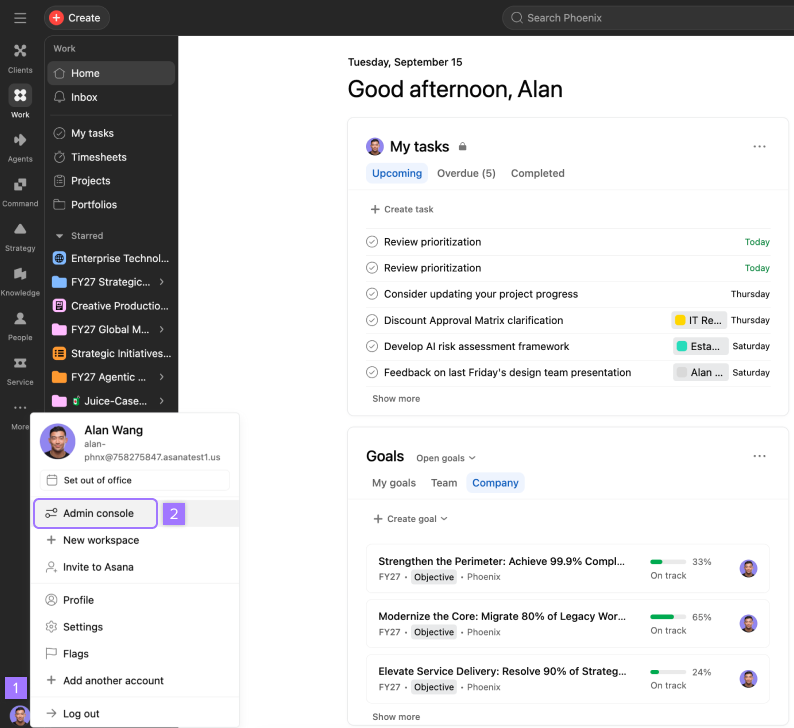
To access the admin console:
- Click on your profile photo.
- Select Admin console from the drop-down menu.
How to navigate the admin console
Tabs in the admin console
Insights tab
Get data-driven insights about your team's Asana usage:
- See daily activity data for teams and individuals
- Track project and task activity over time
- Identify where teams are succeeding
- Identify recently added and most influential members
Members tab
Manage your organization's users and teams:
- View, search, and sort every member of your organization
- Add new members or remove existing ones
- See member activity, guest accounts, and pending invites
- Track available seats on your plan
- Export membership data to CSV for reporting
- Manage user product licenses
- Control user access to billable consumption metrics
Teams tab
View and manage teams across your organization:
- Search for specific teams
- Filter by team status and privacy settings
Billing tab
Handle your organization's subscription:
- View your current plan details
- Update payment information
- Change plans or add more seats
- Access invoices and billing documentation
- View and reassign your billing owner
- Contact support for billing-related questions
Security tab
Implement and manage security measures:
- Set up SAML and two-factor authentication
- Control password requirements and strength
- Manage external sharing permissions
- Set boundaries for integrations and file types
- Configure mobile security settings (downloads, screenshots, copy-paste)
Settings tab
Configure organizational preferences:
- Customize your organization's name and logo
- Set up custom branding for your workspace
- Manage domain settings and announcements
- Configure organization-wide preferences
- Create a customized onboarding experience
Apps tab
Manage integrations and connected tools:
- View all third-party apps connected to your organization
- Block or configure app settings as needed
- View last activity and most active members for each integration
- Create new service accounts
Resources tab
Access training and support materials:
- Find video tutorials and Help Center articles
- Access learning resources without leaving Asana
- Get help with admin console features
- Share training materials with your team
Asana AI
The Asana AI section of the admin console gives admins control over how AI features are used across their organization. From one place, you can monitor usage, manage access, and configure spending limits.
- Super admins can enable or disable Asana AI for your entire organization from the admin console. This setting controls whether AI is available at all and is on by default.
- The Overview tab shows a snapshot of AI usage across your organization, from active user adoption to use of AI products.
- The AI requests tab tracks included and on demand usage for Dash and AI Teammates. Your organization receives a monthly request allotment that resets automatically. Admins and billing owners receive email alerts at first use, then at 65%, 85%, and 100% of the monthly allotment.
- When your monthly request allotment is reached, users cannot take any request-based actions until the allotment resets or on demand billing is enabled. On demand billing lets usage continue past your allotment at an extra charge per request, with the option to set a spend limit.
- The AI Studio tab tracks credit usage for AI Studio workflows. On demand billing is also available for credits and works the same way.
- From the Users tab, you can see who has AI request access, add or remove licenses at any time, and use bulk export and import to manage access for specific people or teams.




