Display allows you to change the background in your Asana account's interface and add numbered rows for your task lists.
Related articles
To access Settings:
- From the sidebar, click on your profile photo
- Select Settings from the menu
- Select Display
From the Display tab, you can:
- Choose a theme - light, dark, or sync with system settings.
- Sidebar and topbar color - black or gray.
- Set your profile language - select which language you'd like to use Asana in. Currently English, German, Spanish, French, Bahasa Indonesia, Italian, Japanese, Korean, Dutch, Polish, Portuguese, Russian, Swedish, and Traditional Chinese.
- Change the first day of the week - adjust your calendar view so either Saturday, Sunday or Monday is the first day of the week.
- Pop-up notification duration - select the preferred duration for how long you would like your confirmation pop-up to stay on the screen.
- Set your preference to open Asana through your web browser or via the desktop app.
- Select advanced options
- Show row numbers - add numbered rows to your tasks in the main pane
- Enable compact mode - reduces the line breaks between tasks in the main pane
- Enable color blind friendly mode (protanopia and deuteranopia)
- Show occasional celebrations - a mythical creature will appear at random when you complete a task
Confirmation pop-up timing
You can determine how long a confirmation pop-up should appear on the screen. Allowing a longer duration for confirmation pop-ups ensures that everyone has adequate time to interact with the pop-up before it is dismissed.
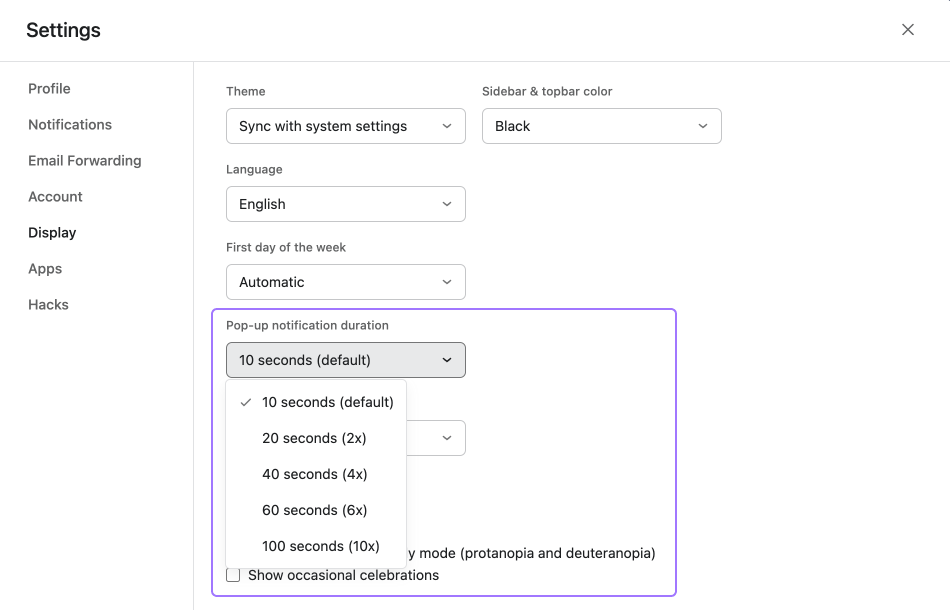
To manage the timing for your confirmation pop-ups:
- Navigate to the Display tab of Settings
- Click the drop-down under Pop-up notification duration
- Select the preferred duration for how long you would like your confirmation pop-up to stay on the screen
- Click Save and reload
 Note
Note
Display settings are personal to you and will not affect what your teammate sees when they log in to Asana.
Confirmation prompts
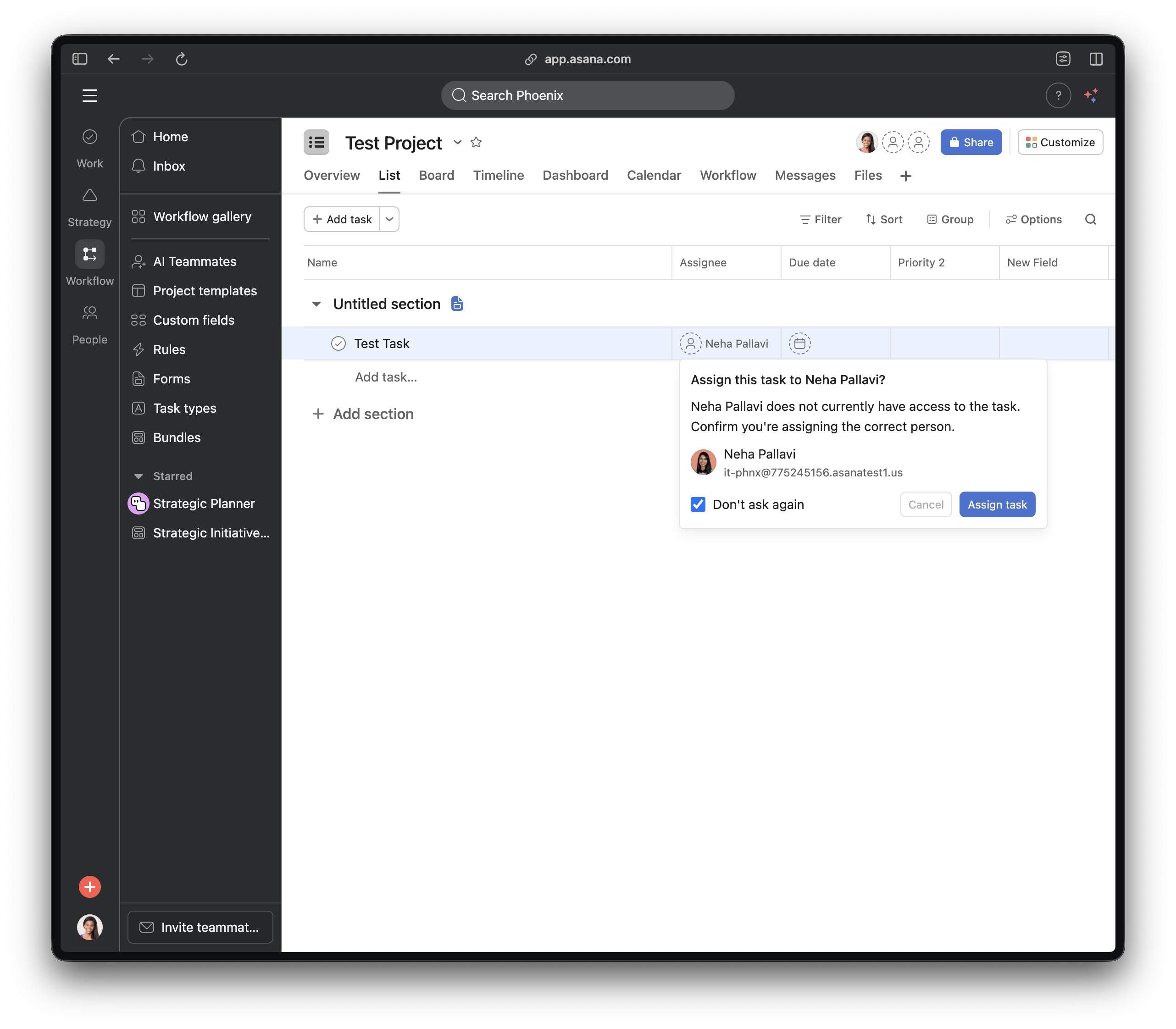
To help prevent accidental task sharing, a speedbump will appear when you @ mention or assign a user who does not have access to the task.
You can configure your personal preferences for this feature in your Display settings under Confirmation prompts:
Mentioning people in tasks controls:
- Ask every time (default): A speedbump will appear, allowing you to choose whether to add the user as a collaborator or not.
- Always add collaborators: Bypasses the speedbump and automatically adds the @-mentioned user as a collaborator to the task.
Assigning tasks controls:
- Ask every time (default): A speedbump will appear, allowing you to choose whether to assign the task and add the user as a collaborator.
- Always assign task and add as collaborator: Bypasses the speedbump and automatically assigns the task and adds the user as a collaborator.
Note
Your domain administrator may set domain-wide controls that can override your user-specific preferences.
Browser and app experience
You can decide how you access Asana, whether through your web browser or the Asana desktop app. When you type asana.com into your browser you will be redirected to the logged-in version of the asana.com homepage where you will have the option to use the desktop app.
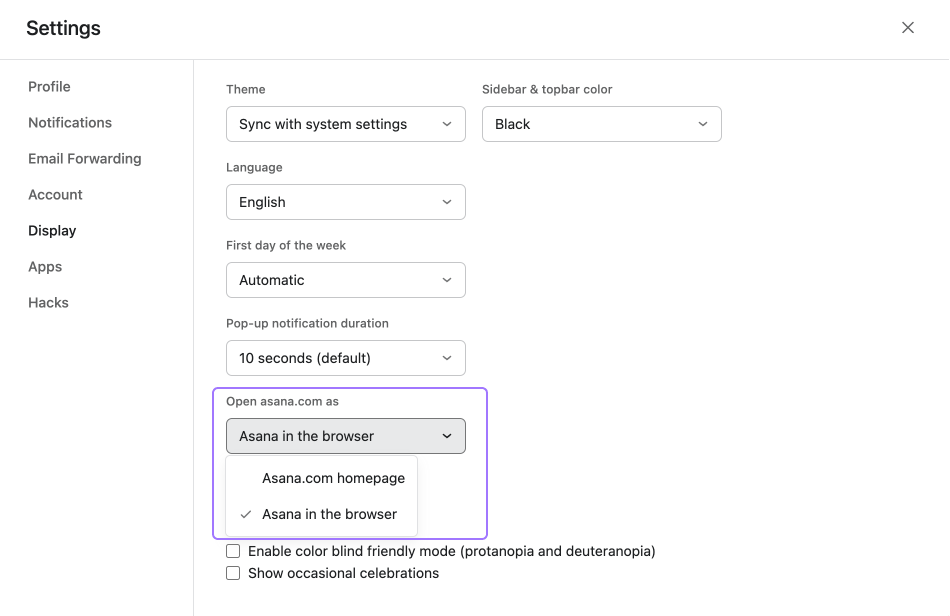
To manage your Asana access:
-
Navigate to the Display tab of Settings
-
Click the drop-down under Open asana.com
-
Select your preferred option either Asana in the browser or the Asana app
-
Click save and reload
Click here to learn more about the features and benefits of the Asana desktop app.




