Products


AI Platform


Asana Foundations
Company Type
No articles found for this topic.
No articles found for this topic.

Visit our pricing page for more information.
Rules are available on Asana Starter, Advanced, Enterprise, and Enterprise+ tiers, as well as legacy tiers Premium, Business, and Legacy Enterprise.
Visit our pricing page for more information.
Rules allow you to streamline routine tasks and establish workflows with ease. For a rule to work, you need a trigger that activates the rule and an action that is performed automatically. This article will cover the various rule actions in more detail. For information on rule triggers, please refer to this Help Center article.
A rule action is an automated activity performed when a rule's trigger event occurs. Rule actions allow you to streamline routine tasks and establish workflows by automatically taking specified actions like moving tasks, creating new tasks or subtasks, updating task details, and more.
To select a rule action:
There are a variety of actions you can configure, for rules to perform automatically. Here are some common examples:
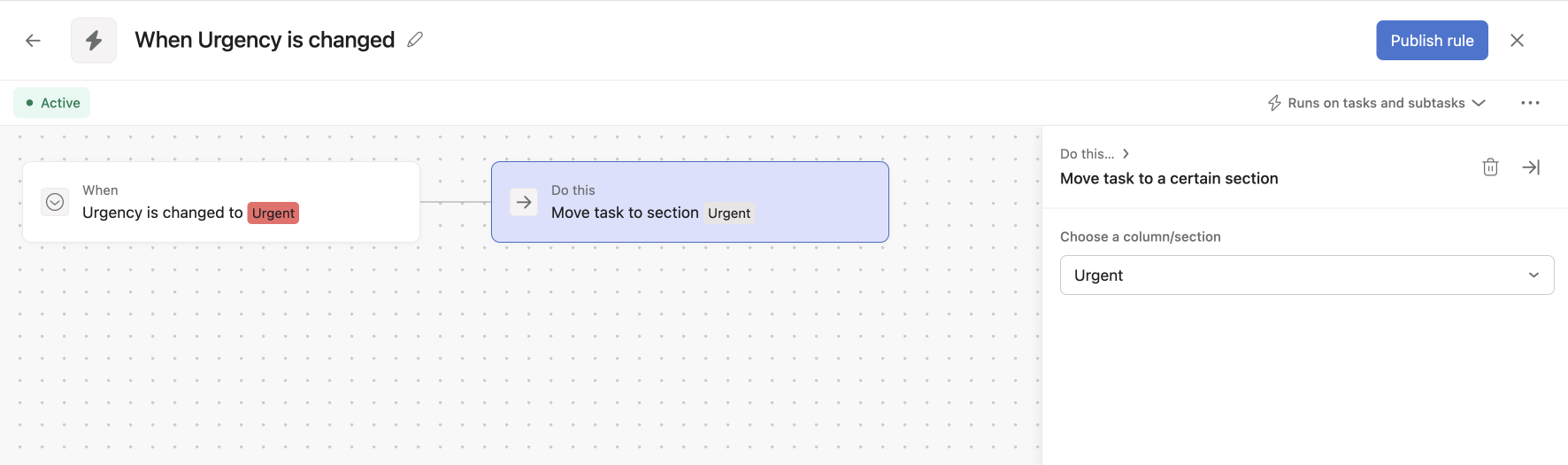
This action moves a task to a specified project section when the rule is triggered. For example, you could create a rule to move tasks to an "Urgent" section when their custom field status changes to "Urgent".
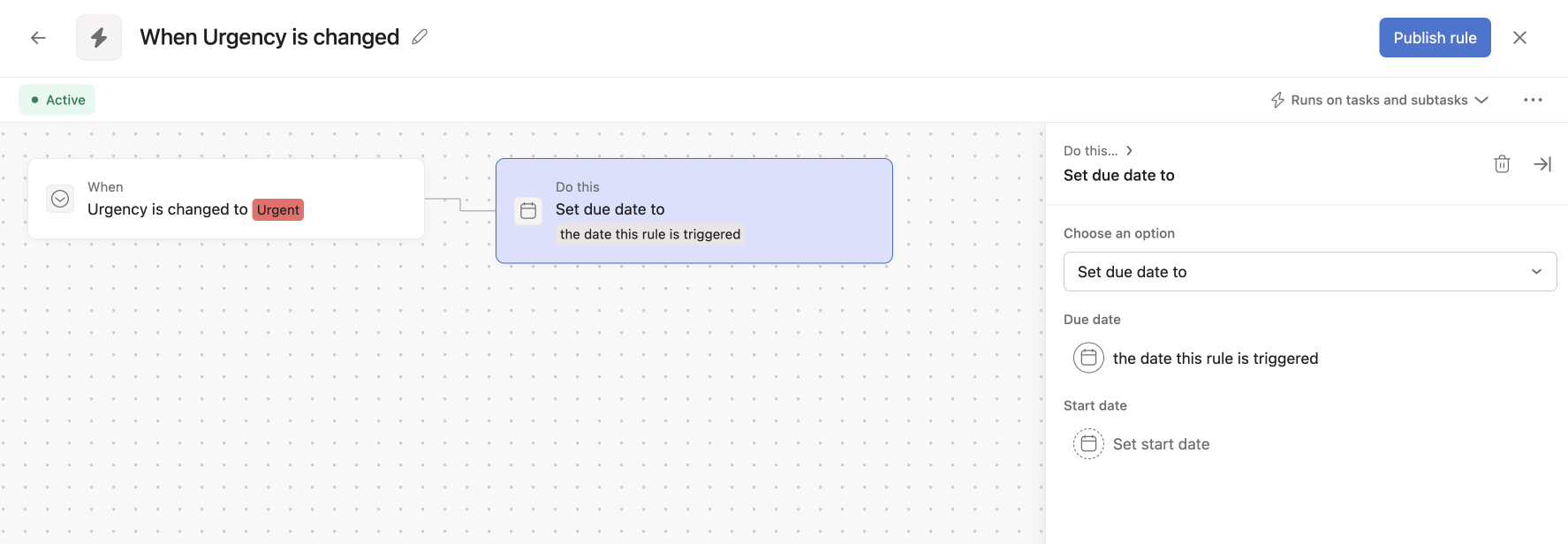
This action can assign the task to a specific user when the rule runs. A common use case is automatically reassigning tasks when they move through project stages, or changing a task's due date based on an urgency custom field.
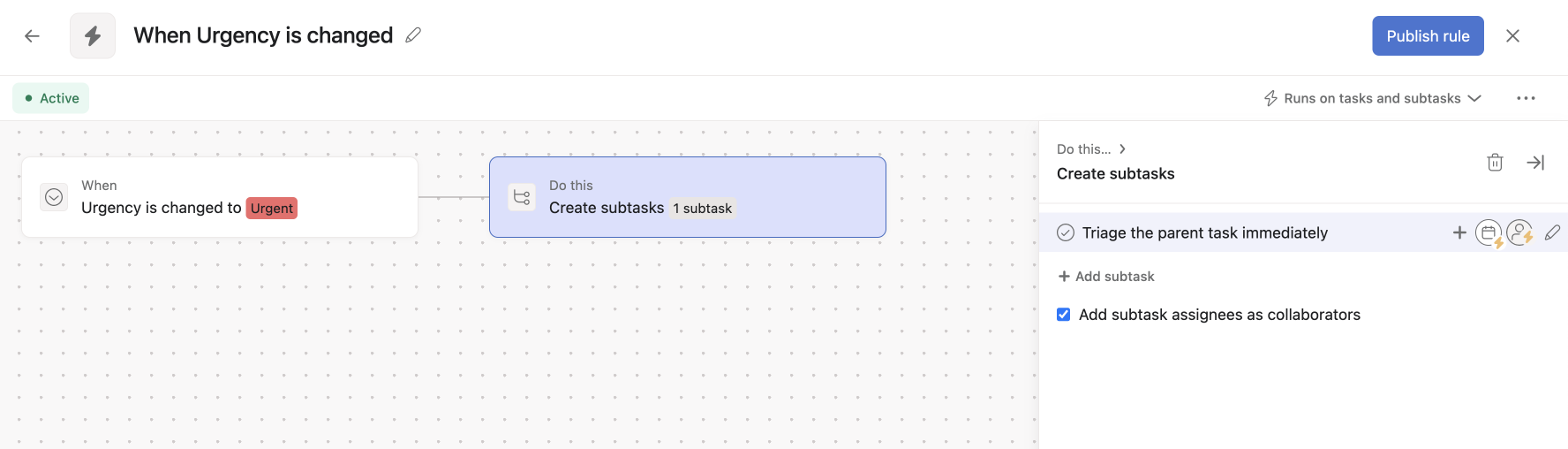
You can automatically generate tasks in the project, or even multiple subtasks on a parent task with this action. This is useful for breaking down large tasks into step-by-step processes. When setting up the rule, you pre-define the subtask title, assignee, and other details.