Products


AI Platform


Asana Foundations
Company Type

Visit our pricing page for more information.
Just like in projects, you can switch your view between list view, board view, and calendar view. Depending on the sections you’re using, you might prefer one view over another.
Saved views allows you to create new tabs in you My tasks with you preferred filter, sort, and group options.
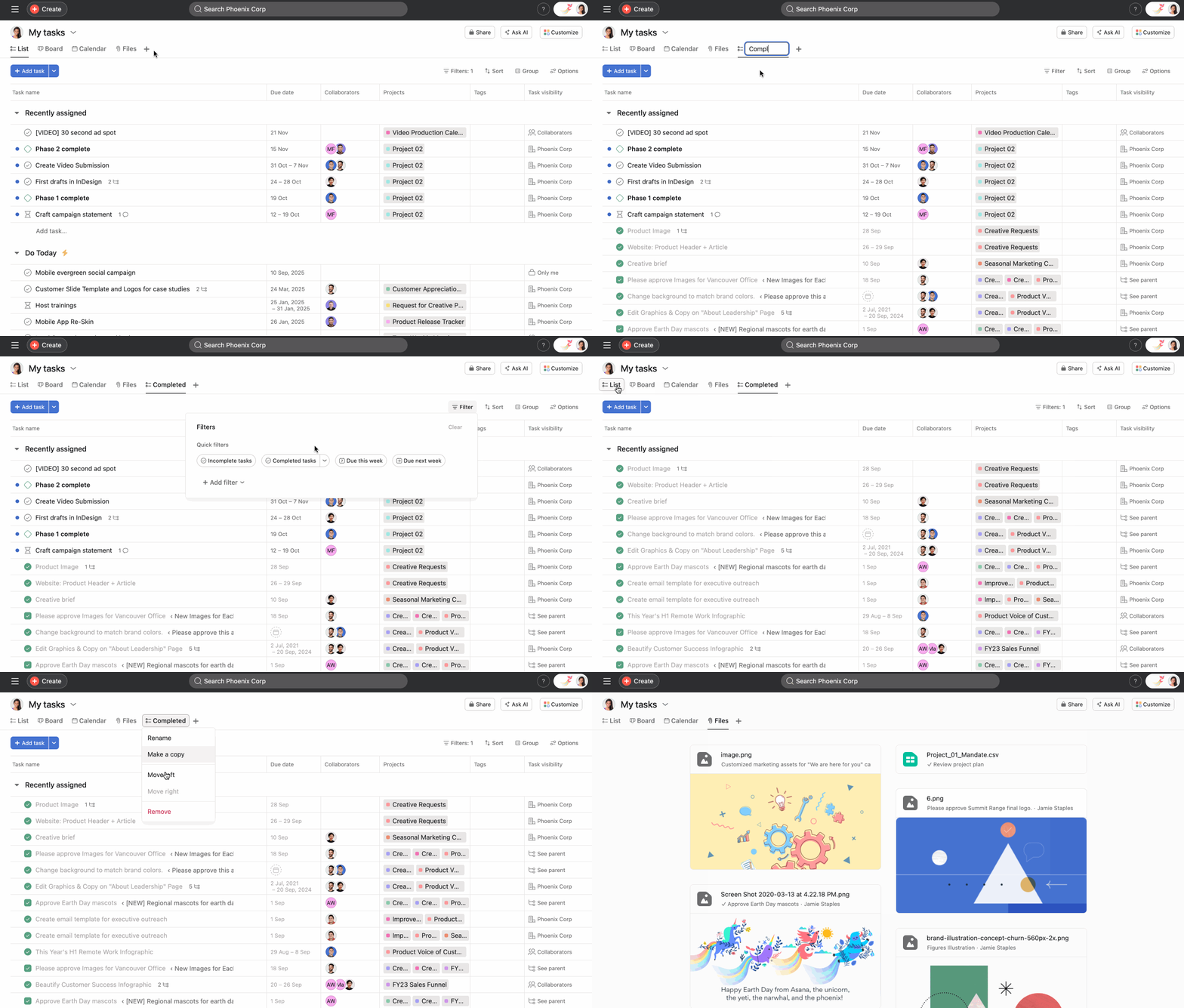
Your view will be saved automatically. To remove the tab click on it and select Remove.
You can add a notes tab to your My tasks allowing you to take meeting notes, jot down ideas, consolidate information and more.
To create a new Notes tab, click the + icon next to your tabs and select Note.
View your My tasks calendar to keep track of important deadlines and upcoming tasks. Using the 7-day calendar view, you can reorder tasks due each day to keep your highest priority tasks at the top.

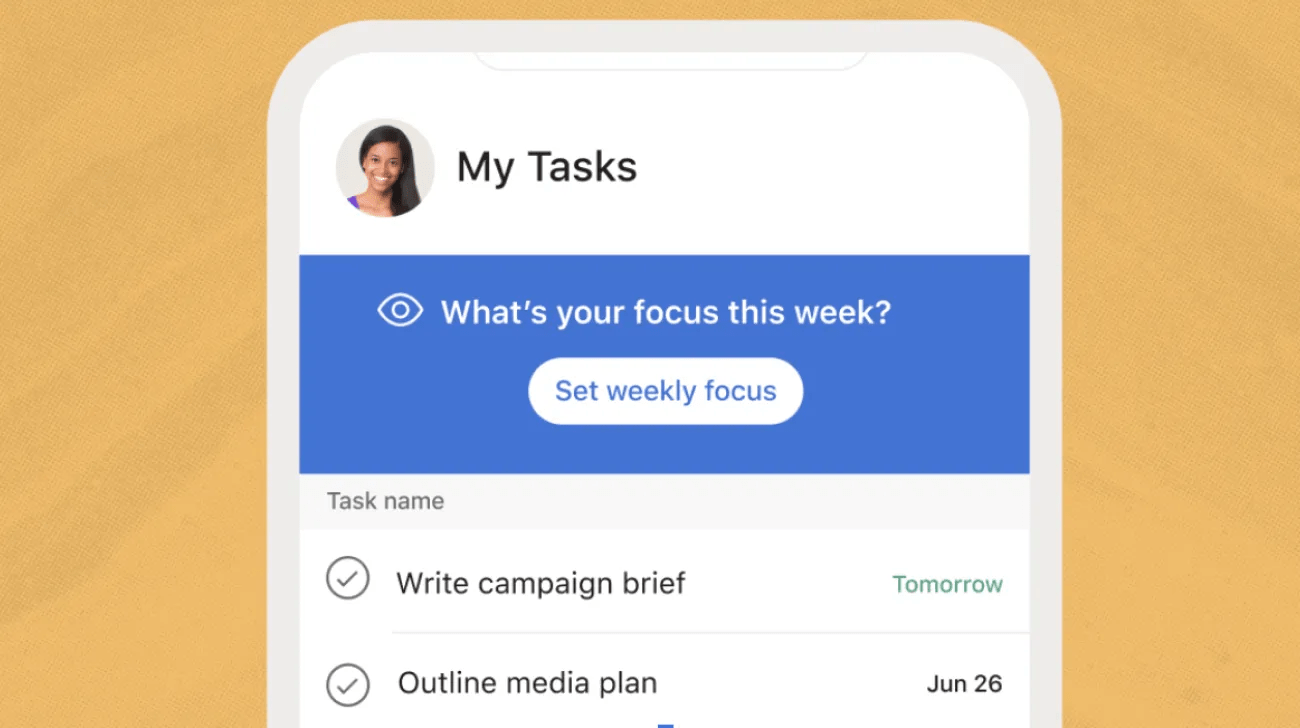
Kick off your work week more intentionally by setting a focus for the week. Capture your top priority for the week and see it displayed across mobile and web. Because this focus stays visible across platforms, setting a focus leads to better planning, actions, and outcomes.
On Monday mornings, mobile users are prompted to set a weekly focus. Weekly focus set on mobile will appear on desktop and web versions of Asana also but will not be editable there. Your weekly focus will appear at the top of your My tasks during the week to help guide your planning.
To view your My tasks list in each space you belong to (workspaces and organizations), you'll need to switch between these spaces in your top bar.
However, you may wish to use this third-party integration. Taco allows you to view all of your tasks in one list across workspaces and organizations.
Note
Our Support team cannot, however, offer assistance with third-party tools as they are not developed by Asana.

