Products


AI Platform


Asana Foundations
Company Type

Visit our pricing page for more information.
Effectively managing task schedules is crucial for ensuring project success and team collaboration. This article explains how to set up due dates and times, use start dates and times, and create recurring tasks for ongoing work.
Set a due date, due time, or a date range to let your teammates know when a task should be completed by.
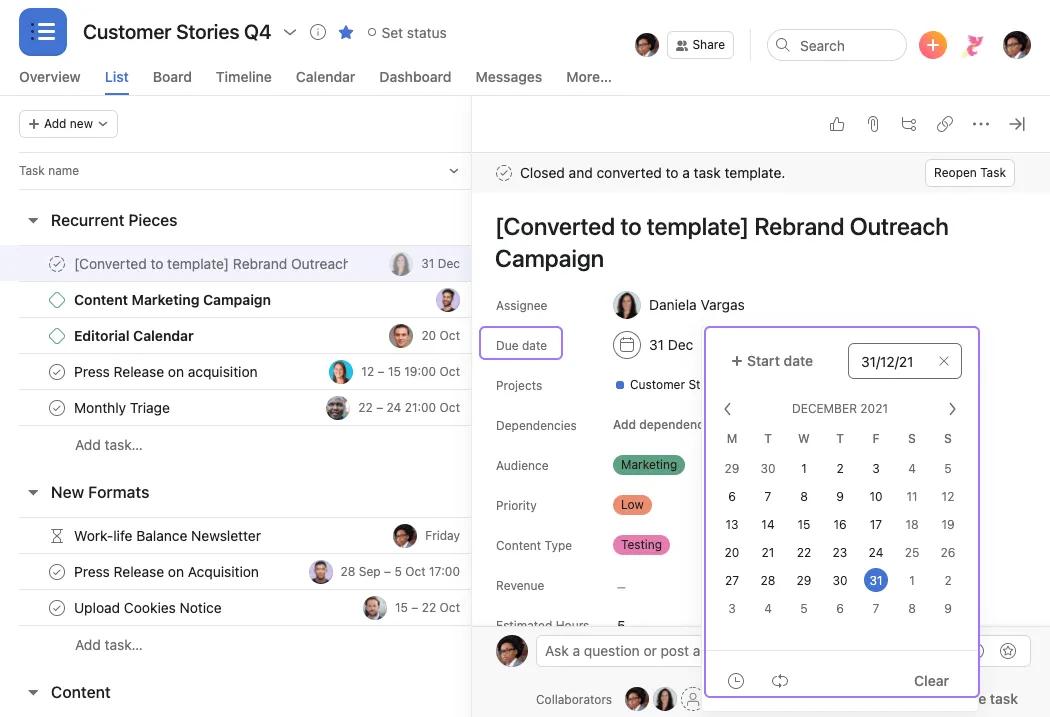
To add a due date, navigate to Due date and either type a date or select it from the calendar. To add a due time, click the clock in the calendar and add a time.
Start dates and start times are available on Asana Starter, Advanced, Enterprise, and Enterprise+ tiers, as well as legacy tiers Premium, Business, and Legacy Enterprise.
Start dates and start times enable teams with complex workflows to effectively schedule tasks across multiple days or even down to the minute.
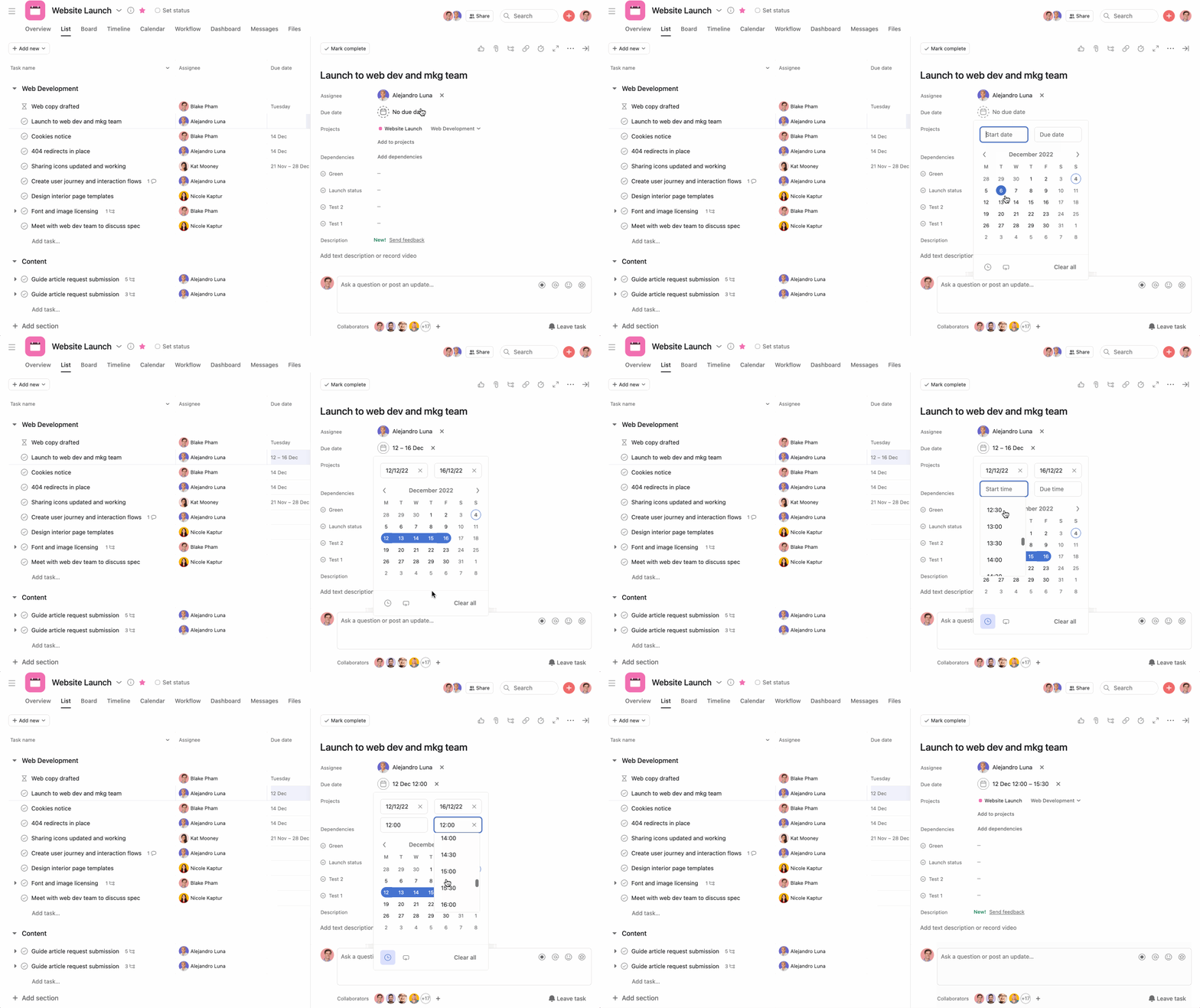
You will see your date range included in the task.
If you have a task that you need to complete on a regular basis, you can set it up as a recurring task.
When you set up a recurring task, it will only appear on your calendar the next time the task is due, not every single time the recurring task is due in the future. Once you mark a recurring task completed, it will duplicate itself for the next time the recurring task is set to be due. The interval you've set for your task's recurrence will determine the new due date.
Note
All fields (except task comments) are copied over when a recurring task copies itself, including subtasks.
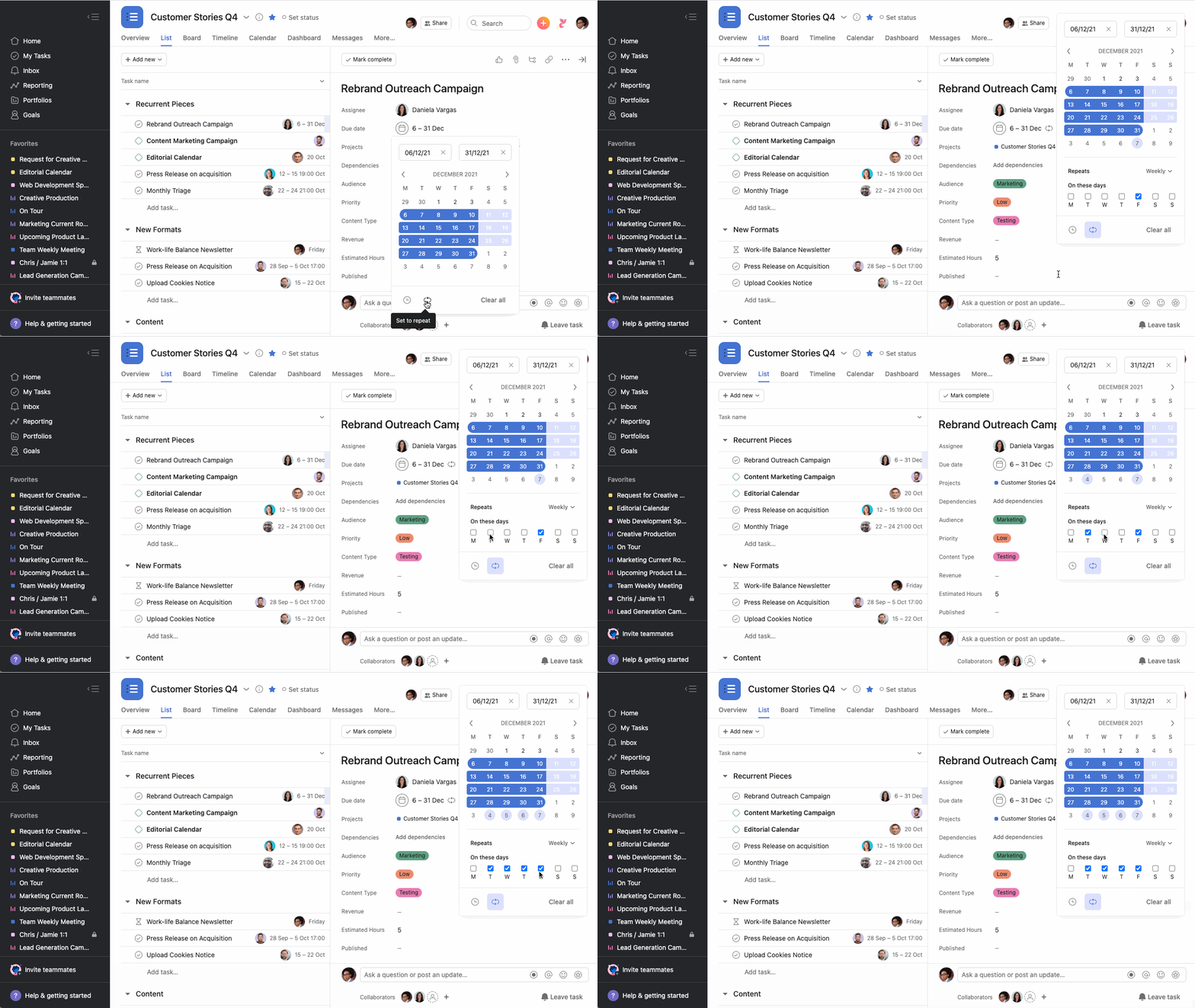
If you set a parent task to repeat, do not set any of its subtasks to repeat as well. Doing so will result in the recurring subtask duplicating exponentially.
Due dates for periodically recurring tasks are determined by the date the task was last completed.
You can stop a recurring task from repeating ever again by clicking on the remove repeat option. Alternatively, removing the entire due date from the task will stop the task from recurring.

