Products


AI Platform


Asana Foundations
Company Type
No articles found for this topic.
No articles found for this topic.
In This Article
Available on Asana Advanced, Enterprise, and Enterprise+ tiers.
Visit our pricing page for more information.
With the CSV user import, admins and super admins in organizations can efficiently import new members into Asana and update information about existing members.
CSV user import is particularly useful when trying to invite a batch of new users to Asana or batch updating existing member information.
Admins first build upon the provided CSV template to include information about the members they want to import or update. You can find a template in the Import CSV file window you can download to structure your member information.
Note
Note that the CSV user import will not process any guest user information in the file.
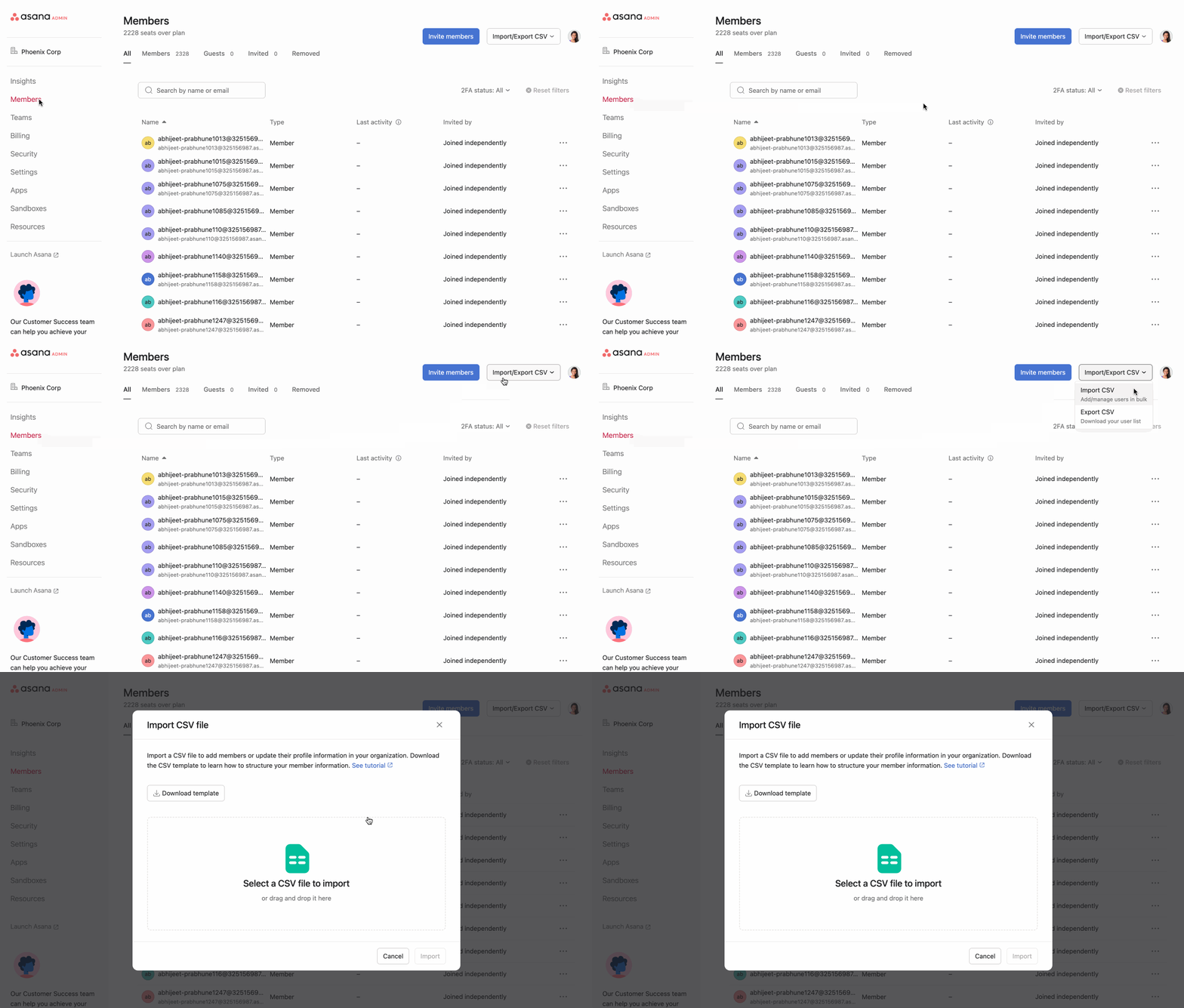
An email confirmation is sent to the admin after the processing of the file is complete.
We recommend admins to download a CSV user export prior to uploading a CSV user import file. In the event of any incorrect information being uploaded, you can use the previous CSV user export to revert changes.
The following fields are supported in the CSV user import file:
|
Field |
Details |
|
Email address |
Email address for the member. |
|
Full name |
The full name of the user. |
|
Job title |
The user’s title, such as “Vice President.” |
|
Employer department |
The user’s department. |
|
Cost center |
The cost center that the user belongs to. This field can be helpful for billing. |
|
Employer division |
Which division (organizational unit) a user belongs to. This division field is different from the concept of a division in Asana. |
|
Country |
Country associated with the user’s address. |
|
Preferred language |
The user’s preferred language. Used for selecting the localized user interface. |
|
Employee ID |
A string identifier, typically numeric or alphanumeric, assigned to a person. |
|
Organization RBAC Role |
RBAC role ID of a user, which is a string of numerical digits. Admins need to have the Assign roles for all role types permission to be able to assign roles, and they will not be able to change their own role or assign a super admin role (if they are not a super admin) through CSV import. |
|
Licenses |
The user’s licenses in a comma separated list. Valid values include: "ai studio","ai requests","client management" ,"client management client" ,"command","command limited" ,"service management" ,"service management requester" ,"timesheets and budgets" ,"work management" ,"work management view only" Eg., For an Enterprise Work Management and Service Management user with the timesheets and budgets add on: “service management,timesheets and budgets,work management” |
|
Send Invite Email (y/n) |
Suppress the invite emails for a new user created in this row with "n". Omitting the value is the same as "y" |
To retrieve the organization RBAC role ID:


