Products


AI Platform


Asana Foundations
Company Type
No articles found for this topic.
No articles found for this topic.
In This Article

Visit our pricing page for more information.
The project overview serves as a central hub for the team, providing a comprehensive and detailed view of the project. It aims to clearly communicate the purpose, objectives, and approach of the project, facilitating a better understanding of its ongoing context.
From the overview tab you can view the project's description, project roles, connected goals, connected portfolios, key resources and attachments.
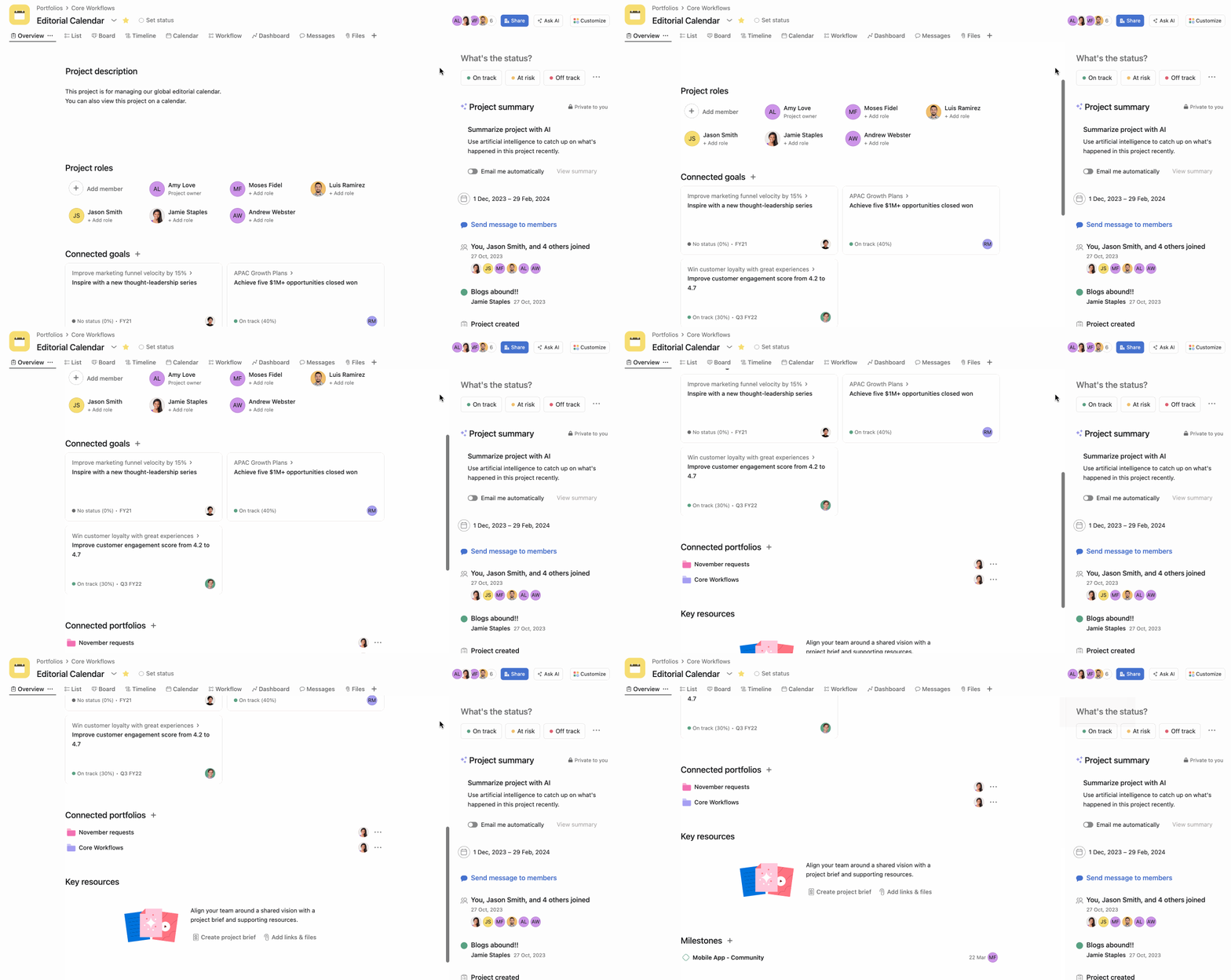
A project description allows you to welcome your team and set the tone for how you’ll work together in Asana. You can add meeting details, communication channels and other important information.
To add your description, click into the description field and start typing.
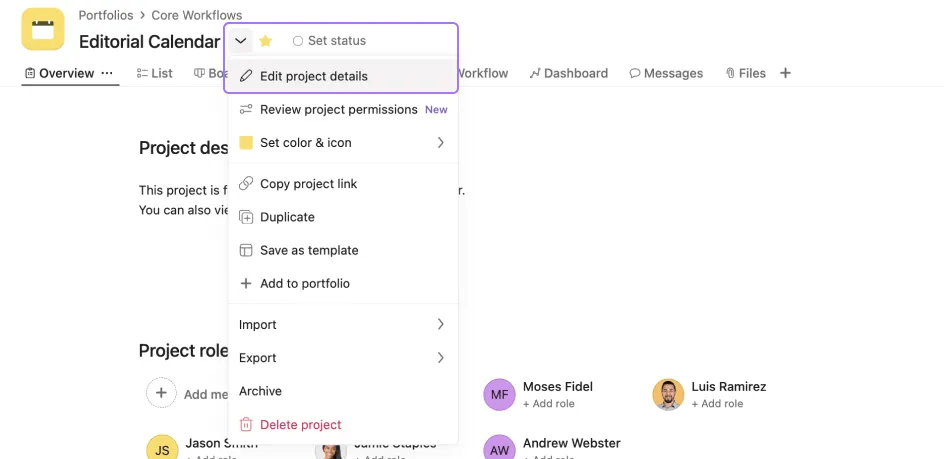
To access or edit your project details, click the drop-down arrow next to your project's name. Next, select Edit project details.
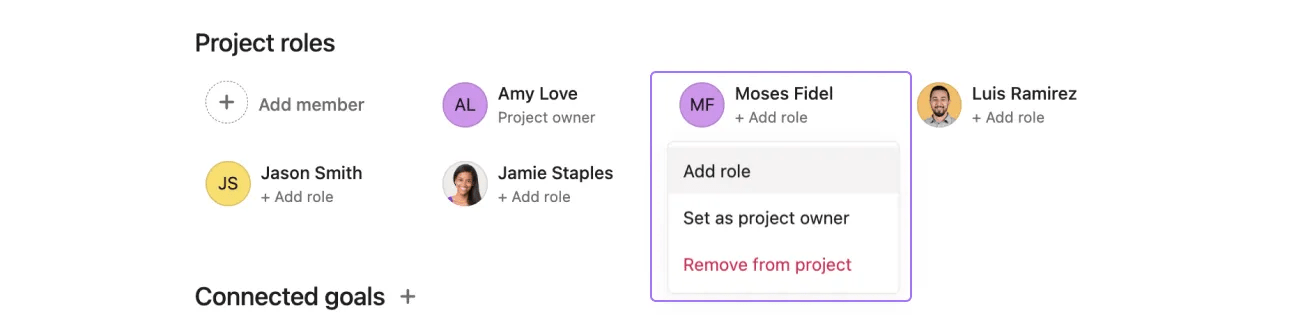
Under the Project roles section of your project overview you can easily view the project owner for your project, as well as assign roles such as Approver, Contributor or another role of your choosing. You don't have to select from predefined roles.
To edit a project member’s role, click the drop-down arrow next to the member’s name.
Attach files from your computer, Dropbox, Google Drive or OneDrive/Sharepoint easily from your project overview.
To attach a file, click on the paper clip icon.
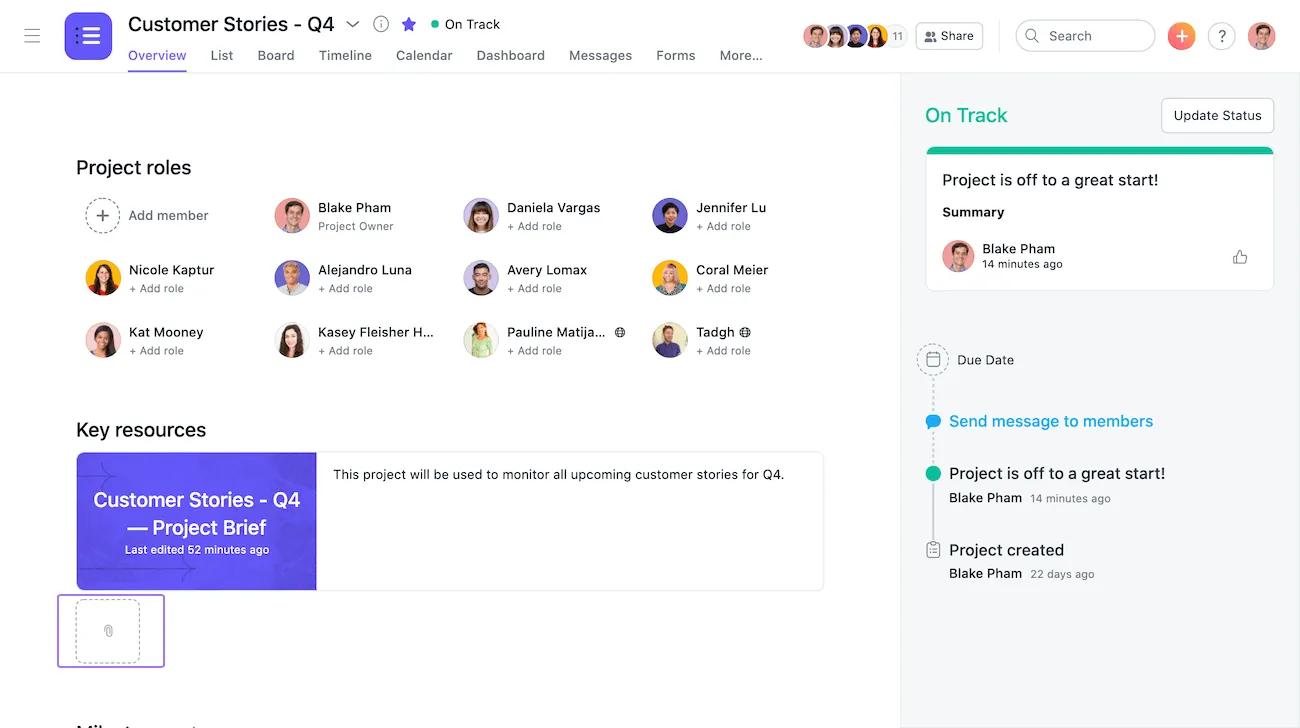
Adding a project brief allows you to explain the what and why of the project to your team.
To add a project brief, click on the Create project brief icon under the Key resources section of your project overview.
Next add more context by filling in more details. You can also use the Suggested content in the right hand sidebar.
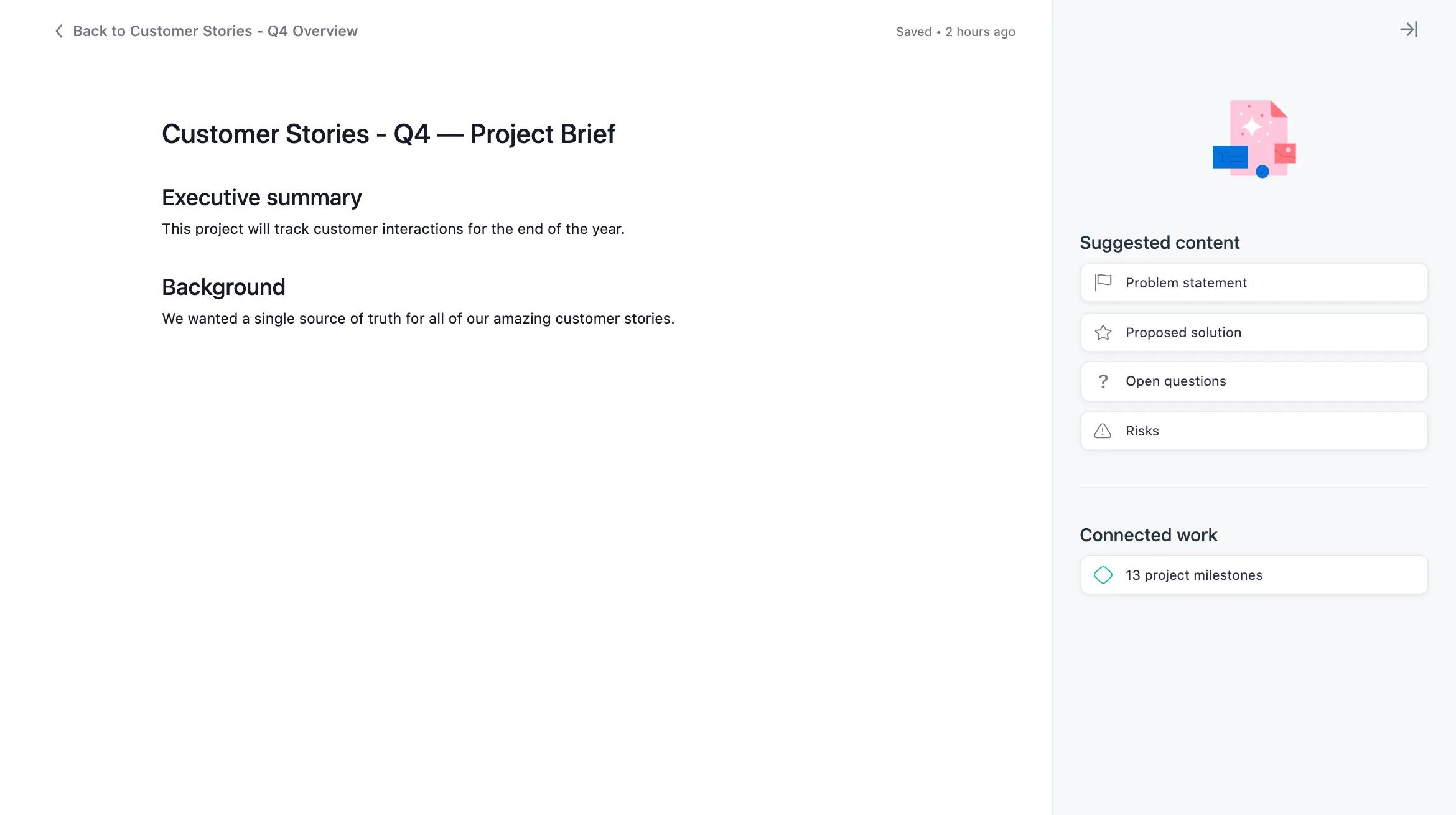
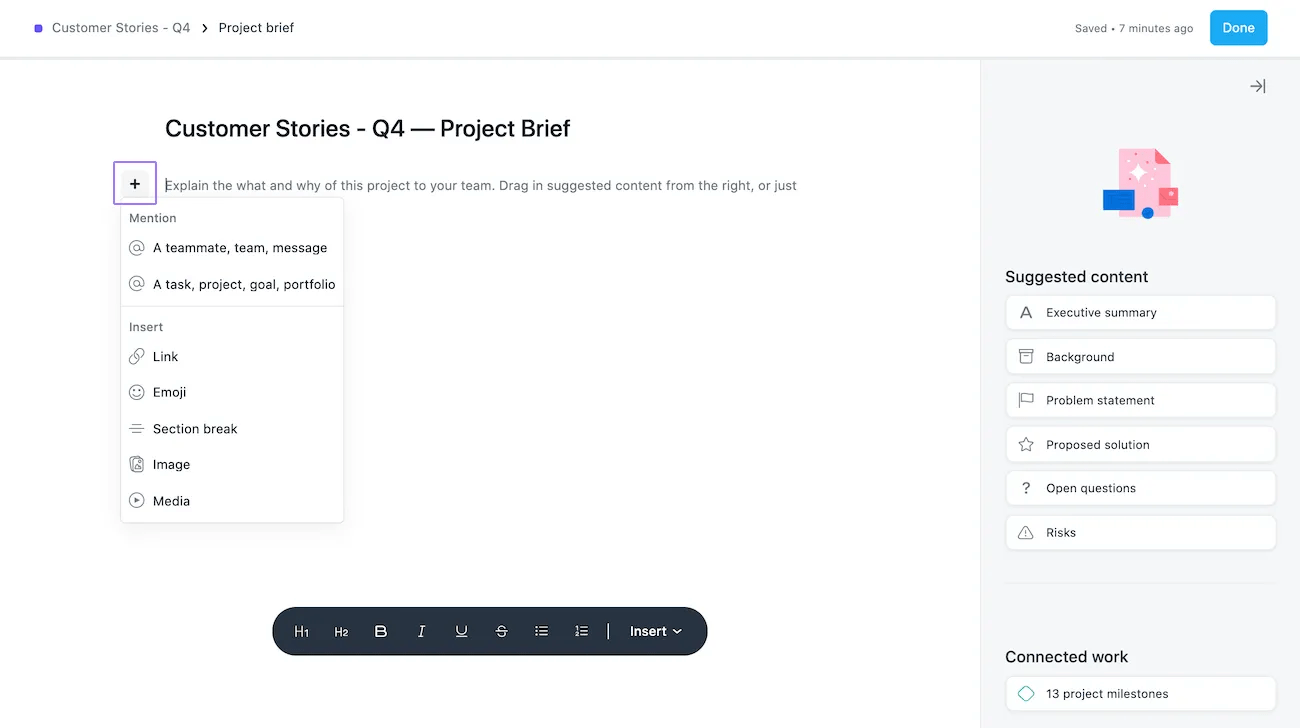
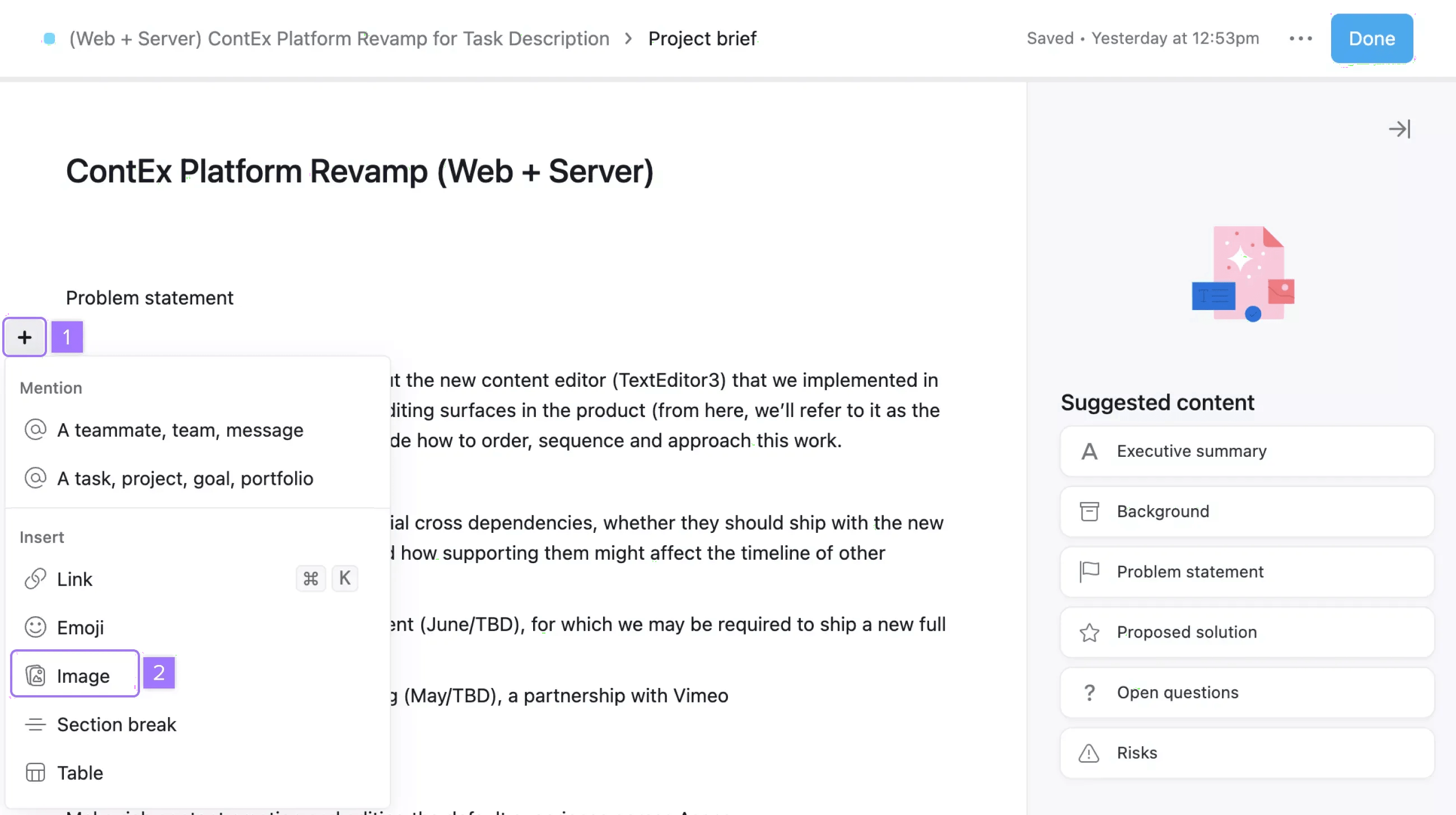
Use the + icon in your project brief to quickly @mention team members, tasks, projects or portfolios, insert links, emojis, section breaks, tables, images or media.
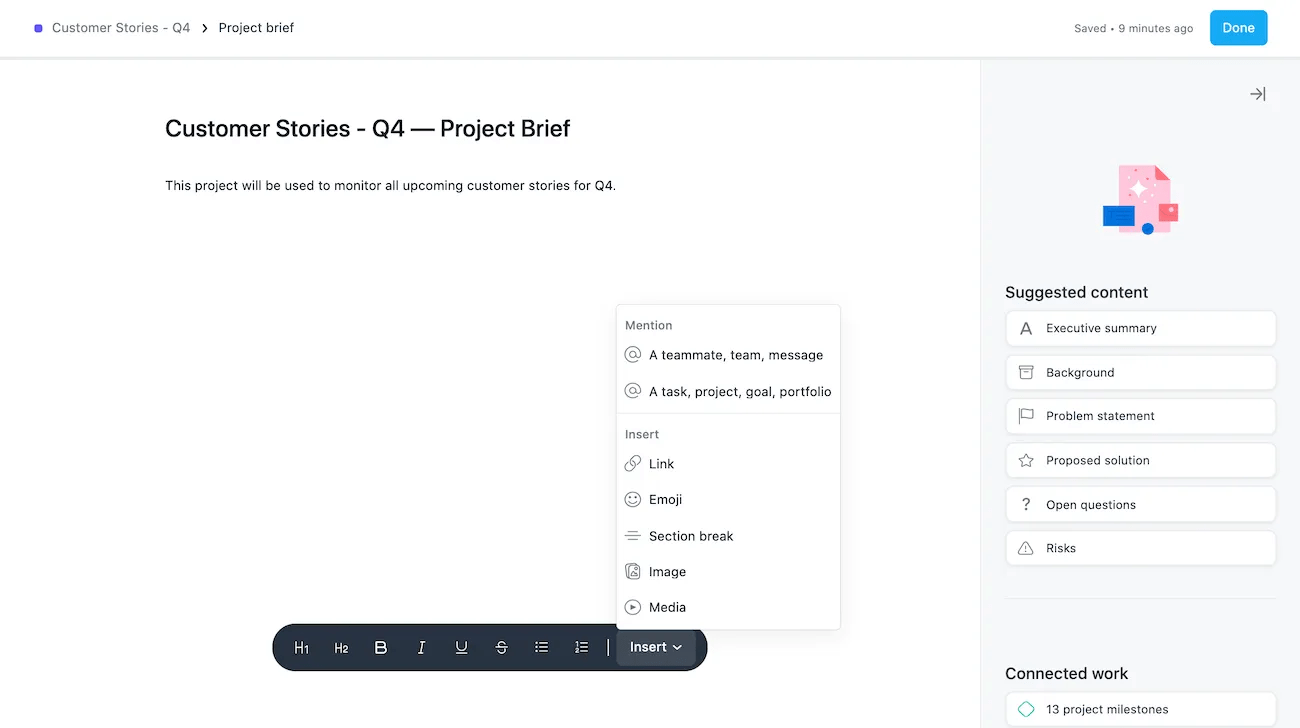
The project brief toolbar allows you to format text and @mention team members, tasks, projects or portfolios, insert links, emojis, section breaks, images or media.
 Editing an existing project brief
To edit an existing project brief, click the pencil icon.
You can easily add images to your project brief.
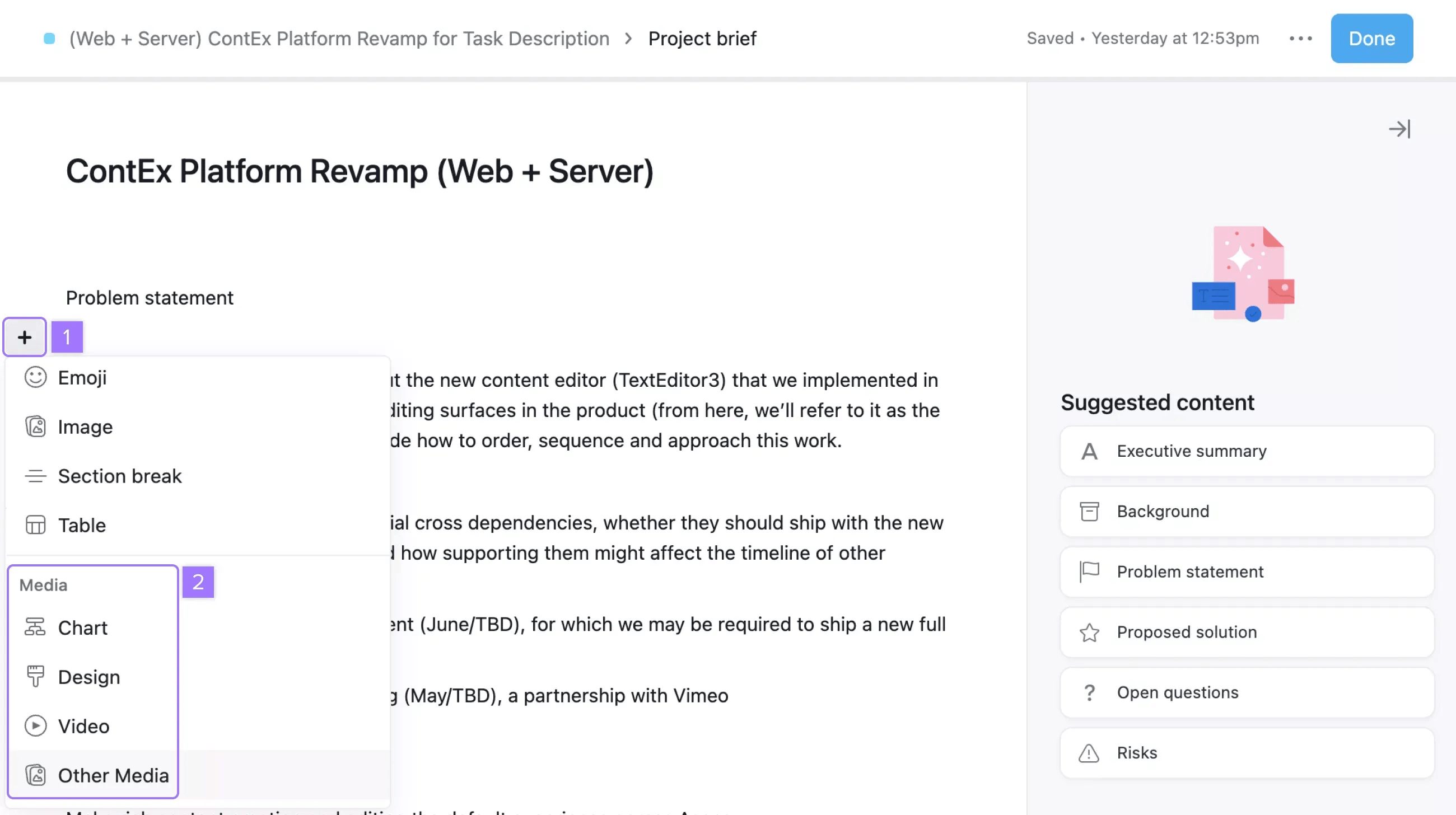
To add media from Adobe XD, Canva, Figma, InVision, InVision Freehand, Looker, Loom, Lucidchart, Miro, Vimeo, Whimsical, Wistia, or YouTube to your project brief, click on the Media icon in your toolbar.
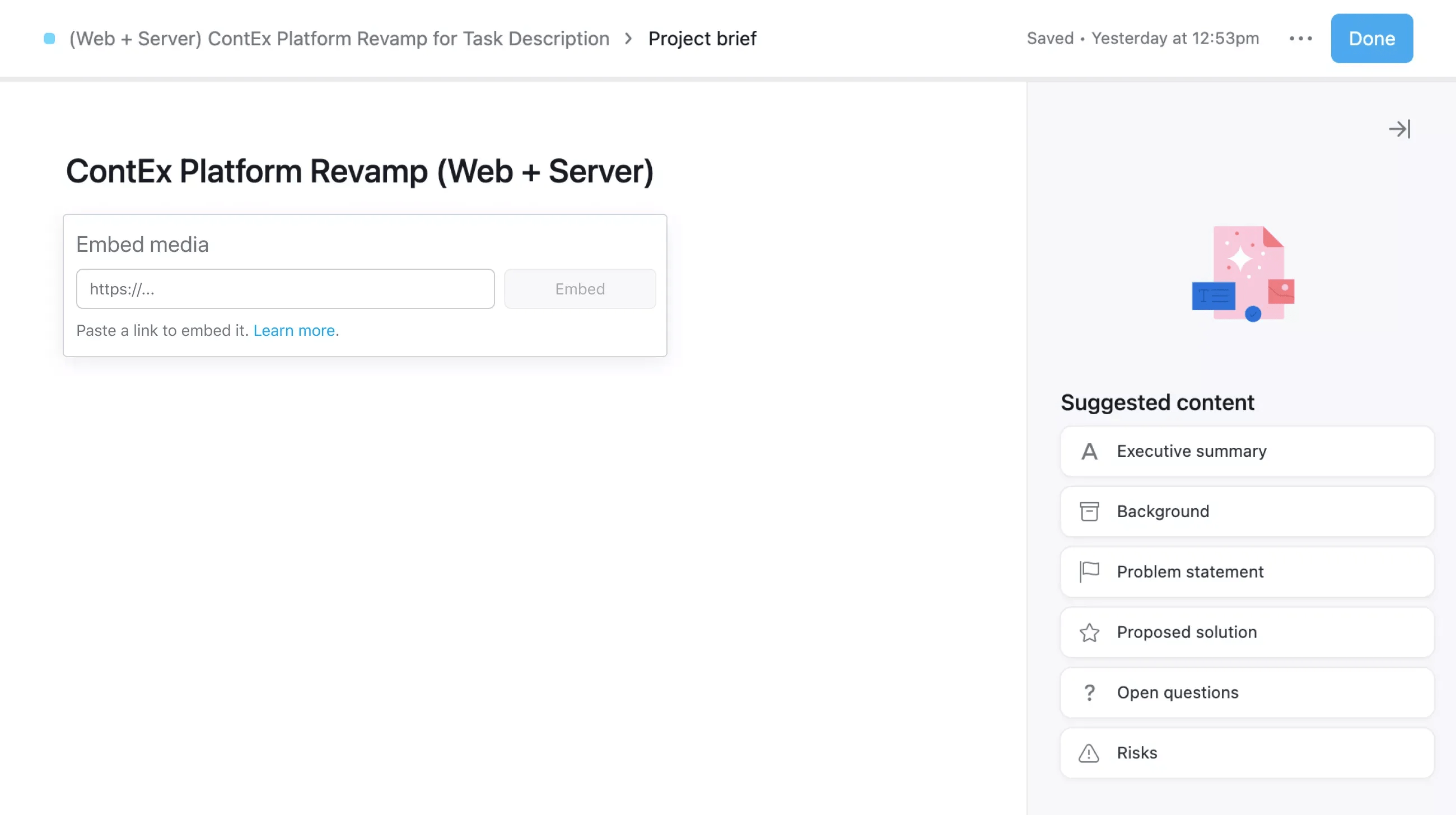
From the next window, paste your URL link.
Note
You can also paste the link from one of these services directly into your project brief. It will then display the embed automatically.
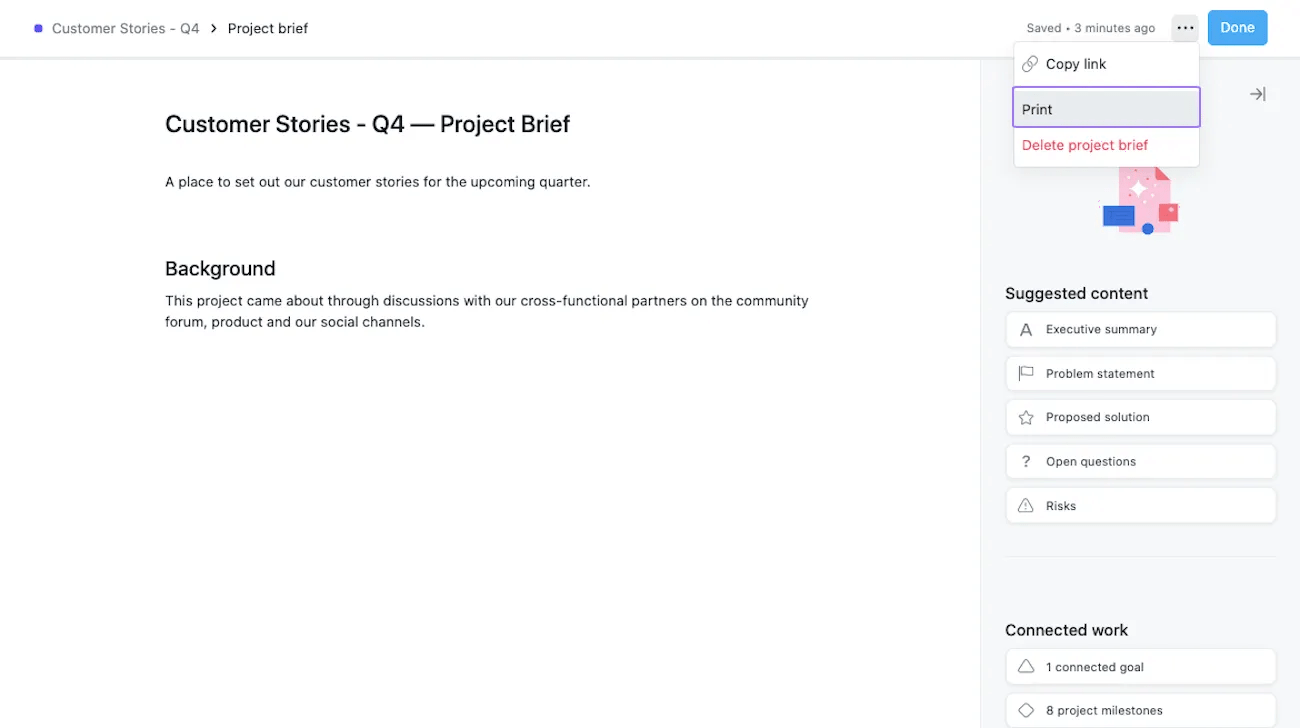
To print your project brief click on the three dot icon and select Print.
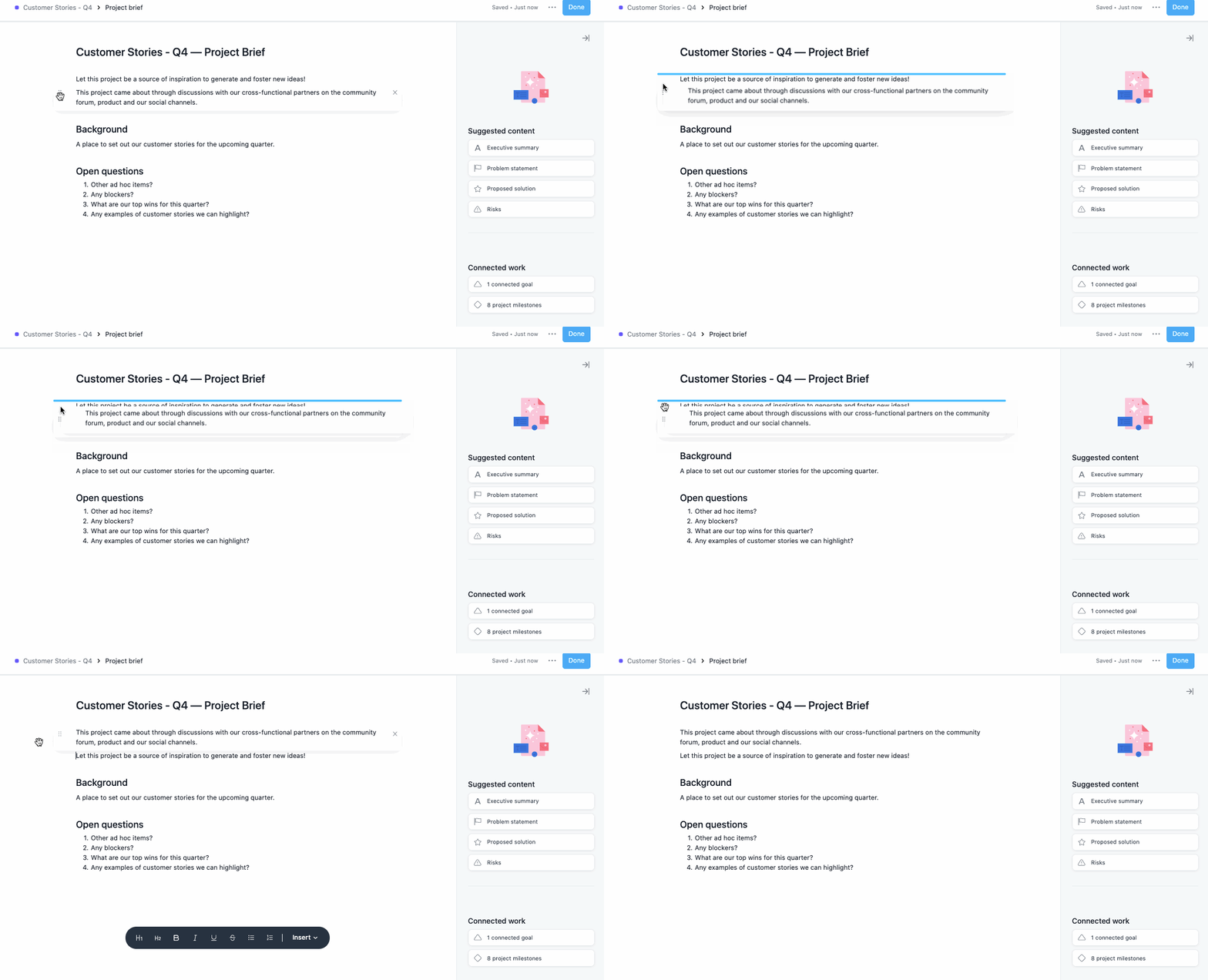
Use the drag and drop feature to easily move or reorganize your content blocks.
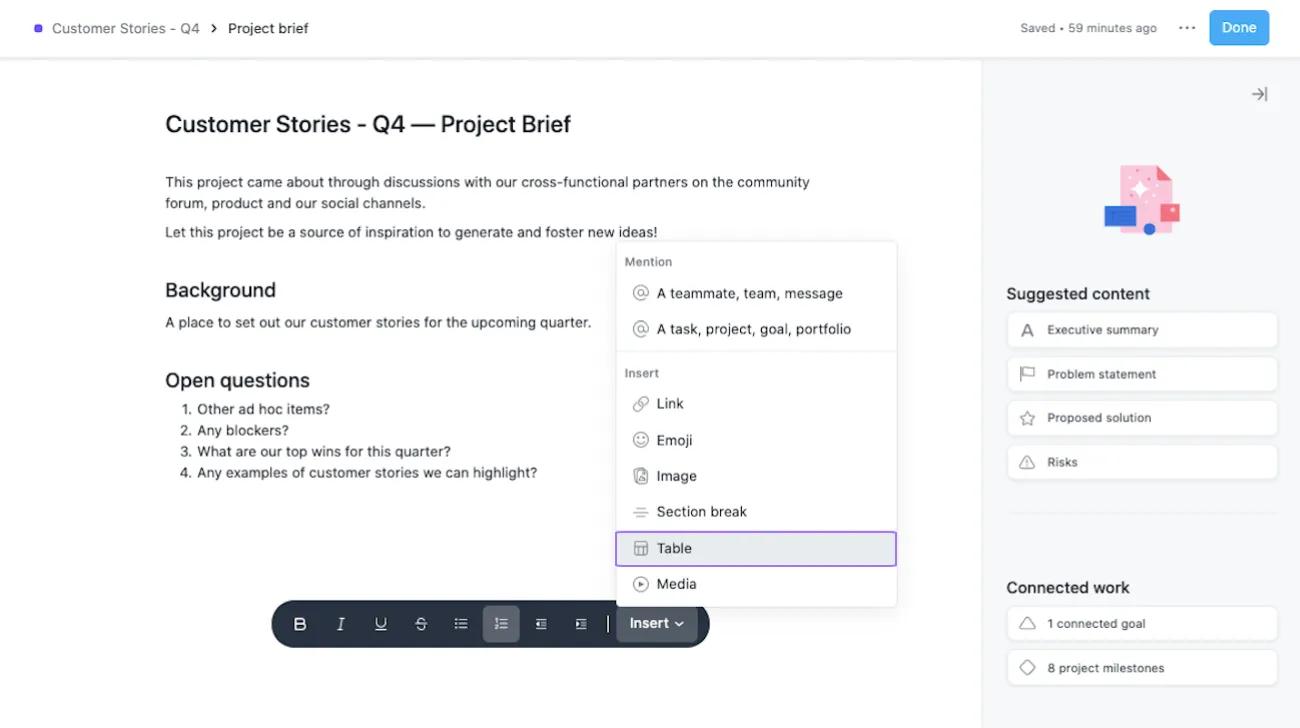
Insert a table via all the ways you can insert rich text elements. You'll be able to insert rows and columns, select full rows or columns to delete, copy and paste tables from documents, and even insert some useful block elements (lists and images) into the cells.
You can insert a table by clicking the drop-down arrow next to Insert on your toolbar. Then select Table.
Type "/" to insert elements into your document. Filter options by typing out the option you wish to select and/or use the arrow keys to choose it from the dropdown. This works in tables as well to insert rows and columns.
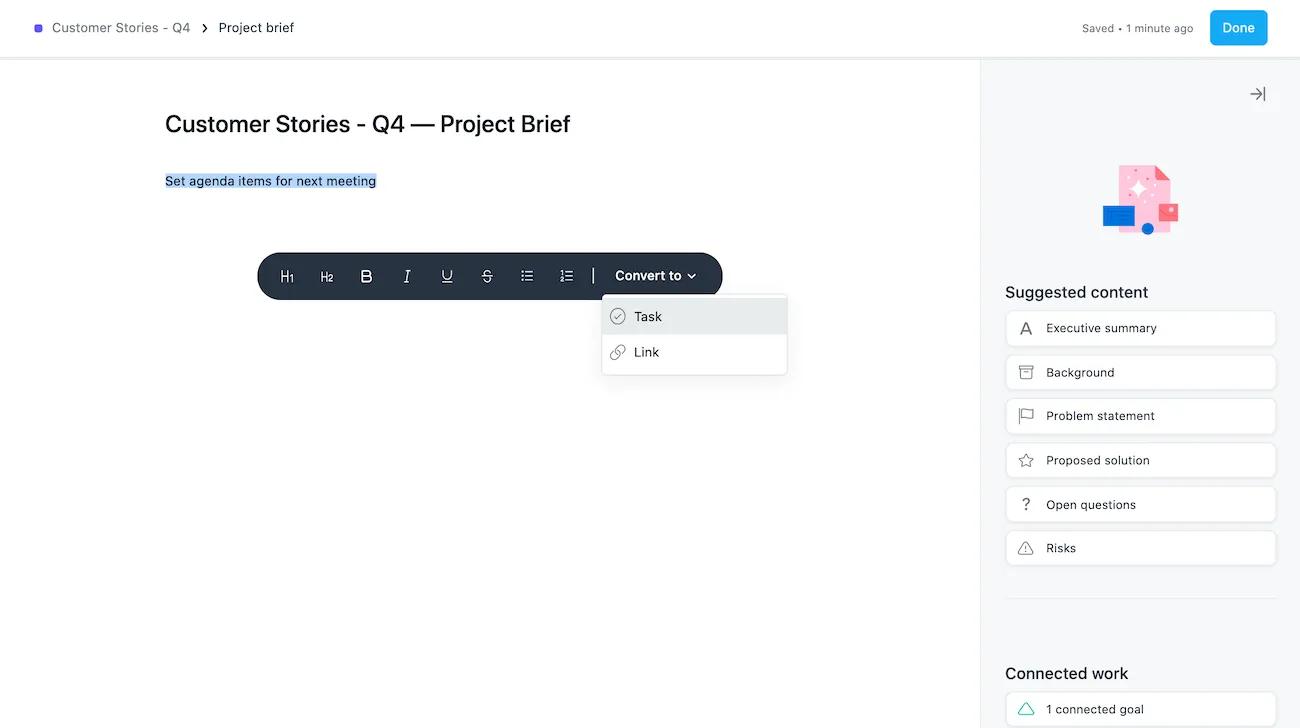
You can also turn text into a task in your project brief by using the keyboard shortcut Ctrl/Cmd+shift+enter.
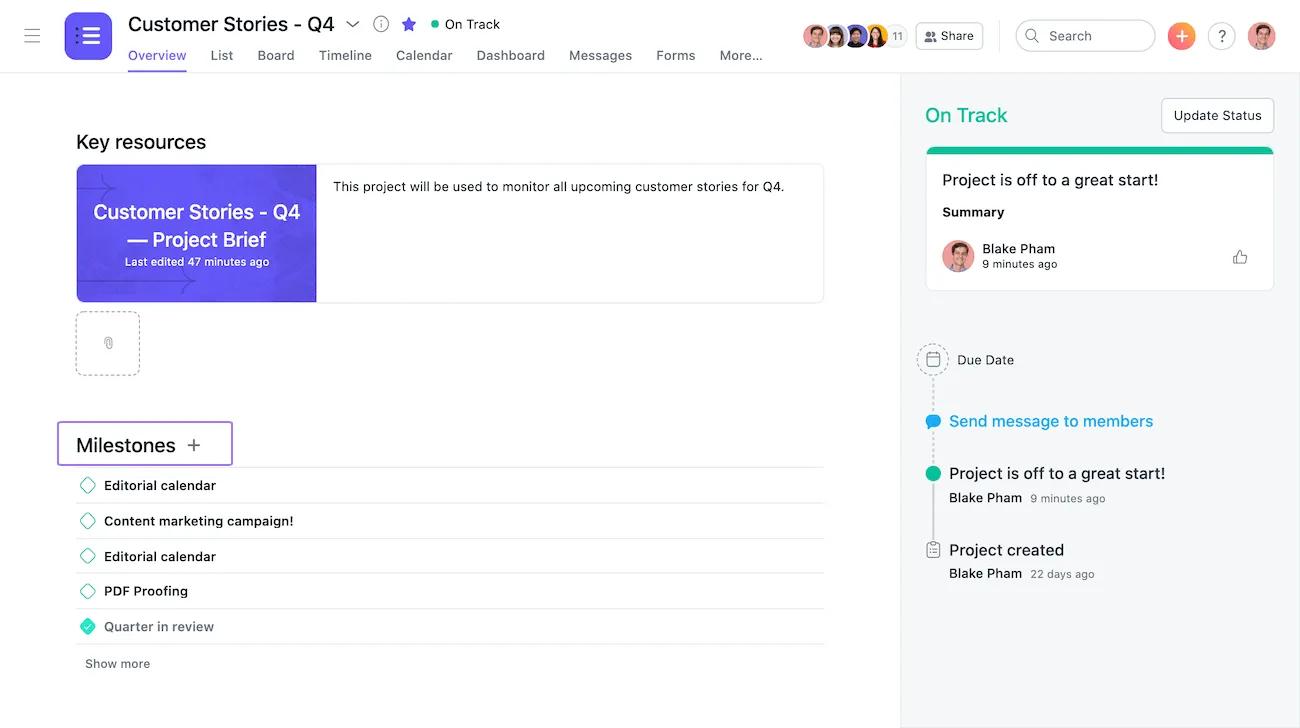
Project milestones are accessible and visible on your project overview. Click into any milestone to view or edit its details. Click the + icon to add a new milestone.Milestones are available with a paid Asana subscription.
Like what you see? Get started with a free Asana trial today. Try for free.
You can view the progress or update the status of any project you’re working on from your project overview tab.