Products


AI Platform


Asana Foundations
Company Type

Visit our pricing page for more information.
As work progresses through different stages, it's important to have a streamlined process for moving tasks to the appropriate project sections. This ensures clarity on what stage each piece of work is at and who needs to take action next.
You can employ a combination of automations and custom fields to move tasks between sections based on the stage that the work has reached. This article outlines how to leverage these features to keep work flowing smoothly across the key stages outlined below.
As an example, we'll look at how a task which requests a social media post from a creative team moves through four stages: planning, writing, review, and finally publication.
The first thing you'll need to do is set up four sections to match the four different stages that the task will move through. We've chosen board view to ensure visual clarity when a task moves from one stage to the next.
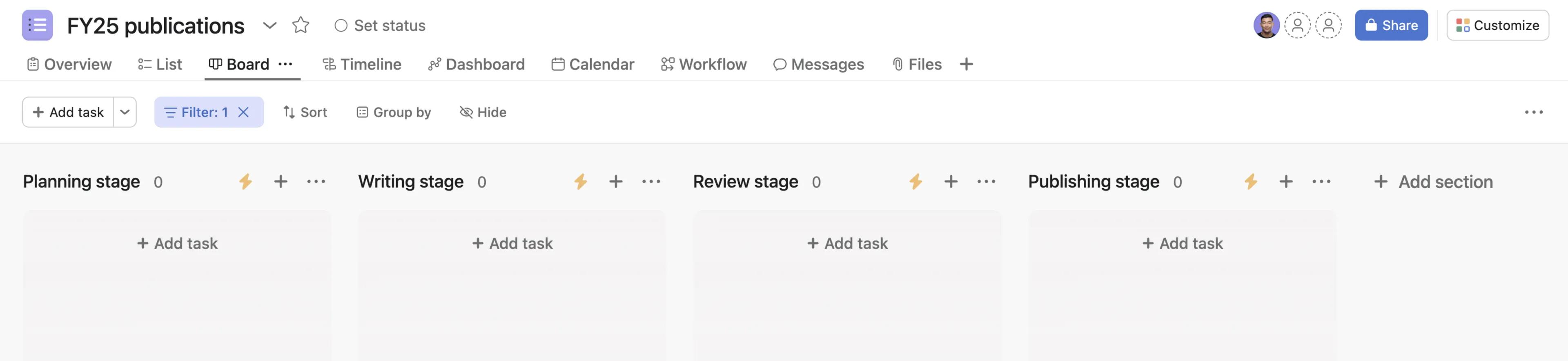
Next, you'll need to set up a custom field so that an automation can be triggered by changes made to the field value. Here we've set up a single-select field named Workflow stage, and chosen the options Begin planning, Begin writing, Needs review, and Ready for publication. Each of these values can be used as a condition to fire a specific automation action later on.
Each custom field value corresponds to a section that was created earlier.
Once the sections and custom field have been created, you can build an automation to move tasks automatically.
When a task reaches a certain stage, the assignee or another project member chooses a particular custom field, and the task moves to the corresponding section. This is useful because you can build further automation actions on top of this movement.
With this setup, simply updating the Workflow stage field will automatically transition the task through the key phases, assigning it to the appropriate people at the right time, and taking various other preconfigured actions such as multi-homing, or marking the task as an approval.
You can build on the basic structure of moving tasks through sections, by adding more sophisticated actions on top of movement-based ones. See the example below, where a social media post task has been marked as Needs review, and has been moved automatically to the Review stage.
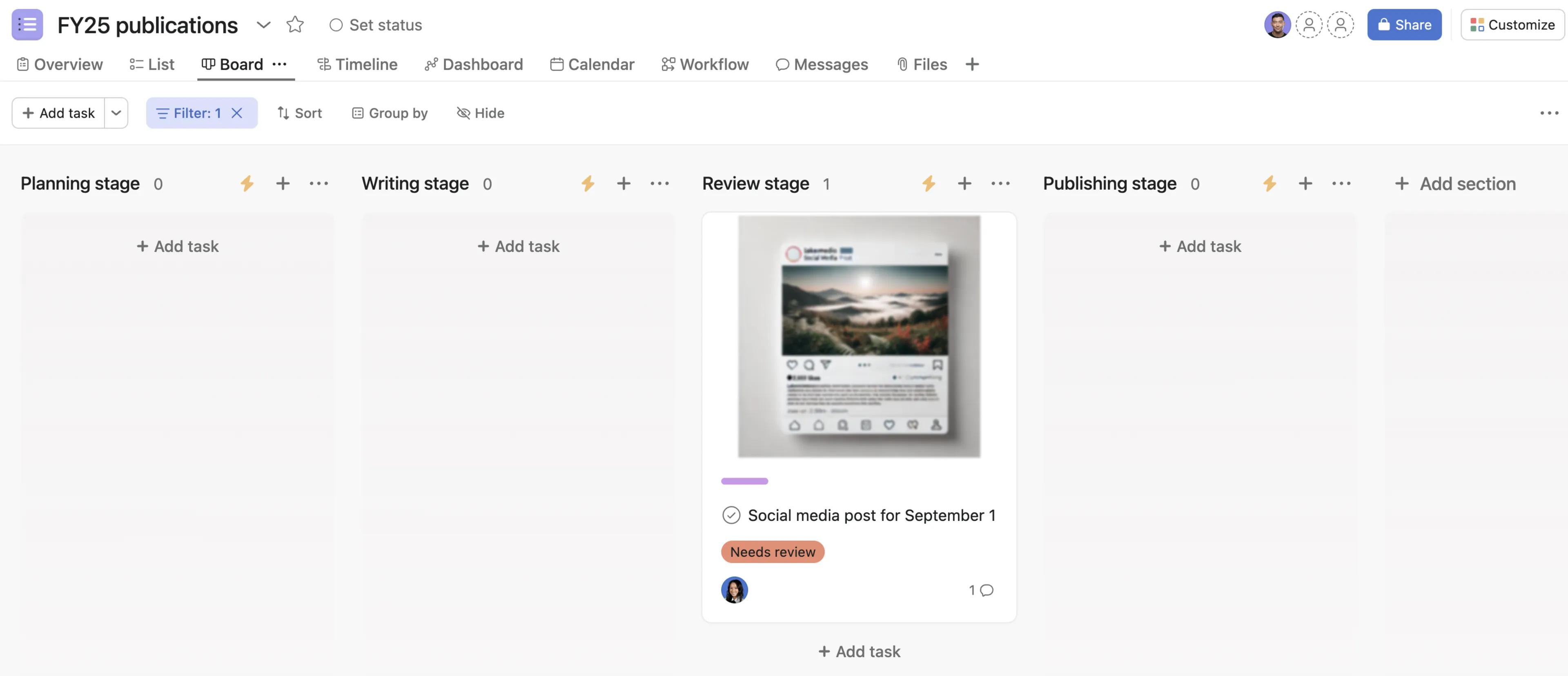
Outwardly, nothing has changed for the members of the FY25 publications project, but within the automation settings we can see that the task has been multi-homed into the Legal Inbox project, so that the legal team's own review process can be kicked off.
Once reviewed, Amy will change the custom field value to Ready for publication, and the task will move to the Publishing stage of the FY25 publications project, irrespective of its position in the Legal Inbox.

