Products


AI Platform


Asana Foundations
Company Type

Visit our pricing page for more information.
Available on Asana Advanced, Enterprise and Enterprise+ tiers, as well as legacy tiers Business and Legacy Enterprise.
Visit our pricing page for more information.
With formula custom fields, you can perform calculations directly in Asana, making managing data easier and significantly enhancing your productivity.
Some examples of when you can use formula custom fields are:
| Example | Formula |
| Capacity management | Effort = [Quantity of weeks] * [Allocation] |
| Time to complete | [Completed at] – [Created at] |
| Time/amount overdue | [Completed at] – [Due date] |
| Billing | [Amount per hour] * [Total hours] |
| Estimated hours | ([Due Date] – [Start Date]) * [Hrs per week] |
| Burn rate | ([Starting Balance] – [Ending Balance]) / [Number of months] |
| Prioritization | ([Weight] * [Input]) + ([Weight] * [Input]) |
You can add these new formula custom fields to your domain’s global custom field library.
| Function | Definition | Syntax | Examples | Available in |
|
Add | Add two values |
Add(value1, value2) Add([value], number) [value1] + [value2] [value] + number |
Add([BudgetA], [BudgetB]) Add([Subtotal], 3) [BudgetA] + [BudgetB] [Subtotal] + 3 | Basic |
| Subtract | Subtract two values |
Subtract(value1, value2) [value1] - [value2] |
Subtract(Budget, Spend) Subtract(Due date, Start date) [Budget] - [Spend] [Due date] - [Start date] | Basic |
| Multiply | Multiply two values |
Multiply(value1, value2) [value1] x [value2] |
Multiply(Hours, Rate) [Hours] * [Rate] | Basic |
| Divide | Divide two values |
Divide(value1, value2) [value1] / [value2] |
Divide(Remaining, Total) [Remaining] / [Total] | Basic |
| DateAdd | Add days to a date | DateAdd(date, number) | DateAdd([Due date], 3) | Advanced |
| DateSubtract | Subtract days to a date | DateSubtract(date, number) | DateSubtract([Due date], 3) | Advanced |
| Rollup | Sum up all subtasks in a new field. To include main task values, add the field again as shown in the first example. |
Rollup(value1) |
Rollup(#Field1) + (#Field1) Rollup(#Field1) | Advanced |
Inputs are the various data types that can be referenced within a formula to perform calculations or generate dynamic content. Most of the available inputs will be the fields that exist on a project or portfolio.
Note
When used in formulas, these fields are always UTC timestamps.
The "Today" input lets you reference the current date in a formula. This is particularly useful for creating date-based calculations and automatically updating project timelines.
By leveraging the add, subtract, multiply, and divide operators, you can perform a wide range of calculations within Asana and gather powerful insights about your work. Use these formulas to efficiently manage numerical data when creating budgets, analyzing sales figures, calculating capacity, and many more scenarios.
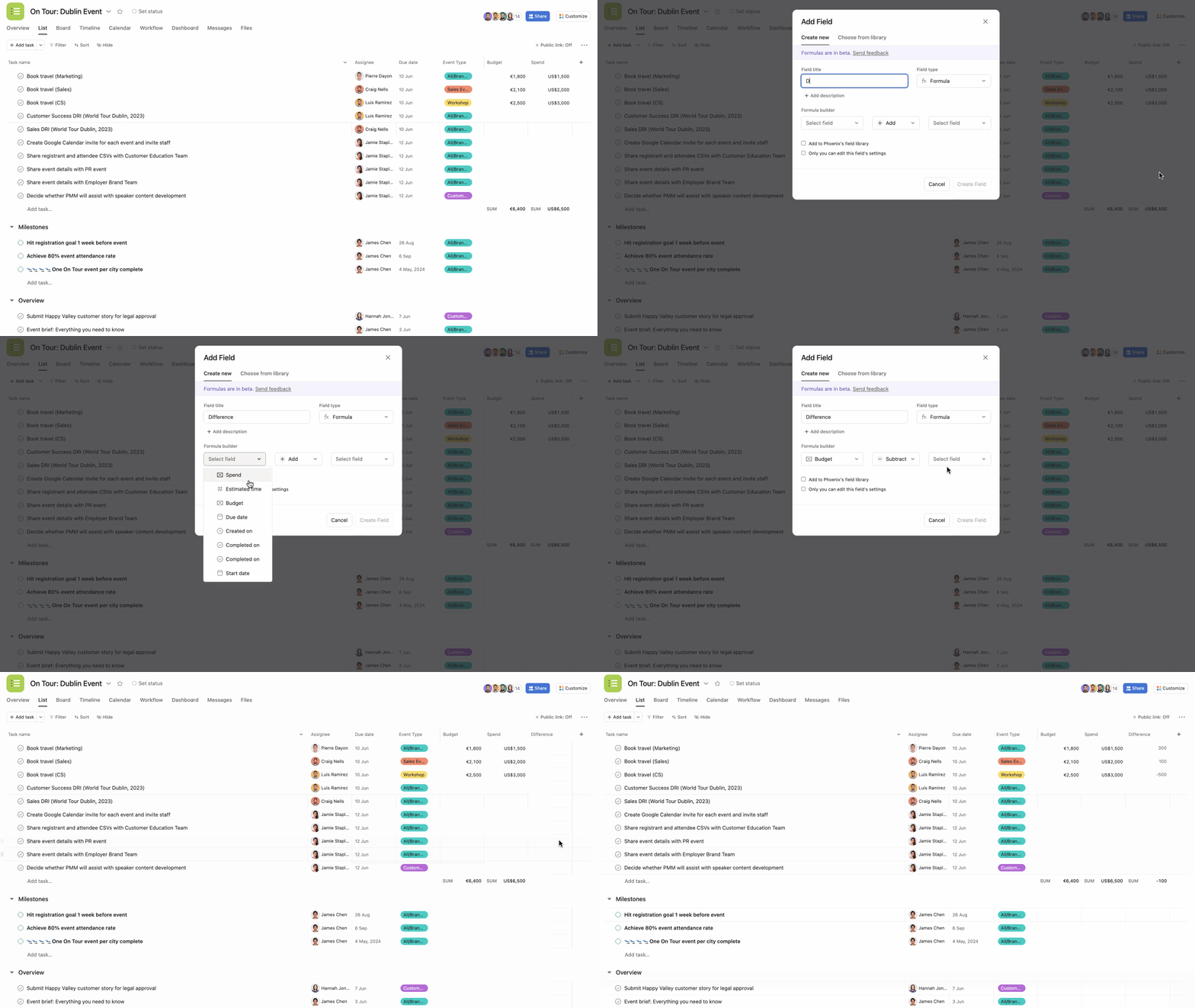
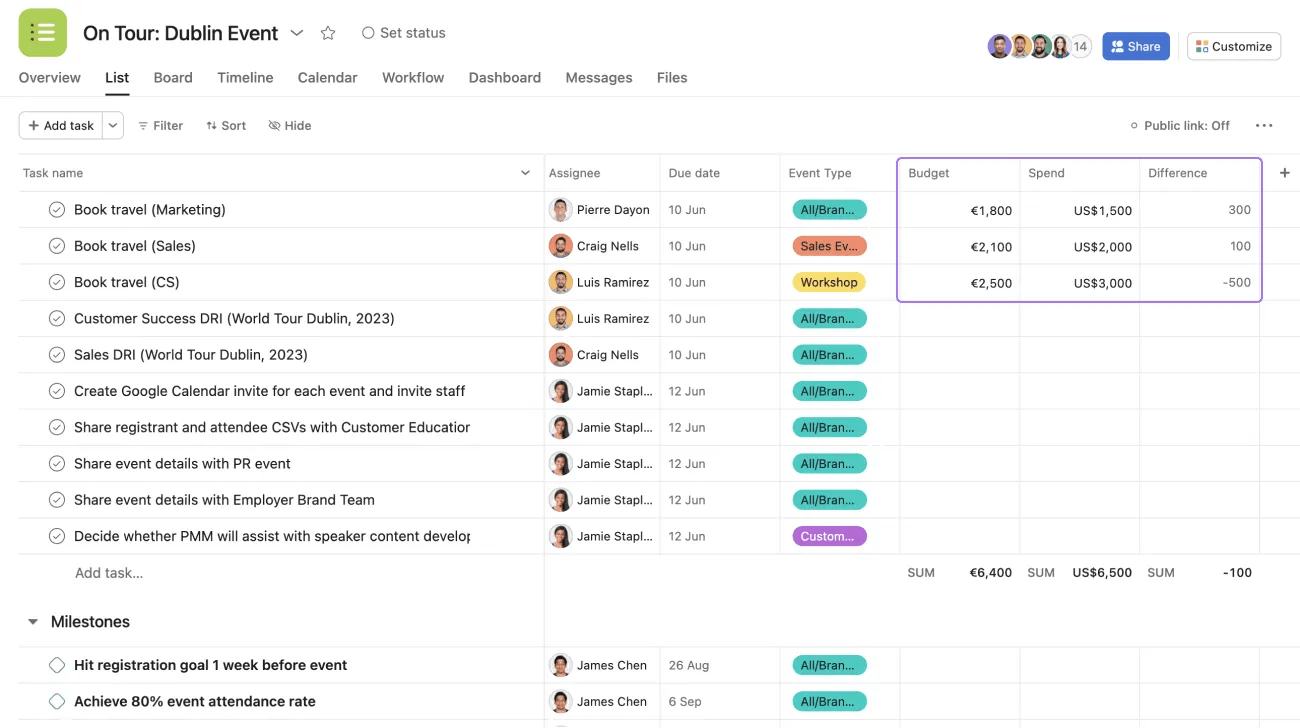
Here, the Event manager wanted to compare resources. To do so, they calculated the difference between the budget and what they spent, so they created the Difference formula custom field. The formula they used in the formula builder was Budget minus (-) Spend.
Another example of when you can use a formula custom field is when you’re trying to calculate your team’s capacity.
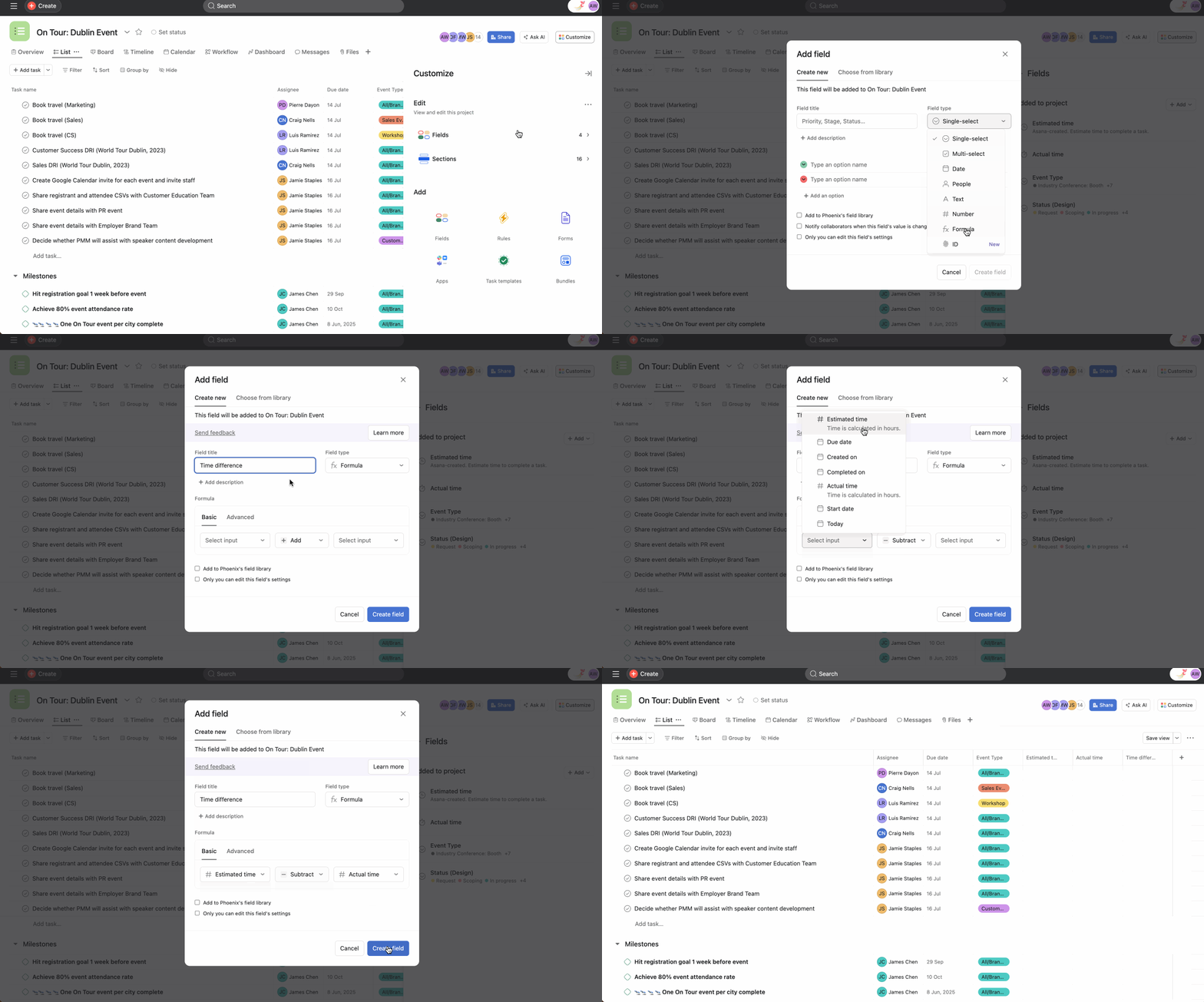
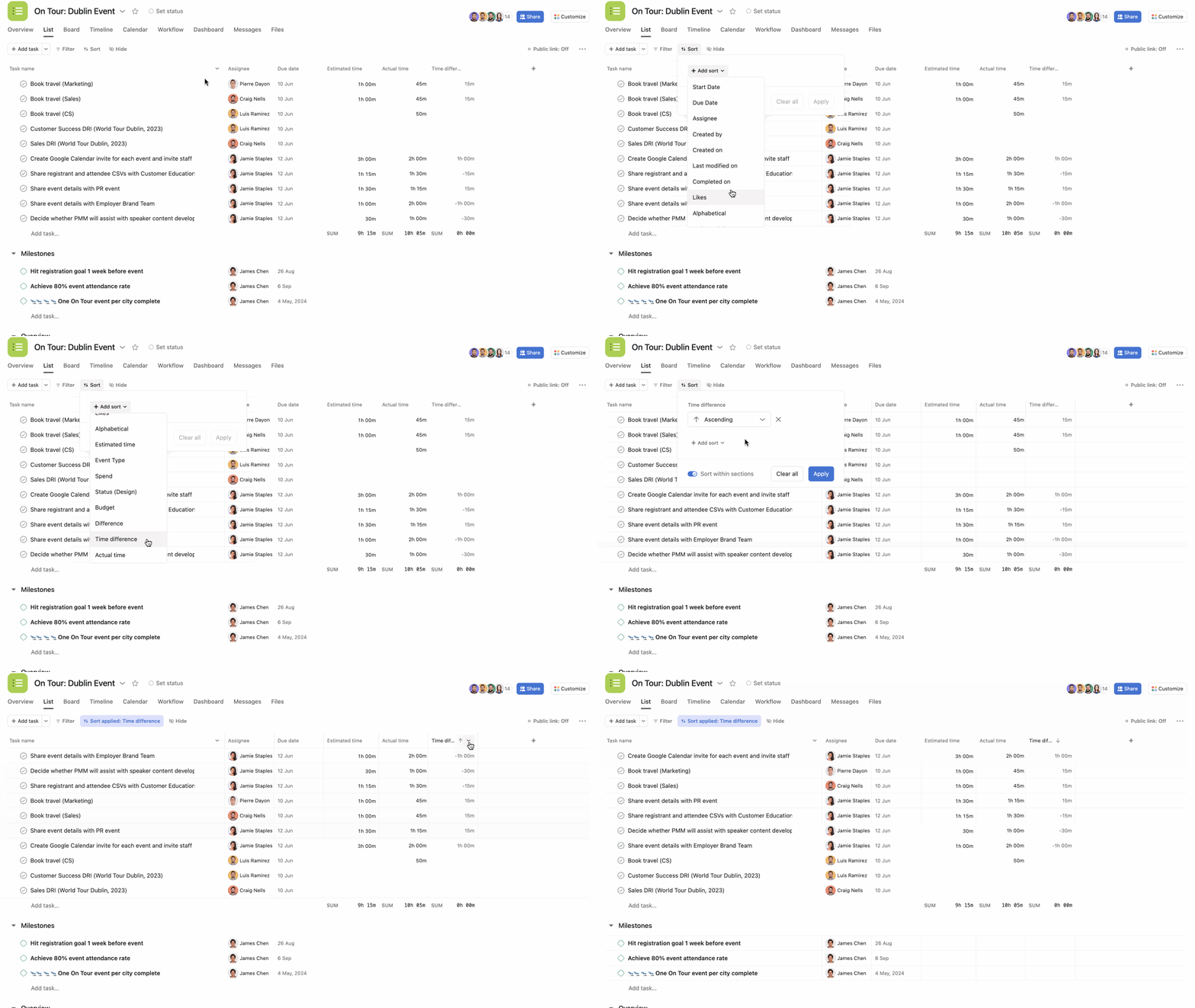
Here, the Event manager calculated the difference between the Estimated time and the Actual time for each task to see which task took more or less time than expected. The formula they used in the formula builder was Estimated time minus (-) Actual time.
Other examples of when you can use formula custom fields are:
You can add these new formula custom fields to your domain’s global custom field library.
With advanced formula custom fields, you can create more complex formulas with more than one operator.
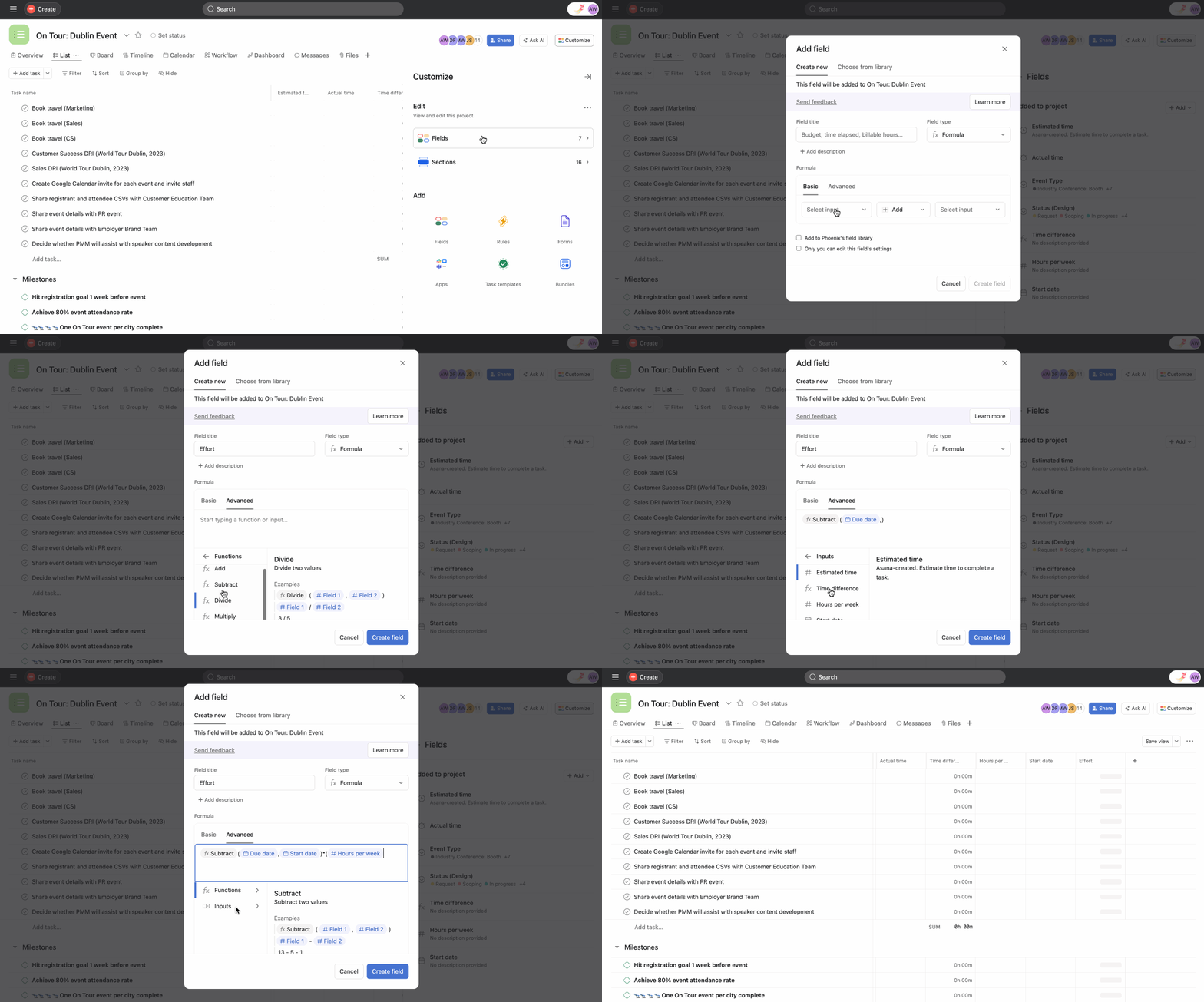
With formula chaining, you can use existing formula custom fields as inputs to another formula you're creating.
For example, if you have an existing formula that's calculating Budget Remaining, you can use this value to build another formula (i.e. Burn Rate = Budget Remaining / Total Budget).
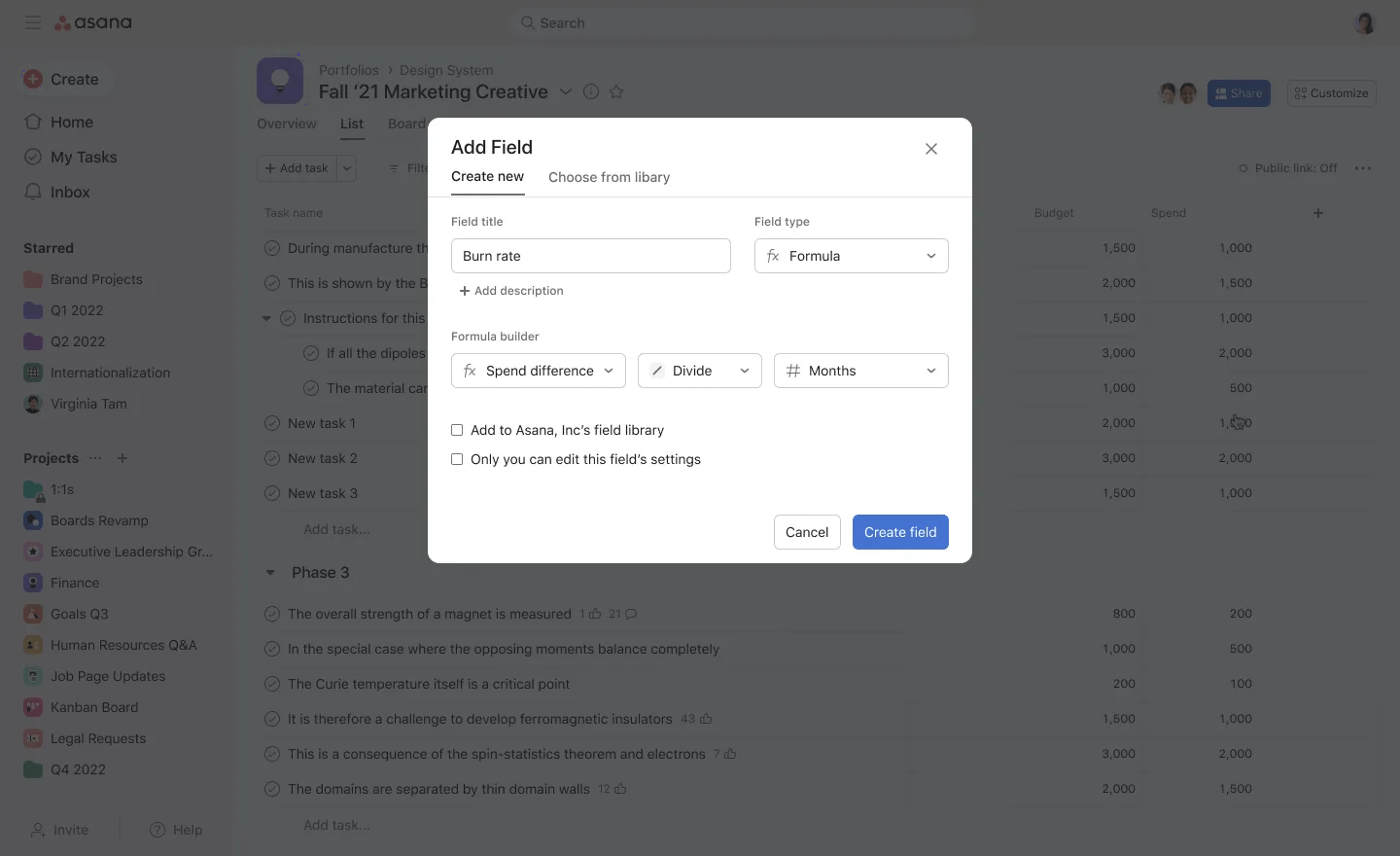
Some things to keep in mind as you're building more complex formulas:
You can create up to two layers of formulas when creating a new formula:
You can sort your formula custom fields by ascending or descending.
Use formula custom fields when creating charts to visualize data.
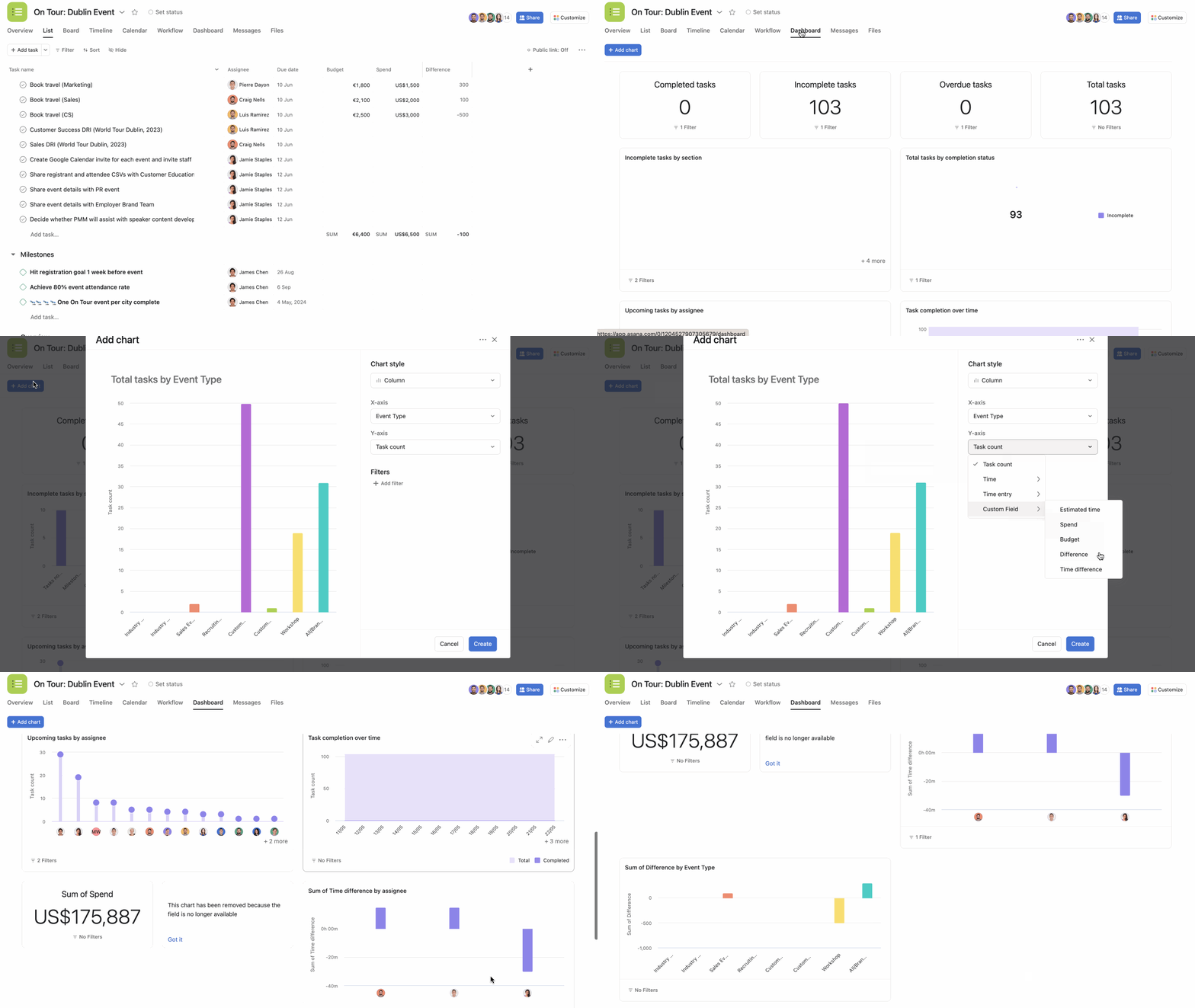
Learn more on how to create charts with our Reporting Help Center article.
You can use formula custom fields as the effort when creating universal or portfolio workloads.
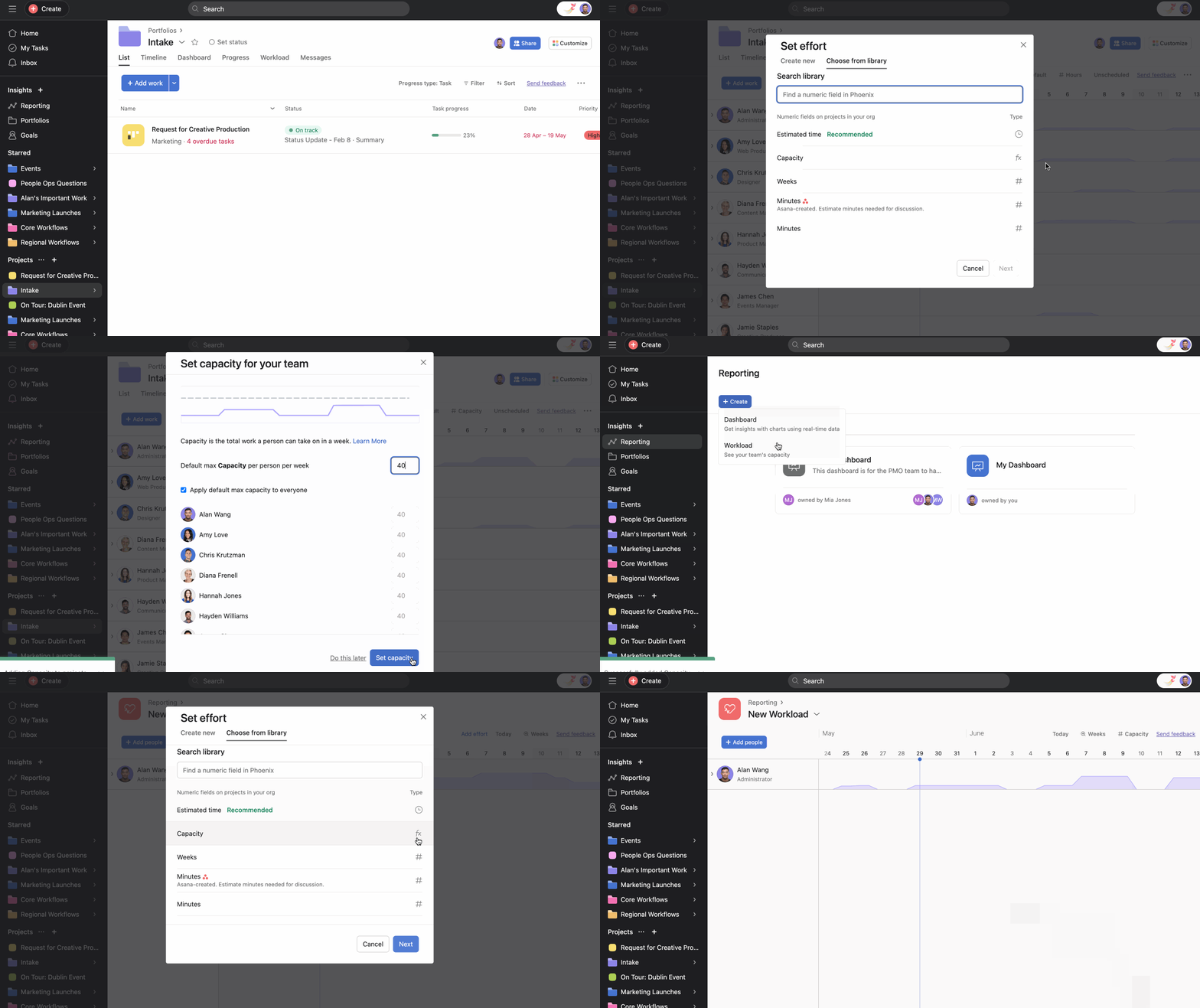
For example, here we are using the formula custom field Capacity as the team's effort.
Portfolios allow you to oversee multiple projects and gain a comprehensive view of your organization's initiatives. By incorporating formula custom fields into portfolios, you can perform calculations, track key metrics, and generate insights across various projects. Formula custom fields enable you to enhance decision-making, optimize resource allocation, and gain a holistic understanding of your portfolio.
Add a basic or advanced formula custom field to your portfolios through the + button or Customize menu.
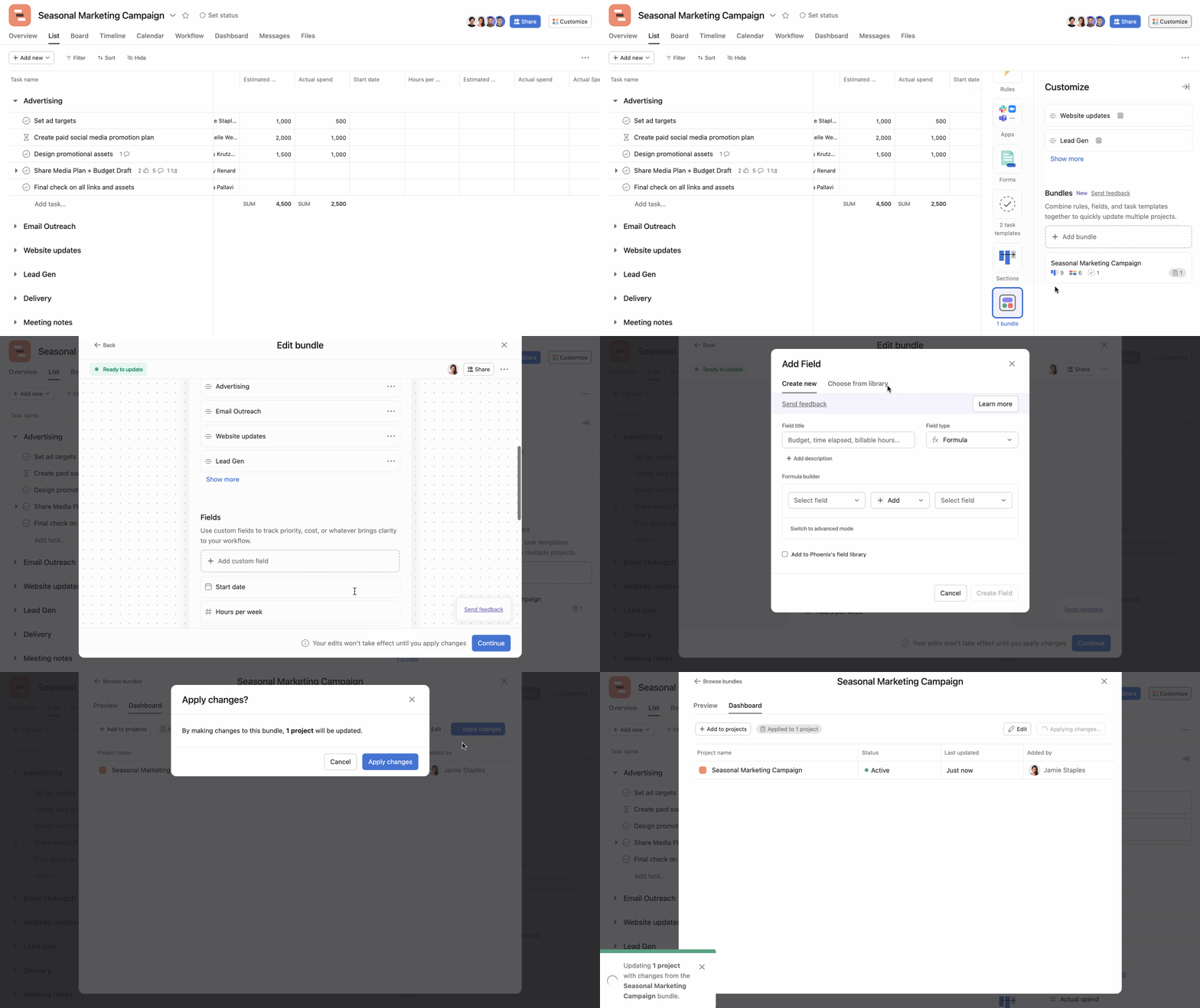
Bundles are powerful tools for standardizing processes and ensuring consistency across multiple projects. By incorporating formula custom fields within bundles, you can perform calculations and track key metrics specific to your standardized processes.
Formula custom fields support the same formatting as numerical custom fields. This allows you to display your calculation results with the appropriate units and formatting.
When creating or editing the formula field, click Formatting to select your preferred format and decimal places.

